
QR Code Ordering System for Restaurants in Malaysia
Synergy QR ordering lets guests order from their own phone. They scan the QR code on the table, pick dishes from your menu with photos, and the order goes straight to the kitchen and into Synergy POS. QR ordering is an add-on to Synergy F&B POS.
- Serve more tables with the same staff: no waiting for a waiter to take the order
- Fewer wrong orders: every order reaches the kitchen with the table number and remarks
- Bigger bills: food photos and add-on choices on every item
- No app to download: guests just scan with the phone camera
- Every sale recorded in Synergy POS and accounting
Why Restaurants Use QR Ordering
1Serve more tables with the same staff
Guests order as soon as they sit down. Your staff spend their time serving food and clearing tables instead of writing orders.
2Fewer wrong orders
Orders reach the kitchen exactly as the guest chose them, with the table number and remarks such as “no seafood” or “less spicy”.
3Bigger bills
Food photos and add-on choices on every item make it easy for guests to add a drink, a side or a second round.
4Faster table turnover
No waiting for the menu, the waiter or the bill. Guests can pay by e-wallet, online banking or card, or at the counter.
5Order more from the same table
After the first order, guests tap “Start Order” again to add more dishes to the same table.
6Change the menu in minutes
Update prices, photos and item details in Synergy. There are no menus to reprint.
7No app to download
Guests scan the QR code with their phone camera and the menu opens in the browser.
8Every sale in your POS and accounts
QR orders are recorded in Synergy POS like any other sale, so stock and sales reports stay correct.
How Synergy QR Ordering Works in 5 Steps
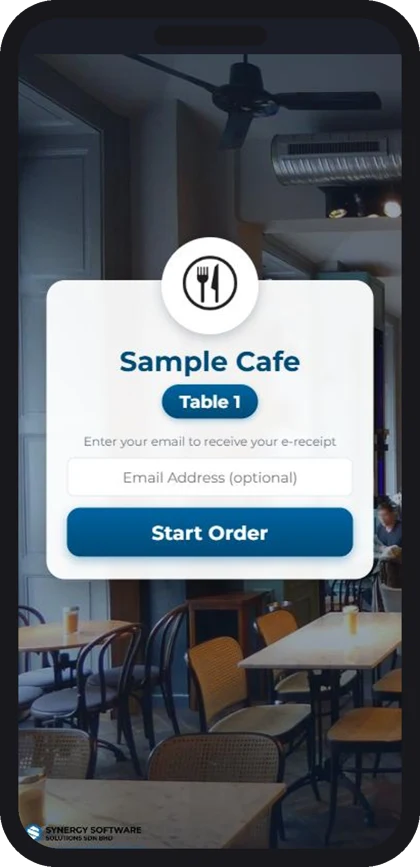
Step 1 - Scan the QR code on the table
The guest scans the QR code with the phone camera. The menu opens with your restaurant name and table number, with no app to download. Guests can key in an e-mail address to receive an e-receipt.
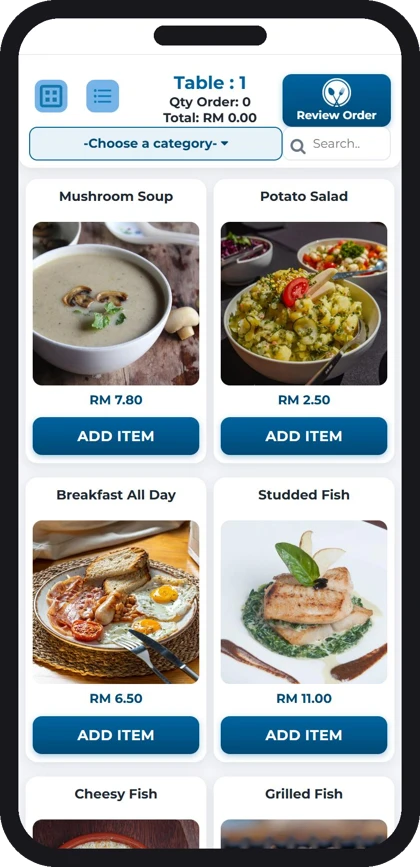
Step 2 - Browse the menu
Dishes are shown with photos and prices, sorted by category, with a search box. Guests tap Add Item on what they want.
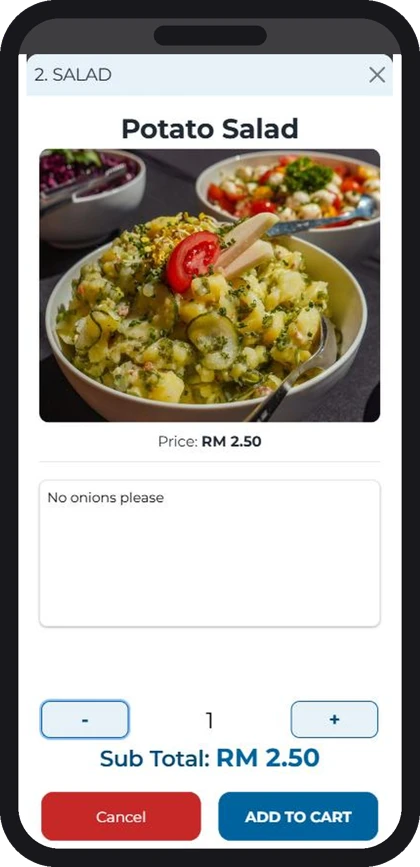
Step 3 - Choose quantity and add remarks
Each item shows a large photo and price. Guests set the quantity and type remarks such as “no onions please” or “no seafood”, so the kitchen gets it right.
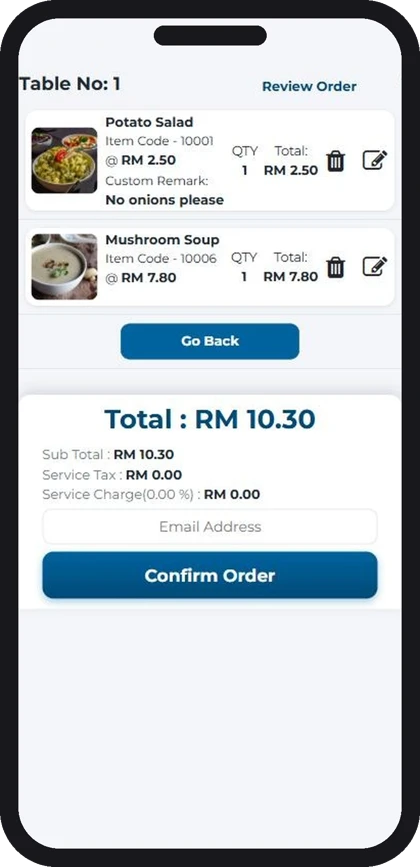
Step 4 - Review and confirm the order
The guest checks the items, sub total, service tax and service charge, then taps Confirm Order. Items can still be changed or removed before confirming.
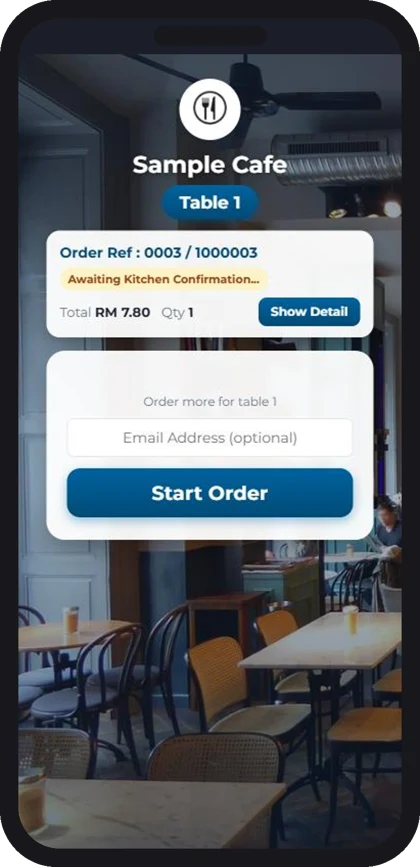
Step 5 - The order goes to the kitchen
The order is sent to the kitchen and recorded in Synergy POS with the table number. The guest sees the order reference and status, and can order more for the same table. Payment is by e-wallet, online banking or card, or at the counter.
Prefer your waiters to take orders at the table? See our POS for restaurants.
Frequently Asked Questions (FAQ)
Customers scan a QR code at the table to see the menu on their phone, place the order and pay, without waiting for a waiter.
No. They scan the QR code and the menu opens in their phone’s browser.
By e-wallet, online banking or debit/credit card on their phone, or at the counter.
Orders go straight into Synergy F&B POS and print in the kitchen with the table number. Sales and stock are recorded in Synergy POS and accounting.
Yes. Update items, photos, add-ons, categories and availability at any time.
It is an add-on to Synergy F&B POS. Contact us for a quote for your outlet.