
Use these checks, in order, when a Synergy app says there is a new version but it will not download or install.
Before you start
- Know which Synergy app you are updating and the Installed version shown in its Settings, under App updates.
- Your data stays on the phone. Nothing is lost while you fix the problem.
Steps
1. Check the internet
Make sure the phone can go online. Open a web page to test.
2. Check for updates again
Read the message that appears.
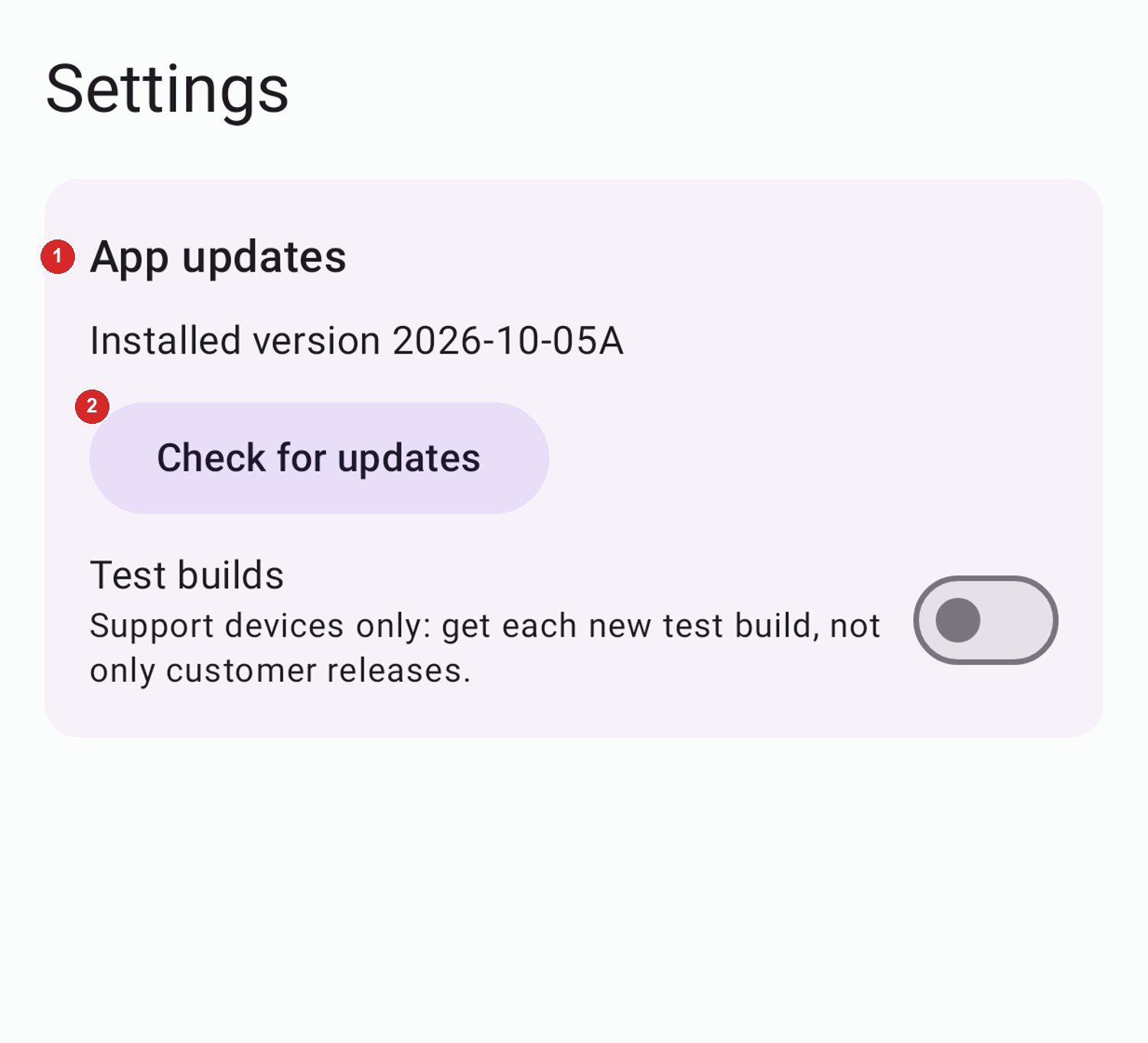
| Step | What to do |
|---|---|
| 1 | In the app open Settings, then App updates. |
| 2 | Tap Check for updates. |
3. Allow installing from this app
This applies when the message says to allow Install unknown apps.
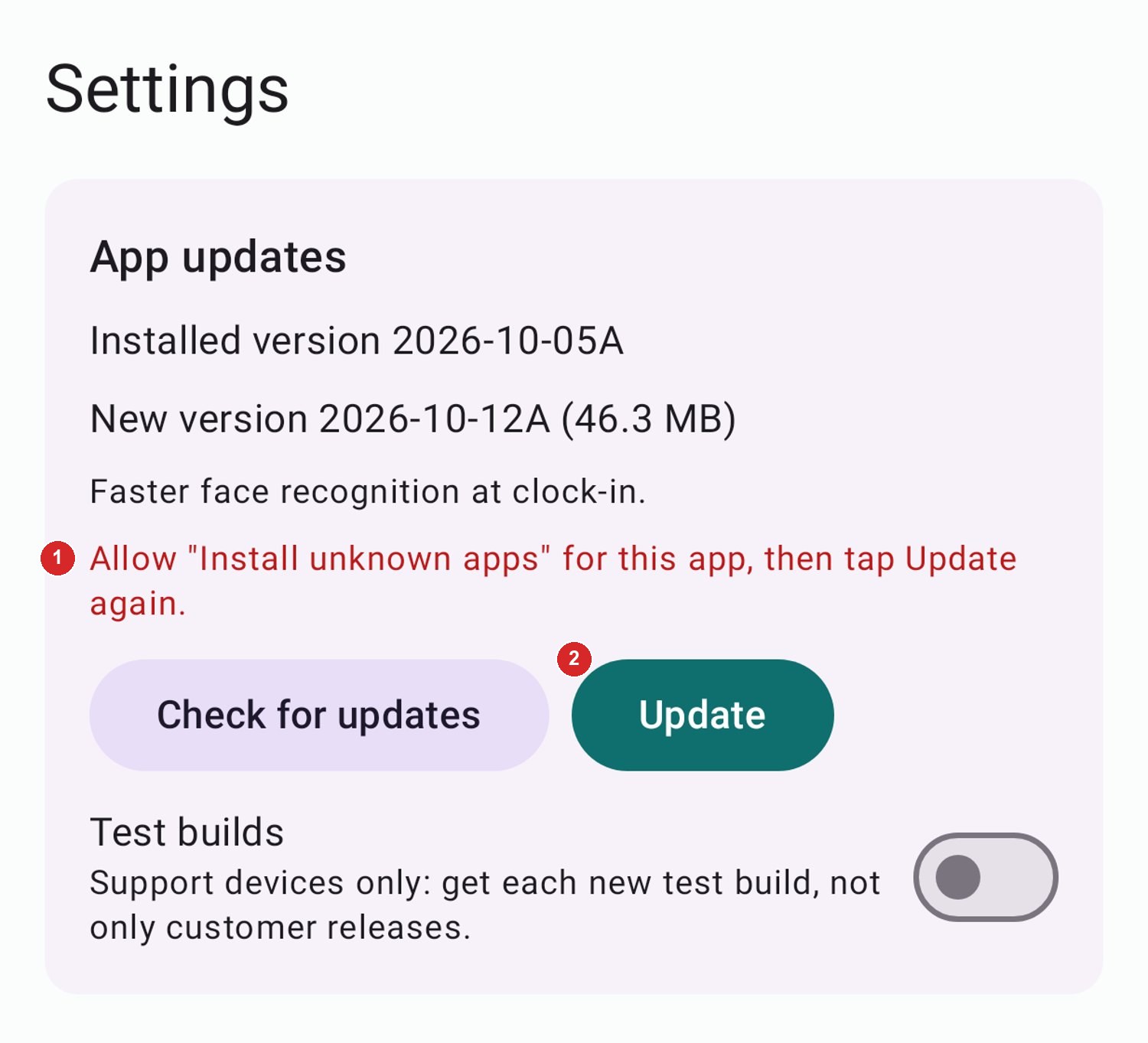
| Step | What to do |
|---|---|
| 1 | Read the message. If it says to allow Install unknown apps, open the setting Android offers, turn it on for this app and go back. |
| 2 | Tap Update again. |
4. Check the storage space on the phone
A failed download or install can mean the phone is full. Delete files you no longer need and tap Update again.
5. Try the update again
A broken download is detected and you are asked to tap Update again.
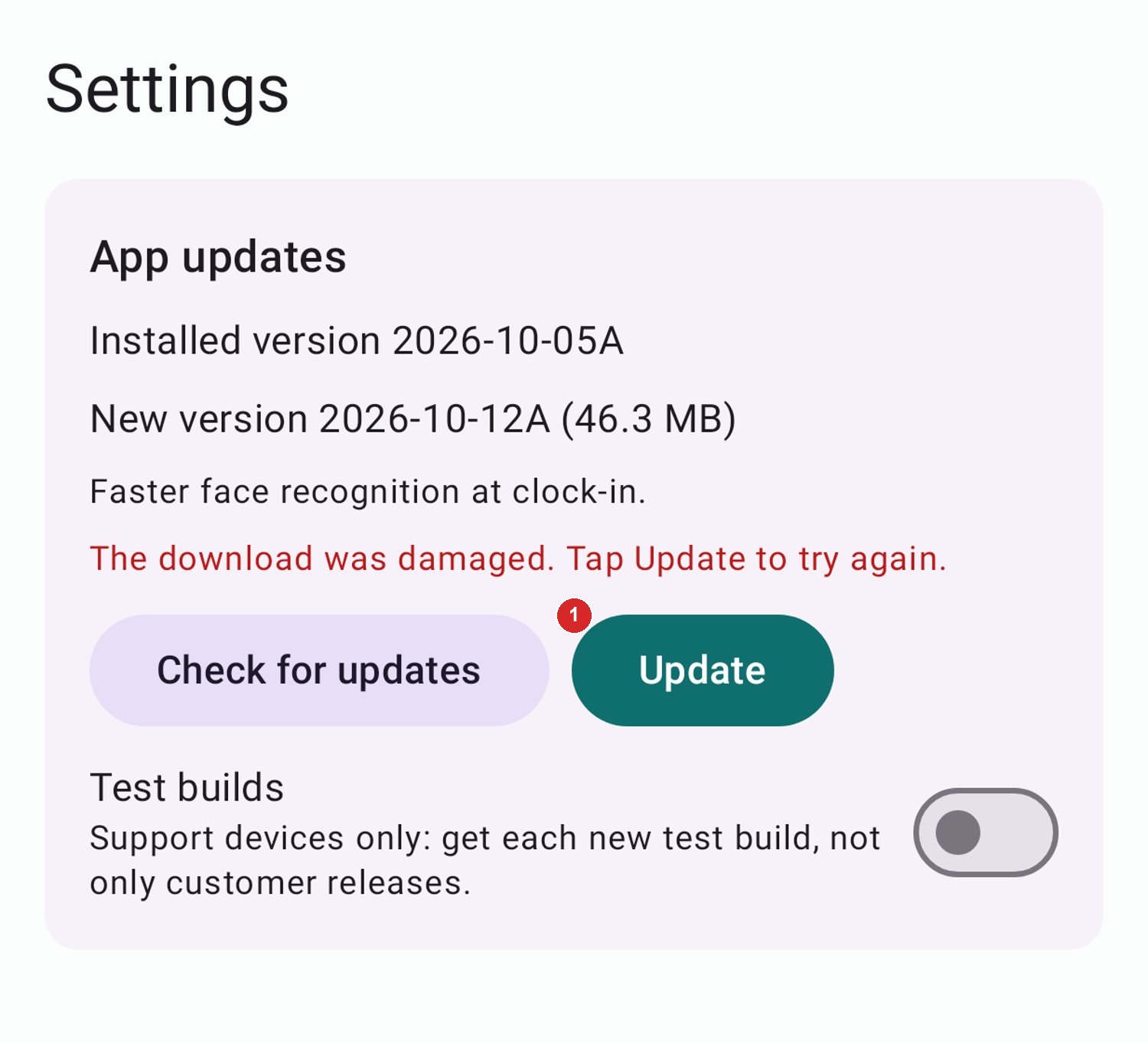
| Step | What to do |
|---|---|
| 1 | Tap Update. |
6. Read any Android security message
Android may ask to scan the app or may block the install. If you are not sure, stop and ask Synergy before continuing.
Tips
- When you contact Synergy, have ready: the app name, the Installed version, the exact message on the screen, and the time it happened.
Common problems
It says “This is the latest version” but Synergy says a newer one exists.
Customer phones receive a version only after Synergy has released it to customers. Ask Synergy.
Update does nothing.
Check the internet and allow Install unknown apps for the app, then tap Update again.
The new version will not install over the old one.
Do not uninstall the app, because you could lose unsent work. Ask Synergy first.