
This guide shows employees how to clock in and out at the Attendance device by looking at the camera.
Before you start
- You must already be enrolled. If your name shows Not enrolled, ask your supervisor to enrol you.
- The Attendance device must be connected to the server. It does not record anything when offline.
Steps
1. Open Clock In
On the Attendance home screen tap Clock In.
2. Choose what you are recording
Choose what you are recording.
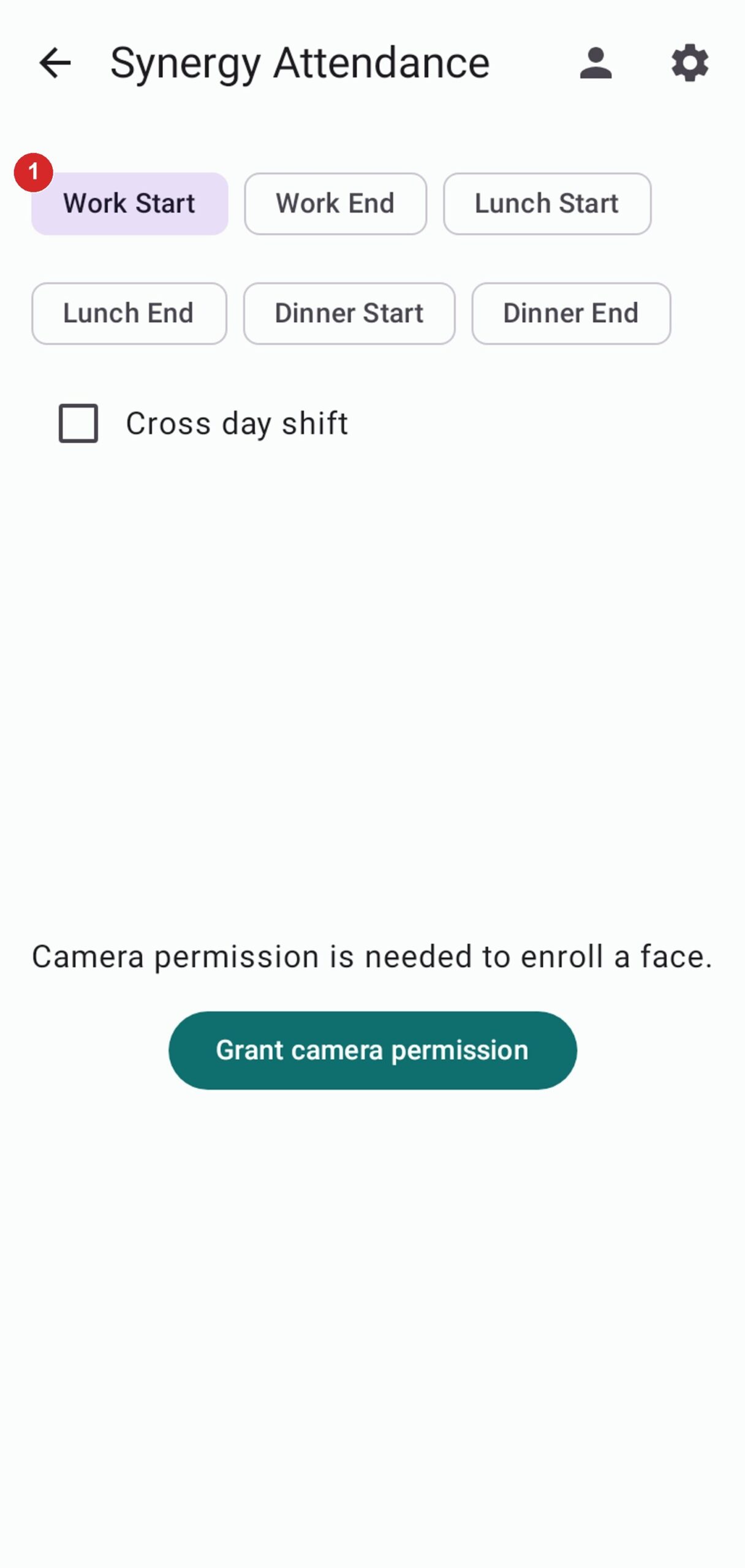
| Step | What to do |
|---|---|
| 1 | At the top, tap one of Work Start, Work End, Lunch Start, Lunch End, Dinner Start or Dinner End. |
3. Tick Cross day shift only if needed
Tick Cross day shift only if your shift crosses midnight. Ask your supervisor if you are not sure.
4. Look at the camera
The screen says “Look at the camera to clock in”. Stand so your whole face is visible, in good light, with one person in view.
5. Wait for the message
The screen shows “Recognizing…”. There is nothing else to tap.
6. Check the confirmation
A message such as “Name – Work Start recorded” confirms it. Walk away; the device is ready for the next person.
Tips
- If you clock in the same activity again within about 2 minutes, the app shows the confirmation but does not record it twice.
- The camera pauses for a few seconds after each successful clock-in.
- Face recognition does not replace the old way to clock in; anyone not enrolled can still use it.
Common problems
“Face not recognized”.
Check you are enrolled. Adjust your distance and the light. If it keeps failing, ask your supervisor to enrol your face again.
“Couldn’t record” followed by a reason.
The device could not reach the server. Check the Wi-Fi, then try again.
The camera asks for permission.
Tap the option that allows the camera while the app is in use.