
Use these checks, in order, when the Attendance device cannot reach the server, shows no employees or does not record a clock-in.
Before you start
- Have the server address you were given ready.
- The device must be online to record attendance. Nothing is saved while it is offline.
Steps
1. Check the Wi-Fi
Make sure the device is on the same Wi-Fi network as the server and that other apps on it can go online.
2. Test the connection
“Couldn’t reach server” means check the address.
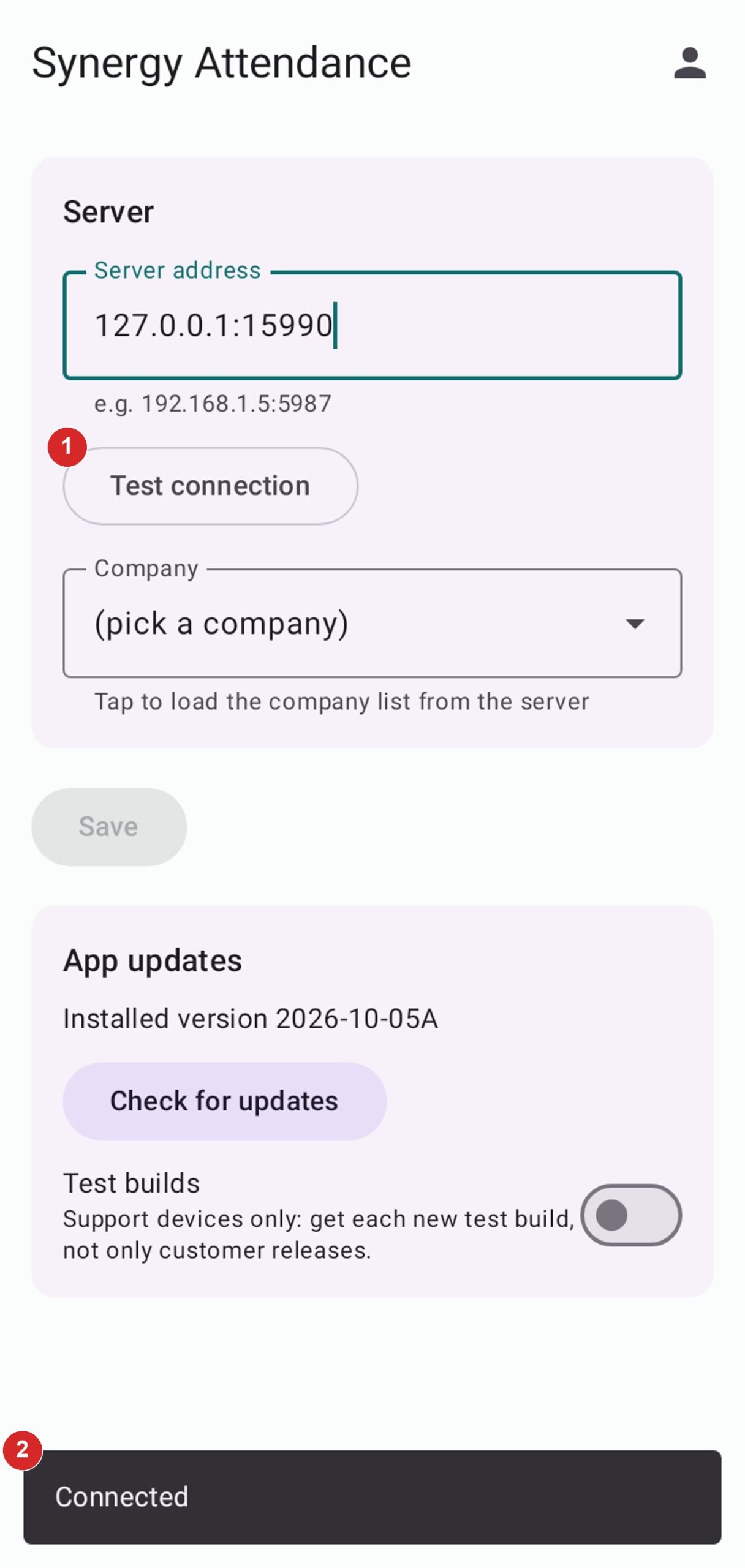
| Step | What to do |
|---|---|
| 1 | Open Settings and tap Test connection. |
| 2 | Connected means the server was reached. |
3. Check the server address
Check that the address is right.
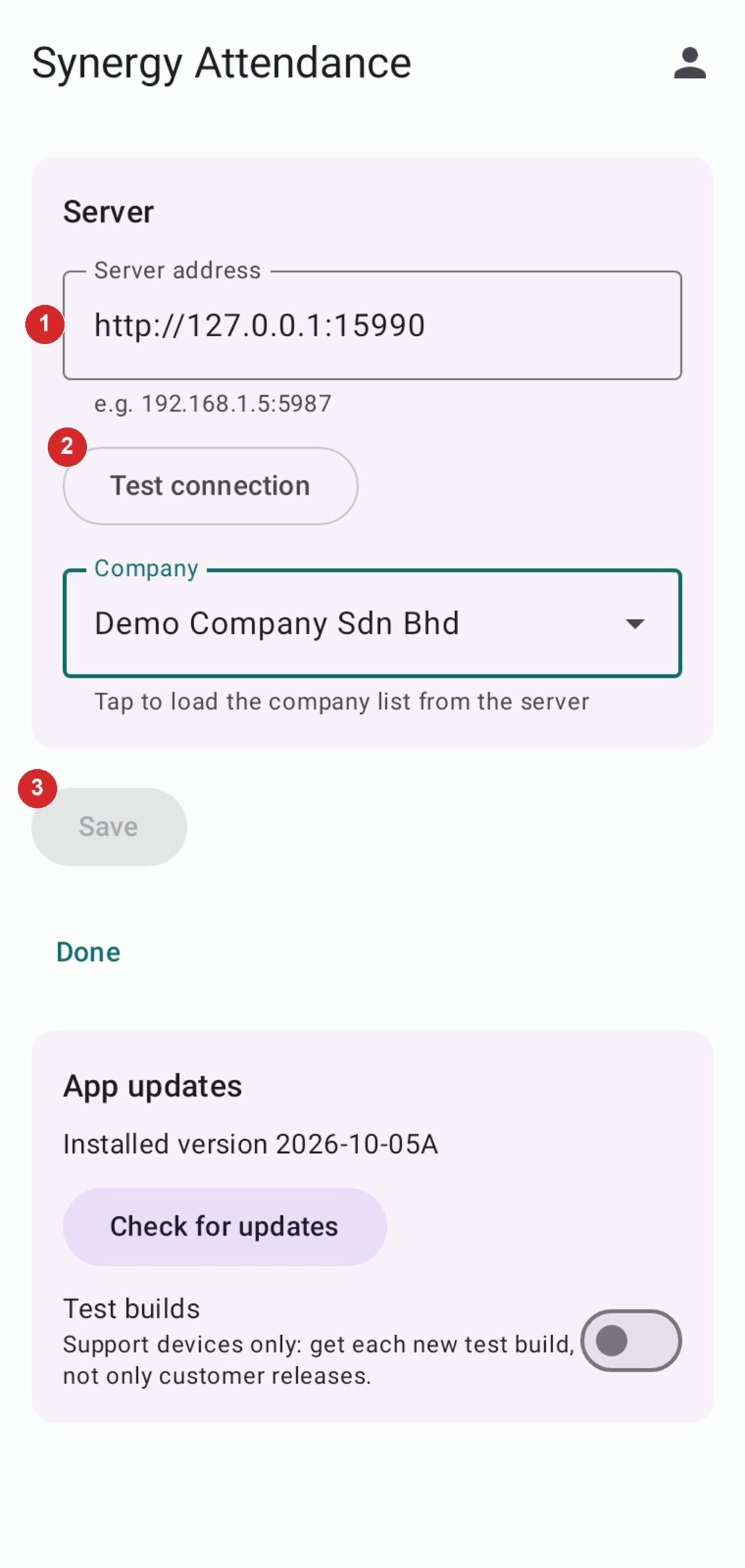
| Step | What to do |
|---|---|
| 1 | Look for typing mistakes in the Server address. Correct it. |
| 2 | Tap Test connection. |
| 3 | Tap Save. |
4. Check the company
Tap the Company box, pick your company again, then tap Save.
5. Refresh the employee list
If it says the employees could not be downloaded, check the company and the connection again.
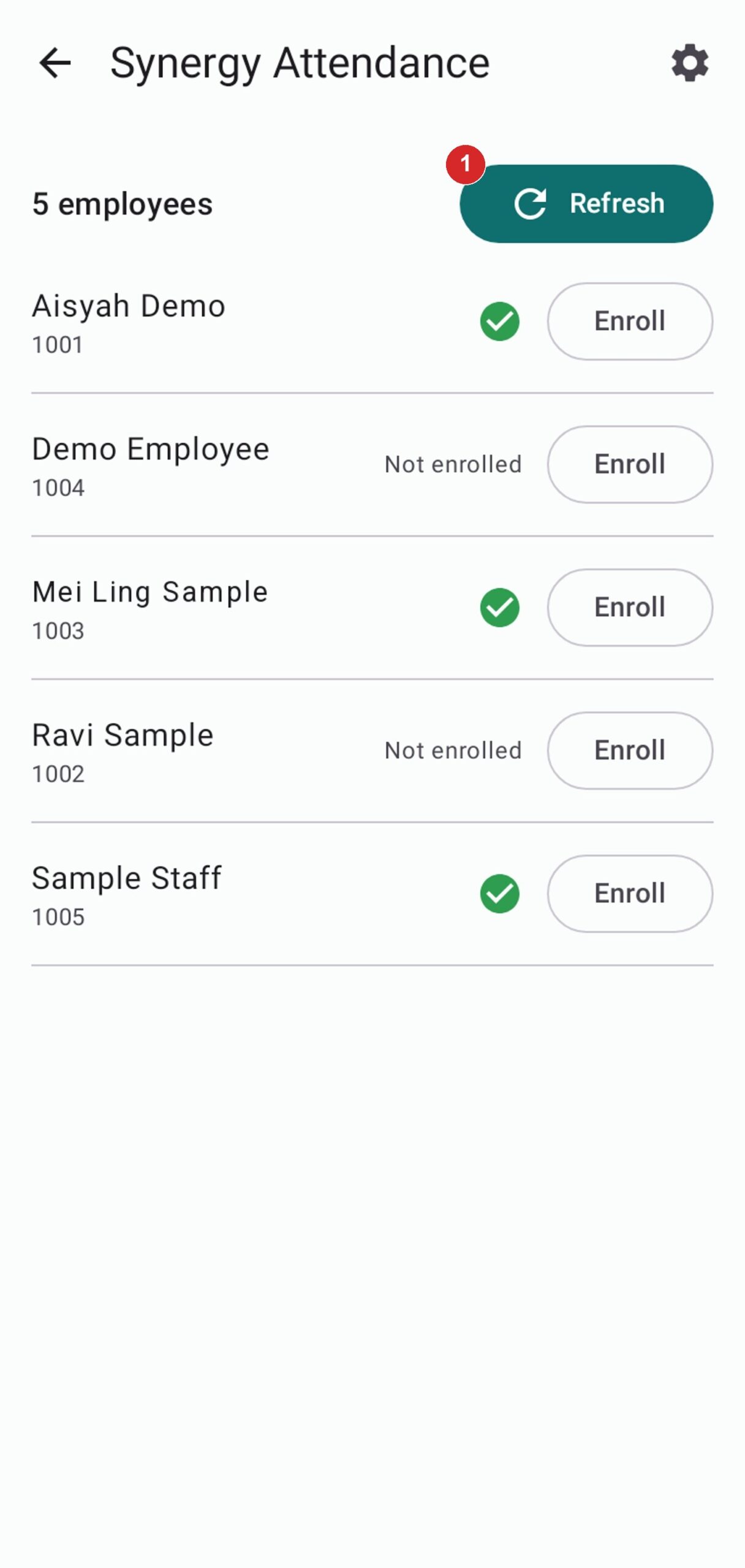
| Step | What to do |
|---|---|
| 1 | Go to View employees and tap Refresh. |
6. Check the camera
If the camera is black or the app cannot see faces, allow the camera permission for the app in Android settings, then open Clock In again.
7. Check for a newer version
In Settings, under App updates, tap Check for updates. If a New version is shown, tap Update.
Tips
- When you contact Synergy, have ready: the exact message on the screen, the server address, and the time it happened.
- Someone who cannot be recognised can still clock in the usual way.
Common problems
“No employees downloaded yet. Tap Refresh.”
Tap Refresh. If it still fails, check the company and the connection.
“Couldn’t load companies”.
Check the server address and tap Test connection first.
The clock-in is not recorded and the app shows “Couldn’t record”.
Fix the Wi-Fi or server connection, then clock in again.