
This guide shows the supervisor how to record an employee’s face so the employee can clock in with face recognition. Each employee is enrolled once.
Before you start
- The employee must already exist in the Synergy desktop program.
- The device must be connected to the server (see the guide on installing and connecting).
- The employee must be present, in good light, and must agree to the consent notice. Enrolling is the employee’s choice.
Steps
1. Open the employee list
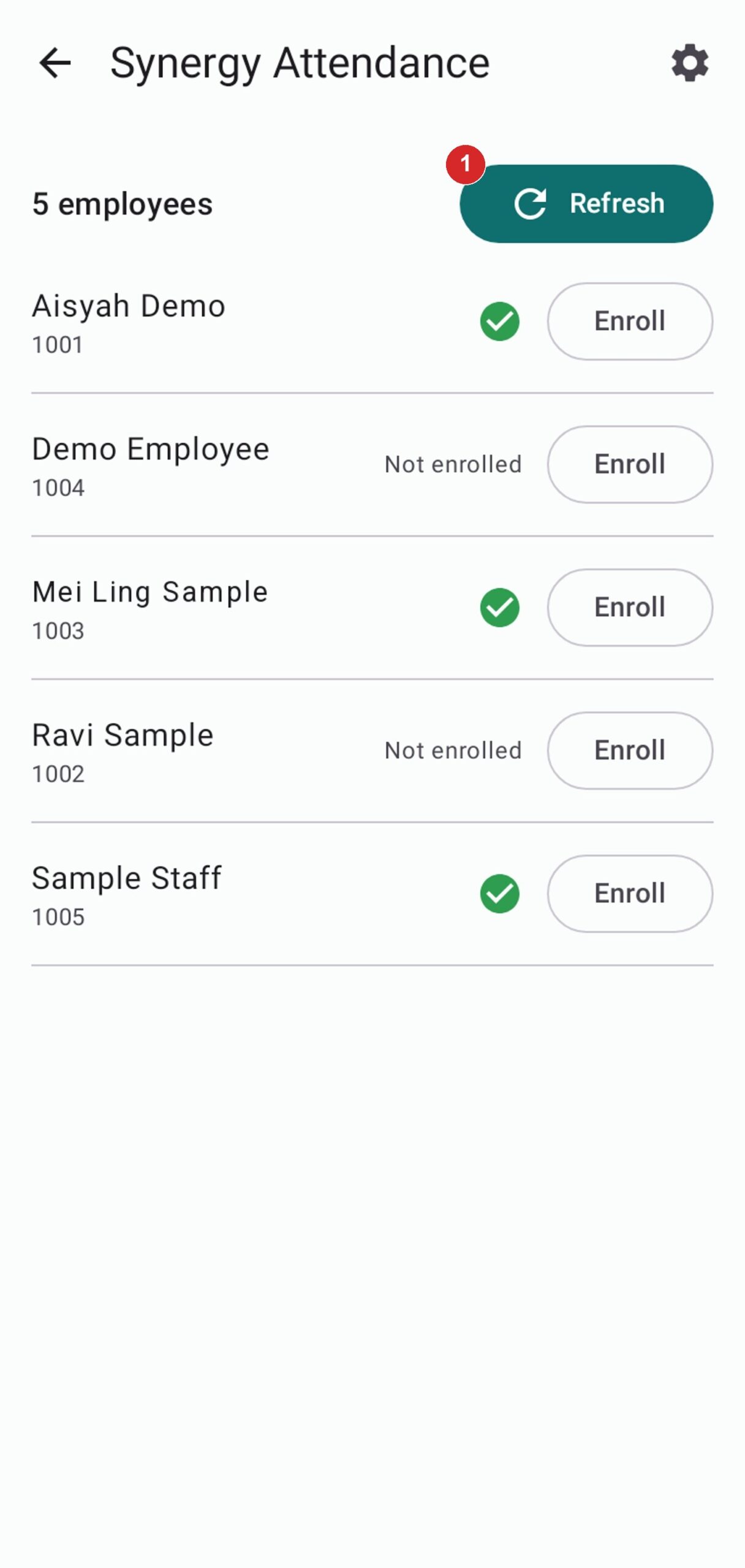
On the home screen tap View employees (or the person icon at the top).
| Step | What to do |
|---|---|
| 1 | If the list is empty or old, tap Refresh. |
2. Choose the employee
Find the employee marked Not enrolled and tap Enroll.
3. Show the consent notice
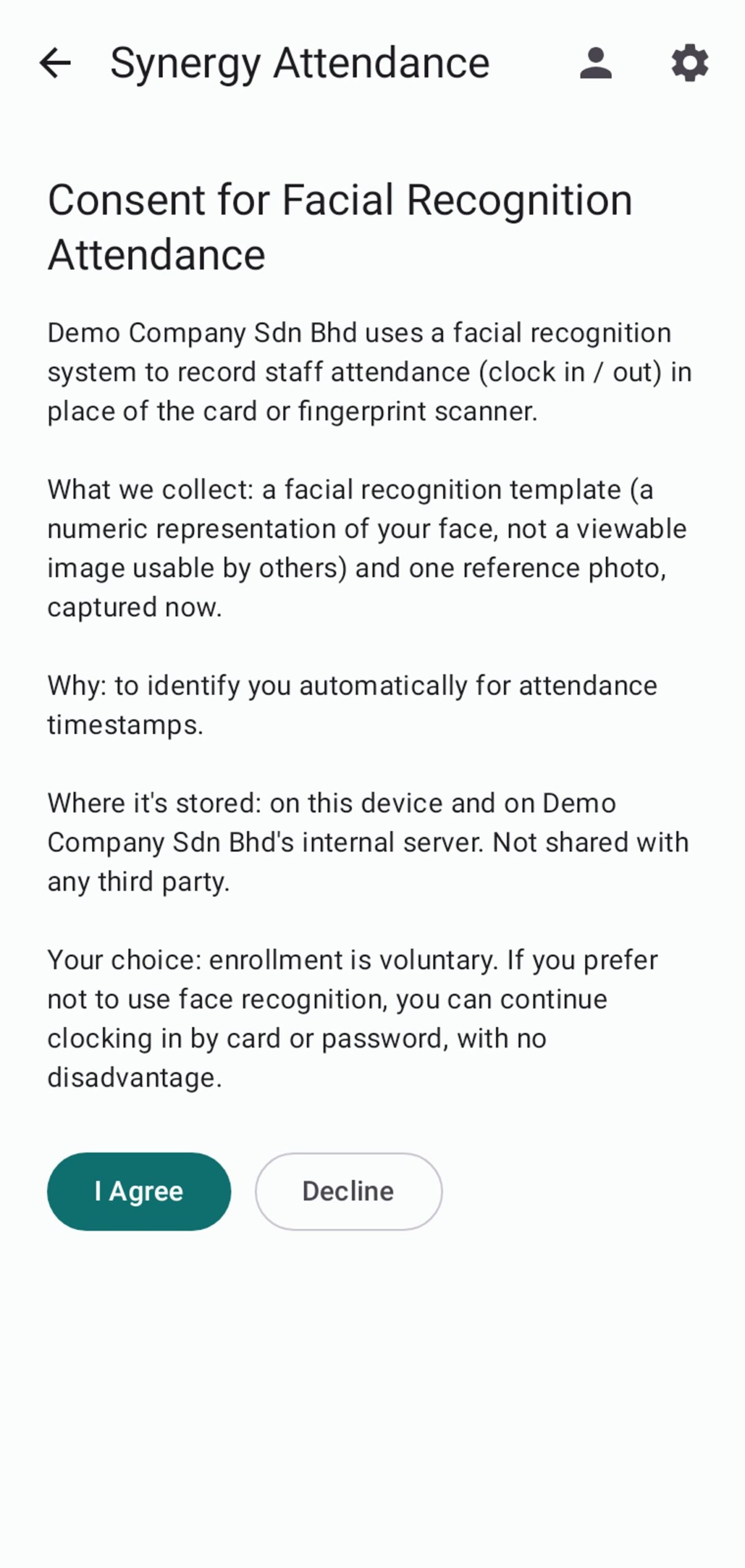
Hand the device to the employee to read the Consent for Facial Recognition Attendance notice. It says what is collected, why, and where it is kept.
4. Get the employee’s answer
The employee taps I Agree to continue. If the employee taps Decline, nothing is recorded and the employee keeps clocking in the usual way.
5. Allow the camera
If the app asks, tap Grant camera permission and allow the camera.
6. Position the face
The employee looks straight at the camera, in good light, with no strong light behind. The screen says “Position your face in the frame”, and “Only one person at a time” if two faces are seen.
7. Capture three samples
When the screen says “Face detected – tap Capture”, tap Capture. The screen shows Sample 1 of 3. Repeat until all three samples are taken.
8. Finish
After the third sample the app uploads automatically and shows Face enrolled. The employee now shows Enrolled in the list.
Tips
- To improve recognition for someone later, enroll them again. A new set of samples replaces the old one.
- Face enrolment does not replace the old way to clock in. Employees who decline or are not yet enrolled can still use it.
- Capture is only available when exactly one face is seen.
Common problems
Capture stays greyed out.
Move the face into the frame, improve the light, and make sure only one person is in front of the camera.
“Not configured yet – open Settings first”.
Connect the device to the server first.
The upload fails.
Check the Wi-Fi connection and enrol again. The device must be online.