
This guide shows you how to install Synergy Attendance on the phone or tablet kept at your workplace and connect it to your Synergy server. You do this once per device.
Before you start
- Get the Synergy Attendance installation file (APK) from Synergy. If Android blocks the install, allow installs from that source when it asks.
- Ask your IT person or Synergy for the server address, for example 192.168.1.5:5987.
- Connect the device to the same Wi-Fi network as the server. The app needs the connection to record attendance.
Steps
1. Install the app
Open the installation file on the device, tap Install, then open Synergy Attendance.
2. Open Settings
On the Attendance home screen tap Settings. On a new device it opens by itself.
3. Type the server address
Use the Server section.
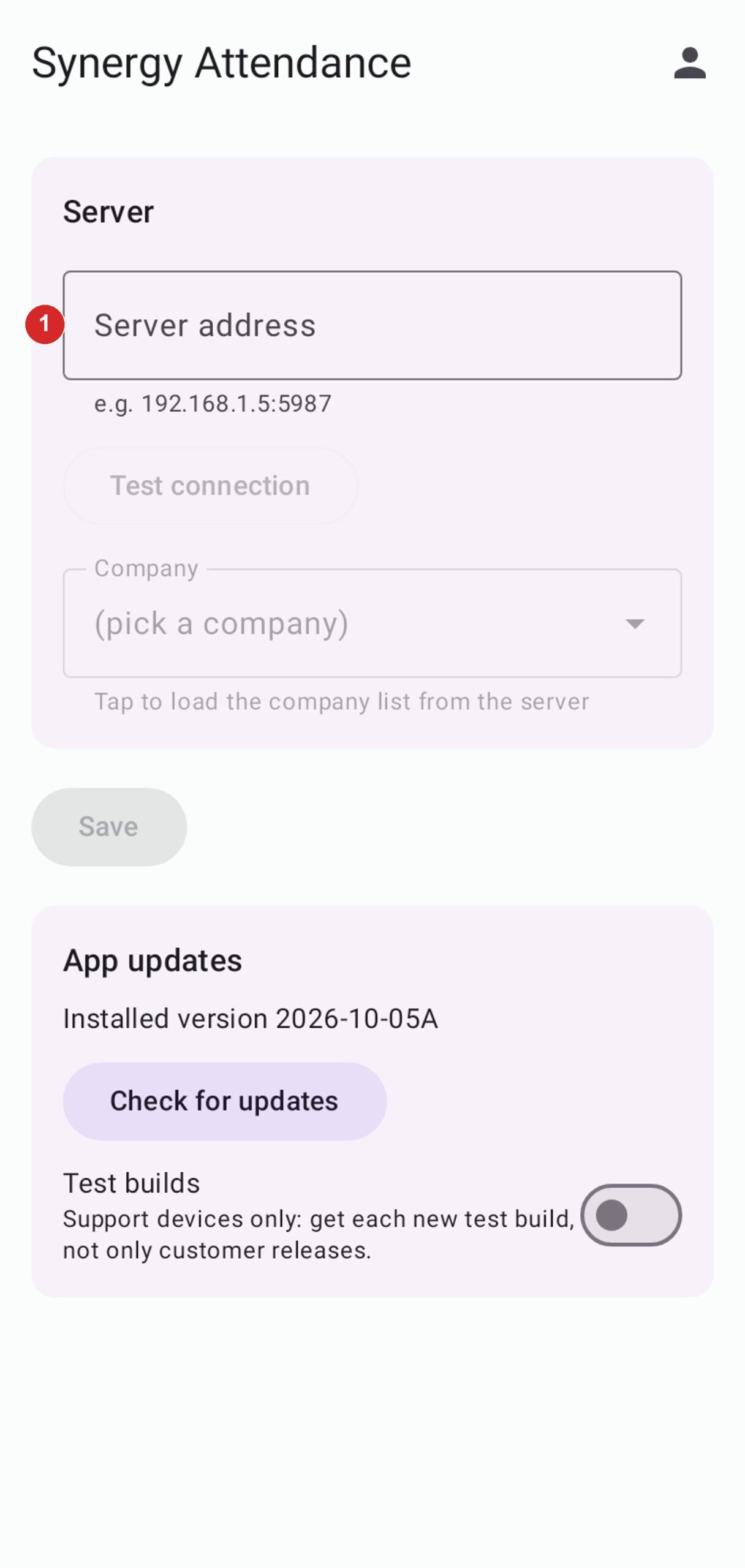
| Step | What to do |
|---|---|
| 1 | Type the Server address in the box. |
4. Test the connection
Test the connection to the server.
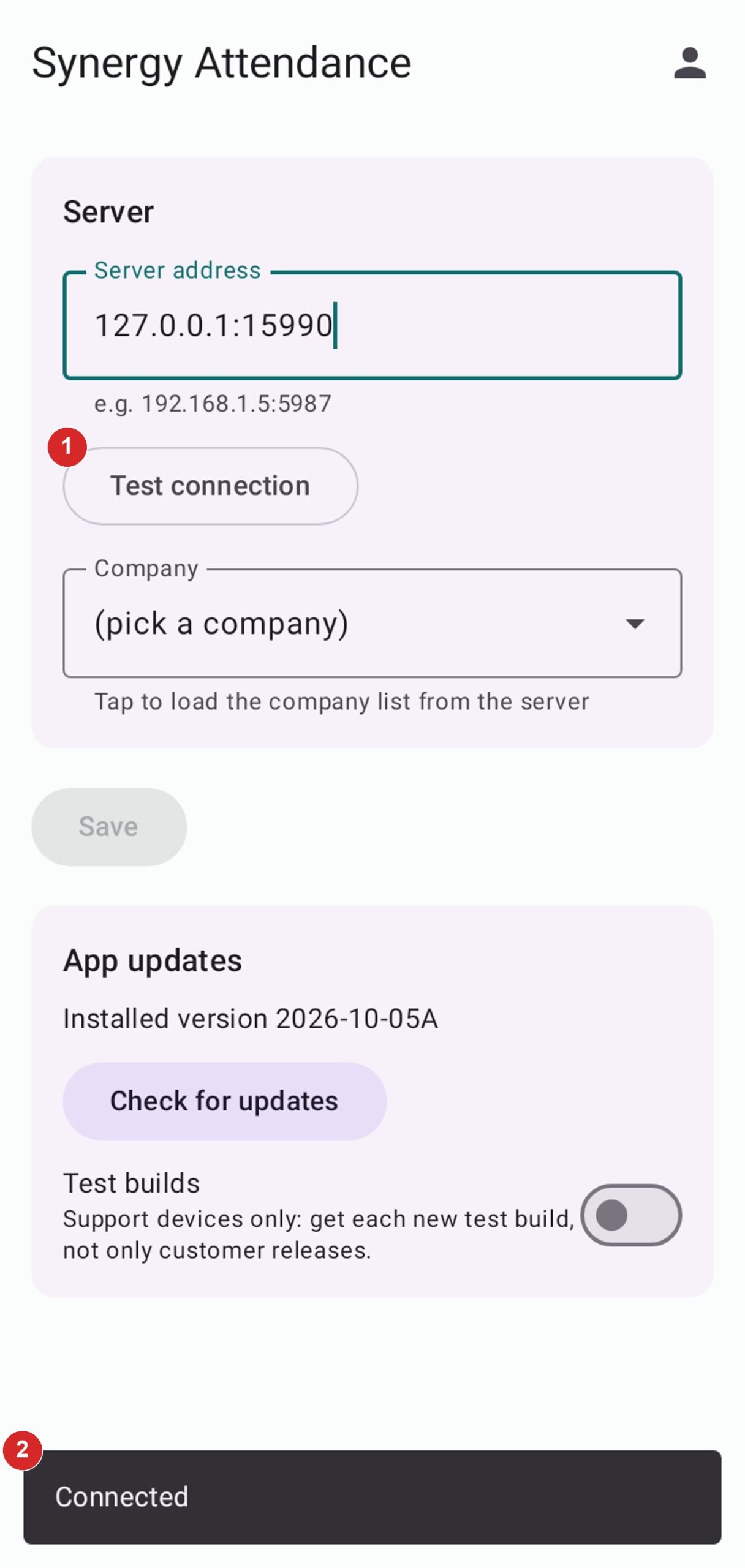
| Step | What to do |
|---|---|
| 1 | Tap Test connection. |
| 2 | The message Connected means the server was reached. |
5. Pick the company
Choose the company.
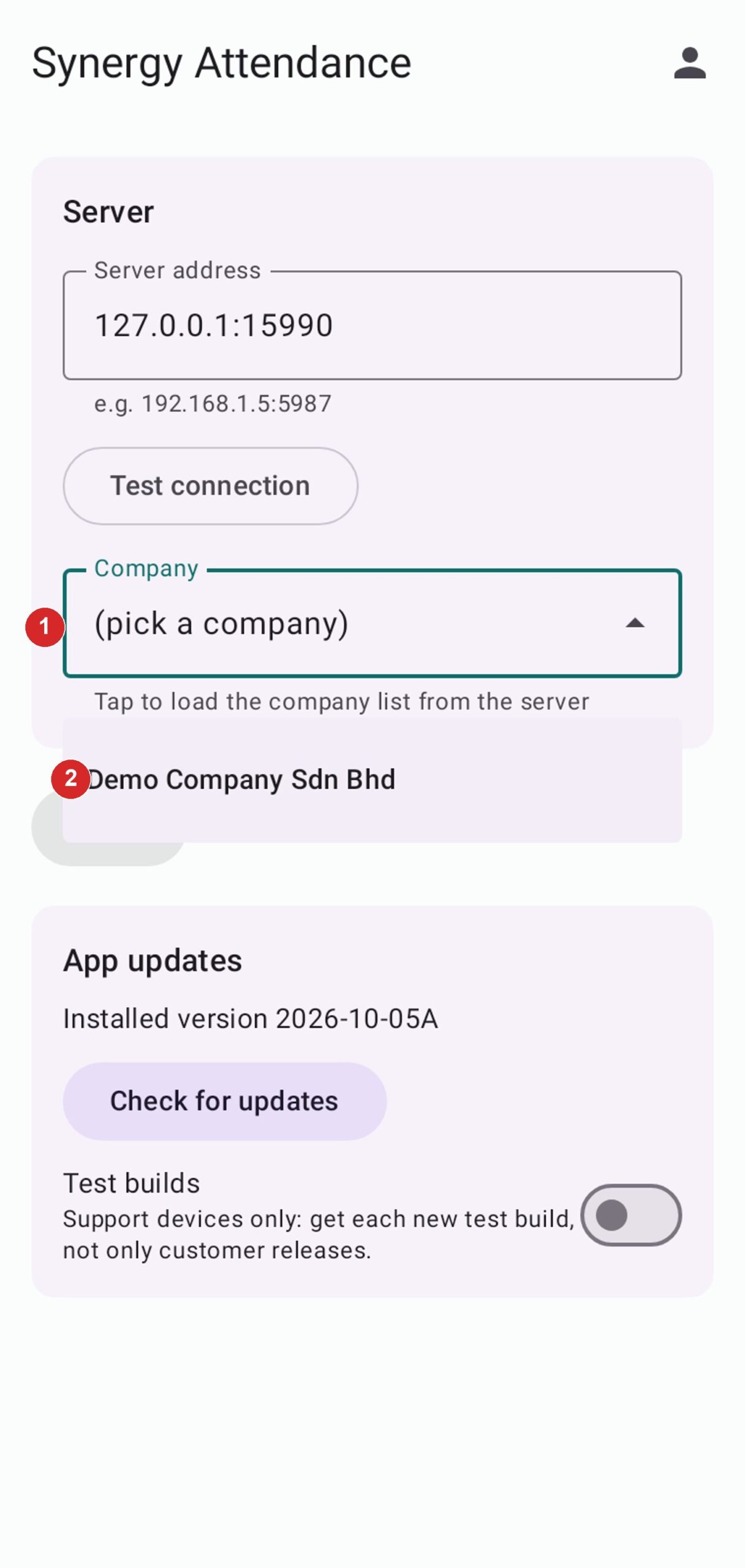
| Step | What to do |
|---|---|
| 1 | Tap the Company box. The list of companies loads from the server. |
| 2 | Pick your company. |
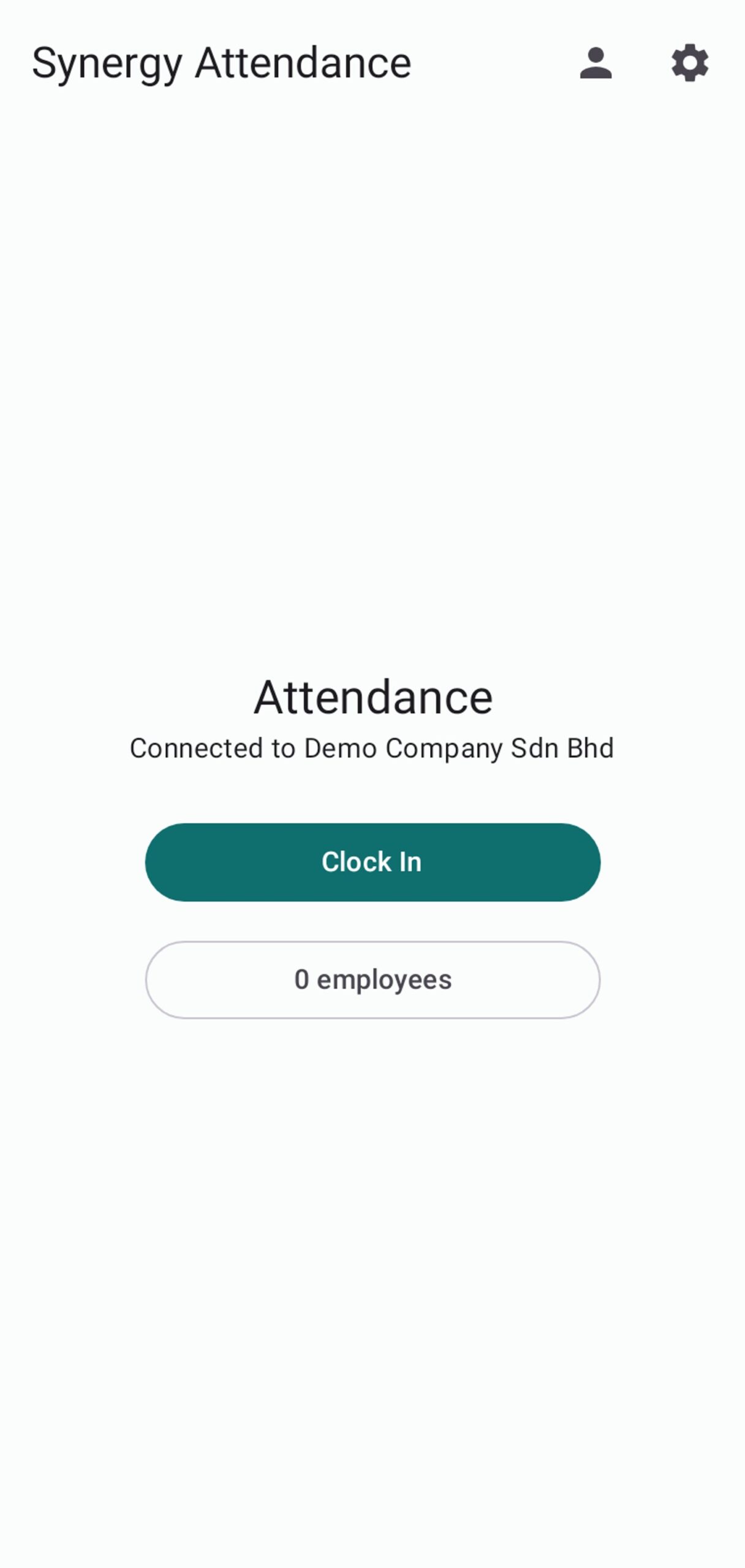
6. Save
Tap Save, then Done. The home screen now shows “Connected to” followed by your company.
7. Download the employee list
Tap View employees. The list shows each employee as Enrolled or Not enrolled.
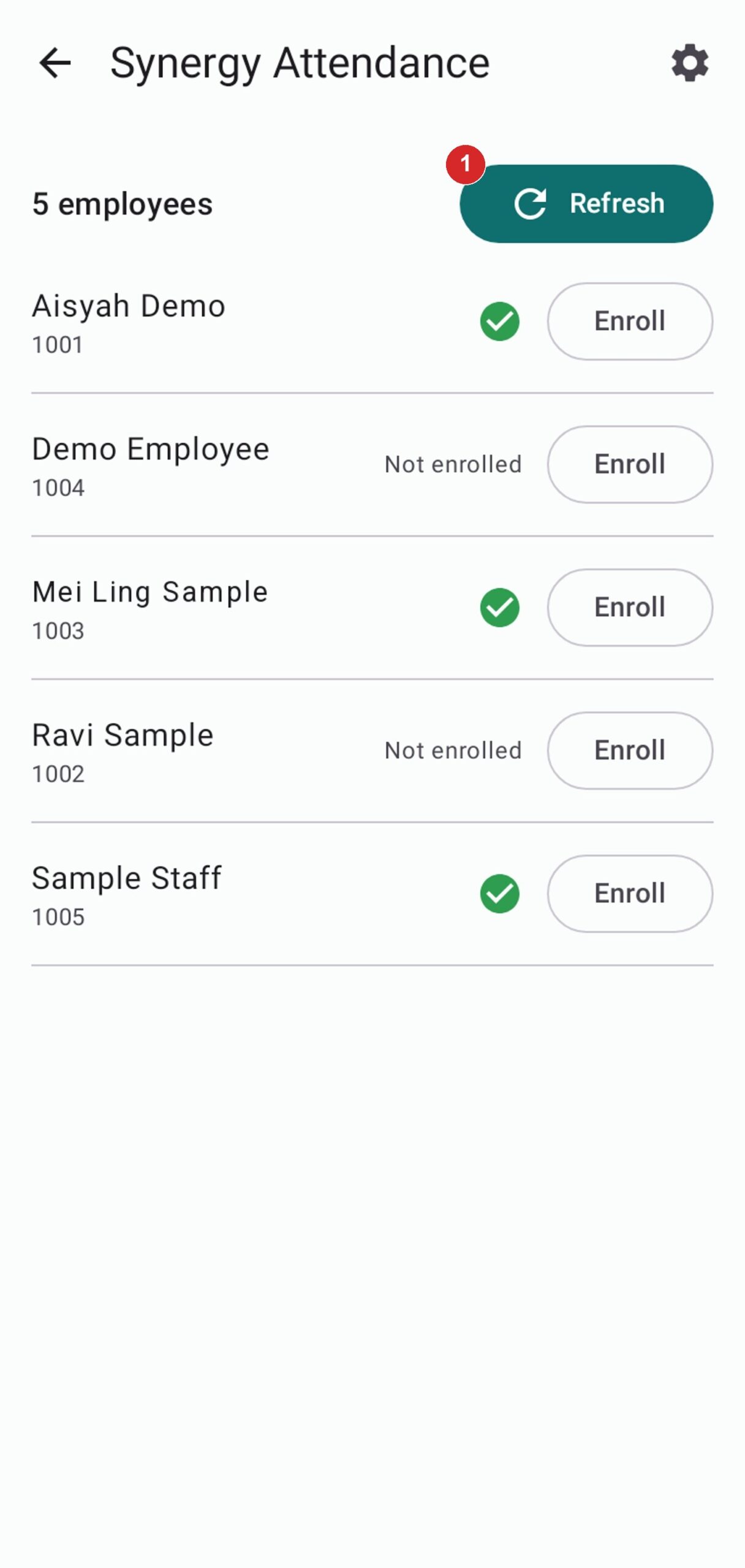
| Step | What to do |
|---|---|
| 1 | Then tap Refresh. |
Tips
- The settings are remembered after you close and reopen the app.
- Employees are created in the Synergy desktop program. This app only adds a face to an employee who already exists.
- Use the installation file from the newest version Synergy gave you.
- The app also checks for updates. When a New version message appears, tap Update, or Later to be reminded another day.
Common problems
Test connection says “Couldn’t reach server”.
Check the server address for typing mistakes and check the device is on the same Wi-Fi network as the server.
The company list does not load (“Couldn’t load companies”).
Tap Test connection first. If it says Connected, tap the Company box again.
The home screen says “Not configured yet – open Settings first”.
Complete the steps above: server address, company, then Save.