
One day in a cafe that uses the Synergy Order App and QR Order: sign in, open the shift, check the printers, take bookings, orders and payments, close the shift and read the reports. Each step is a moment of the day; the full guide behind it is named at the end of the step.
Before you start
- The Order App set up for a restaurant: read Synergy – Getting Started: Cafe and Restaurant.
- Your staff added with their own PIN and role: read Synergy Order App – Staff PIN Sign-in.
- The IP address of each kitchen printer, with the printer on and on the shop Wi-Fi or LAN.
Steps
1. 8:00 am – Staff sign in
With Staff sign-in on, the PIN pad opens first. Type your own PIN and tap OK; the order screen shows your name and role. A Cashier who needs Settings asks a Manager to type a PIN in the approval window. Full guide: Synergy Order App – Staff PIN Sign-in and Synergy Order App – Staff Roles: Who Can Do What
2. 8:15 am – Open the shift
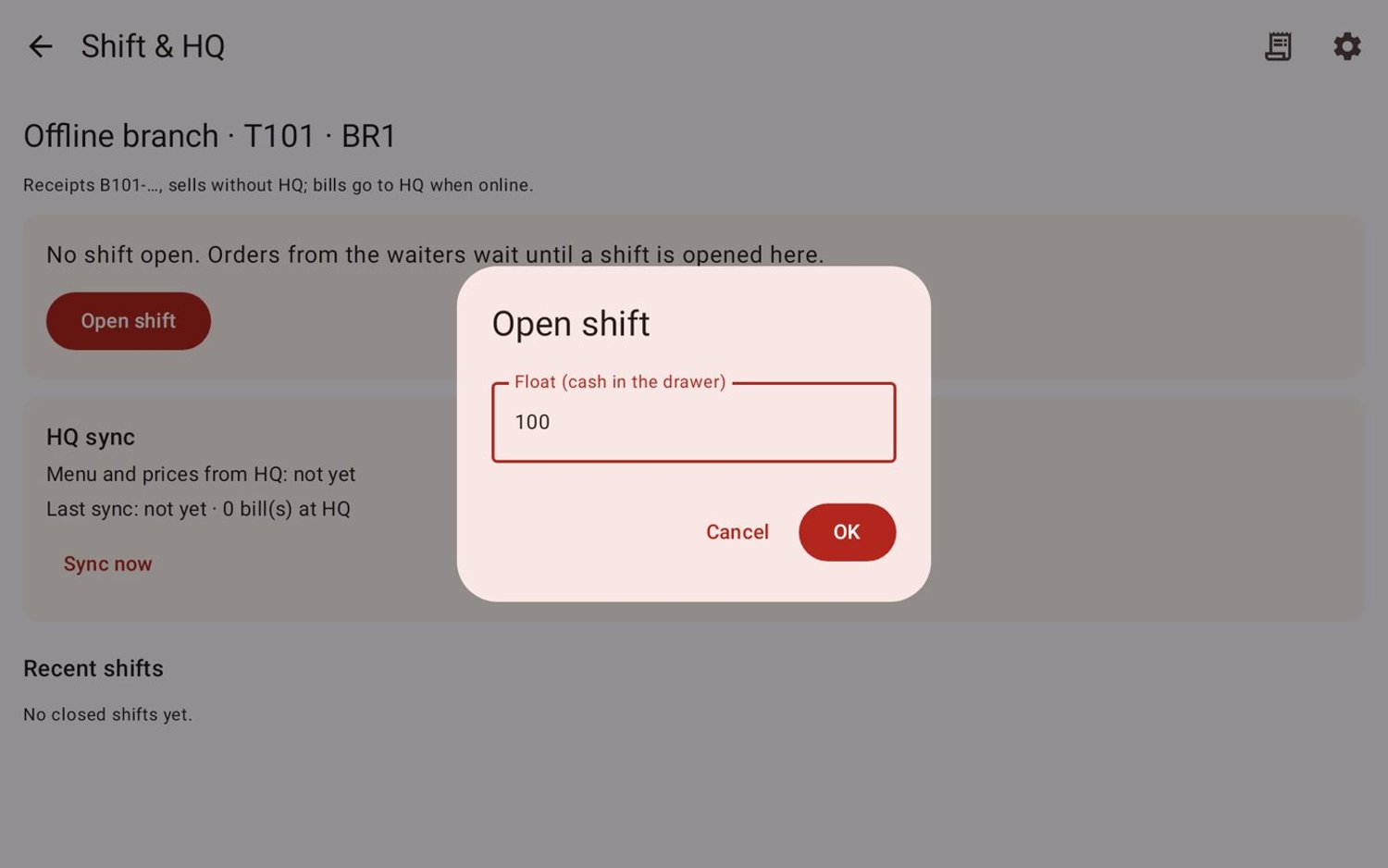
On the order screen tap the red message that says no shift is open. On the Shift & HQ screen tap Open shift, type the float (the cash you put in the drawer to start) and tap OK. Full guide: Synergy Order App – Shifts and Counting the Cash
3. 8:30 am – Test the kitchen printers
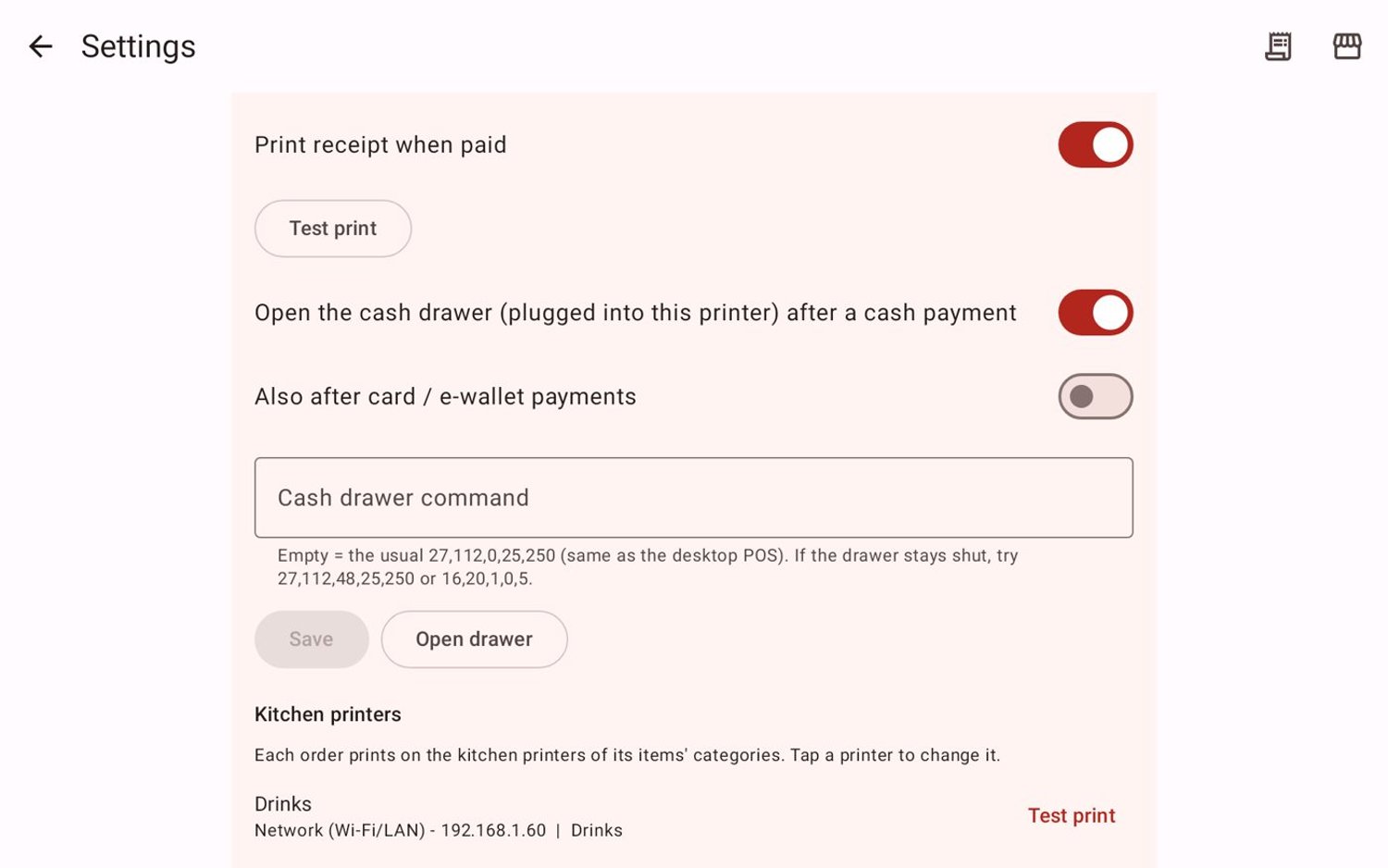
In Settings scroll down to Kitchen printers and tap Test print next to each printer. If it prints, the message says Sent to the printer; if not, it says Printing failed with the reason. Full guide: Synergy Order App – Kitchen Printers for Food and Drinks
4. 8:45 am – Check the tables
If the layout changed, open the Restaurant Table Setting page on the web (dashboard, Point of Sale tab). Add or move tables, then click Save. The same floors and tables are used by the Order App and by QR Order. Full guide: Synergy Web – Setting Up Restaurant Floors and Tables
5. 10:00 am – A lunch booking
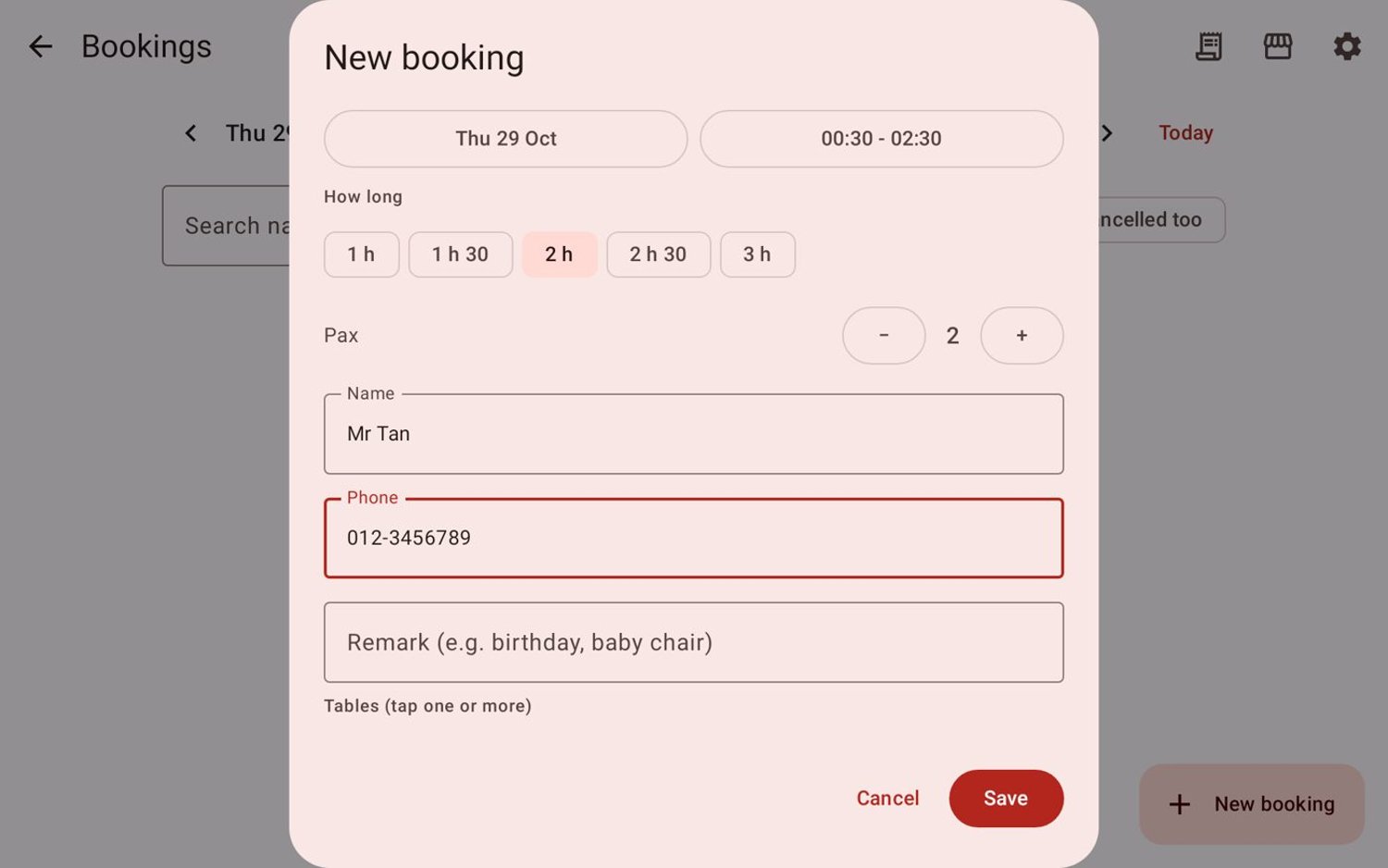
With Table bookings switched on in Settings, tap Choose table, then Bookings, then New booking. Type the name and phone, add the table and tap Save. When the guests come, tap the booking and choose Customer arrived. Full guide: Synergy Order App – Table Bookings
6. 12:30 pm – Diners order from their table
The diner scans the QR code at the table, taps Start Order, picks items with ADD ITEM and ADD TO CART, then Review Order and Confirm Order. The order goes to the kitchen and the diner chooses Pay at Counter or Pay Online if your cafe offers them. Full guide: Synergy Web – QR Order: Ordering From Your Table
7. 12:45 pm – A waiter takes an order
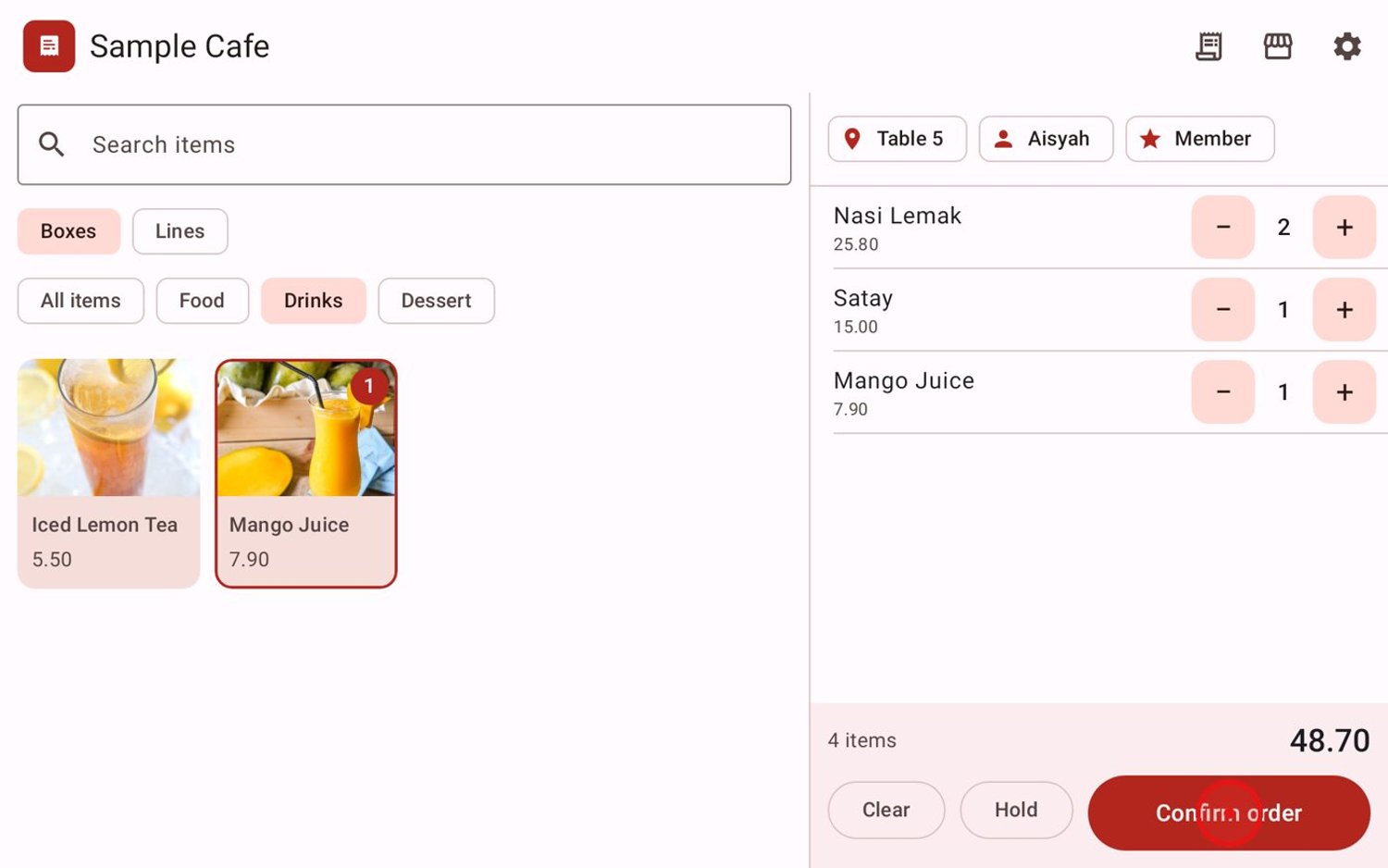
Tap Choose table and the table, tap Salesperson and your name, then tap the dishes and drinks. Tap Confirm order, then Confirm: the order goes to the kitchen. Full guide: Synergy Order App – Taking an Order in a Restaurant
8. 1:00 pm – A kitchen slip does not print
Each order prints on the kitchen printers of its items’ categories, for example drinks on the Drinks printer. If a red bar says a kitchen printer is not printing, check that the printer is on, has paper and is on the same Wi-Fi, then tap the bar and tap Try again now. Full guide: Synergy Order App – Kitchen Orders Do Not Print: Checks in Order
9. 1:30 pm – Guests want separate bills
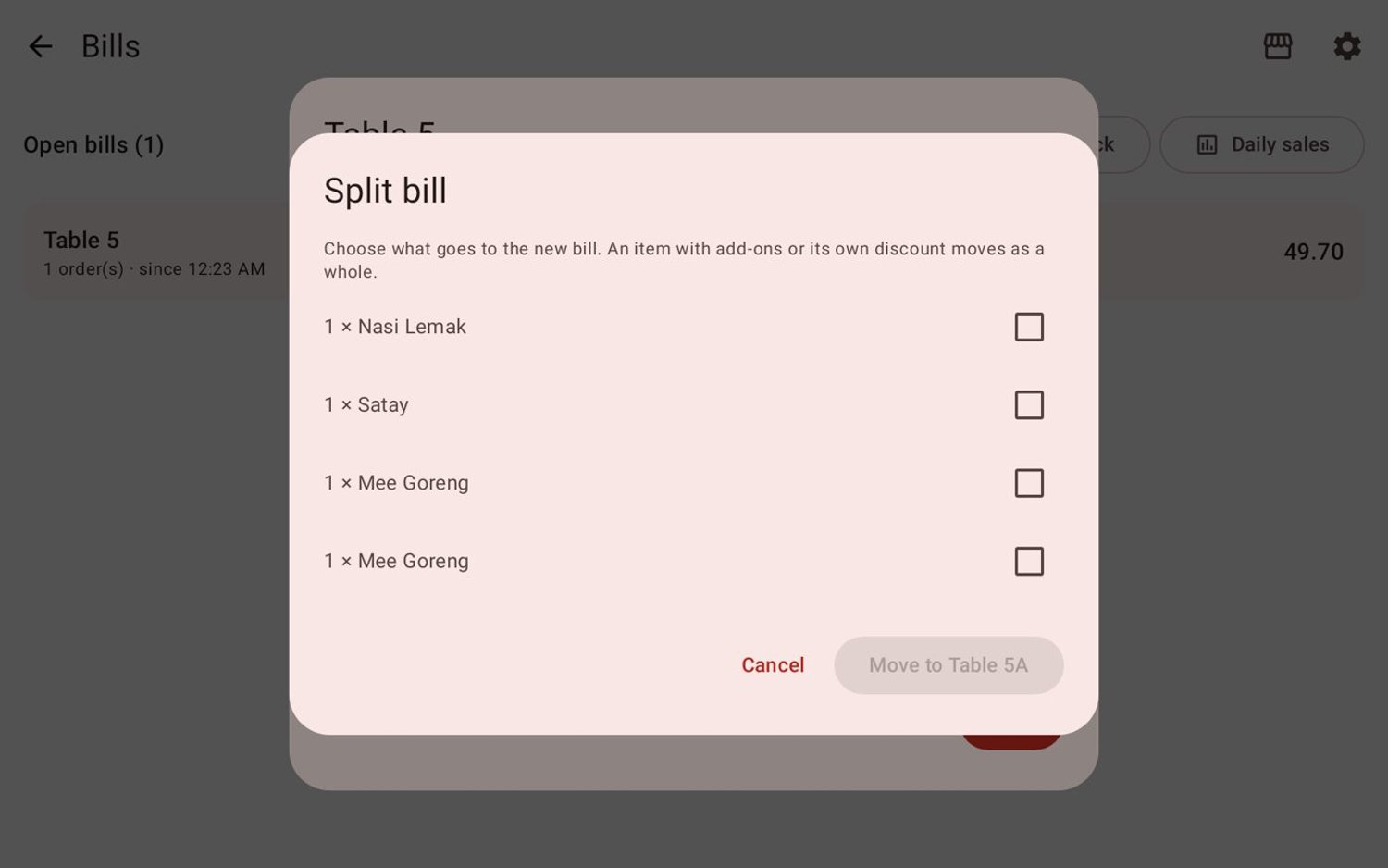
Tap the receipt icon to open Bills, tap the table’s bill and tap Split bill. Tick what moves, tap Move to, and the items become a new bill such as Table 5A. On the main device, Merge bills puts bills back together. Full guide: Synergy Order App – Splitting and Merging Bills
10. 2:00 pm – Take payment
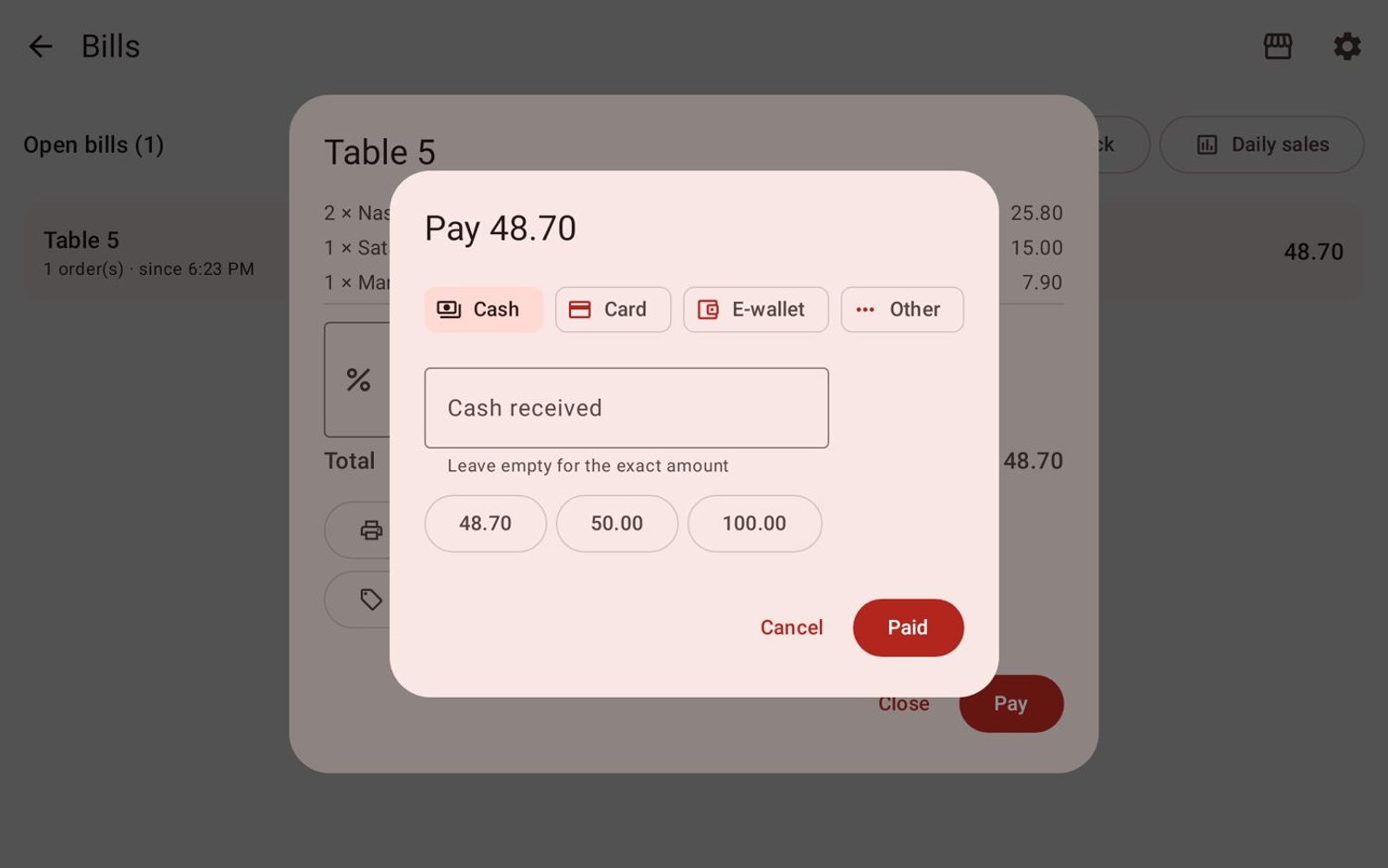
In Bills tap the bill, tap Pay, choose the payment type and tap Paid. If a guest pays part by e-wallet and part by cash, switch on Split payment, add each payment with its amount and tap Paid. Full guide: Synergy Order App – Taking Payment and Synergy Order App – Paying One Bill by Cash and E-wallet
11. 3:00 pm – Pay a delivery from the drawer
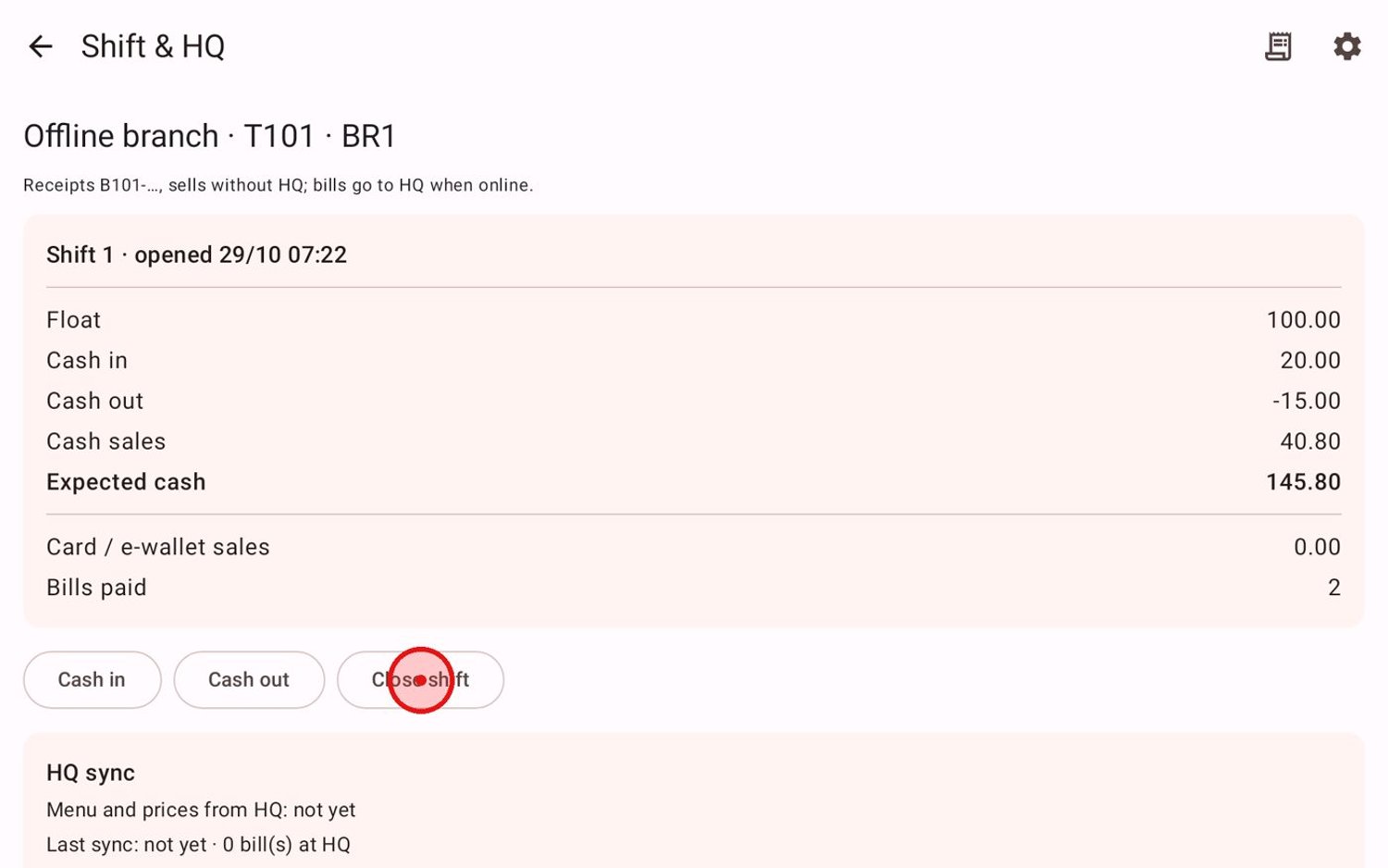
Open Shift & HQ and tap Cash out. Type the amount and a remark such as Milk delivery, then tap OK. The expected cash goes down by that amount. Full guide: Synergy Order App – Shifts and Counting the Cash
12. 10:00 pm – Close the shift
Pay or void every open bill first. On Shift & HQ tap Close shift, count the cash in the drawer, type it and tap OK. A summary shows the cash counted, the expected cash and the difference. Full guide: Synergy Order App – Shifts and Counting the Cash
13. 10:15 pm – Read the day’s takings
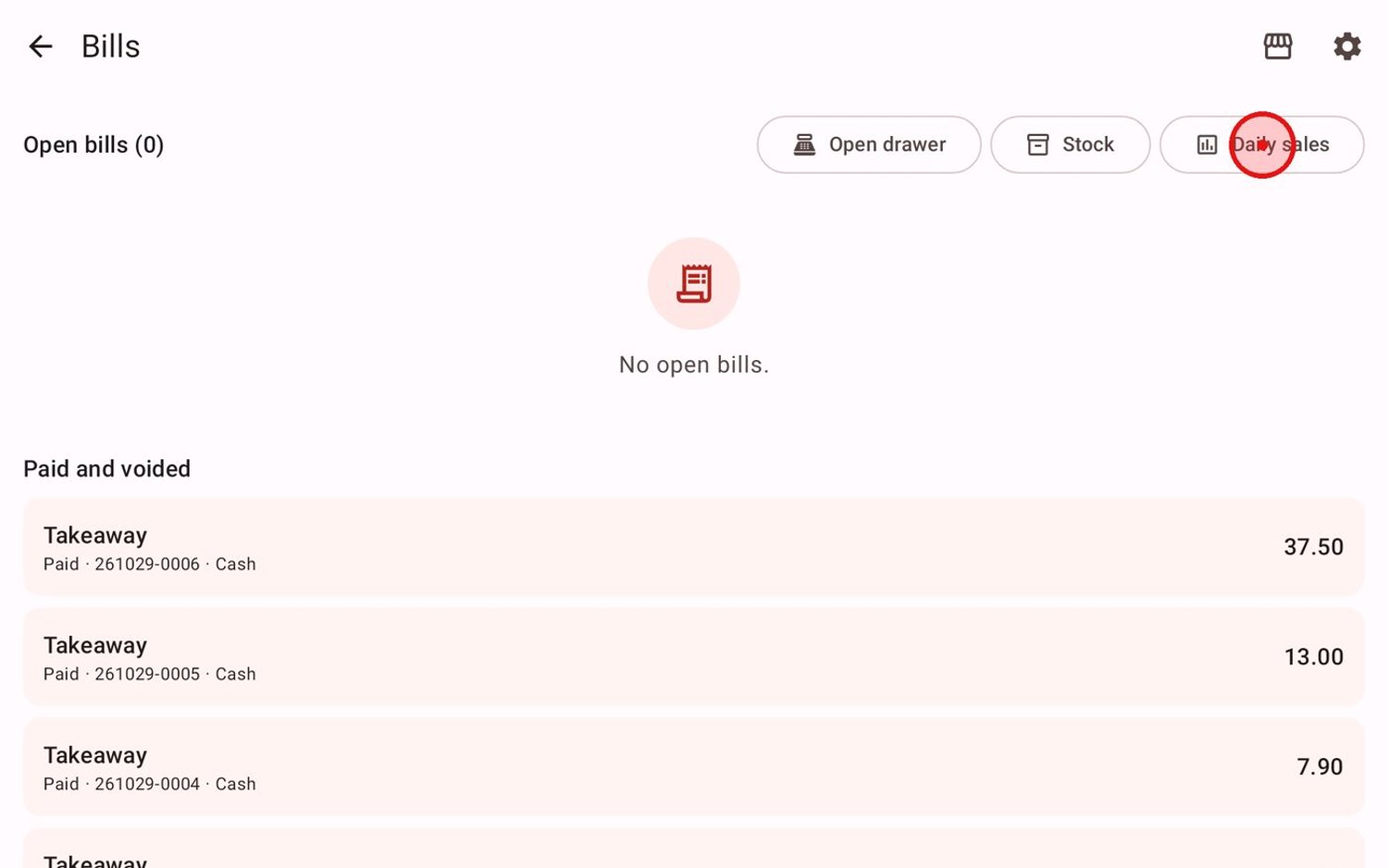
Tap the receipt icon, then Daily sales to see today’s total. In Back Office tap Reports for sales by item, Categories and Hours, and tap Export Excel to save a report. Full guide: Synergy Order App – Reports in Back Office and Synergy Order App – Staff Roles: Who Can Do What
14. Next morning – Back up
In Settings scroll down to Backup: a backup is made automatically every day, and Back up now makes one at once. Copy a backup to a PC or Google Drive now and then. Once a week, open Reports and pick 7 days to review the week. Full guide: Synergy Order App – Backing Up Your Sales and Settings and Synergy Order App – Reports in Back Office
Tips
- The service charge is set in Back Office under Tax and service charge and is added to new dine-in bills.
- The kitchen printers are set on the main device and are the same on every device of the shop. A Bluetooth kitchen printer prints only from one device.
- Back Office closes itself after 5 minutes without a touch.
Common problems
The phone will not take payment.
A branch phone can take payment only while its own shift is open. Tap the red message, then tap Open shift.
A kitchen order does not print.
Go through the checks in order: read Synergy Order App – Kitchen Orders Do Not Print: Checks in Order.
A diner sees This QR has expired, please request a new QR from restaurant.
Give the diner a new QR code for the table.
Merge bills is not on the Bills screen.
Merge bills is on the main device of a network and shows when two or more bills are open. Check that you are on the main device and that at least two bills are open.