
One working day, and the month-end that follows, in a trading company that sells on credit with Acc2026: quotation, sales order, delivery order, invoice, receipt, supplier invoice, stock and the month-end checks. Each step is a moment of the day; the full guide behind it is named at the end of the step.
Before you start
- Your items, customers and suppliers already created: read Synergy – Getting Started: Trading Company.
- Your bank account set up in the Cash Management System.
- Correct stock quantities, because costing is FIFO.
Steps
1. 8:30 am – Check that last night’s backup ran
Open the SynSoft folder, then the Autobackup folder, and look at the date of the newest file. If it is old, the disk may be full: delete old auto-backup files so a new dated file can appear. Full guide: Synergy Acc2026 – Backing Up Your Data
2. 9:00 am – See who owes you money
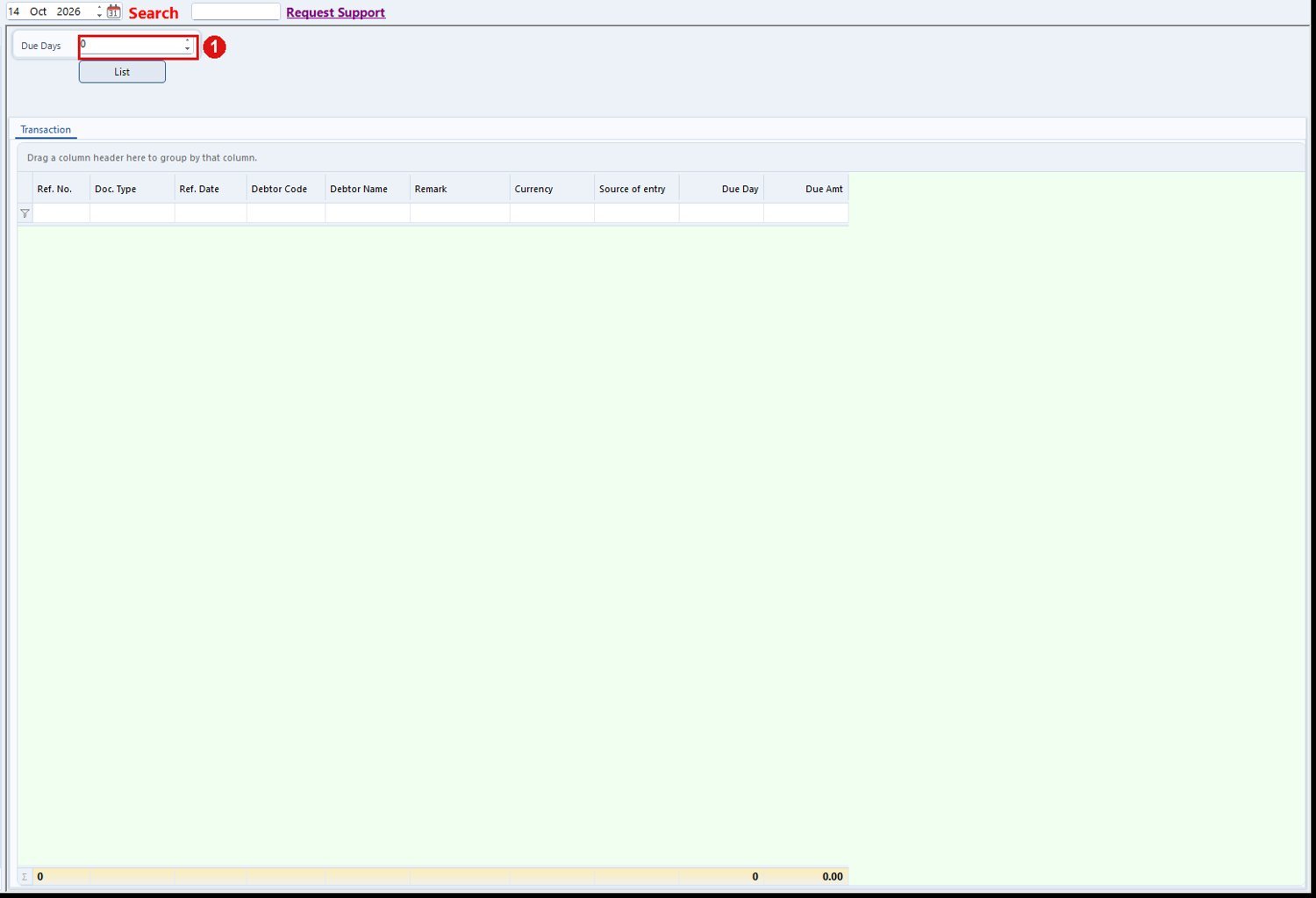
Go to Debtor Ledger > Query > Due Invoice Query, enter the Due Days and click List (Preview does nothing here). Double-click a row to open the invoice. For a customer who pays late, set the Credit Period and Credit Limit on the debtor so a warning pops up. Full guide: Synergy Acc2026 – Debtor Aging and Credit Control
3. 9:30 am – A customer asks if you have the stock
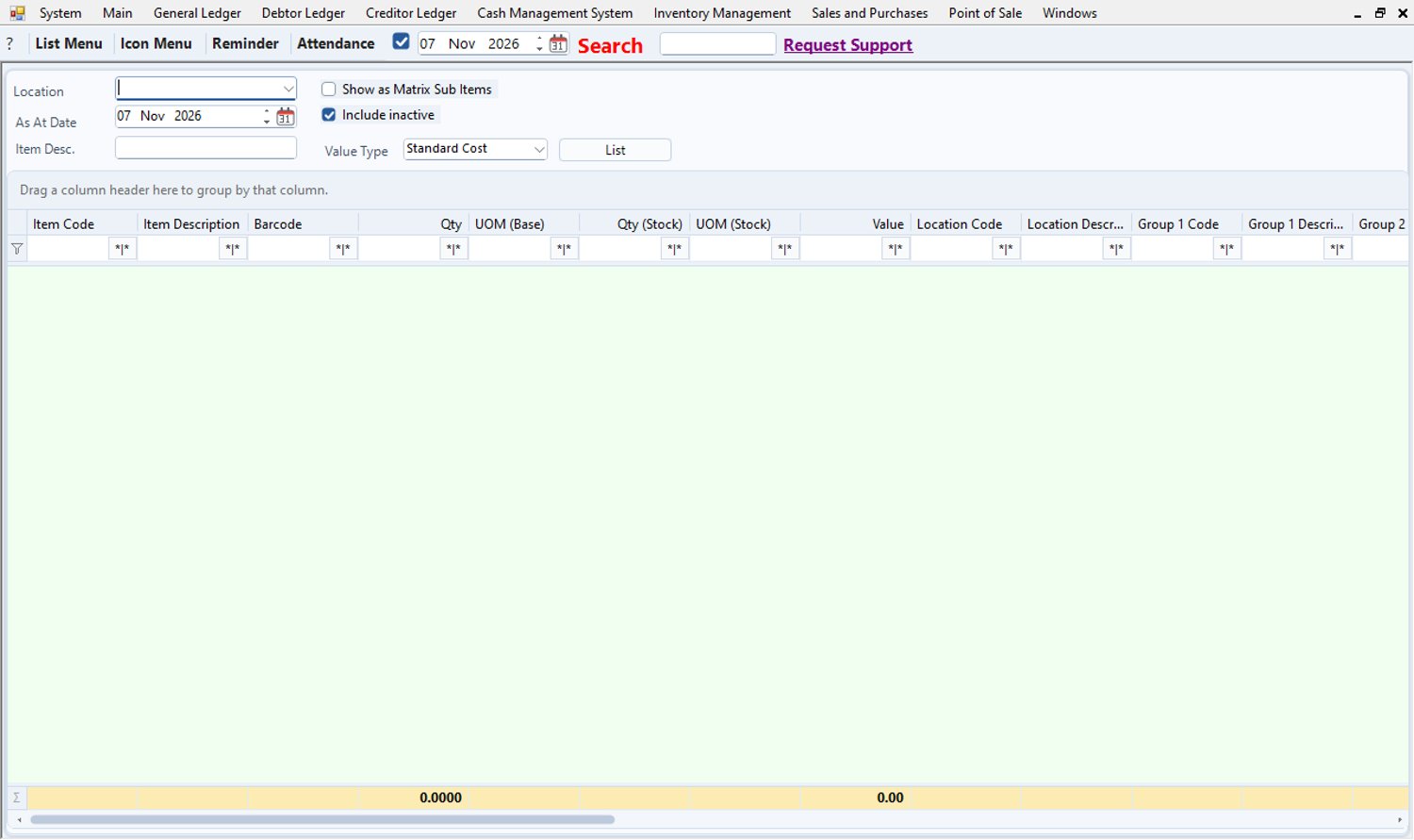
Go to Inventory Management > Query > Stock Query > Stock Balance Query, choose the Location and As At Date and click List. The pending sales order and purchase order quantities show beside the balance. Full guide: Synergy Acc2026 – Check Stock Balance, Item Info and Prices
4. 10:00 am – Make the quotation
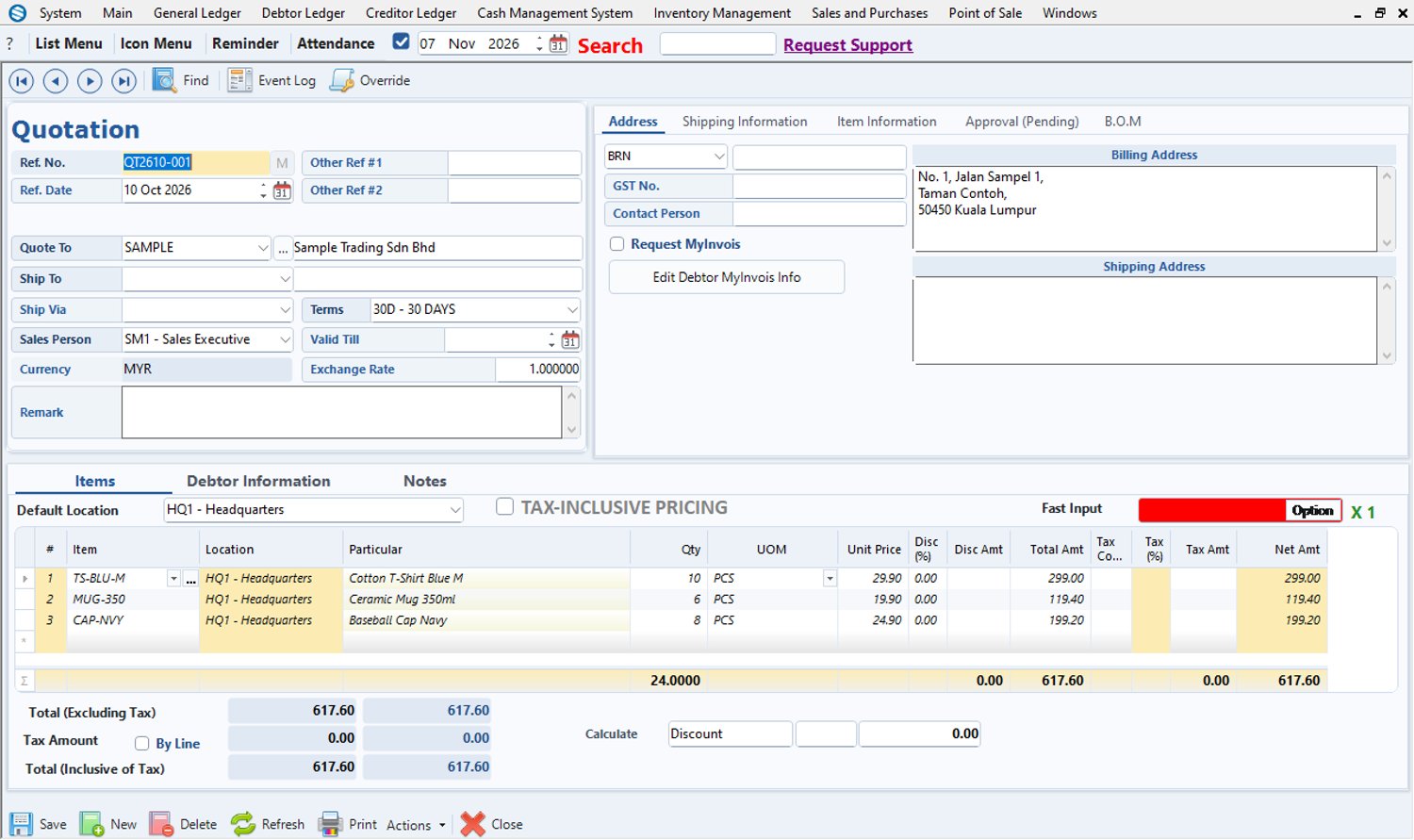
Go to Sales and Purchases > Transactions > Sales Process > Quotation, choose the Quote To customer, set the Default Location, enter each item with quantity and price, and click Save. You can also make and print it on the web from Sales > Quotation. Full guide: Synergy Acc2026 – Sales Documents: From Quotation to Delivery Order to Invoice and Synergy Web – Making and Printing a Quotation
5. 11:30 am – The customer says yes: Sales Order
Open Sales Process > Sales Order, choose the customer under Bill To, set the Default Location and add the item lines, then click Save. On the web Sales Order page, Load Sales Quotation brings in the lines of the customer’s quotation. Full guide: Synergy Acc2026 – Sales Documents: From Quotation to Delivery Order to Invoice
6. 2:00 pm – The goods go out: Delivery Order
Open Sales Process > Delivery Order. In the Actions menu choose Load Sales Order (or Copy From Quotation), check the items and click Save. If Credit Limit exceeded appears, someone with permission to override must approve it. Full guide: Synergy Acc2026 – Sales Documents: From Quotation to Delivery Order to Invoice
7. 2:30 pm – Make the invoice
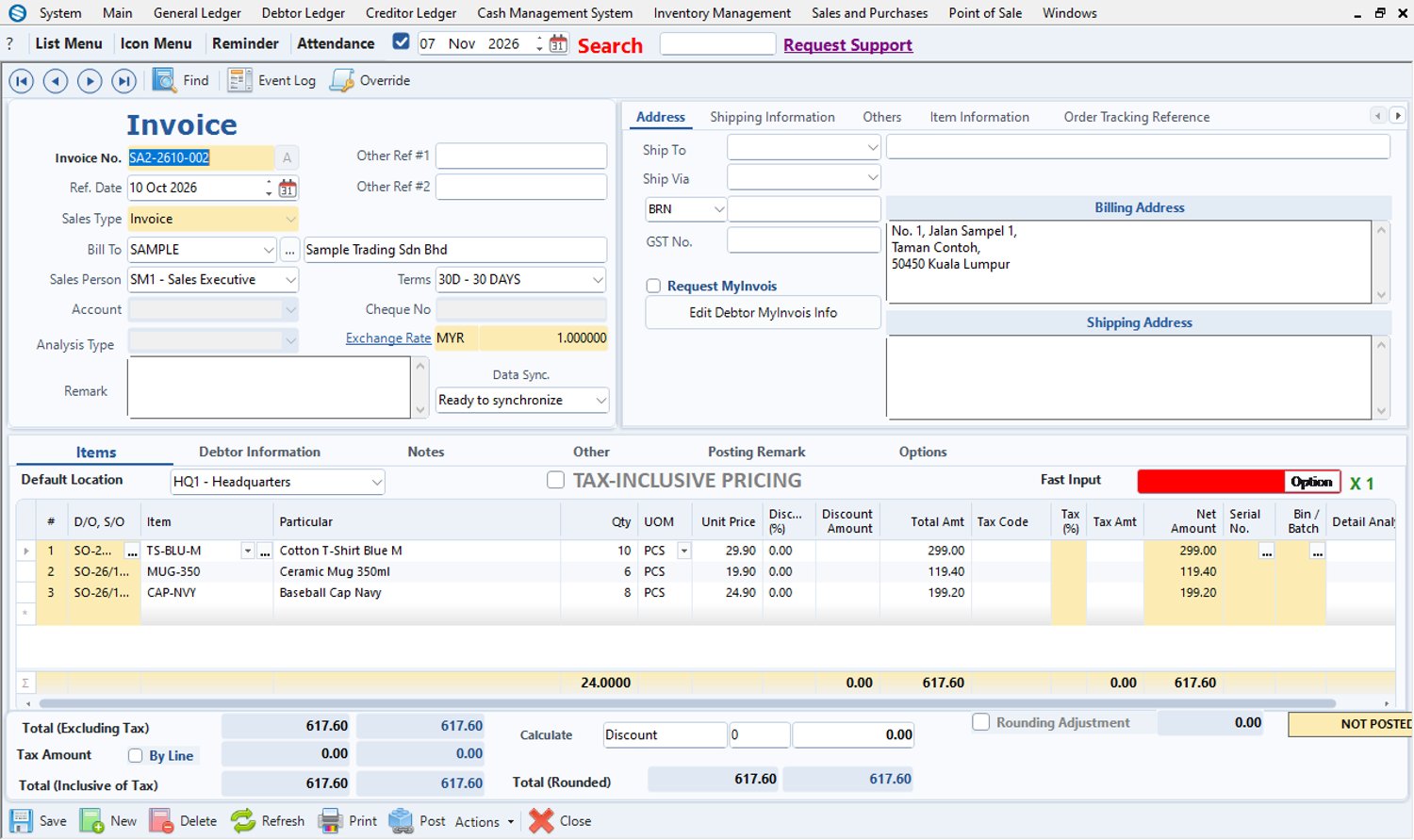
Open Sales Invoice and choose Action > Load Delivery Order. Select every DO that belongs on this invoice and save; Remain Qty reduces on each DO you selected. Full guide: Synergy Acc2026 – Sales Documents: From Quotation to Delivery Order to Invoice
8. 3:30 pm – The customer pays
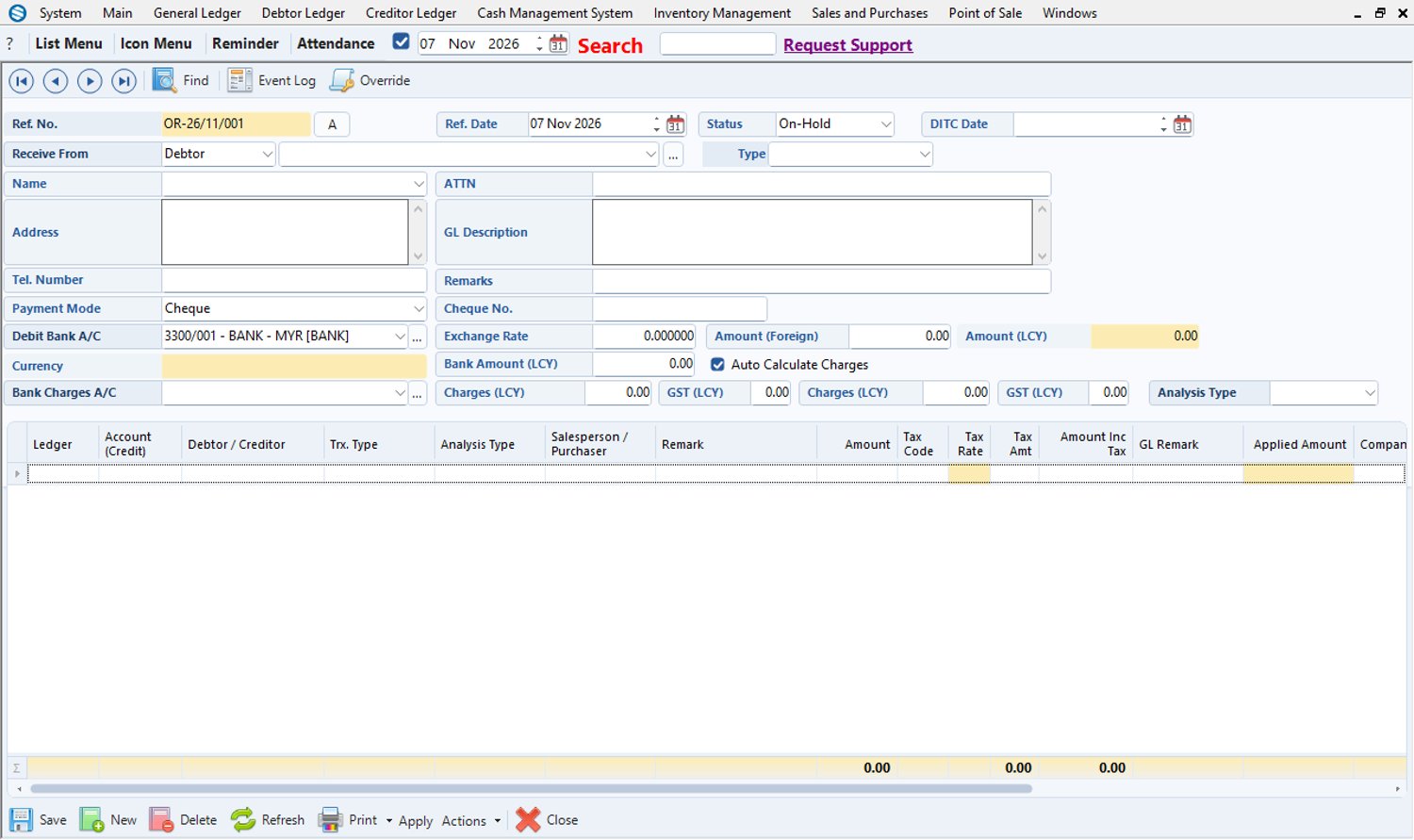
Go to Cash Management System > Transactions > Bank > Bank Receipt and add a new record. Set Receive From to Debtor, pick the debtor, the bank in Debit Bank A/C, the Payment Mode and the Amount, then click Apply to knock it off the invoice and click Save. Full guide: Synergy Acc2026 – Receiving a Customer’s Payment
9. 4:00 pm – The supplier’s lorry arrives
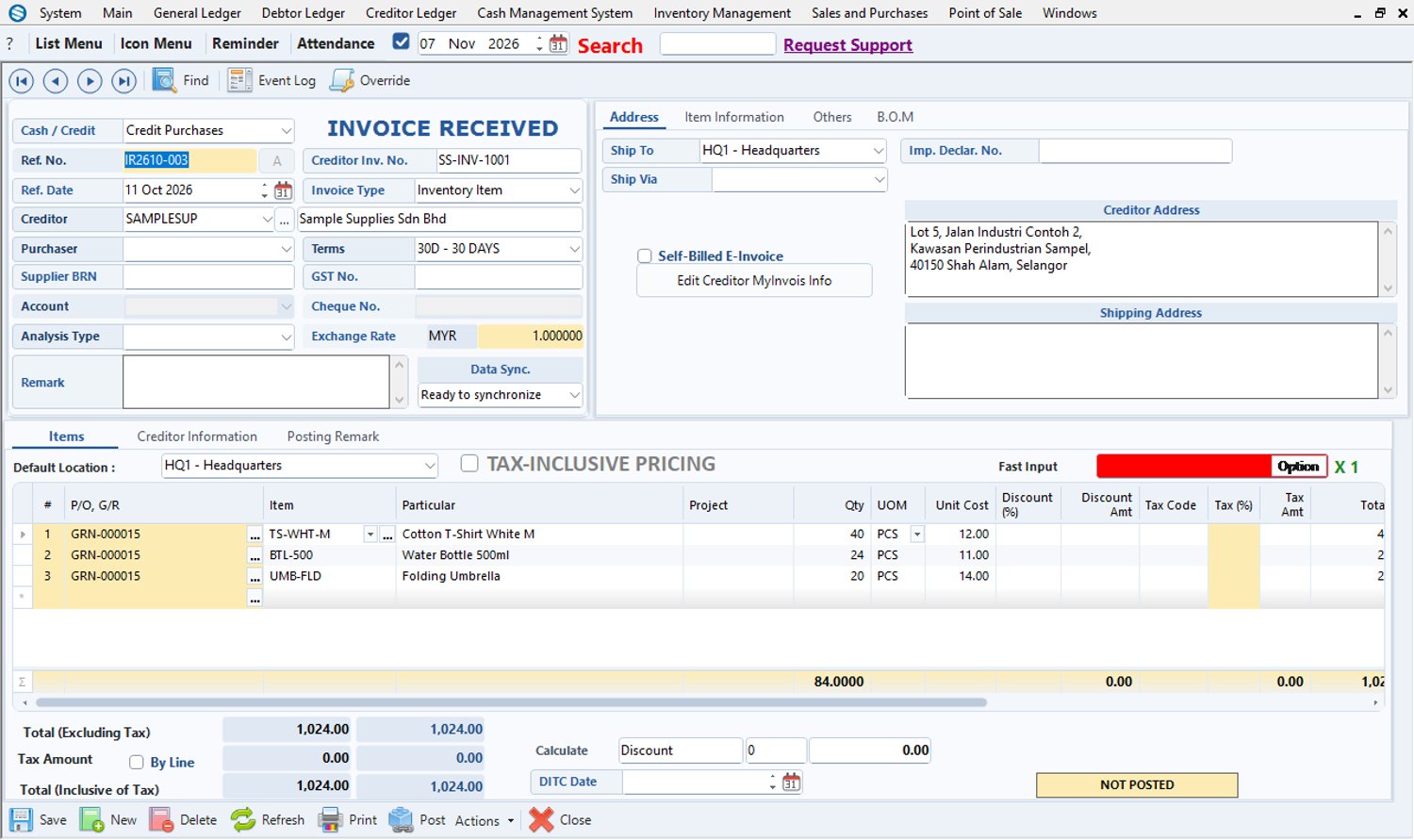
Record the purchase in Sales and Purchases > Transactions > Purchase Process > Invoice Received: choose the Creditor, type the supplier’s bill number in Creditor Inv. No., enter the items and Save. A transport bill that is not stock goes in Creditor Ledger > Transactions > Purchases > Purchase Invoice. Full guide: Synergy Acc2026 – Purchase Invoices (Invoice Received)
10. 4:30 pm – Pay a supplier
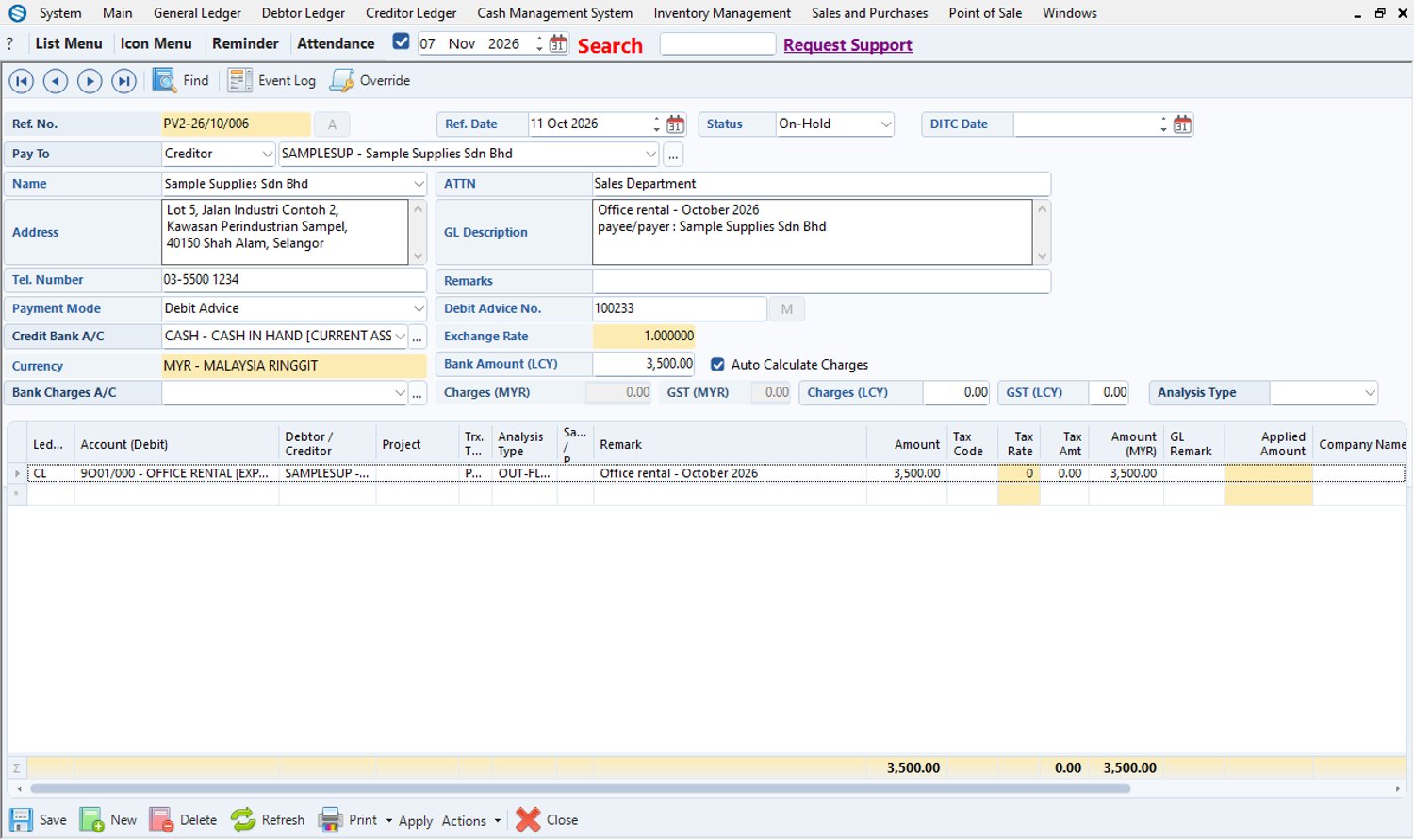
Go to Cash Management System > Transactions > Bank > Bank Payment, choose Creditor and the supplier in Pay To, pick Credit Bank A/C, type the Bank Amount (LCY) and the Payment Mode, then click Apply and Save. To print one payment order for all invoices, press Pay All and use Action > Print Payment Order. Full guide: Synergy Acc2026 – Paying Suppliers and Printing a Payment Order
11. 5:30 pm – Close the day: post the costs
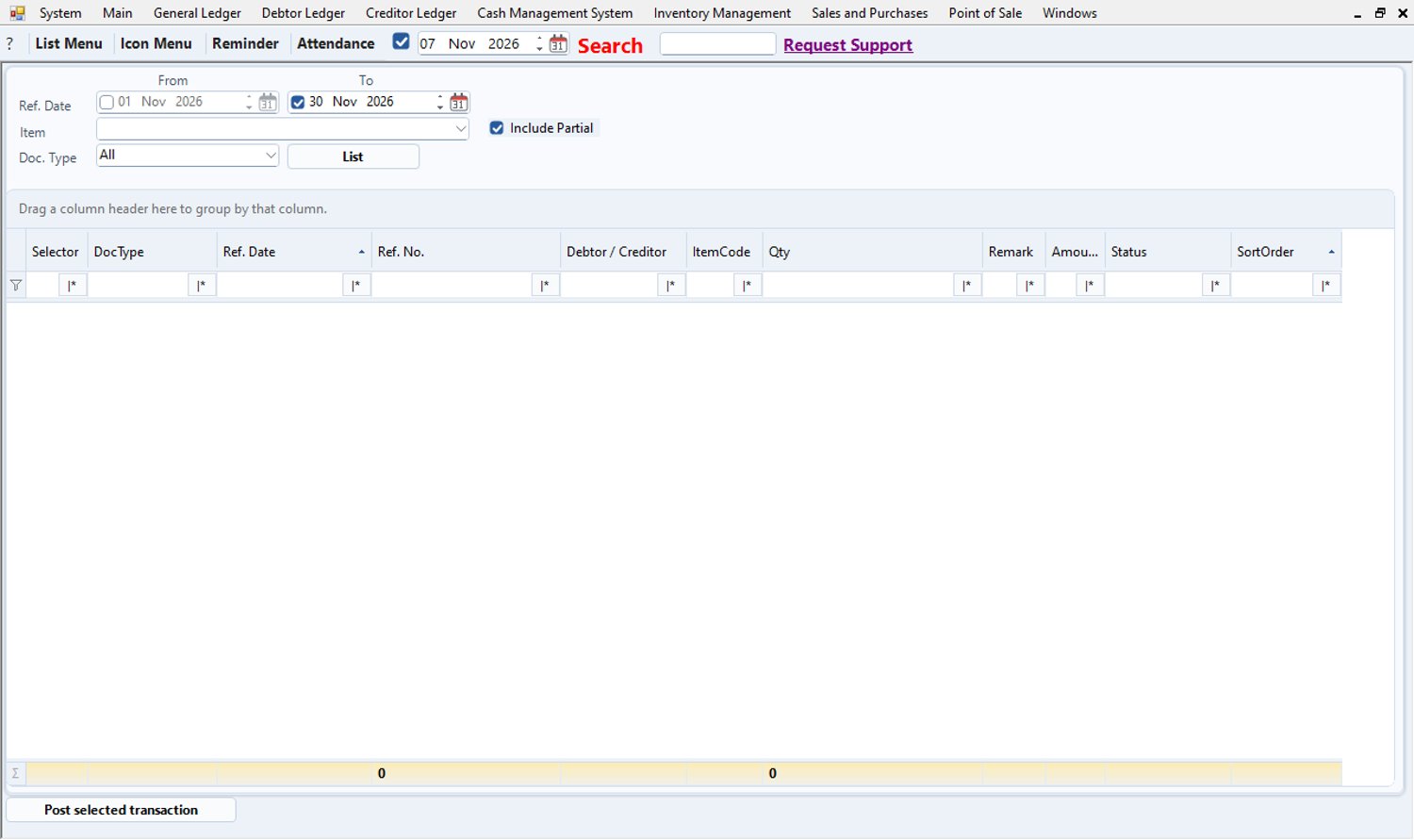
Open Inventory Management > Transactions > Stocks > Inventory Cost Posting, click List, then Post selected transaction. Costs that are not posted show in red and use the standard cost, so stock value and sales margin are only right after this. Full guide: Synergy Acc2026 – Stock Balance, Stock Value, Movement and Cost
12. Next morning and every week – Statement of Account
Go to Debtor Ledger > Reports > Statement of Account, end the date range on the last day of the month and click Preview. Run Apply Open Credit for any receipt that is not applied. To e-mail statements, tick the by-Email setting on each debtor and click Generate E-mail / Fax. Full guide: Synergy Acc2026 – Statement of Account: Printing and Wrong Balances and Synergy Acc2026 – E-mail, WhatsApp and SMS for Documents
13. Month-end – E-invoices
Post all sales invoices first. Then go to Main > MyInvois / E-Invoice > MyInvois / E-Invoice Submission: post the consolidated e-invoice in Step 1 in the first 7 days of the next month, submit in Step 2, and check every row in Submitted Document is Valid. Full guide: Synergy Acc2026 – Month-End Checklist and Synergy Acc2026 – Submitting E-Invoices (Step 1 and Step 2)
14. Month-end – Bank, stock and aging
Do the Bank Reconciliation (the Reconciled Bal. must equal the Statement Balance before you Post), then a Stock Take and check the Comparison By Stock before you click Post. Print the debtor Aging at the month-end date and check the backup. Full guide: Synergy Acc2026 – Month-End Checklist and Synergy Acc2026 – Stock Take Step by Step
Tips
- Costing is FIFO, so stock quantities must be right; fix wrong quantities with a stock take.
- Post your sales invoices first: an unposted invoice stays out of the e-invoice lists.
- The invoice credit term follows the debtor, not the invoice.
Common problems
A Delivery Order stops with Credit Limit exceeded.
Someone with permission to override the credit limit must approve it; otherwise the message says Must override to proceed and the save stops.
The statement still shows an amount after the customer paid.
The receipt was not applied to the invoice. Open the Bank Receipt and click Apply, then close and reopen the statement.
Cost or margin looks wrong, or costs show in red.
Run Inventory Cost Posting, then open the report again. Also check that all items have a unit cost and that there are no negative quantities.
Step 2 of the e-invoice screen is empty.
An empty list means everything has been submitted. Check that Step 1 is empty too, and that every row in Submitted Document shows Valid.