
One day at a stall or branch that sells with the Synergy Order App even when head office (HQ) cannot be reached: sign in, open the shift, sell, keep selling without signal, sync the bills up later, close the shift and let the boss see the branch from HQ. Each step is a moment of the day; the full guide behind it is named at the end of the step.
Before you start
- A branch phone that is already linked to your HQ. If it is not, Ask Synergy; no guide covers the linking yet.
- Your items and prices set up at HQ, which the phone receives when it syncs.
- The float (starting cash) for the drawer.
Steps
1. 7:30 am – Sign in at the stall
With Staff sign-in on, the PIN pad opens first. Type your own PIN and tap OK; the order screen opens with your name and role at the top. Full guide: Synergy Order App – Staff PIN Sign-in
2. 7:45 am – Open the shift
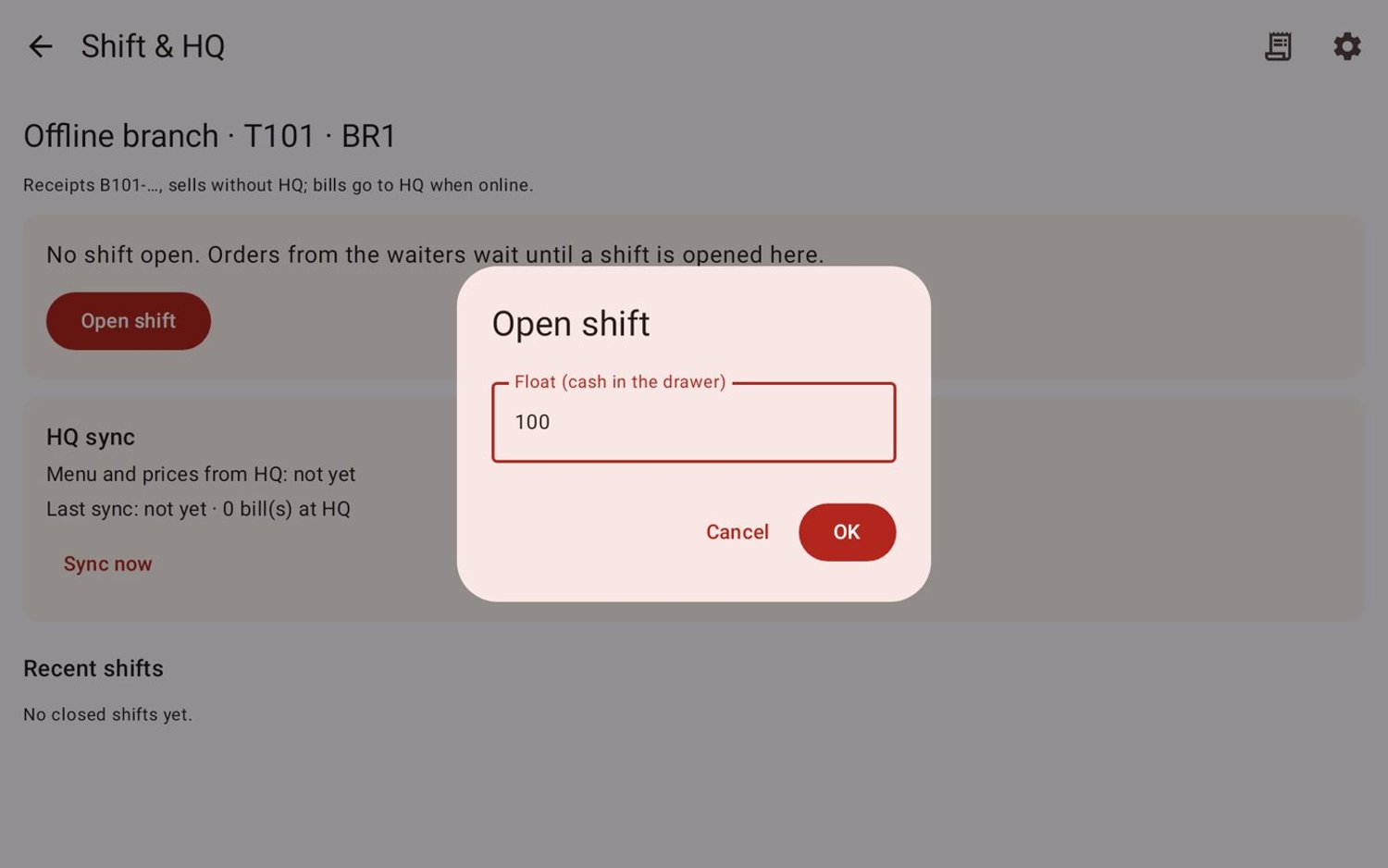
A branch phone can take payment only while its own shift is open. Tap the red message on the order screen, tap Open shift on the Shift & HQ screen, type the float and tap OK. Full guide: Synergy Order App – Shifts and Counting the Cash
3. 8:00 am – Sync while you still have signal
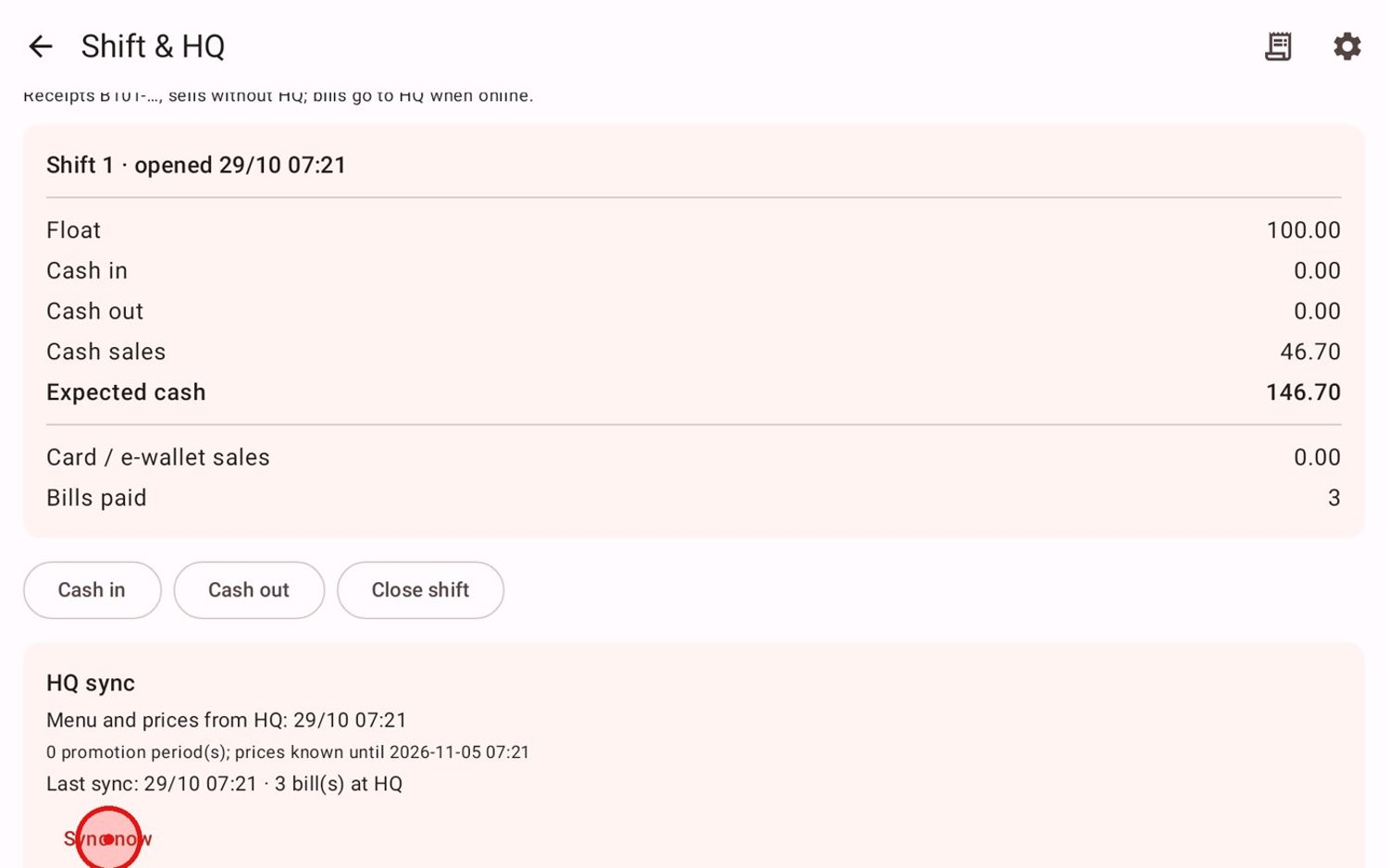
On Shift & HQ scroll down to HQ sync and tap Sync now. The menu and prices come from HQ and any bills waiting go up; Last sync shows how many bill(s) are at HQ. Full guide: Synergy Order App – Selling at a Branch Without HQ Online
4. 8:15 am – Receive the morning stock
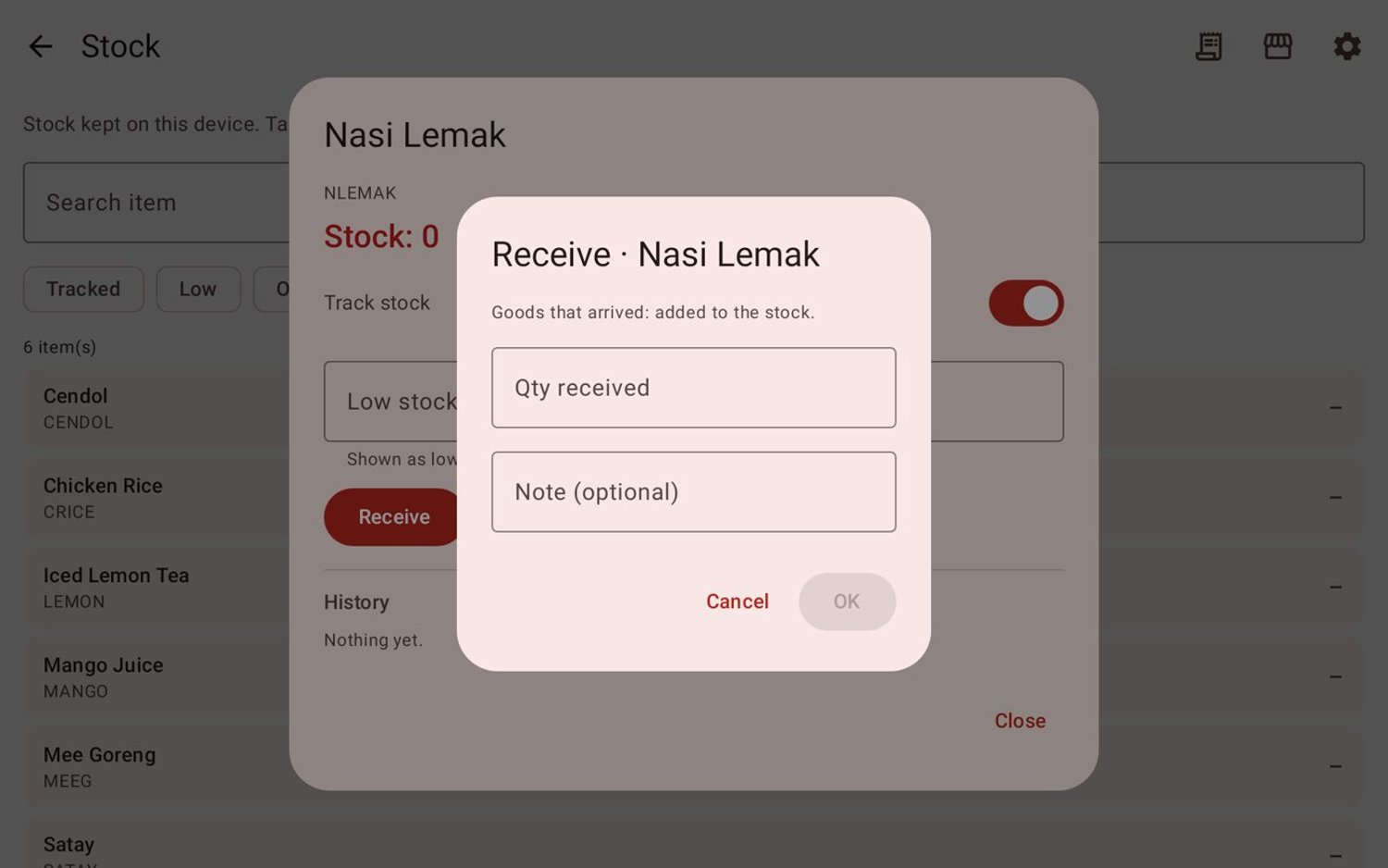
Tap the Bills icon, then Stock. Tap an item, switch on Track stock, tap Receive and type the quantity that arrived. A paid bill takes its quantity off the stock, and a voided bill puts it back. Full guide: Synergy Order App – Keeping Track of Stock
5. 10:00 am – Sell as usual
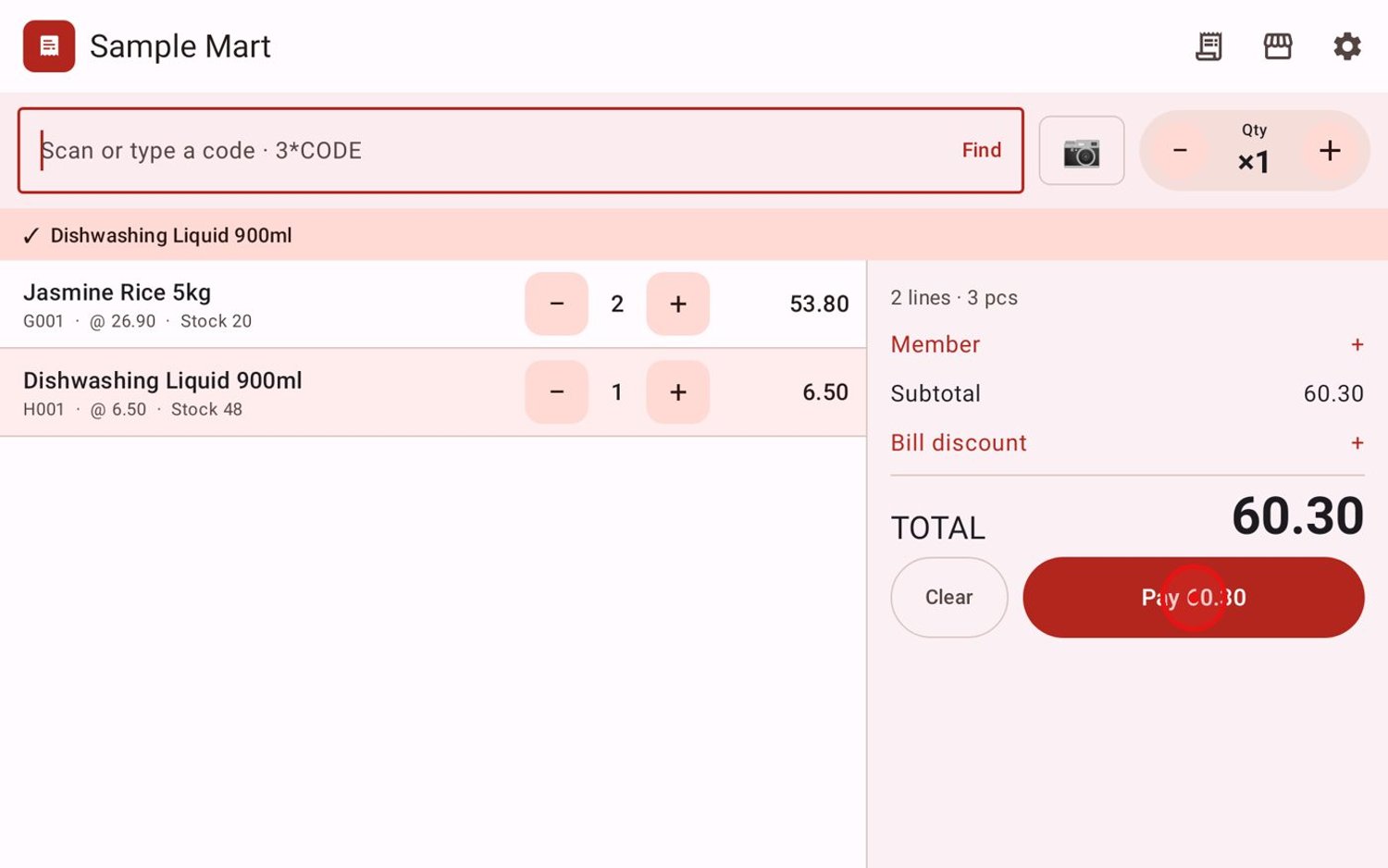
Scan each item with a scanner or the camera, tap the number next to an item to change the quantity, then tap Pay, choose the payment type and tap Paid. The receipt prints and the screen is ready for the next customer. Full guide: Synergy Order App – Retail Till: Scan, Pay, Receipt
6. 11:30 am – The signal drops
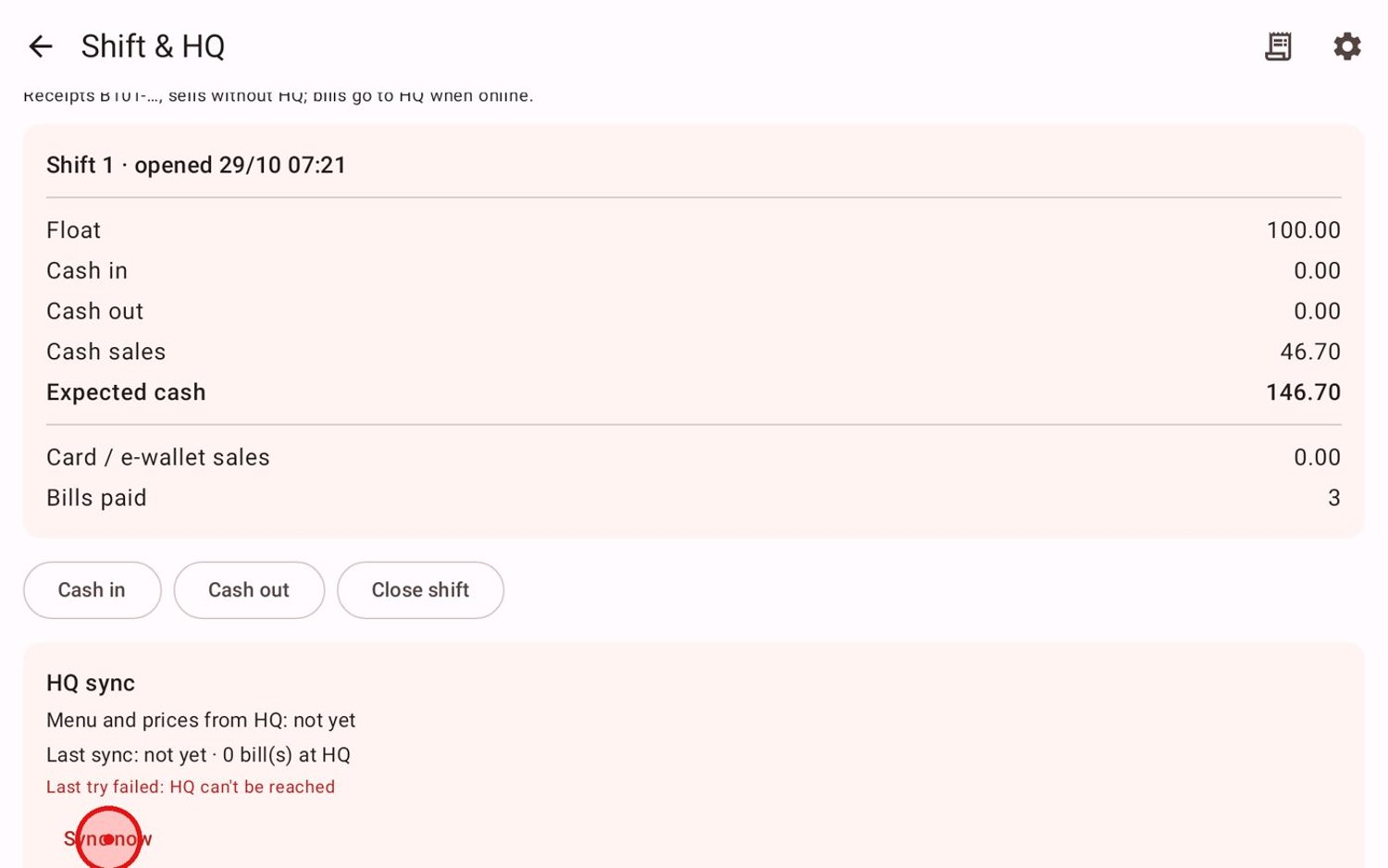
Keep selling. When HQ cannot be reached, HQ sync says Last try failed, and your bills stay on the phone and go to HQ later. The phone also tries again by itself every few minutes. Full guide: Synergy Order App – Selling at a Branch Without HQ Online
7. 1:00 pm – Cash in and cash out
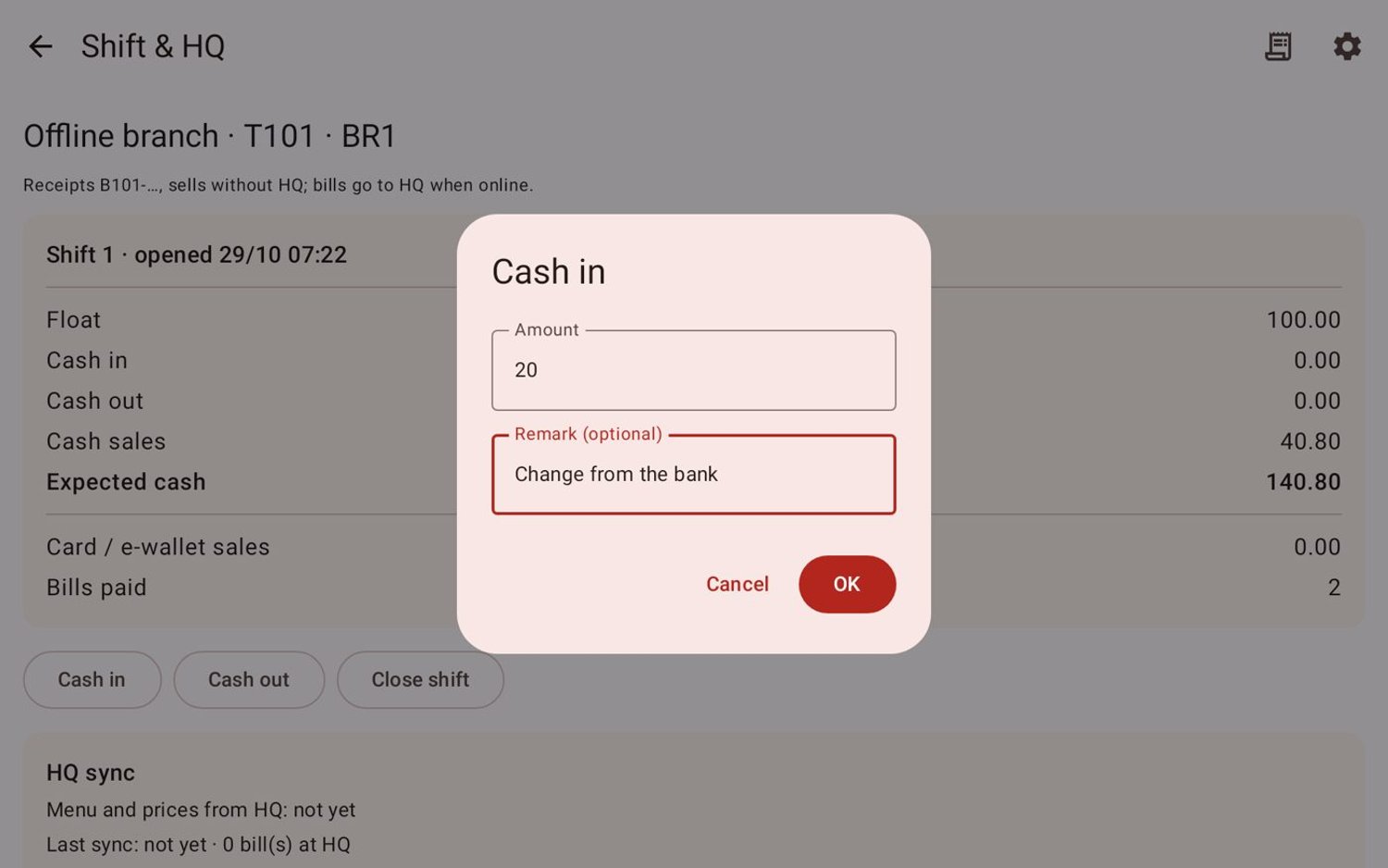
On Shift & HQ tap Cash in when you add change to the drawer and Cash out when you take money out, and type a remark such as Milk delivery. Expected cash = float + cash in – cash out + cash sales. Full guide: Synergy Order App – Shifts and Counting the Cash
8. 2:30 pm – Back online: send the bills
When the phone is online again, tap Sync now on Shift & HQ. Last sync then shows how many bill(s) are at HQ. Full guide: Synergy Order App – Selling at a Branch Without HQ Online
9. 3:00 pm – HQ refused a bill
After a sync, look under HQ refused these bills and read the reason for each bill. When the cause has been fixed at HQ, tap Send them again and check that the list is empty. Full guide: Synergy Order App – Selling at a Branch Without HQ Online
10. 9:00 pm – Close the shift
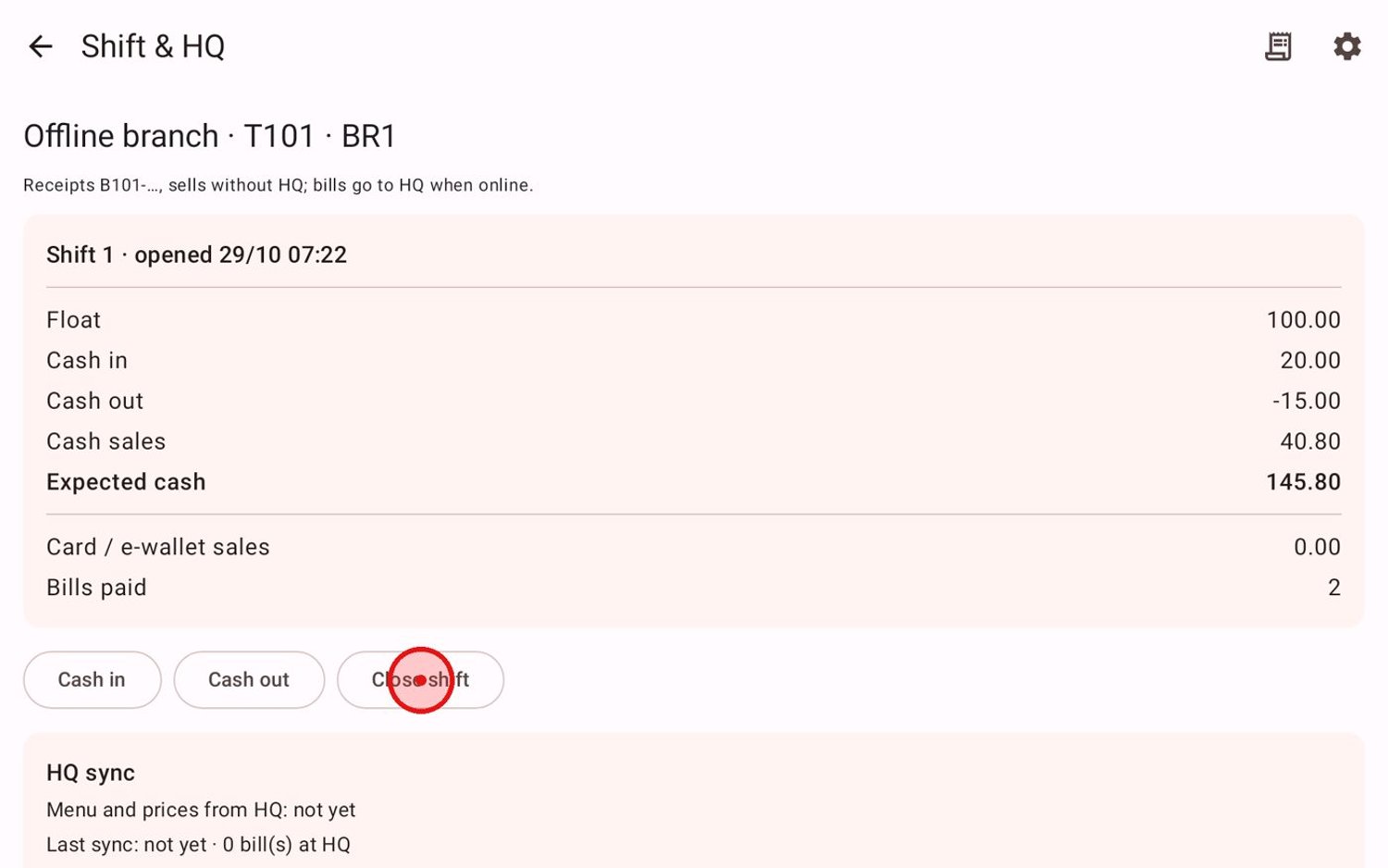
Pay or void every open bill first. On Shift & HQ tap Close shift, count the cash in the drawer, type it and tap OK. The summary shows the cash counted, the expected cash and the difference. Full guide: Synergy Order App – Shifts and Counting the Cash
11. 9:30 pm – HQ looks at the branch
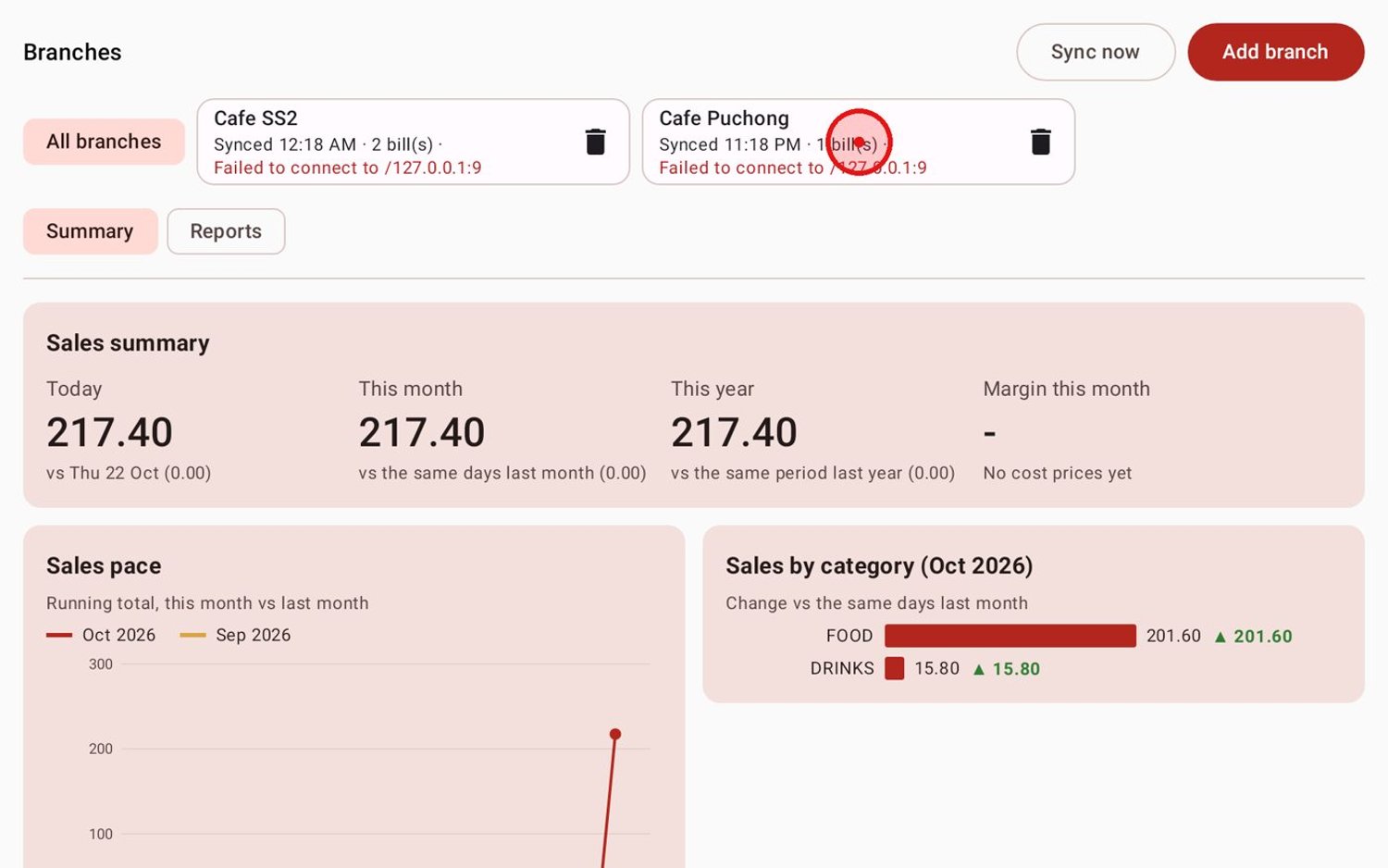
Once the stall has synced, the boss opens Settings > HQ device (boss) on the boss phone. The list shows each branch and when it last synced; tap one branch to see only that branch and tap Reports for its sales. Full guide: Synergy Order App – The Boss Phone: Seeing All Branches
12. Next morning – Back up the phone
In Settings scroll down to Backup. A backup is made automatically every day into Downloads/SynergyOrderApp and the newest 14 are kept; tap Back up now to make one at once, and copy one to a PC or Google Drive now and then. Full guide: Synergy Order App – Backing Up Your Sales and Settings
13. Every week – Review the stall’s sales
In Back Office tap Reports and pick 7 days to see sales by item, Categories and Hours, then tap Export Excel to save it. The boss phone has the same Reports screen for all branches together. Full guide: Synergy Order App – Reports in Back Office and Synergy Order App – The Boss Phone: Seeing All Branches
14. Every week – How the bills reach HQ accounts
The guides do not yet explain how the stall’s synced bills are posted into the head office accounts. Ask Synergy before you rely on a particular report at HQ.
Tips
- The phone tries to sync again by itself every few minutes and soon after a sale; Sync now does it at once.
- The boss phone can also keep selling if you turn on This phone sells too.
- Back Office closes itself after 5 minutes without a touch.
Common problems
HQ cannot be reached and HQ sync says Last try failed.
Keep selling. The bills stay on the phone. When the phone is online again, tap Sync now.
HQ refused some bills.
Read the reason under HQ refused these bills. After the cause is fixed at HQ, tap Send them again.
The phone will not take payment.
The shift on this phone is not open. Tap the red message, then tap Open shift.
The Stock screen says to receive and count on the main device.
This device is a terminal. Receive and count on the main device.