
One day in a retail shop that uses the Acc2026 Point of Sale with members and points: open the shift, sell, redeem points, take QR payments, handle a return, close the shift, read the daily reports and keep the stock right. Each step is a moment of the day; the full guide behind it is named at the end of the step.
Before you start
- Your items, a POS counter and a receipt printer set up: read Synergy – Getting Started: Retail Shop.
- Enable Loyalty Programme and Enable Reward Point ticked in the POS settings, so members can earn and redeem points.
- Your payment types, including QR or e-wallet, added at the HQ PC.
Steps
1. 9:00 am – Open the shift
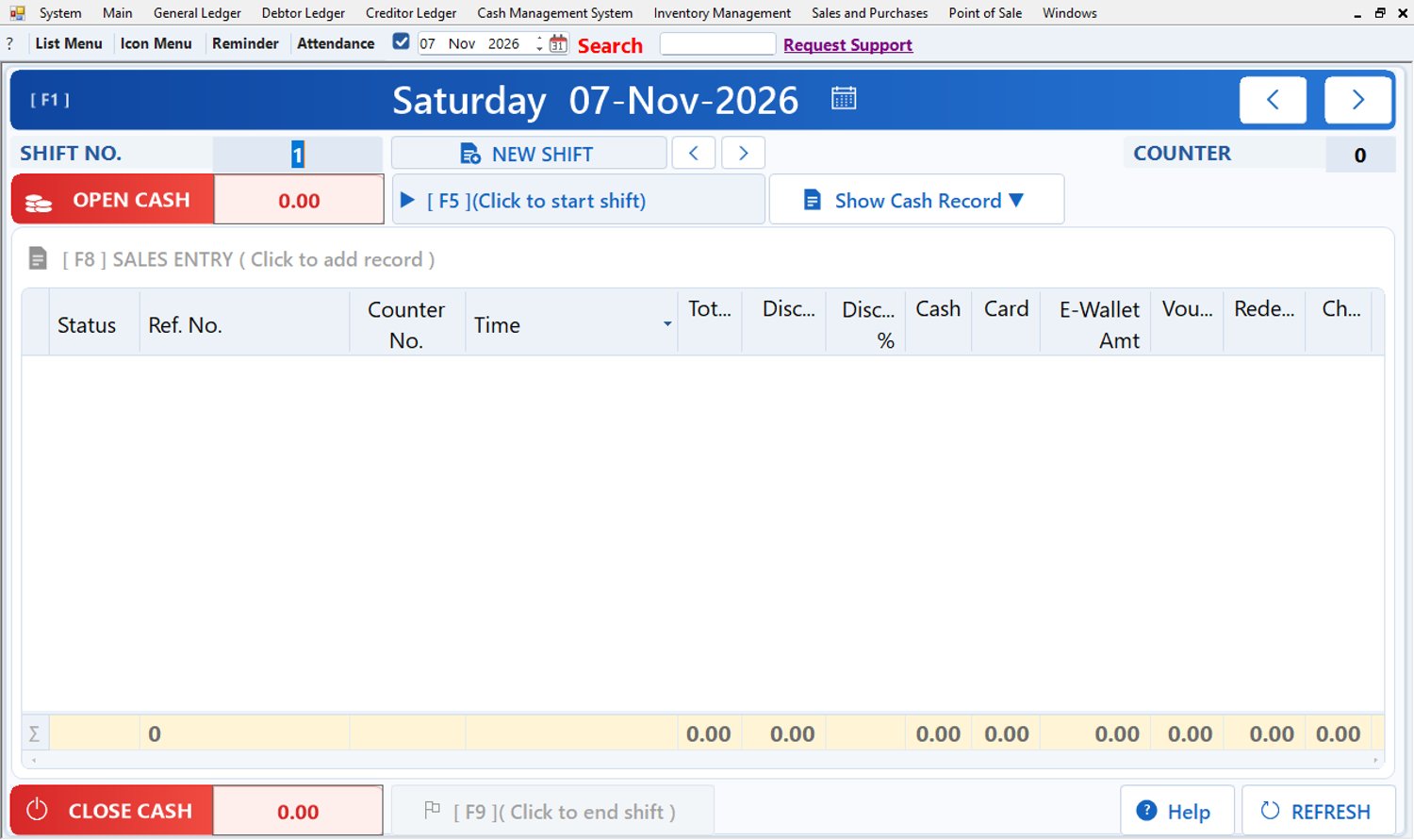
On the POS main screen choose the date and shift, click ( Click to start shift ) under OPEN CASH and enter the opening cash. You must open a shift before taking sales. Full guide: Synergy Acc2026 – POS Shifts, Cash In and Out, and Correcting a Sale’s Shift
2. 9:15 am – Check a promotion item
Go to Inventory Management > Query > Item Info, search for the item and click it to see its price and promotion price. Open the Location tab to see the stock held at each location. Full guide: Synergy Acc2026 – Check Stock Balance, Item Info and Prices
3. 10:00 am – A new member signs up
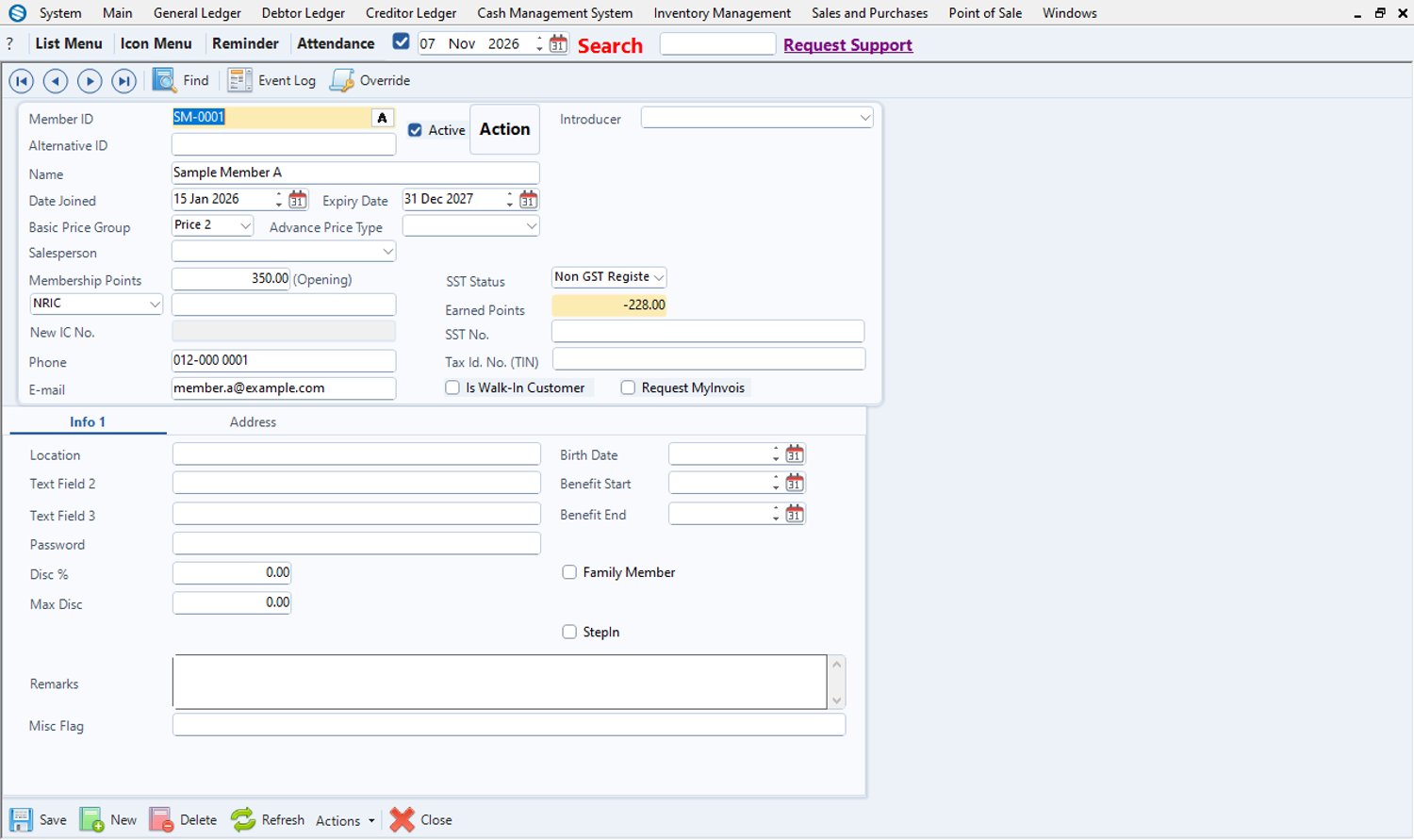
Go to Point of Sale > Point of Sale Setup > Membership > Member and add a new member. Fill in Member ID and Name (both are required), pick the Basic Price Group and save. If you have branches, create members at HQ first and the branches download them. Full guide: Synergy Acc2026 – POS Members: Points, Import and Vouchers and Synergy Web – Adding and Editing POS Members
4. 10:30 am – Make a sale
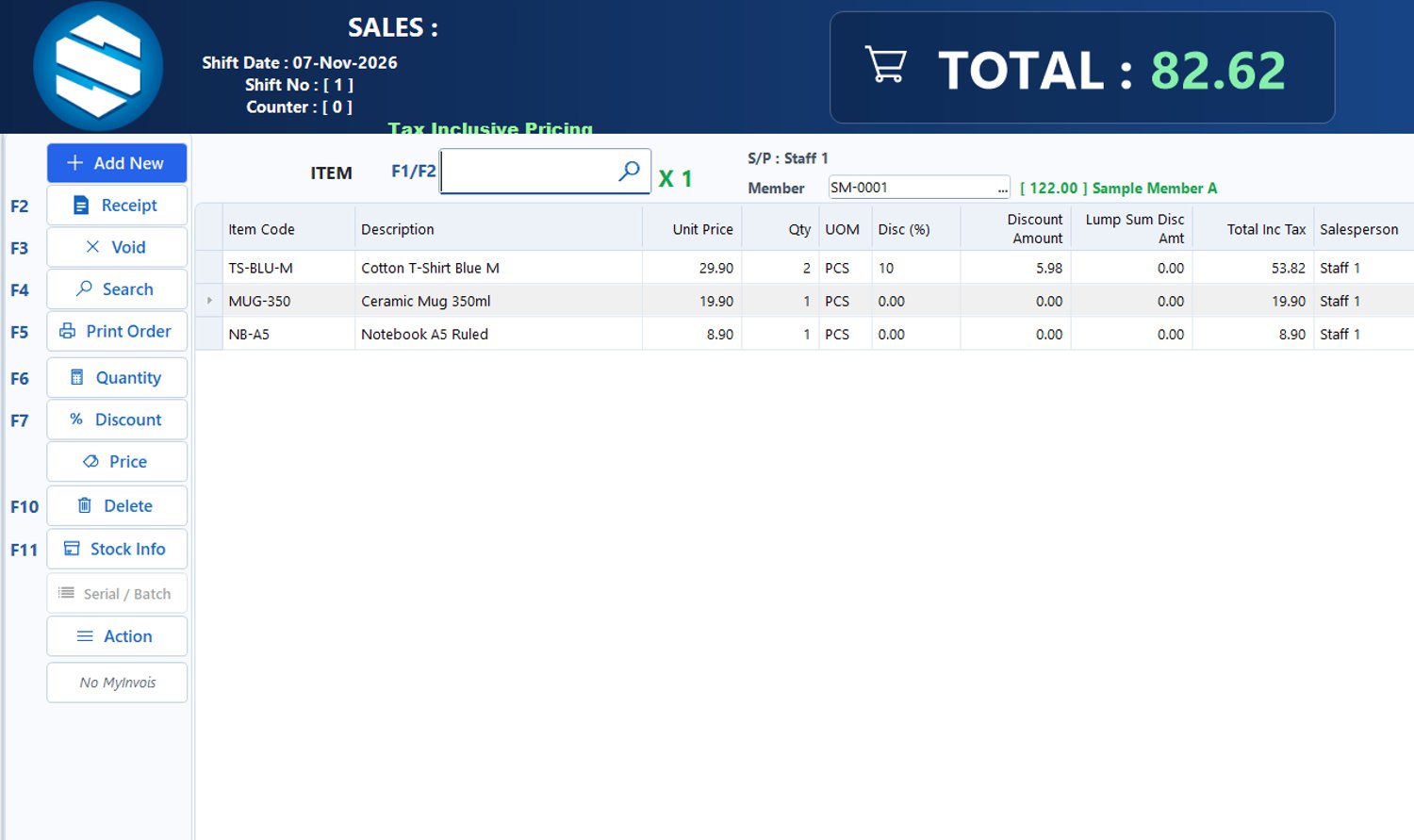
Click Add New, add items by code or search, then choose the Member (type the member code with Member Id chosen) and the Salesperson. Enter the Cash Amount and click Receipt to finish and print. Full guide: Synergy Acc2026 – Point of Sale: Making a Cash Sale
5. 11:00 am – A member uses points
While the sale is still pending, open Redeem Item by Point. Available Point shows the member’s points; click Redeem on the item’s row, then OK to apply. Once the sale is settled the OK button is greyed out. Full guide: Synergy Acc2026 – POS Members, Points, Vouchers and SMS Blasting and Synergy Acc2026 – POS Settings: Loyalty Programme and Reward Points
6. 12:00 pm – A customer pays by QR
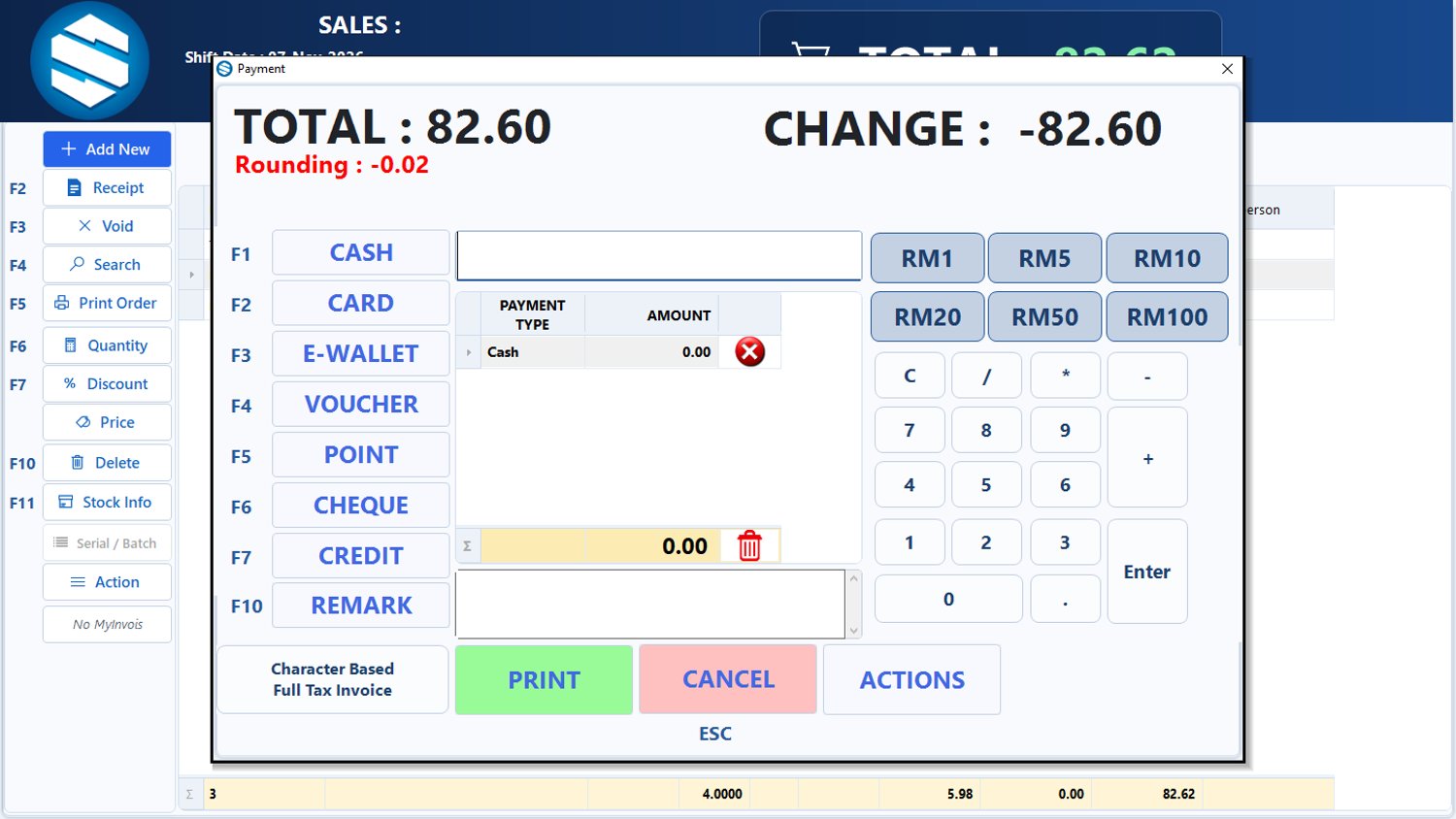
On the payment screen pick the QR payment type. The money reaches your bank later, so you will clear it with a Bank Receipt the next day. Full guide: Synergy Acc2026 POS – Payment Types, QR and E-Wallet
7. 1:00 pm – Change in and cash out of the drawer
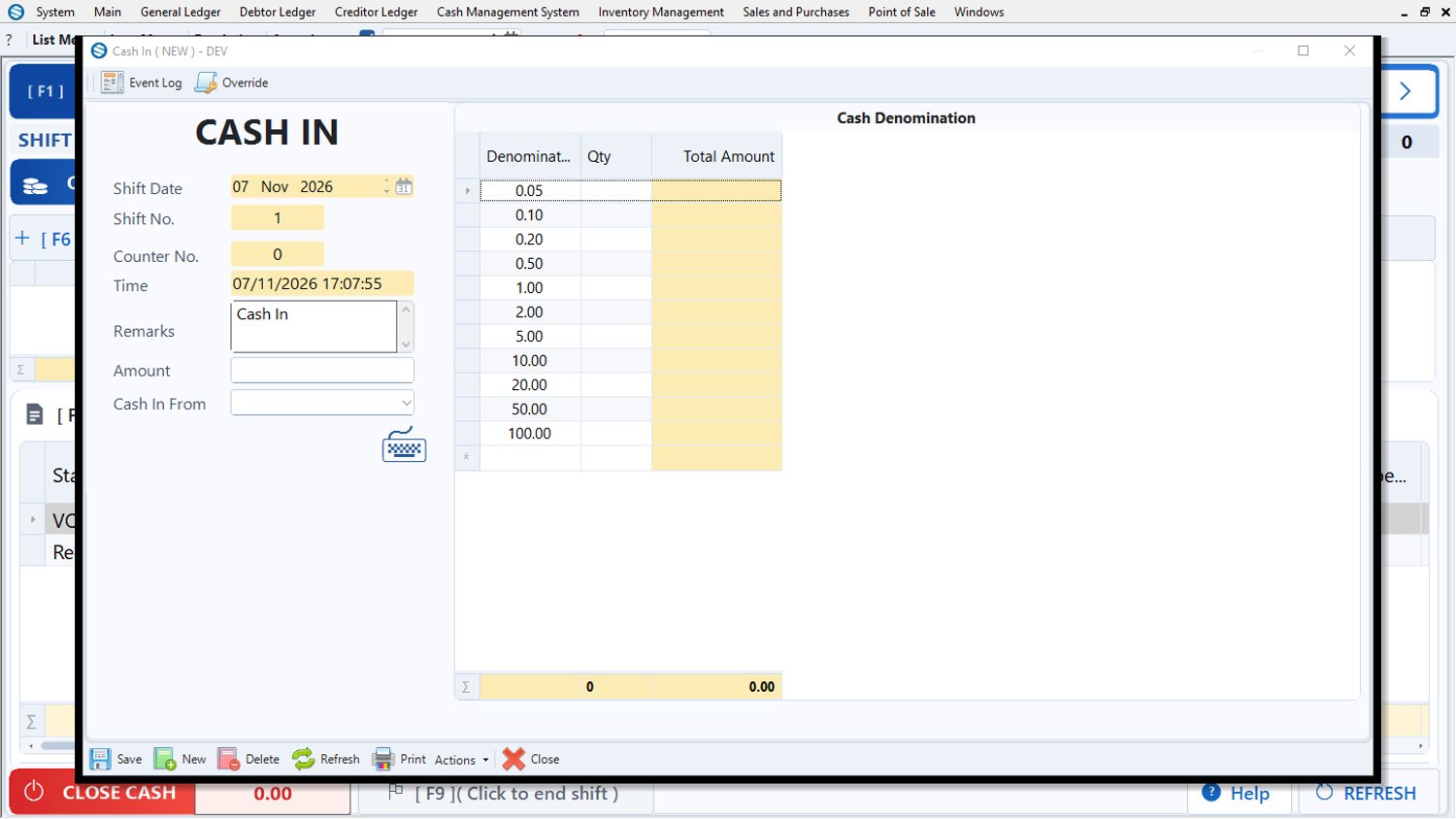
On the POS main screen use CASH IN to record money put into the drawer and CASH OUT for money taken out, so the closing cash tallies. Full guide: Synergy Acc2026 – POS Shifts, Cash In and Out, and Correcting a Sale’s Shift
8. 2:30 pm – A customer returns an item
Do not void the old sale. Issue a Refund Note with today’s date and, when the Returned Receipt screen appears, pick the original invoice from the search button. For an exchange, refund the returned item first, then ring up the new item. Full guide: Synergy Acc2026 POS – Returns, Voids and Corrections
9. 4:00 pm – A supplier delivers stock
Record the purchase in Sales and Purchases > Transactions > Purchase Process > Invoice Received: choose the Creditor, type the supplier’s bill number in Creditor Inv. No., enter the items and click Save. Full guide: Synergy Acc2026 – Purchase Invoices (Invoice Received)
10. 9:30 pm – Close the shift
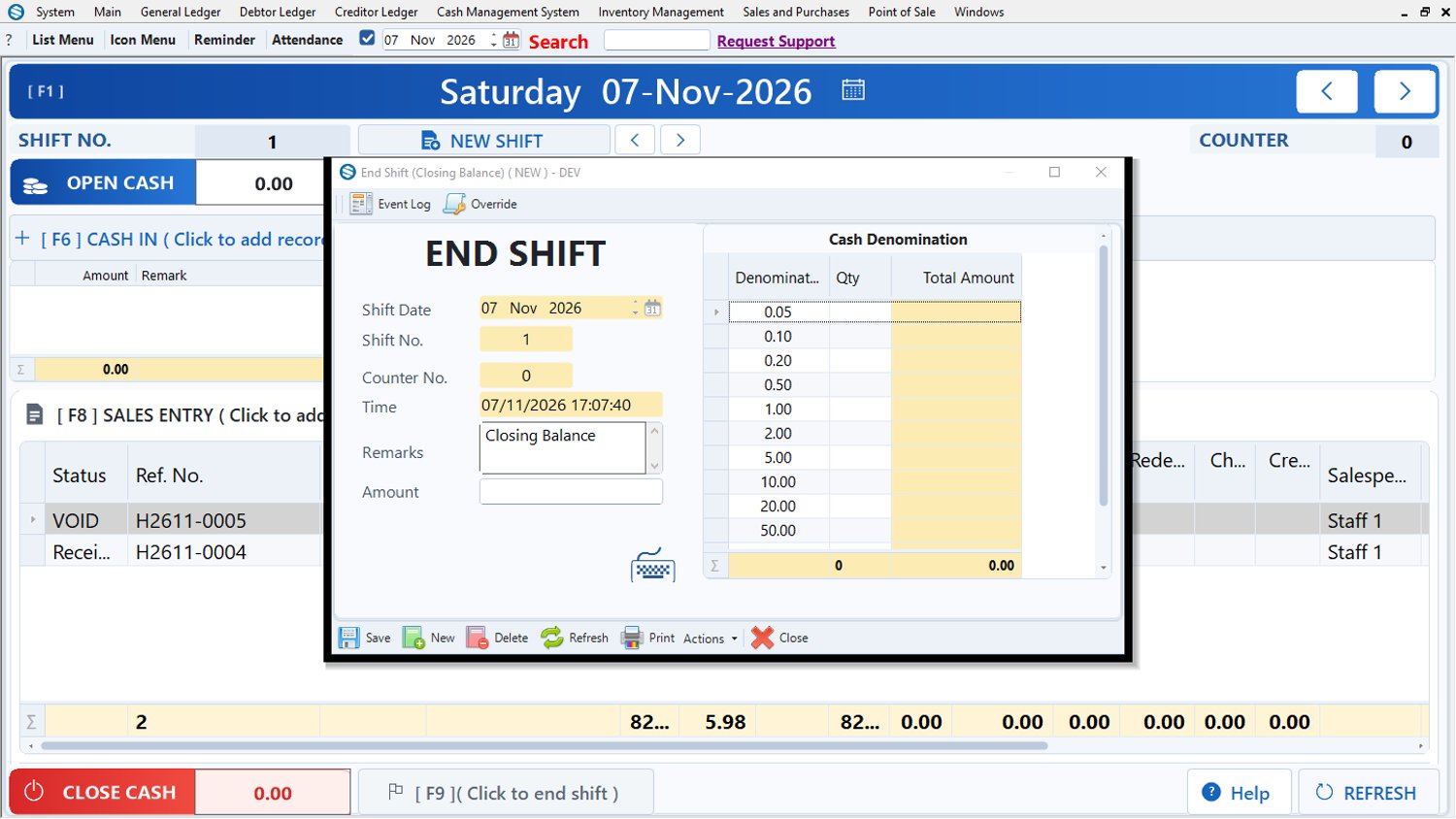
Click ( Click to end shift ) under CLOSE CASH. If your company chose an action when a shift is closed, the Sales Summary is previewed, printed or e-mailed at this point. Full guide: Synergy Acc2026 – POS Shifts, Cash In and Out, and Correcting a Sale’s Shift and Synergy Acc2026 – POS Settings: Shift Rules and End-of-Shift Actions
11. 9:45 pm – Read the daily reports
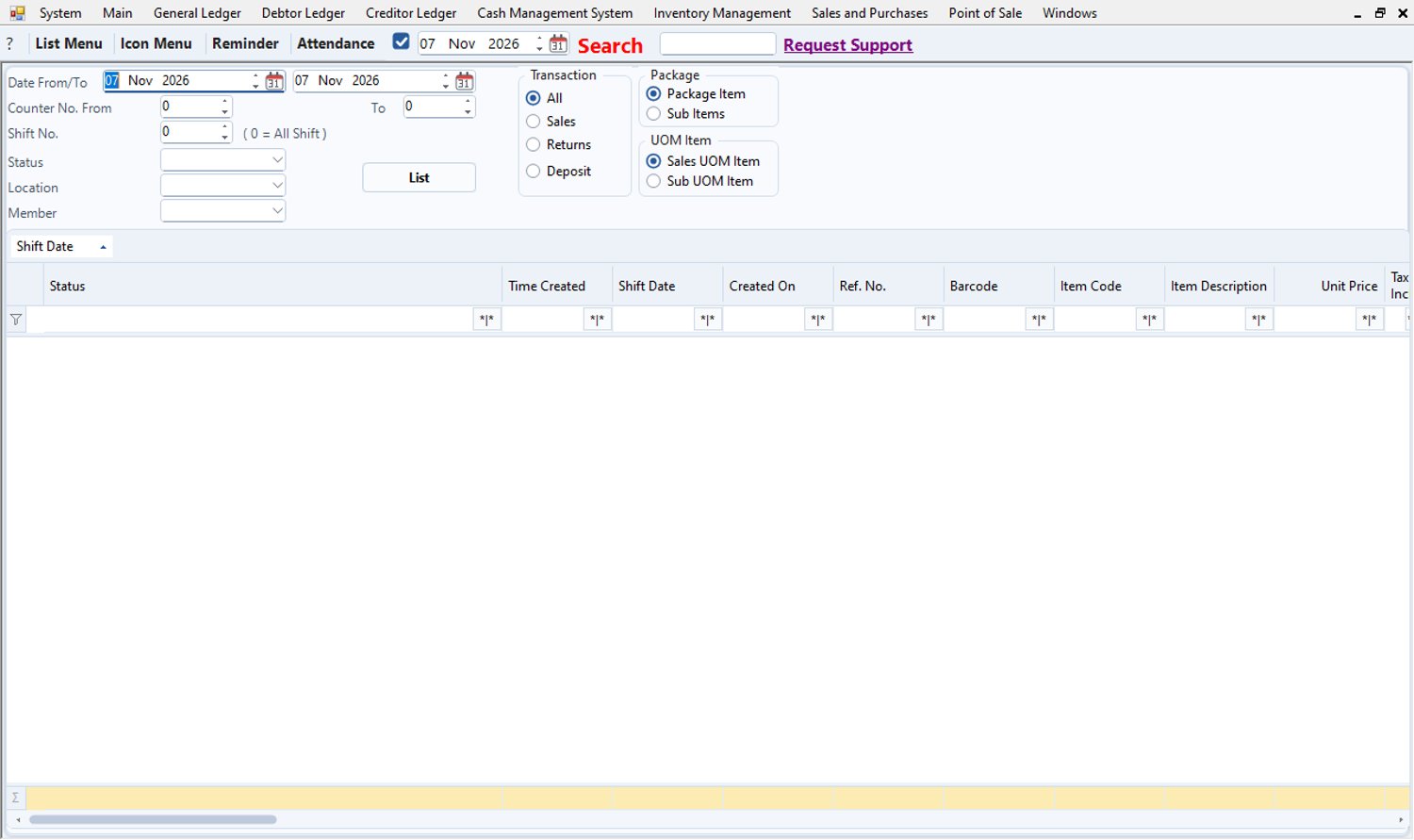
Go to Point of Sale > Reports > Cash In/Out Report, then Point of Sale > Query > Daily Sales (Detail) or (Summary). Use Point of Sale > Reports > Collection By Payment for totals by payment type. Full guide: Synergy Acc2026 – POS Daily Sales, Cash In/Out and Collection Reports
12. Next morning – Clear the QR money in the bank
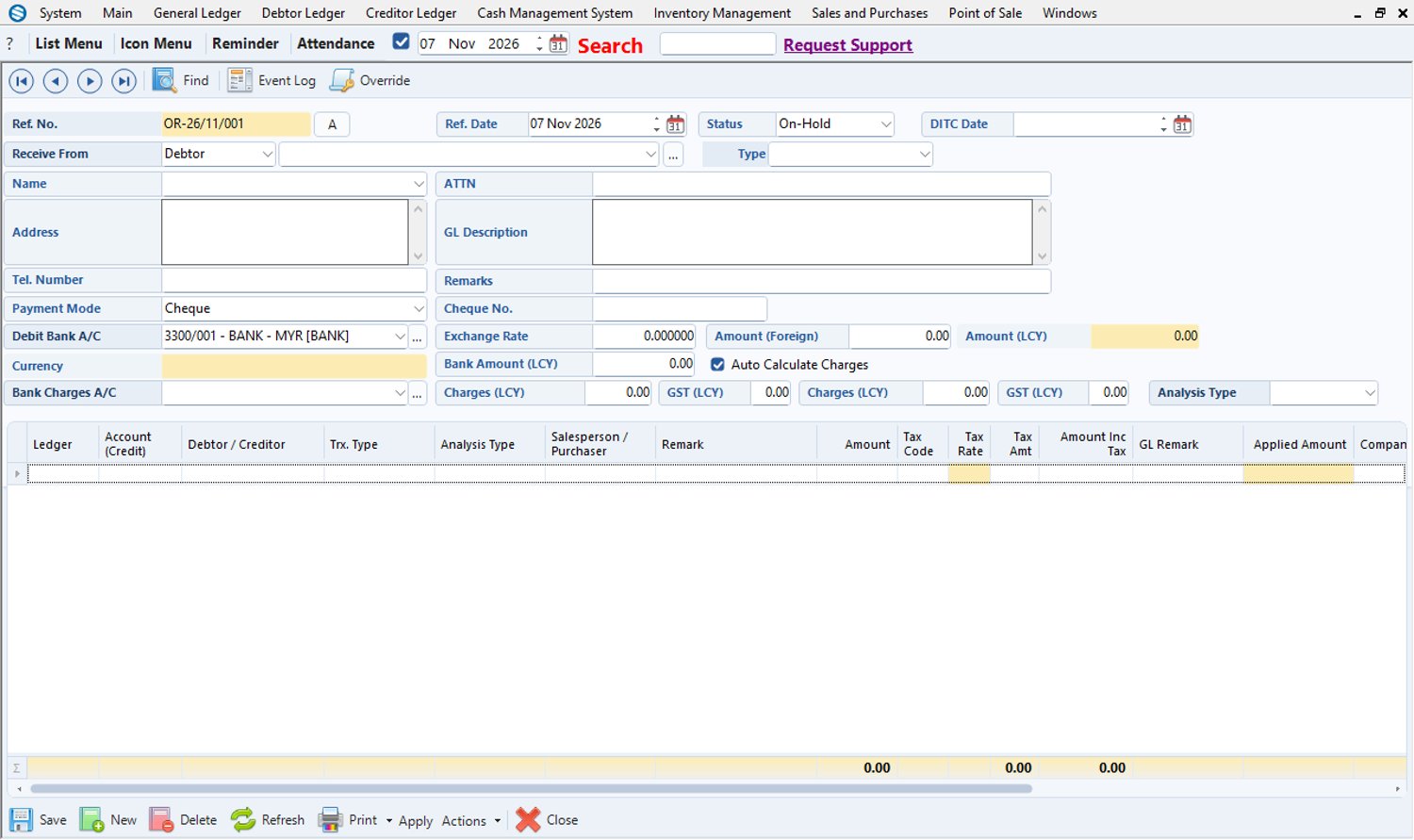
When the QR transfer arrives in the bank, make a Bank Receipt. In the detail line choose the General Ledger type and the POSCC account, and key the amount the bank really credited; put any bank charge in a second line so POSCC clears to zero. Full guide: Synergy Acc2026 POS – Payment Types, QR and E-Wallet
13. Every week – Message your members
Go to Point of Sale > Utilities > SMS Blasting, choose SMS or e-mail in Send By, write the Criteria and the message, click List Members and untick anyone you do not want to contact. Click Start Blasting and confirm the number of members. Full guide: Synergy Acc2026 – POS Members, Points, Vouchers and SMS Blasting
14. Month-end – Count the stock
Print the Stock Balance Listing, count the shelves in Stock Take, and check Comparison By Stock before you click Post. Then run Inventory Cost Posting so the stock value is right. Full guide: Synergy Acc2026 – Stock Take Step by Step and Synergy Web – Counting Stock with Stock Take
Tips
- POS sales do not appear in the Sales Invoice list; use the POS reports and queries.
- Create vouchers and other master data at HQ, not at a branch, because vouchers created at a branch cannot synchronize to HQ.
- To return an item from an earlier day, issue a Refund Note instead of voiding the old sale.
Common problems
A message says Please start a shift first.
Open a shift by clicking ( Click to start shift ) before taking sales.
Invalid Member Id appears when you type a member code.
Check the member code and make sure Member Id is chosen next to the item entry box.
Members are blocked at the point of sale.
Check whether the member is inactive or expired, and whether Allow Inactive Members In Transactions or Allow Expired Members In Transactions is ticked in the POS loyalty settings.
No rows appear in Daily Sales after clicking List.
Only today is included by default. Widen Date From/To, or check the Shift No., Counter No. and Status filters.