
Messages you may see when you open Synergy Acc2026, log in, connect to the database or open a screen you are not allowed to use. Each one says what it means in plain words and the first thing to try.
Before you start
- The exact wording of the message on your screen (take a photo or a screenshot).
- The screen you were using and what you clicked just before the message appeared.
Steps
1. Invalid Username/password entered.
The user ID or password is wrong. Check both and try again. Full guide: Synergy Acc2026 – Logging In and Choosing a Company
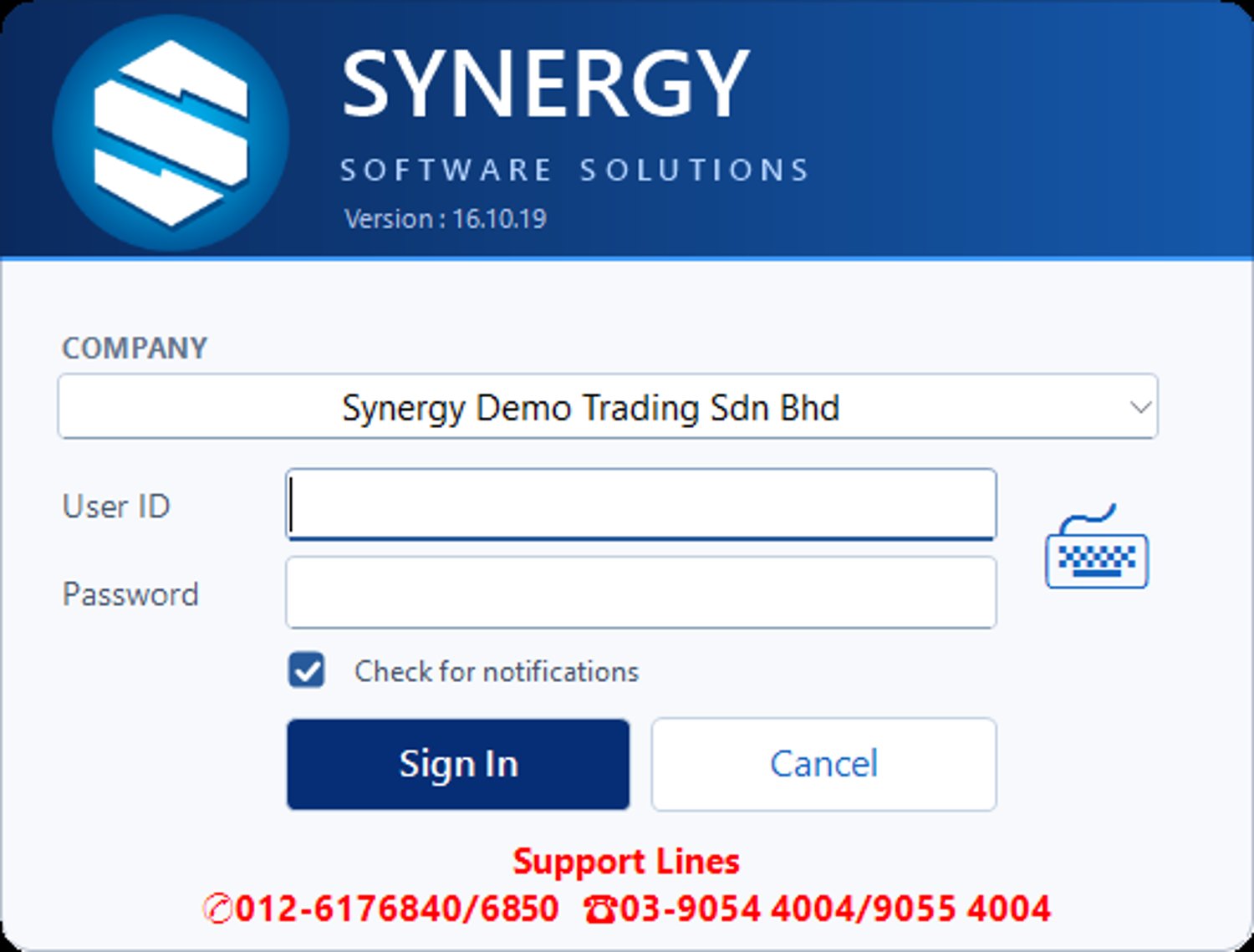
2. You have to set up the Database Connection first.
No database setup exists yet on this PC. Use the setup option in the sign-in menu, which opens when you click the Synergy logo. Full guide: Synergy Acc2026 – Logging In and Choosing a Company
3. Test Connection Failed.
The server name, log-in ID or password is wrong, or the server cannot be reached. Nothing is saved. Check them and check that the server is running. Full guide: Synergy Acc2026 – Database Connection Setup and Connection Problems
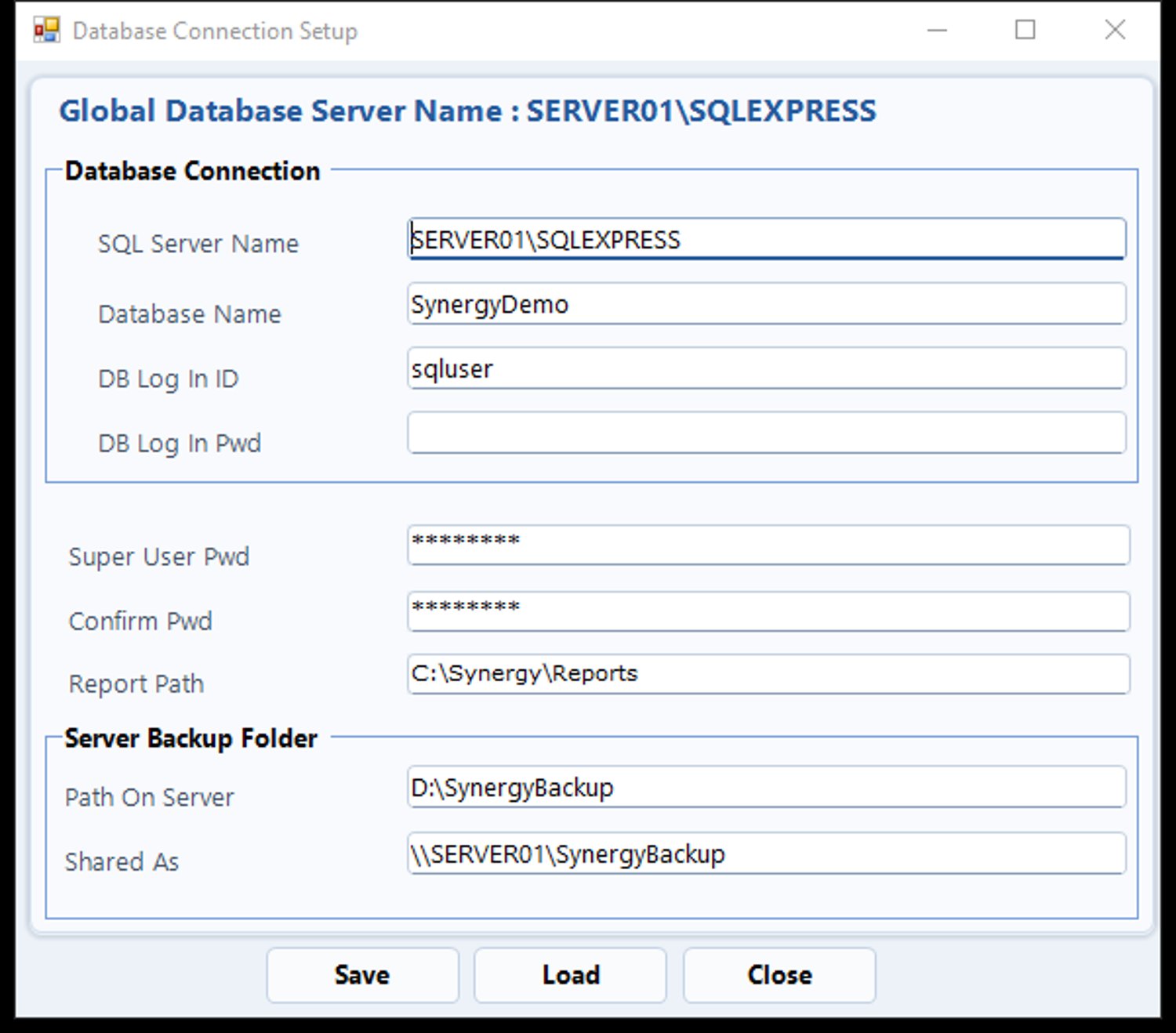
4. Unable to connect to database.
The Database Connection Problem box appears. The program retries by itself when the countdown reaches zero; click Retry to try now, or Cancel to stop. If it keeps coming back, check that the server computer is on and the network is working, and give the database name and server name shown on the box to your system administrator. Full guide: Synergy Acc2026 – Database Connection Setup and Connection Problems
5. Network Connection Problem: Your computer is unable to connect to the main PC (Server).
Click Open Network Folder to open the shared folder, which often refreshes the connection, then Close and try again. Check that the main PC is on and that your cable or Wi-Fi works. If several users get the message at once, the problem is most likely on the main PC. Full guide: Synergy Acc2026 – Database Connection Setup and Connection Problems
6. Please log in first.
Nothing can be opened until you are logged in. Log in using System > Log In. Full guide: Synergy Acc2026 – Main Window: Log In, Find a Screen and Get Help
7. You don’t have access to Database Backup Folder. Please check in [Connection Setup]
The shared backup folder cannot be reached. Check the backup folder in the connection setup. Full guide: Synergy Acc2026 – Back Up the Database
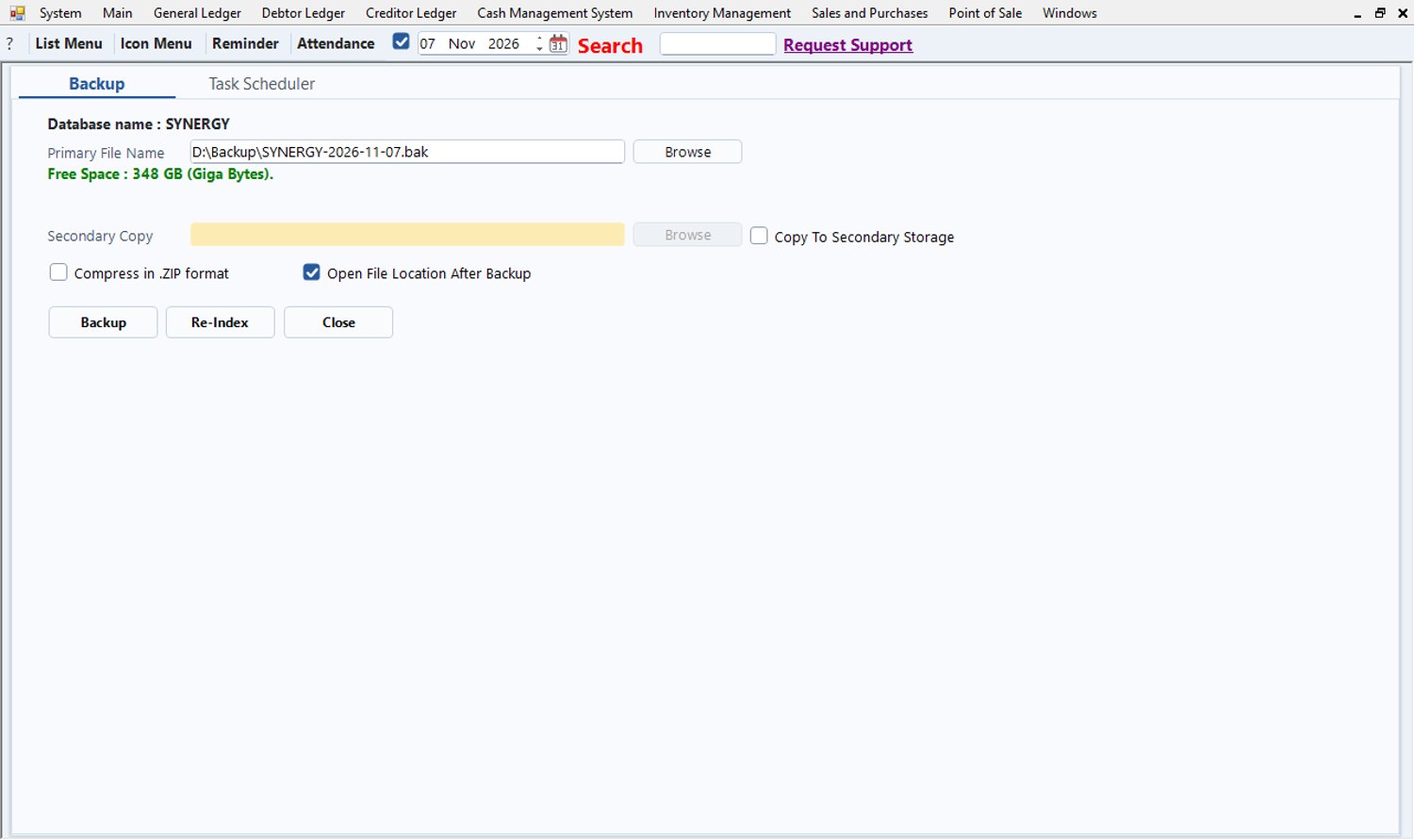
8. You don’t have permission to this setting.
Your user rights do not allow that settings window. Ask your administrator. Full guide: Synergy Acc2026 – Change System Settings
Tips
- Read the whole message before you click OK. It often names the field or number that is wrong.
- The program shows these messages in English, so this guide keeps them in English.
- If the first fix does not work, do not retry again and again. Note the exact message text and contact Synergy support.