
Messages you may see in the Synergy Order App about printing, syncing, branches and shifts that decide whether a bill can be paid. Each one says what it means in plain words and the first thing to try.
Before you start
- The exact wording of the message on your screen (take a photo or a screenshot).
- The screen you were using and what you clicked just before the message appeared.
Steps
1. USB printer not found – check the cable (and the OTG adapter on a phone), then Settings > Printer > USB > Find USB printers.
Check the cable and the OTG adapter, make sure the printer is on, then tap Find USB printers and choose it again. Full guide: Synergy Order App – Receipt Does Not Print: Checks in Order
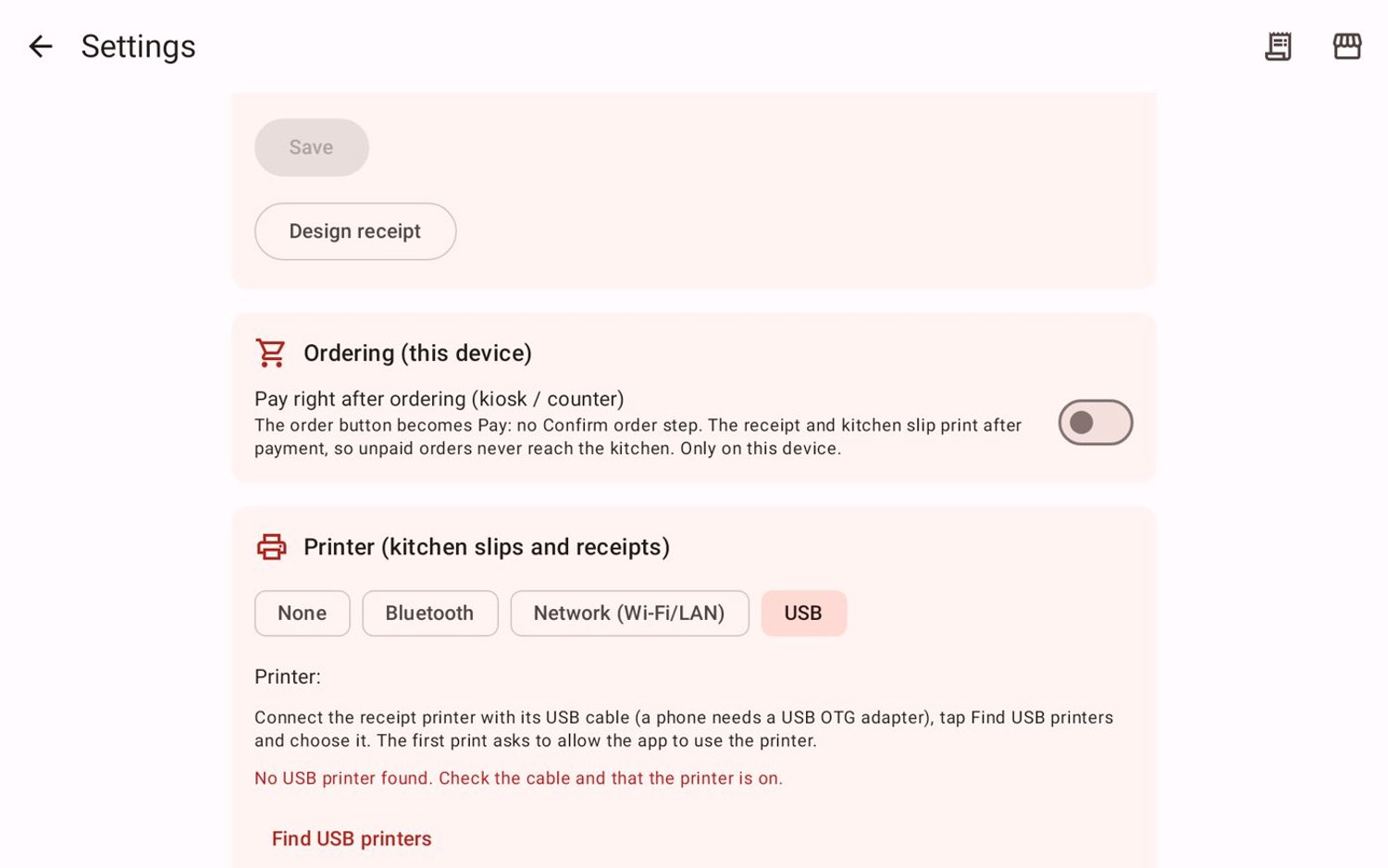
2. Can’t open the USB printer – unplug it, plug it in again and retry.
Unplug the USB cable, plug it in again and print again. Full guide: Synergy Order App – Receipt Does Not Print: Checks in Order
3. The USB printer stopped taking data (paper out or cover open?).
Load paper, close the cover and print again. Full guide: Synergy Order App – Receipt Does Not Print: Checks in Order
4. Printing failed: item(s) have no kitchen printer
Some items belong to categories that no kitchen printer takes. Add a kitchen printer for those categories, or set the receipt printer in Settings > Printer so the slip can print there. Full guide: Synergy Order App – Kitchen Orders Do Not Print: Checks in Order
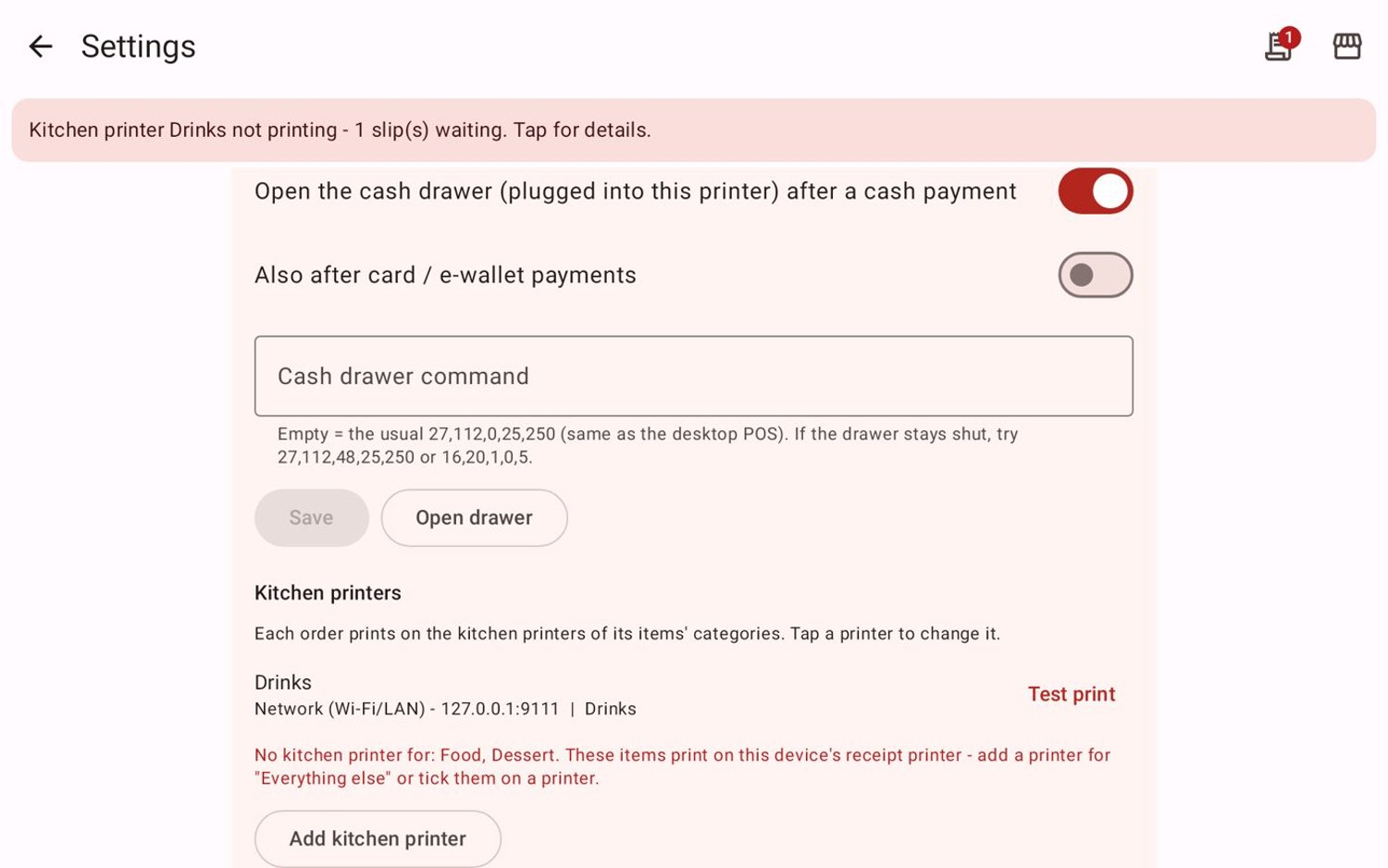
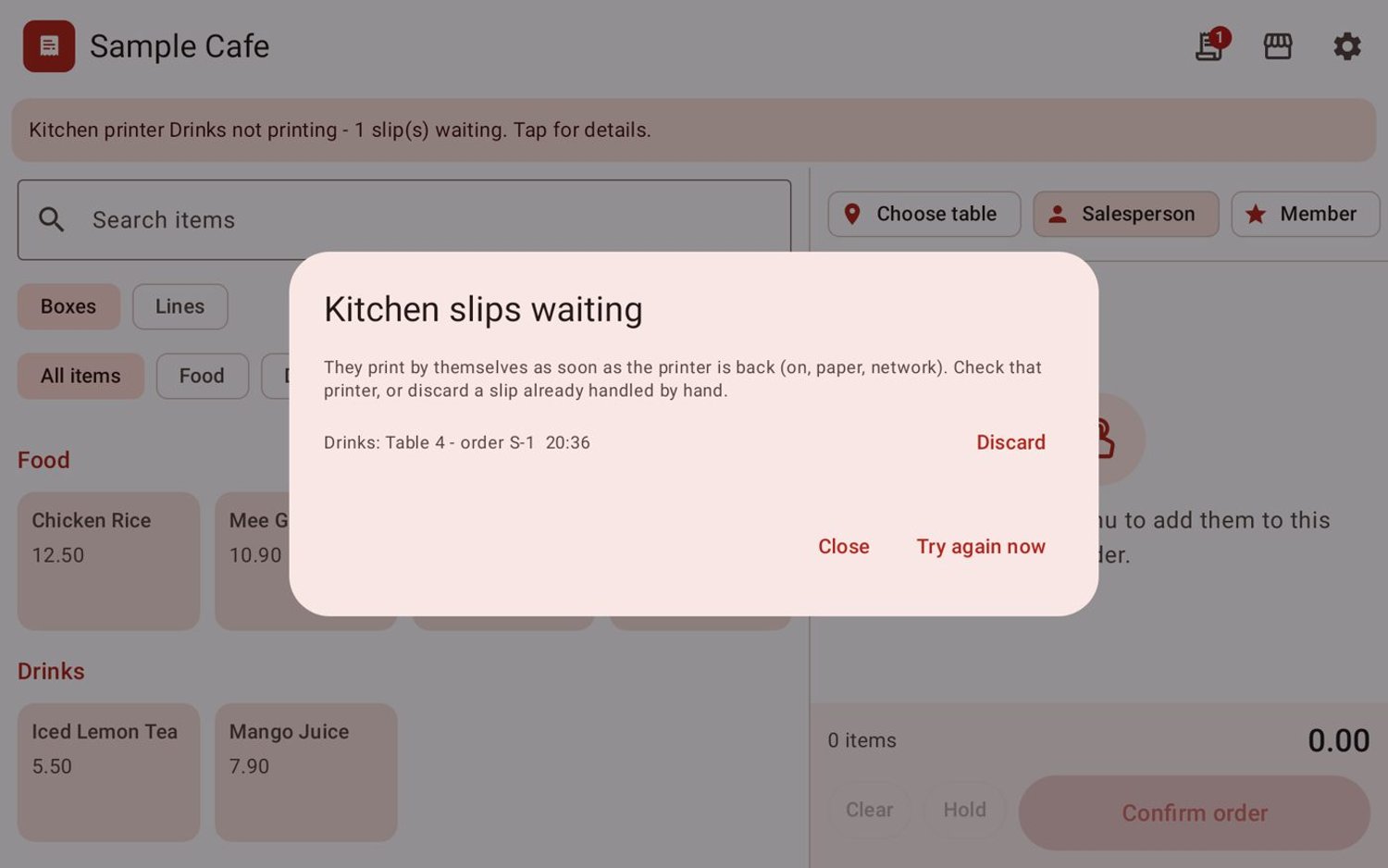
5. Kitchen printer not printing – slip(s) waiting. Tap for details.
This is the red bar. The slips print by themselves as soon as the printer is back (on, paper, network). After the printer is fixed, tap the bar and tap Try again now. If the slips were already handled by hand, tap Discard. Full guide: Synergy Order App – Kitchen Orders Do Not Print: Checks in Order
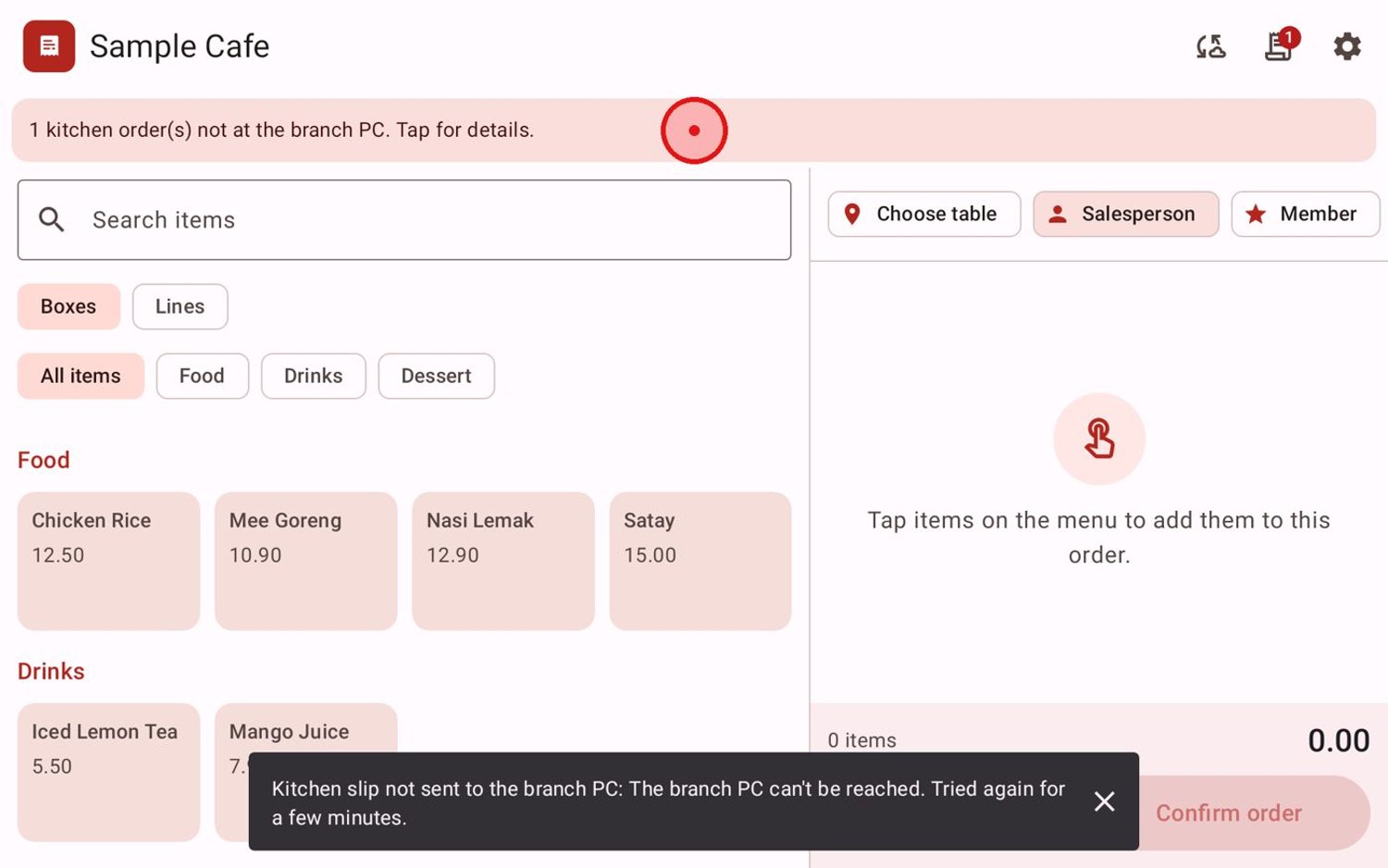
6. kitchen order(s) not at the branch PC. Tap for details.
These orders did not reach the branch PC (PC off or not on the shop network). Tap the red bar, then tap Send to PC again once the PC is on. You can also tap Print here to print on this device’s printer, or Discard. Full guide: Synergy Order App – Branch With a POS PC: Kitchen Slips
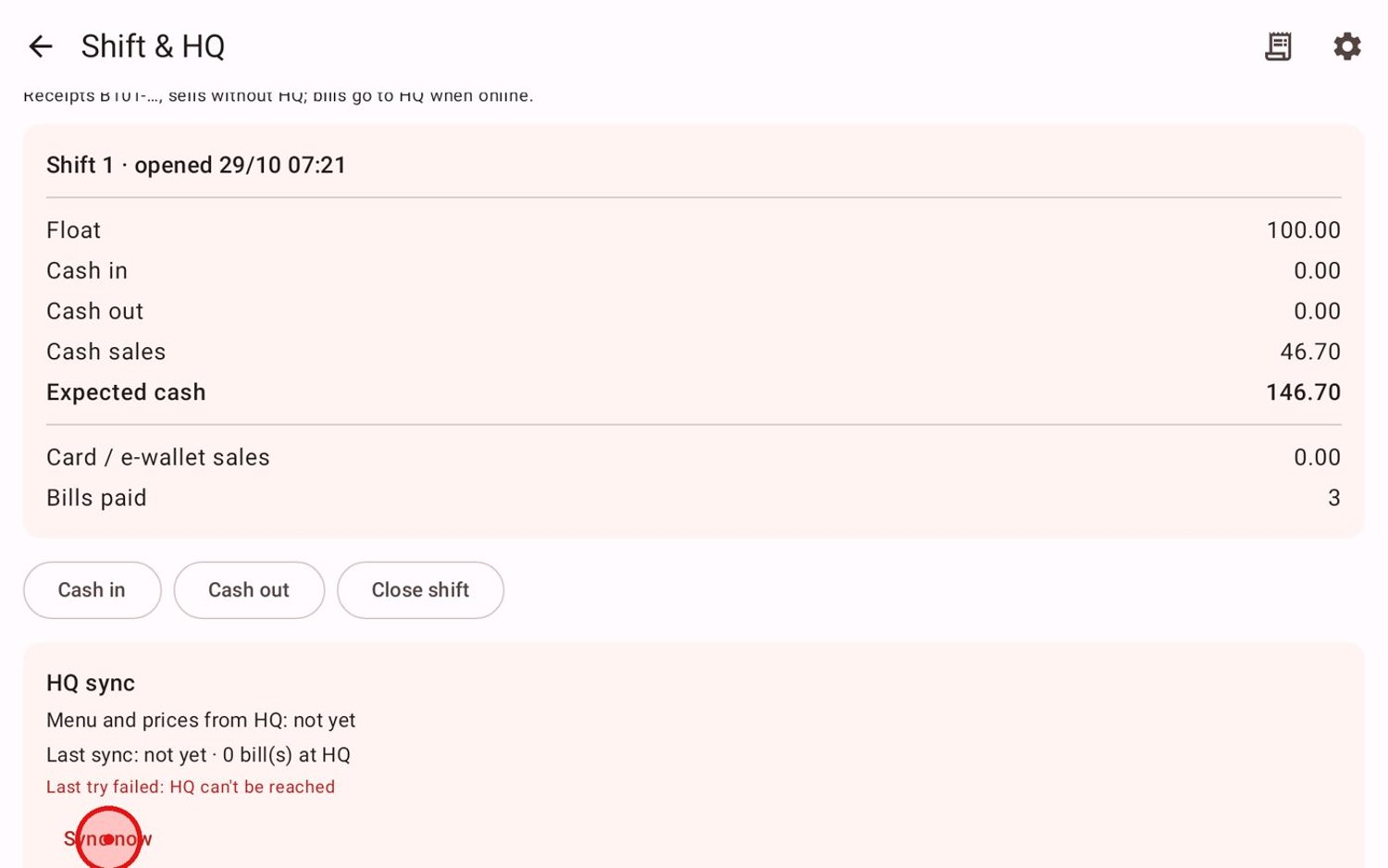
7. Last try failed:
HQ cannot be reached (the message then gives the reason). Keep selling. The bills stay on the phone. When the phone is online again, tap Sync now. Full guide: Synergy Order App – Selling at a Branch Without HQ Online
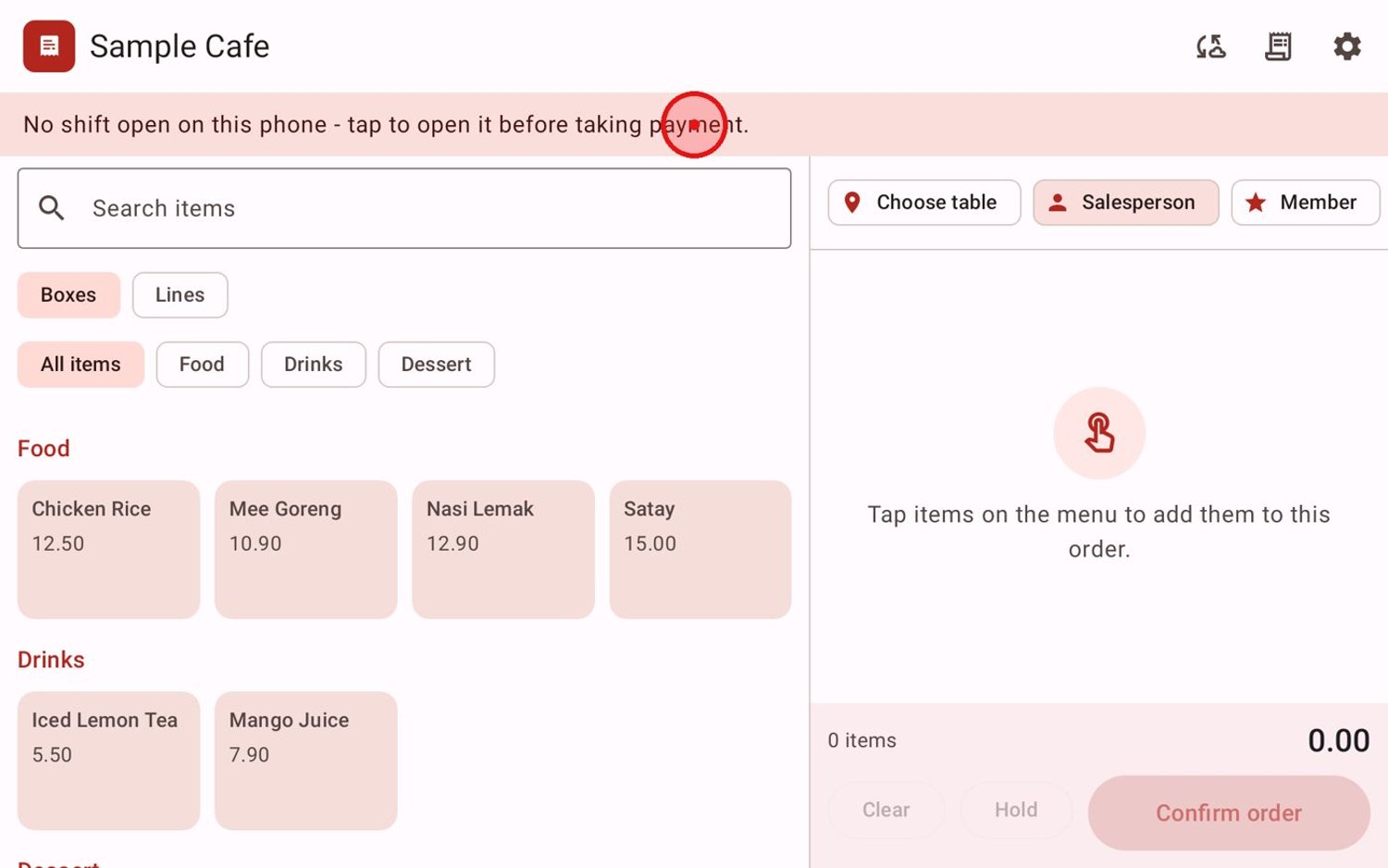
8. No shift open on this phone – tap to open it before taking payment.
A branch phone can take payment only while its own shift is open. Tap the red message, then tap Open shift on the Shift & HQ screen. Full guide: Synergy Order App – Shifts and Counting the Cash
9. The POS shift is not open – bills can’t be paid here yet.
Open the shift on the POS PC first. Tap the red bar to check again; when the shift is open the bar goes away. Full guide: Synergy Order App – Paying on a Tablet Into the POS PC’s Shift
Tips
- Read the whole message before you click OK. It often names the field or number that is wrong.
- The program shows these messages in English, so this guide keeps them in English.
- If the first fix does not work, do not retry again and again. Note the exact message text and contact Synergy support.