
Messages you may see in Synergy Acc2026 payroll and staff attendance: processing the month, posting, the monthly files, the duty roster and clock times. Each one says what it means in plain words and the first thing to try.
Before you start
- The exact wording of the message on your screen (take a photo or a screenshot).
- The screen you were using and what you clicked just before the message appeared.
Steps
1. This Date was already processed.
The Process Date was already processed. Choose a date that has not been processed. Full guide: Synergy Acc2026 – Payroll: Process the Month and Post
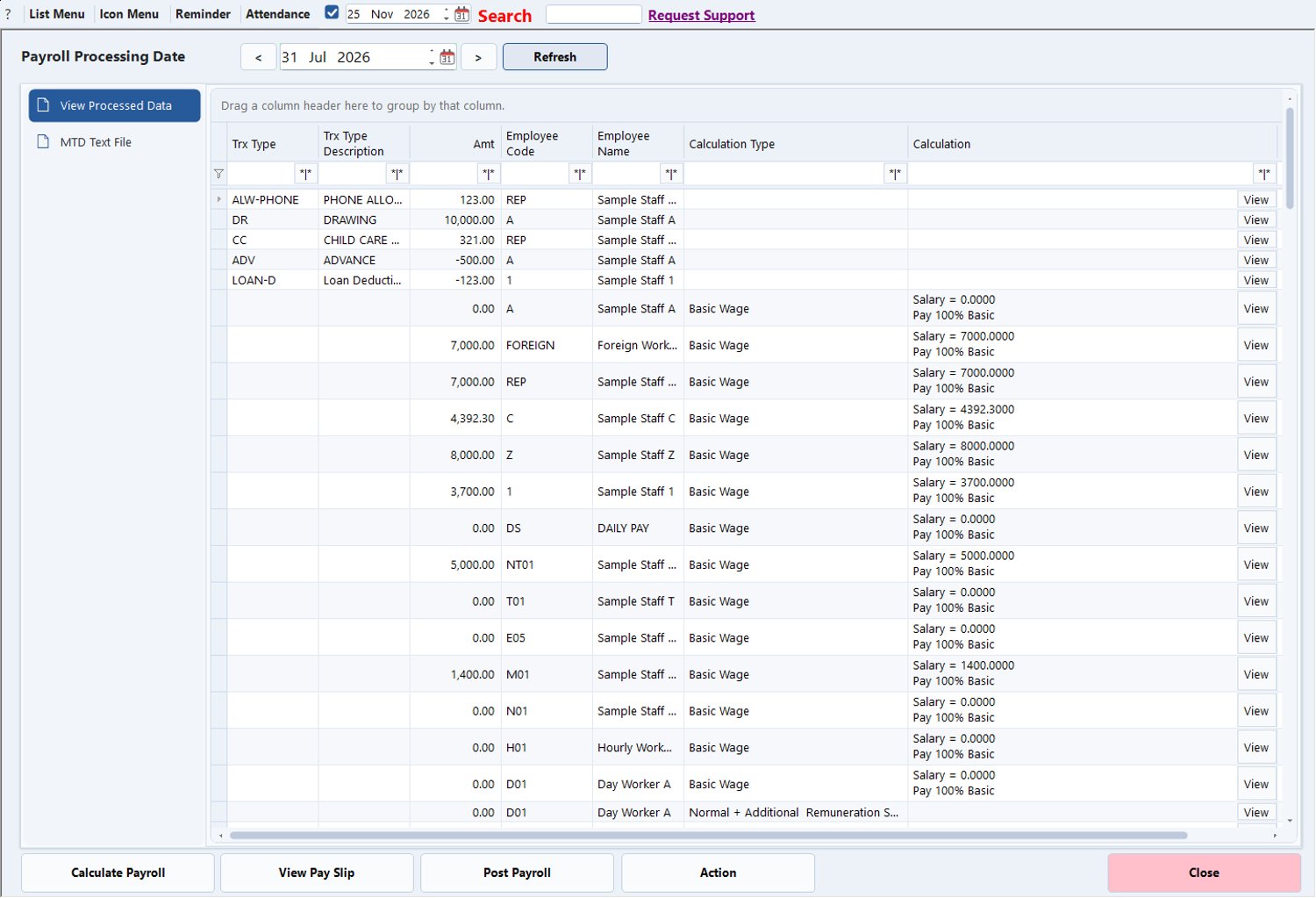
2. No data to post.
There is nothing to post, or there are errors in the calculation, so posting is not allowed. Calculate payroll first, and fix the errors shown before posting. Full guide: Synergy Acc2026 – Payroll: Process the Month and Post
3. Invalid Employer Tax No. Tax No should be 10 digit long.
The employer tax number is not 10 digits. Correct the Employer Tax No. in System Settings (Payroll) and export again. Full guide: Synergy Acc2026 – Payroll: Monthly Tax, EPF, SOCSO and EIS Files
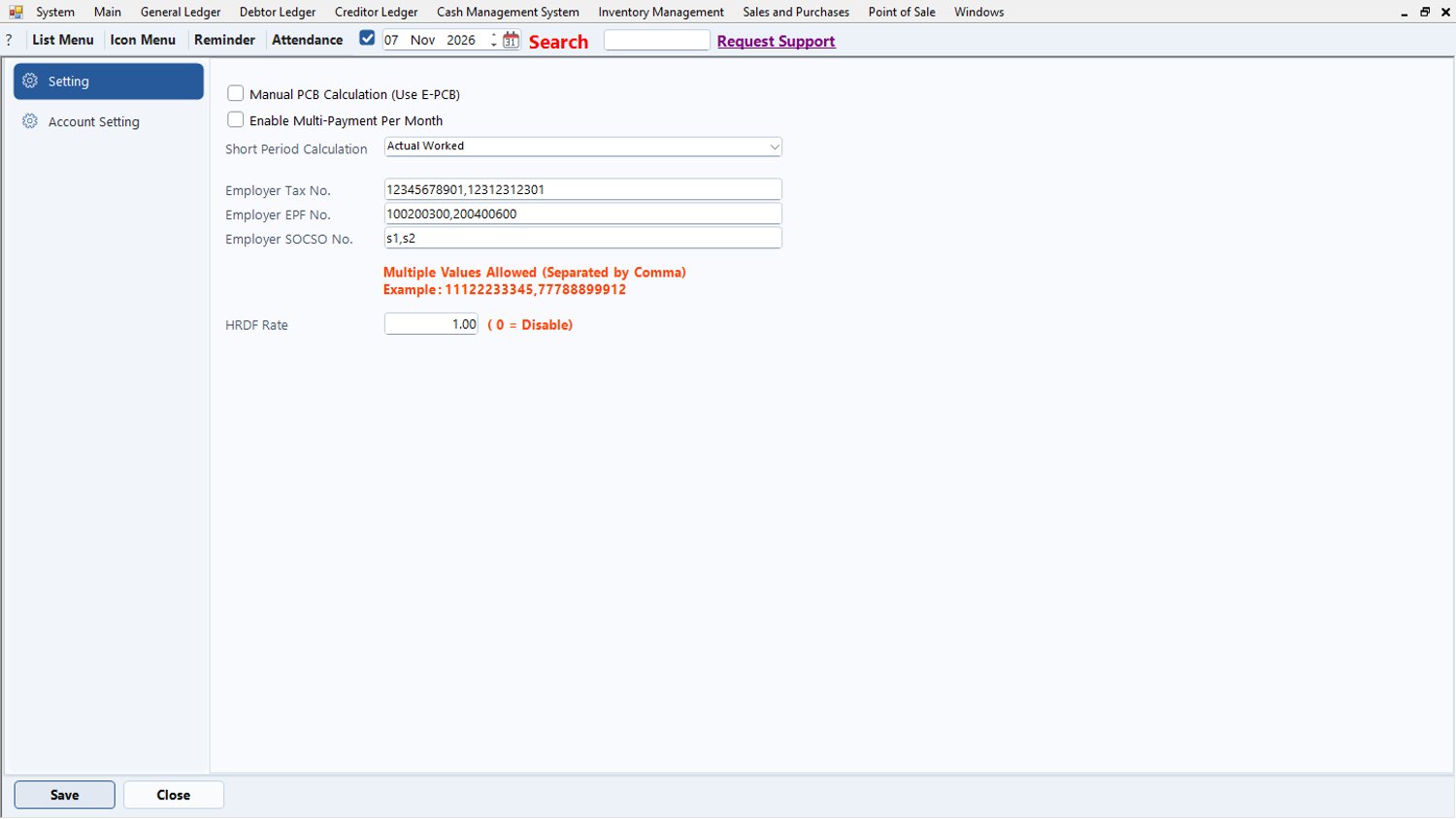
4. Failed to write file
The file could not be saved. Close the file if it is open in another program and export again. Full guide: Synergy Acc2026 – Payroll: Monthly Tax, EPF, SOCSO and EIS Files
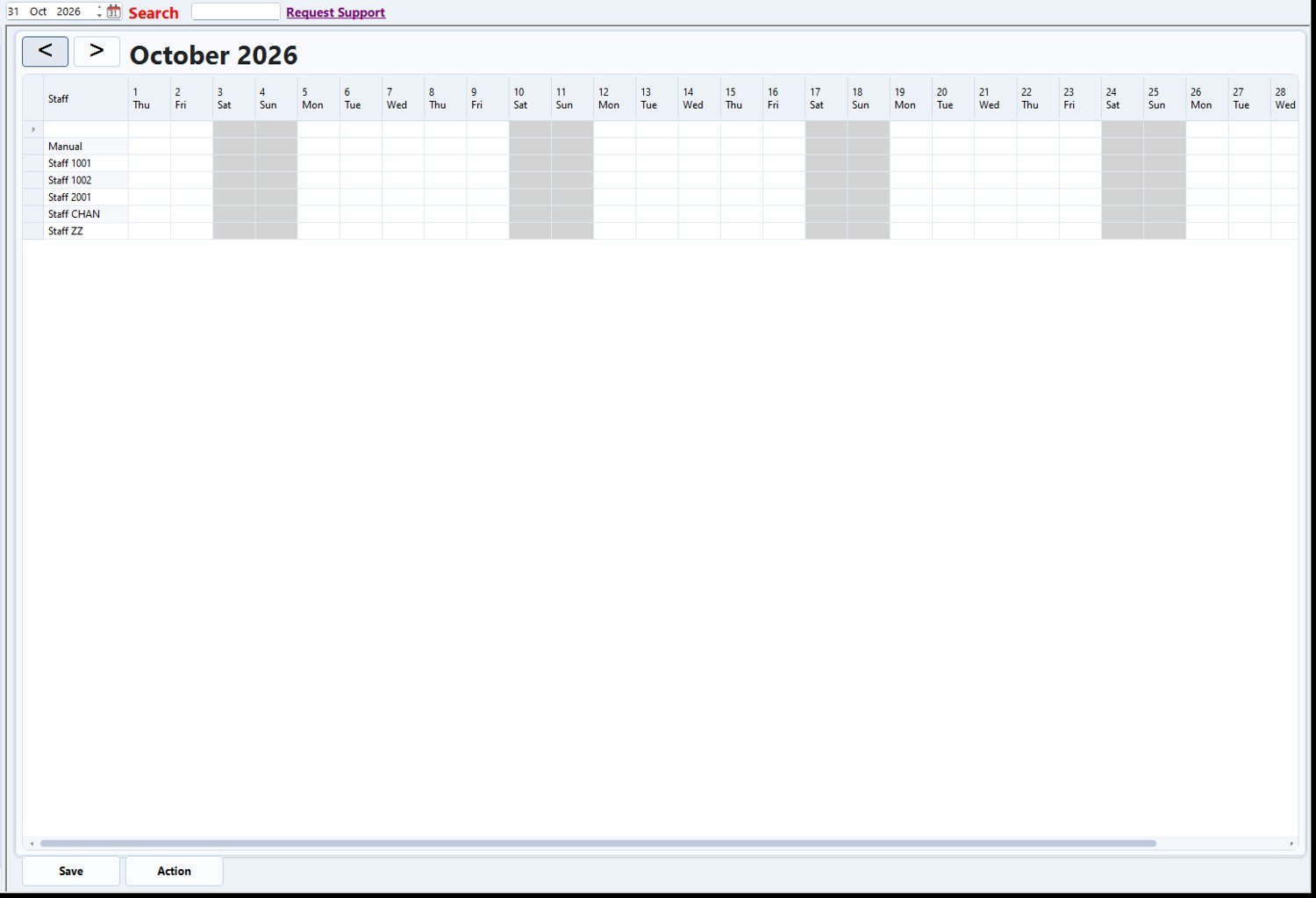
5. Invalid [Work Time] code entered.
The code does not exist. Check the spelling, use View Work Time Code List, or add the code in Working Hour (Duty Roster) first. Full guide: Synergy Acc2026 – Fill In the Monthly Duty Roster
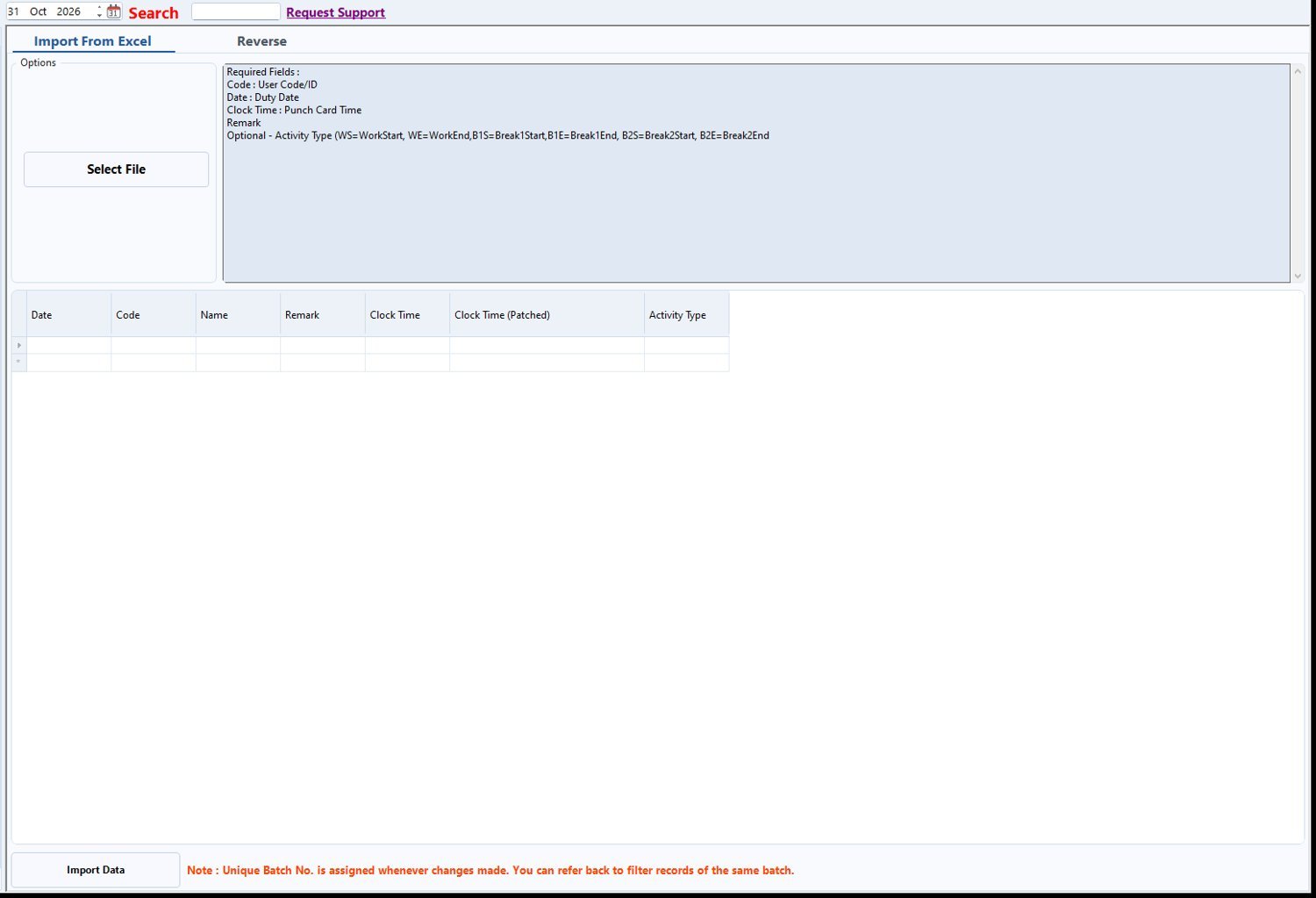
6. [Clock Time] column is required.
The file is missing that column (the same message can name the [Code] or [Date] column). Add it and select the file again. Full guide: Synergy Acc2026 – Import or Reverse Staff Clock Times
Tips
- Read the whole message before you click OK. It often names the field or number that is wrong.
- The program shows these messages in English, so this guide keeps them in English.
- If the first fix does not work, do not retry again and again. Note the exact message text and contact Synergy support.