
Messages you may see at the Synergy Acc2026 point-of-sale counter: shifts, credit sales, payments, serial numbers, quantities, voids and split bills. Each one says what it means in plain words and the first thing to try.
Before you start
- The exact wording of the message on your screen (take a photo or a screenshot).
- The screen you were using and what you clicked just before the message appeared.
Steps
1. Please start a shift first.
No shift is open. Open a shift by clicking ( Click to start shift ) before taking sales. Full guide: Synergy Acc2026 – POS Shifts, Cash In and Out, and Correcting a Sale’s Shift
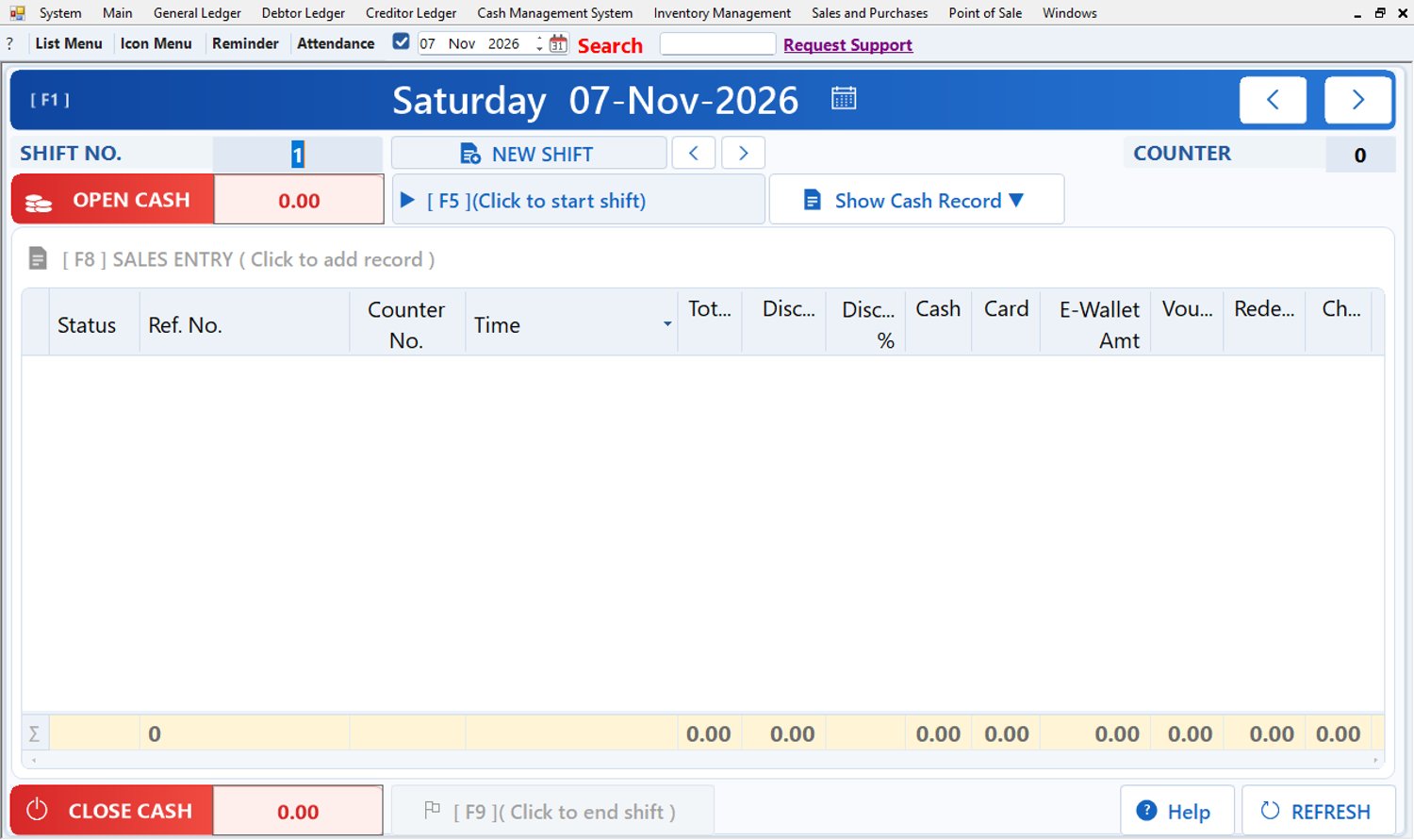
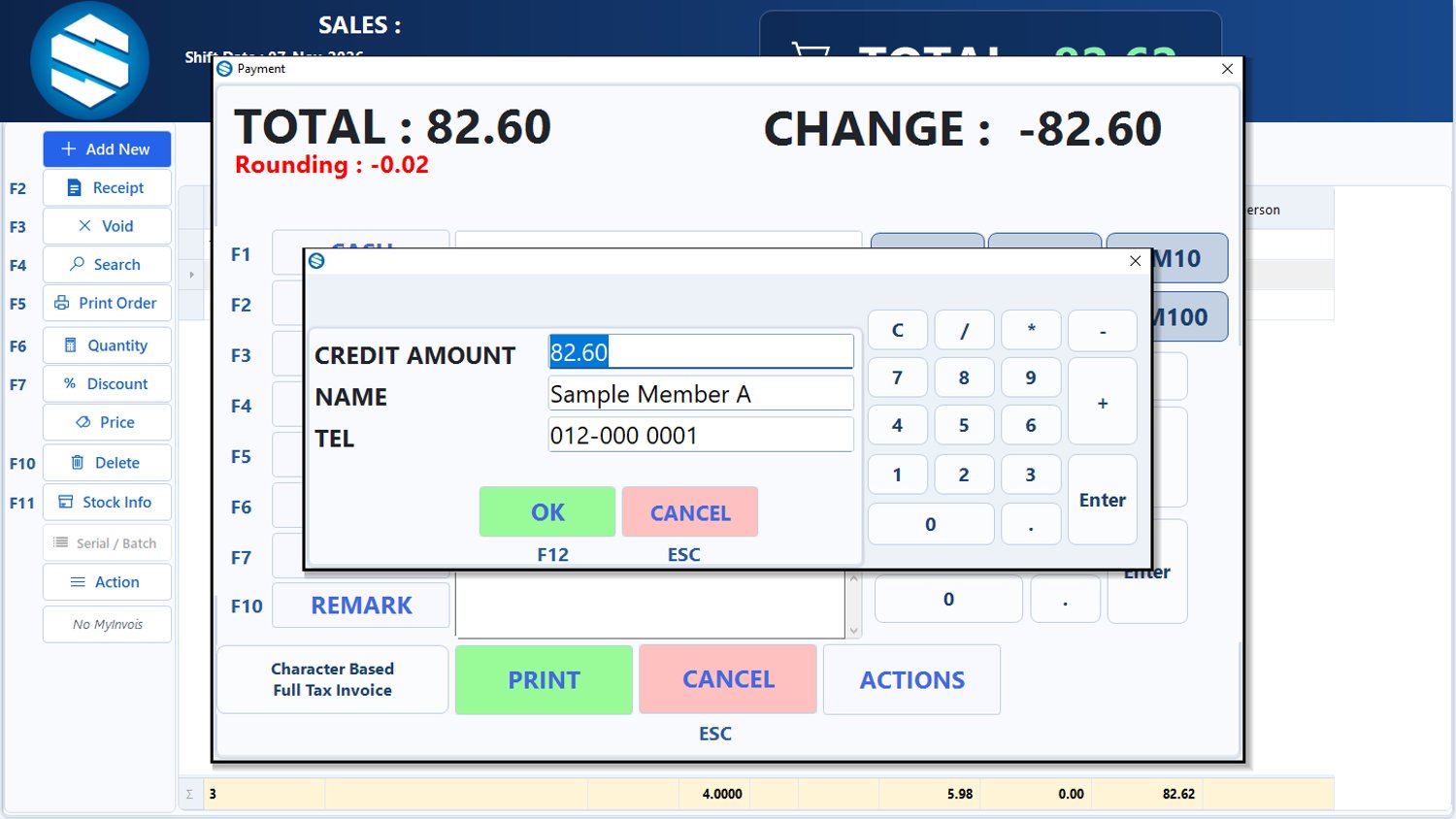
2. Credit Limit Exceeded.
The credit amount is more than the customer is allowed. Lower the CREDIT AMOUNT to the Allowed Limit shown in the message. The window stays open so you can change it. Full guide: Synergy Acc2026 – POS Credit Sales and Credit Settlement
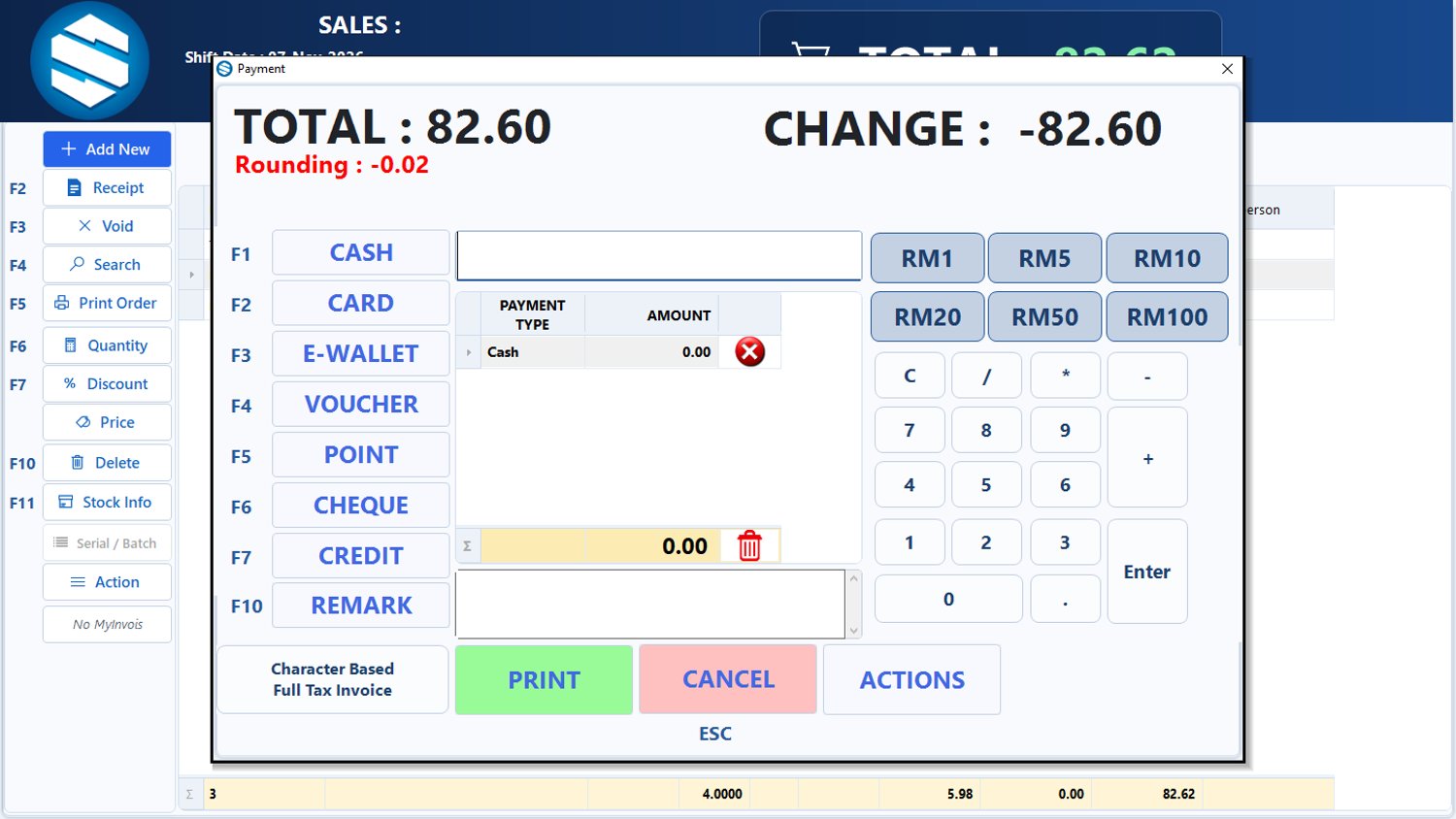
3. Received amount is less than Total Amount.
The payment does not cover the bill. If the bill has returned items you are asked to click Yes if this is a REFUND. Full guide: Synergy Acc2026 – POS Payment: Terminal, Voucher, Cheque, Points and E-Payment Reversal
4. Terminal not ready. Please try again.
The payment terminal is not ready (you may also see Please check the USB connection.). Re-plug the USB cable, check the terminal is switched on, then click the connect button to try again. Full guide: Synergy Acc2026 – POS Payment: Terminal, Voucher, Cheque, Points and E-Payment Reversal
5. Invalid Serial Number. Do you want to allow Invalid Serial Number?
The number is not in the stock list. Depending on your shop’s setting, it is refused, or accepted after a Yes/No question or a supervisor’s permission. Full guide: Synergy Acc2026 – POS Item Search, Serial Number, Batch and Size/Colour Entry
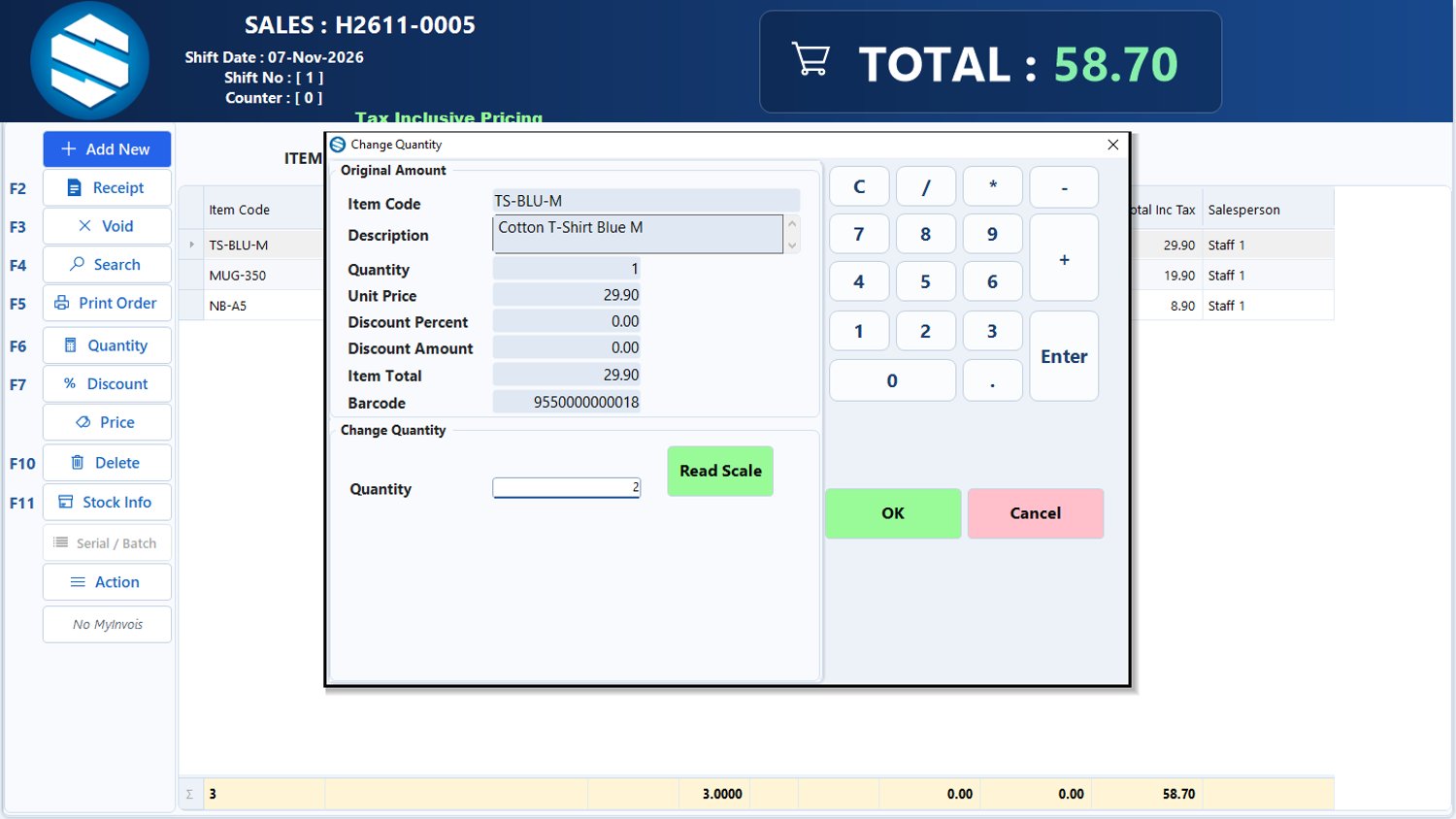
6. Reducing of Quantity is not allowed.
Your shop does not allow lowering a quantity already entered. If the shop set it to need permission, ask a supervisor to approve. Full guide: Synergy Acc2026 – Change Quantity, Price or Discount on a POS Sale Line
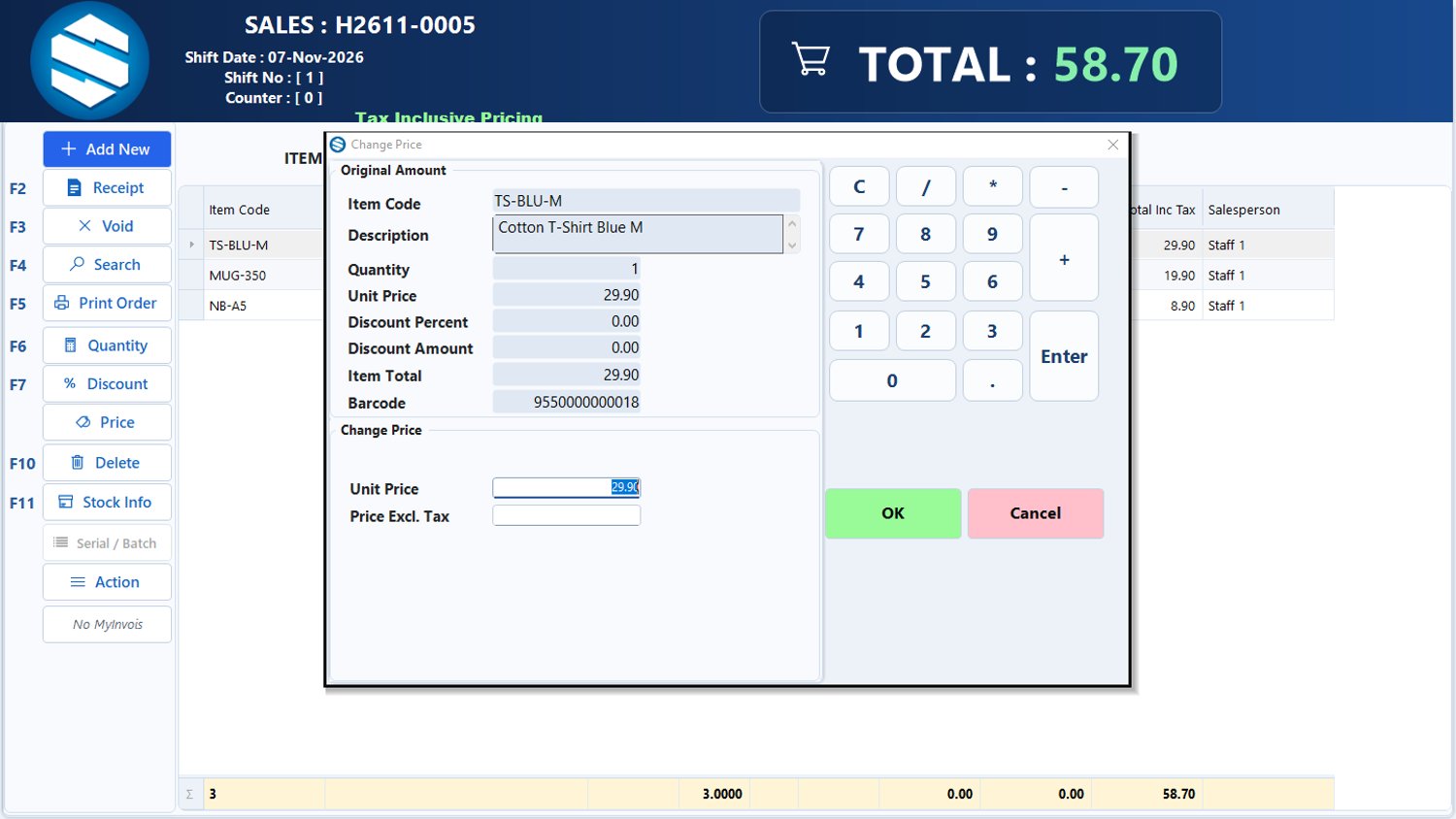
7. Selling below mininum price is not allowed.
The price is under the item’s minimum price. Enter a higher price or get a supervisor’s approval if your shop allows it. Full guide: Synergy Acc2026 – Change Quantity, Price or Discount on a POS Sale Line
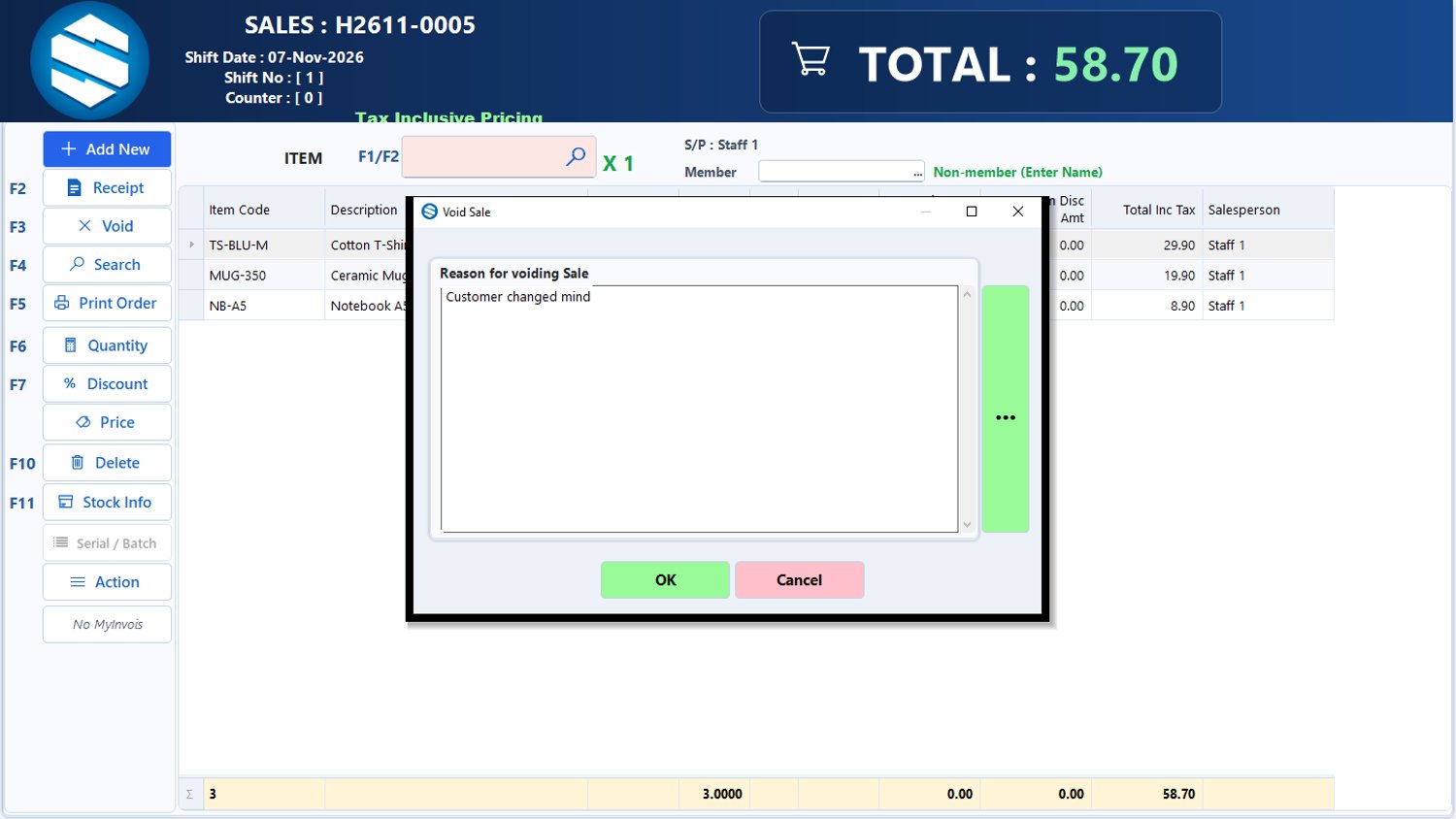
8. Please state a reason for voiding this sale.
The reason box is empty or only spaces. Type a reason and click OK again. Full guide: Synergy Acc2026 – POS Void Sale, Split Bills and Discounts
Tips
- Read the whole message before you click OK. It often names the field or number that is wrong.
- The program shows these messages in English, so this guide keeps them in English.
- If the first fix does not work, do not retry again and again. Note the exact message text and contact Synergy support.