
A new device that is not activated works in Basic mode. This guide shows how to check your licence and send a request to Synergy to activate the device.
Before you start
- Have the device name, shop name, contact phone and e-mail address ready.
- Use an e-mail address you can read, because renewal codes are sent to it.
Steps
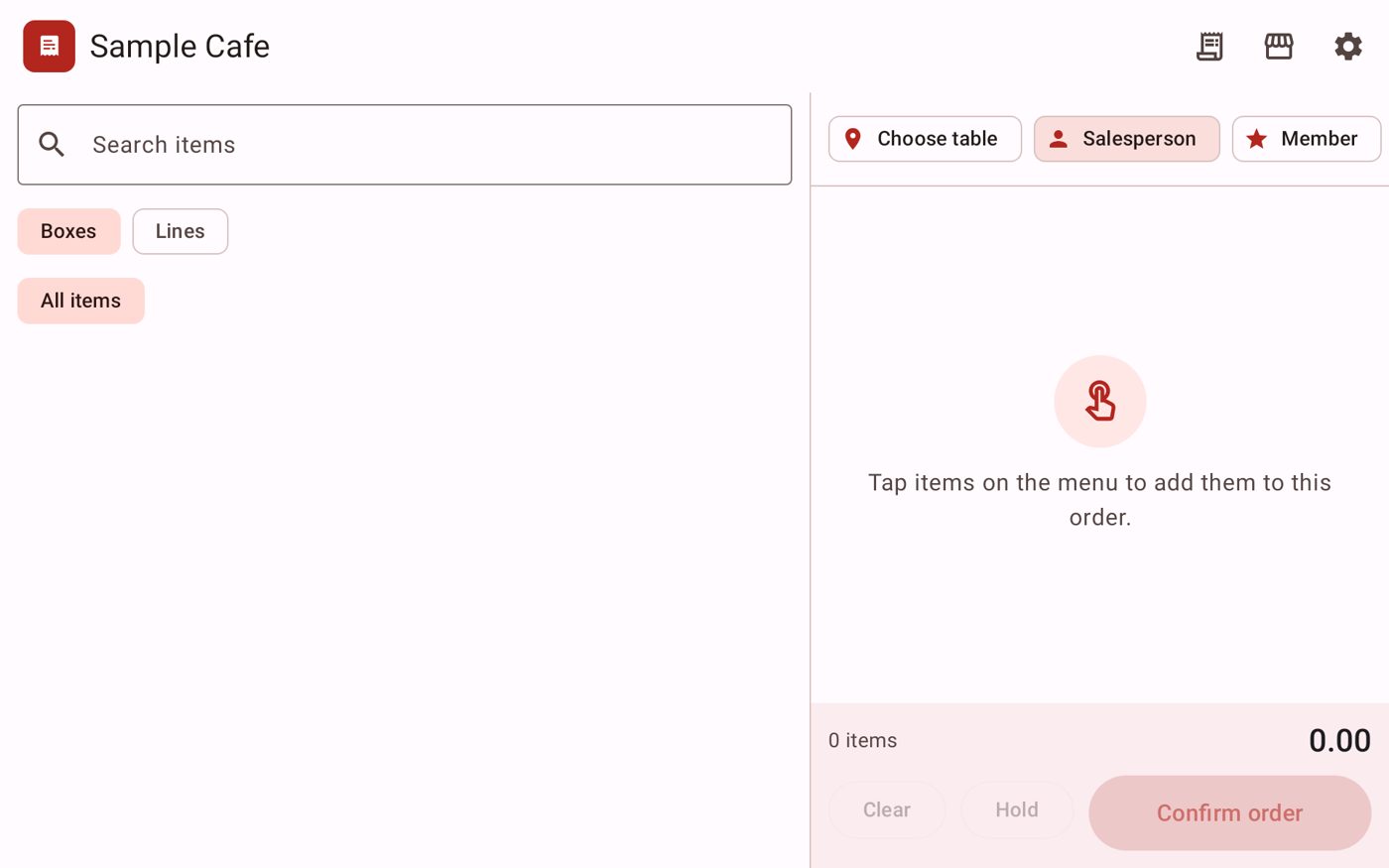
1. Start on the order screen
The Order App is open on a device that is not activated yet (Basic mode).
2. Open Settings
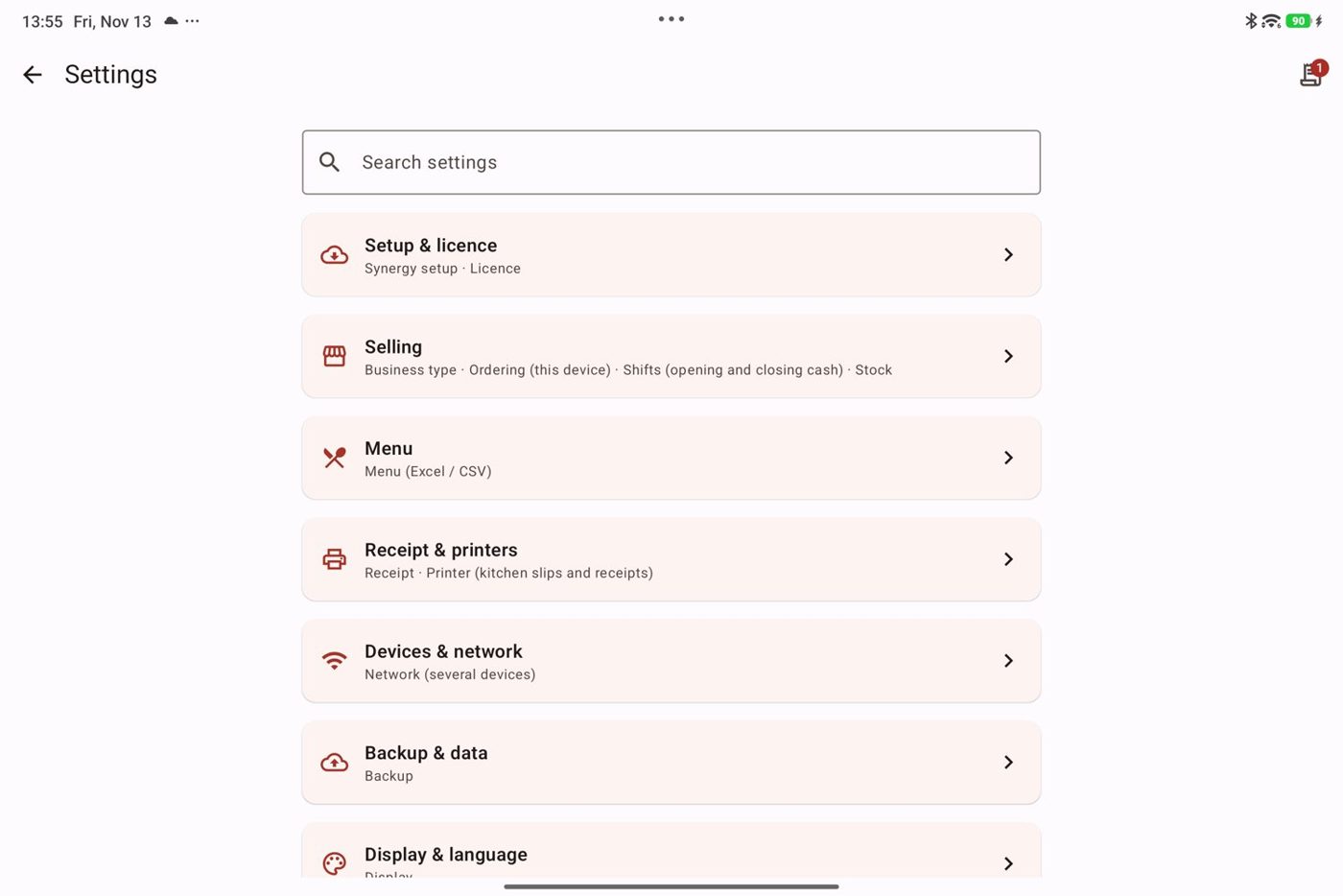
Tap the gear icon to open Settings. Settings opens on a list of groups.
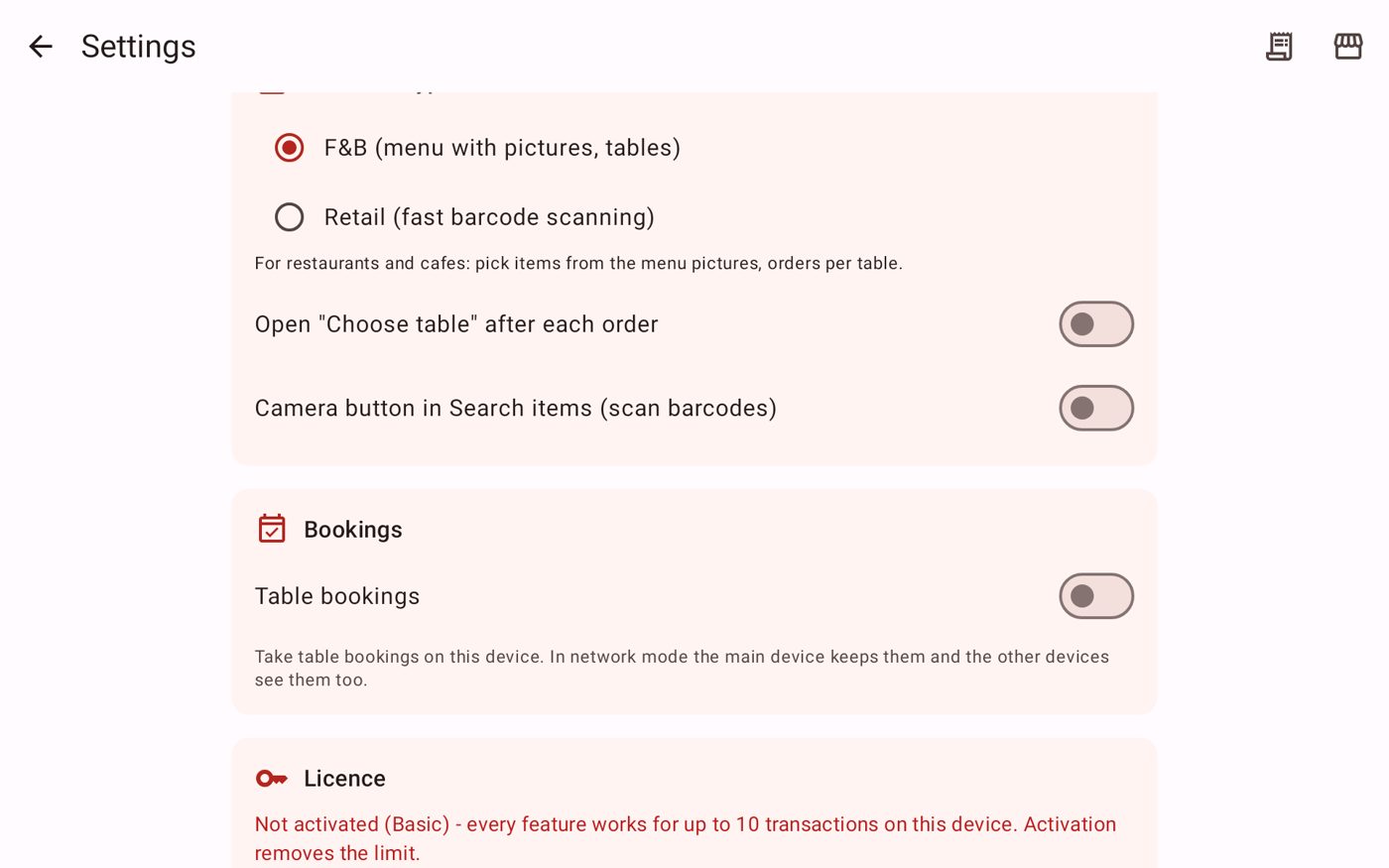
3. Find the Licence card
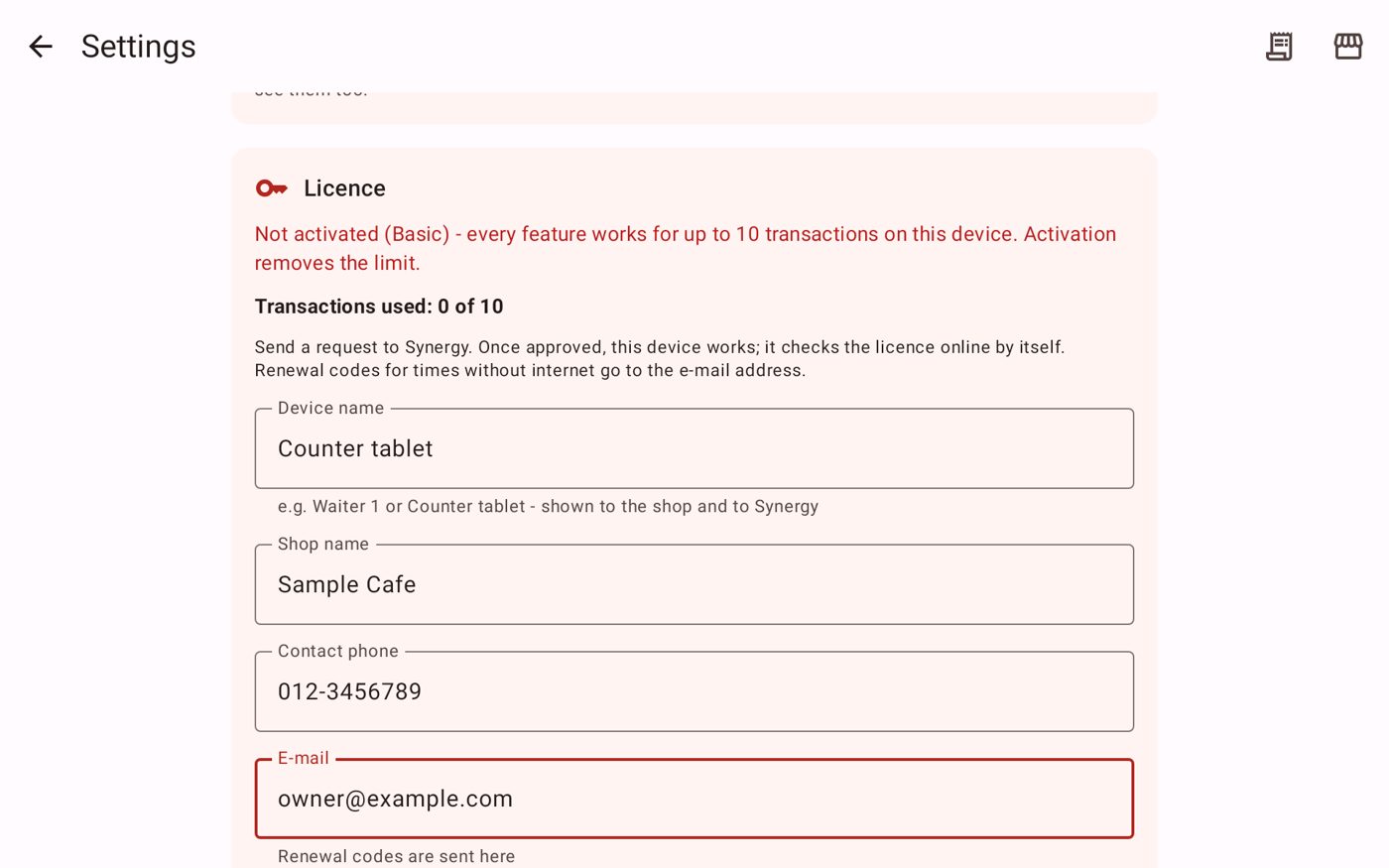
Open the group Setup & licence and find the Licence card. It says Not activated (Basic) and shows Transactions used: 0 of 10.
4. Fill in your details
Fill in your details in the Licence card.
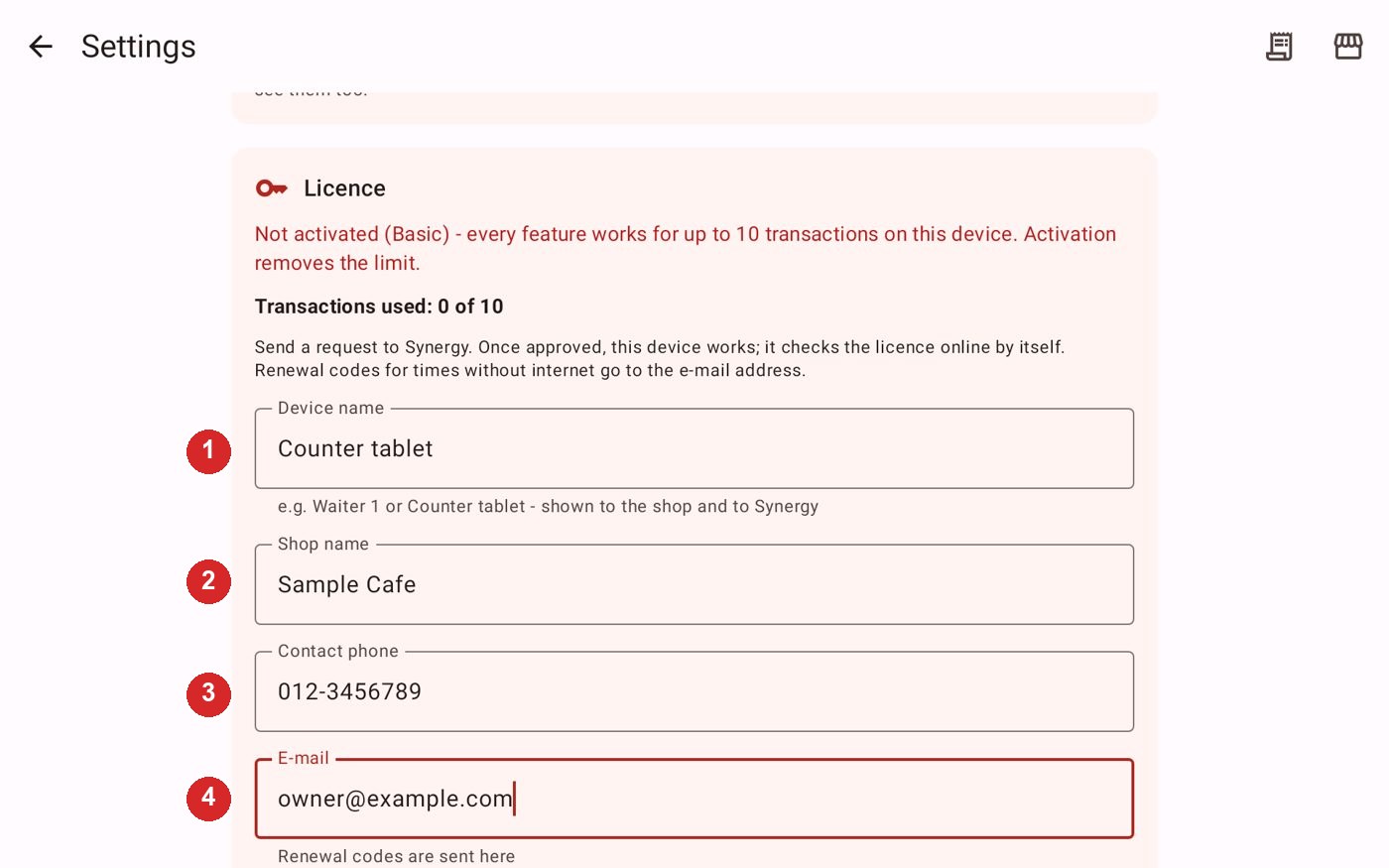
| Step | What to do |
|---|---|
| 1 | Type the device name. |
| 2 | Type the shop name. |
| 3 | Type the contact phone. |
| 4 | Type the e-mail. |
5. Send the request
Tap Send request.
Tips
- A device that is not activated has every feature for up to 10 transactions. The Licence card shows ‘Transactions used: n of 10’.
- After 10 transactions, new sales need activation. Past sales, reports and exports stay open. Activation removes the limit.
- Synergy approves the request, and the screen checks every 30 seconds.
- Renewal codes, for times without internet, are sent to the e-mail address you entered.