
Use this guide to connect several devices in one shop. One device becomes the main device, and each new device joins it as a Terminal.
Before you start
- Choose the device that will be the shop’s main device. Keep it switched on and on the shop Wi-Fi.
- Have the new device ready next to the main device.
Steps
1. Open Settings
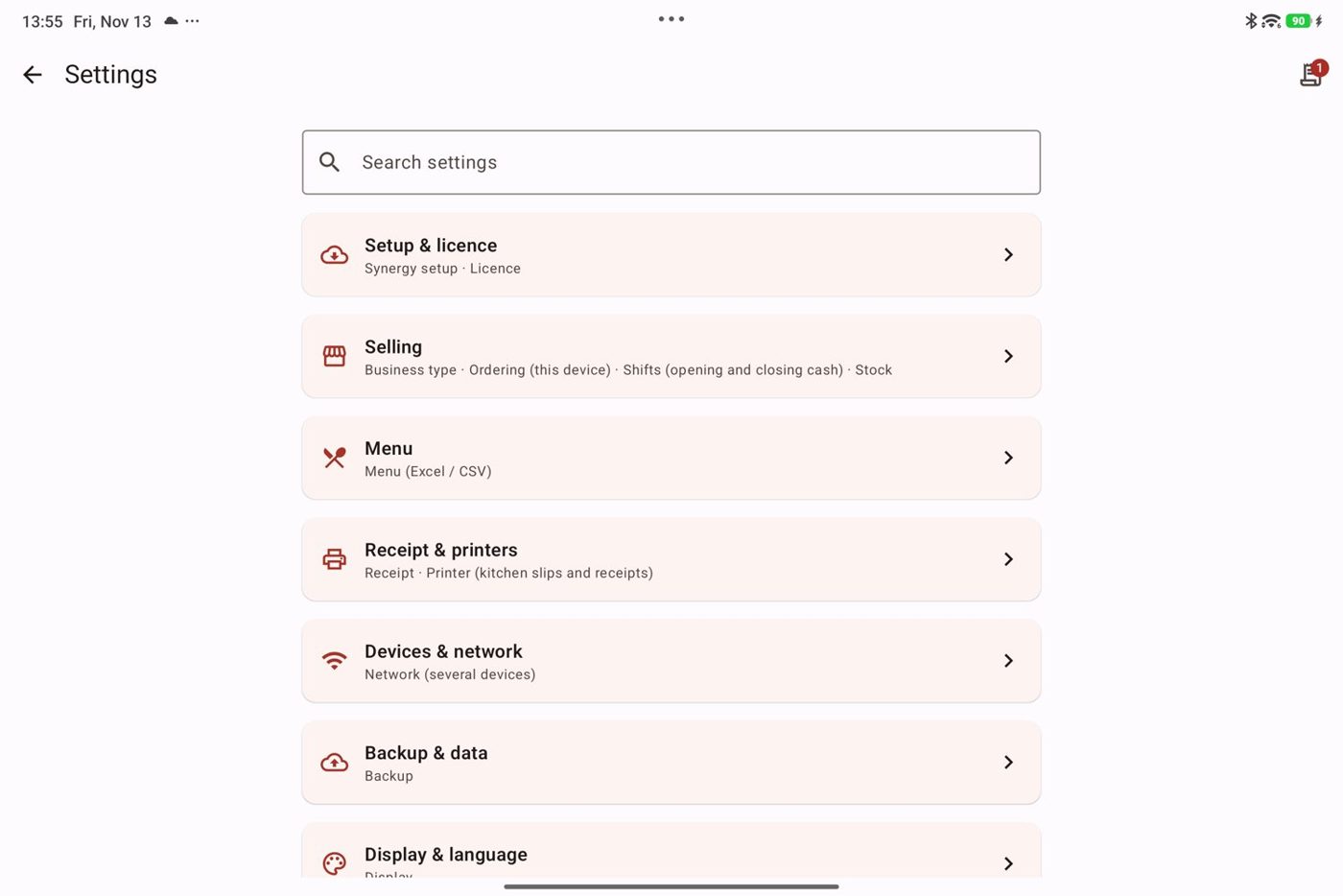
On the order screen, tap the gear icon to open Settings. Settings opens on a list of groups.
2. Find the Network choices
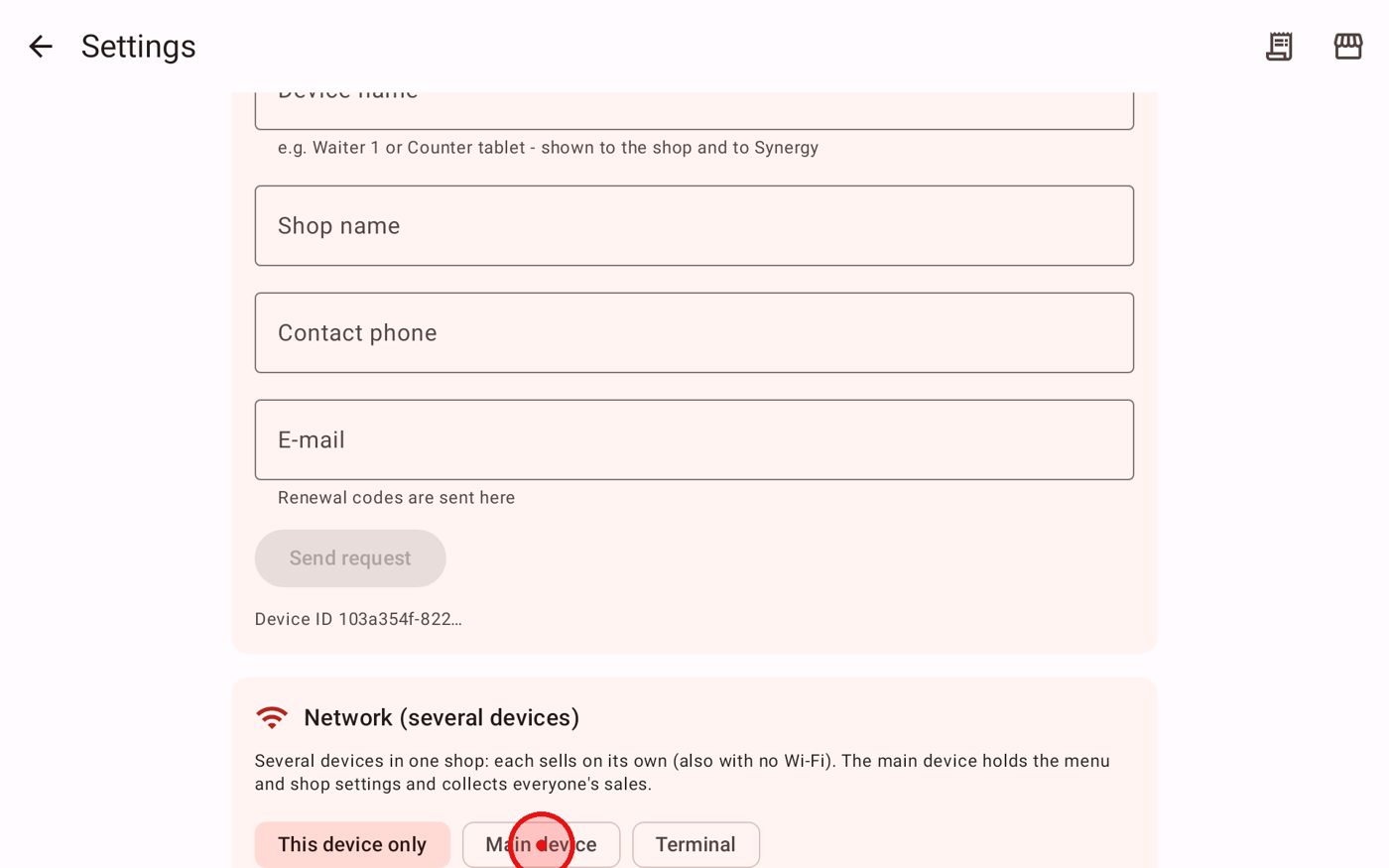
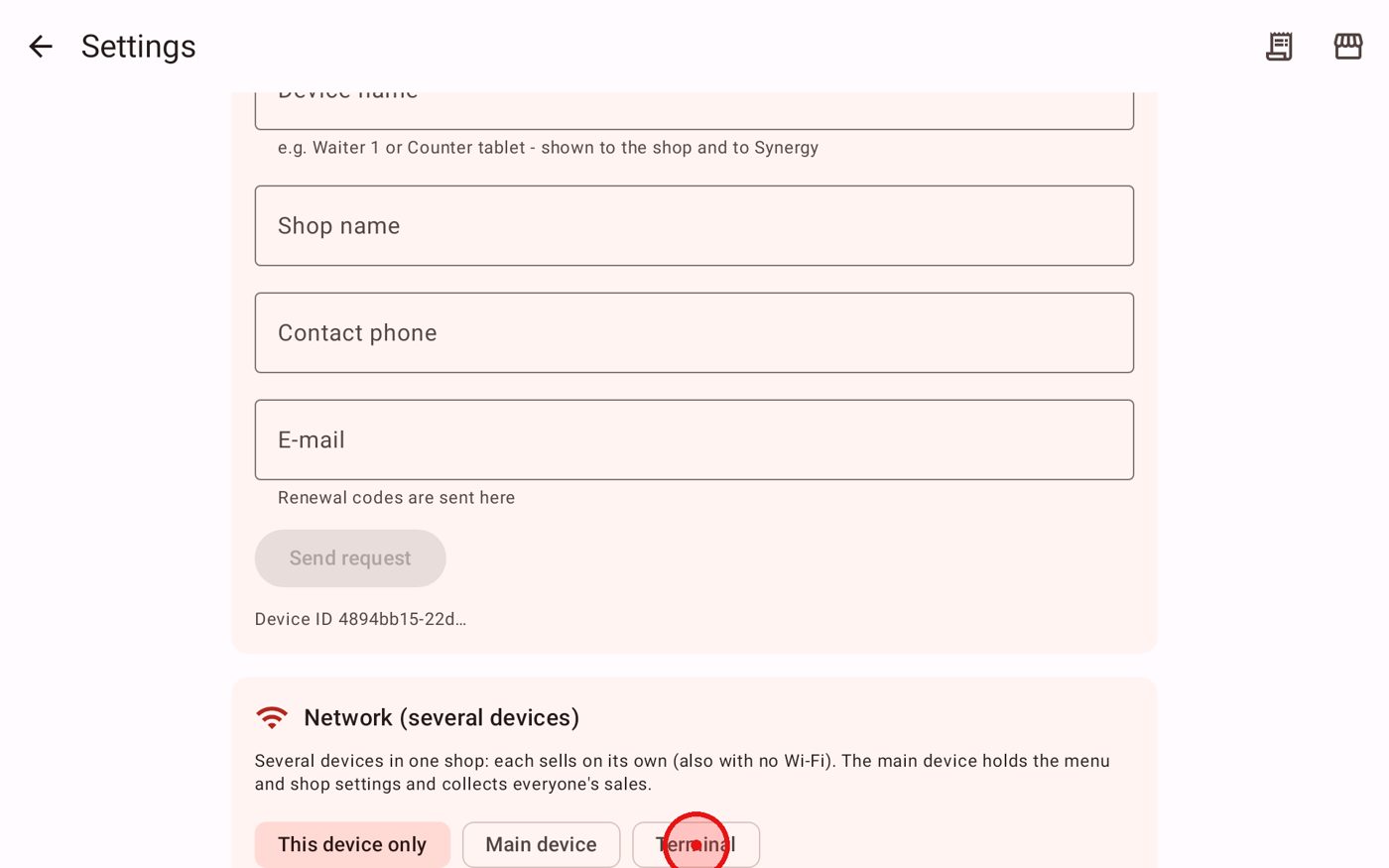
Open the group Devices & network. Network (several devices) has the choices This device only, Main device and Terminal.
3. Choose Main device
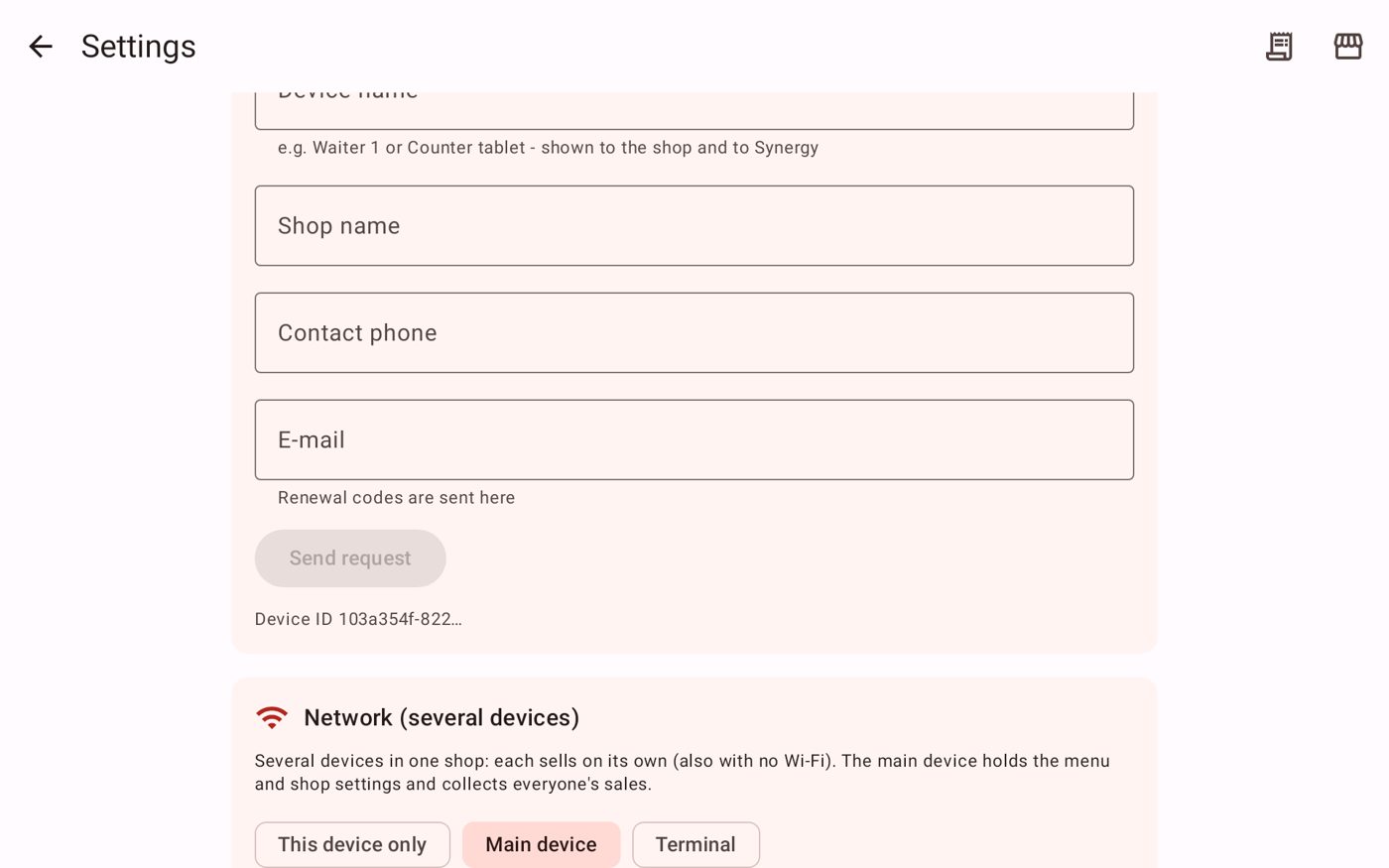
On the device that will be the shop’s main device, tap Main device. A message asks Make this the main device?
4. Confirm
Tap OK.
5. Find Add a device
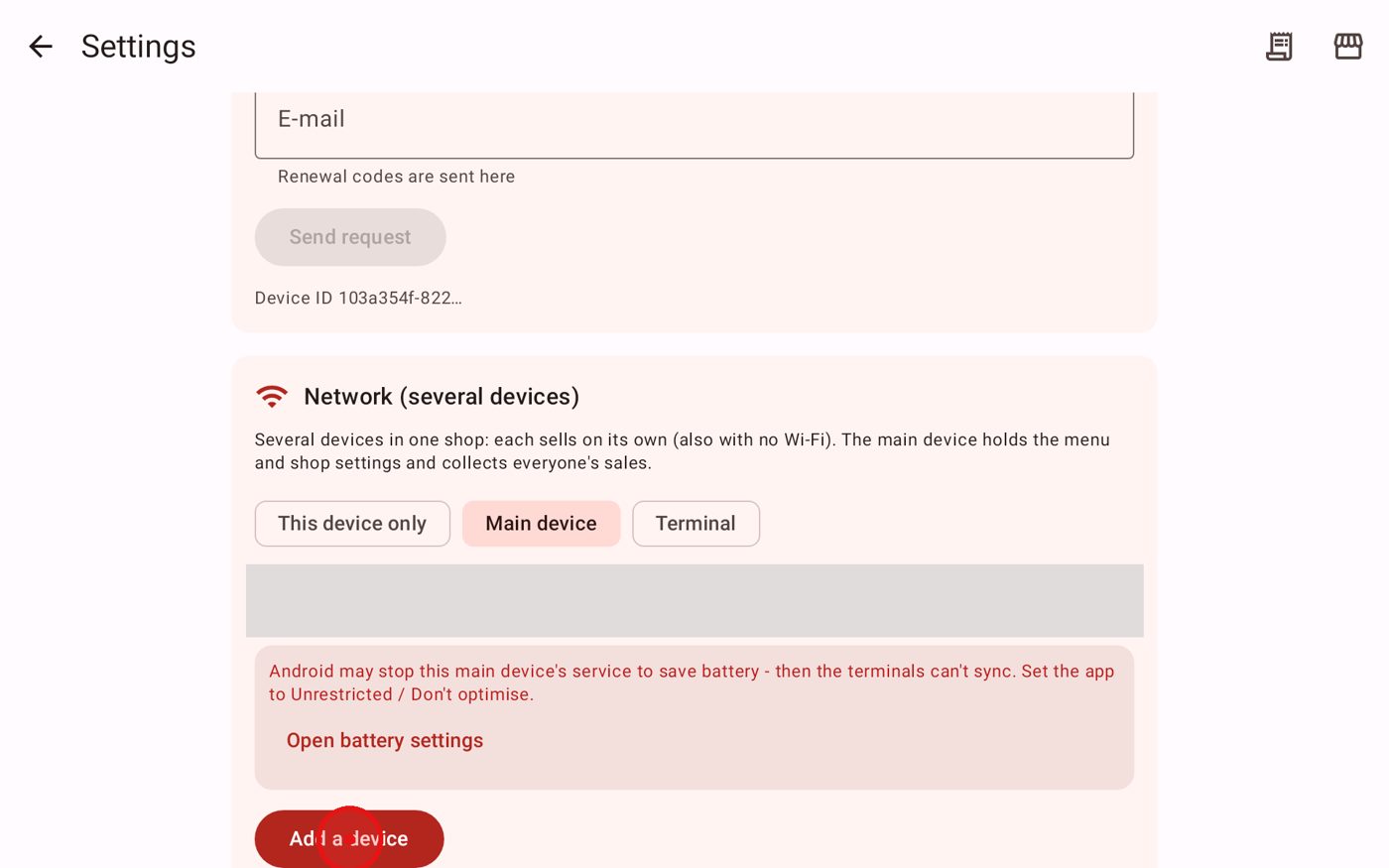
The main device shows the addresses the other devices connect to, and the Add a device button, in Devices & network.
6. Show the QR code
Tap Add a device. A QR code and a 6-digit code appear. Keep this window open for the next device.
7. Open Network on the new device
On the new device, open Settings and the group Devices & network.
8. Join as a Terminal
Tap Terminal. Scan the QR code from the main device, or type the main device address and the 6-digit code. Then tap Join.
Tips
- The main device keeps the menu and shop settings and collects everyone’s sales, so keep it on and on the shop Wi-Fi.
- After the new device joins, approve it on the main device.
- A lost or broken terminal can be retired on the main device. Its sales already received stay in the reports.