
When something goes wrong, you can send a diagnostic report to Synergy, or let Synergy support look at the device’s data from their office. This guide shows what you do and what you do not need to do.
Before you start
- The device needs internet.
- Have the Device ID ready (Settings > Setup & licence > Licence). The Synergy support line is 03-9054 4004.
Steps
1. Open the support settings
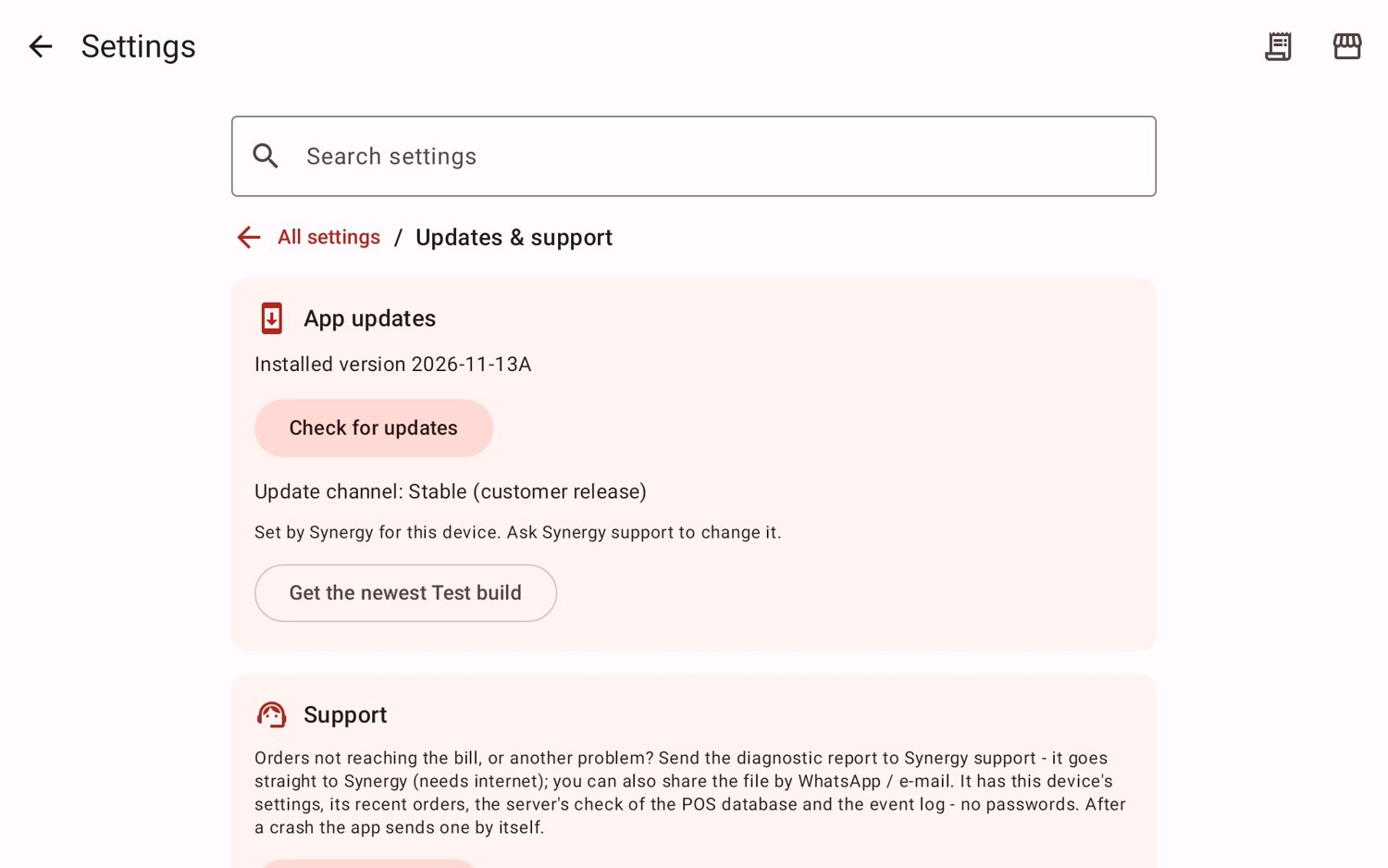
Open Settings, then the group Updates & support. The section Support has the buttons for diagnostics and for asking Synergy to check data.
2. Send diagnostics
Tap Send diagnostics. The report goes straight to Synergy. It has the device’s settings, its recent orders, the server’s check of the POS database (in a shop with a server) and the event log. It has no passwords. You can also share the file by WhatsApp or e-mail.
3. Ask Synergy to check data
Tap Ask Synergy to check data. A code appears with the words Tell Synergy support this code. Give the code to Synergy on the phone. The screen says Waiting for Synergy support to accept, and then says that Synergy support is connected.
4. What Synergy can do
Synergy support can look at the data of the device and, when needed, change settings or fix data. A backup is made first and every step is logged.
5. If Synergy changes a setting
A window called Allow a change? lists each setting with its old and new value. Read it, then tap Allow or Refuse. The app restarts afterwards to use the new values.
6. End the session
Tap End session at any time to stop Synergy support looking at the device.
Tips
- What you must do: tap Ask Synergy to check data, tell Synergy the code, and answer Allow or Refuse when the Allow a change? window appears.
- What you do not need to do: look for the problem yourself or send files. Synergy does the checking from their office.
- After a crash the app sends a diagnostic report by itself.
Common problems
A message says the device is not activated with Synergy.
Remote support needs the device to be activated. Tap Activate for support in Settings > Device activation. It uses no licence slot.
It stays on Waiting for Synergy support to accept.
Check that you gave the right code to Synergy and that the device has internet.
Send diagnostics does not work.
It needs internet. If there is none, share the diagnostic file by WhatsApp or e-mail instead.