
Choose the payment methods the pay window offers: add your own (for example TNG or DuitNow QR), put them in order, and remove the ones you do not use.
Before you start
- Open Back Office with the Back Office PIN.
- With Staff sign-in on, Back Office needs the manager PIN, as usual.
Steps
1. Open Payment methods
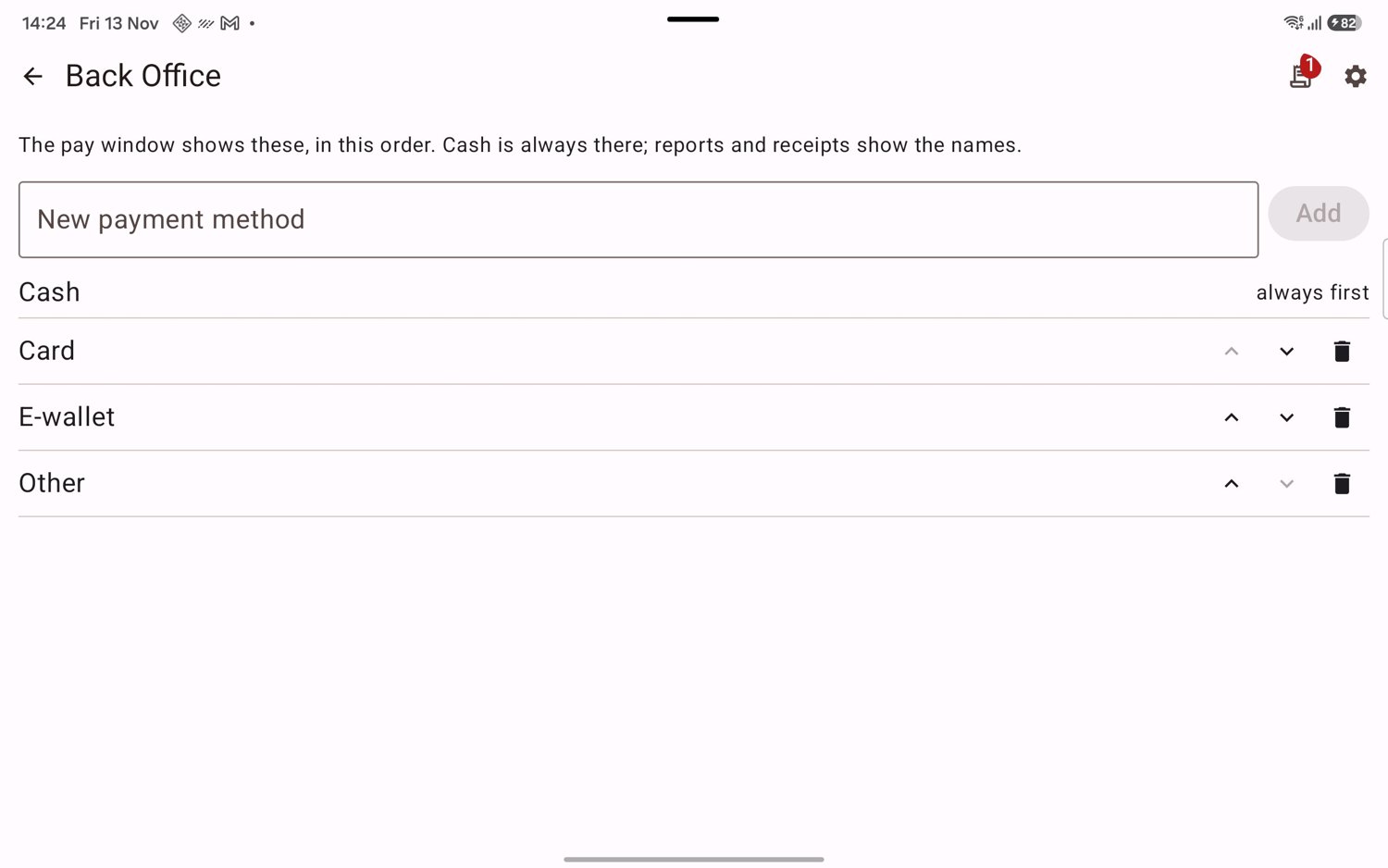
Open Back Office and type the Back Office PIN. In the group Sales and payments, tap Payment methods. The tile lists the methods in use now.
2. Read the list
At the top it says: The pay window shows these, in this order. Cash is always first and can be hidden for a cashless counter; reports and receipts show the names. Cash is at the top: it has no arrows and no bin, and has the switch Show in the pay window.
3. Add a method
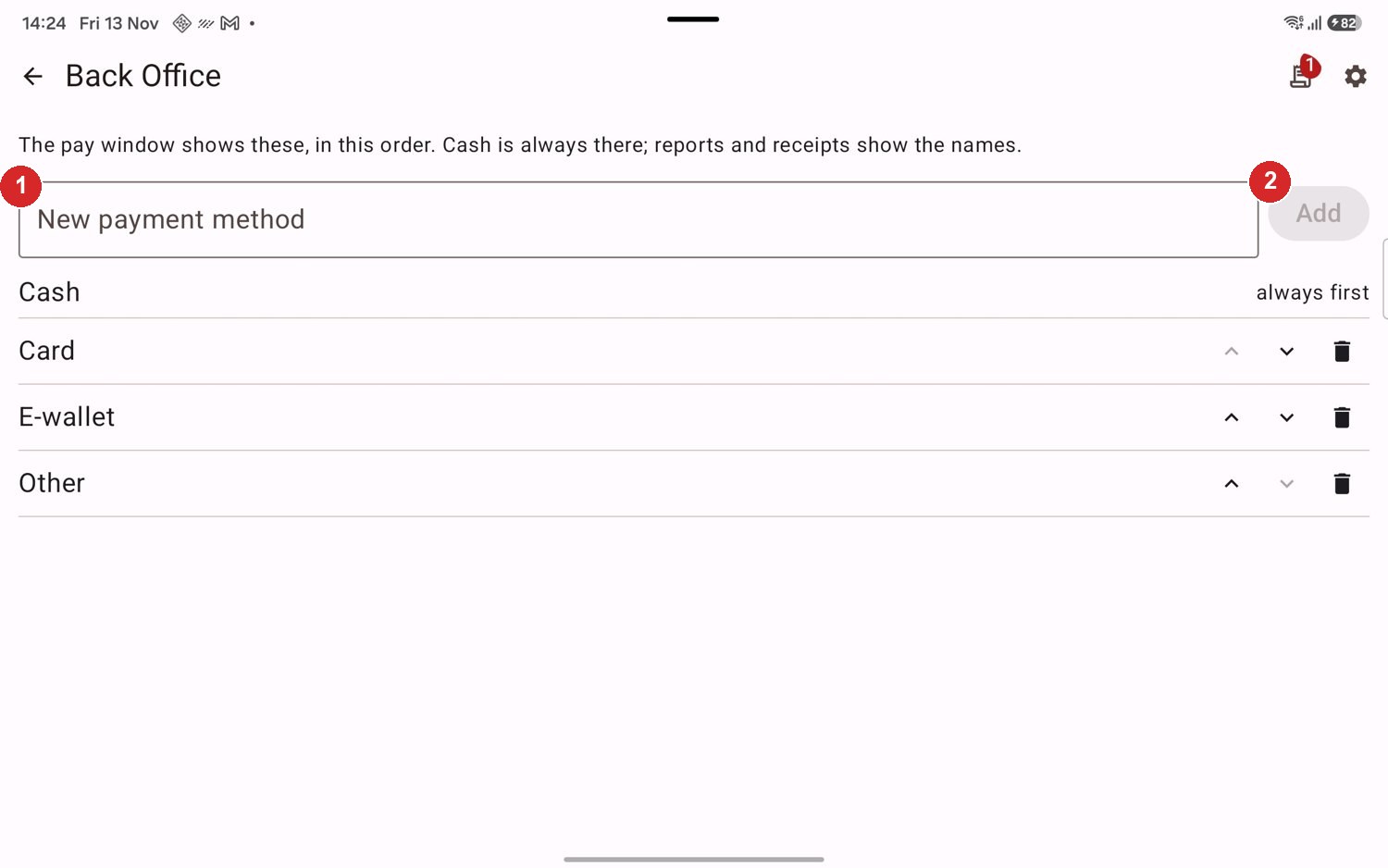
Type the name in New payment method, for example TNG or DuitNow QR (20 letters at most), then tap Add. The new method goes to the end of the list.
| Step | What to do |
|---|---|
| 1 | Type the name in New payment method. |
| 2 | Tap Add. |
4. Change the order
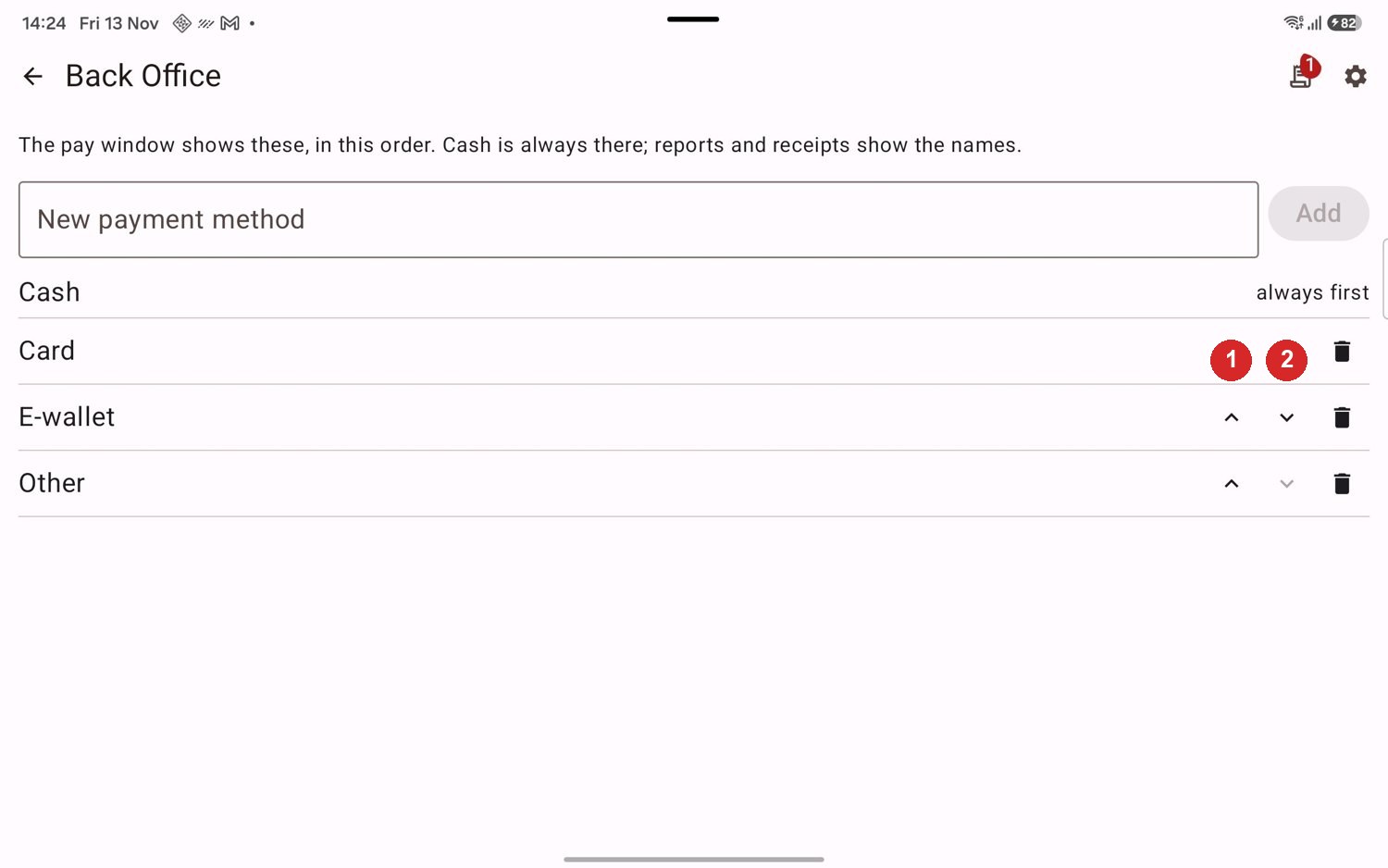
Tap the up or down arrow next to a method. The pay window shows the methods in the new order. The method just under Cash cannot go up, and the last one cannot go down.
| Step | What to do |
|---|---|
| 1 | Move the method up. |
| 2 | Move the method down. |
5. Remove a method
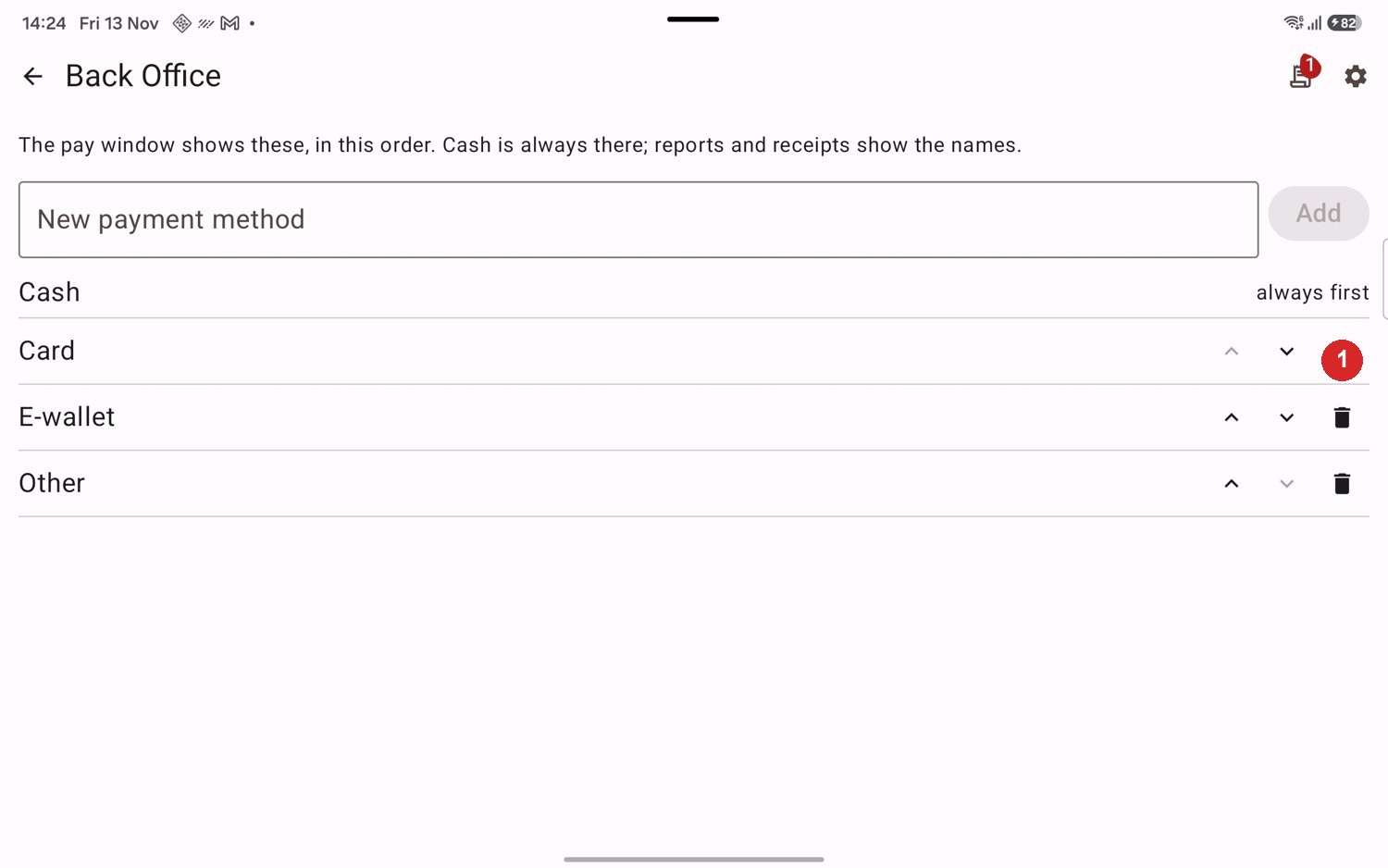
Tap the bin next to a method. It is removed at once, without a question. You can add it again later with Add.
| Step | What to do |
|---|---|
| 1 | Tap the bin. |
6. Hide Cash for a cashless counter
On the Cash row, turn off Show in the pay window. The pay window then has no Cash button, no Cash received box and no Change, and Paid takes the first method shown (for example E-wallet). A red note reminds you: by law a shop must still accept cash when a customer wants to pay with it. Turn the switch on again to take cash. The switch goes to the other devices of the shop.
7. Check the pay window
Go back to the order screen, open a bill and tap Pay. The pay window shows Cash first, then your methods in the order you set. Reports and receipts show the same names.
Tips
- A name can be used once only. Cash and the other built-in methods cannot be added twice.
- The name Split cannot be used: it is kept for bills paid by several methods.
- If you remove every method under Cash, the pay window goes back to the built-in methods.
- Each change is written in Back Office > Change log, for example Payment method “TNG” added.
- Cash is hidden only when another method is left. If you remove every other method, Cash shows again.
- Show in the pay window for Cash needs Order App 2026-11-19A or later. Main devices or terminals on older versions still show Cash.
Common problems
Add is grey.
Type a name first. Add works only when the name box is not empty.
A message says the name is already there.
The method is already in the list. Choose another name.
A message says to enter a name of 20 characters at most.
Shorten the name, for example TNG instead of Touch n Go eWallet.
The up arrow is grey.
The method just under Cash is the first one that can be moved, so it cannot go higher. Cash always stays first.