
Print barcode stickers for your items on a label printer, from Back Office. Pick the items, say how many stickers each, and print.
Before you start
- A label printer connected by USB, by network (Wi-Fi/LAN) or by Bluetooth. The app is made for the Zywell ZY910 (language TSPL). Choose ZPL only for a Zebra-type printer.
- Keep the Back Office PIN ready.
Steps
1. Open Back Office
Tap the Back Office icon (the storefront) and type the Back Office PIN. Barcode stickers is in the Stock group.
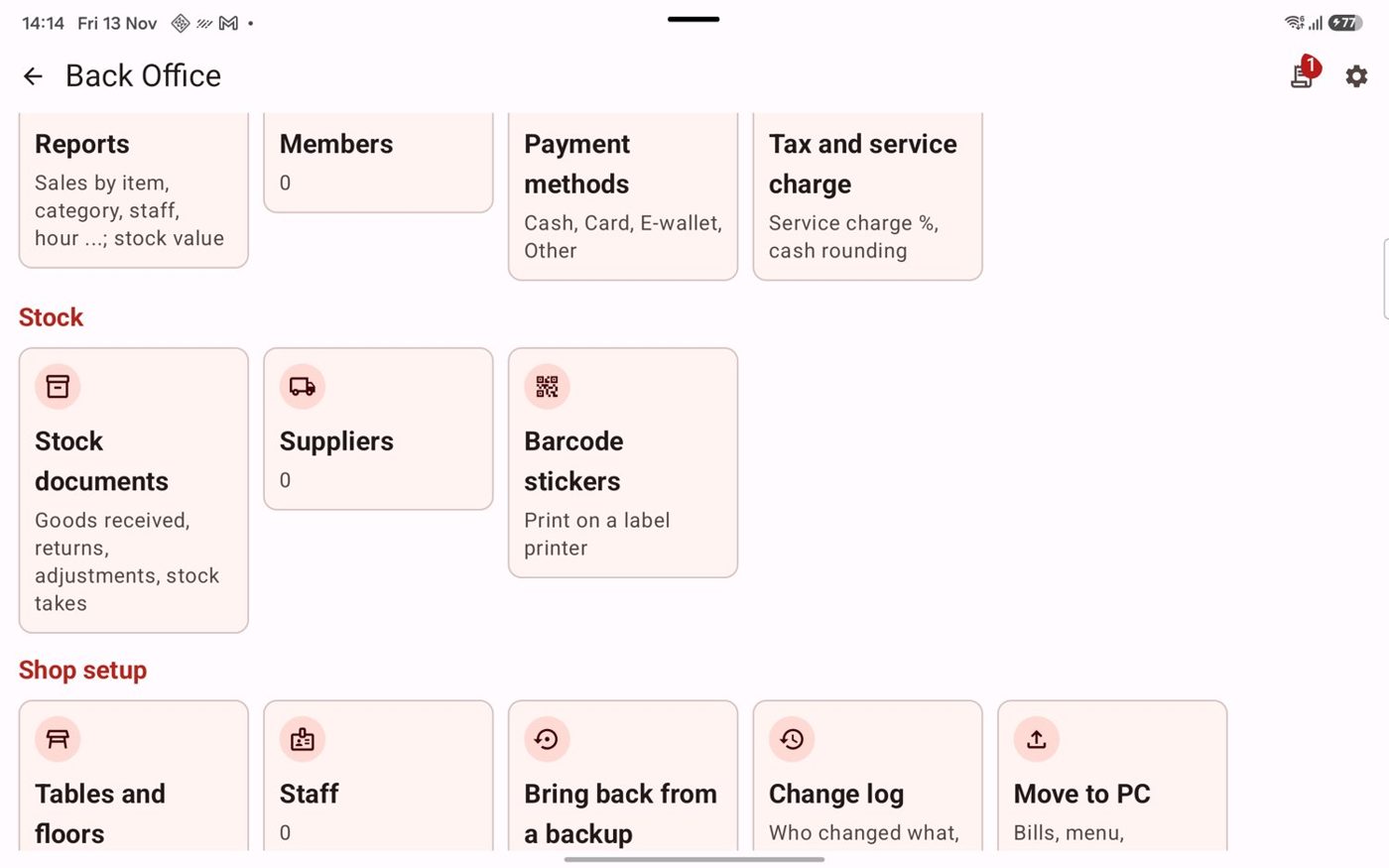
2. Open Barcode stickers
Tap Barcode stickers. At the top is the Label printer, which says Not set up yet.
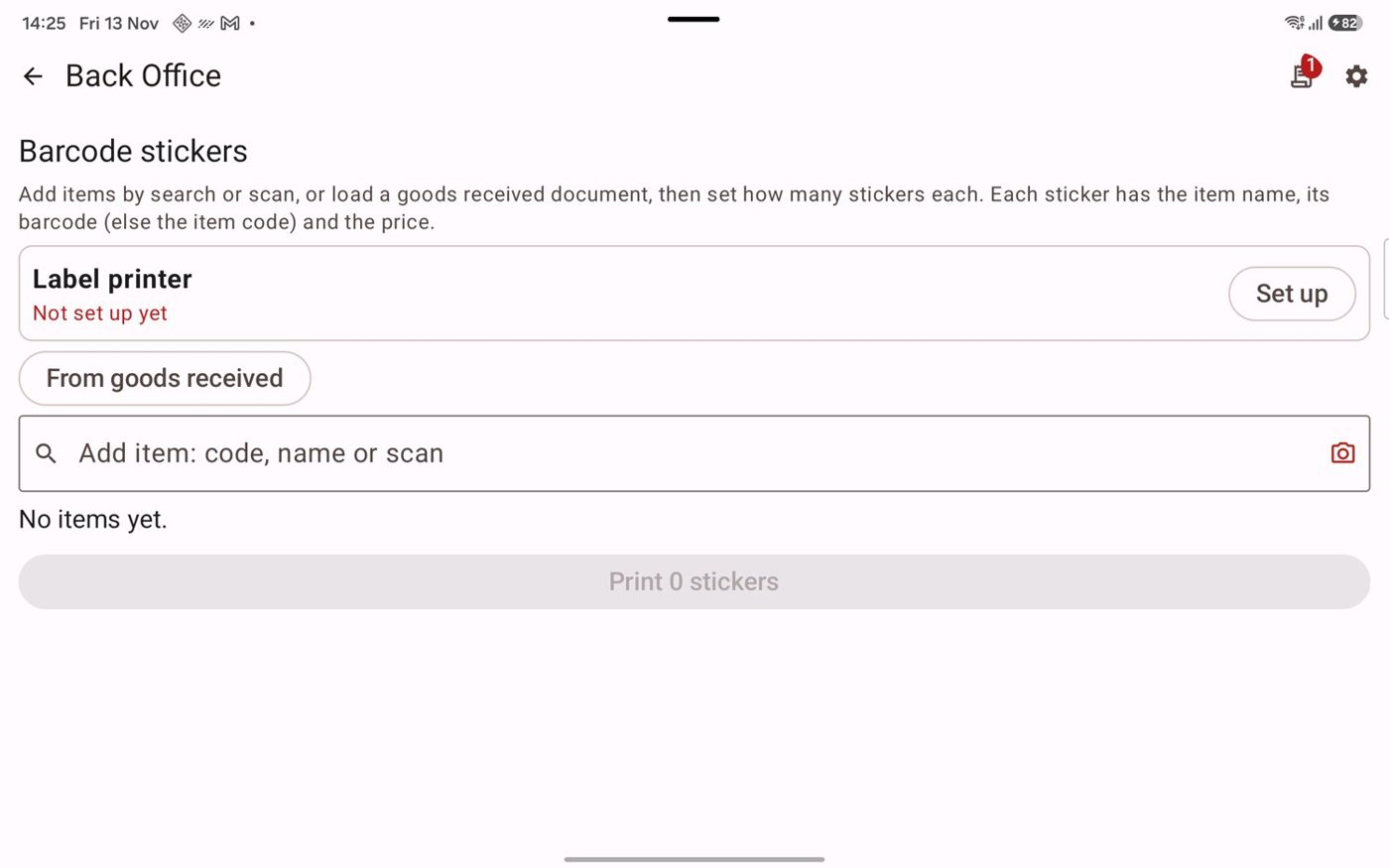
3. Open the printer set-up
Tap Set up next to Label printer. The Label printer window opens.
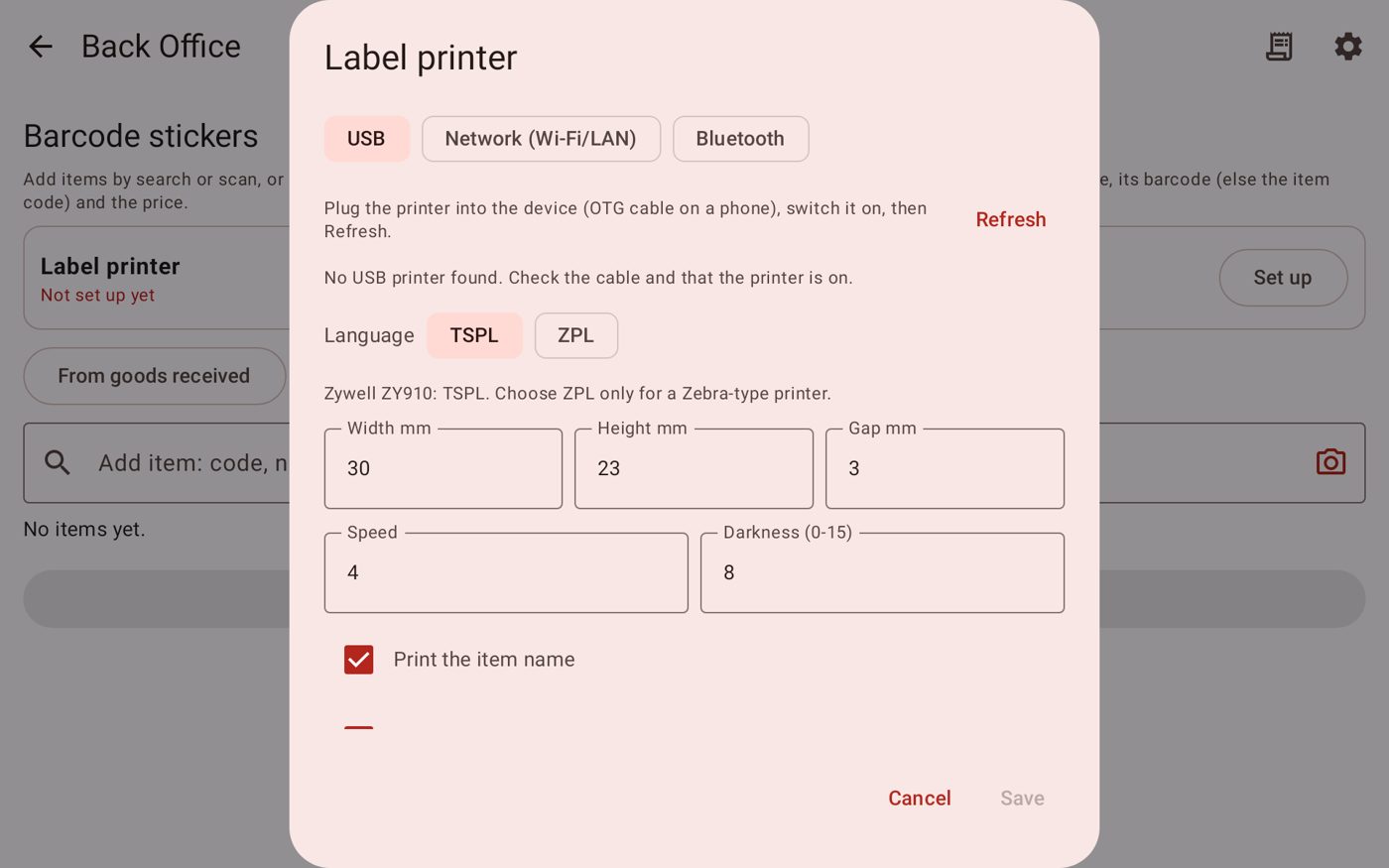
4. Choose how the printer is connected
Choose how the printer is connected.
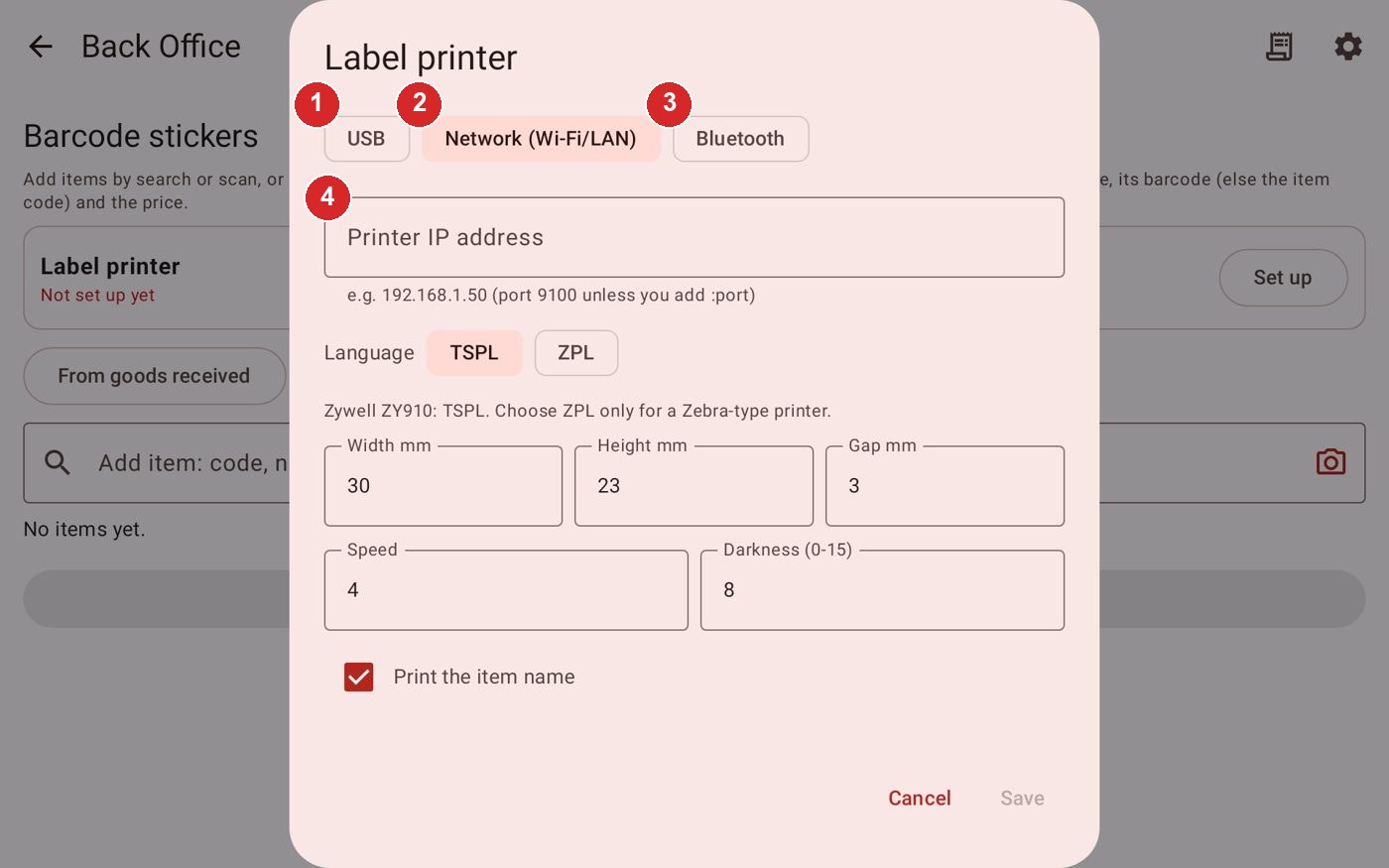
| Step | What to do |
|---|---|
| 1 | Tap USB. Plug the printer into the device (an OTG cable on a phone), switch it on and tap Refresh. |
| 2 | Tap Network (Wi-Fi/LAN). |
| 3 | Tap Bluetooth. Choose the printer from the list. |
| 4 | For Network, type the printer’s IP address. |
5. Check the language and the sticker size
Check the label settings. Tap Test print to print one sticker and check the size and that the barcode scans.
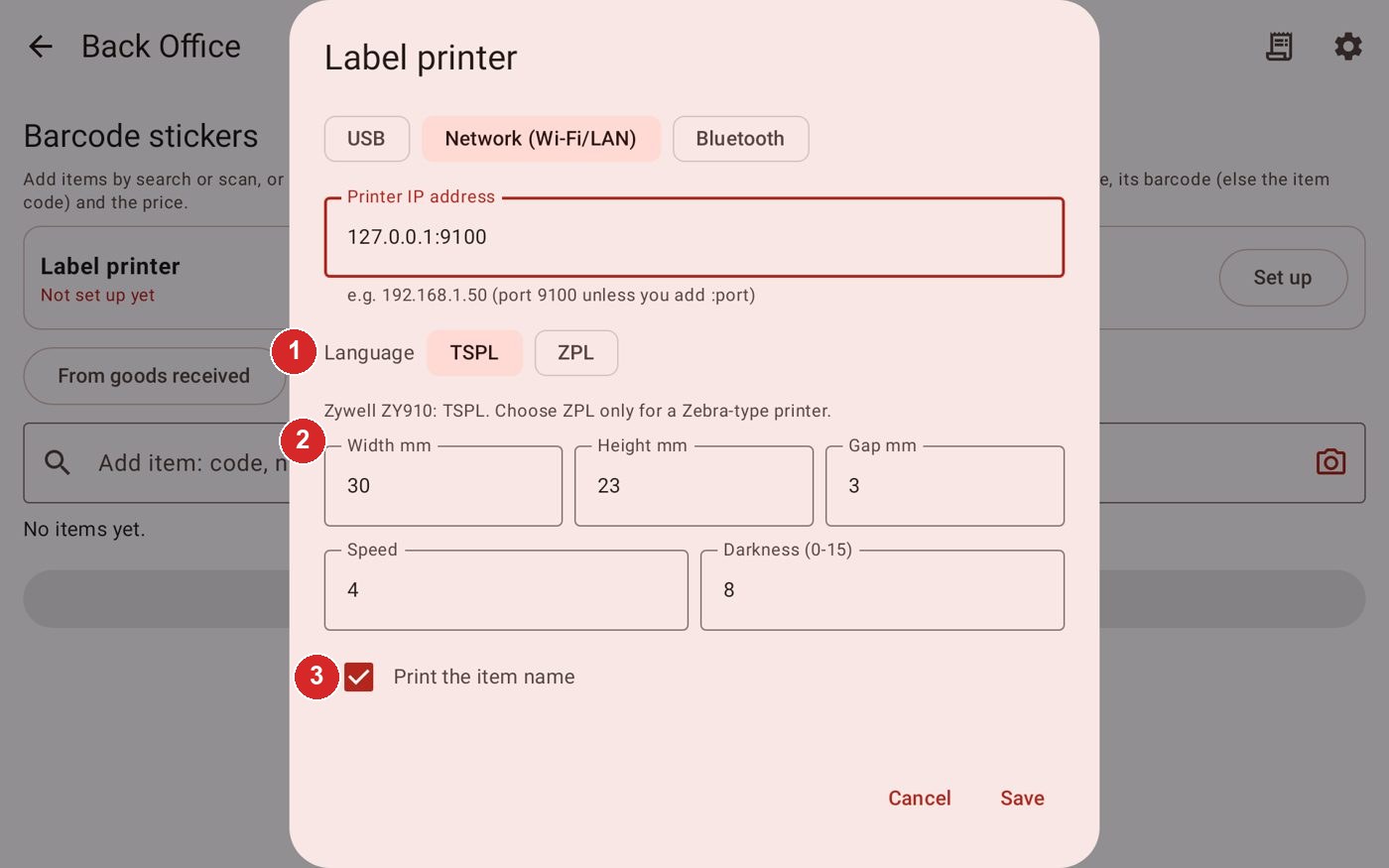
| Step | What to do |
|---|---|
| 1 | Language is TSPL for a Zywell ZY910. |
| 2 | The boxes below start at Width 30 mm, Height 23 mm, Gap 3 mm, Speed 4 and Darkness 8 (0-15). Change them to match your stickers. |
| 3 | Tick or untick Print the item name, Print the price and Turn the sticker round (prints upside down). |
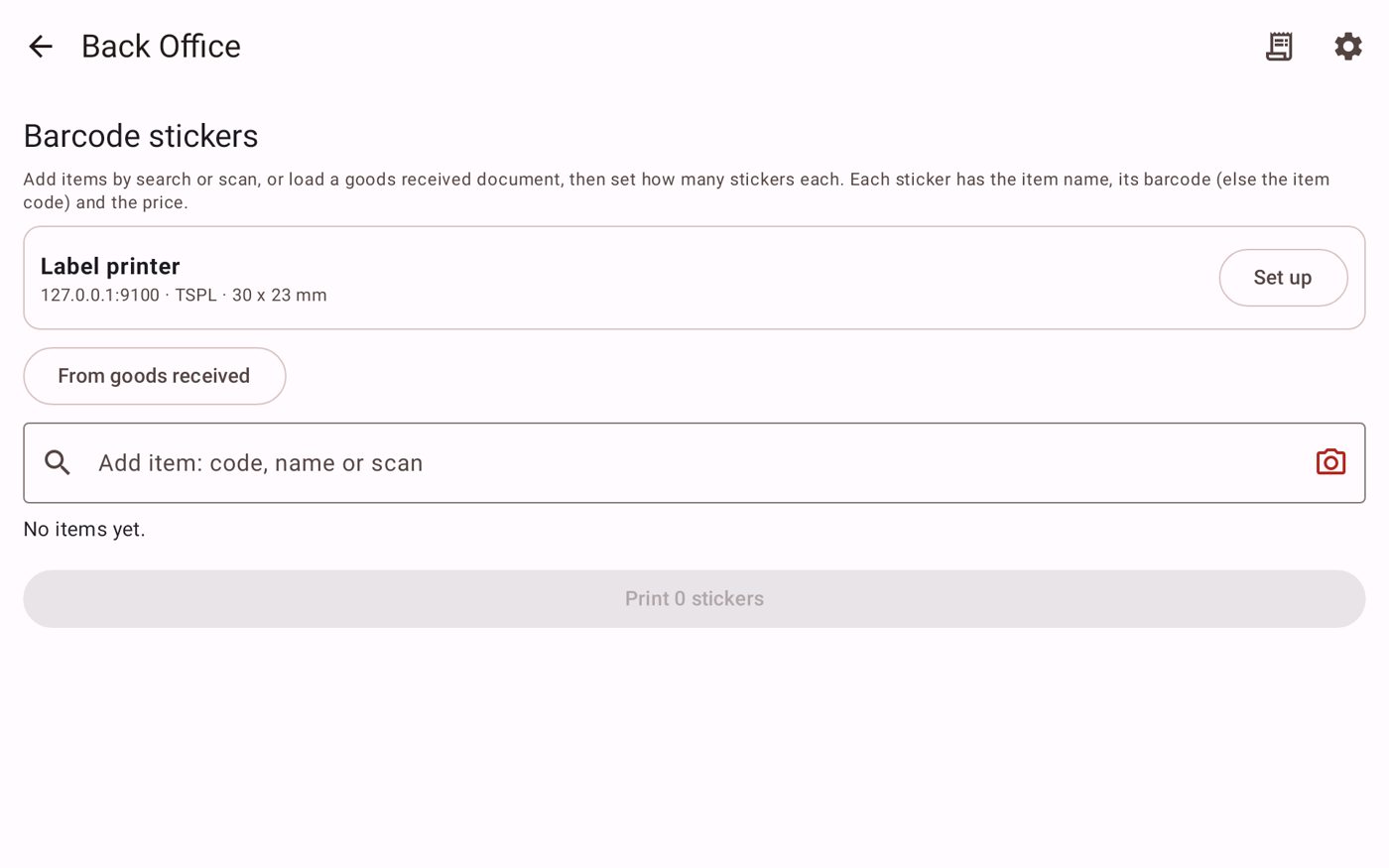
6. Save the printer
Tap Save. The Label printer line now shows the address, the language and the sticker size.
7. Find an item
Find the item to print stickers for.
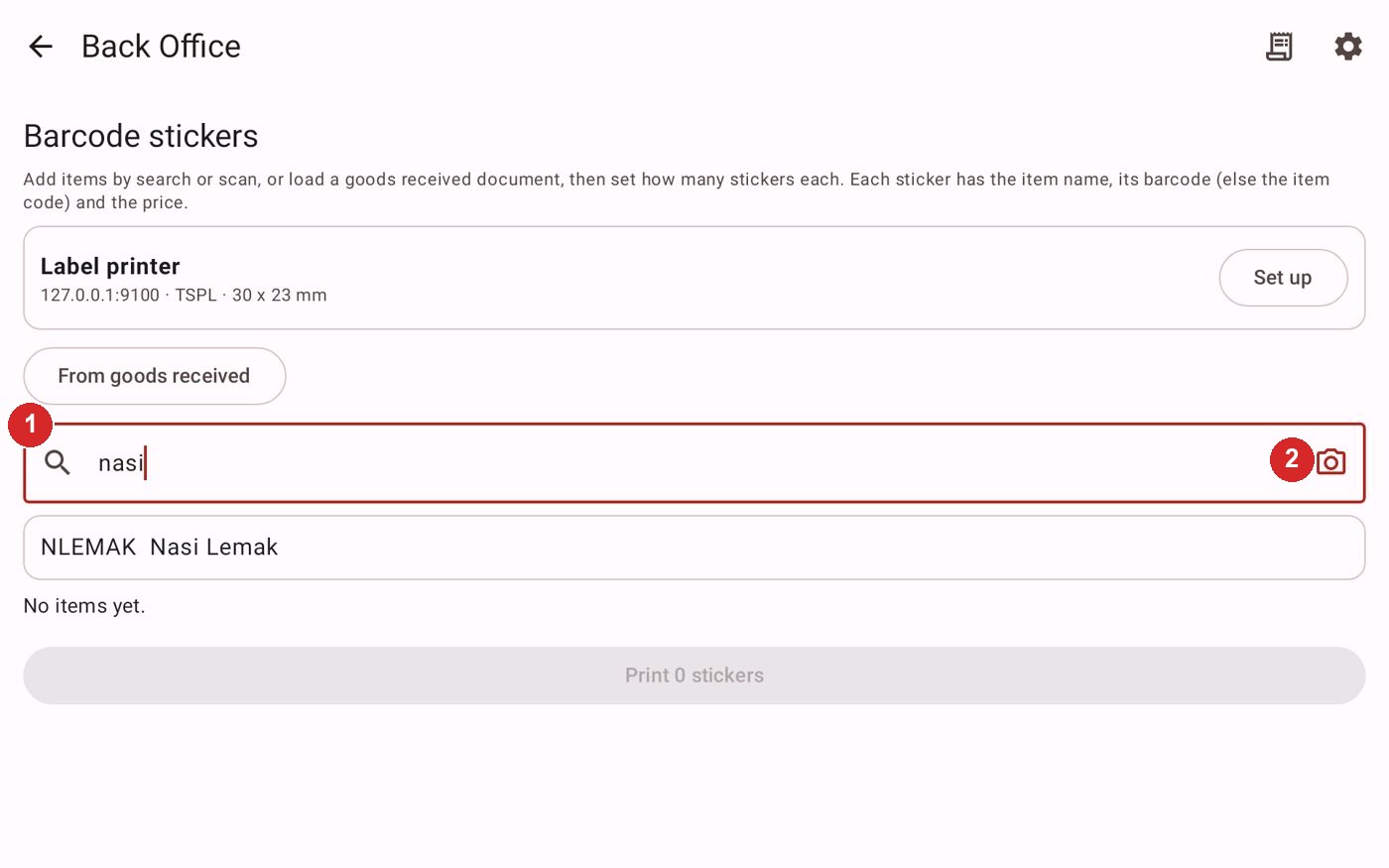
| Step | What to do |
|---|---|
| 1 | Type at least two letters of an item’s name or code in Add item. The matching items are listed. |
| 2 | The camera icon scans a barcode, and a barcode scanner adds the item at once. |
8. Tap the item
Tap the item to put it on the list.
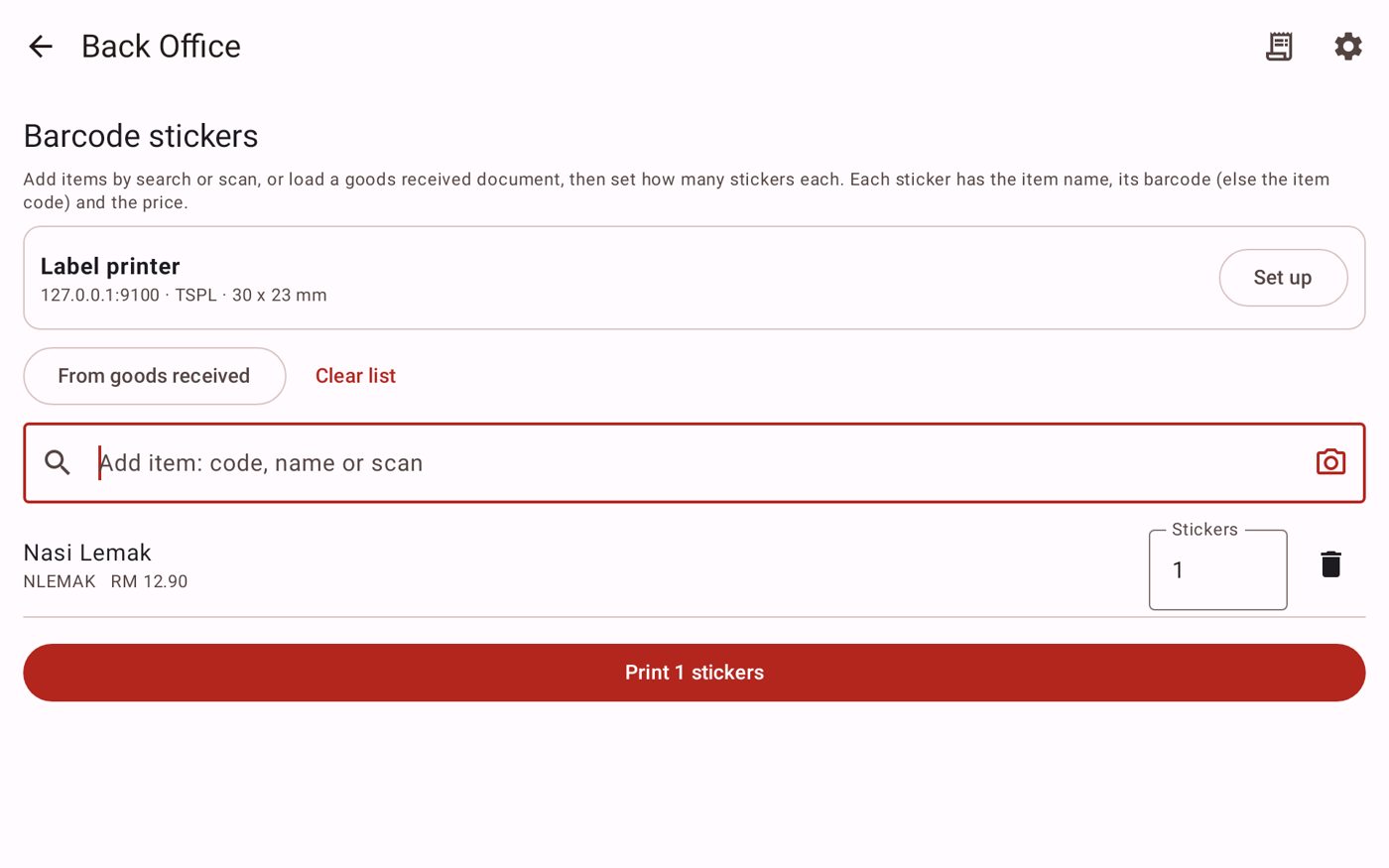
9. Set how many stickers
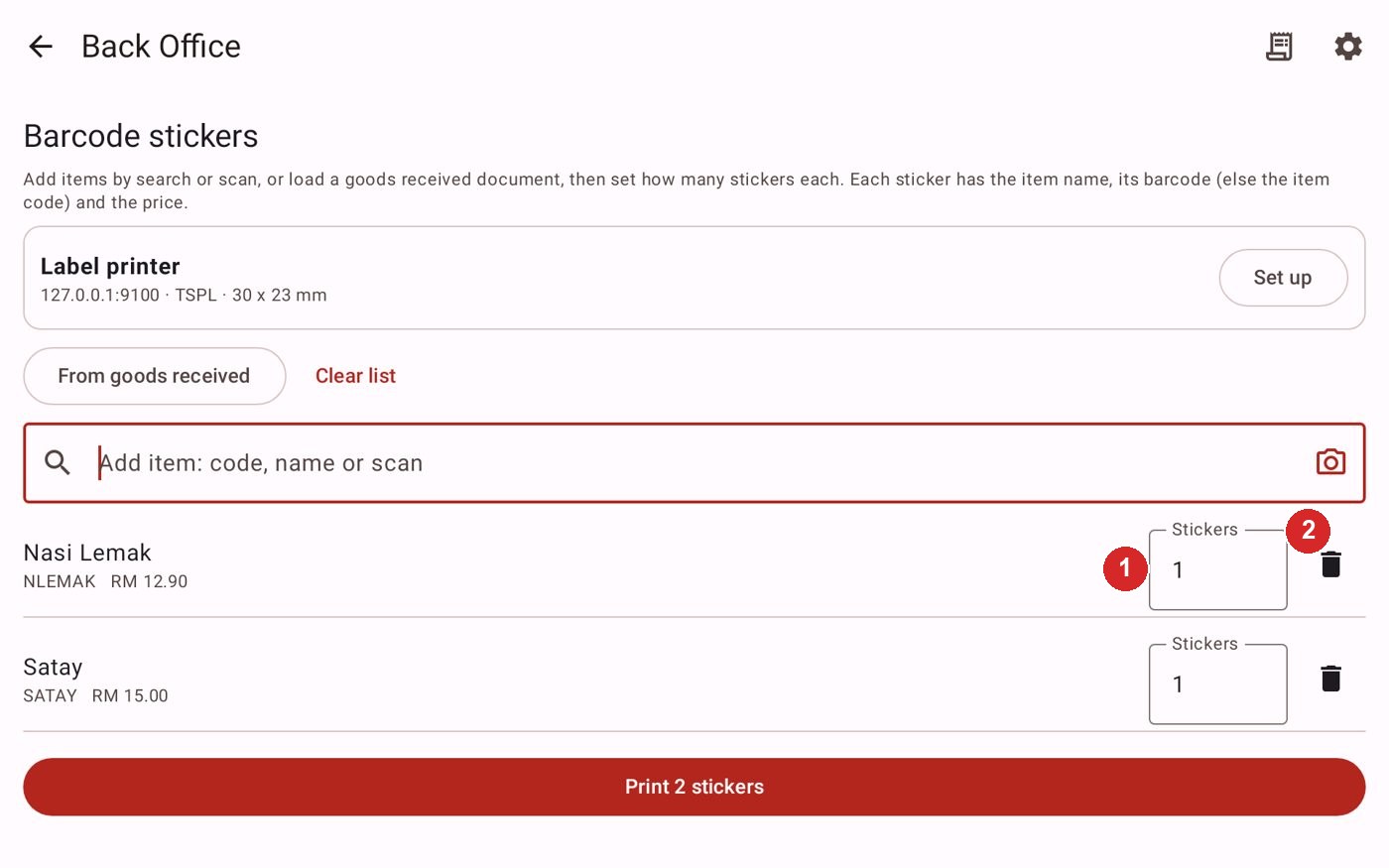
Add the other items the same way. Each row shows the item’s code and price.
| Step | What to do |
|---|---|
| 1 | Type in the Stickers box how many to print. |
| 2 | The bin icon takes an item off the list. |
10. Print one sticker for each item received
To print for a delivery, tap From goods received and choose a goods received document. Each item gets as many stickers as the quantity received, rounded up.
11. Tap Print
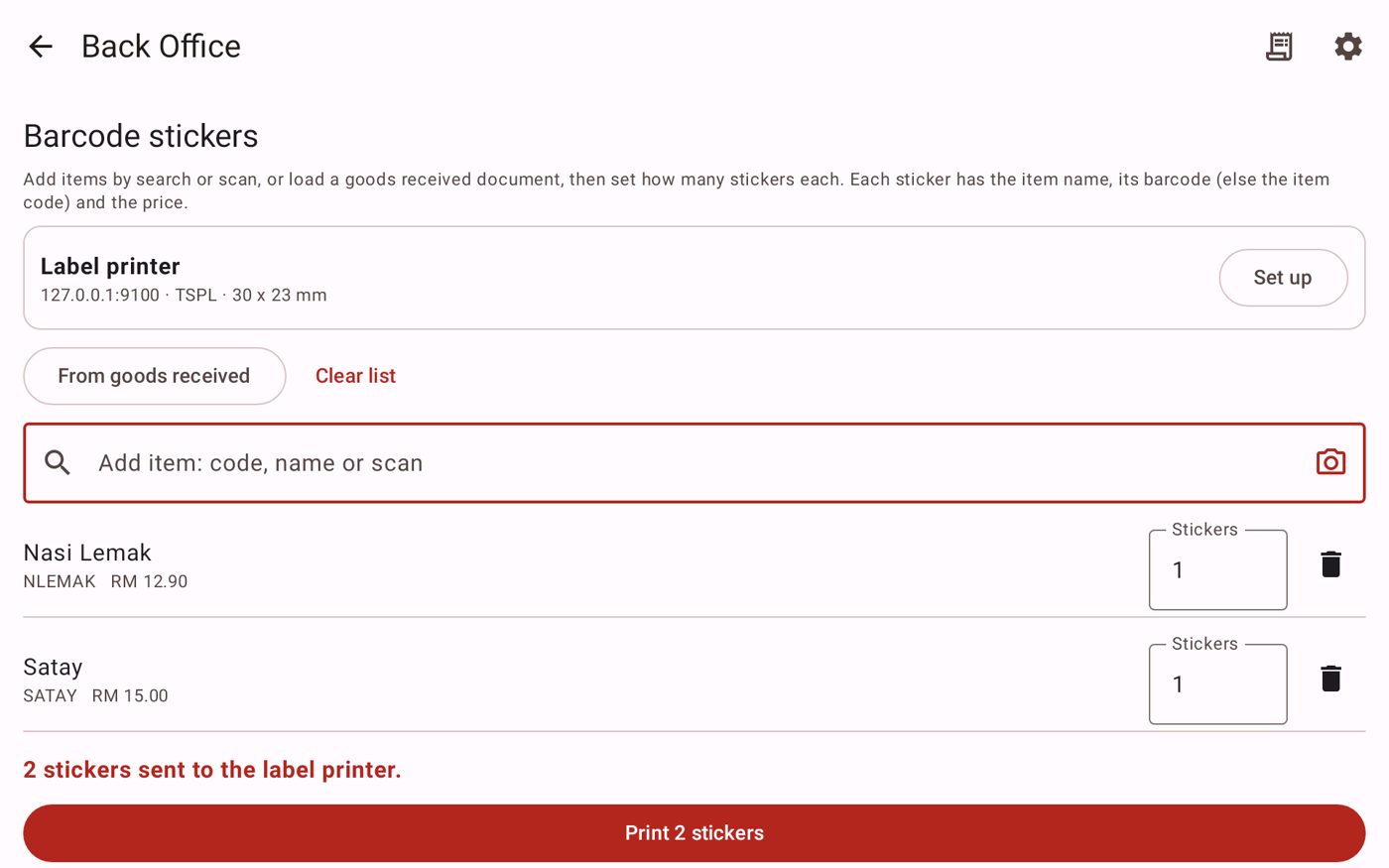
Tap the Print stickers button at the bottom. A message says how many stickers were sent to the label printer.
Tips
- Each sticker has the item name, its barcode (the item code when the item has no barcode) and the price.
- The label printer is saved on this device. Tap Clear list to empty the list of items.
- If a red message says a barcode has very thin bars on the sticker, it may not scan. Use a wider sticker or a shorter barcode.
Common problems
The Print button is grey.
The list has no items, or the numbers in Stickers add up to 0. Add an item and set Stickers.
The message says Set up the label printer first.
Tap Set up next to Label printer, choose the printer and tap Save.
The message says No USB printer found.
Check the cable and that the printer is on, then tap Refresh.
The stickers come out upside down.
Open Set up and tick Turn the sticker round (prints upside down).
The message says a barcode is too long for the sticker.
Use a wider sticker (change Width mm) or a shorter barcode.