
Learn how to switch on table bookings, add a booking for a customer, and manage it when the customer arrives.
Before you start
- Your business type should be F&B, as shown in Settings.
- Have the customer’s name, phone number and table number ready.
Steps
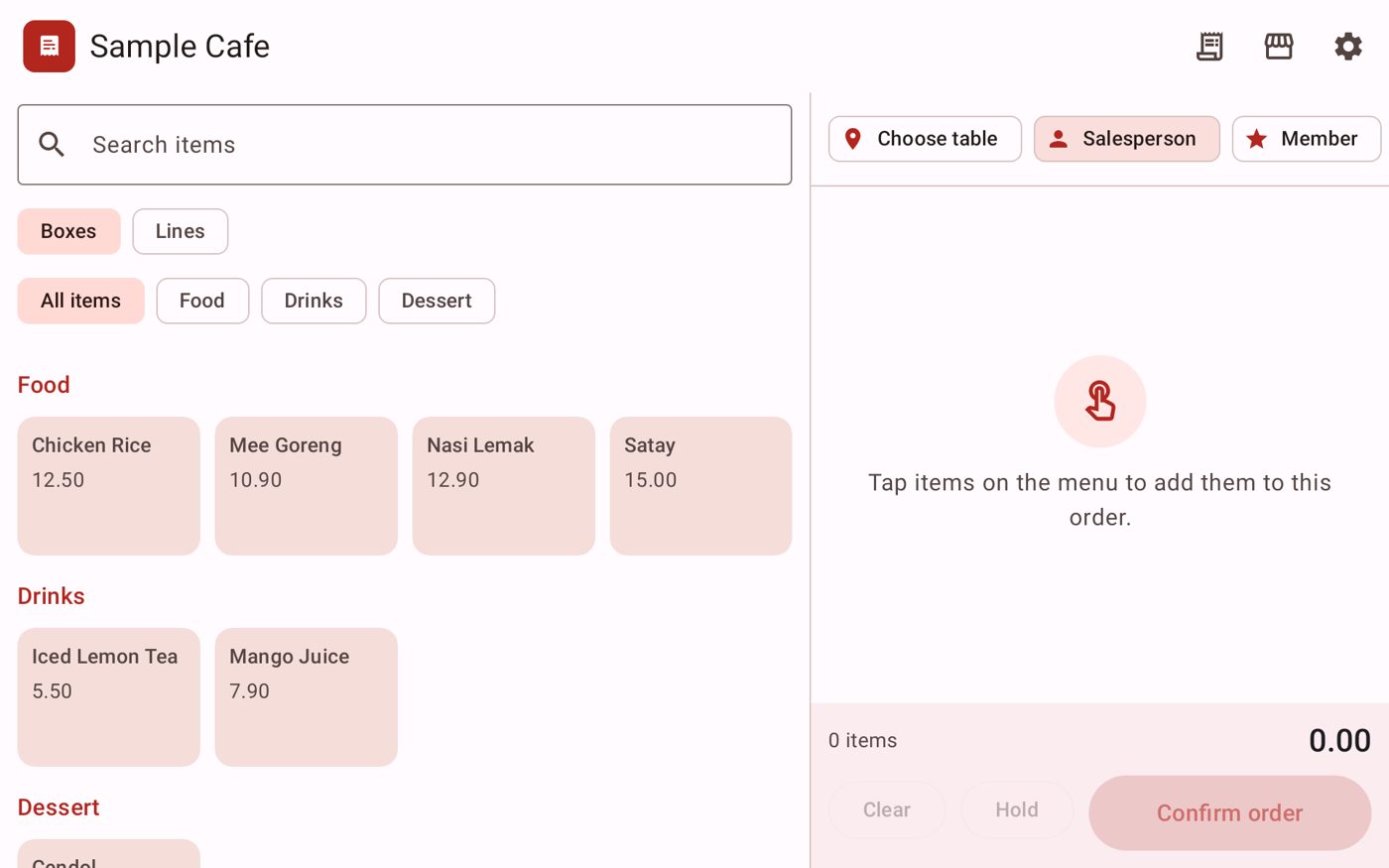
1. Start on the order screen
This is the order screen. The gear icon at the top right opens Settings.
2. Open Settings
Tap the gear icon to open Settings.
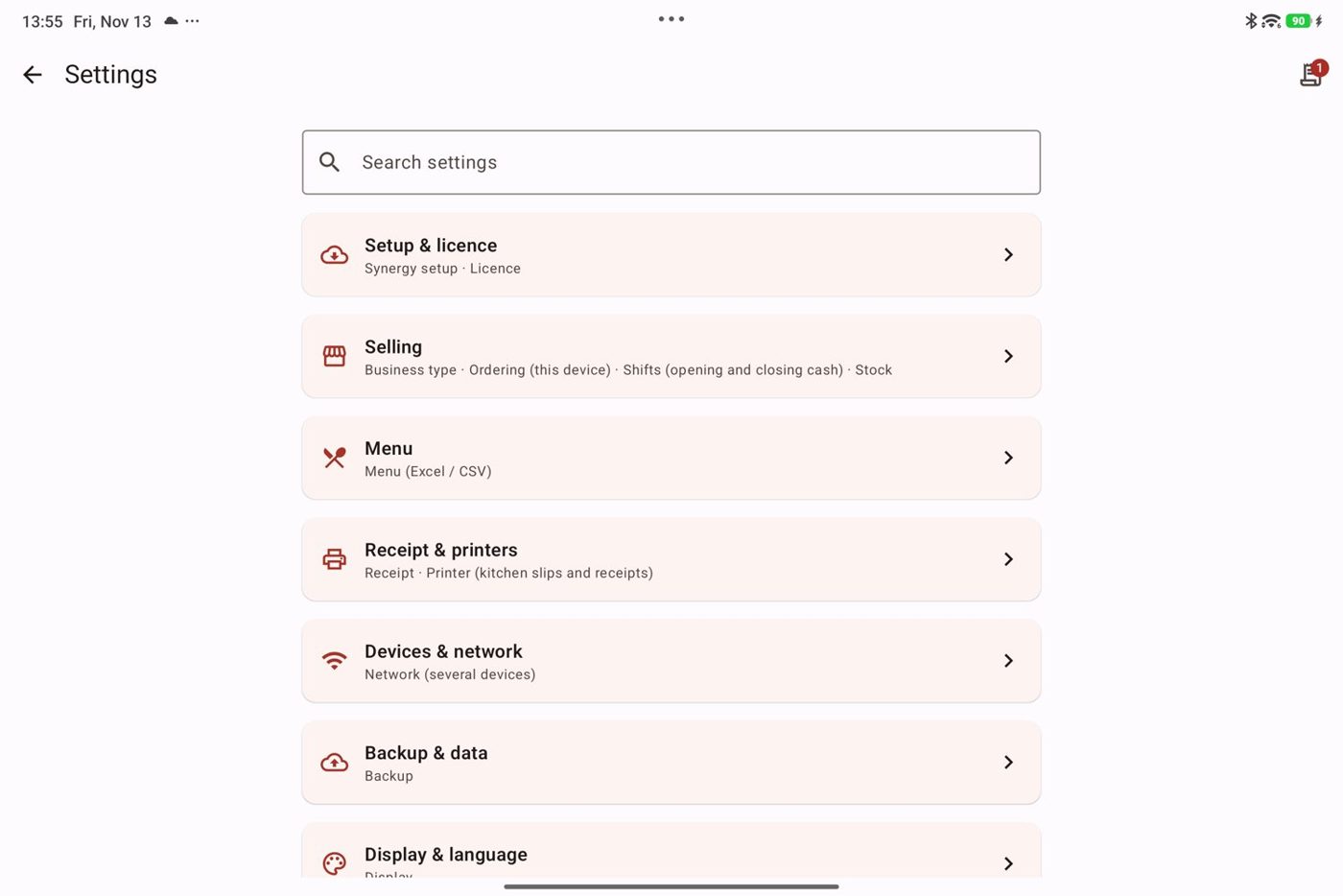
3. Open Bookings
Open the group Selling and find the section Bookings.
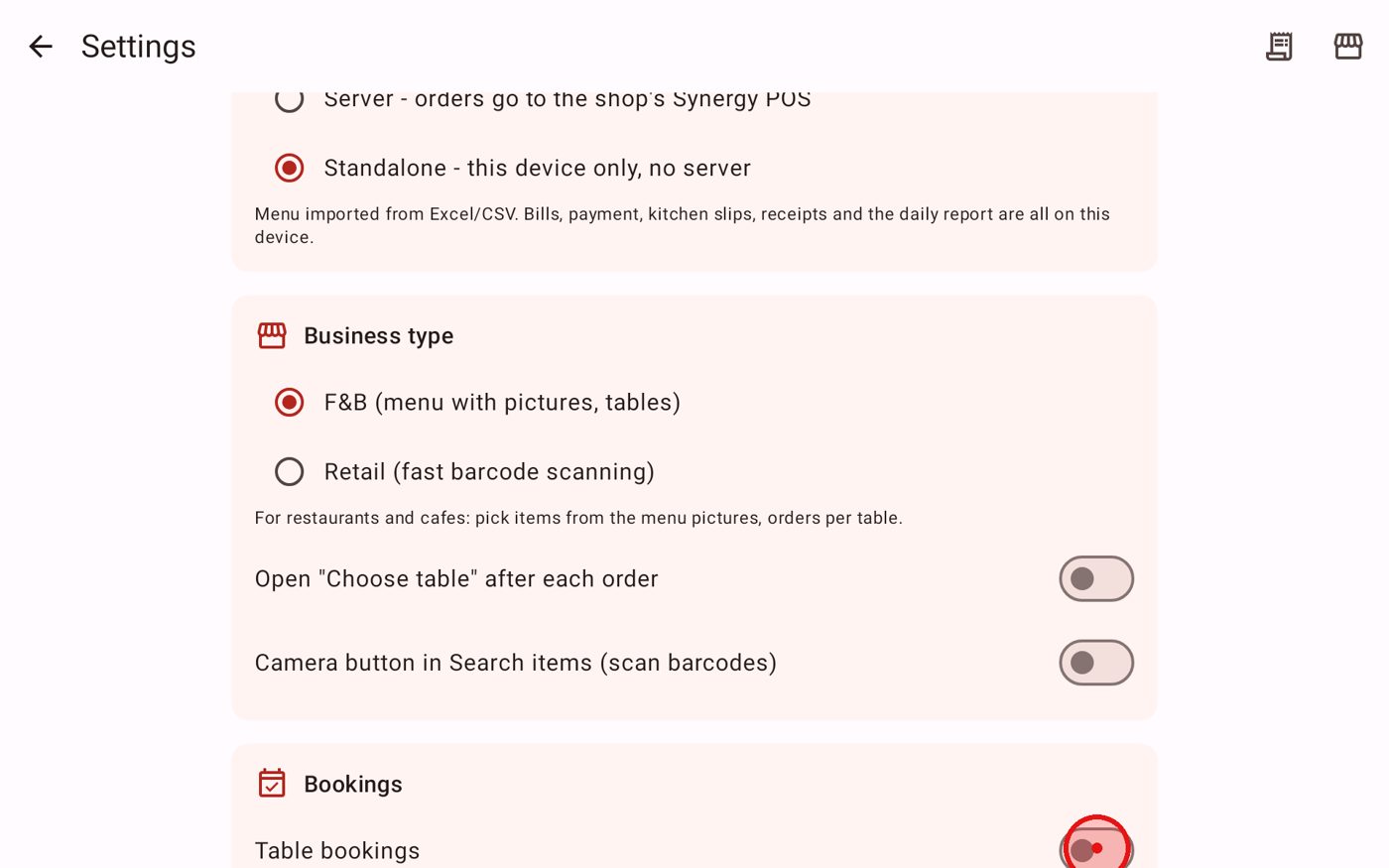
4. Switch on Table bookings
Switch on Table bookings.
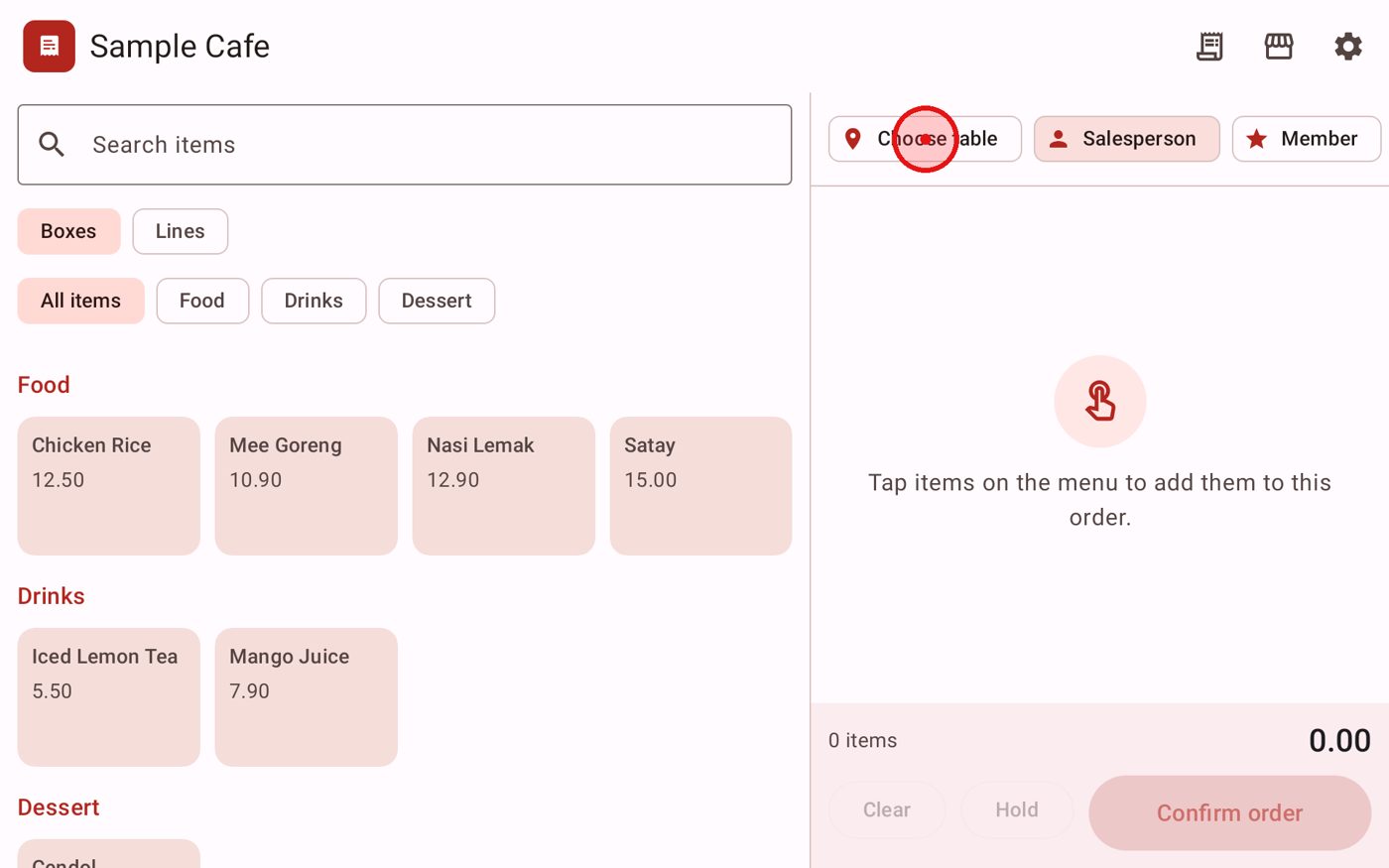
5. Open Choose table
Go back to the order screen, then tap Choose table.
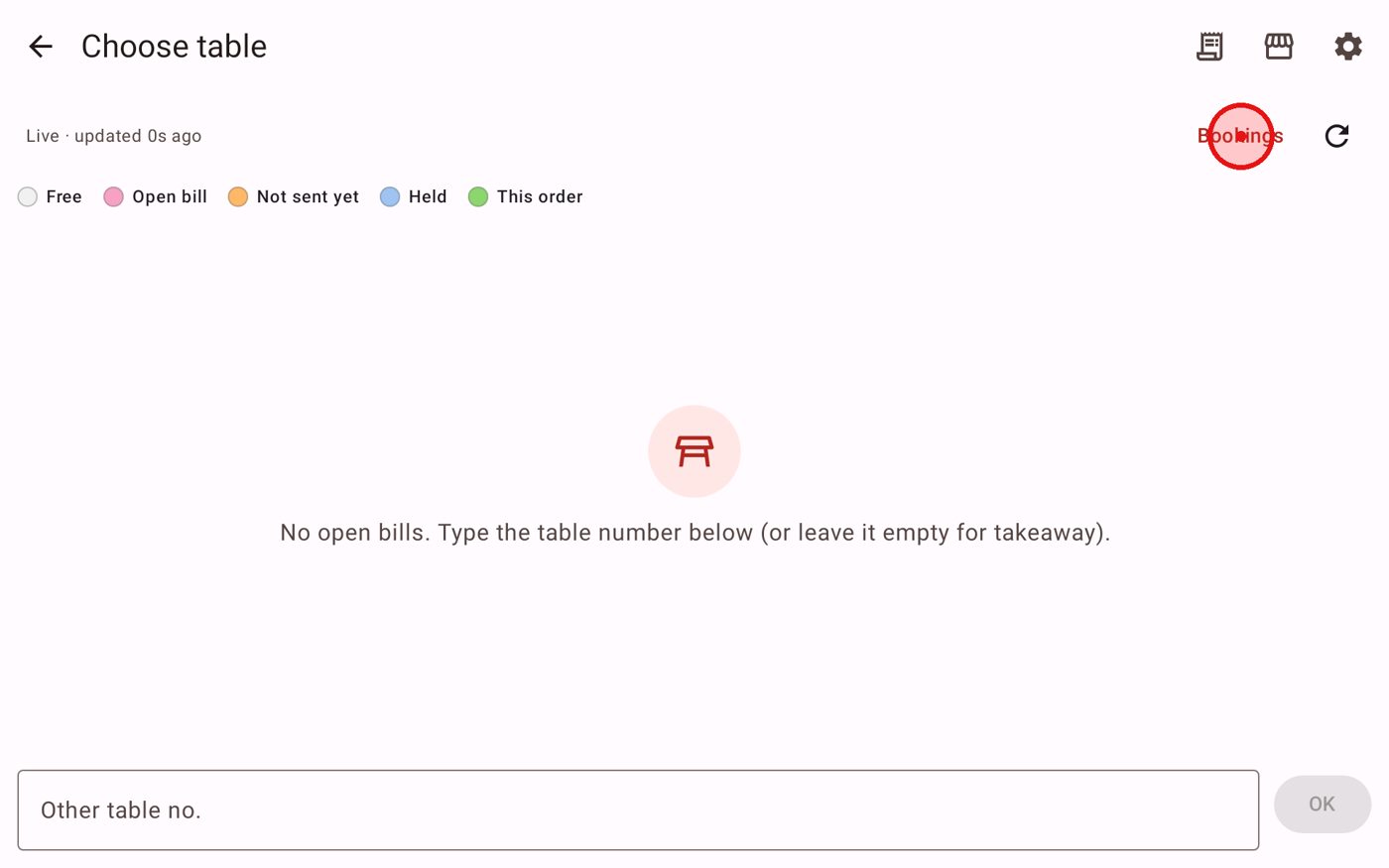
6. Open Bookings
Tap Bookings at the top right.
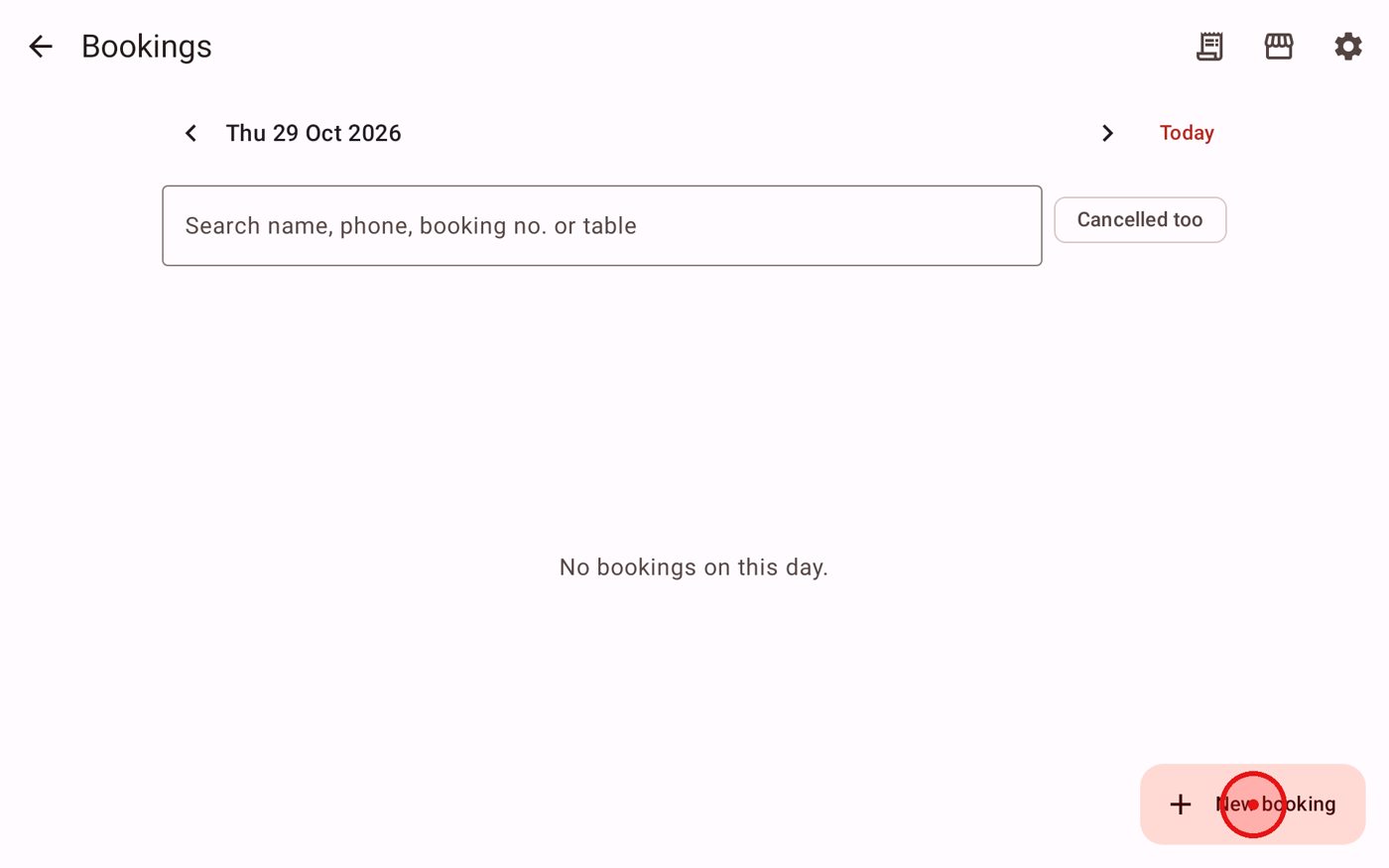
7. Start a new booking
Tap New booking.
8. Enter the customer details
Fill in the customer details.
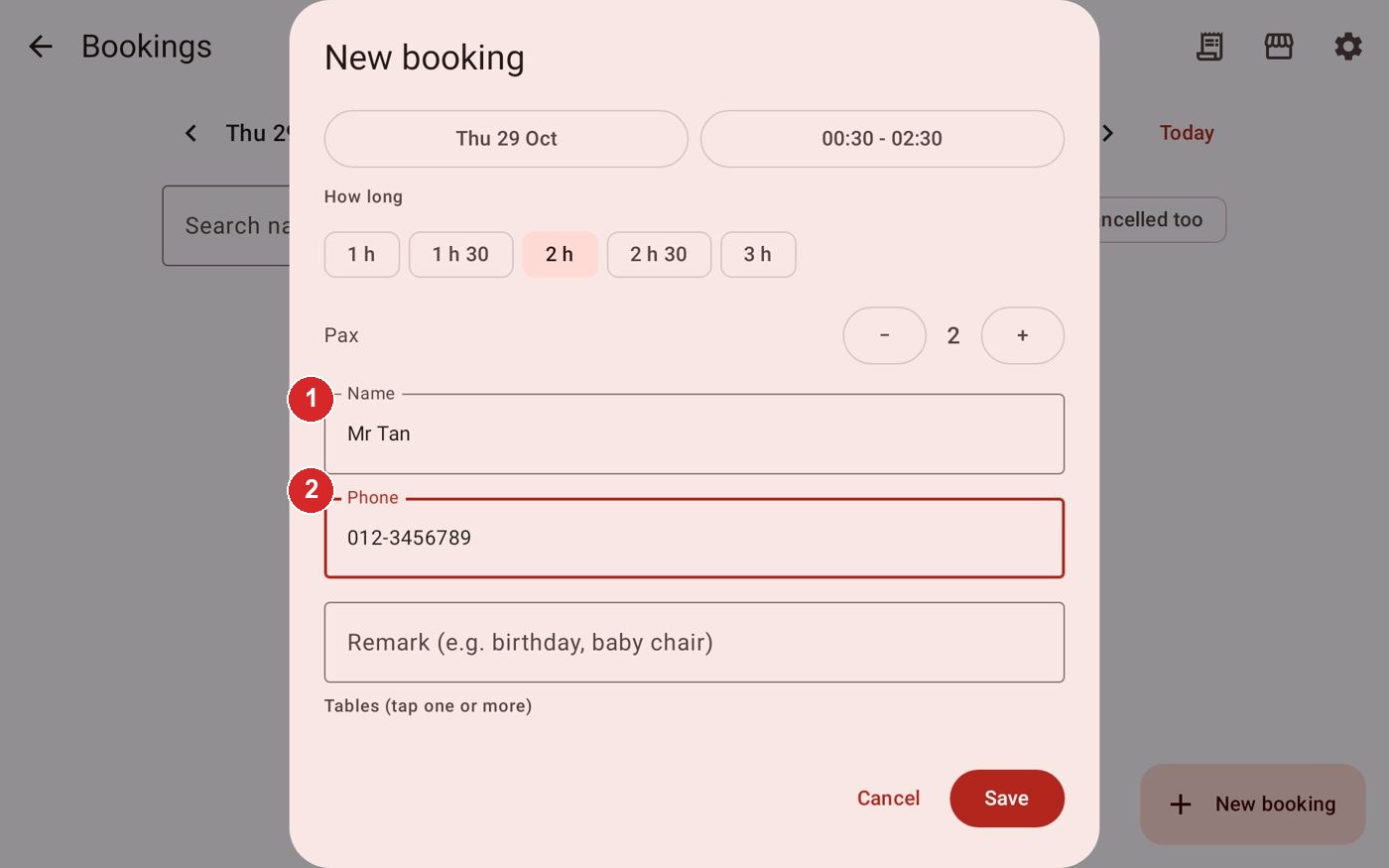
| Step | What to do |
|---|---|
| 1 | Type the customer’s name. |
| 2 | Type the customer’s phone number. |
9. Add the table
Type the table number under Other table and tap Add. The table appears under Tables.
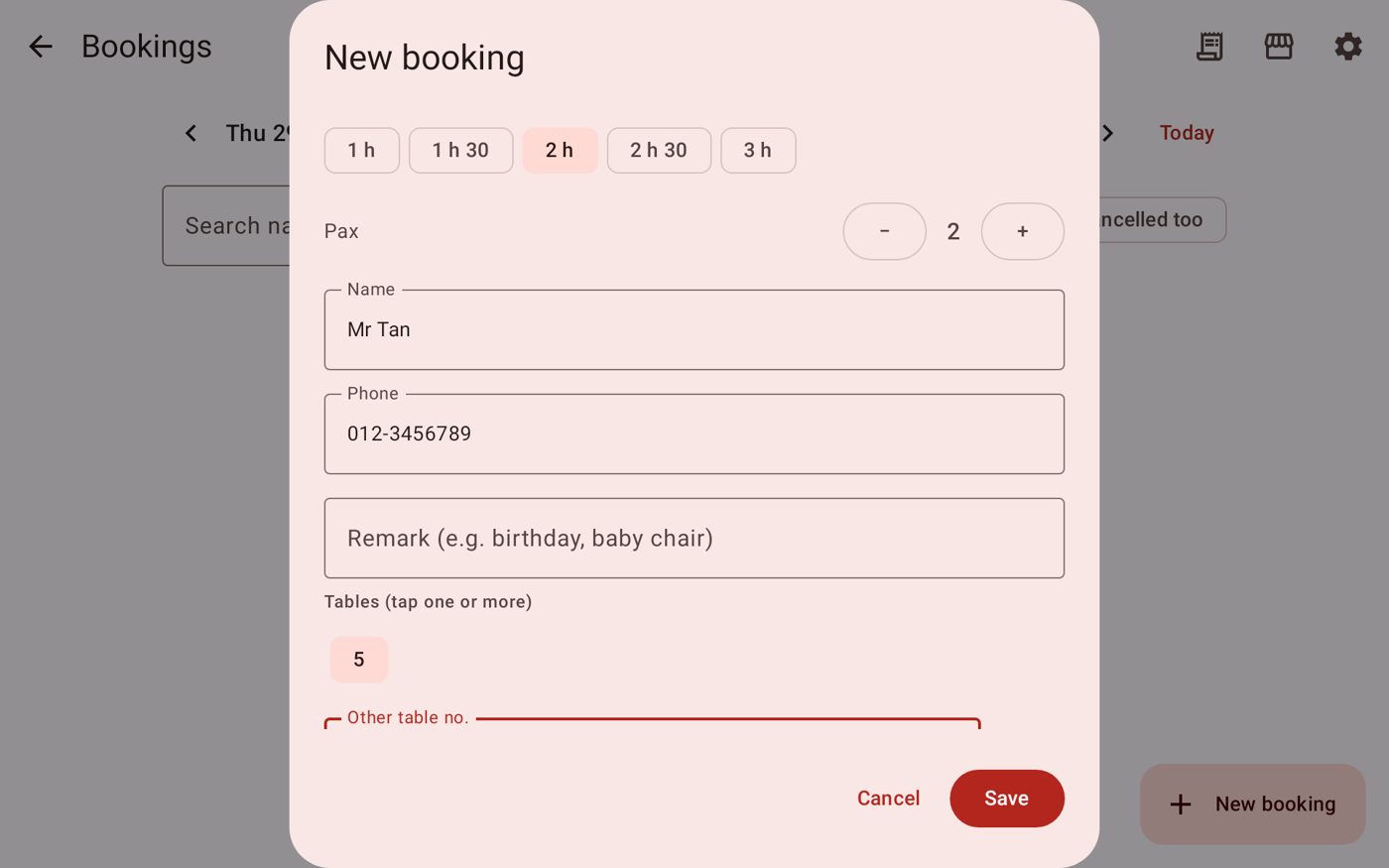
10. Save the booking
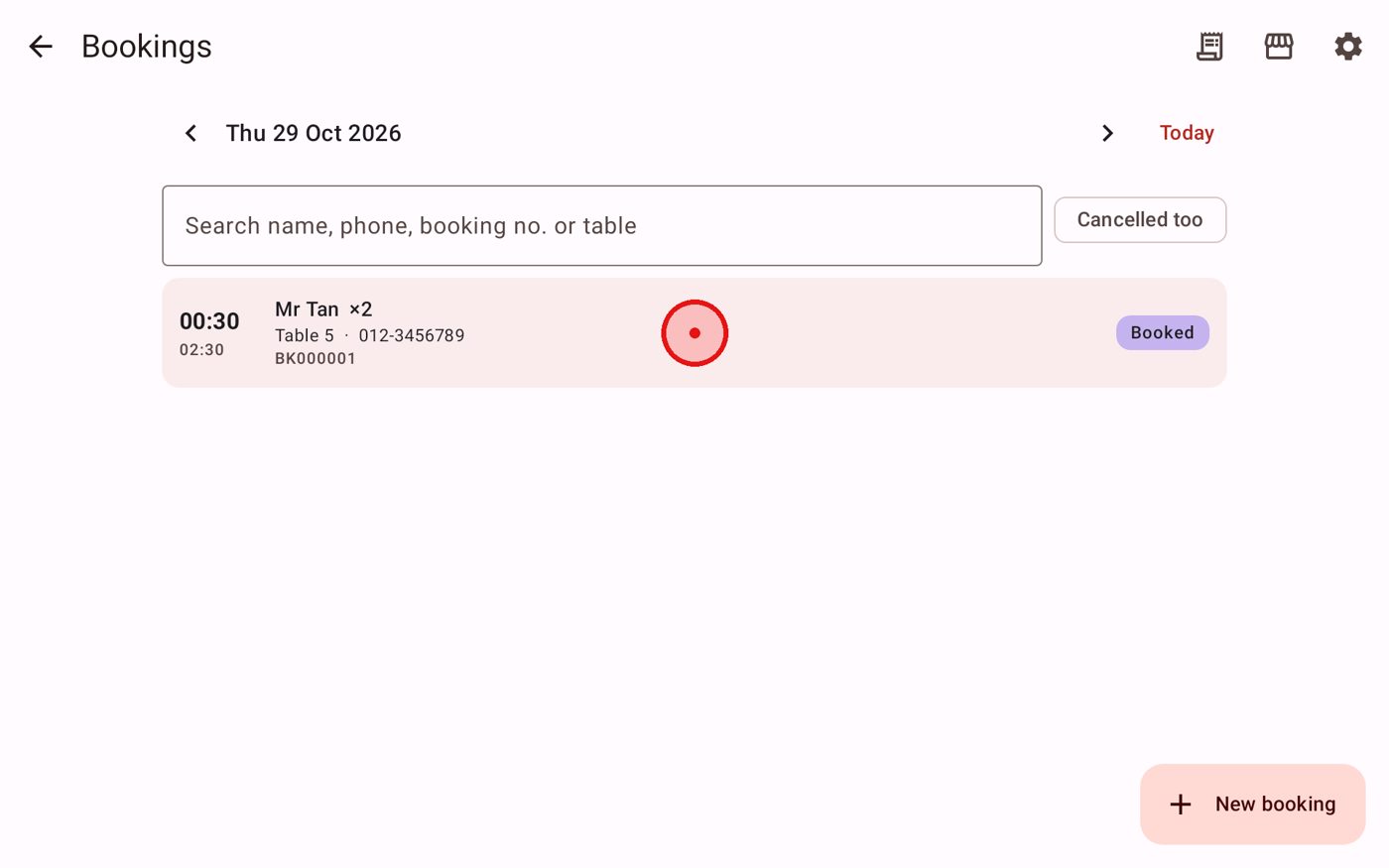
Tap Save. The booking is in the list for the day, marked Booked.
11. Manage a booking
Tap a booking to open it. Here you can tap Change, Customer arrived, No-show or Cancel booking. Tap Close to leave without changes.
Tips
- A booking has a time, how long, pax, name, phone, remark and one or more tables.
- A table cannot be booked twice at the same time.
- Booking statuses are Booked, Arrived, Completed, Cancelled and No-show.