
This guide shows how to take payment for a table’s bill by card or e-wallet, from the Bills screen.
Before you start
- Make sure the order has been confirmed and added to the table’s bill.
Steps
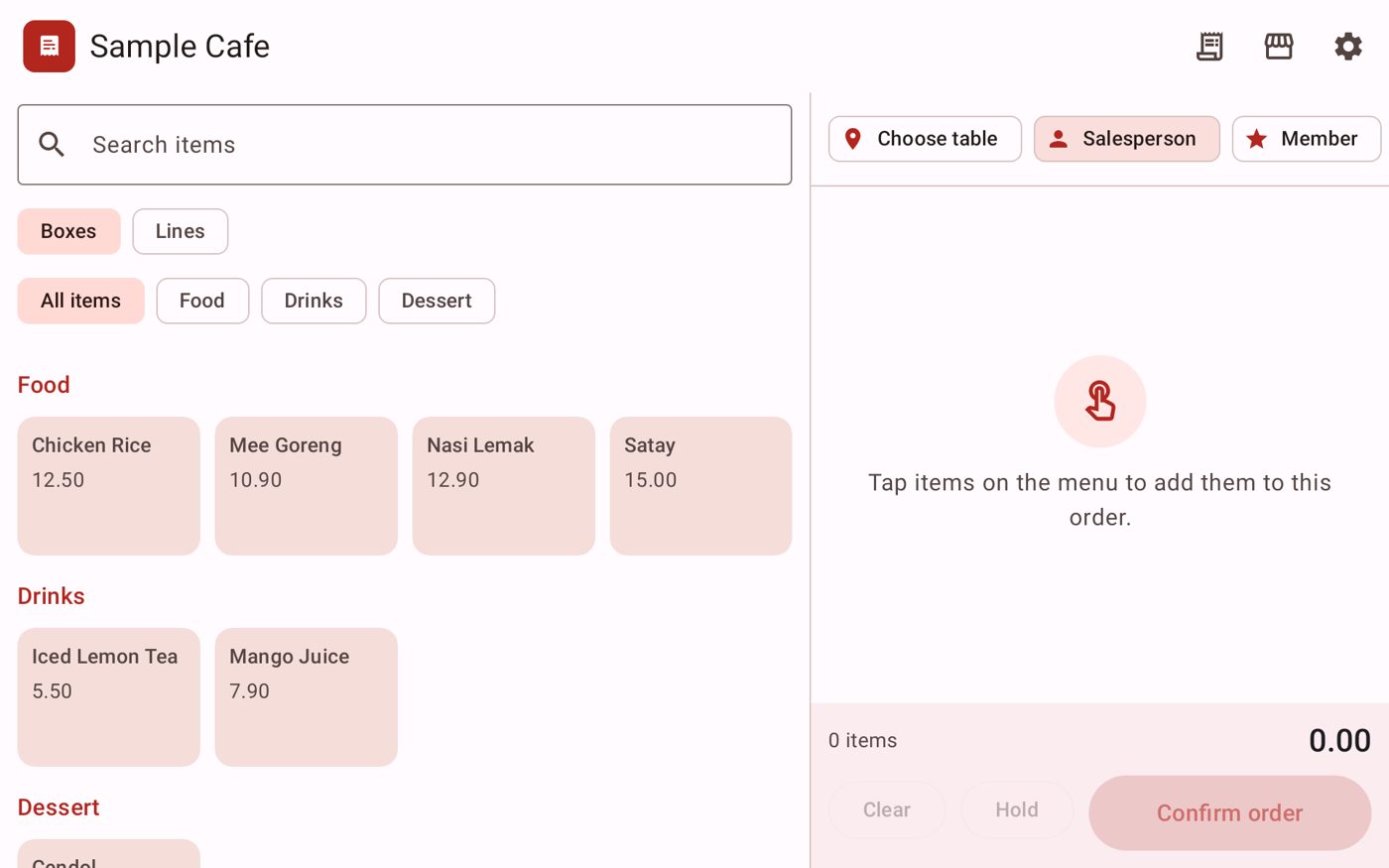
1. Start on the order screen
This is the order screen, where you add items and confirm the order.
2. Open Bills
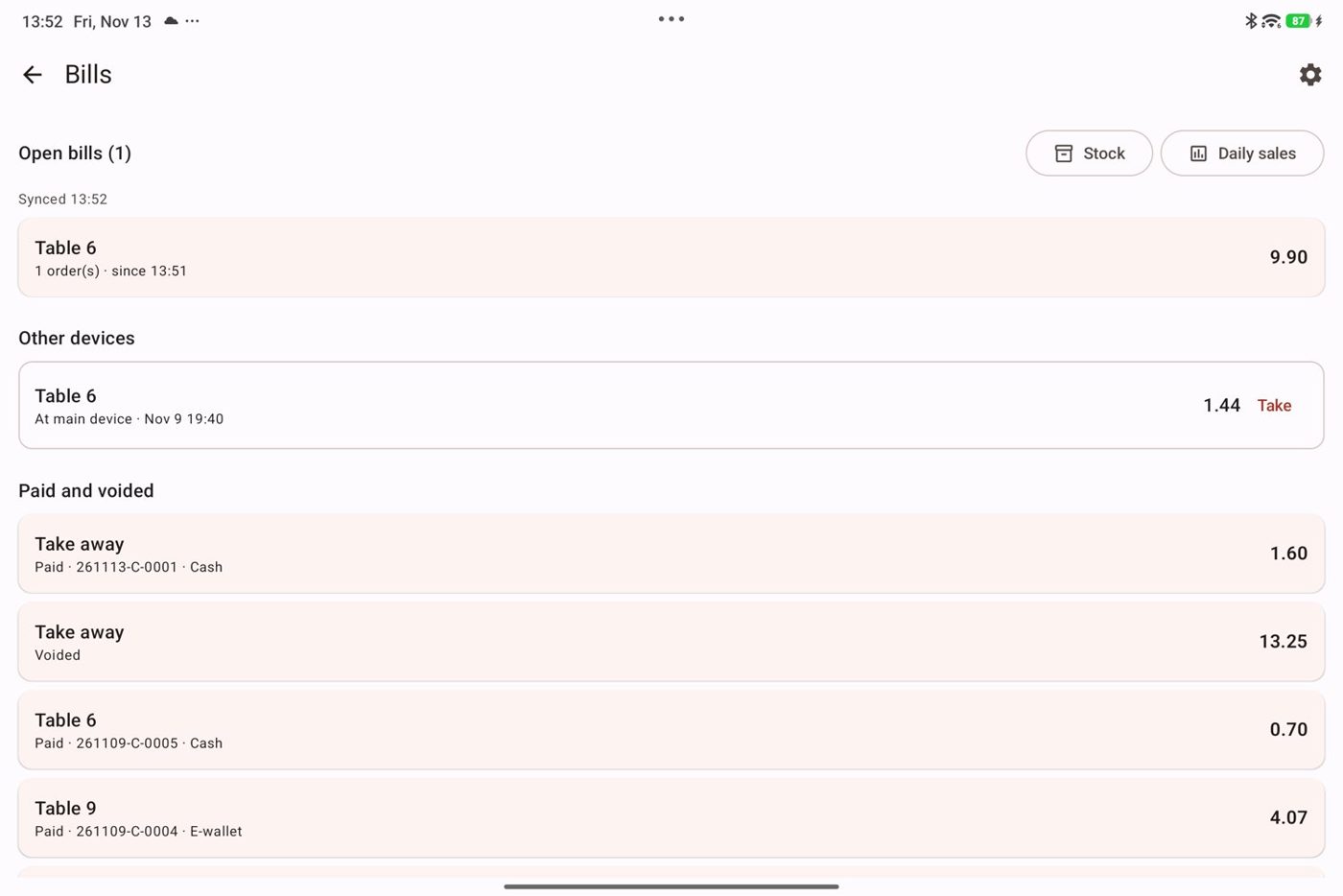
After the order is confirmed, tap the receipt icon to open Bills. The table’s bill is shown under Open bills.
3. Open the bill and tap Pay
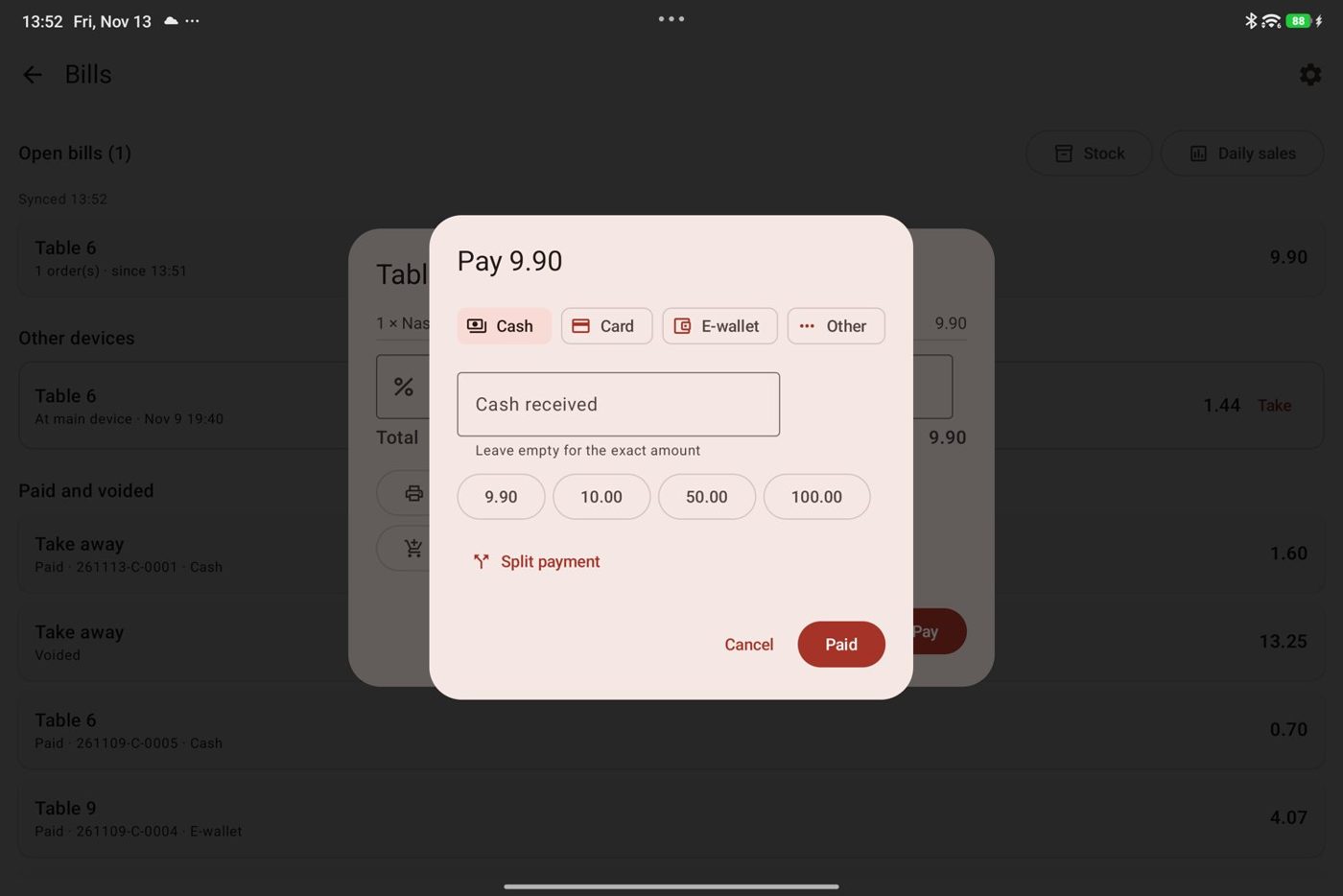
Tap the table’s bill, then tap Pay. The pay window shows the payment types: Cash, Card, E-wallet and Other.
4. Choose Card
Tap Card if the customer pays by card.
5. Or choose E-wallet
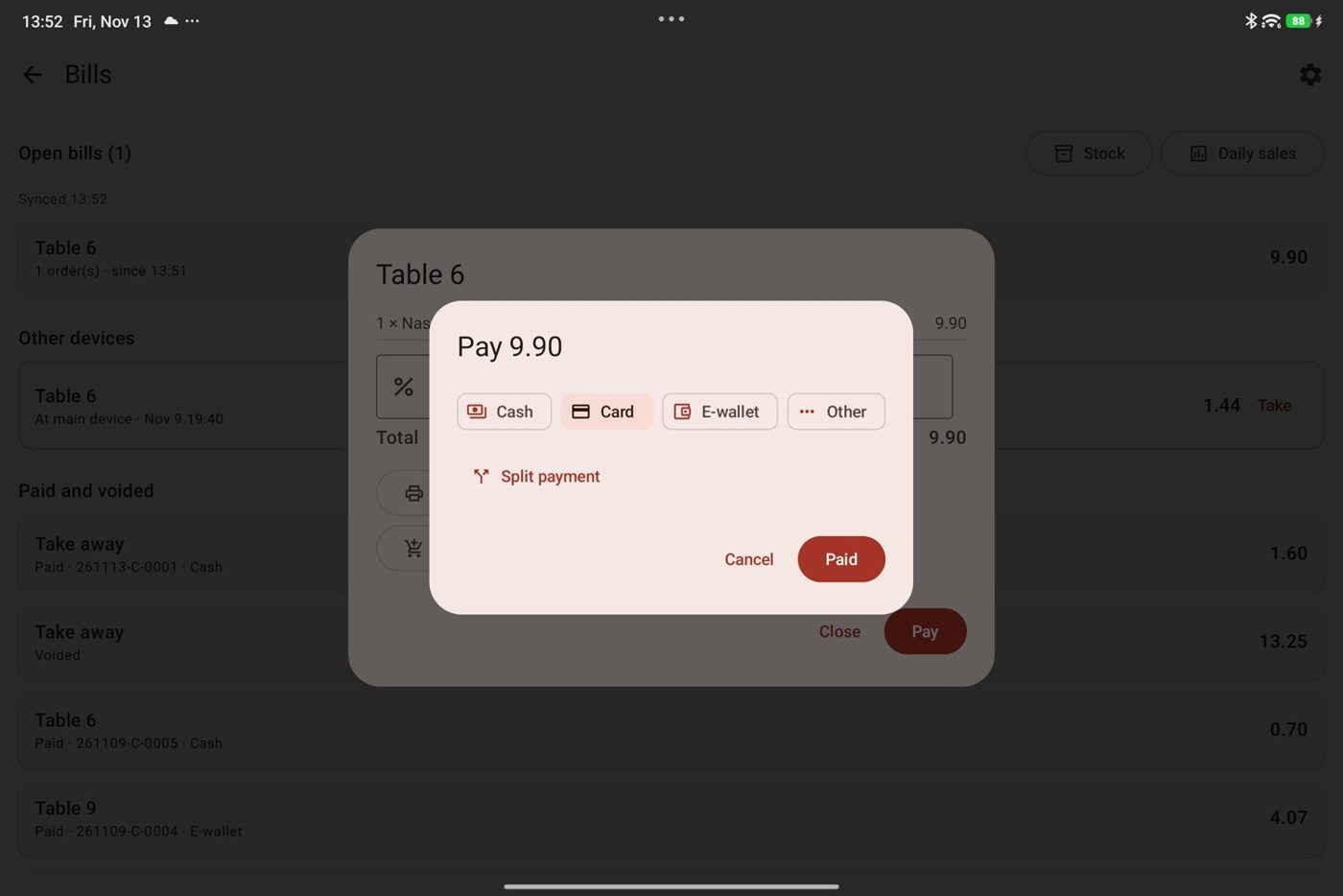
Tap E-wallet if the customer pays by e-wallet.
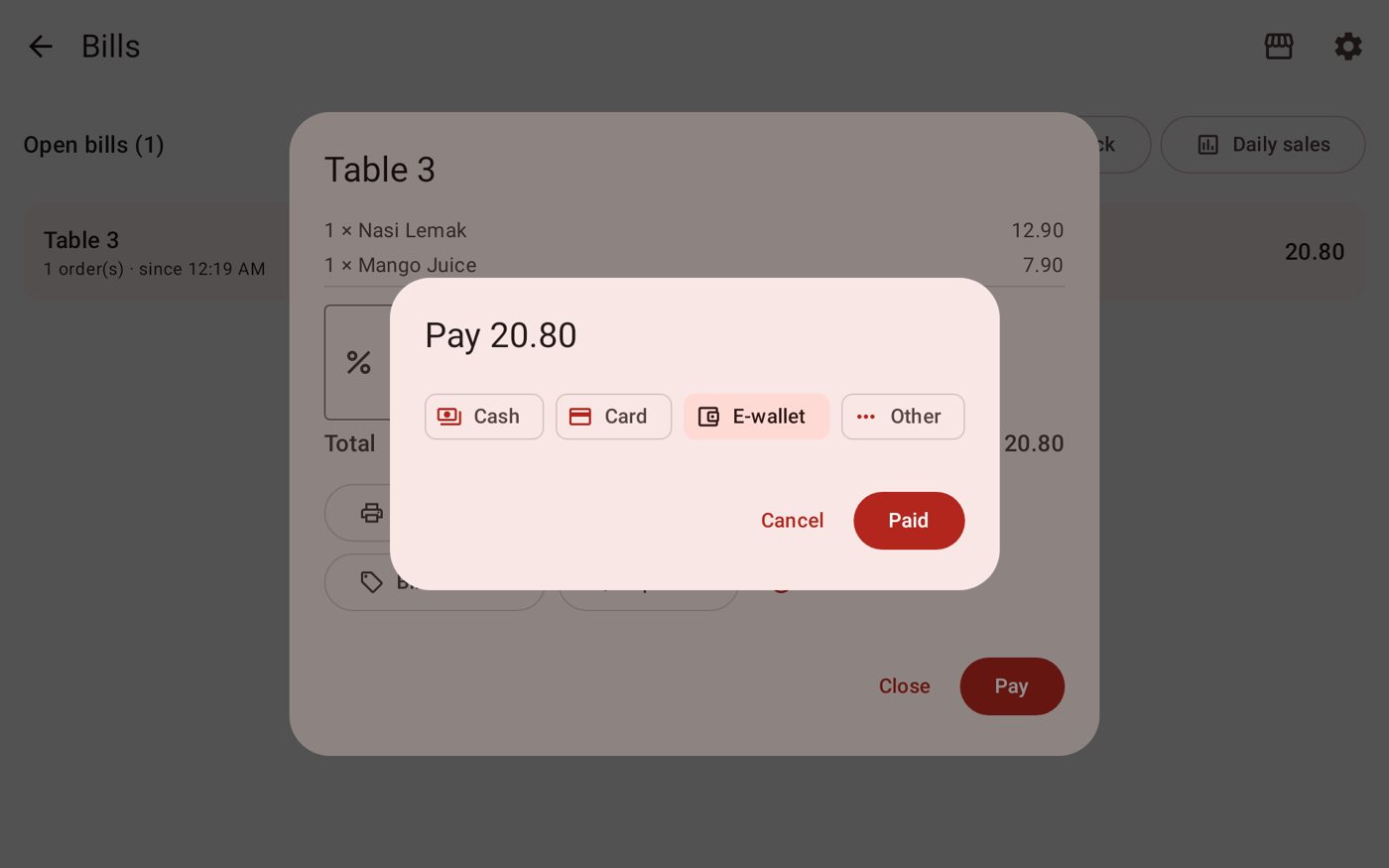
6. Tap Paid
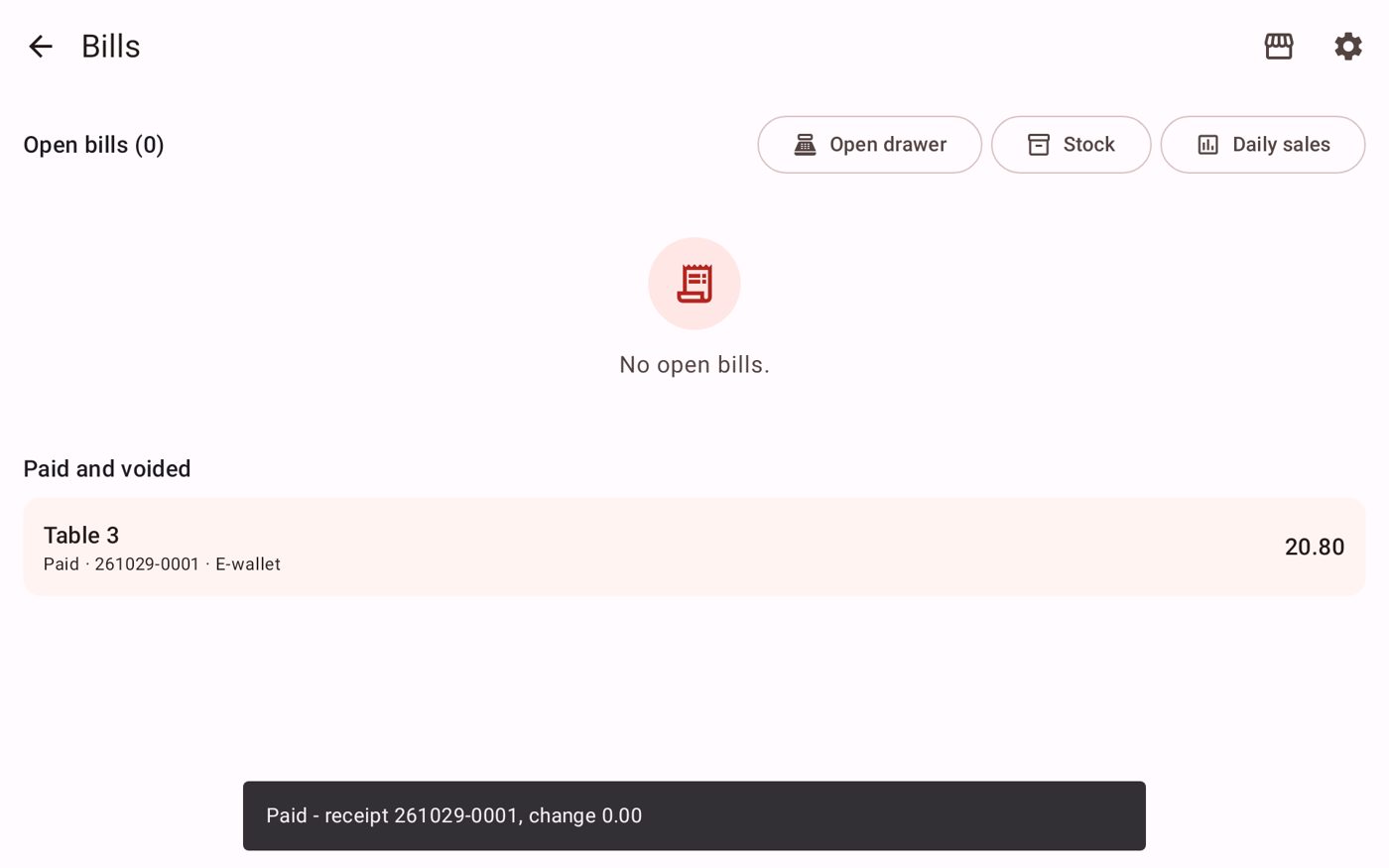
Tap Paid. The bill moves to Paid and voided, showing its receipt number and the payment type.
Tips
- At a branch whose HQ has card types (Order App 2026-11-20C or later), the pay window also asks Card / e-wallet type (HQ needs one). Tap one of HQ’s types; Paid waits until one is picked. HQ’s Sales Summary then shows the name.
- With a GHL PayHere Direct terminal set in Settings, Card and E-wallet are paid on the terminal. See the guide Taking Payment on a GHL PayHere Direct Terminal.