
This guide shows you how to set up a newly installed Synergy Order App with the slot code from Synergy, add your menu items, and set up staff sign-in.
Before you start
- Download the Synergy Order App from apps.synsoftmy.com and install it.
- Have the slot code and the 6-digit PIN that Synergy gave you. The slot code looks like CK-BR1-01.
- Make sure the device is connected to the internet. Setup needs internet once.
- Decide the staff role (Cashier, Supervisor or Manager) and a PIN of 4 to 8 digits for each person who will sign in.
Steps
1. Open the app for the first time
A new install opens on Settings. Synergy setup is in the group Setup & licence.
2. Start the slot code set-up
Tap Set up with slot code.
3. Type your slot code and PIN
Use the slot code and the 6-digit PIN that Synergy gave you.
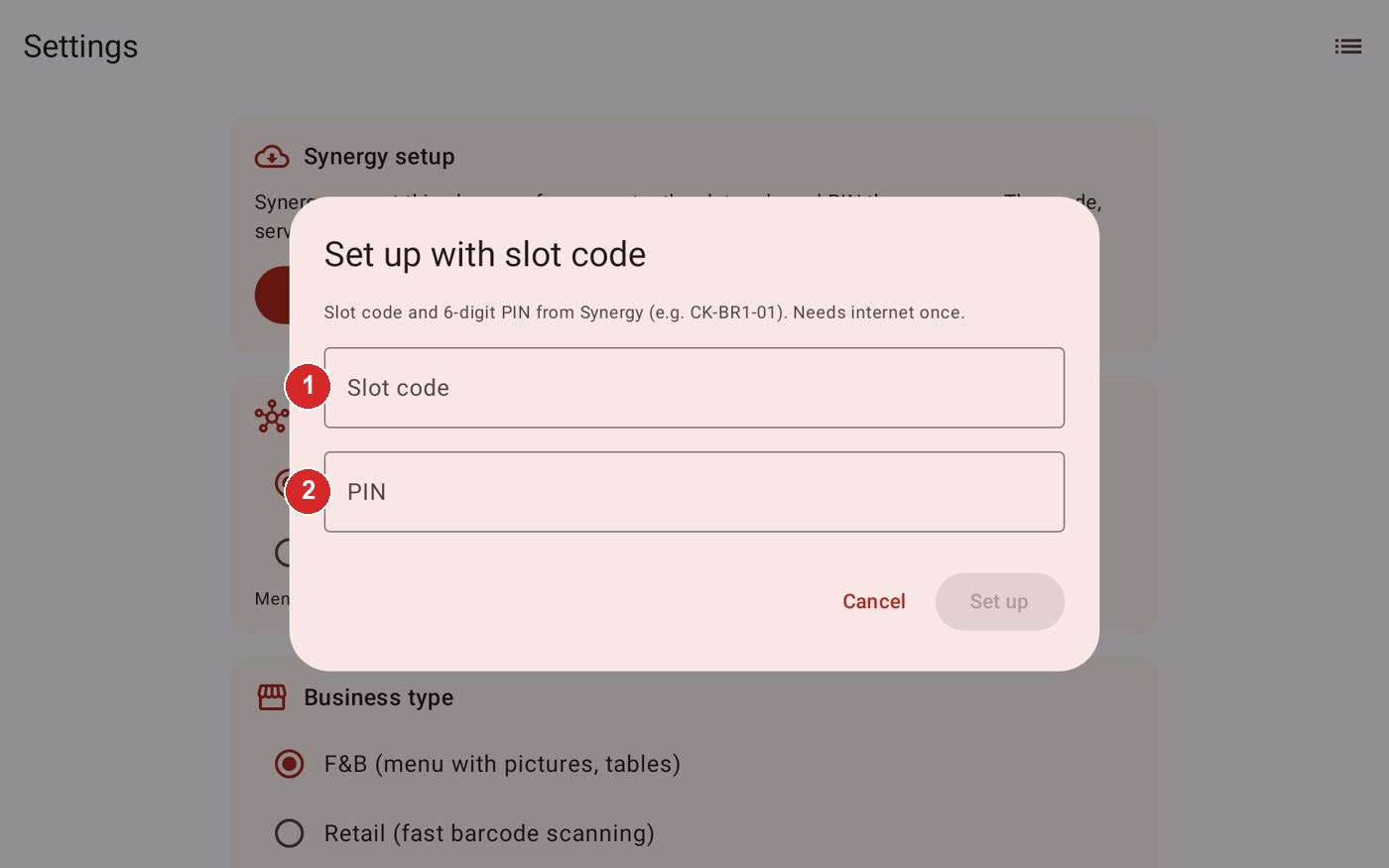
| Step | What to do |
|---|---|
| 1 | Type the slot code |
| 2 | Type the 6-digit PIN |
4. Finish set-up
Tap Set up. Then close the app and open it again.
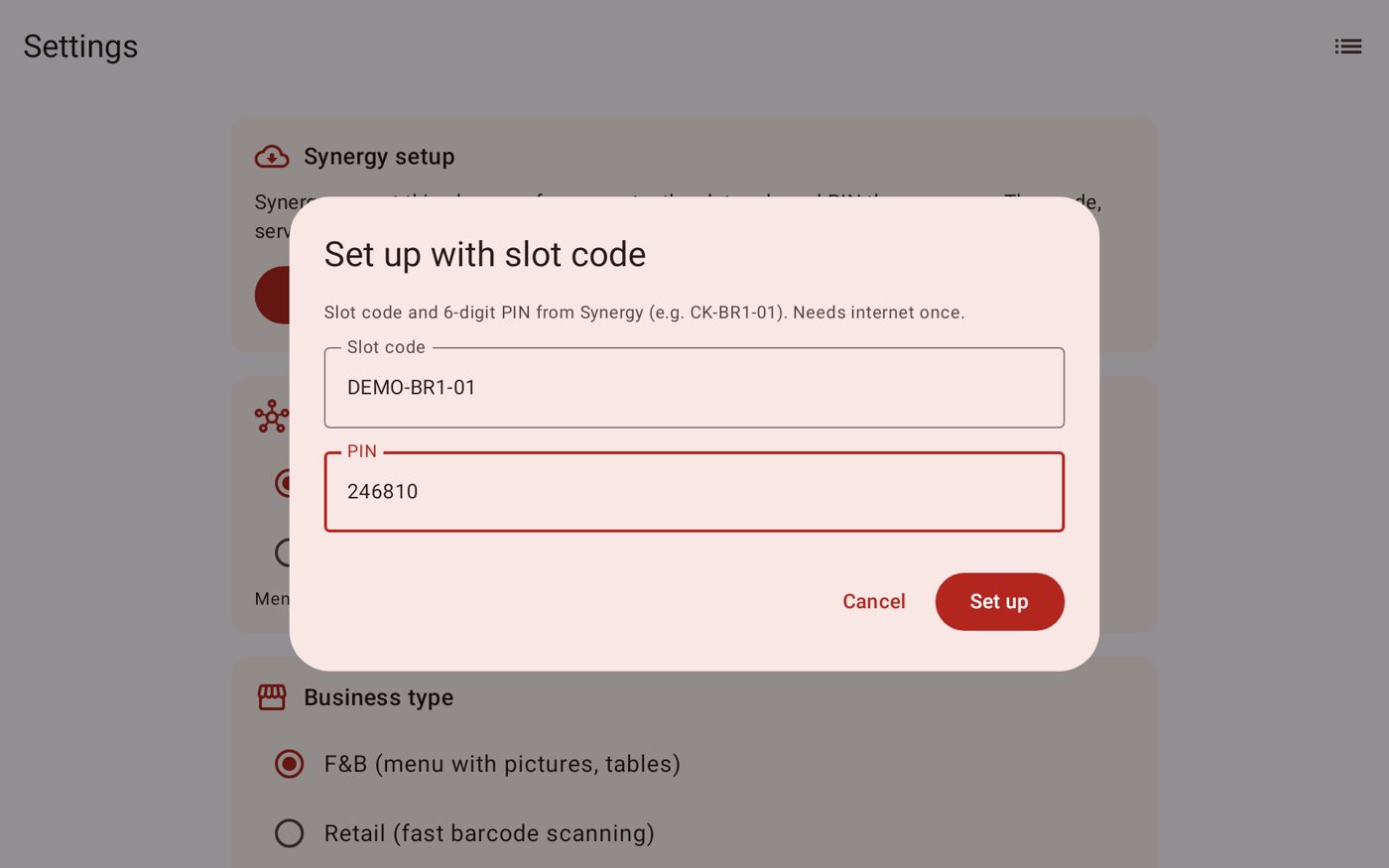
5. Open Back Office
Tap the Back Office icon (the storefront) to open Back Office. The first time, the app asks you to set a manager PIN (4 to 8 digits). This is the Back Office PIN, and it opens Back Office.
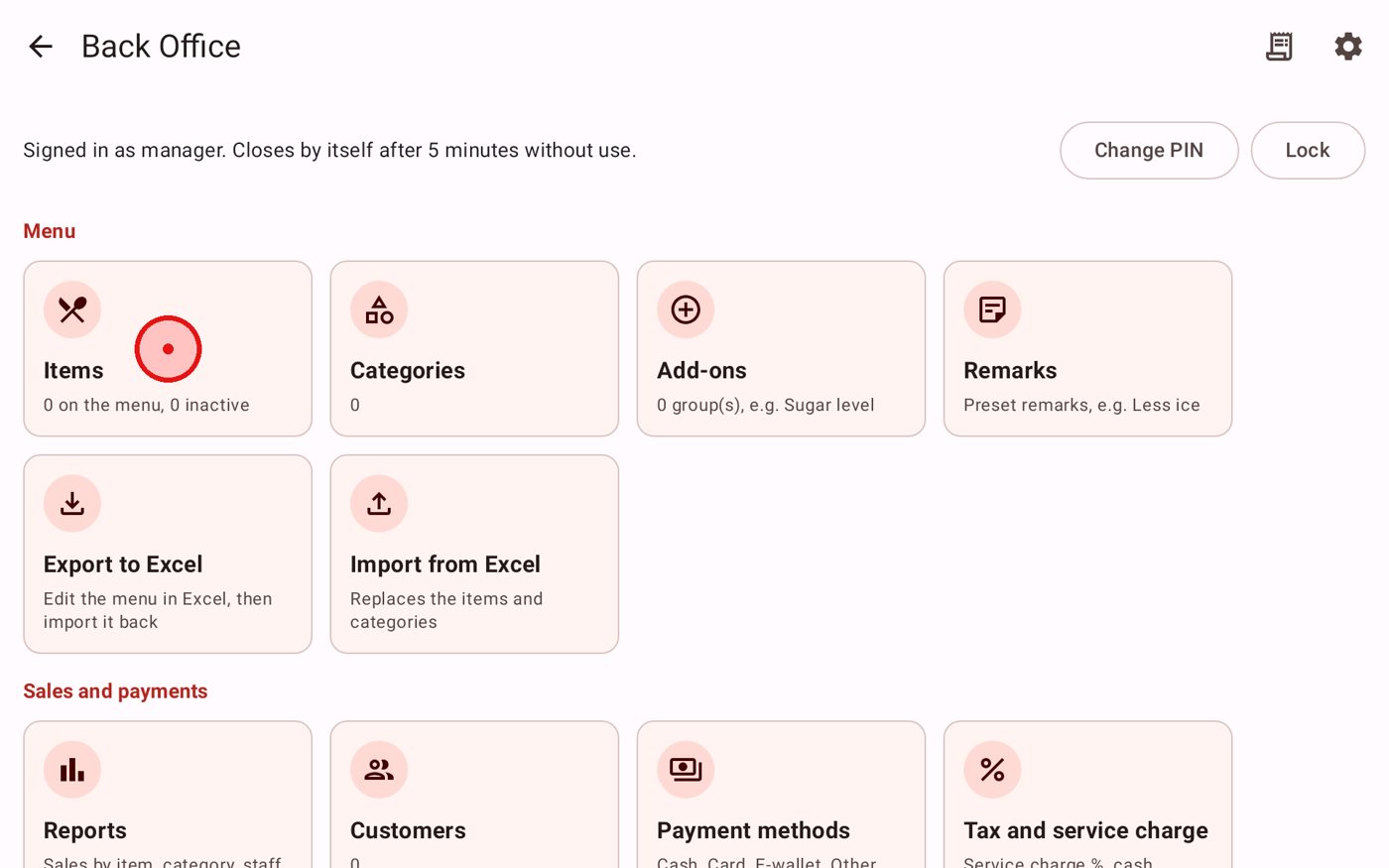
6. Open Items
In the group Menu, tap Items.
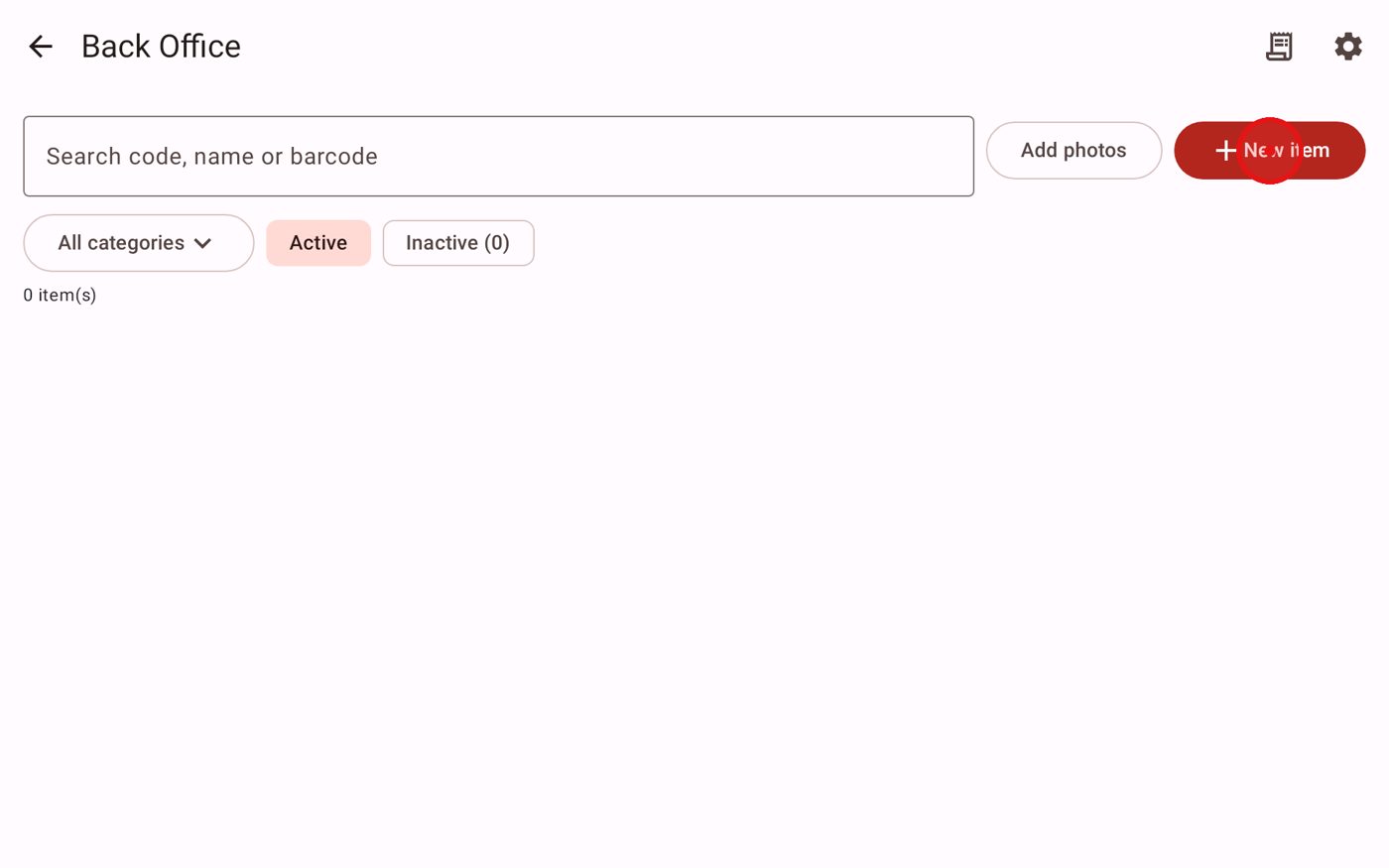
7. Start a new item
Tap New item.
8. Fill in the item
Fill in the item code, the item name and the price.
9. Save the item
Tap Save. The item is now on the menu.
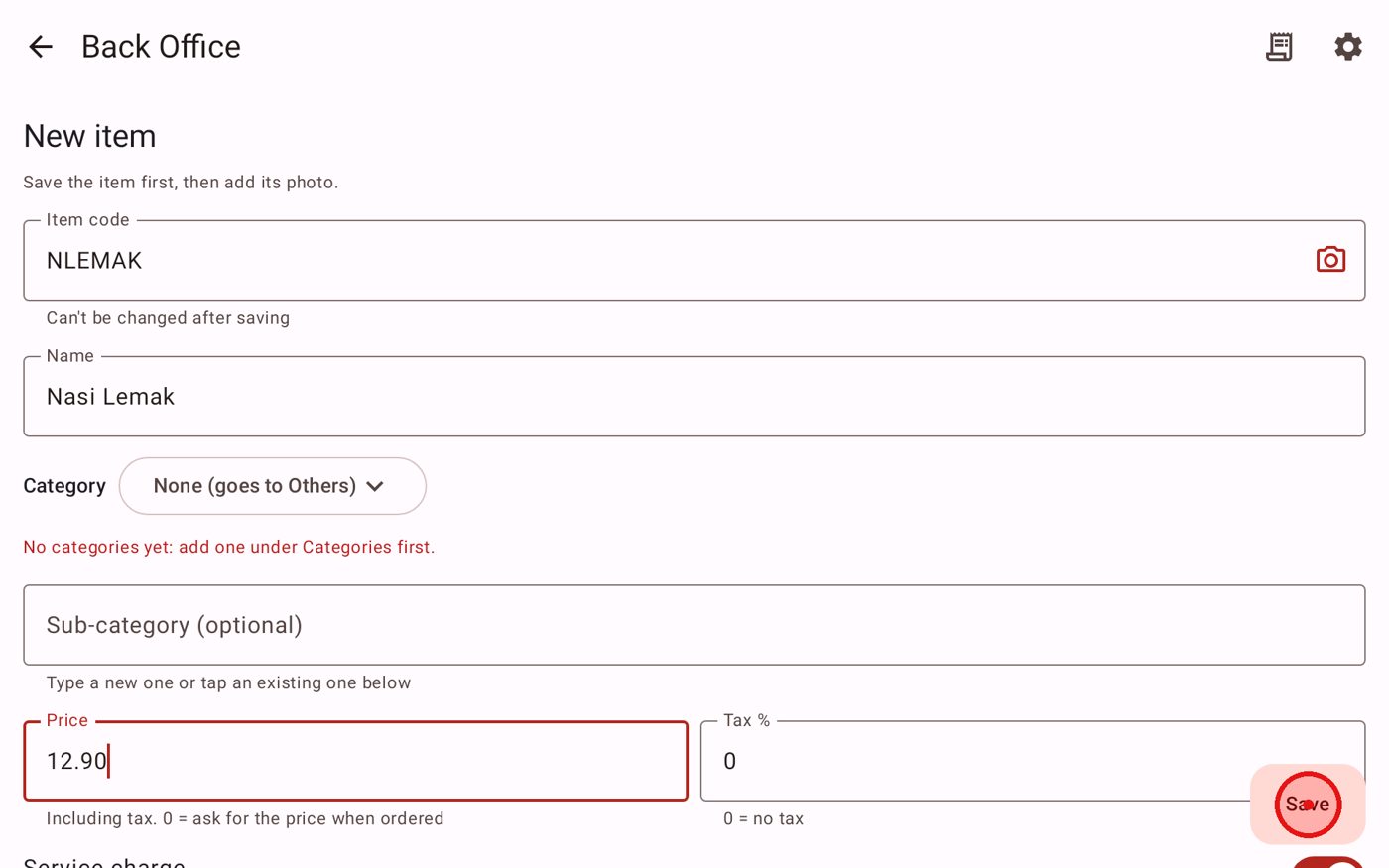
10. Add many items at once
To add many items at once, use Import from Excel in the group Menu of Back Office.
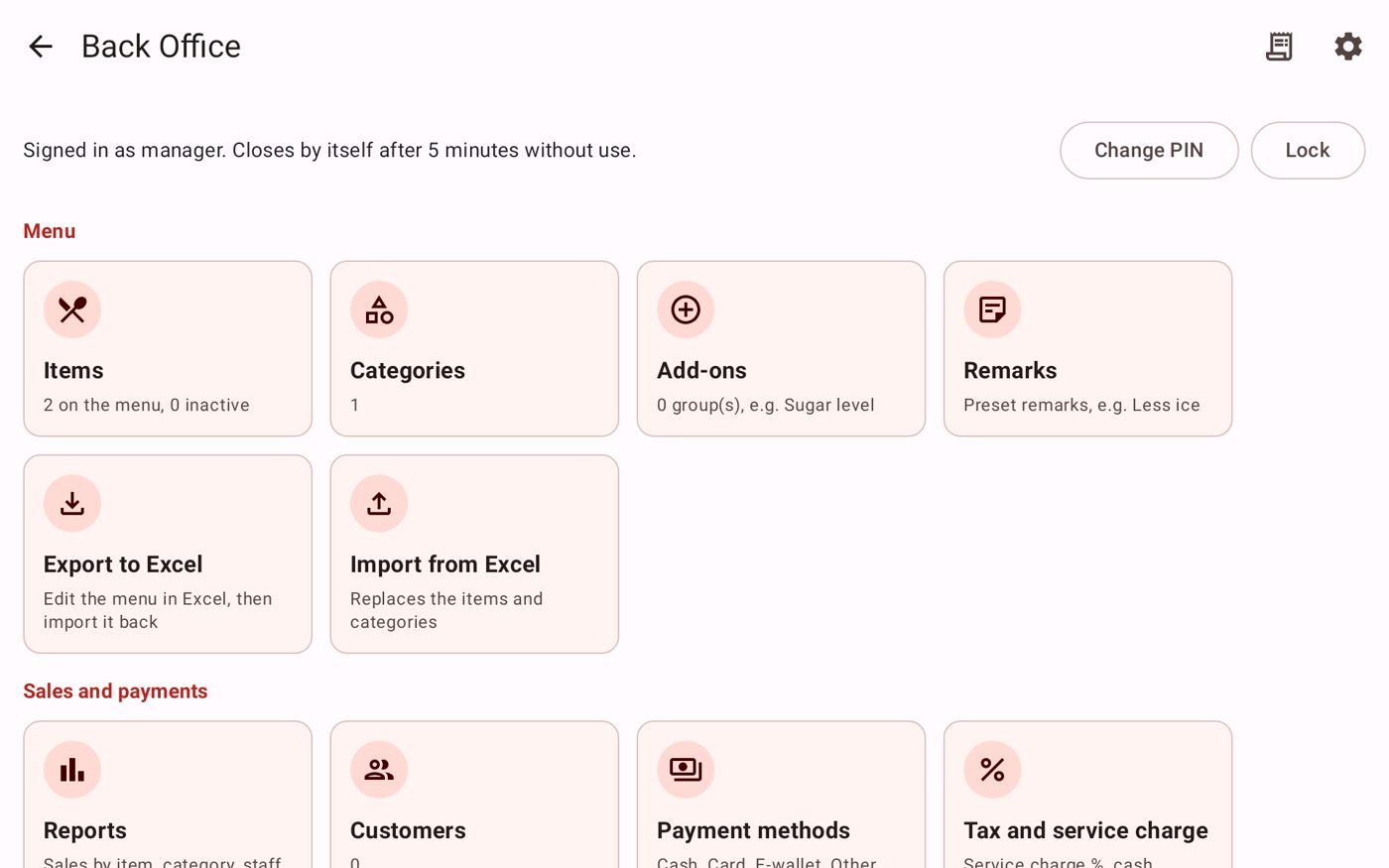
11. Import your Excel list
Tap Import from Excel and choose your Excel item list.
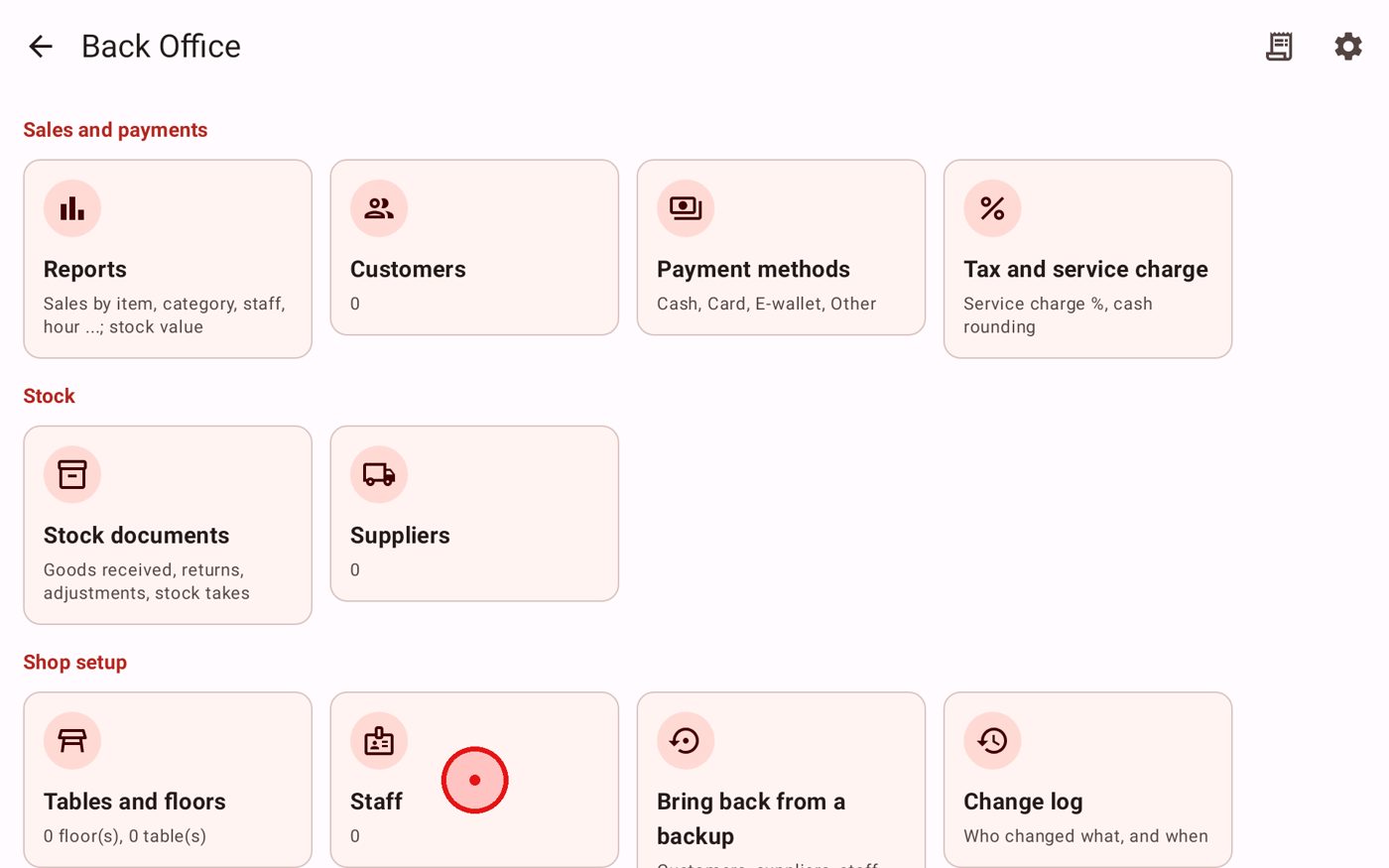
12. Open Staff
To add staff, tap Staff in the group Shop setup of Back Office.
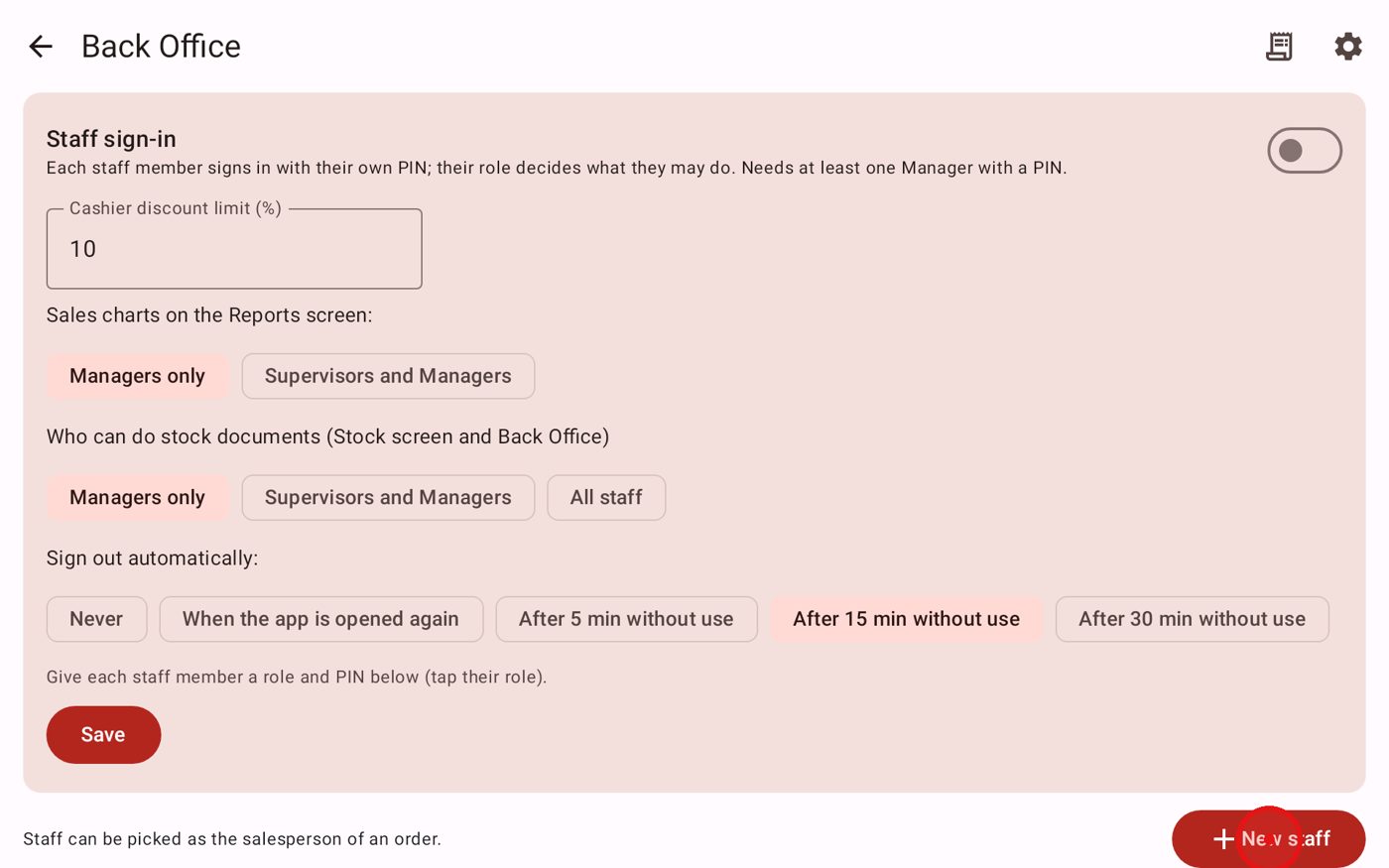
13. Add a new staff member
Tap New staff.
14. Enter the staff details
Enter the staff code and name, then tap Save.
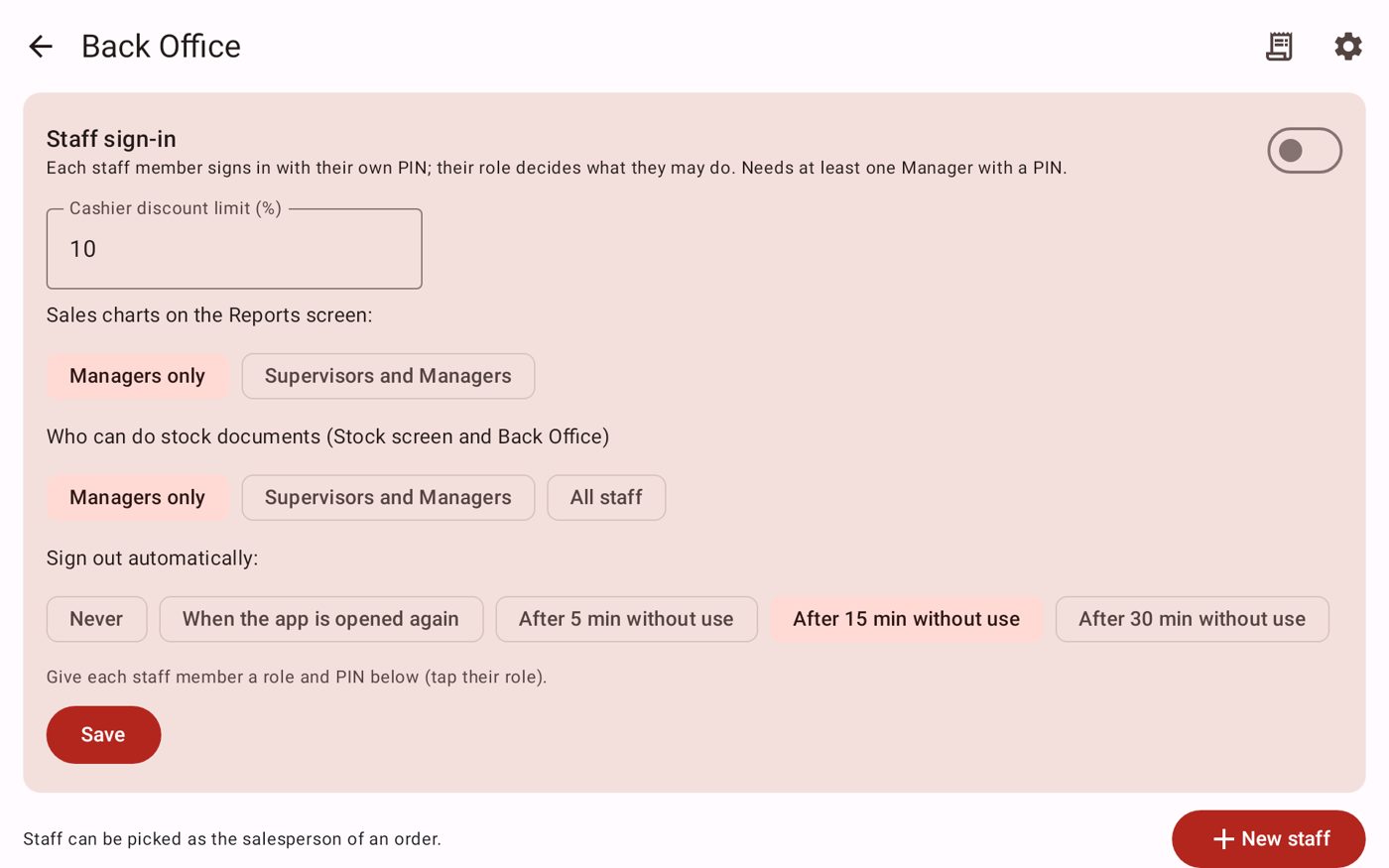
15. Open Set sign-in
In the staff list, tap Set sign-in next to the staff member.
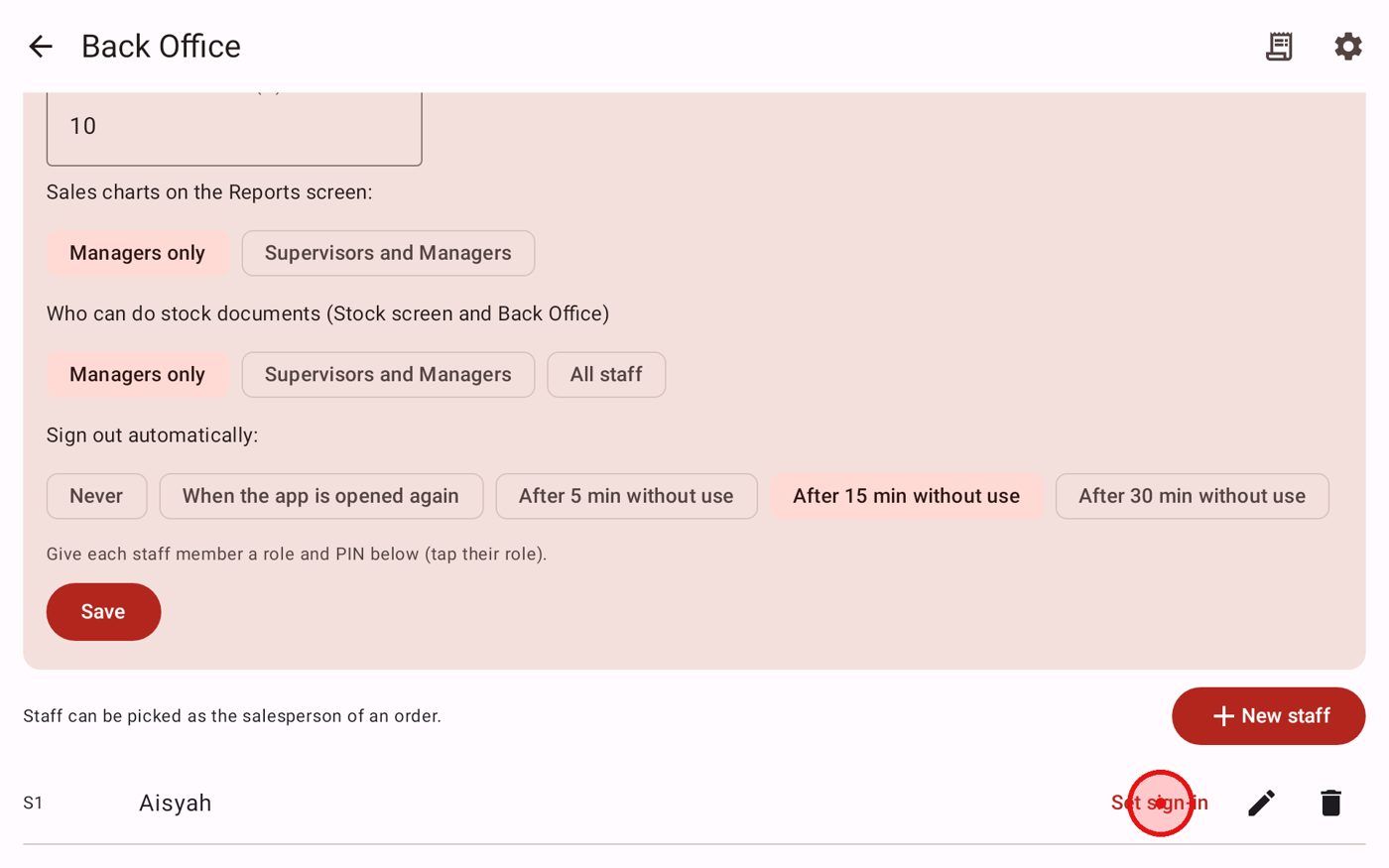
16. Choose a role and PIN
Give the staff member a role and PIN.
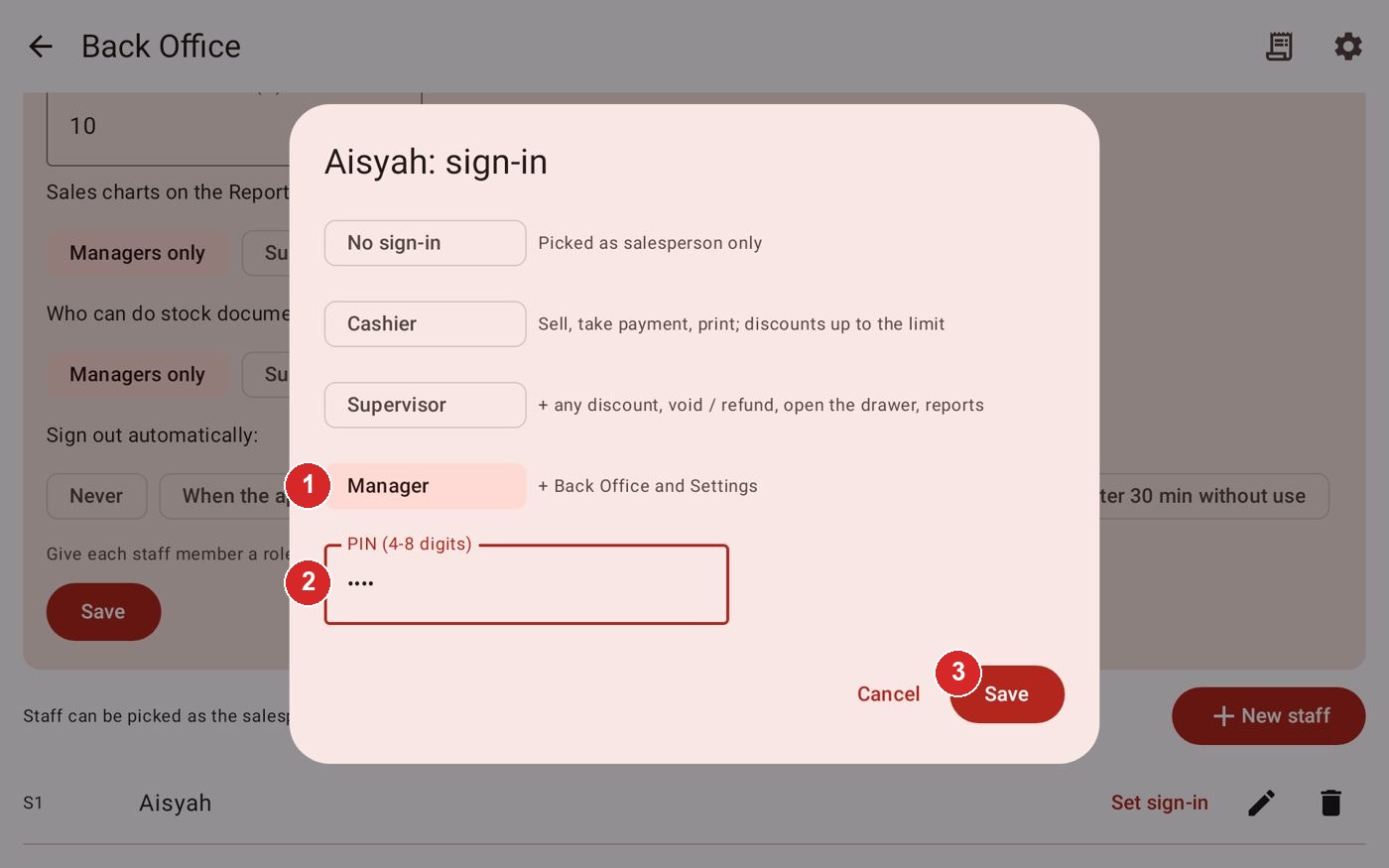
| Step | What to do |
|---|---|
| 1 | Pick the role |
| 2 | Type a PIN |
| 3 | Tap Save |
17. Switch on Staff sign-in
Turn on Staff sign-in for the shop.
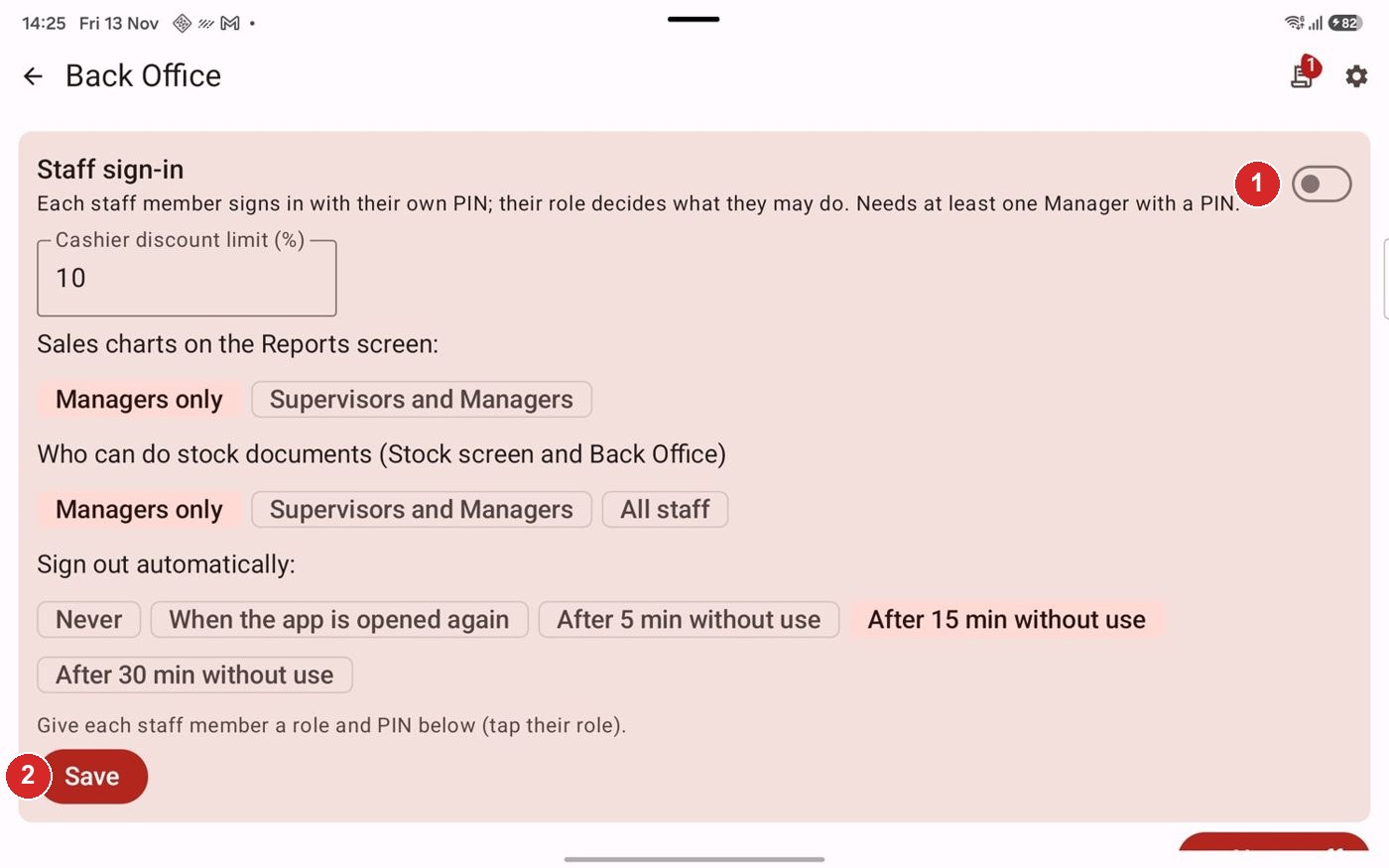
| Step | What to do |
|---|---|
| 1 | Switch on Staff sign-in |
| 2 | Tap Save |
18. Staff sign in with their PIN
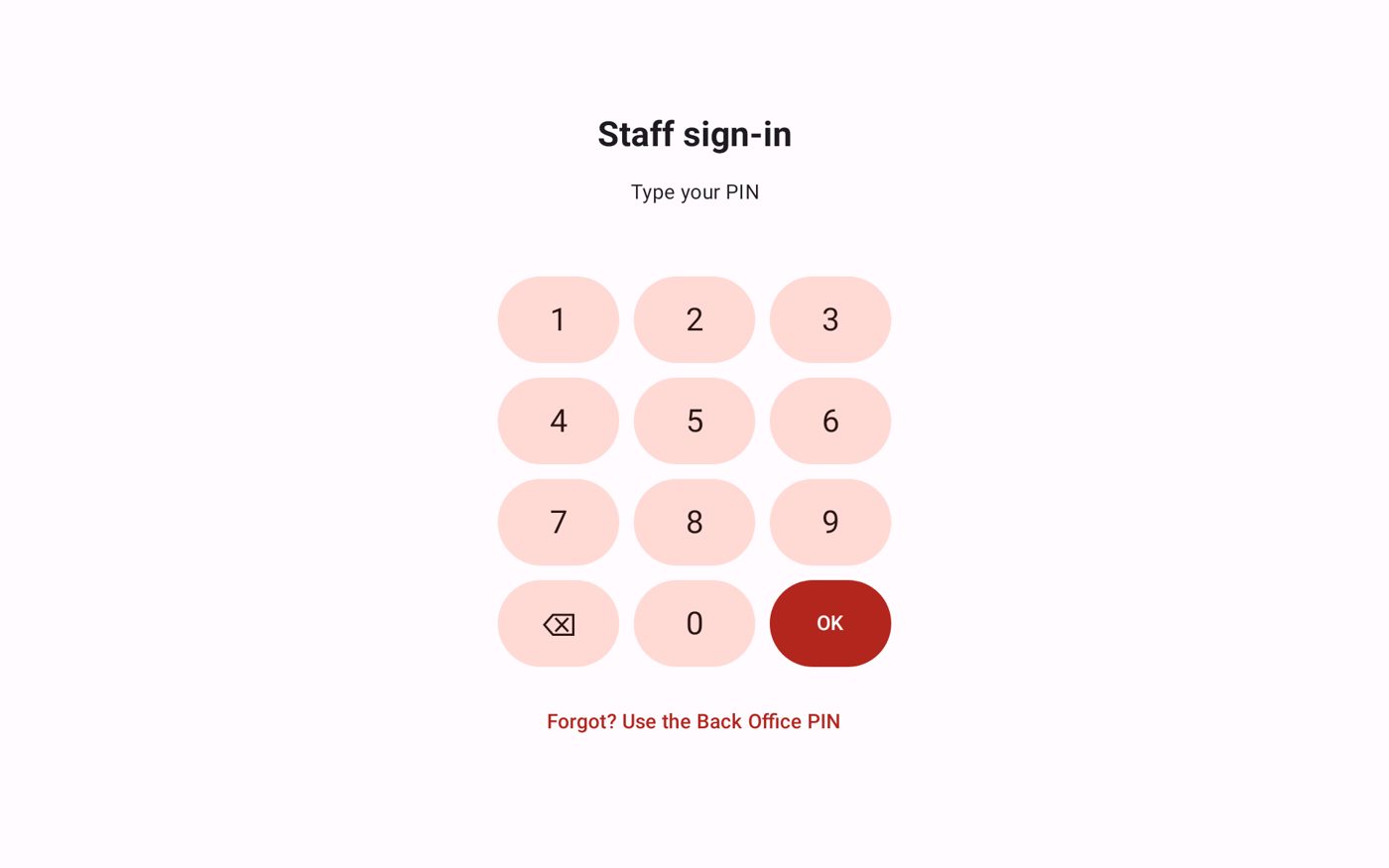
From now on, each staff member signs in with their own PIN on the Staff sign-in screen.
Tips
- The slot code needs internet once.
- The Back Office PIN (the manager PIN) is one PIN for the shop. Each staff member has their own PIN, 4 to 8 digits.
- Item codes cannot be changed once saved.
- Photos are added to an item that is already saved, so save the item first.
- An item saved without a category goes into a category called Others.
- Back Office closes itself after 5 minutes without a touch.
- When Staff sign-in is on, keep at least one Manager with a PIN.
Common problems
A staff member forgot their PIN.
On the Staff sign-in screen, tap ‘Forgot? Use the Back Office PIN’ to use the Back Office PIN.
Back Office closed while I was working.
Back Office closes itself after 5 minutes without a touch. Open it again to carry on.