
Print the bill for the customer, print the receipt of a paid bill again, or send the kitchen slips of a bill again.
Before you start
- Open the Order App in F&B mode.
- A receipt printer is set up (and kitchen printers for the orders).
Steps
1. Open the bill
Open Bills and tap the bill.
2. Print the bill for the customer
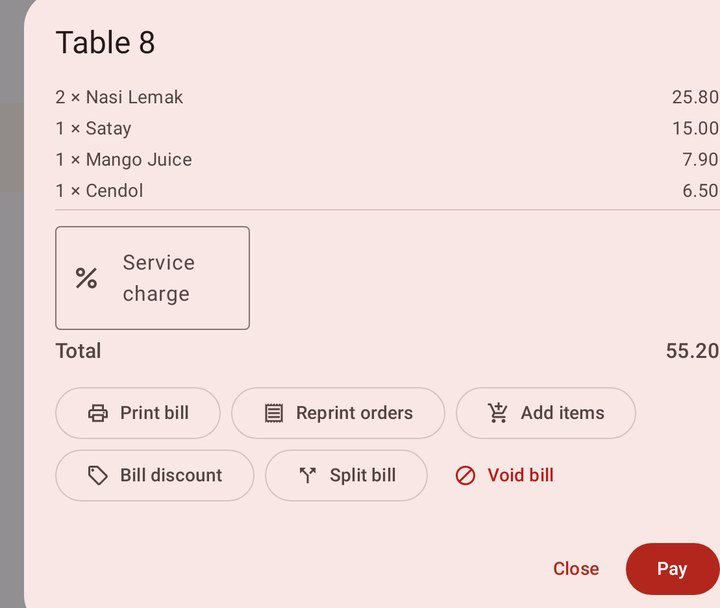
For a bill that is not paid yet, tap Print bill. It prints the bill for the customer.
3. Reprint a paid bill
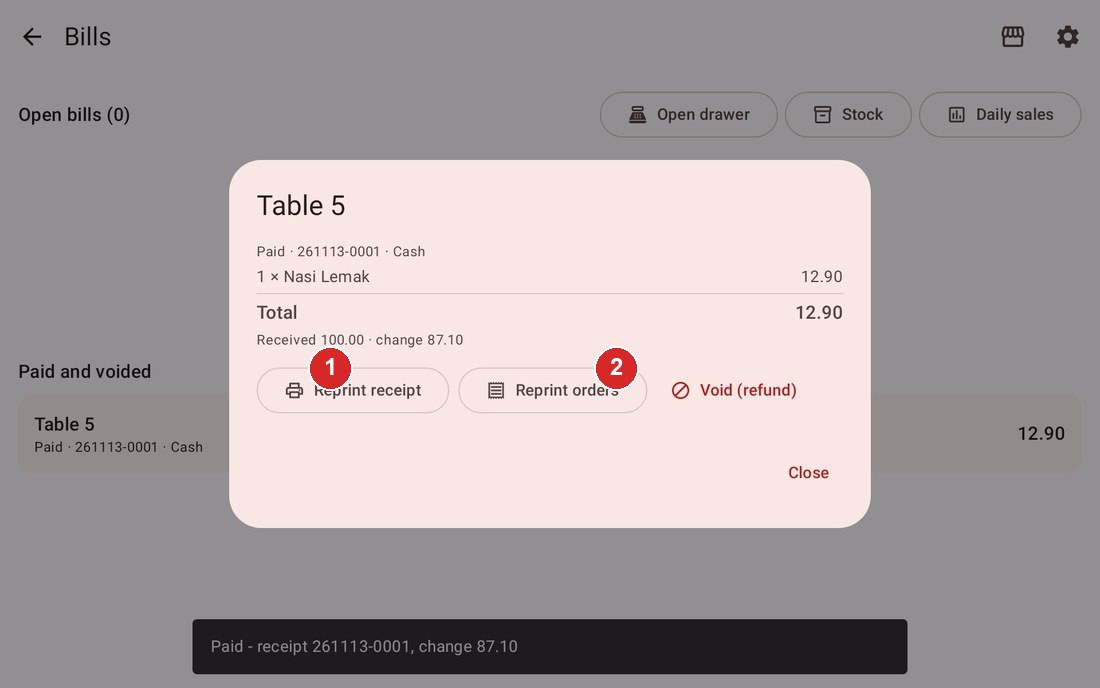
Under Paid and voided tap the paid bill.
| Step | What to do |
|---|---|
| 1 | Tap Reprint receipt to print the receipt again. |
| 2 | Tap Reprint orders to print the kitchen slips of the bill again. |
4. Reprint orders
Reprint orders prints the kitchen slips of the bill again. The slip is marked REPRINT.
5. The PIN for reprint
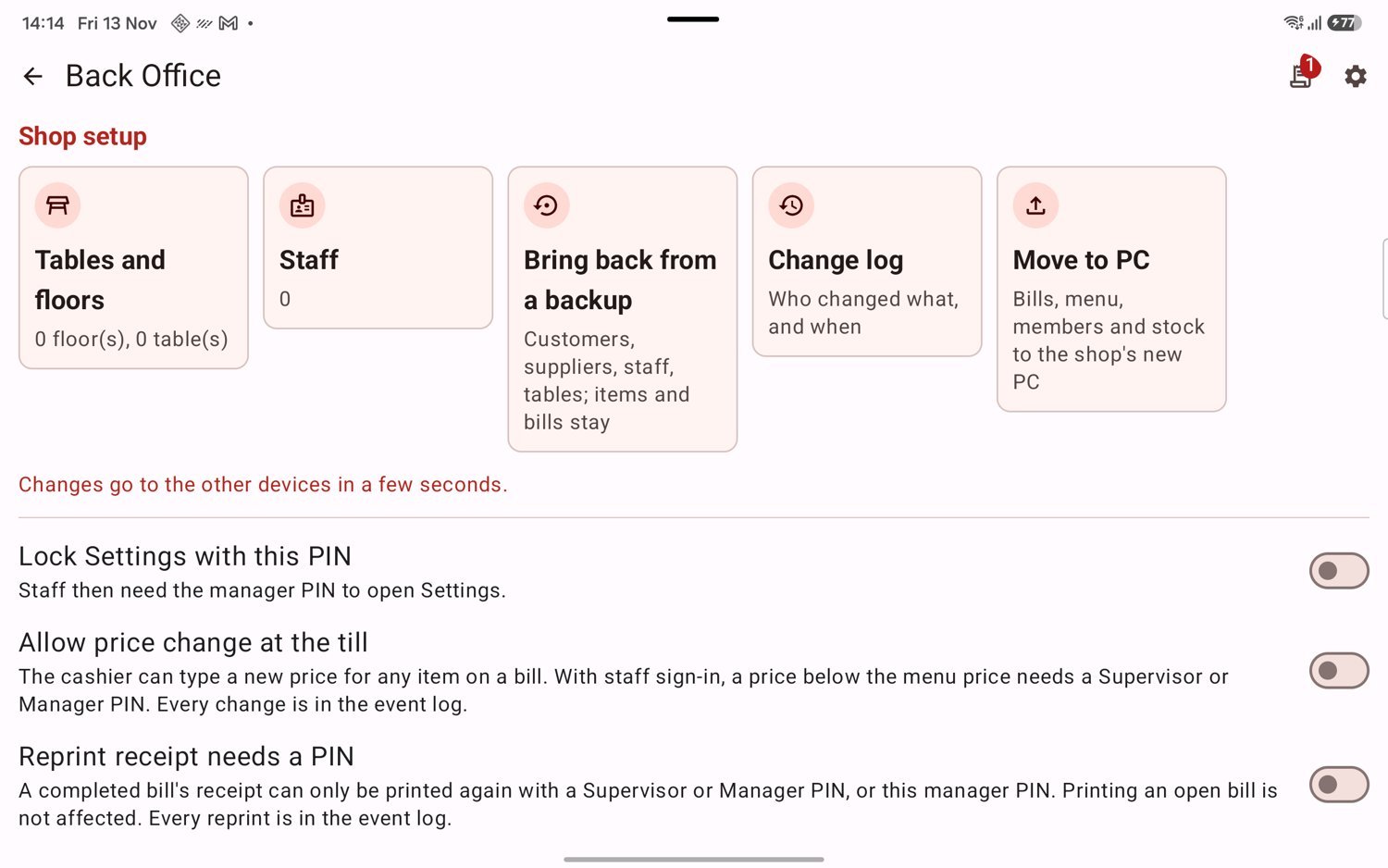
In Back Office, the switch Reprint receipt needs a PIN means that the receipt of a paid bill can only be printed again with a Supervisor or Manager PIN, or the manager PIN. Printing an open bill is not affected. Every reprint is in the event log.
6. If nothing prints
Check the printer in Settings > Receipt & printers and tap Test print. The guide Receipt Does Not Print: Checks in Order and the guide Kitchen Orders Do Not Print: Checks in Order list the checks.
Tips
- Print bill is for a bill that is not paid yet. A paid bill has Reprint receipt.
- Reprint orders marks the kitchen slip with REPRINT, so the kitchen knows it is a copy.
Common problems
The app asks for a PIN when I reprint a receipt.
Reprint receipt needs a PIN is switched on in Back Office. Ask a Supervisor or Manager to type their PIN.
I cannot find Reprint receipt.
Reprint receipt is on a paid bill. Open the bill under Paid and voided. An open bill has Print bill.
Nothing prints.
Check the printer in Settings > Receipt & printers and tap Test print.