
This guide takes you from setting up your restaurant in the Order App, to taking a first order, getting paid, and checking the sales report.
Before you start
- Open the Synergy Order App on your device.
Steps
1. Open Settings
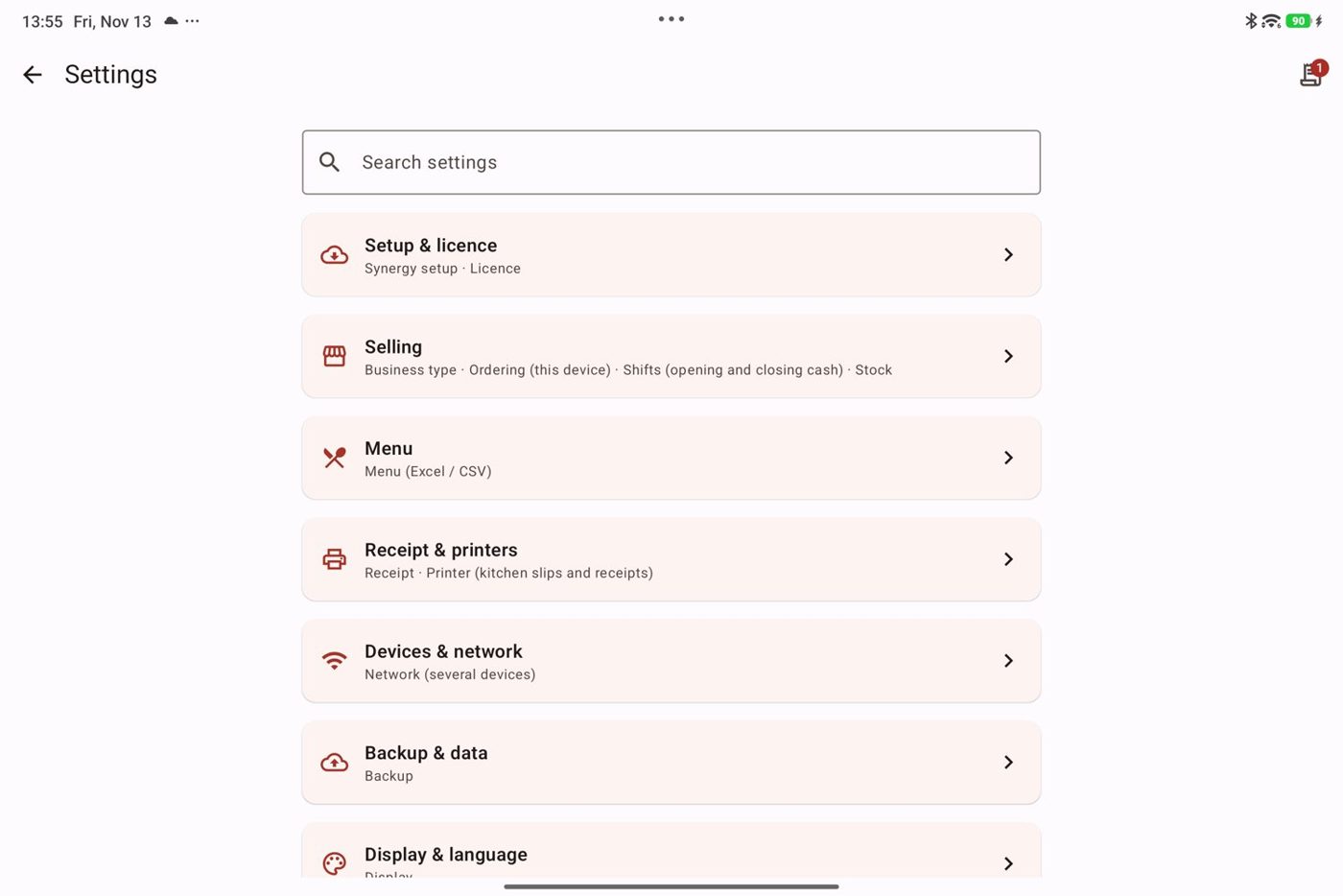
Tap the gear icon at the top right to open Settings. Settings opens on a list of groups.
2. Choose F&B
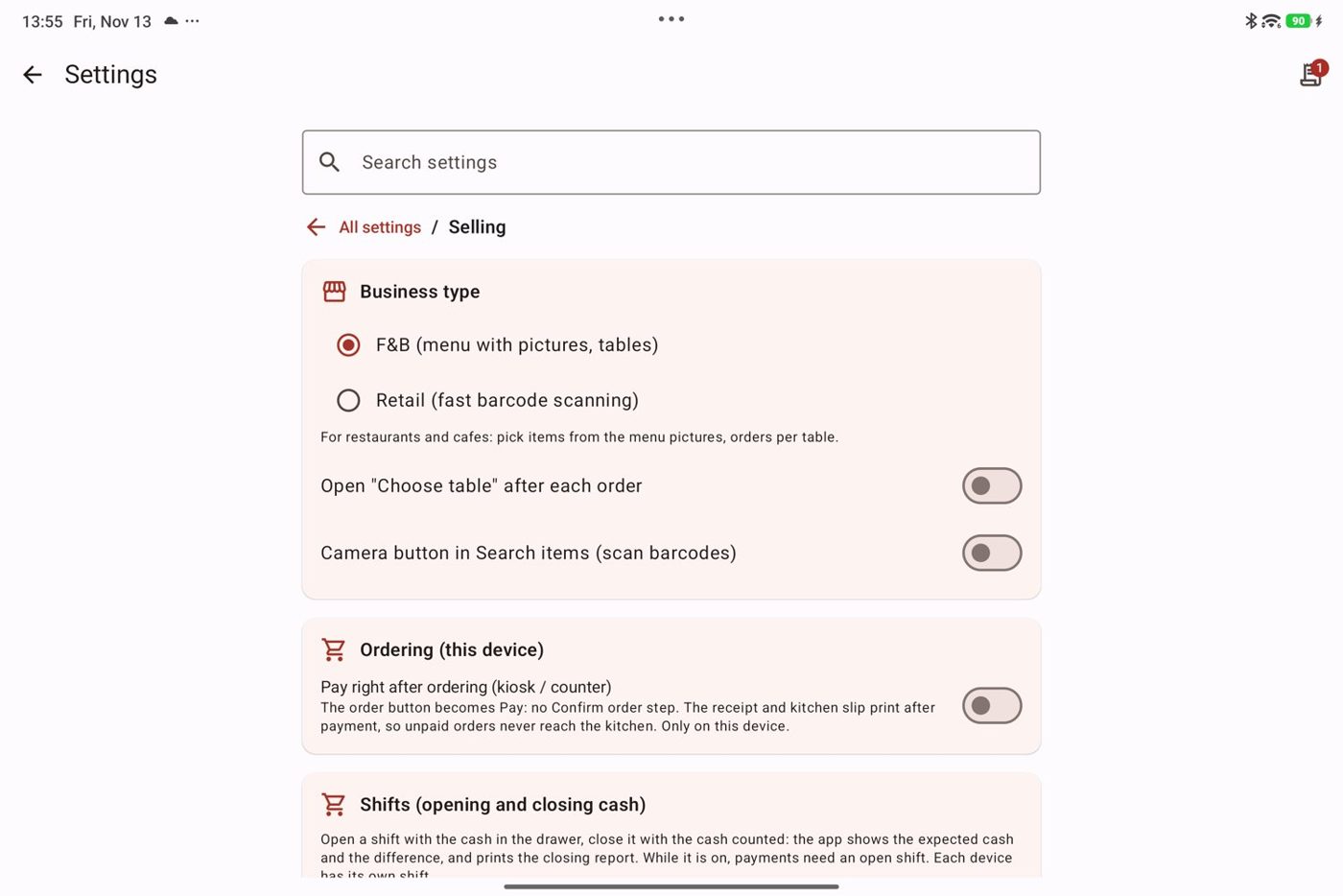
Open the group Selling. Under Business type, choose F&B (menu with pictures, tables).
3. Open Back Office
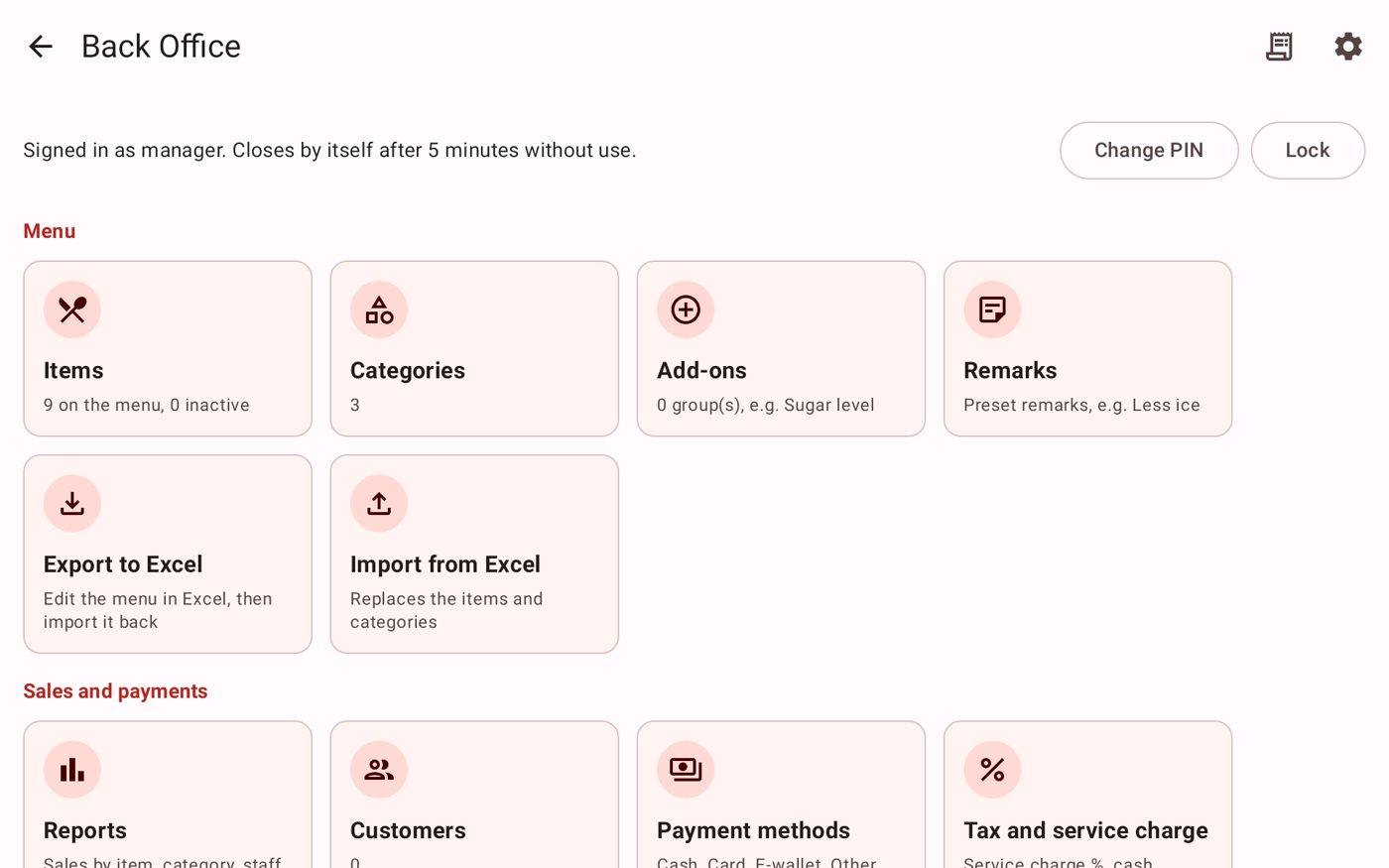
Tap the storefront icon to open Back Office. The first time, the app asks you to set a manager PIN (4 to 8 digits). This is the Back Office PIN.
4. Open Tables and floors
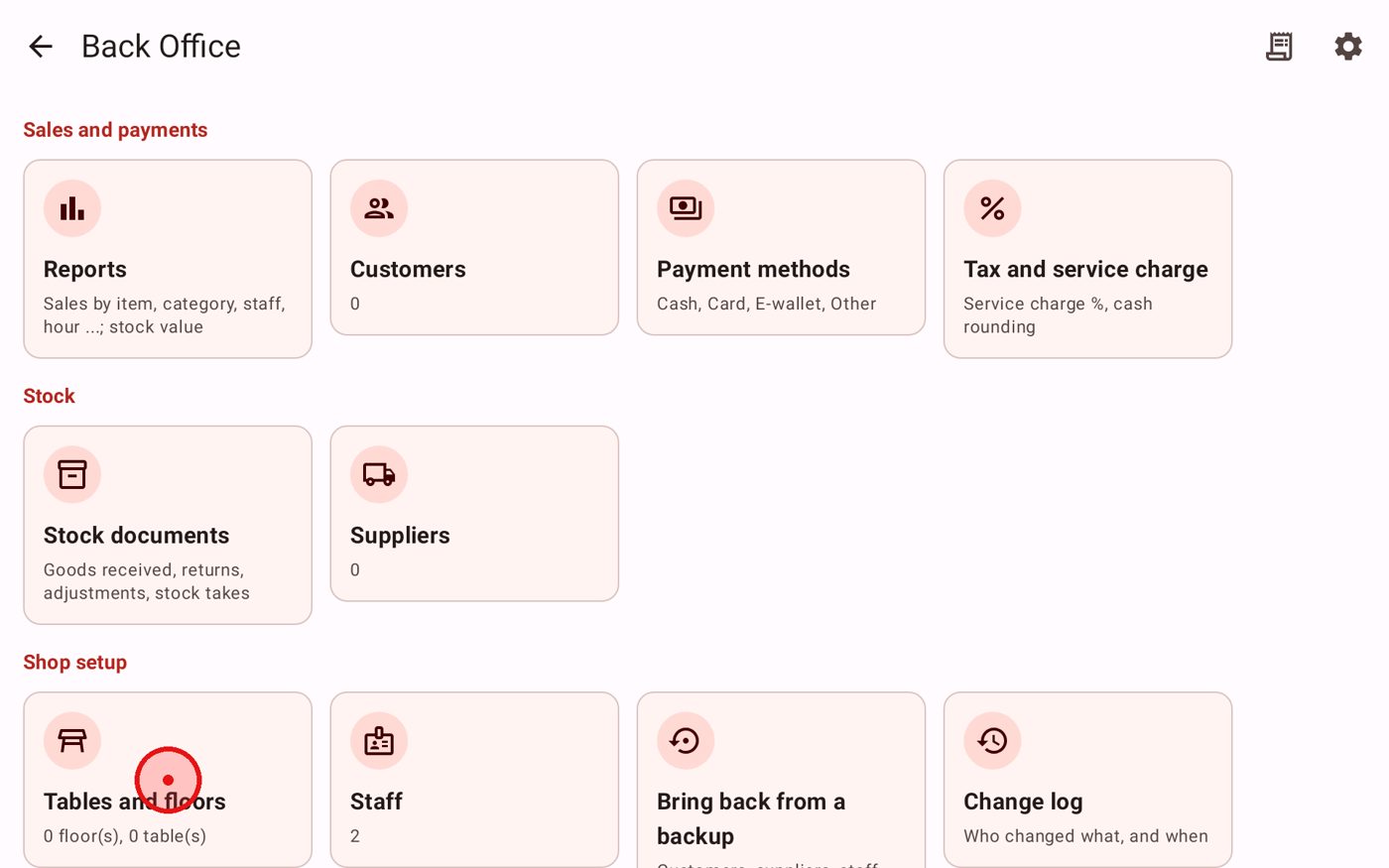
In Back Office, tap Tables and floors.
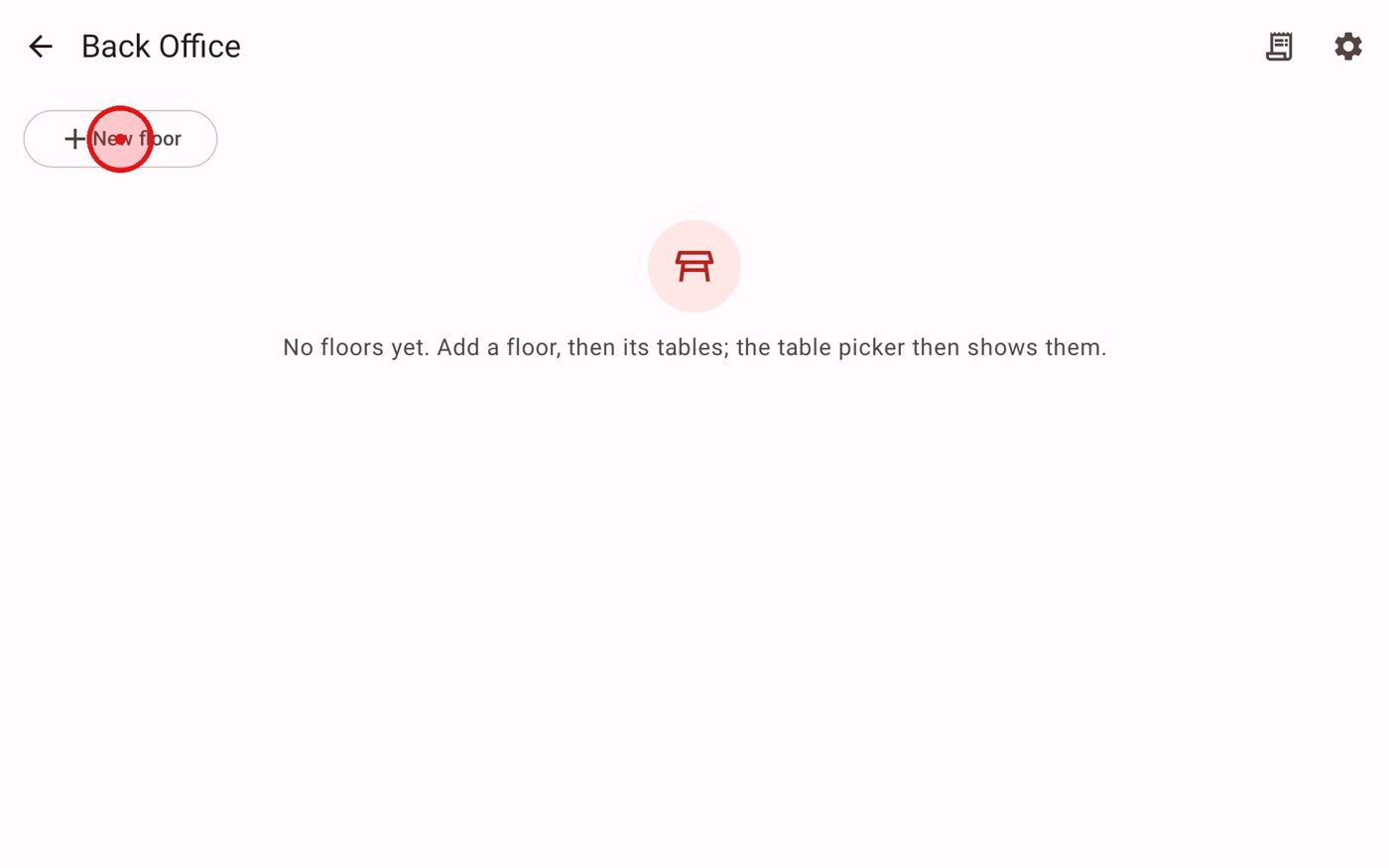
5. Start a new floor
Tap New floor.
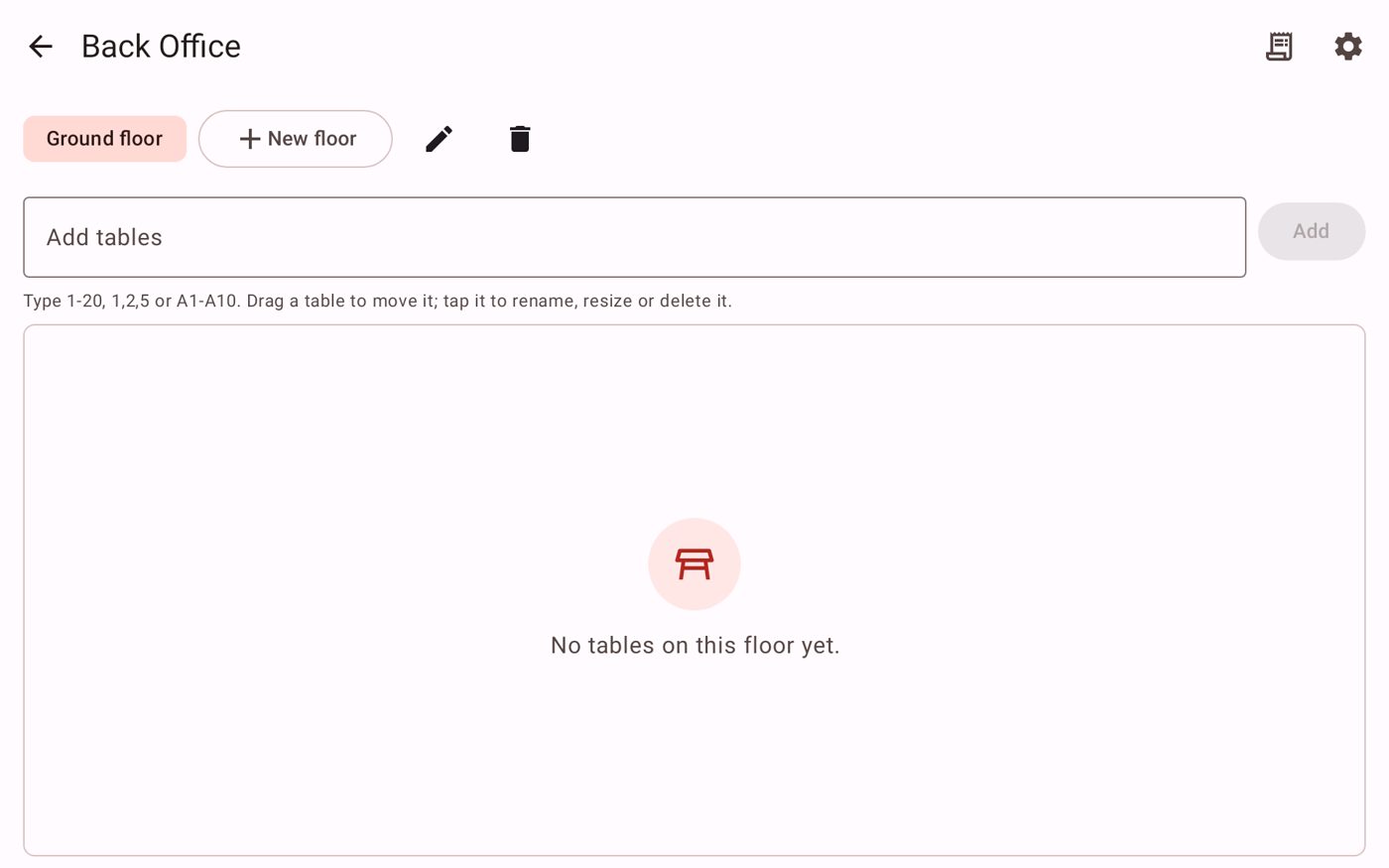
6. Name the floor
Type a floor name and tap Save.
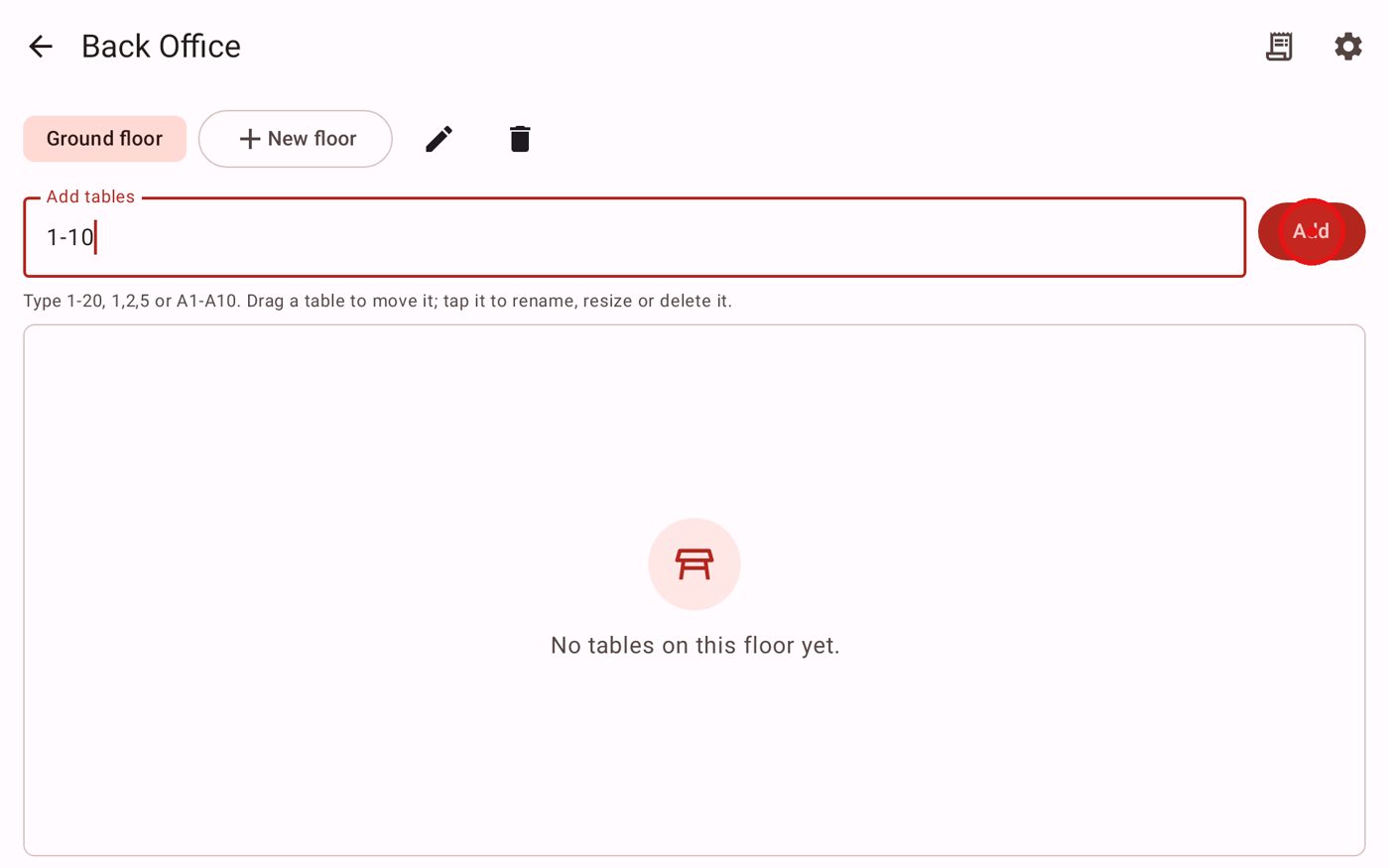
7. Type the table numbers
In the Add tables box, type the table numbers, for example 1-10.
8. Add the tables
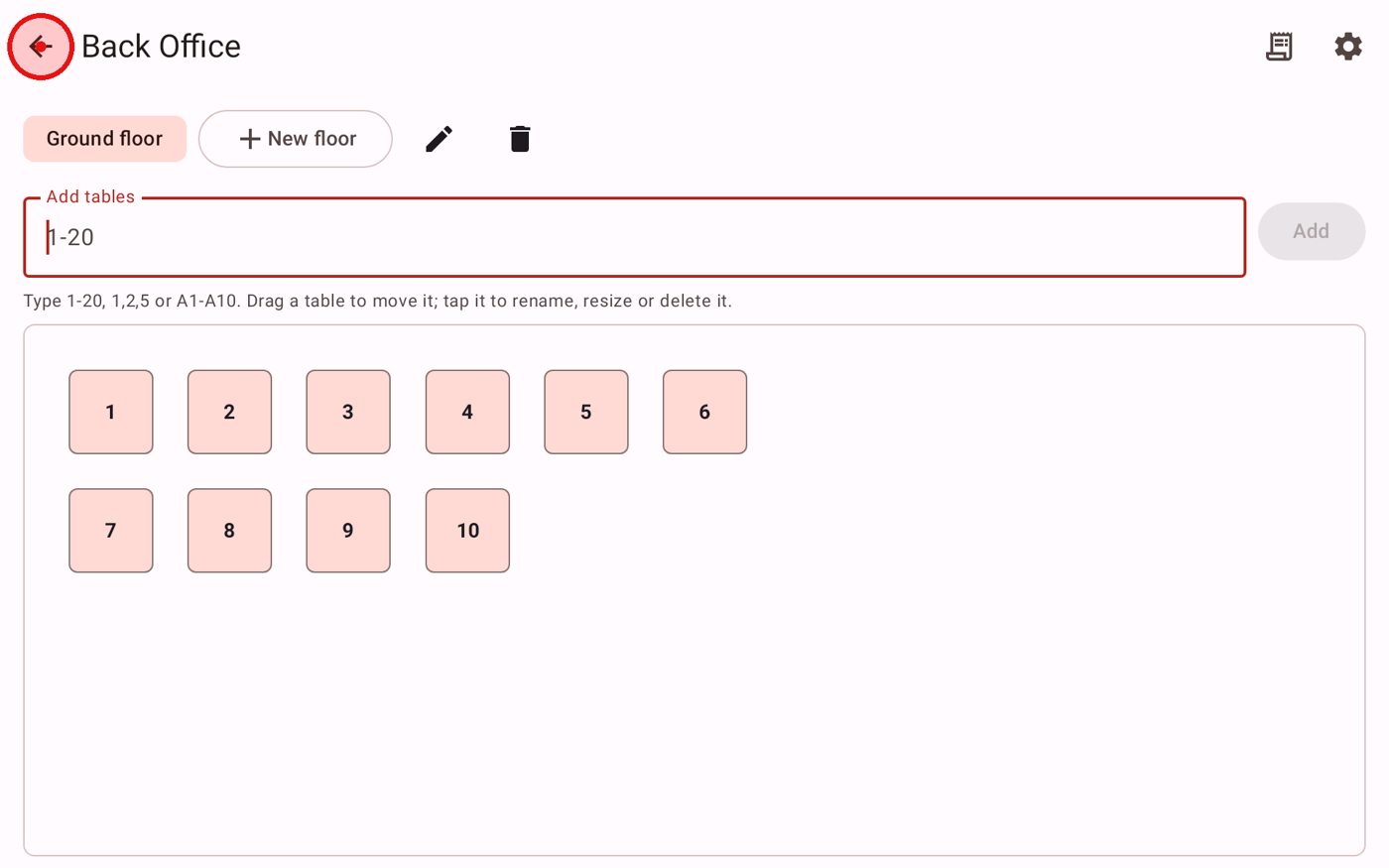
Tap Add. The tables appear on the floor.
9. Go back to the ordering screen
Go back to the ordering screen to take an order.
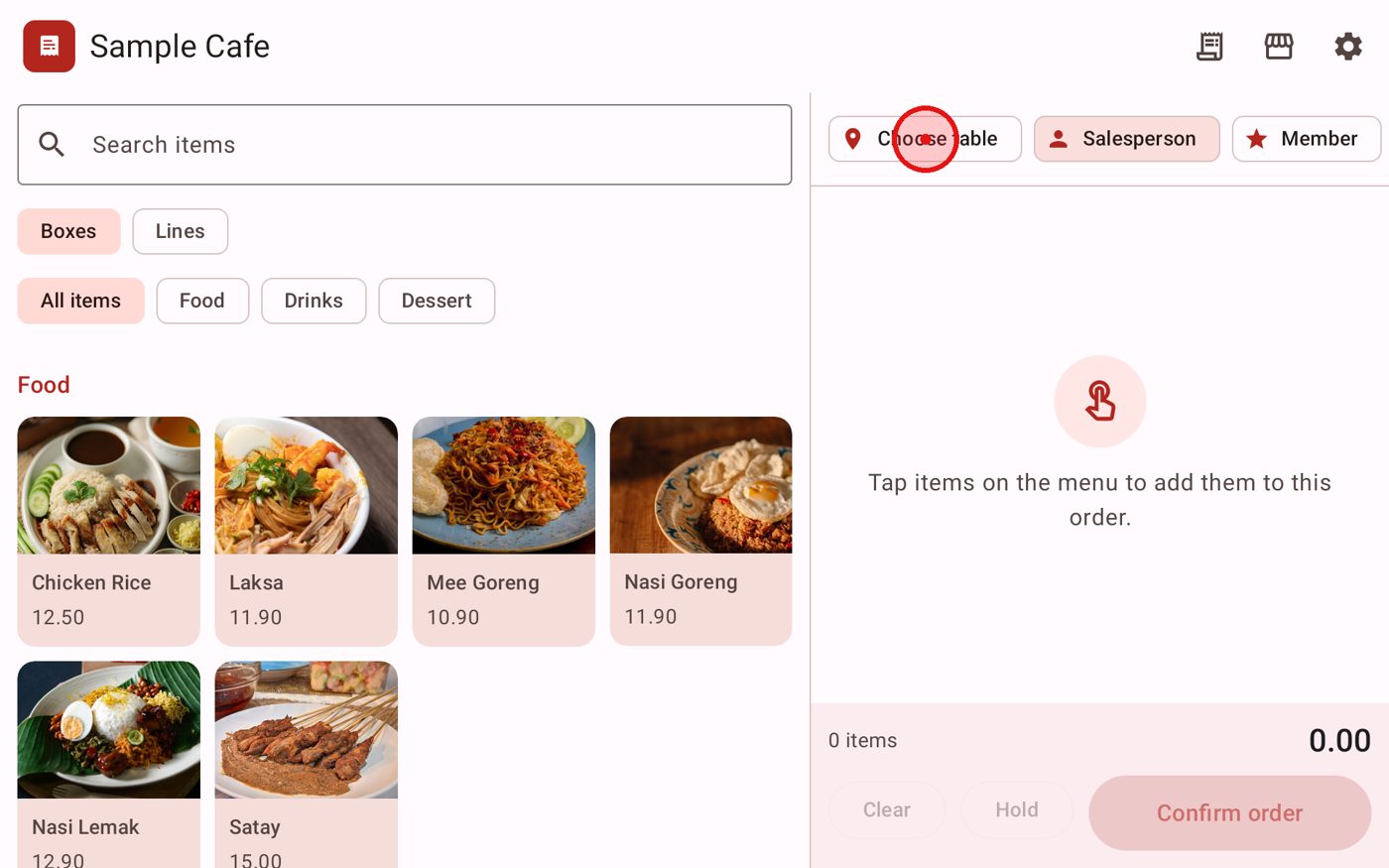
10. Choose a table
Tap Choose table.
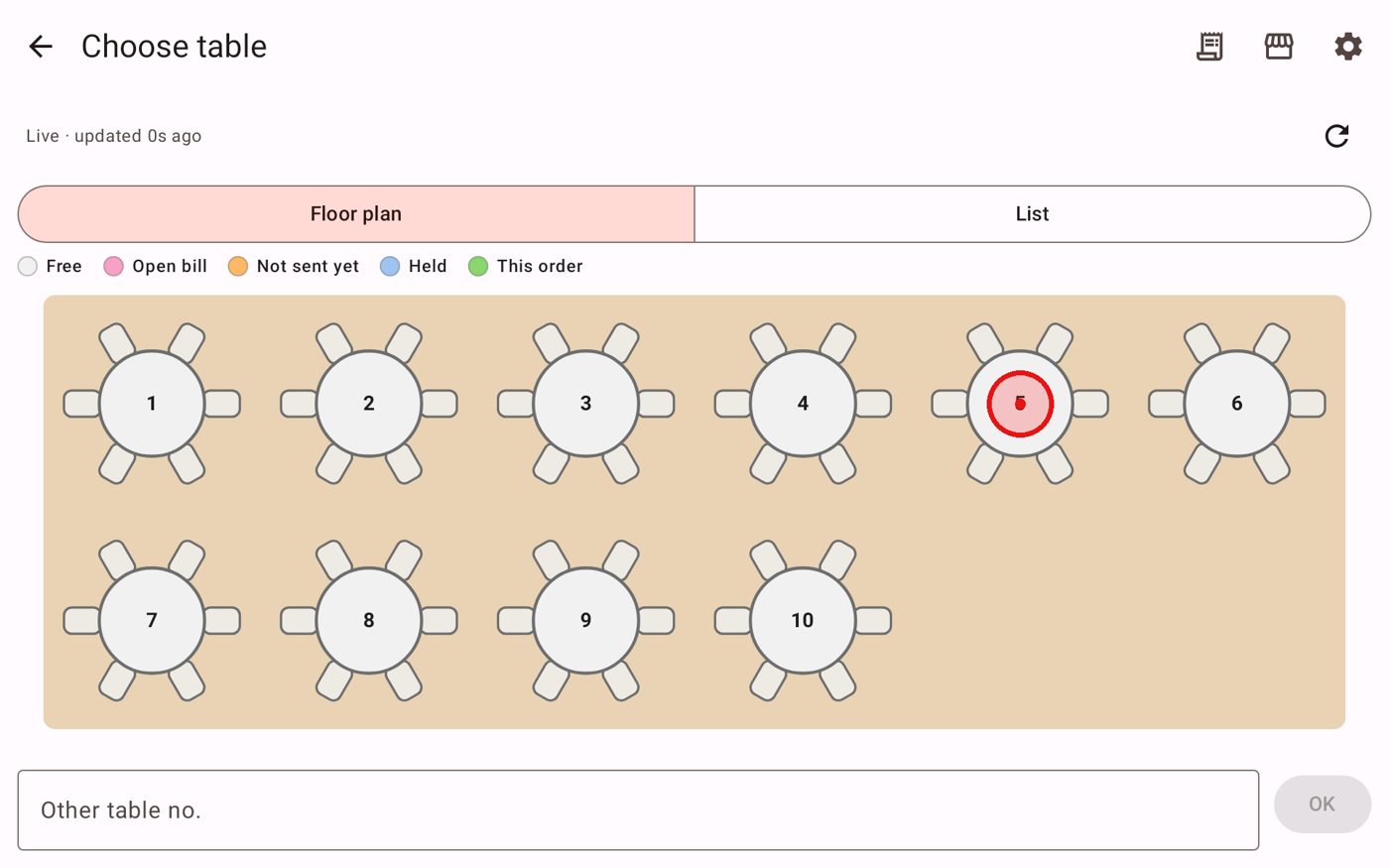
11. Tap the guests’ table
Tap the table where the guests sit.
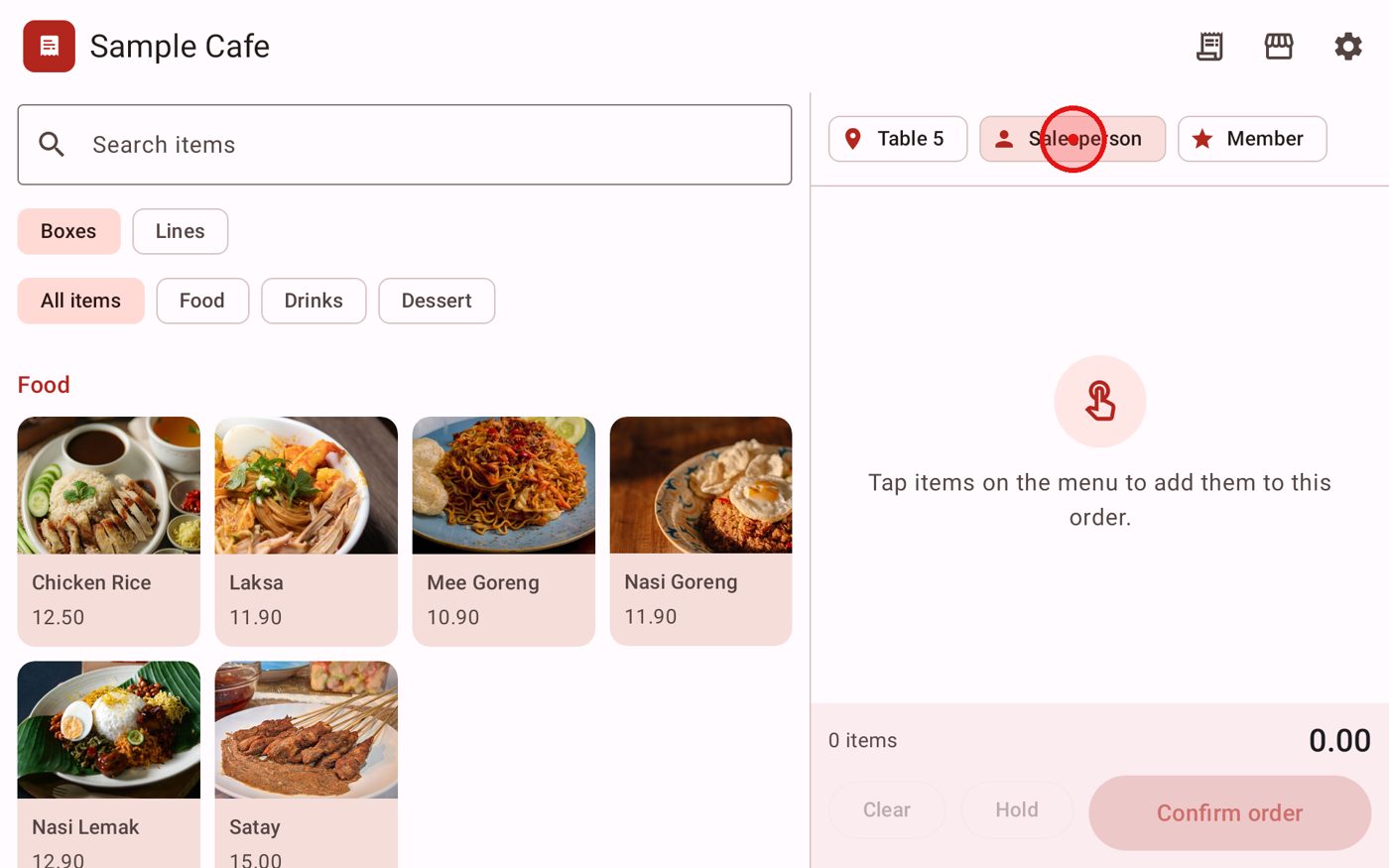
12. Pick the salesperson
Tap Salesperson and choose a name from the list.
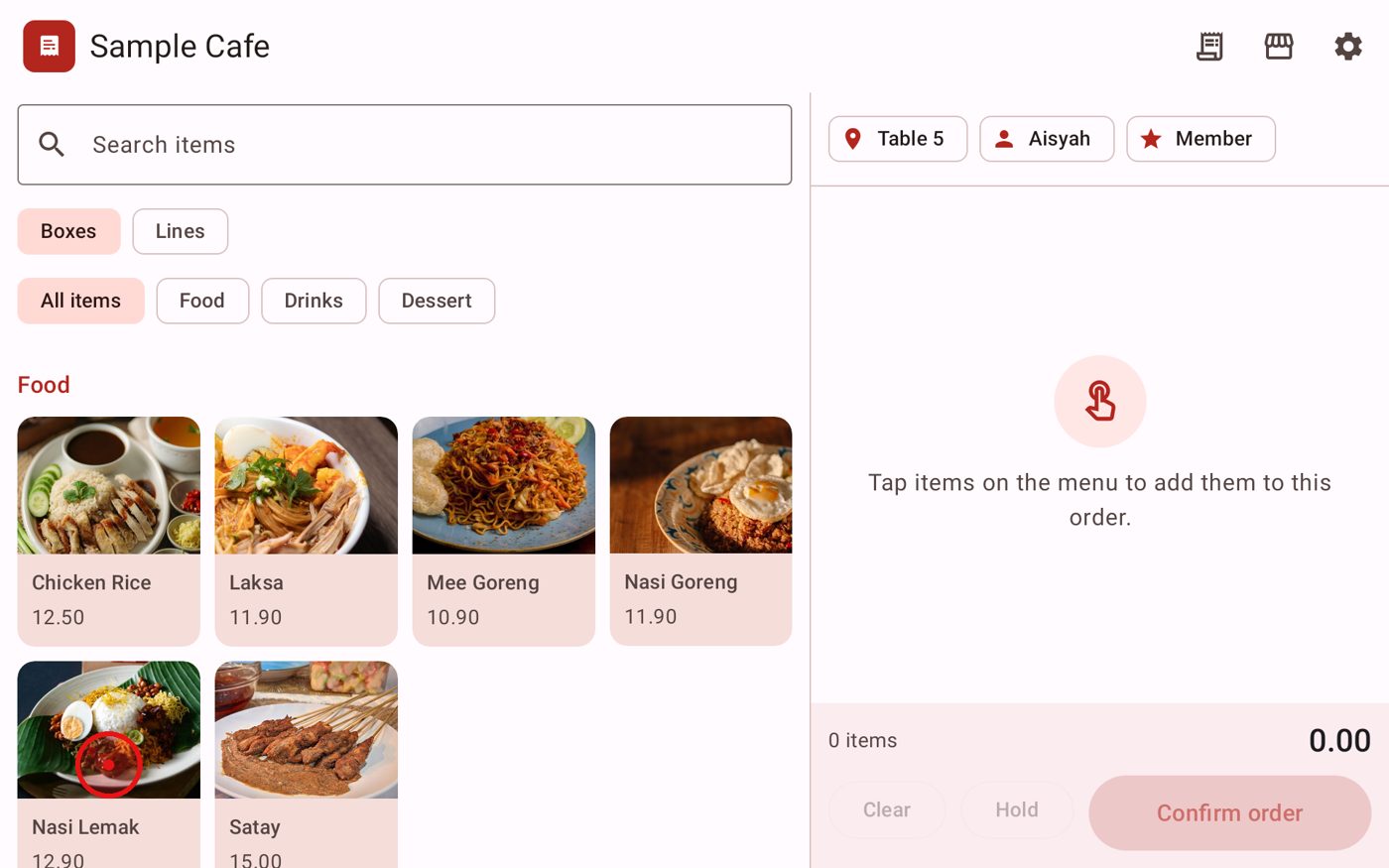
13. Add the dishes
Tap the dishes your customer orders.
14. Add more items
Add more items from any category, such as Drinks.
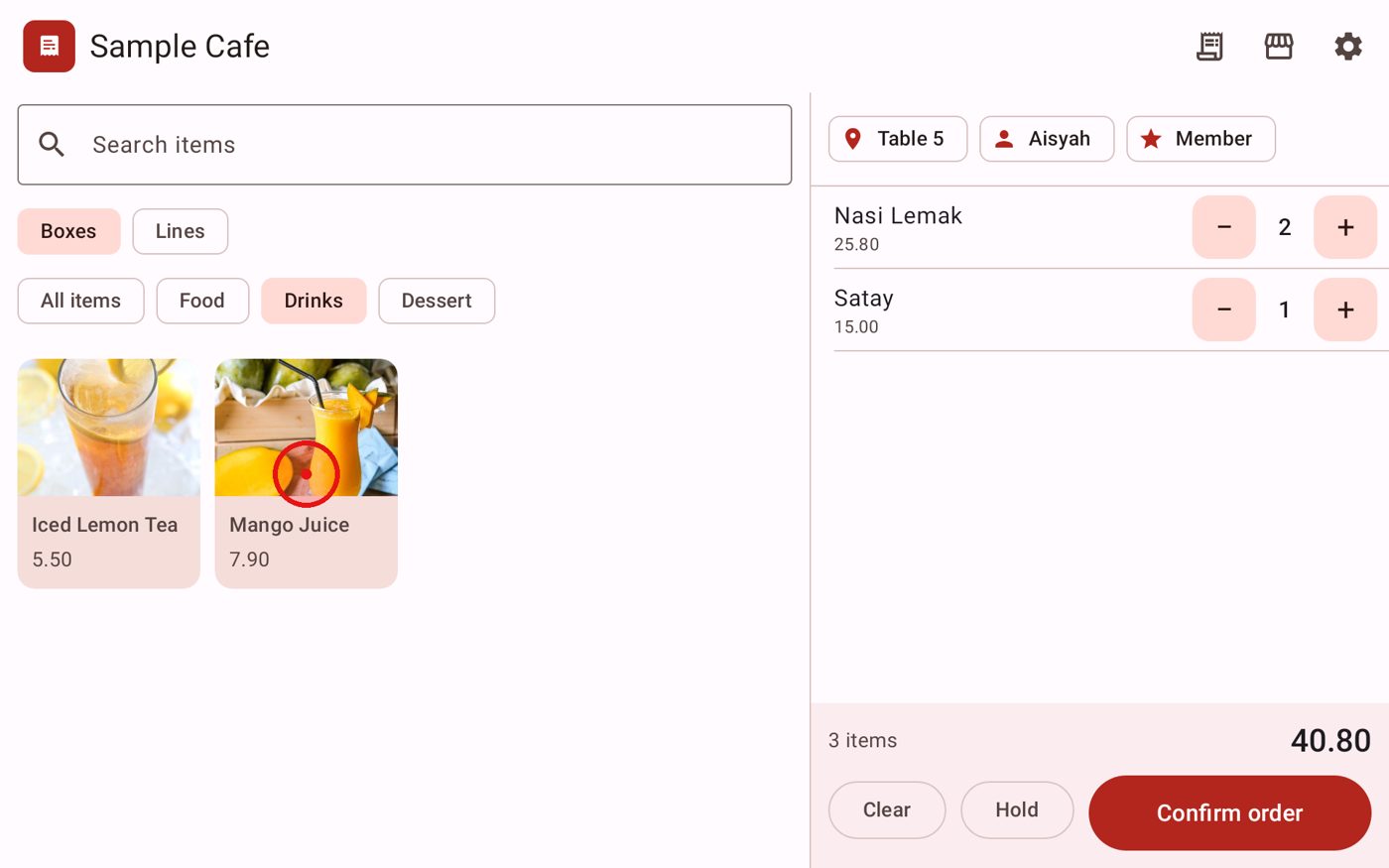
15. Confirm the order
Tap Confirm order, then tap Confirm.
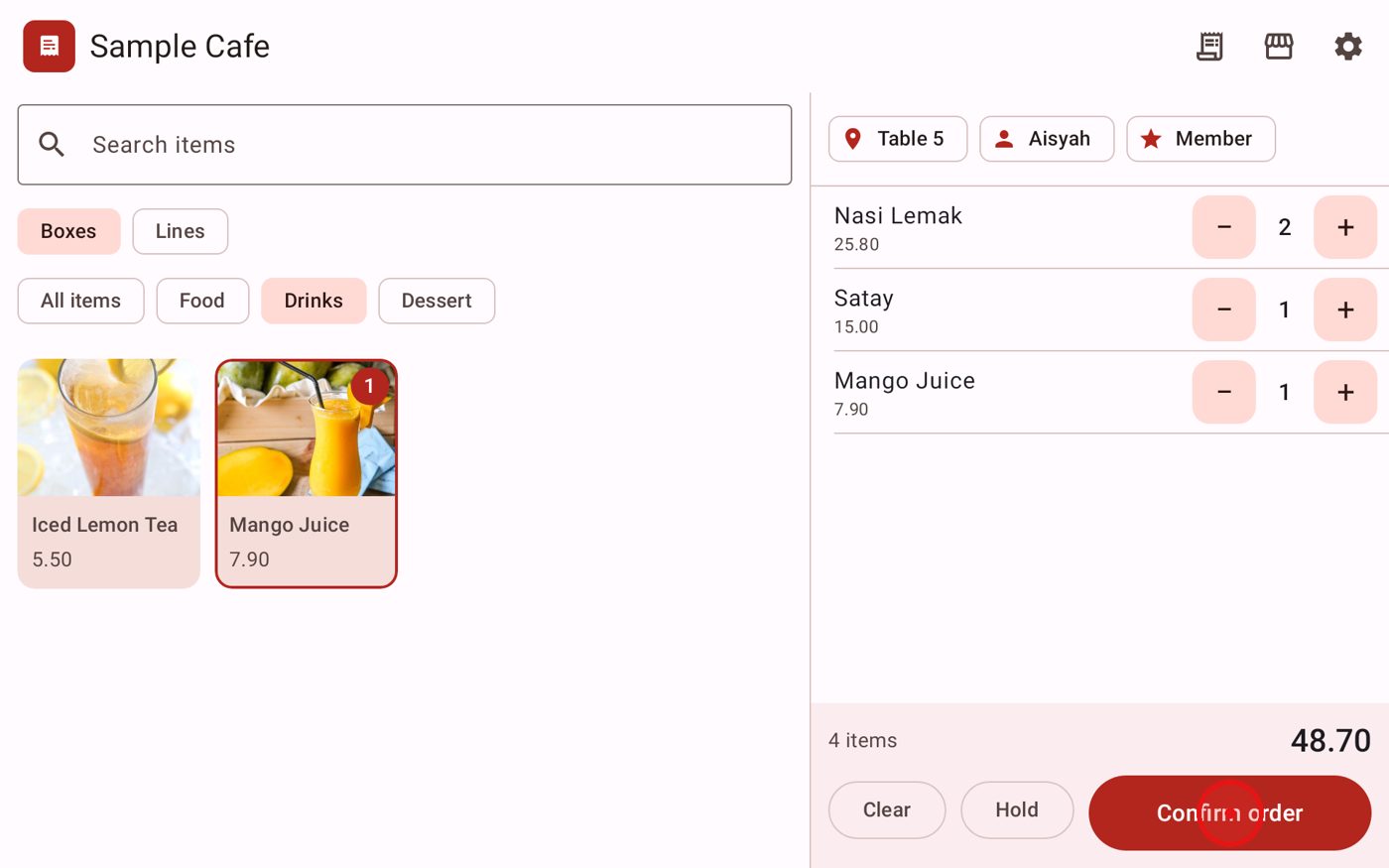
16. Order sent
The order is sent to the kitchen.
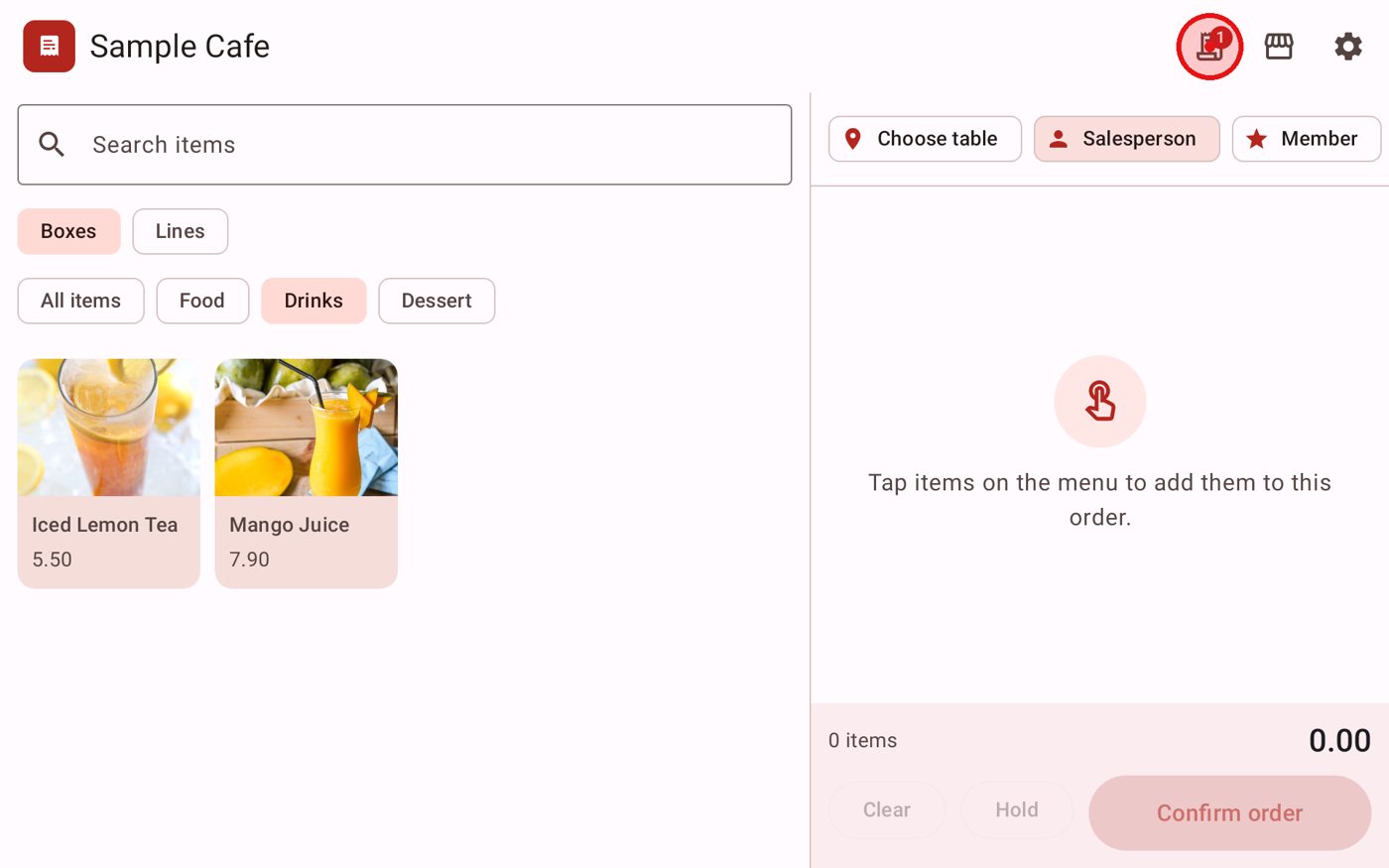
17. Open Bills
To make payment, tap the receipt icon (Bills) at the top right.
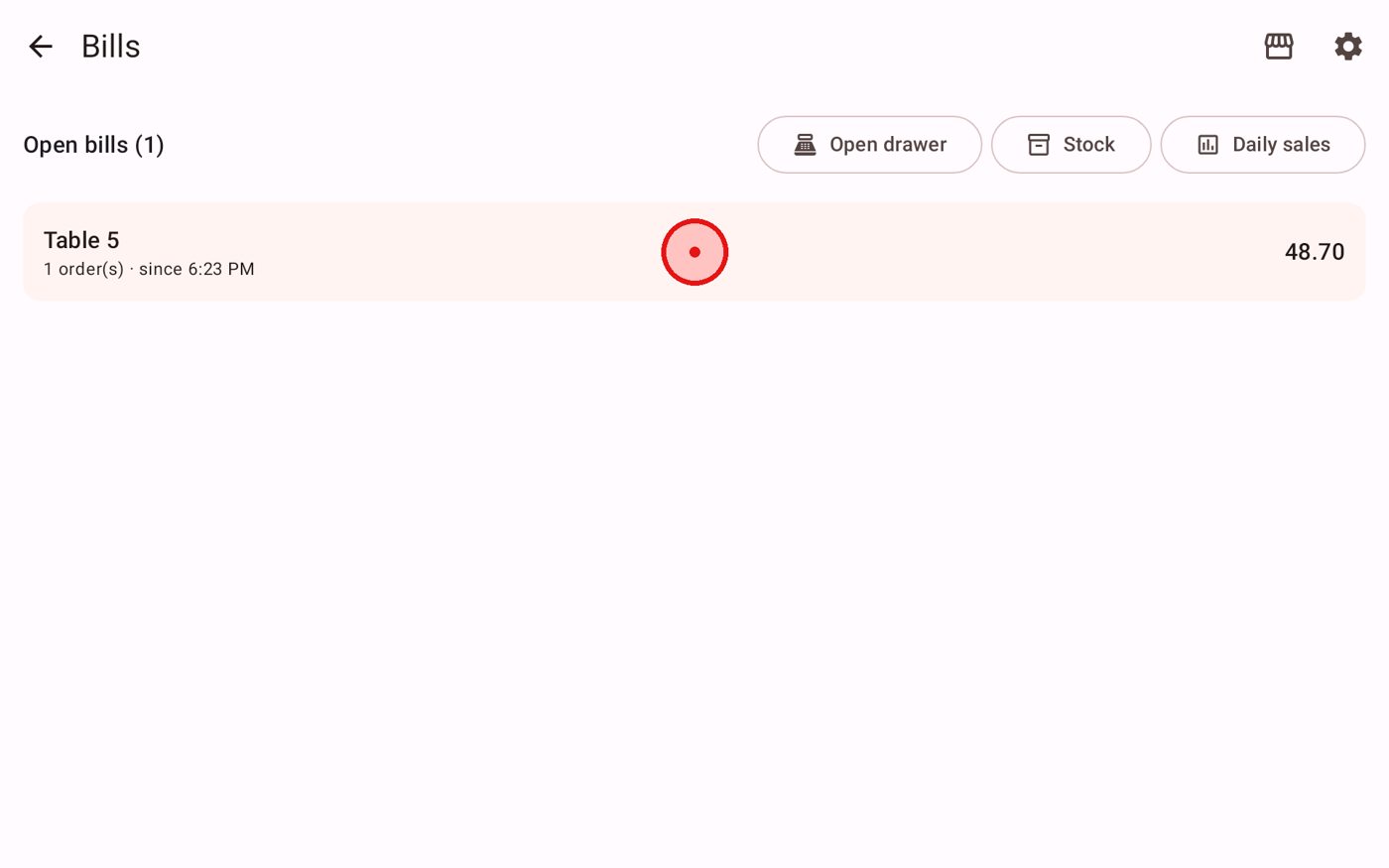
18. Select the bill
Tap the bill you want to pay.
19. Tap Pay
Open the payment window.
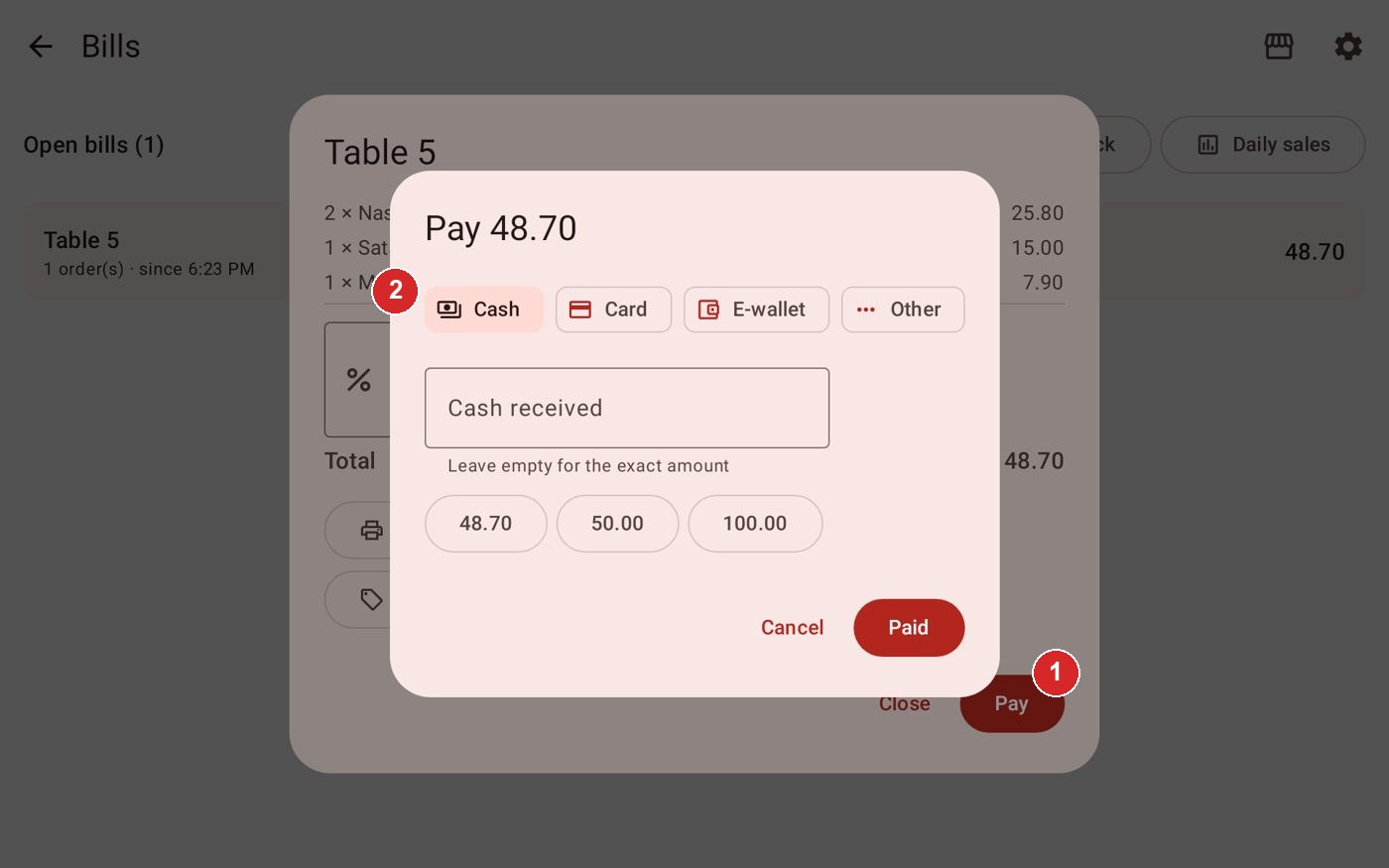
| Step | What to do |
|---|---|
| 1 | Tap Pay. |
| 2 | Choose the payment type: Cash, Card, E-wallet or Other. |
20. Enter the cash received
Fill in the amount received.
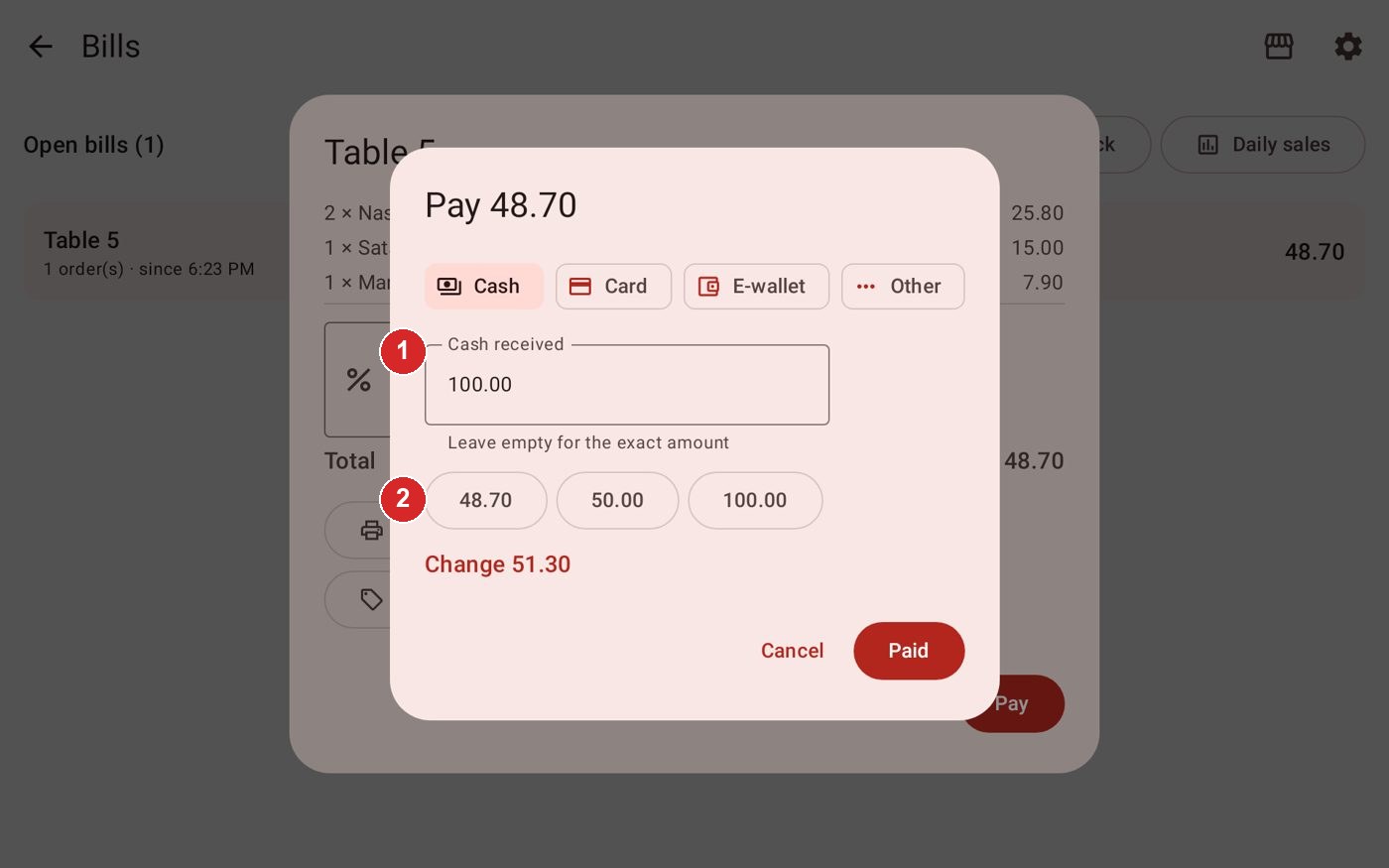
| Step | What to do |
|---|---|
| 1 | Enter the cash received. |
| 2 | Or tap an amount. |
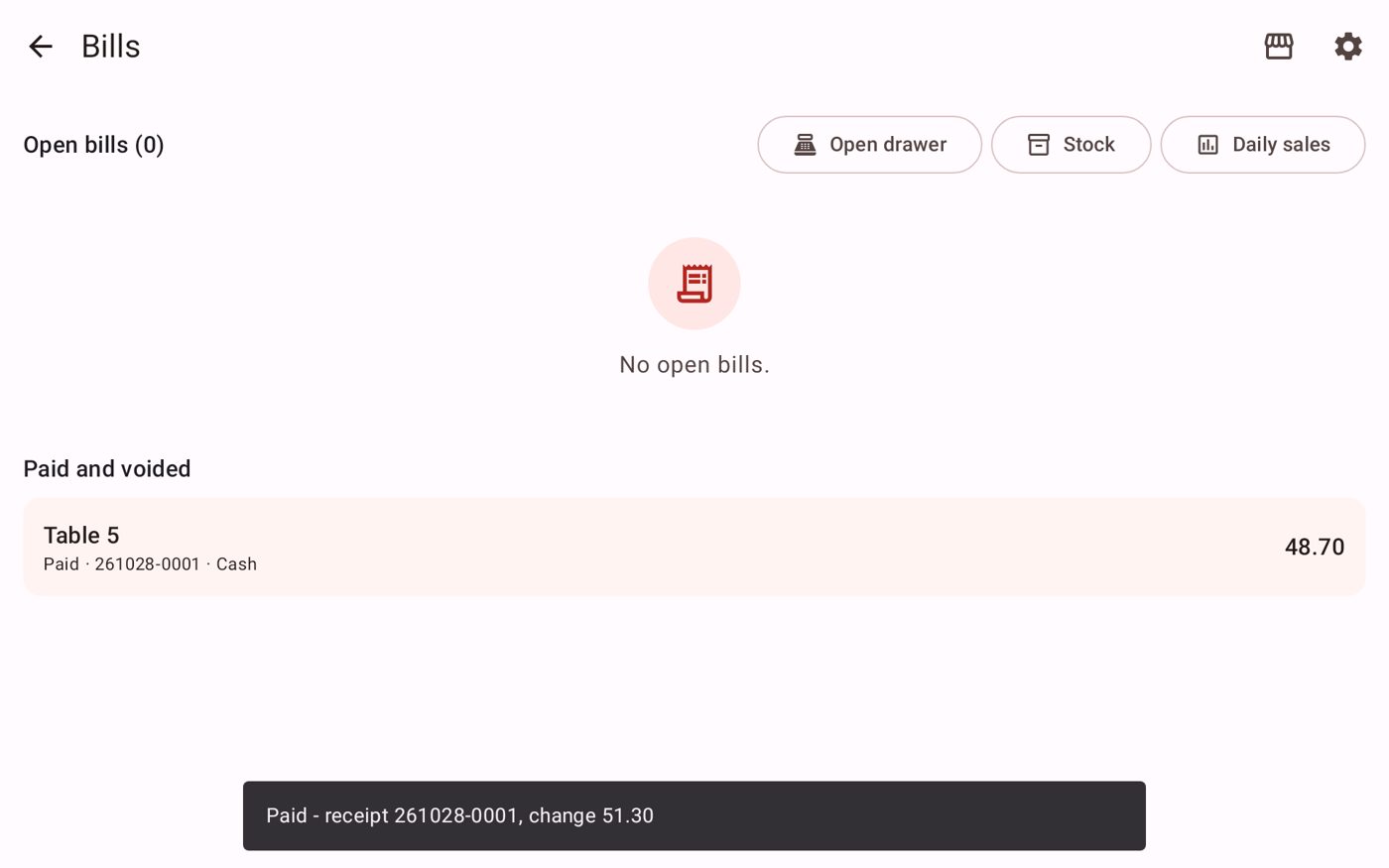
21. Tap Paid
Tap Paid. The bill is settled.
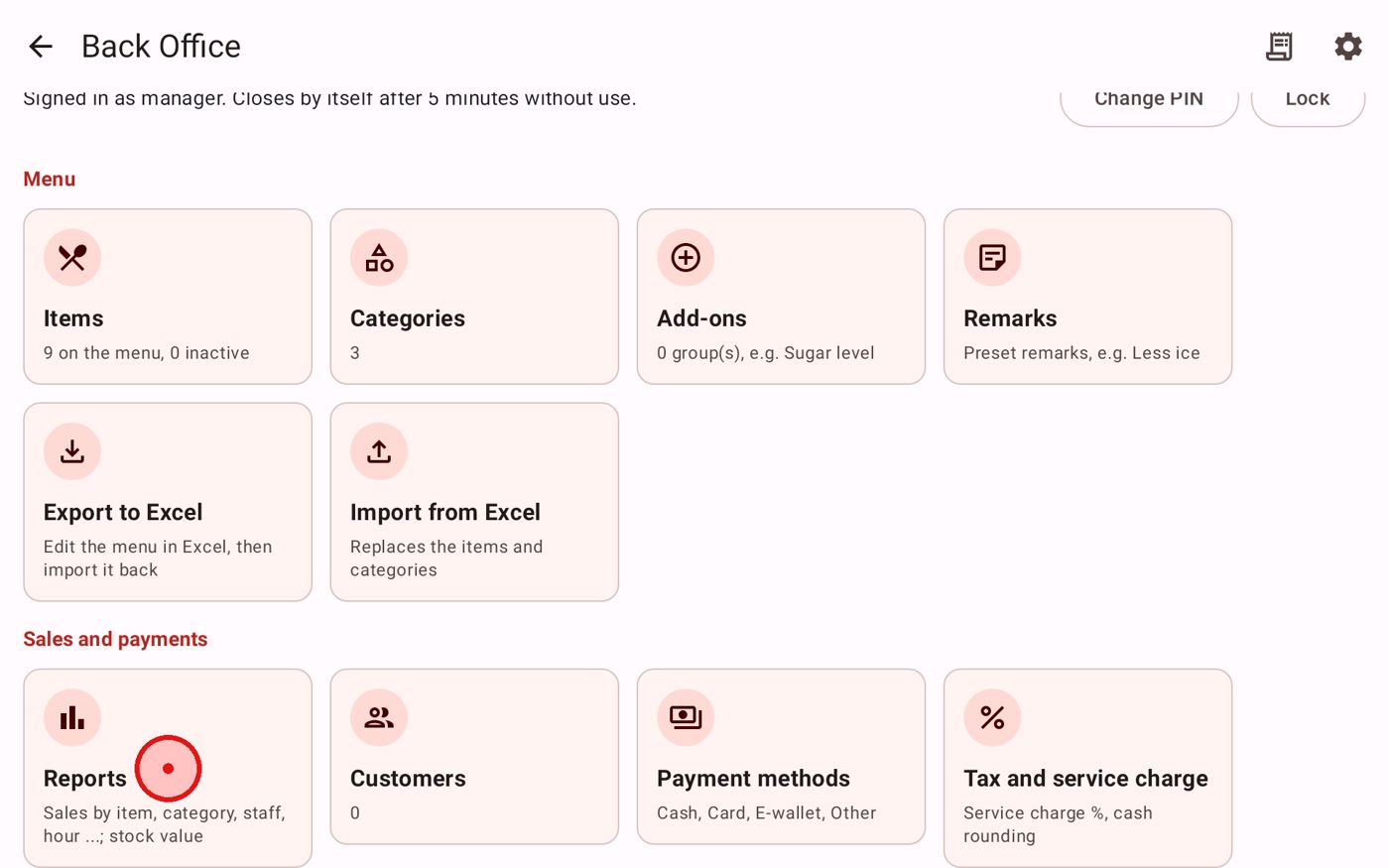
22. Open the report
To check the sales, tap the Back Office (storefront) icon again. Under Sales and payments, tap Reports.
Tips
- Back Office closes itself after 5 minutes without a touch.
- A counter shop without tables: in Settings > Selling, under Business type, switch off Use tables. Choose table is no longer on the order screen. Set it on the main device; the terminals follow.