
Every stock change is a numbered document in Back Office. This guide shows goods received, return to supplier, stock adjustment and stock take, and how costing works.
Before you start
- Open Back Office (the storefront icon) and go to Stock documents.
- Add the supplier first in Back Office > Suppliers, if you will receive goods or return them.
- The items must have Track stock switched on.
Steps
1. Open Stock documents and choose the costing
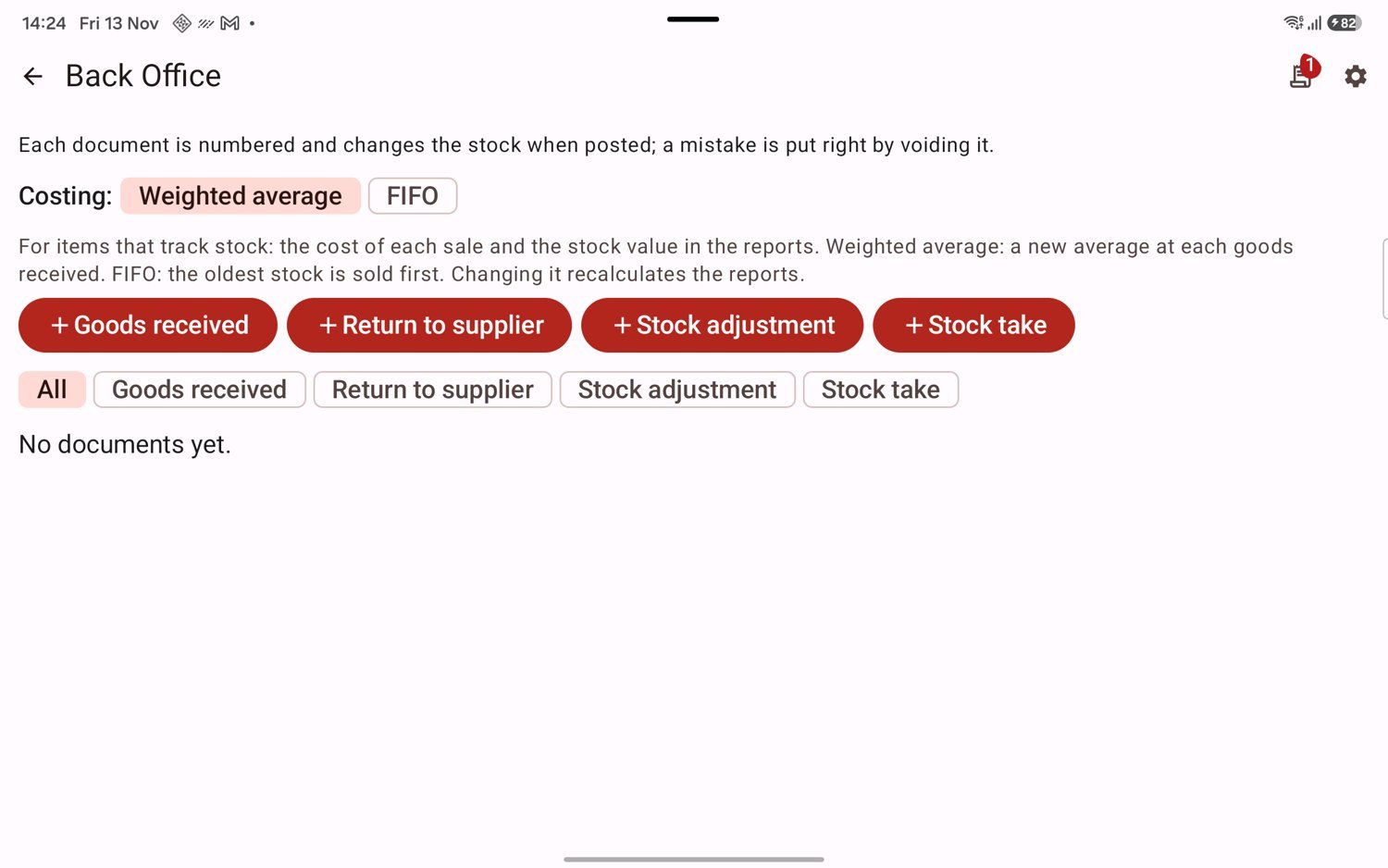
In Back Office tap Stock documents. Next to Costing choose Weighted average (a new average at each goods received) or FIFO (the oldest stock is sold first). It sets the cost of each sale and the stock value in the reports, and changing it recalculates the reports.
2. Goods received
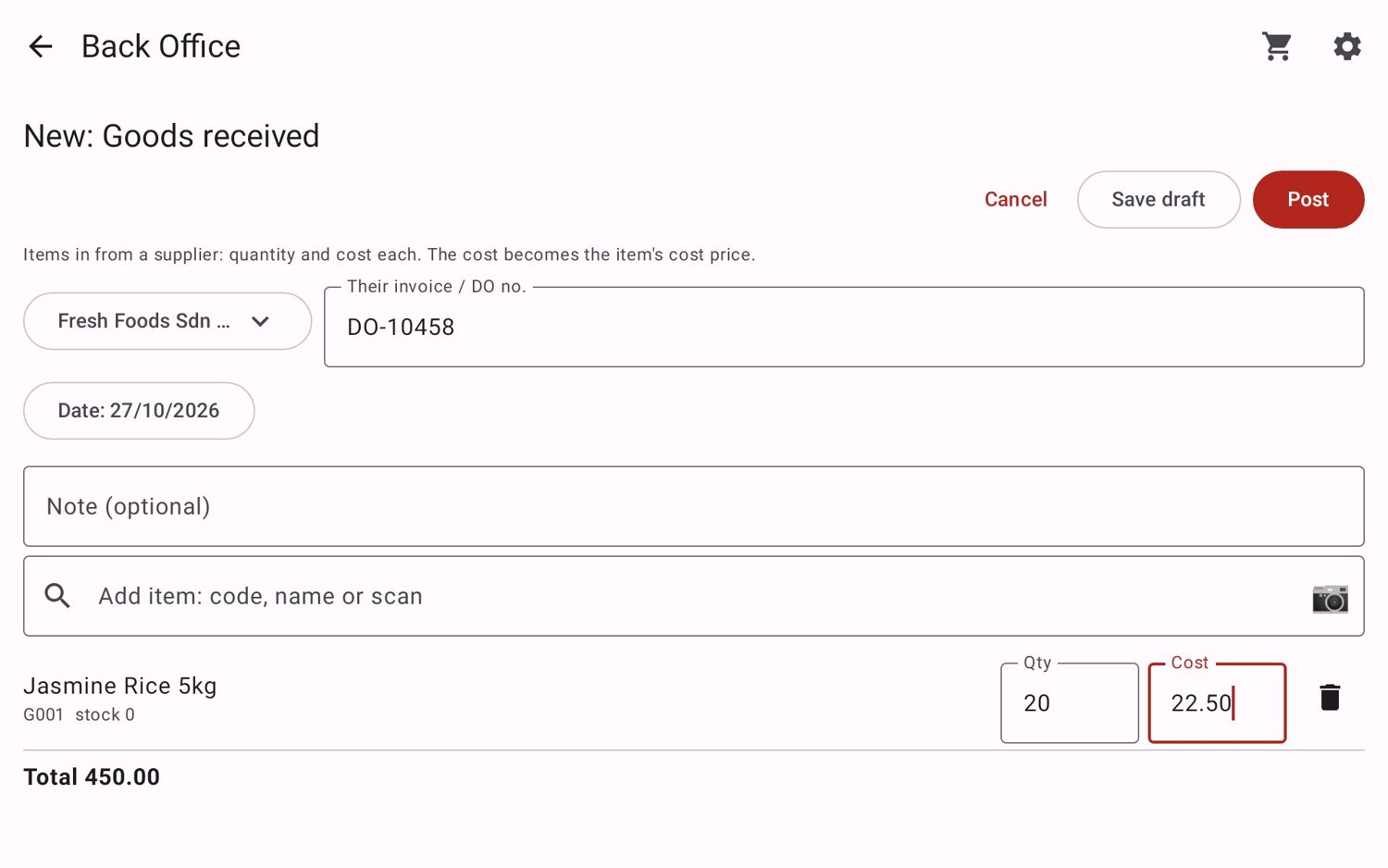
Tap Goods received. Tap Choose supplier and pick the supplier. Type the supplier’s delivery order or invoice number in Their invoice / DO no. Tap the Date button to change the date. Add each item: type at least 2 letters of the code or name in Add item, or scan the barcode with the camera icon. Type the Qty received and the Cost of each. The page shows the Total. Tap Post. The document is numbered and the stock changes at once. Save draft keeps it to finish later. The cost you type becomes the item’s cost price.
3. Return to supplier
Tap Return to supplier for items going back. Choose the supplier, add the items and type the Qty and Cost for each line, then tap Post.
4. Stock adjustment
Tap Stock adjustment for damaged or lost goods or own use. Add the item and type the quantity in the +/- box. A minus takes stock out. The cost is optional. Tap Post.
5. Stock take
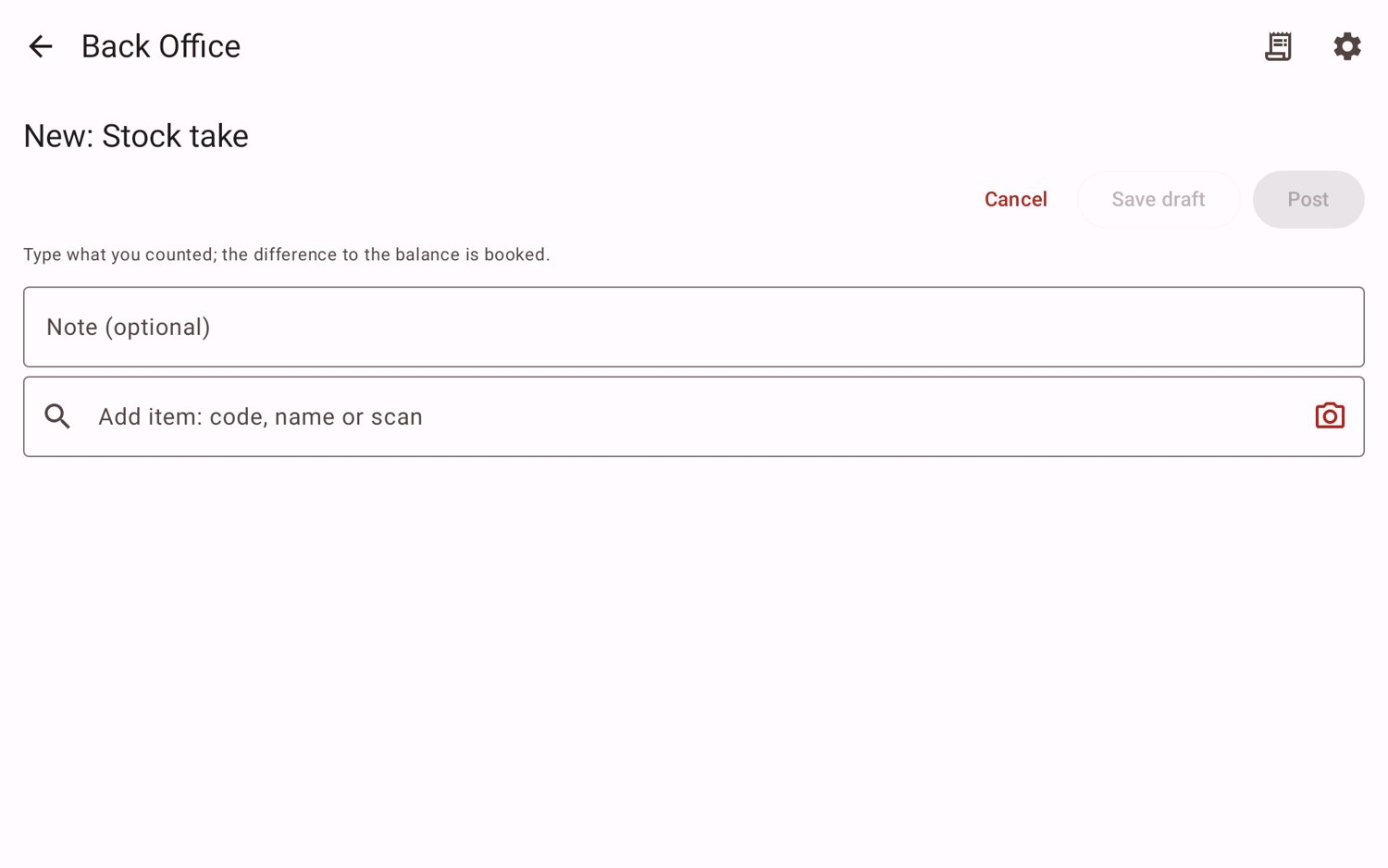
Tap Stock take and add the items. Type what you counted in the Counted box. The difference to the balance is booked when you tap Post.
6. Put right a mistake
Open the posted document and tap Void. Its stock changes are reversed. Cost prices stay as they are. The filter under the buttons (All, Goods received, Return to supplier, Stock adjustment, Stock take) shows the documents already posted. Drafts are listed under Drafts (not posted yet).
Tips
- An item that does not track stock cannot go on a stock document. Switch on Track stock for it first.
- Who can do stock documents is a rule in Back Office > Staff.
- In a shop linked to Synergy, the stock comes from the shop server and is received and adjusted on the desktop.
Common problems
The list of suppliers is empty.
Add the supplier first: Back Office > Suppliers > New supplier.
The item cannot be added to the document.
Switch on Track stock for the item (in Items, or on the Stock screen).
I posted a wrong quantity.
Void the posted document, then make it again. Voiding reverses the stock changes.
I cannot find a document I started.
A document that was saved with Save draft is under Drafts (not posted yet).