
Synergy Kitchen Display shows kitchen orders on a screen instead of on paper. There are three apps: Kitchen Display (a TV used with a remote), Kitchen Touch (a tablet at the kitchen station) and Order Queue (the customers’ screen). This guide sets them up for shops that take orders on the Synergy Order App, and for shops that use the desktop POS.
Before you start
- Each screen is a TV or a tablet on the same shop Wi-Fi or network as the till.
- Install the app from the Synergy apps download page (apps.synsoftmy.com), group Kitchen: Synergy Kitchen Display (TV), Synergy Kitchen Touch (tablet) or Synergy Order Queue (the customers’ screen). Open it once on the screen.
- Ask your router to always give each screen the same address. If the address changes, the till can no longer find the screen.
Steps
1. Find the screen’s address
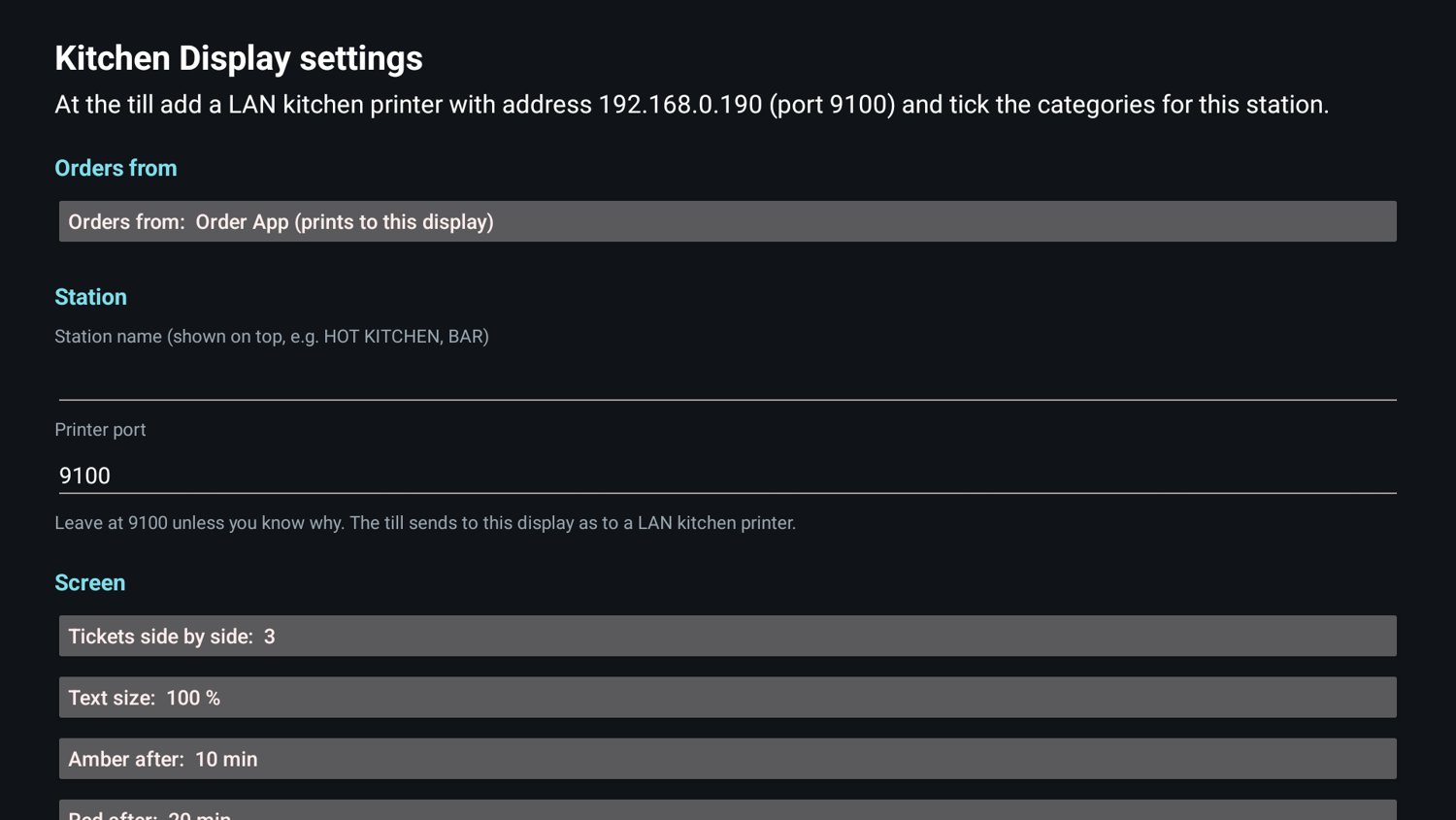
Open the app on the screen. Its address (for example 192.168.0.190) is shown in the line at the bottom right of the screen and at the top of Settings. On the tablet tap Settings. On the TV hold OK on the remote.
2. Or let Synergy’s setup fill in the settings (optional)
If Synergy has drawn your kitchen screens in its Order App topology plan, it gives you a slot code for each screen. In the screen’s Settings open Connect to setup (slot code), type the Slot code (or scan the slot QR code with a tablet: it only fills in the code) and press Connect. The screen says Waiting for approval by Synergy; nothing changes until Synergy approves. Then the screen takes the settings set for that slot and checks for changes every minute. A setting you change on the screen stays on this screen. Disconnect keeps the settings and the screen works as one set up by hand. You still add the screen at the till (next step).
3. Add the screen at the till (Order App)
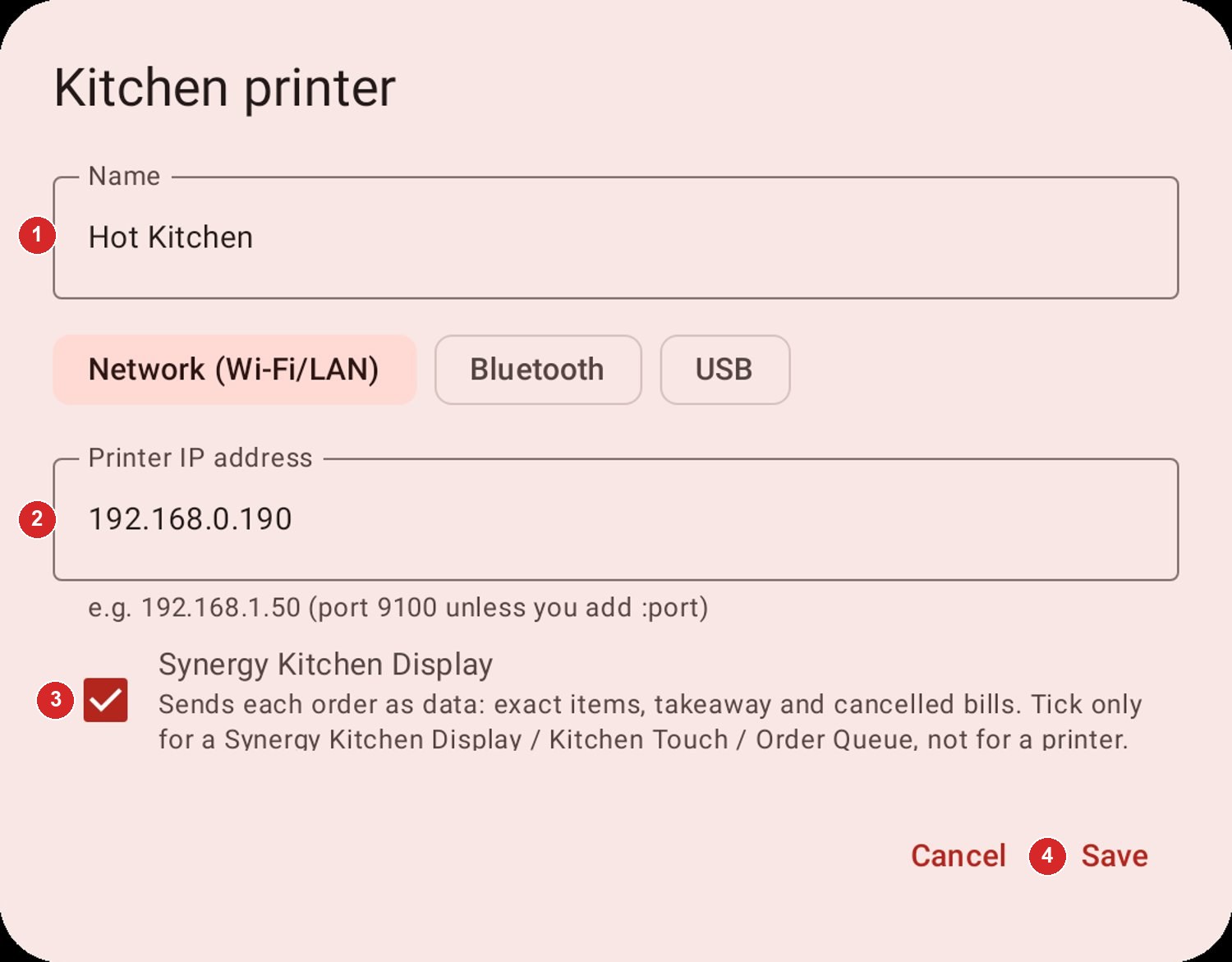
On the main Order App device open Settings > Printer > Kitchen printers and tap Add kitchen printer. Tick Synergy Kitchen Display only for a Synergy Kitchen Display, Kitchen Touch or Order Queue app, not for a real printer.
| Step | What to do |
|---|---|
| 1 | Name: for example Hot Kitchen or Bar. |
| 2 | Choose Network (Wi-Fi/LAN) and type the screen’s address from step 1. Port 9100 is used unless you add :port. |
| 3 | Tick Synergy Kitchen Display. The screen then gets each order as data: the exact items, takeaway and cancelled bills. |
| 4 | Tap Save. |
4. Choose what shows on each screen
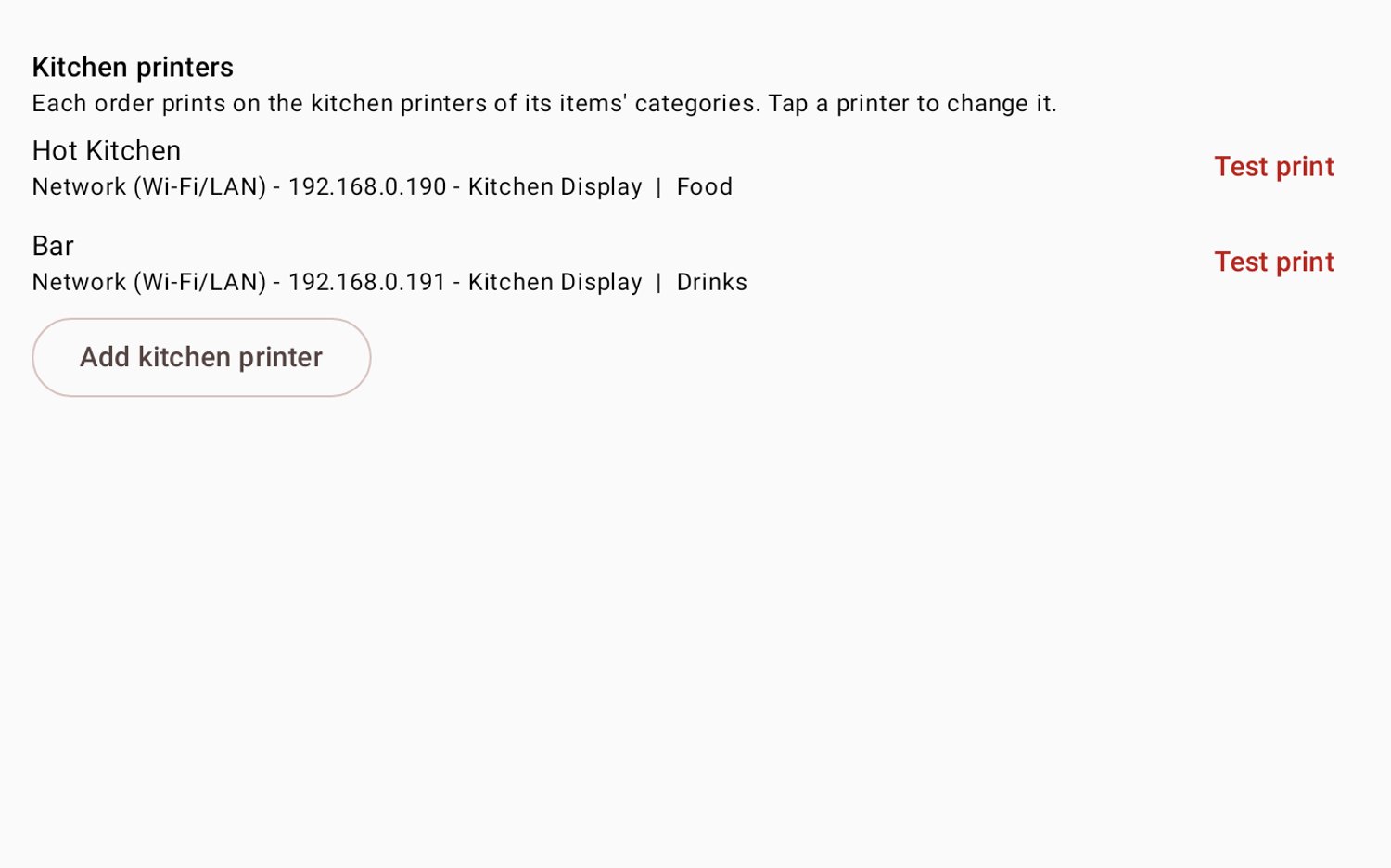
Each order goes to the kitchen printers of its items’ categories. In the printer form, tick the categories for this screen: for example Food on the Hot Kitchen screen and Drinks on the Bar screen. Everything else takes the items that no other kitchen printer takes. An item ticked on two screens shows on both. The list shows each screen with its categories; tap a screen to change it.
5. Name the station
In the screen’s Settings, Station name is shown at the top of the screen (for example HOT KITCHEN or BAR). Leave Printer port at 9100 unless Synergy has told you otherwise.
6. Choose how the screen looks
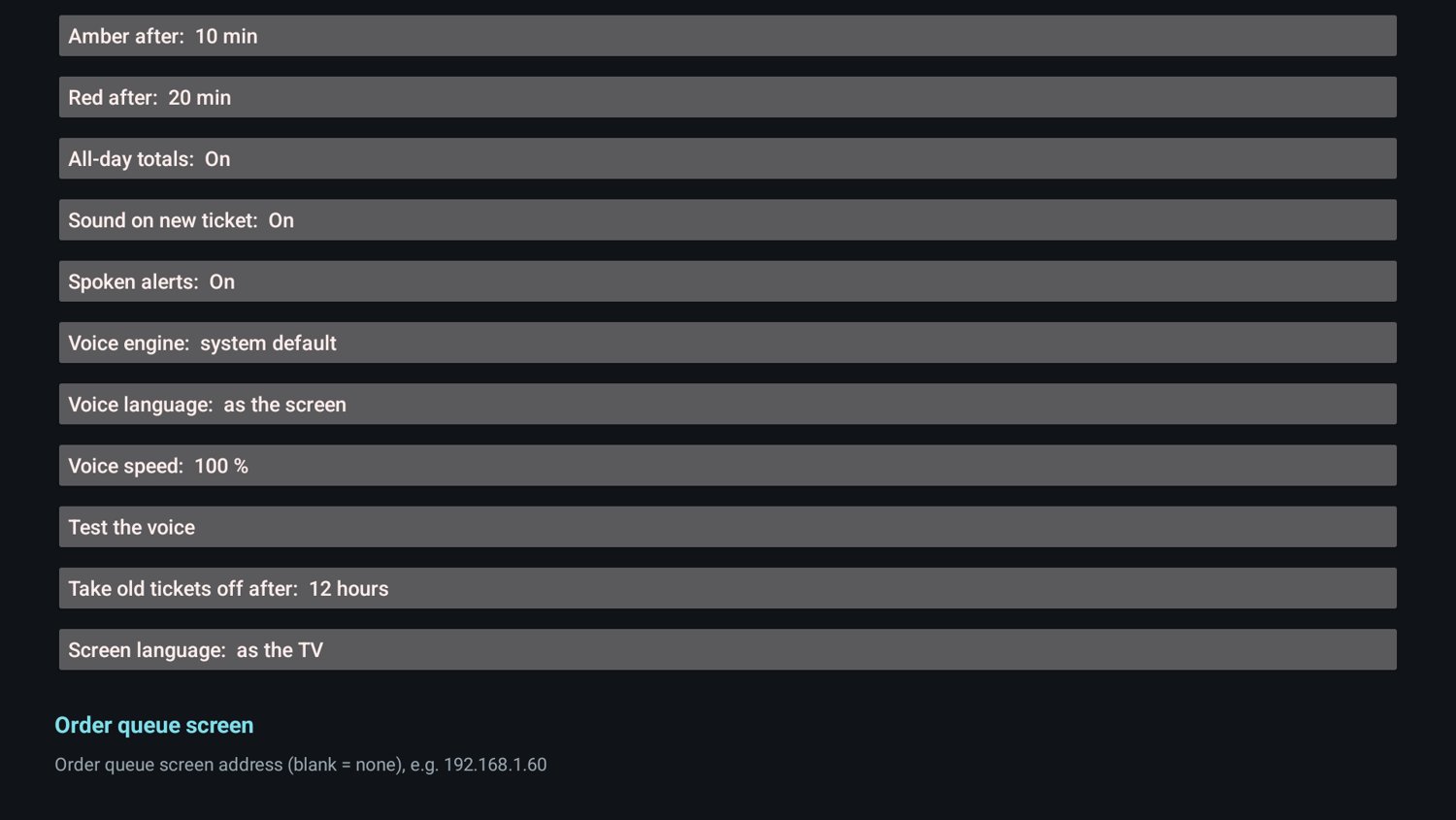
In Settings > Screen you can change Tickets side by side (3 is standard), Text size, Amber after and Red after (how many minutes before a waiting ticket turns amber and then red), All-day totals, Sound on new ticket, Take old tickets off after and Screen language.
7. Set up the customers’ screen (Order Queue)
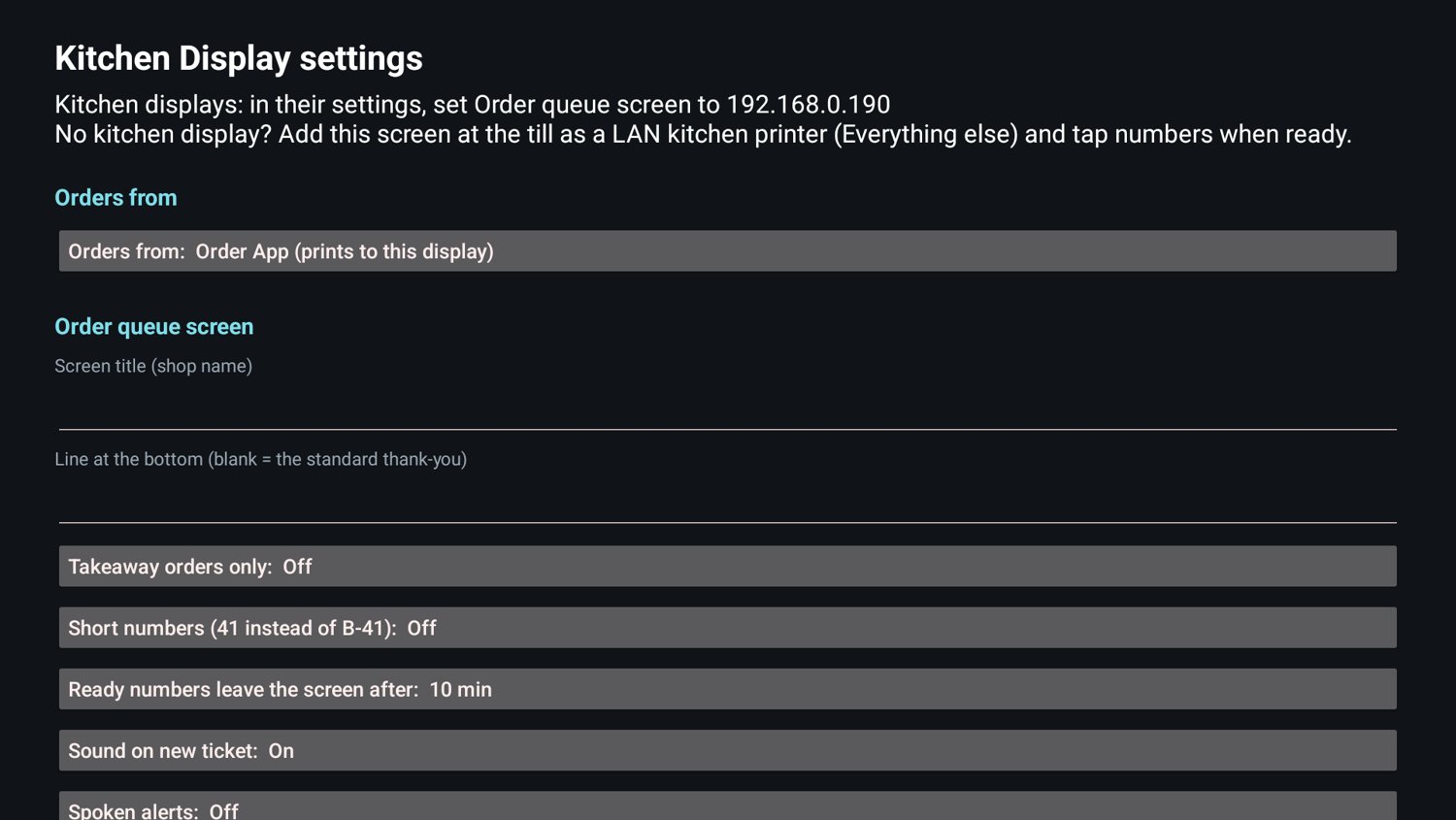
Install Order Queue on the screen the customers see. Its Settings show the address to use. On each kitchen screen open Settings > Order queue screen and type that address. On the queue screen you can set the Screen title (shop name), the Line at the bottom, Takeaway orders only, Short numbers (41 instead of B-41) and how long ready numbers stay.
8. Turn on spoken alerts (tablet and customers’ screen)
In Settings turn on Spoken alerts. Choose the Voice engine (system default or Google), the Voice language (as the screen, English, Malay or Chinese) and the Voice speed, then tap Test the voice. Kitchen Touch says new, cancelled and late orders. Order Queue says the number to collect. The Kitchen Display (TV) app has no voice.
9. Let the screen start by itself
In Settings > Start keep Open by itself after the TV starts (or after the tablet starts) On. Android also needs Display over other apps to be allowed for the app: tap Allow “Display over other apps” and allow it.
10. Shops that use the desktop POS
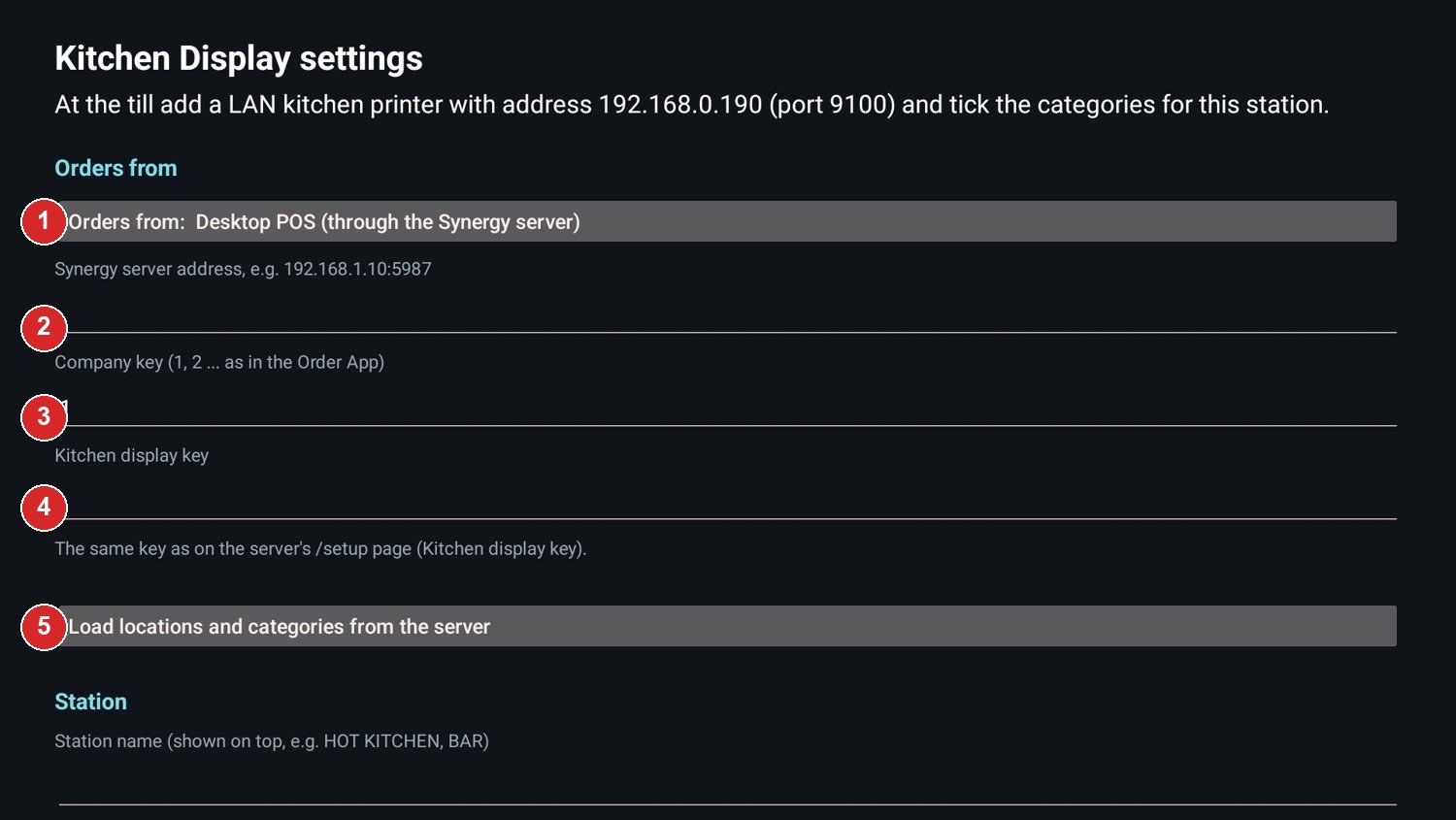
If the orders come from the desktop POS and not from the Order App, set Orders from to Desktop POS (through the Synergy server) in the screen’s Settings. The screen then reads the open kitchen orders from the Synergy server about every 3 seconds. Only items of the categories you choose show on this screen (none ticked = everything).
| Step | What to do |
|---|---|
| 1 | Orders from: choose Desktop POS (through the Synergy server). |
| 2 | Synergy server address, for example 192.168.1.10:5987. |
| 3 | Company key: 1, 2 … as in the Order App. |
| 4 | Kitchen display key: the same key as the Kitchen display key box on the server’s /setup page (4 to 64 characters). While that box is empty the server does not answer. |
| 5 | Tap Load locations and categories from the server, then choose the Location and tick This station’s categories. |
11. Check that it works
On the screen open Settings > Tickets and tap Show a test ticket: a sample order appears. Clear all tickets empties the screen. Then send a real order from the till.
Tips
- A screen also works without the Synergy Kitchen Display tick: it then reads the printed slip. With the tick it gets exact items and shows cancelled bills as VOID.
- No kitchen display for the customers’ queue? Add the Order Queue screen at the till as a LAN kitchen printer (Everything else) and tap the numbers on the queue screen when they are ready.
- The three apps update separately: Settings > App updates > Check for updates. Leave Test builds Off unless Synergy asks you to turn it on.
- Connect to setup (slot code) is in the Kitchen Display, Kitchen Touch and Order Queue apps 2026-11-20A or later. Setting up by hand works as before.
Common problems
No orders appear on the screen.
Check that the screen and the till are on the same network, that the address at the till is the one shown on the screen, and that the port is 9100 (Printer port in Settings). The line at the bottom right of the screen says when there is no network or the port is busy.
The order prints on paper but not on the screen.
In Settings > Printer > Kitchen printers the screen needs the categories of the items ordered, or Everything else.
A cancelled bill is not shown as VOID.
Tick Synergy Kitchen Display for that screen at the till. Without the tick the screen only reads the printed slip.
The customers’ screen shows nothing.
On each kitchen screen, Settings > Order queue screen must hold the address of the queue screen. Messages wait on the kitchen screen while the queue screen is off.
Desktop POS: the screen says Server not set or shows a problem.
Fill in the server address, the company key and the kitchen display key. The key must also be typed on the server’s /setup page, and the server must be on.
There is no voice.
Tap Test the voice. Turn the volume up and check that the tablet’s text-to-speech has a voice for the chosen language. If Google’s engine is not installed, choose Voice engine: system default.
Desktop POS: a voided bill is not shown as VOID.
Check that the bill was sent to the kitchen (it printed or showed on the screen first), that Orders from is set to Desktop POS (through the Synergy server) and that the screen’s categories include the bill’s items. A bill that was already marked done on the screen does not come back as VOID.