
How the kitchen and the customers use the screens every day: the TV, the tablet at the station and the customers’ queue screen.
Before you start
- The screens are set up and the till sends orders to them (see the guide Setting up the kitchen screens).
Steps
1. What the TV screen shows
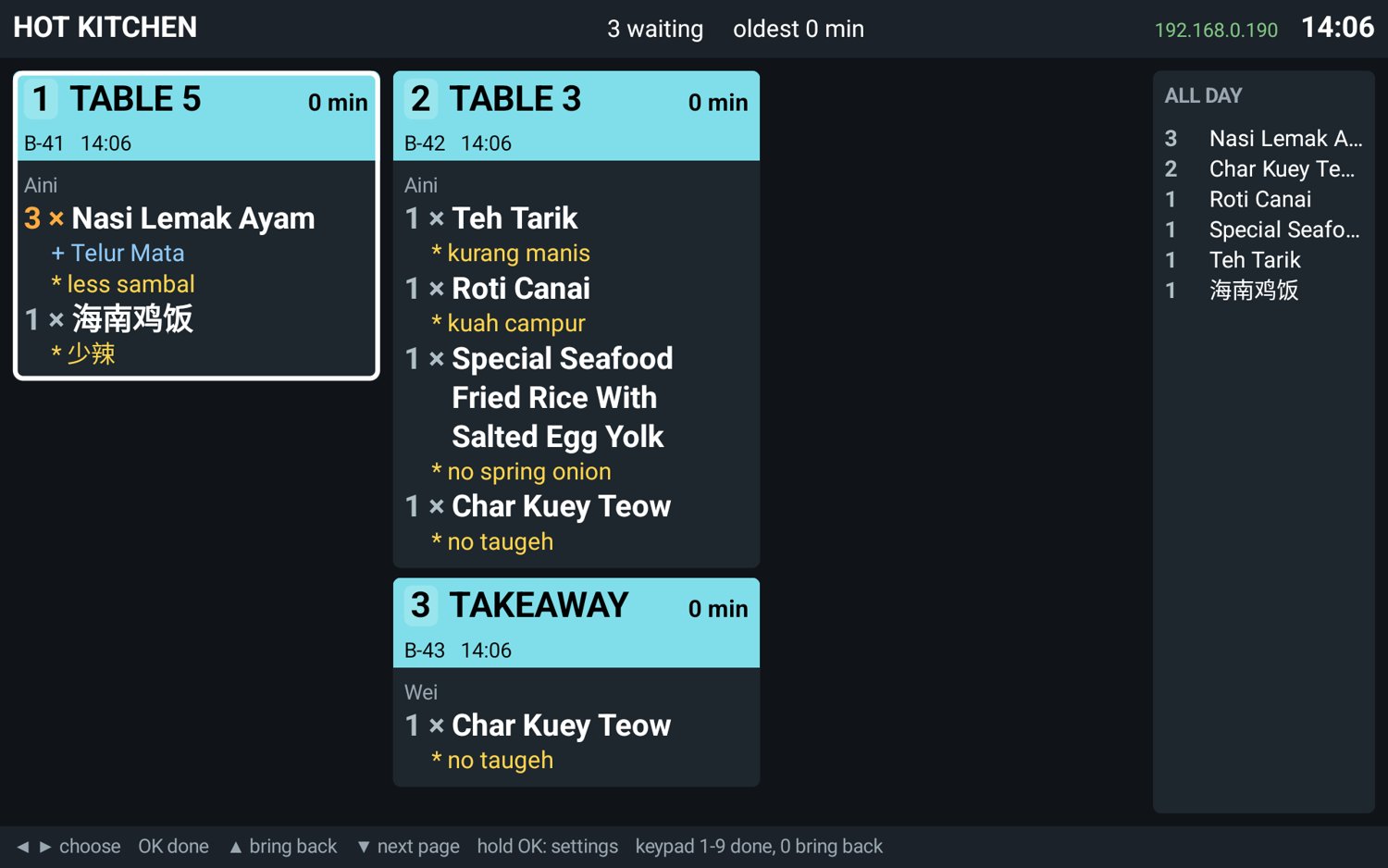
Each order is a ticket, side by side. The heading shows the table or TAKEAWAY, then the order number, the time and the minutes the order has waited. Items show their quantity, add-ons (+) and remarks (*). The ALL DAY list on the right adds up each item on the open tickets. A ticket turns amber and then red as it waits. The bottom line reminds you of the keys.
2. Use the TV remote
Press ◀ or ▶ to choose a ticket and OK to mark it done. ▲ brings back the last done ticket and ▼ shows the next page. Hold OK to open Settings. With a USB keypad, keys 1 to 9 mark that ticket done and 0 brings one back.
3. Work a ticket on the tablet (Kitchen Touch)
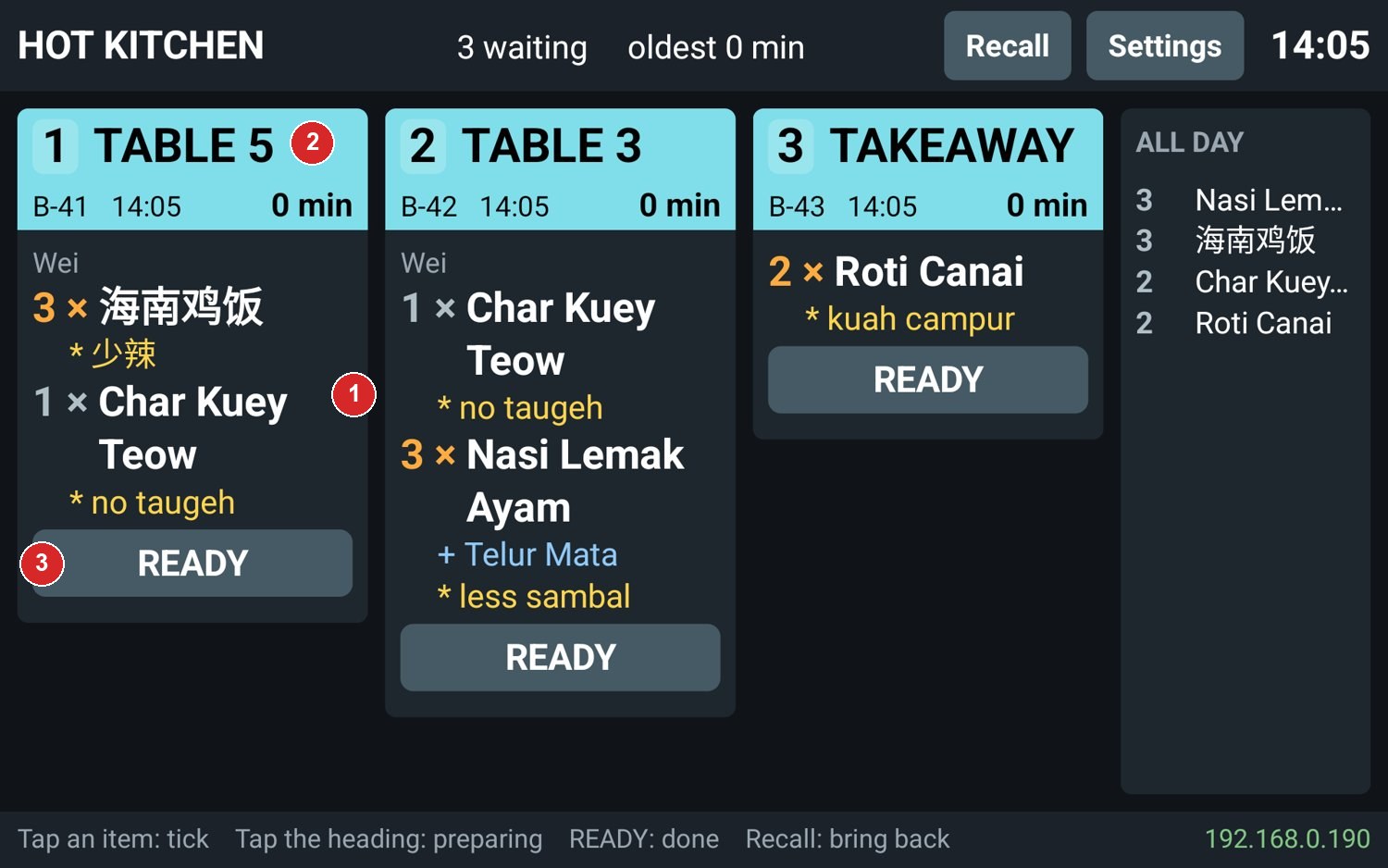
The tablet is used by touch. Tick items as they are made, show when the kitchen has started an order, and tap READY when the whole order is done.
| Step | What to do |
|---|---|
| 1 | Tap an item to tick it. |
| 2 | Tap the heading of a ticket to show that it is being prepared. |
| 3 | Tap READY when the order is done. |
4. Preparing and done
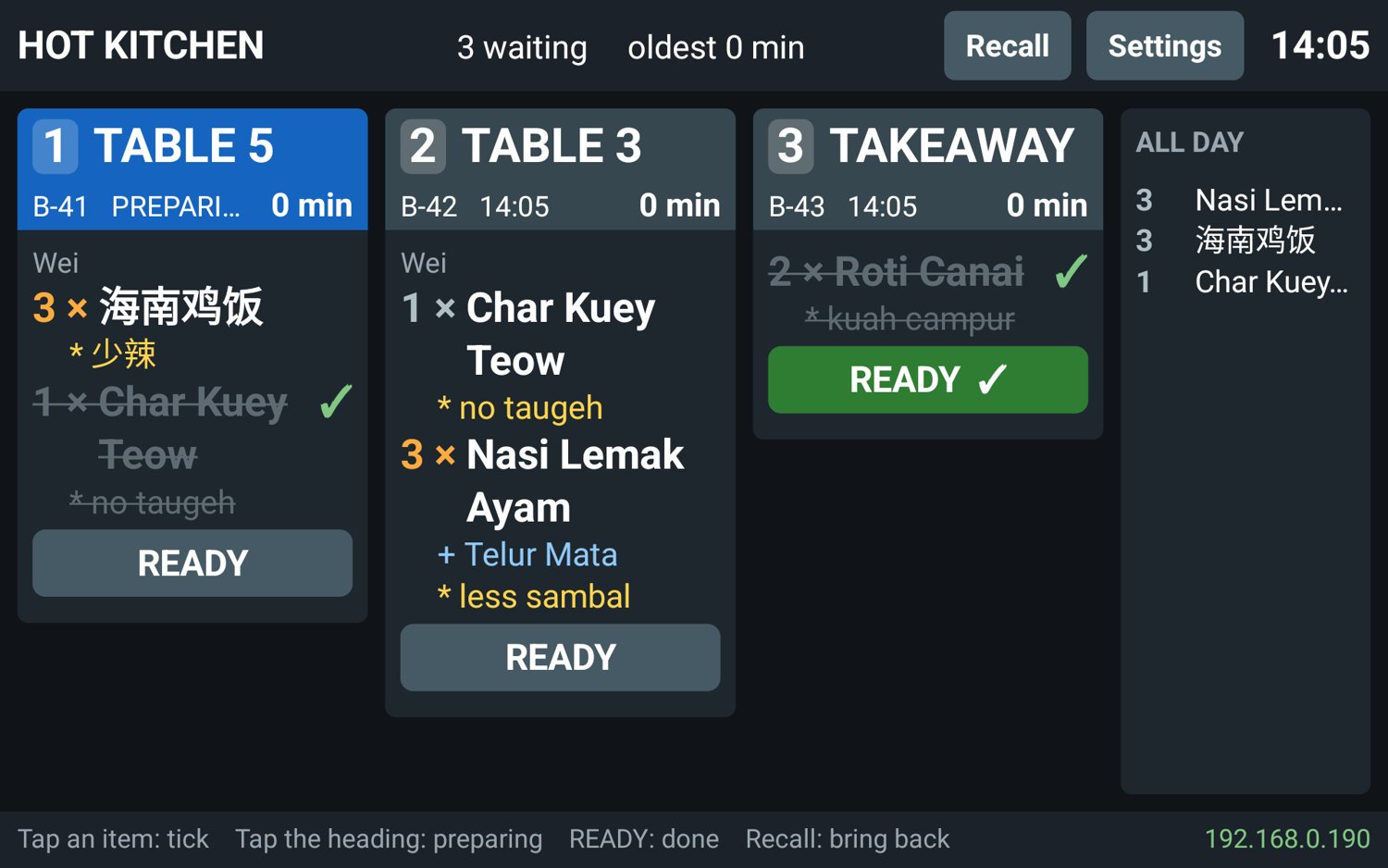
A ticked item is crossed out with a green tick, and the ticket turns blue (PREPARING). When every item is ticked, READY shows a tick. Tap READY and the ticket leaves the board.
5. Bring a ticket back
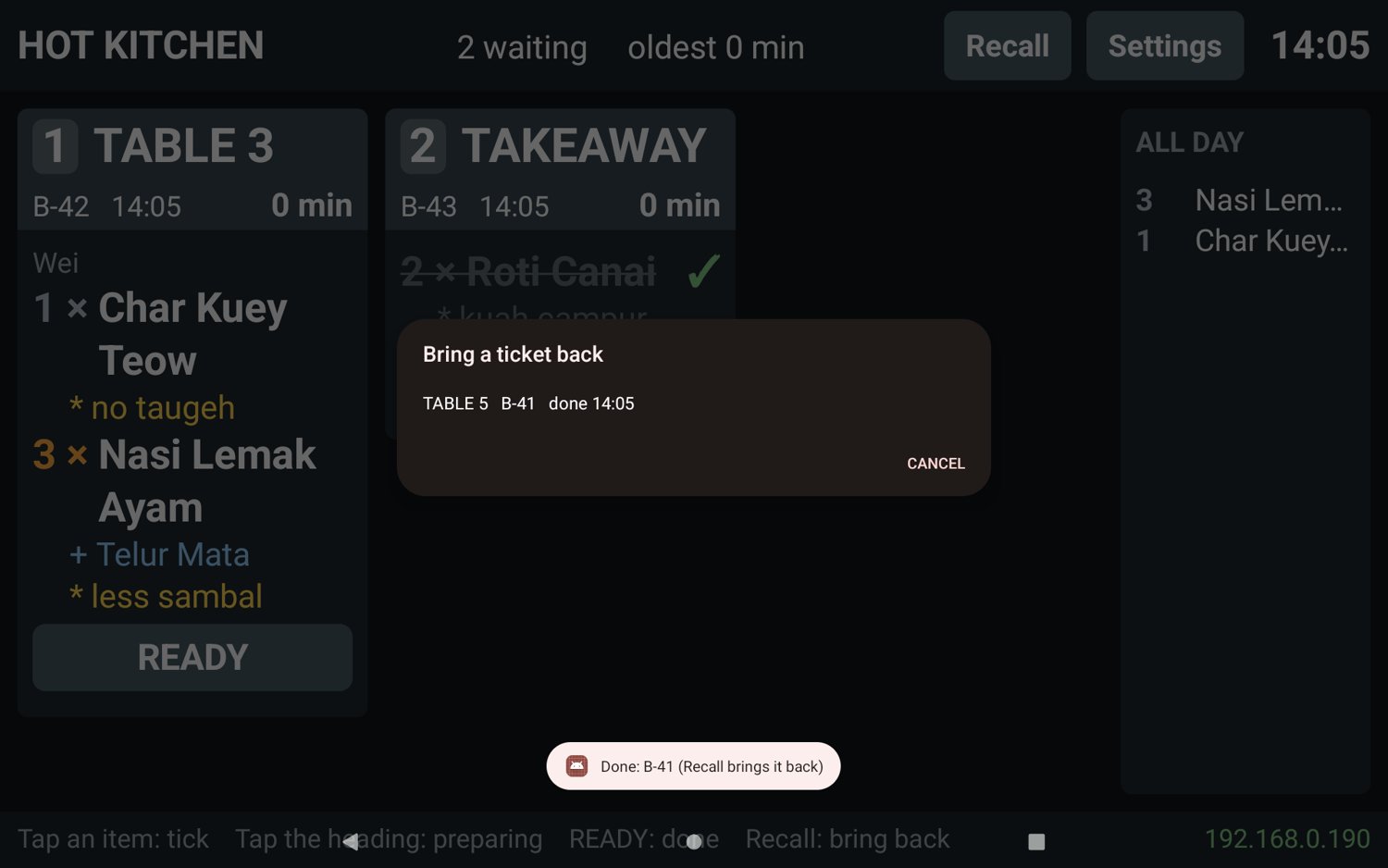
Tap Recall to see the tickets that were done and tap one to bring it back to the board. On the TV press ▲.
6. Cancelled orders
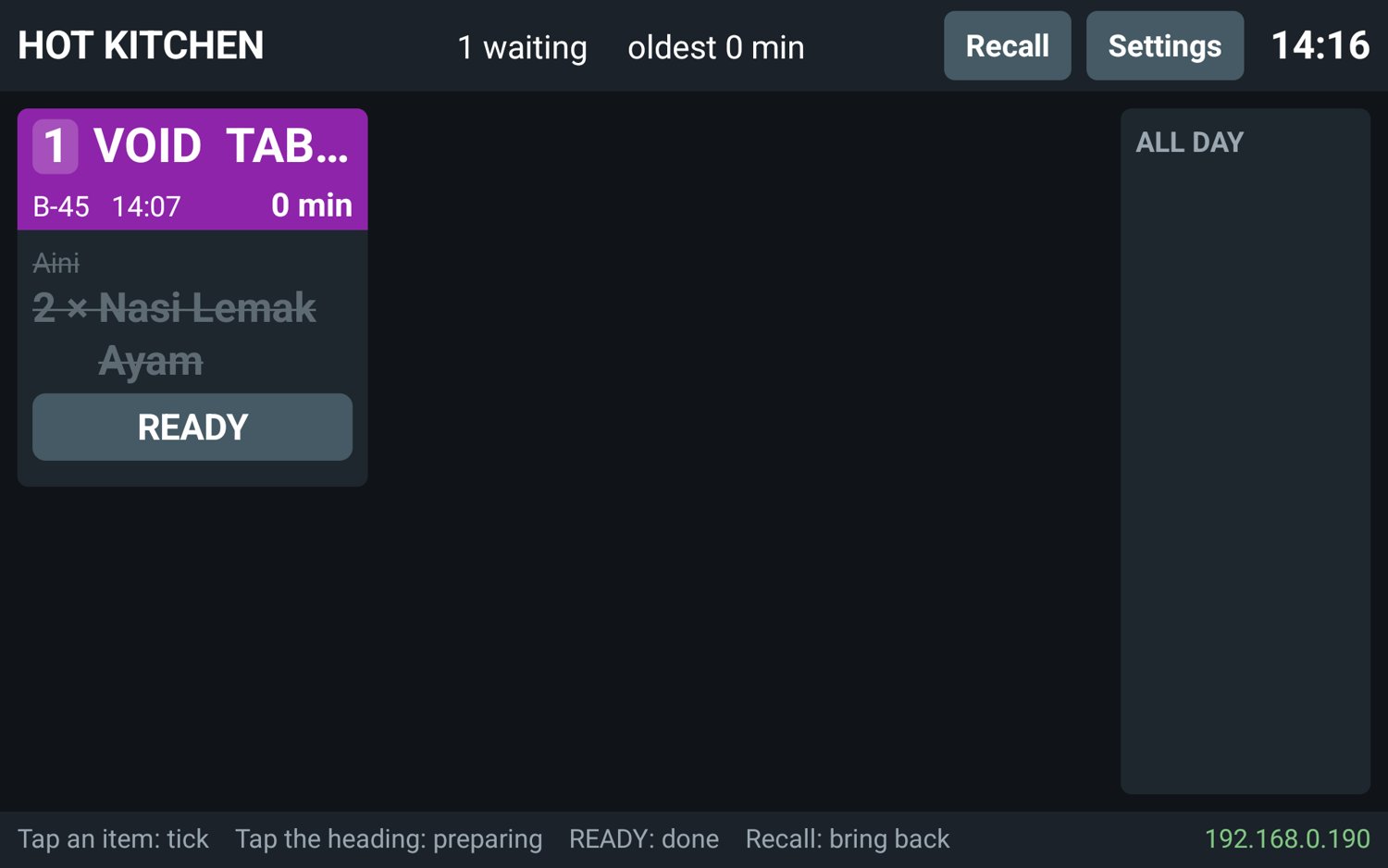
When a bill is voided or refunded at the till, its ticket turns purple with VOID and the items are crossed out, so nobody cooks or serves them. Tap READY to take it off the board. Recall brings it back. With the desktop POS it is the same: a voided bill shows as VOID, and stays on the board until someone taps READY.
7. Late orders, sounds and voice
A new ticket plays a chime, and a ticket that turns red plays a reminder once. With Spoken alerts on, Kitchen Touch also says new, cancelled and late orders, for example “New order, table 5”. Sound and Spoken alerts are switched in Settings. The sound uses the volume of the TV or tablet.
8. The customers’ screen (Order Queue)
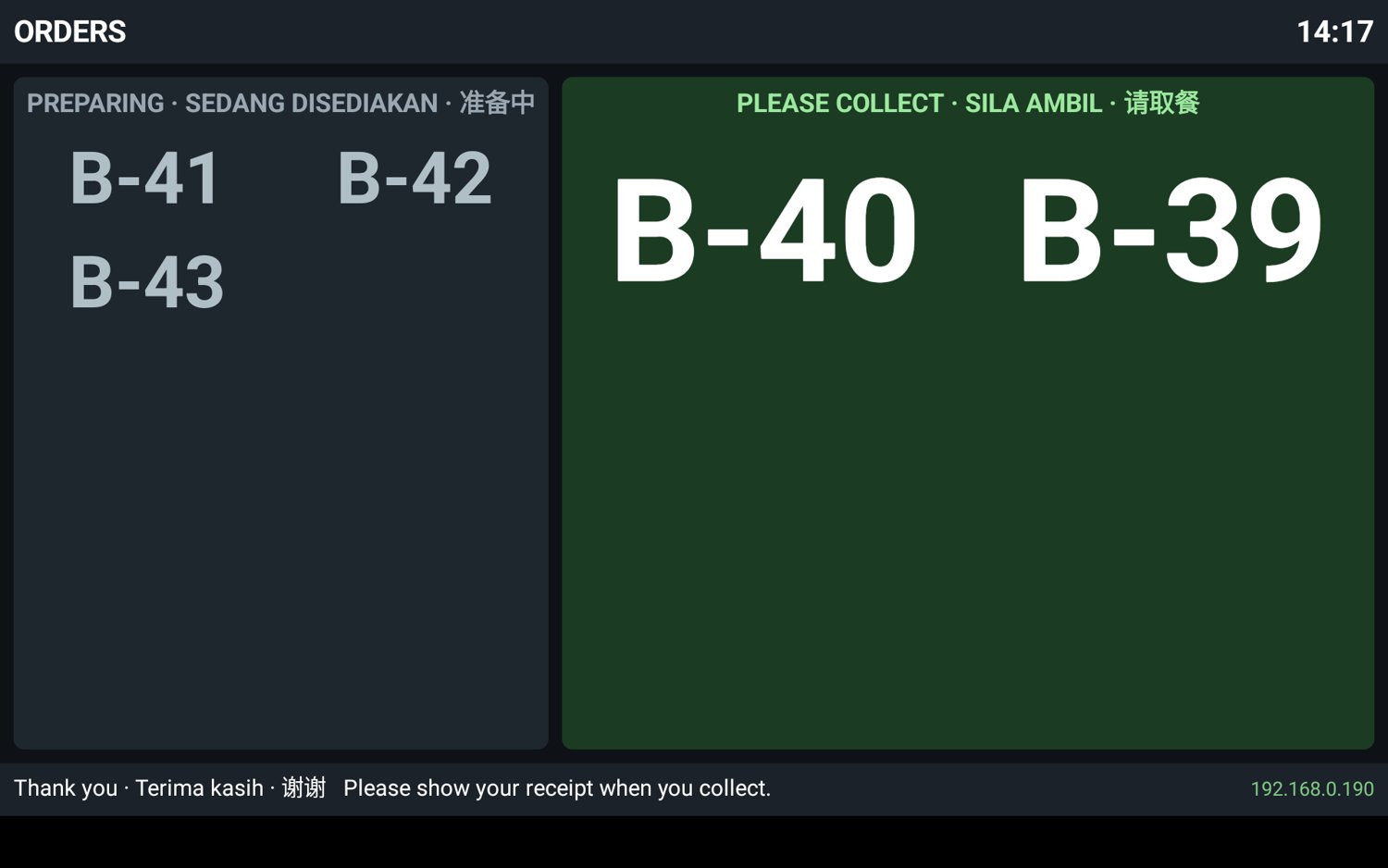
The left side lists the orders being prepared. The right side lists the orders to collect. A number moves to PLEASE COLLECT when every kitchen screen that has the order has said READY, or when a staff member taps it on the queue screen. Tap a number in PLEASE COLLECT when the customer has taken the order and it leaves. Ready numbers also leave by themselves after the time set in Settings (Ready numbers leave the screen after). A new ready number flashes and plays a chime. With Spoken alerts it says, for example, “Order B 41, please collect”.
9. End of the day
Tickets older than the time set in Settings (Take old tickets off after, 12 hours as standard) leave by themselves. Settings > Tickets > Clear all tickets empties the screen.
Tips
- On the queue screen with a remote: OK moves the chosen number on, ▲ or 0 brings one back, and holding OK opens Settings.
- The queue screen shows the number as the till prints it (B-41). Short numbers in Settings shows 41 instead.
Common problems
A ticket was marked done by mistake.
Tap Recall (on the TV press ▲) and choose the ticket to bring it back.
The customers’ screen still shows an order as preparing after the kitchen finished it.
Tap the number on the queue screen to move it to PLEASE COLLECT. Then check that each kitchen screen has the queue screen’s address in Settings > Order queue screen.
The sound is too quiet.
Turn up the volume of the TV or tablet. The chime uses the same volume as music.