
An order was confirmed but its kitchen slip did not print, or it printed on the wrong printer. Go through these checks in order. The order itself is never lost: when a kitchen printer cannot be reached, its slips wait and print by themselves when the printer is back.
Before you start
- Switch the kitchen printer on, load paper and close its cover.
- Know the printer’s IP address if it is a Network (Wi-Fi/LAN) printer.
Steps
1. Check that kitchen slips are switched on
Open Settings > Receipt & printers and find Printer (kitchen slips and receipts). Print kitchen slip for every order must be on. If Pay right after ordering (kiosk / counter) is on in Settings > Selling > Ordering (this device), the kitchen slip prints only after the order is paid, so an unpaid order never reaches the kitchen.
2. Look at the red bar
When a kitchen printer cannot be reached, a red bar shows on the screen: Kitchen printer
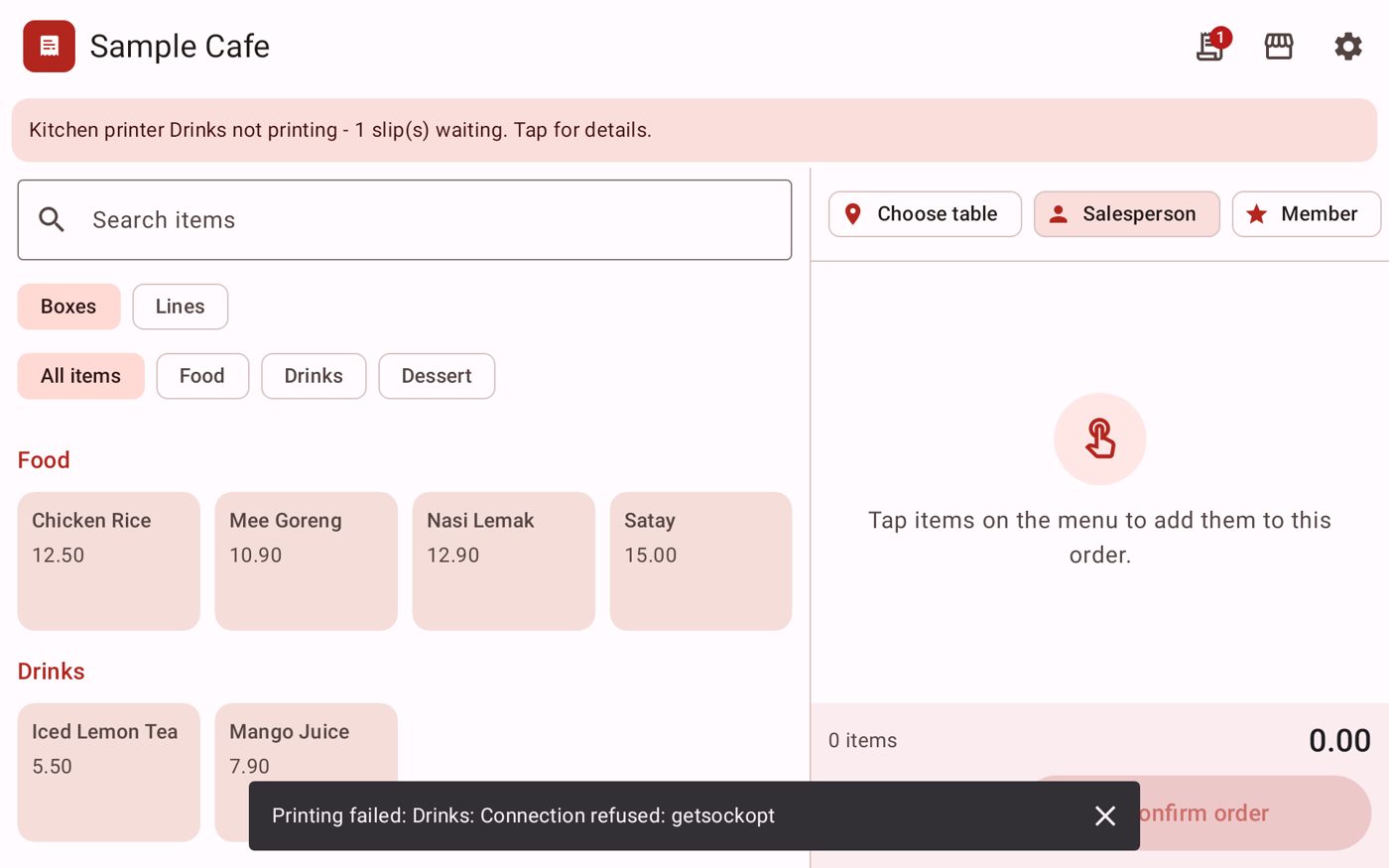
3. Open the waiting slips
Tap the red bar. The window Kitchen slips waiting lists each waiting slip with the printer name, the table, the order number and the time. The slips print by themselves as soon as the printer is back (on, paper, network).
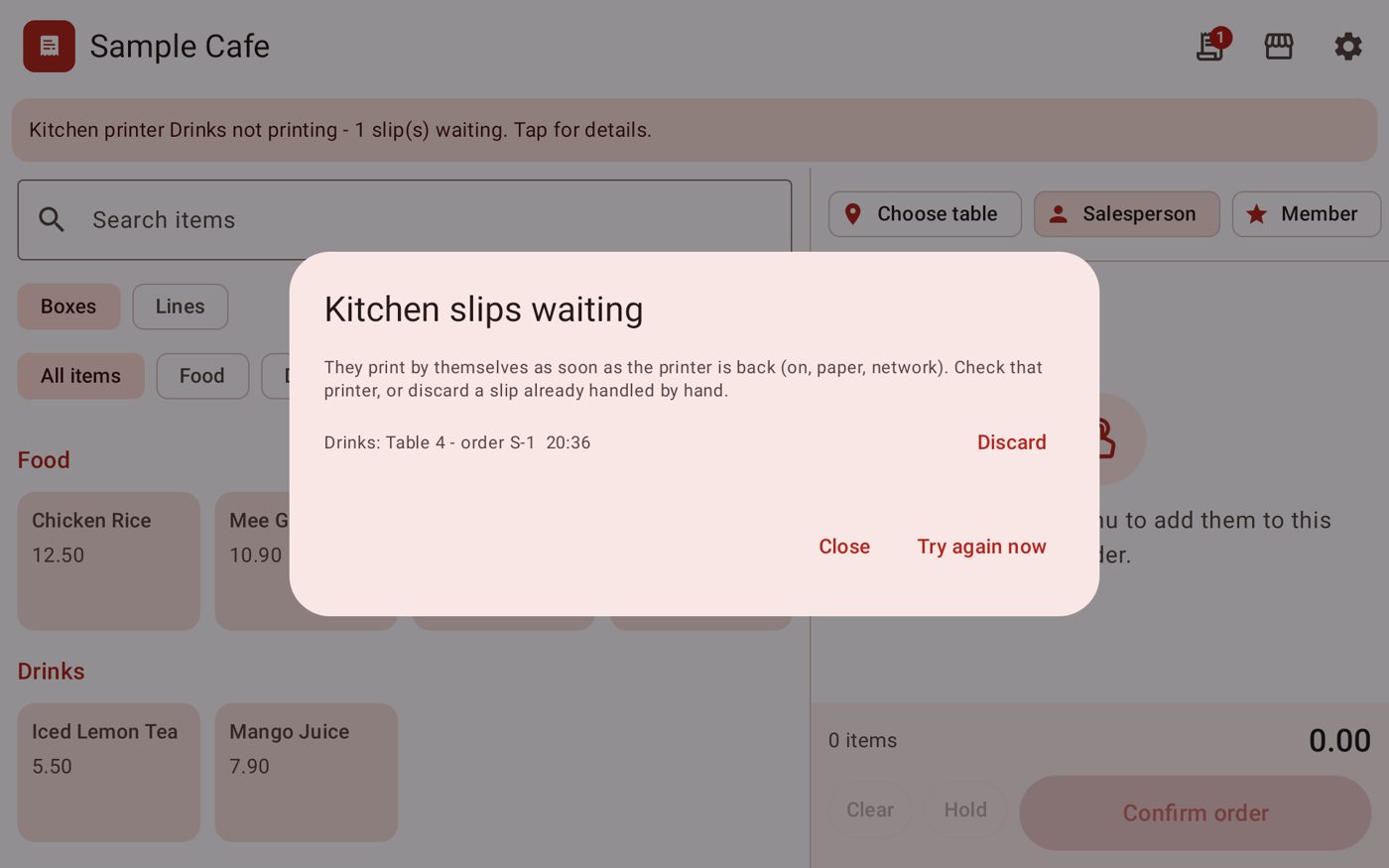
4. Check the printer itself
Check that the printer is on, has paper, and is on the same Wi-Fi or network as this device.
5. Check the printer’s address
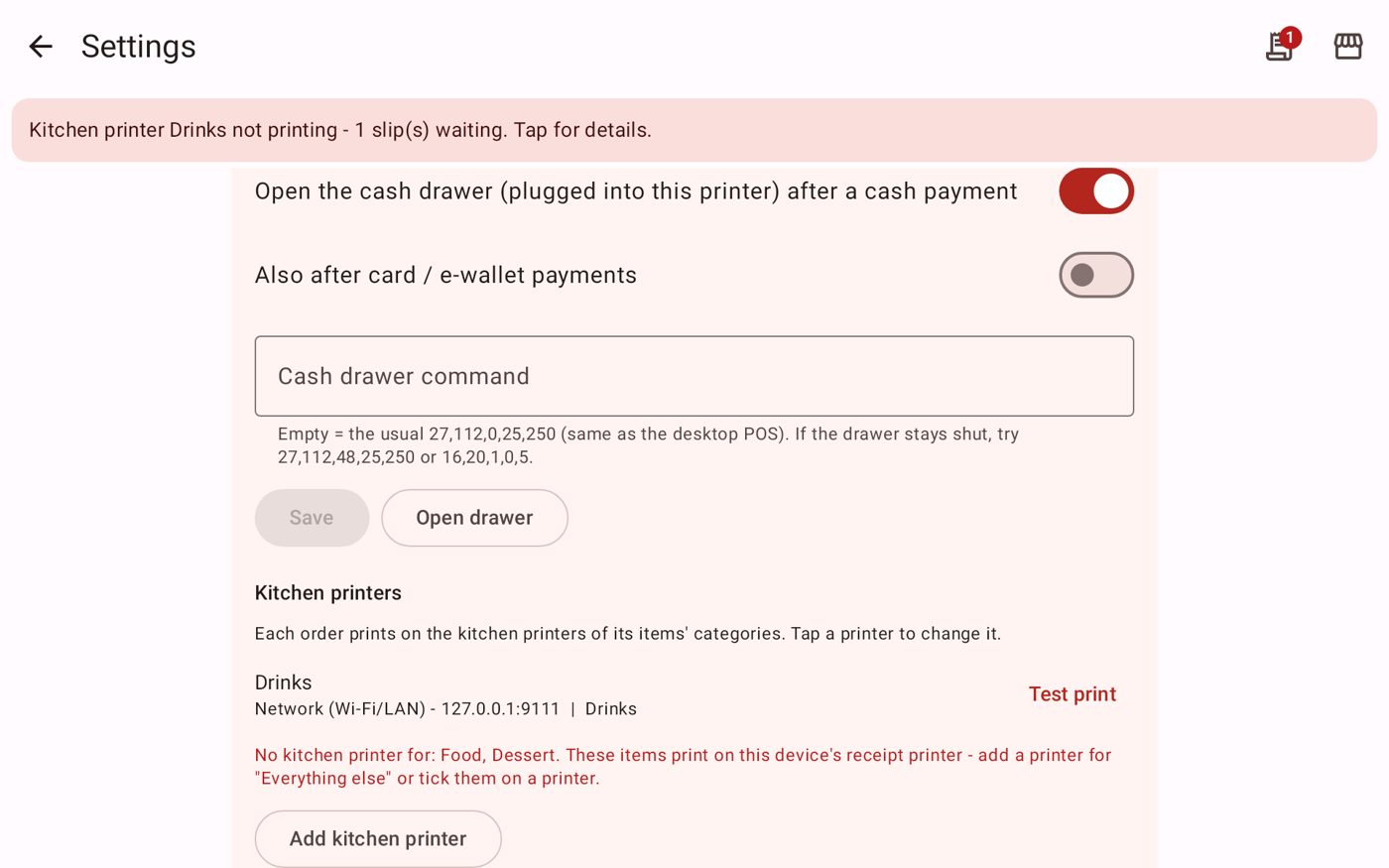
In Settings > Receipt & printers > Printer, find Kitchen printers. Each printer shows its type, its address and its categories. For a Network (Wi-Fi/LAN) printer the address is its IP address, and the port is 9100 unless you add :port. If the printer got a new address, tap the printer, correct the address and tap Save.
6. Send a test print
Tap Test print next to the kitchen printer. If it prints, the message says Sent to the printer. If not, the message says Printing failed: followed by the reason.
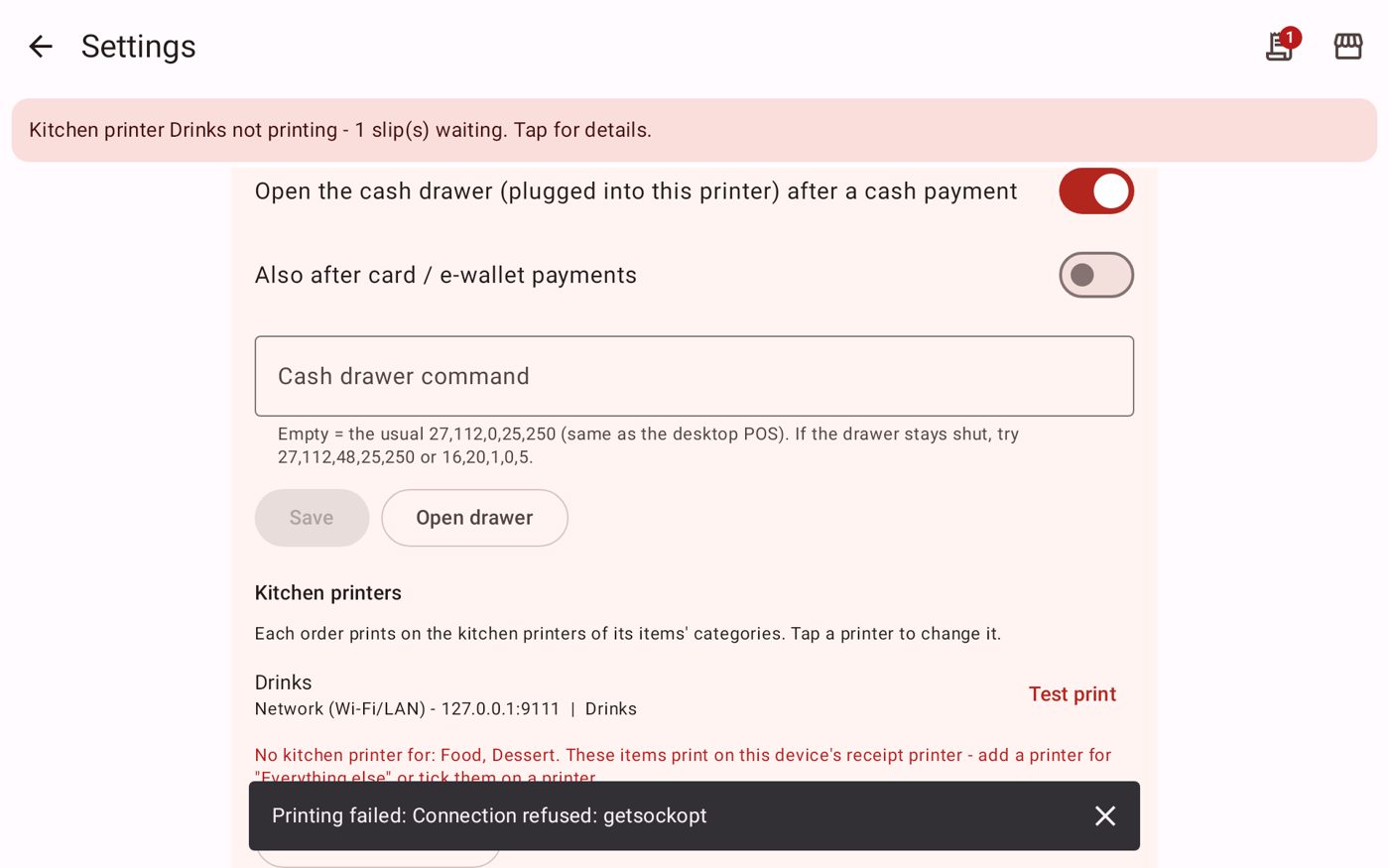
7. Print the waiting slips
Tap the red bar, then tap Try again now. The message says Printed
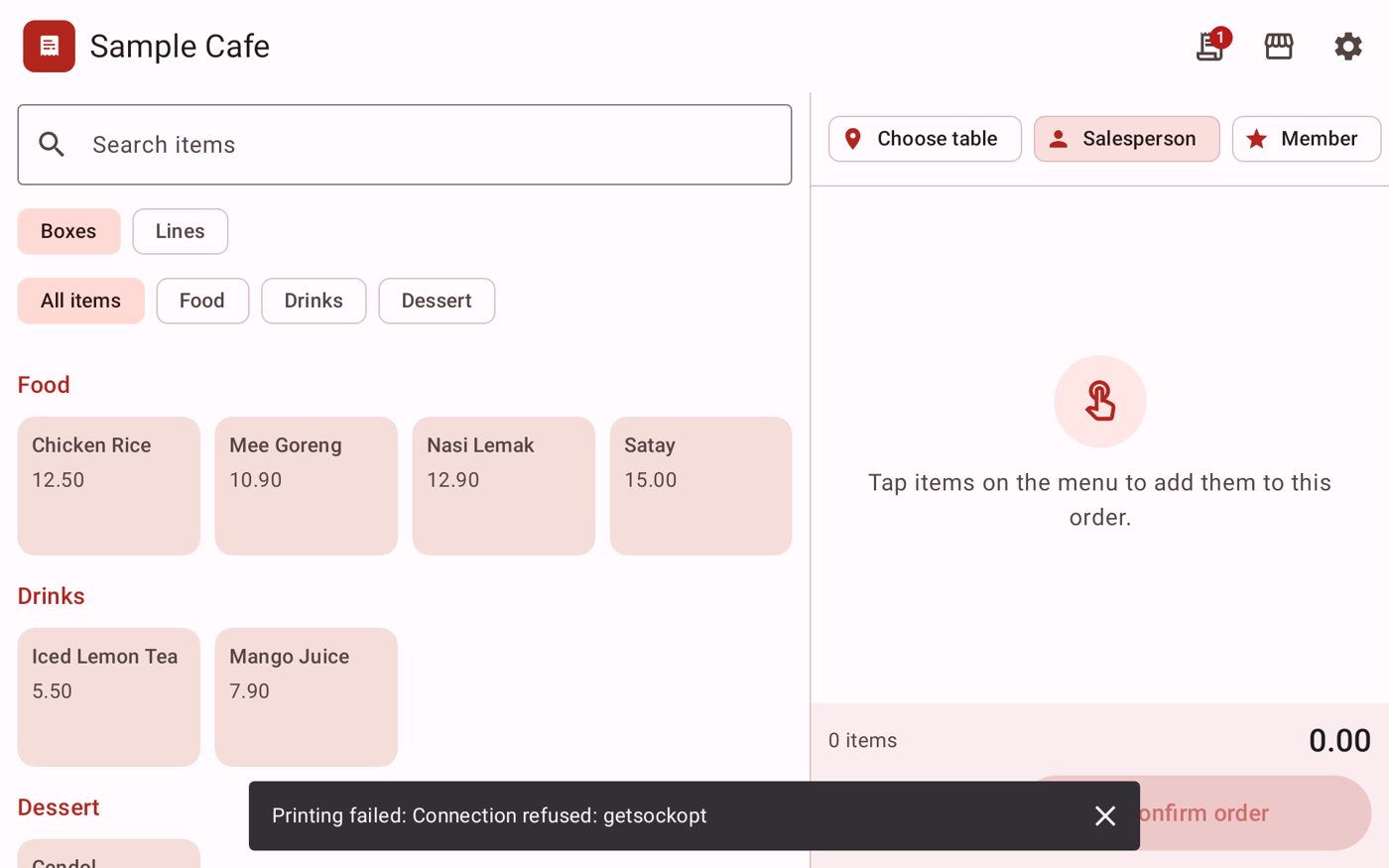
8. Check which printer takes each category
In Settings > Receipt & printers > Printer > Kitchen printers, tap the printer and look at Prints: only the ticked categories print there, and Everything else takes the items that no other kitchen printer takes. An item ticked on two printers prints on both. If a category has no printer, the list says No kitchen printer for:
9. Branch with a POS PC
If the branch PC prints the kitchen slips, a message says Kitchen slip not sent to the branch PC and the app tries again for a few minutes. Then a red bar says
Tips
- Items with no kitchen printer print on the receipt printer. If the receipt printer is None, the message says Printing failed:
item(s) have no kitchen printer. - A Bluetooth kitchen printer prints only from this device. For a printer that several devices use, choose Network (LAN).
- A network printer takes one job at a time. If another device is printing, the app tries again by itself.
- On a terminal, the kitchen printers are set on the main device and are the same on every device of the shop. Change them on the main device.
- To print an order’s kitchen slips again, open the bill in Bills and tap Reprint orders.
Common problems
Test print works but the order does not print there.
Check the categories the printer prints (Settings > Receipt & printers > Printer > Kitchen printers > tap the printer > Prints). The items of the order may belong to a category that another printer takes.
The slip came out on the receipt printer, not the kitchen printer.
The item’s category is not ticked on any kitchen printer. Tick it on a printer, or add a kitchen printer for Everything else.
The red bar stays after the printer is fixed.
Tap the bar and tap Try again now. If the slips were already handled by hand, tap Discard.
Printing failed:
Add a kitchen printer for those categories, or set the receipt printer in Settings > Receipt & printers > Printer so the slip can print there.