
Fill in your whole menu in Excel (or a CSV file) and load it into the Order App in one step. You can also save the menu as a file, edit it and load it back.
Before you start
- Use this on a device that keeps its own menu: a single device or the main device of a shop. A terminal gets its menu from the main device.
- Have the menu file ready on the phone or tablet.
Steps
1. Open Settings
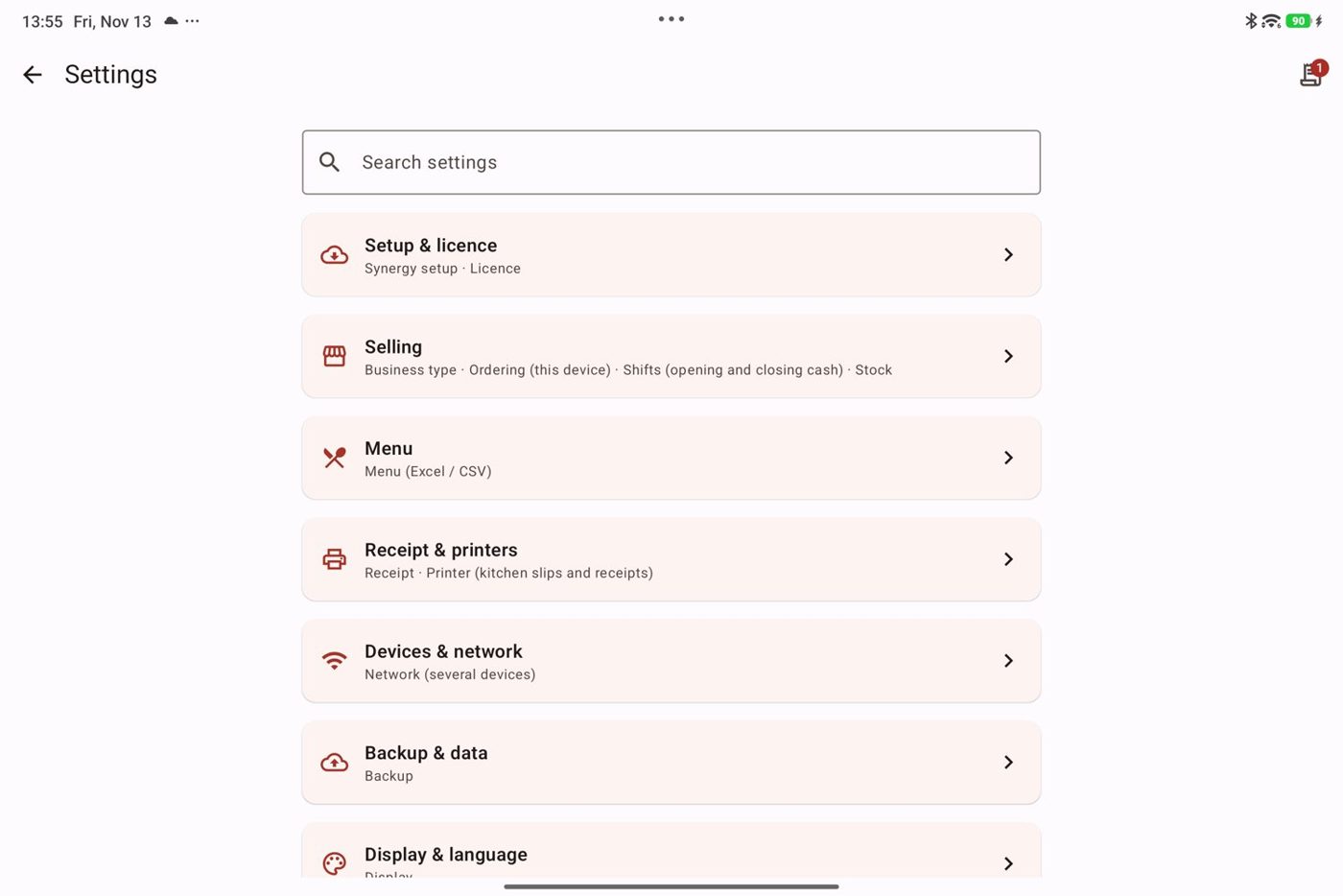
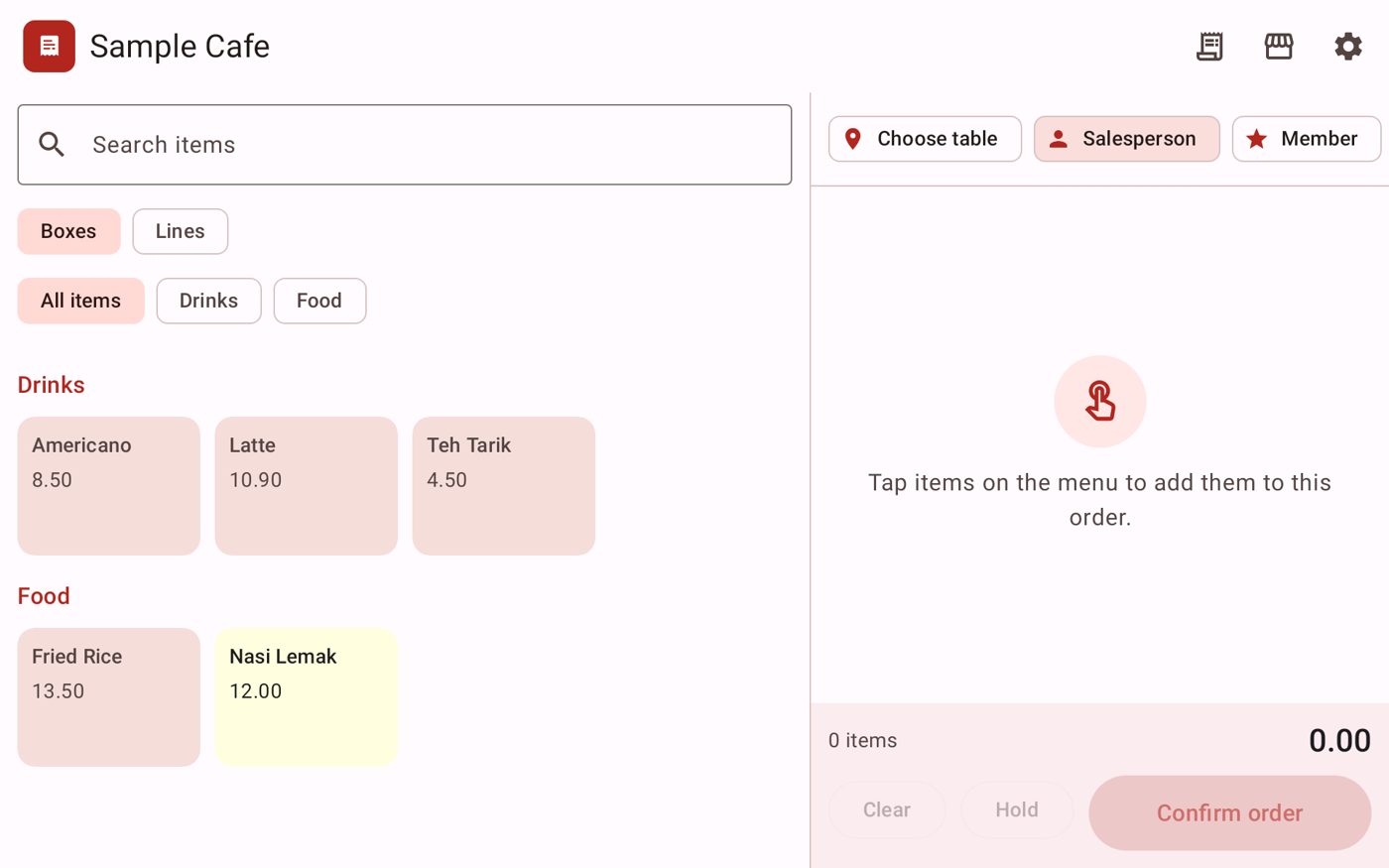
On the order screen, tap the gear icon. Settings opens on a list of groups.
2. Find Menu (Excel / CSV)
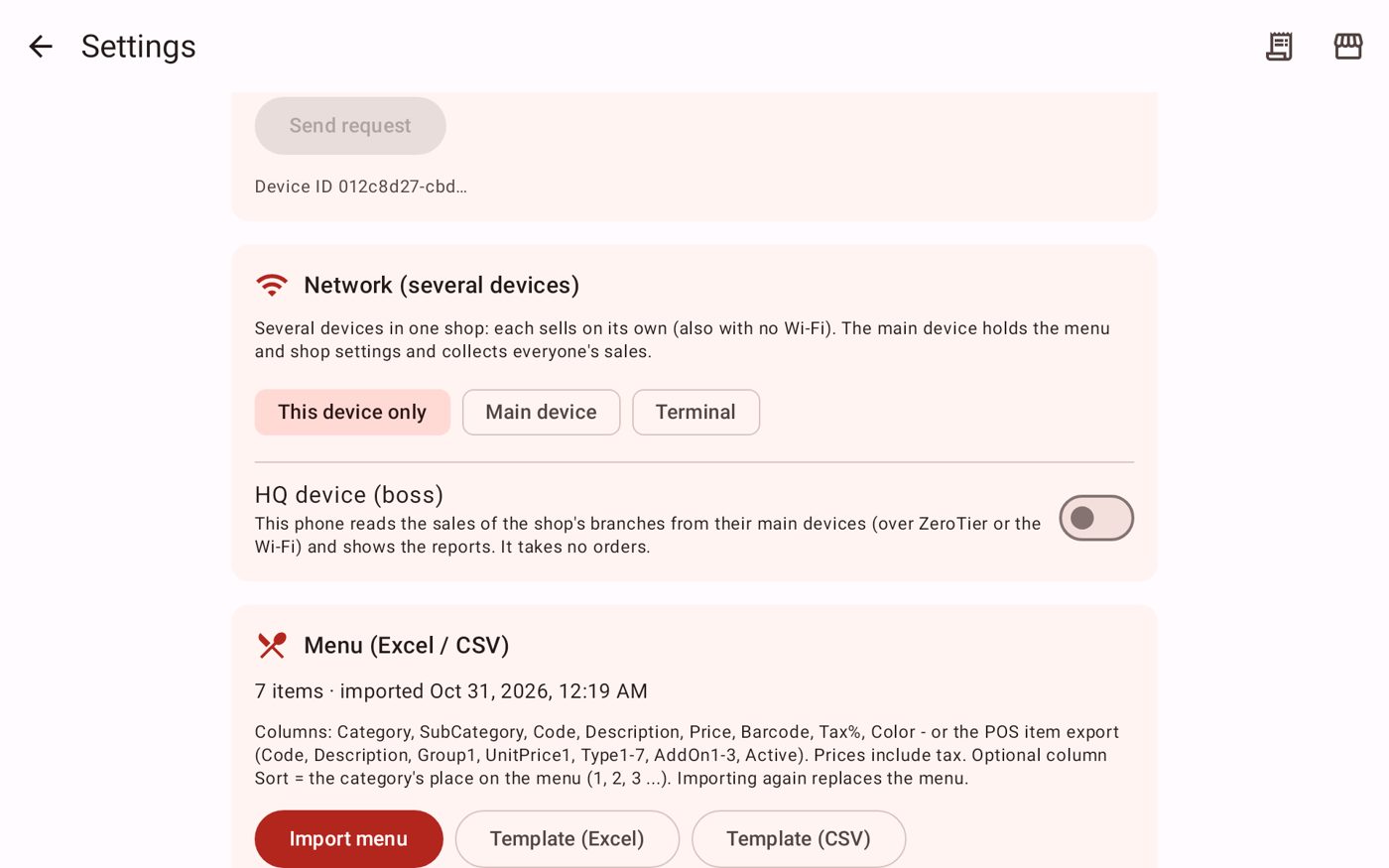
Open the group Menu and find Menu (Excel / CSV). It shows how many items the menu has and when it was imported, and the columns the file needs.
3. Get the template
Tap Template (Excel) or Template (CSV). It gives you a file with the columns Category, SubCategory, Code, Description, Price, Price2, Barcode, Tax% and Color. Fill in one row per item. Category, Code, Description and Price must be filled in. Prices include tax. Price2 is the member price for members on Price 2; leave it empty when there is none.
4. Import the file
Tap Import menu and choose your file. Importing again replaces the menu.
5. Read the message
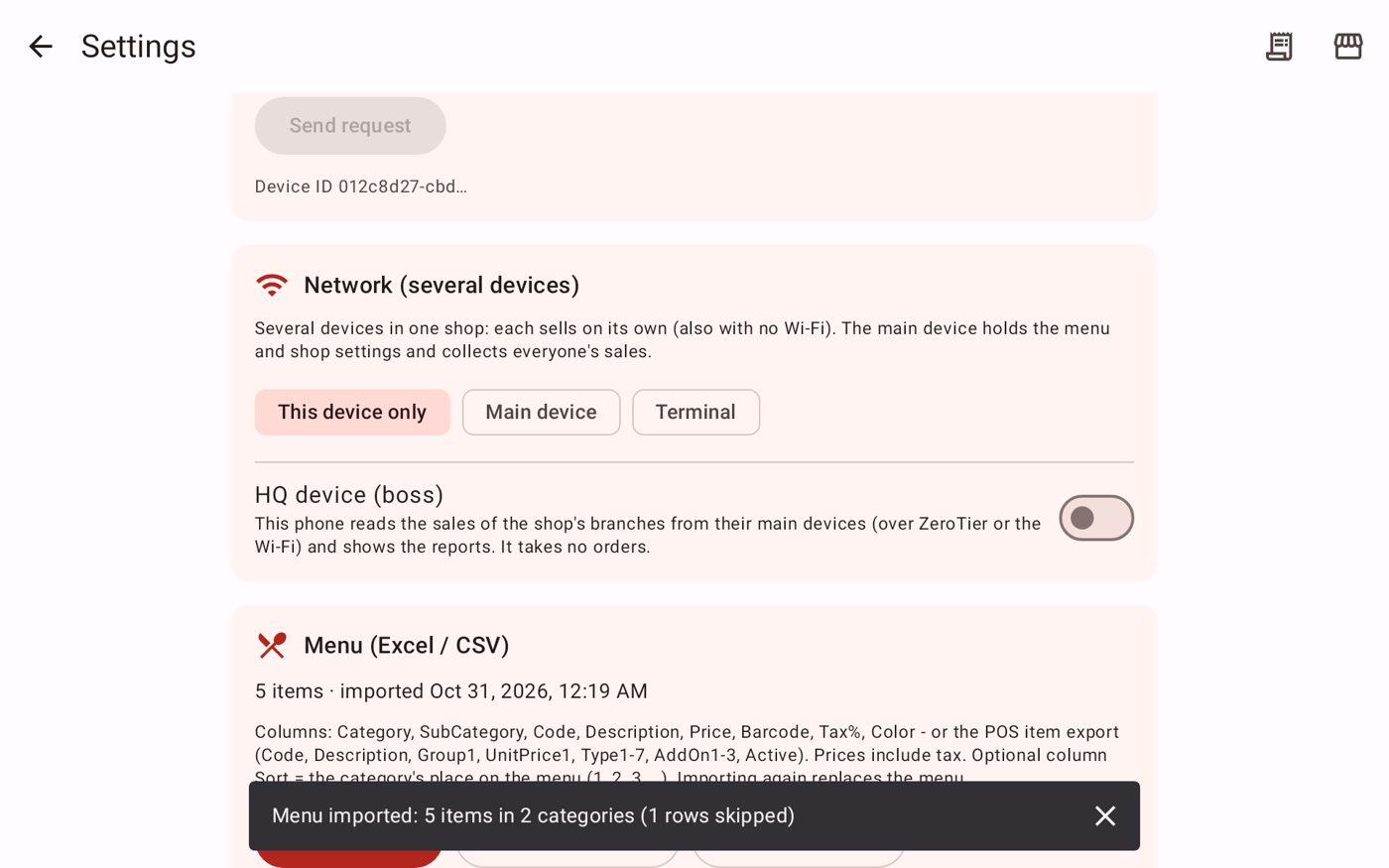
A message says how many items and categories were imported and how many rows were skipped, for example Menu imported: 5 items in 2 categories (1 rows skipped).
6. Check the skipped rows
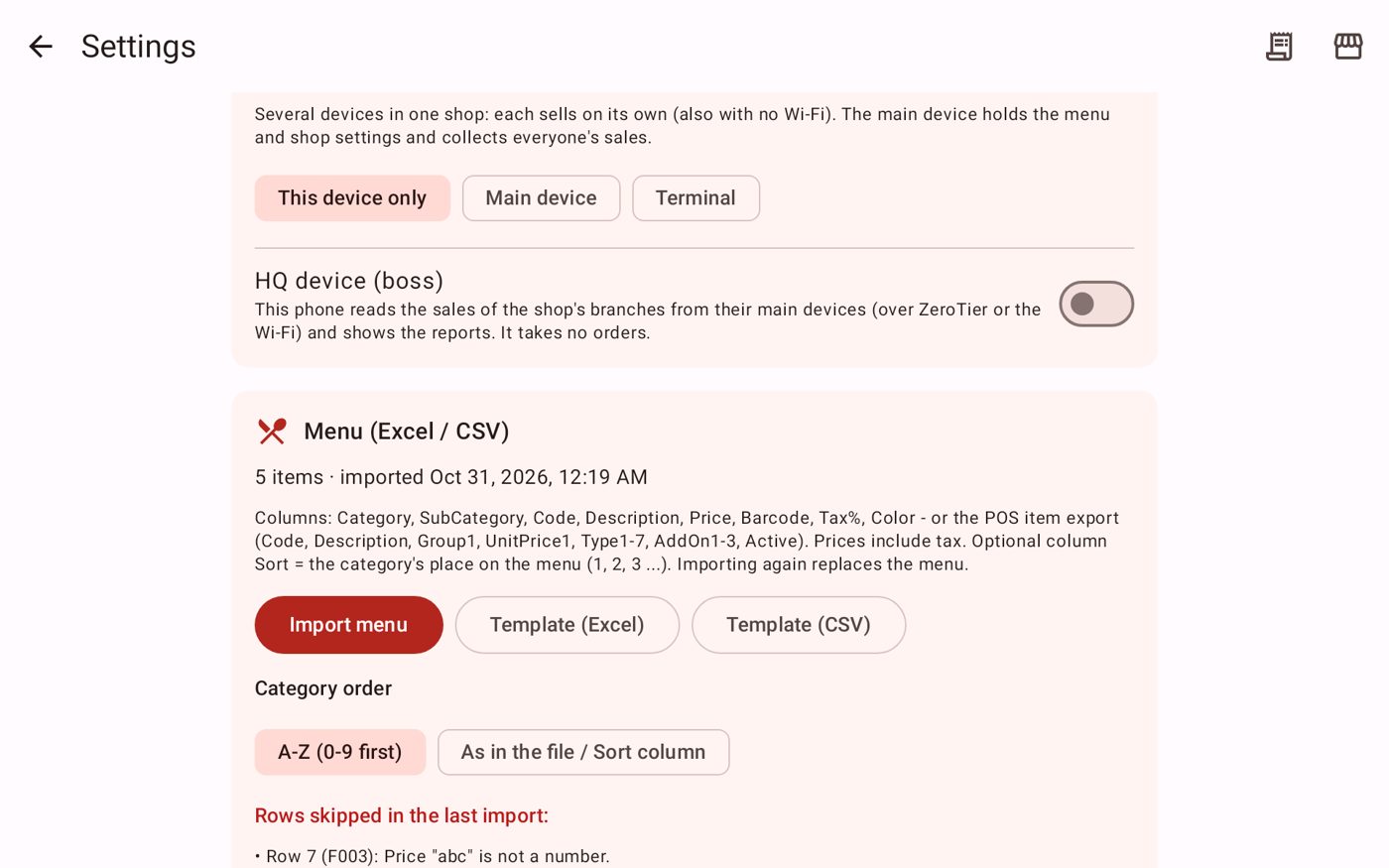
Under Rows skipped in the last import, every skipped row is listed with the reason, for example a price that is not a number. Correct the file and import it again.
7. Check the order screen
Go back to the order screen. It shows the new menu.
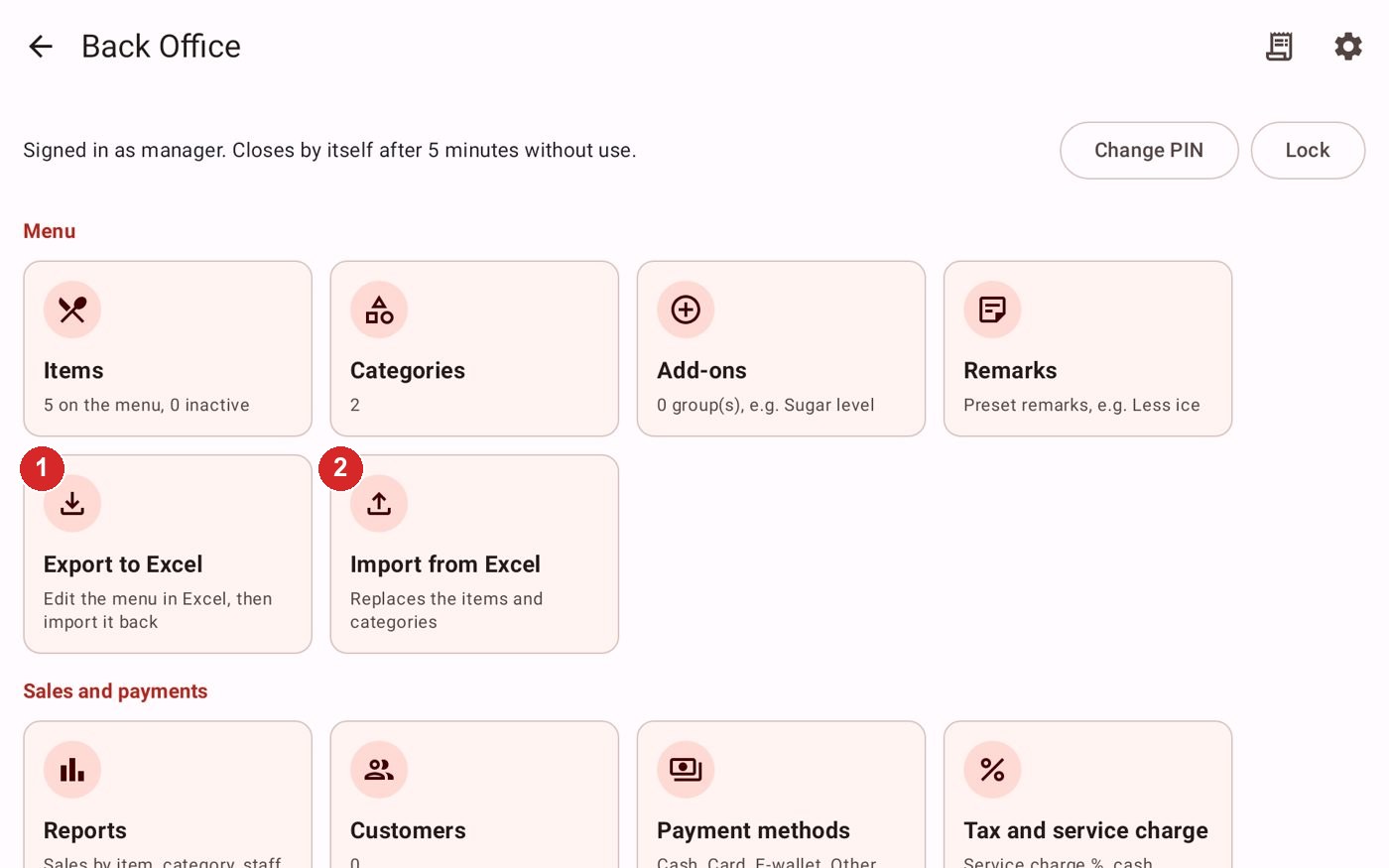
8. Edit the menu in Excel from Back Office
In Back Office, edit the menu in Excel.
| Step | What to do |
|---|---|
| 1 | Tap Export to Excel to save the menu as a file. Edit the file. |
| 2 | Tap Import from Excel to bring it back. It replaces the items and categories. |
Tips
- Category order in the same Settings section: A-Z, or As in the file / Sort column. With a column Sort (1, 2, 3 …) the categories follow your numbers.
- A file made by Export to Excel can be imported back unchanged. Items that are not on the menu have Active = N.
- Importing replaces the items and categories only. Customers, suppliers, staff, tables and settings stay.
- In a shop with several devices, import on the main device. Terminals show a message that the menu comes from the main device.
- The member price column can also be called UnitPrice2 or Member Price. A file without it imports with no member prices.
- Columns Price3, Price4, Price5 and Price6 (or UnitPrice3 to UnitPrice6) are optional: the prices for members on Price 3 to 6. Export to Excel includes them.
- Importing keeps the price types and their prices made in Back Office.
Common problems
A message says Menu not imported.
Check that the first row has the column names and that the file has the columns Category, Code, Description and Price. The message gives the reason.
Some rows are skipped.
A row is skipped when it has no Code, no Category, a price that is not a number, or a Code that appears twice. Fix those rows in the file and import again.