
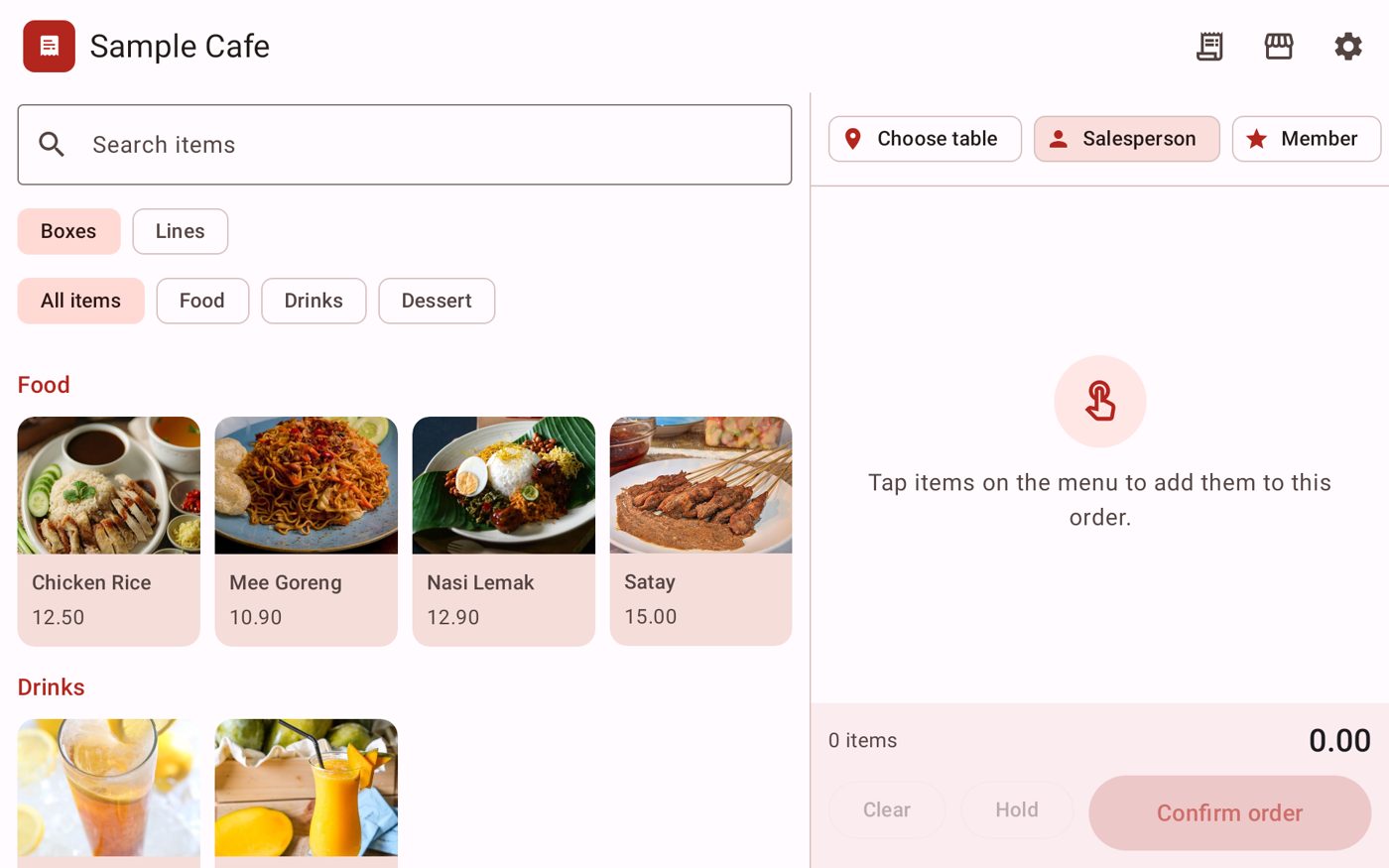
Show a picture on each menu item of the order screen. You can add a photo to one item, or many photos at once.
Before you start
- Back Office is on a device that keeps its own menu: a single device, or the main device of a shop. A terminal gets the menu and the pictures from the main device.
- Keep the Back Office PIN ready. A new item must be saved before it can have a photo.
Steps
1. Open Back Office
Tap the Back Office icon (the storefront) and enter the Back Office PIN. Items is in the Menu group.
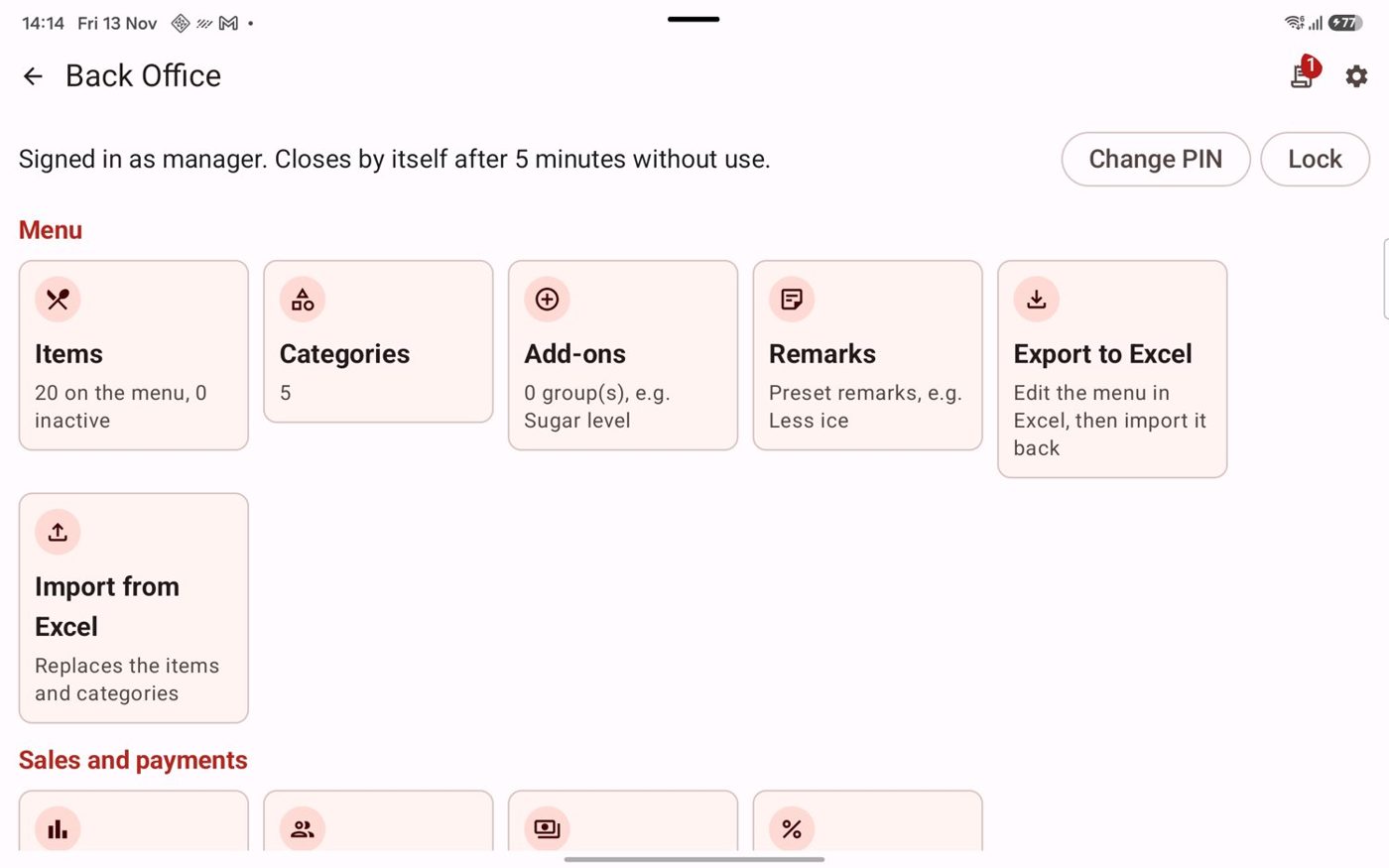
2. Open Items
Tap Items. The list of items opens.
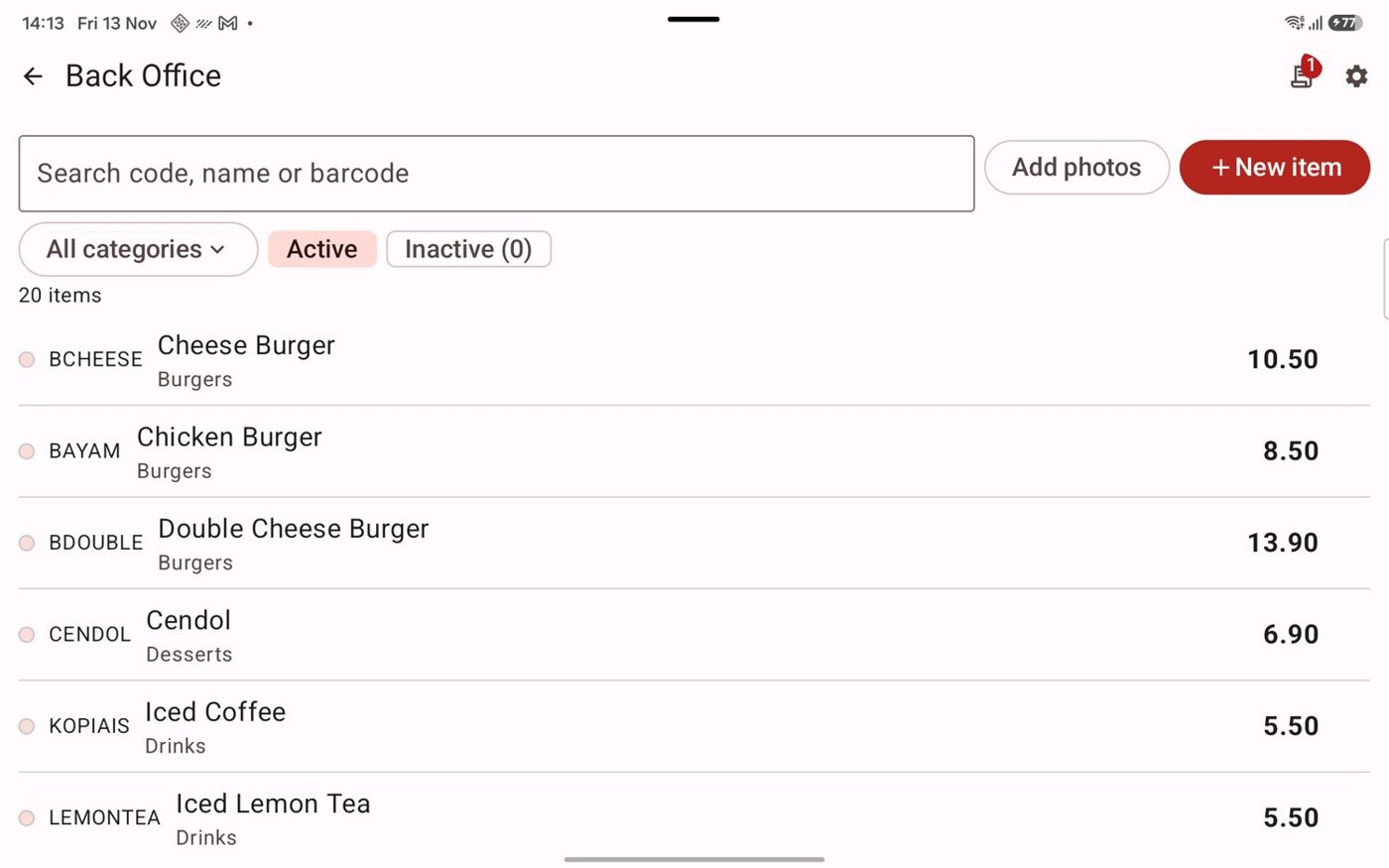
3. Open the item
Tap the item that needs a picture, here Nasi Lemak. At the top of the item page is a photo box that says No photo, with the buttons Camera and Gallery.
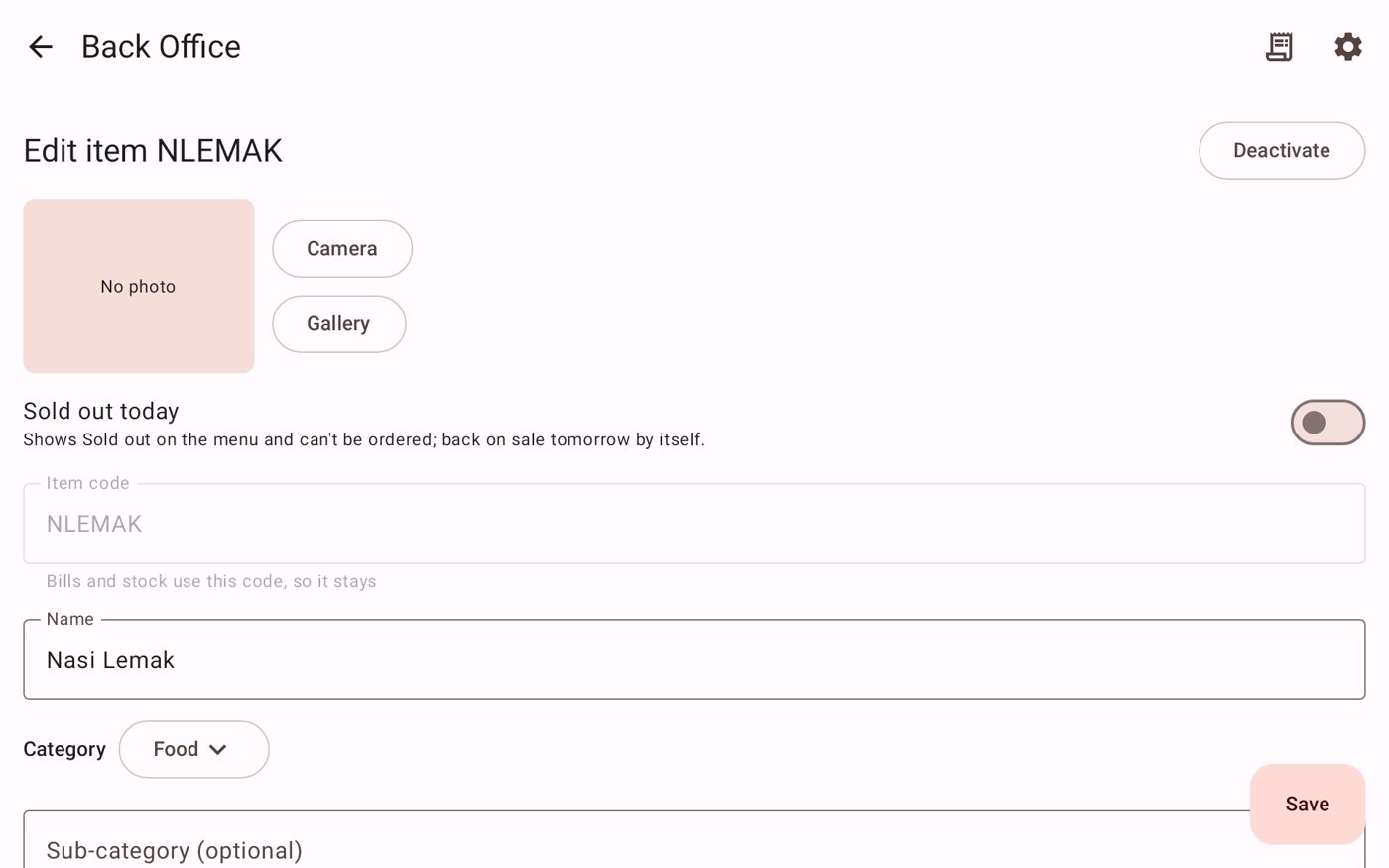
4. Add the picture
The picture shows in the photo box.
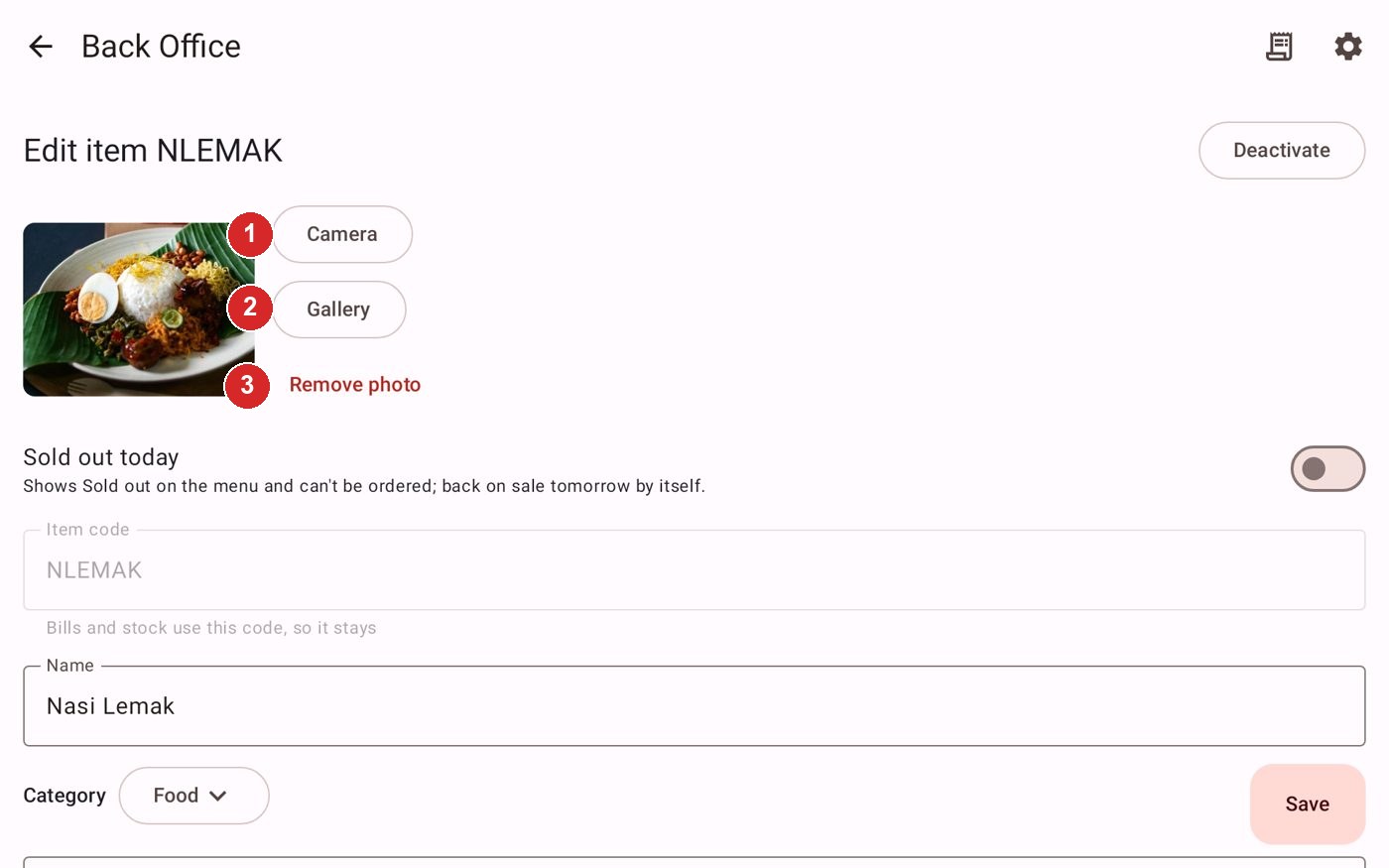
| Step | What to do |
|---|---|
| 1 | Tap Camera to take a picture. |
| 2 | Or tap Gallery to pick one that is already on the phone. |
| 3 | Tap Remove photo to take it off again. |
5. Add many photos at once
Go back to the list of items and tap Add photos. Pick many pictures at one time. Name each file after the item code or the item name, for example D010.jpg or Orange Juice.jpg. A message says how many photos were added and lists the files that did not match an item.
6. Check the order screen
Go back to the order screen. The items now show their pictures.
Tips
- The first time you tap Camera, Android asks to allow the camera. Gallery needs no permission.
- Pictures are made smaller by themselves, so each one takes little space.
- On the main device of a shop, a change goes to the other devices within a few seconds.
- A backup of the app also holds the pictures.
Common problems
A file was not matched to an item.
Rename the file to the exact item code or the exact item name (capital letters and spaces do not matter) and add it again.
The new item has no photo box.
Save the item first, then open it again to add its photo.