
Let several devices in one shop share one menu and one set of sales. One device is the Main device; the others are Terminals.
Before you start
- Choose the device that will be the main device. Keep it switched on and on the shop Wi-Fi.
- Have the new device ready, on the same shop Wi-Fi.
Steps
1. Make one device the main device
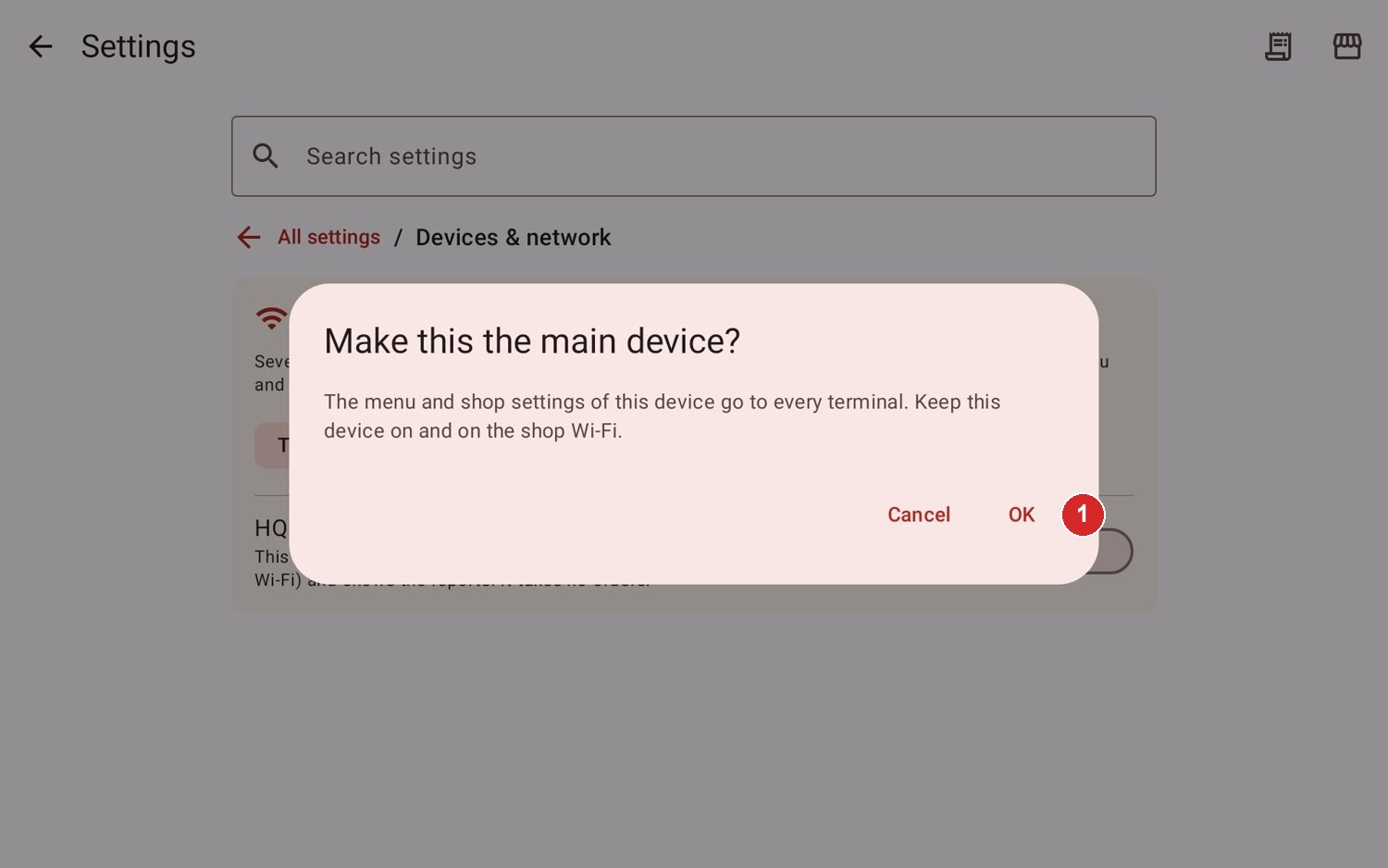
On the main device, open Settings and the group Devices & network. In Network (several devices) tap Main device. A message asks: Make this the main device? Tap OK.
| Step | What to do |
|---|---|
| 1 | Tap OK. |
2. Add a device
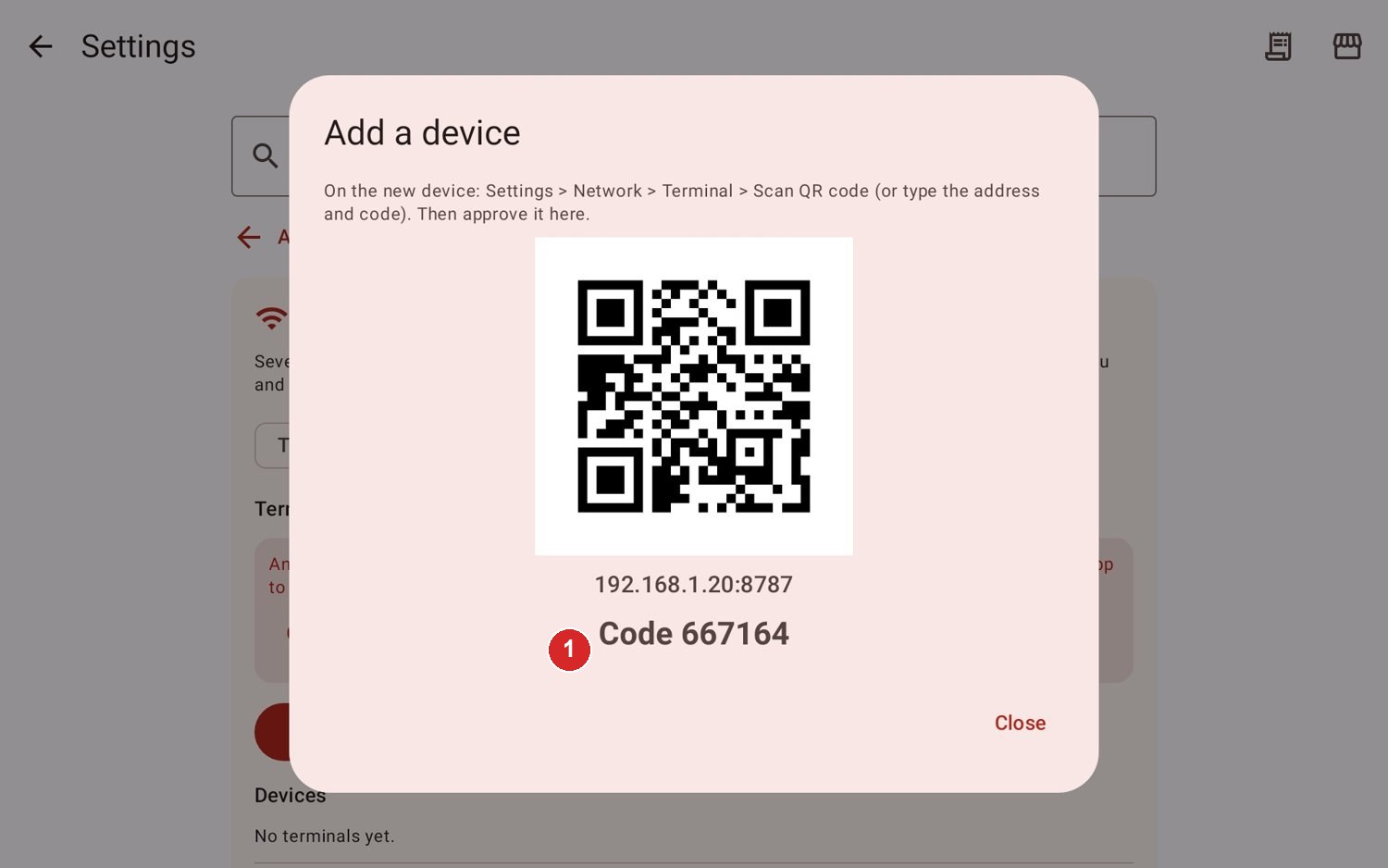
On the main device tap Add a device. A QR code, the addresses and a 6-digit code appear. Keep this window open.
| Step | What to do |
|---|---|
| 1 | Note the 6-digit code. |
3. Join from the new device
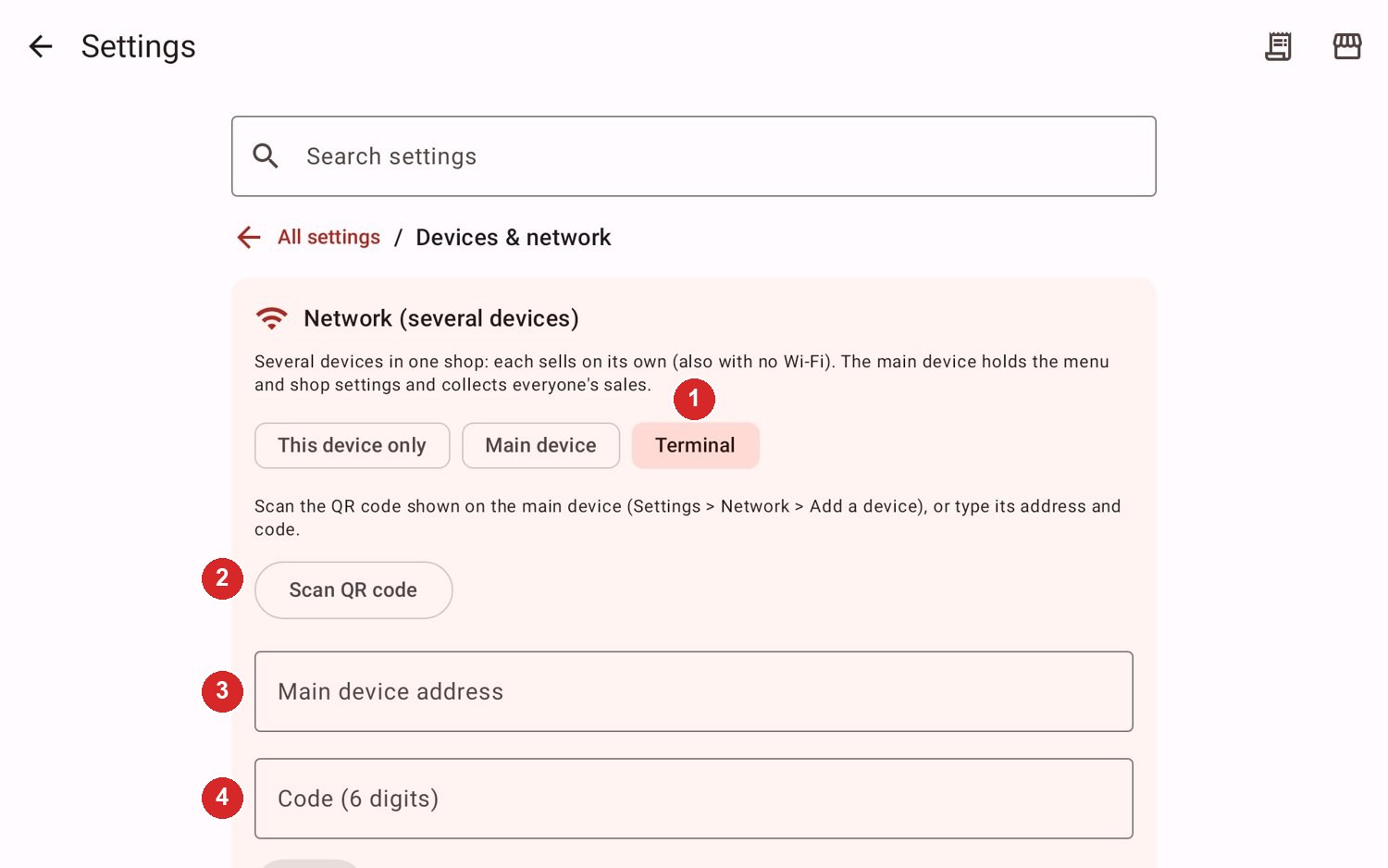
On the new device open Settings, Devices & network, Network (several devices) and tap Terminal. Scan the QR code, or type the main device address and the code, and tap Join.
| Step | What to do |
|---|---|
| 1 | Tap Terminal. |
| 2 | Tap Scan QR code, |
| 3 | or type the Main device address |
| 4 | and the Code (6 digits). |
4. Approve the new device
On the main device a message says that the new device wants to join. Tap Add device to approve it, or Refuse.
5. What is shared
The main device holds the menu and the shop settings and collects everyone’s sales. The terminals get the menu and settings from it, checked every 30 seconds, and selling never waits for the network. Import the menu on the main device only.
6. Take a device out
A lost or broken terminal can be retired on the main device; the sales already received stay in the reports. To use a device alone again, choose This device only.
Tips
- Keep the main device on and on the shop Wi-Fi.
- A terminal’s menu and settings come from the main device. Change them there.
- Android may stop the main device’s service to save battery. Set the app to Unrestricted or Don’t optimise.
Common problems
The terminal cannot join.
Check that the main device is switched on and on the shop Wi-Fi, that the Add a device window is still open, and that you typed the address and the 6-digit code exactly as shown.
The terminal joined but is not approved yet.
Approve it on the main device. A new device is added only after the main device approves it.
The terminals stop syncing after a while.
Android may have stopped the main device’s service to save battery. Set the Order App to Unrestricted or Don’t optimise on the main device.
The menu on a terminal is old.
The menu comes from the main device and is checked every 30 seconds. Change the menu on the main device.