
A branch phone sells by itself, even when HQ cannot be reached. This guide shows how to check HQ sync on the Shift & HQ screen and send your bills to HQ when you are online again.
Before you start
- Your phone must be a branch phone, with its own shift open.
- The phone keeps selling while HQ cannot be reached. The bills stay on the phone and go to HQ later.
Steps
1. Check the order screen
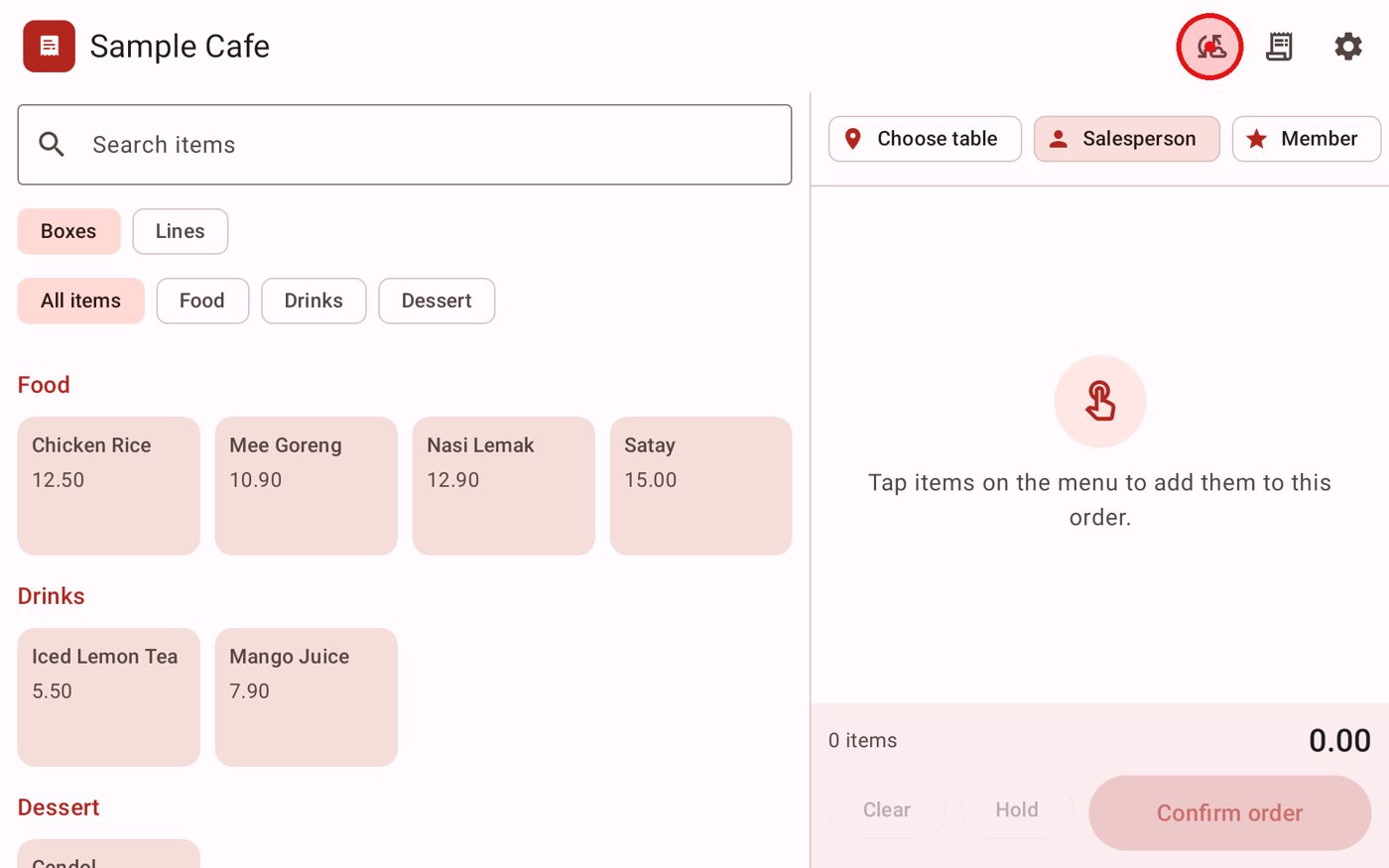
On the order screen of the branch phone, sell as usual. In this example the shift is open and three cash bills are paid.
2. Open Shift & HQ
Tap the icon at the top to open Shift & HQ. The shift card is at the top of the screen.
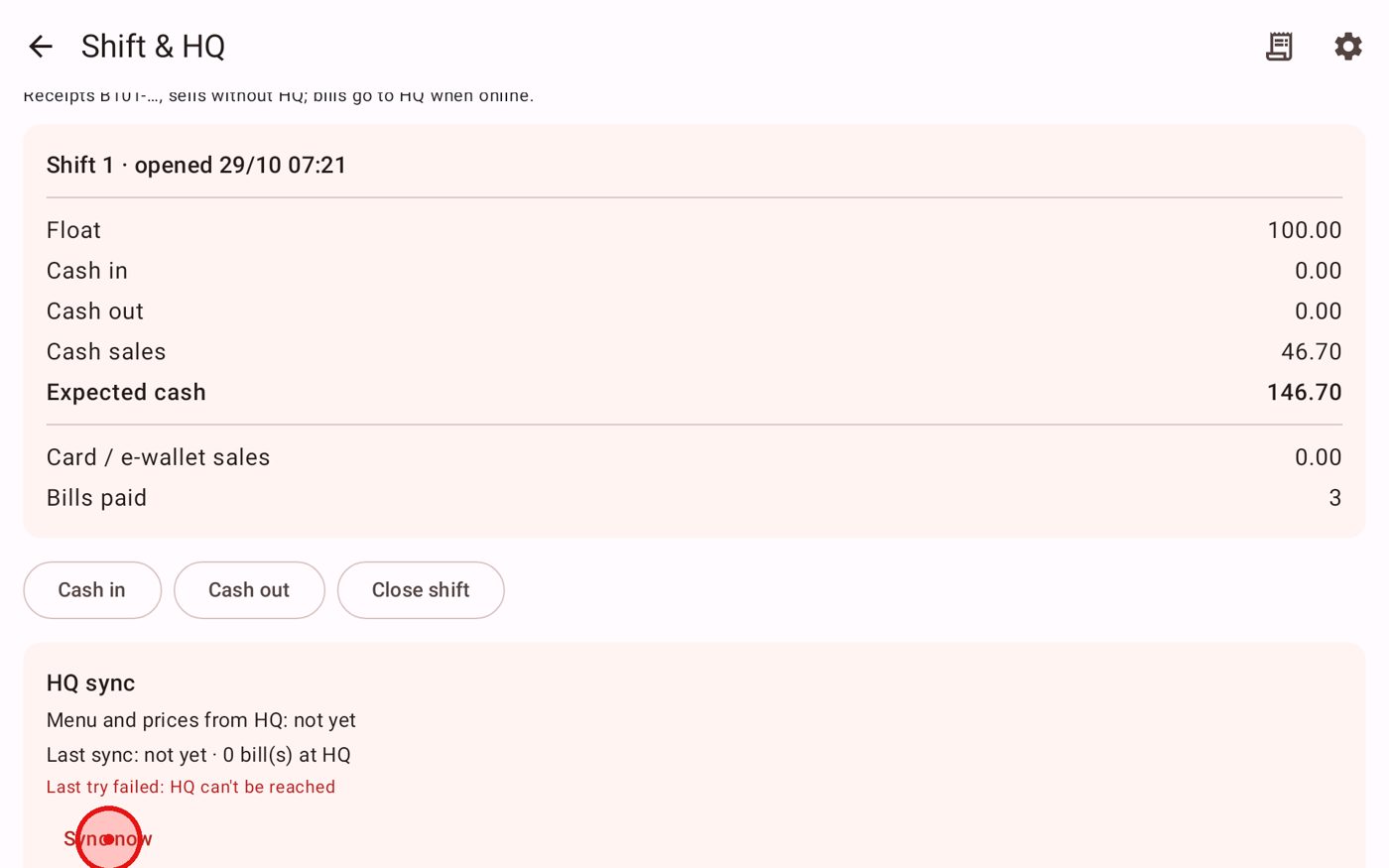
3. Scroll down to HQ sync
Scroll down to HQ sync. If HQ cannot be reached, it says Menu and prices from HQ: not yet and Last try failed. Your bills stay on the phone and go to HQ later.
4. Tap Sync now when online
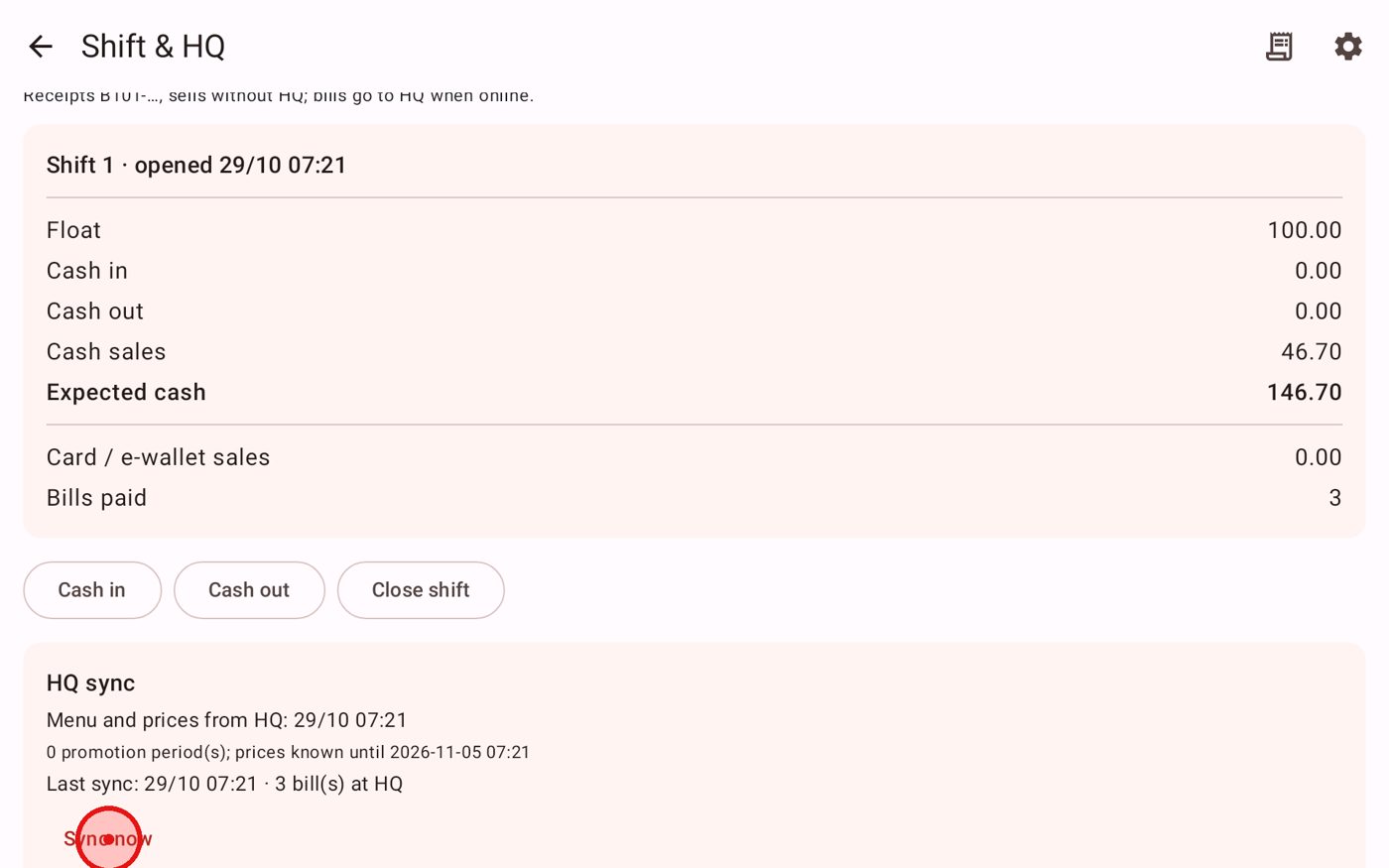
When the phone is online again, tap Sync now. The menu and prices come from HQ and the bills go up. Last sync then shows 3 bill(s) at HQ.
5. Check for refused bills
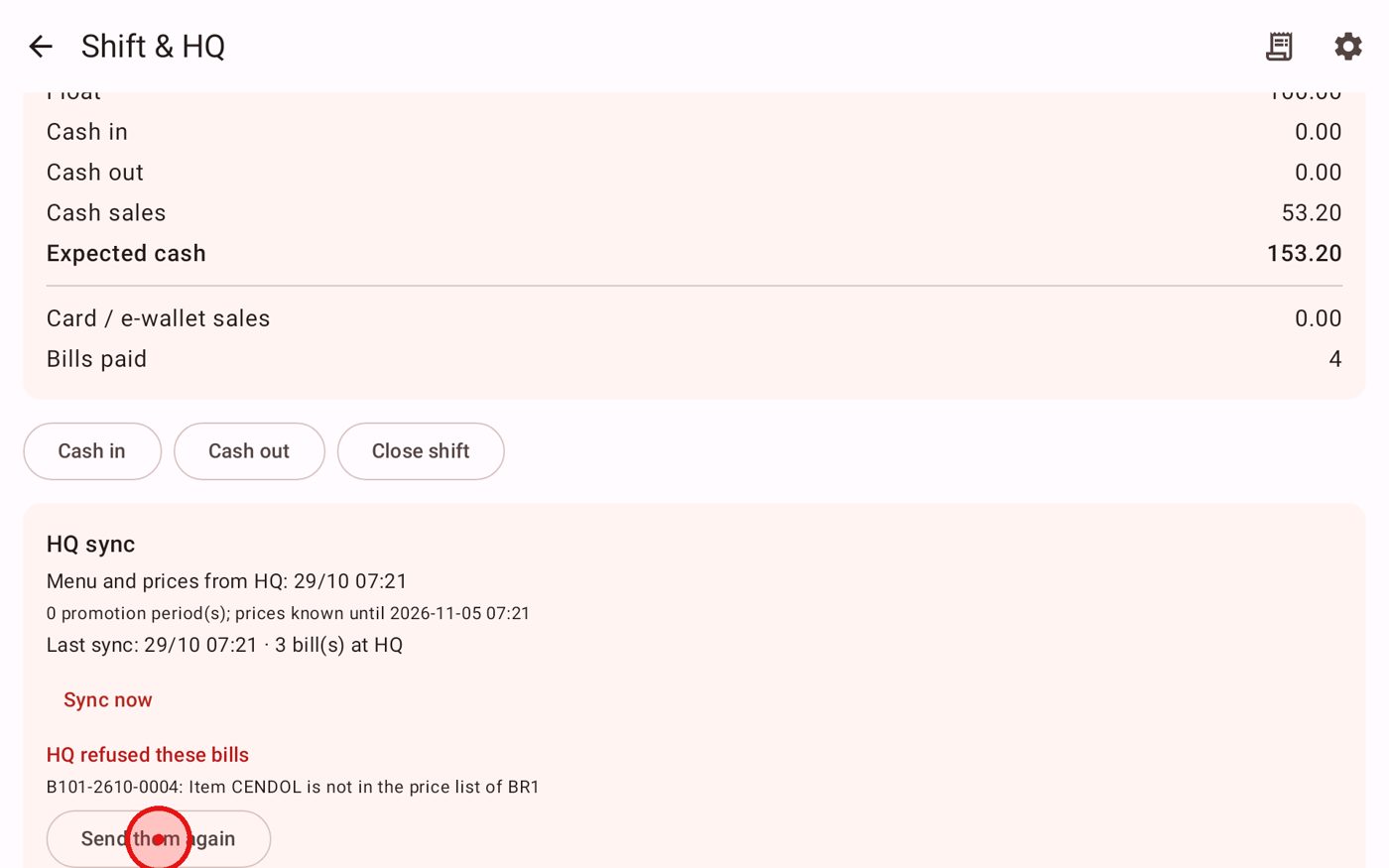
After another sale, tap Sync now. If HQ refuses a bill, it is listed under HQ refused these bills with the reason.
6. Send the bills again
When the cause is fixed at HQ, tap Send them again. The bill goes up and the list is empty. Last sync now shows 4 bill(s) at HQ.
Tips
- The phone tries to sync again by itself every few minutes and soon after a sale. Sync now does it at once.
- Stock: at each sync the branch phone gets HQ’s stock for its location. With Don’t sell items that are out of stock on (Settings > Selling > Stock), an item that is out is refused; with it off, a warning shows and the sale goes on. Offline, the phone uses the last figures less its own sales since. Terminals get the same check from the main phone.
Common problems
HQ cannot be reached and it says Last try failed.
Keep selling. The bills stay on the phone. When the phone is online again, tap Sync now.
HQ refused some bills.
Read the reason under HQ refused these bills. After the cause is fixed at HQ, tap Send them again.