
In a branch with a POS PC, the PC prints the kitchen slips. This guide shows how to place an order on a phone, and what to do if the order does not reach the PC.
Before you start
- Your phone must be in a branch that has a POS PC.
- Open the order screen on your phone.
Steps
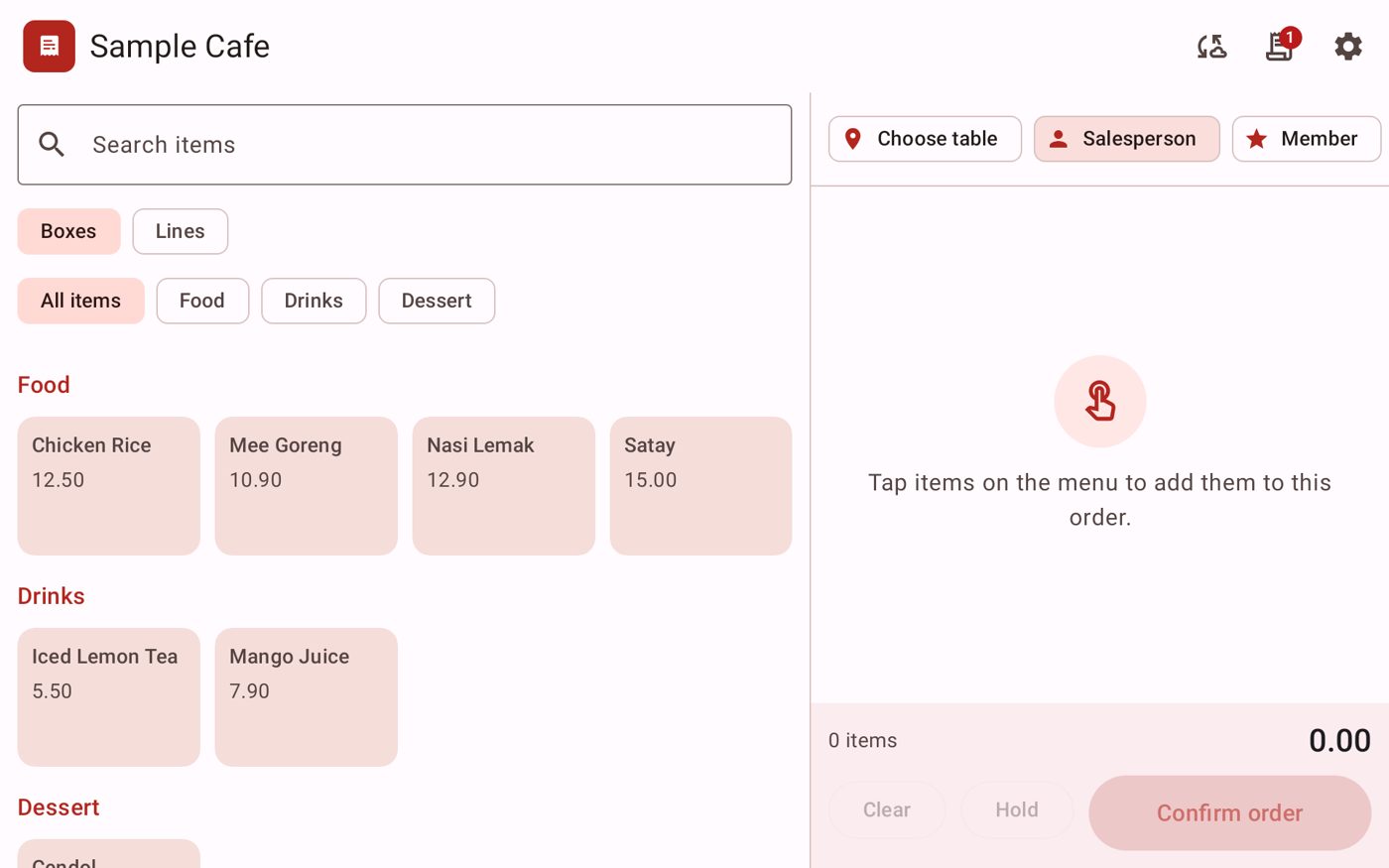
1. Start on the order screen
This is the order screen of a phone in a branch with a POS PC.
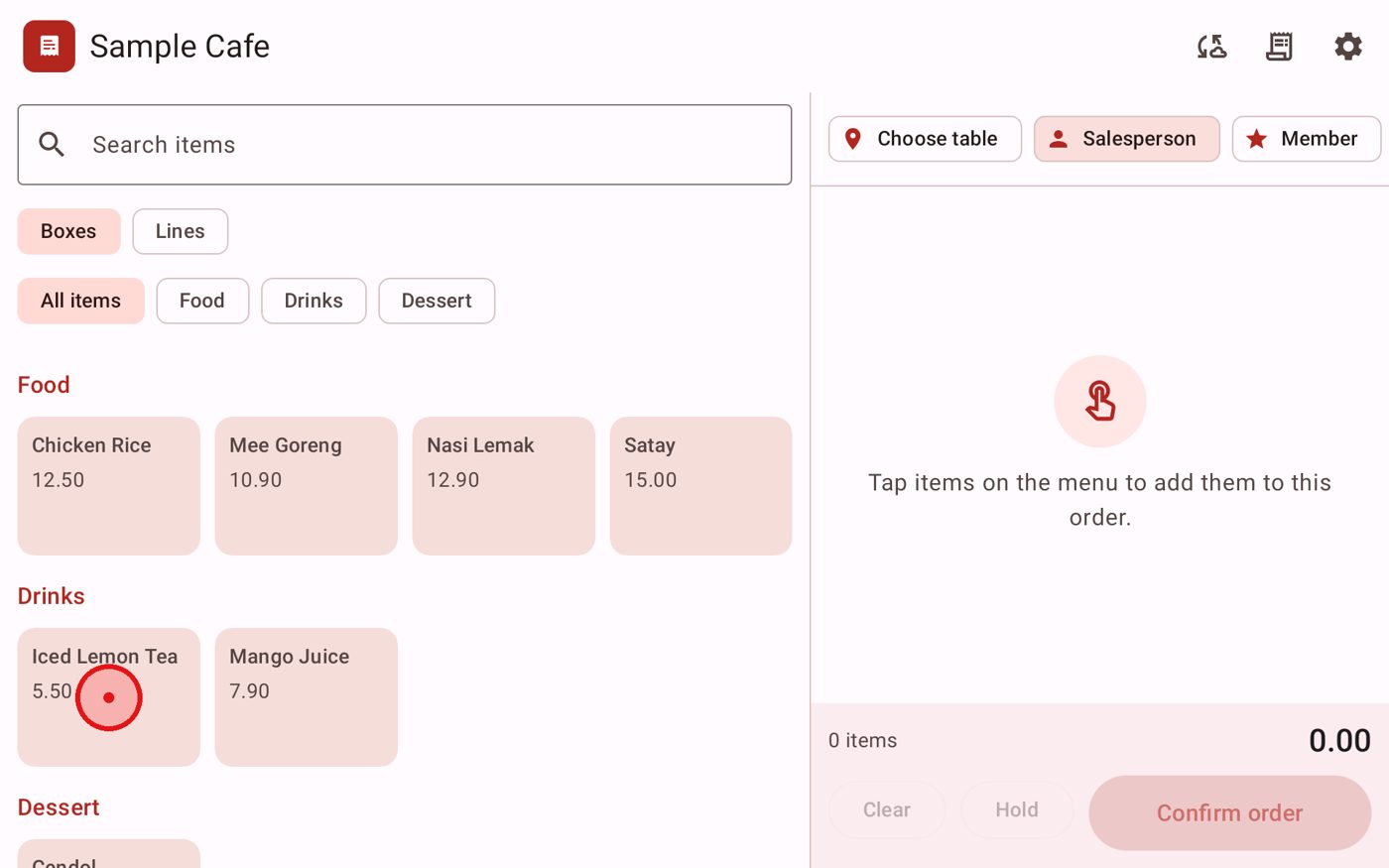
2. Choose the table and add dishes
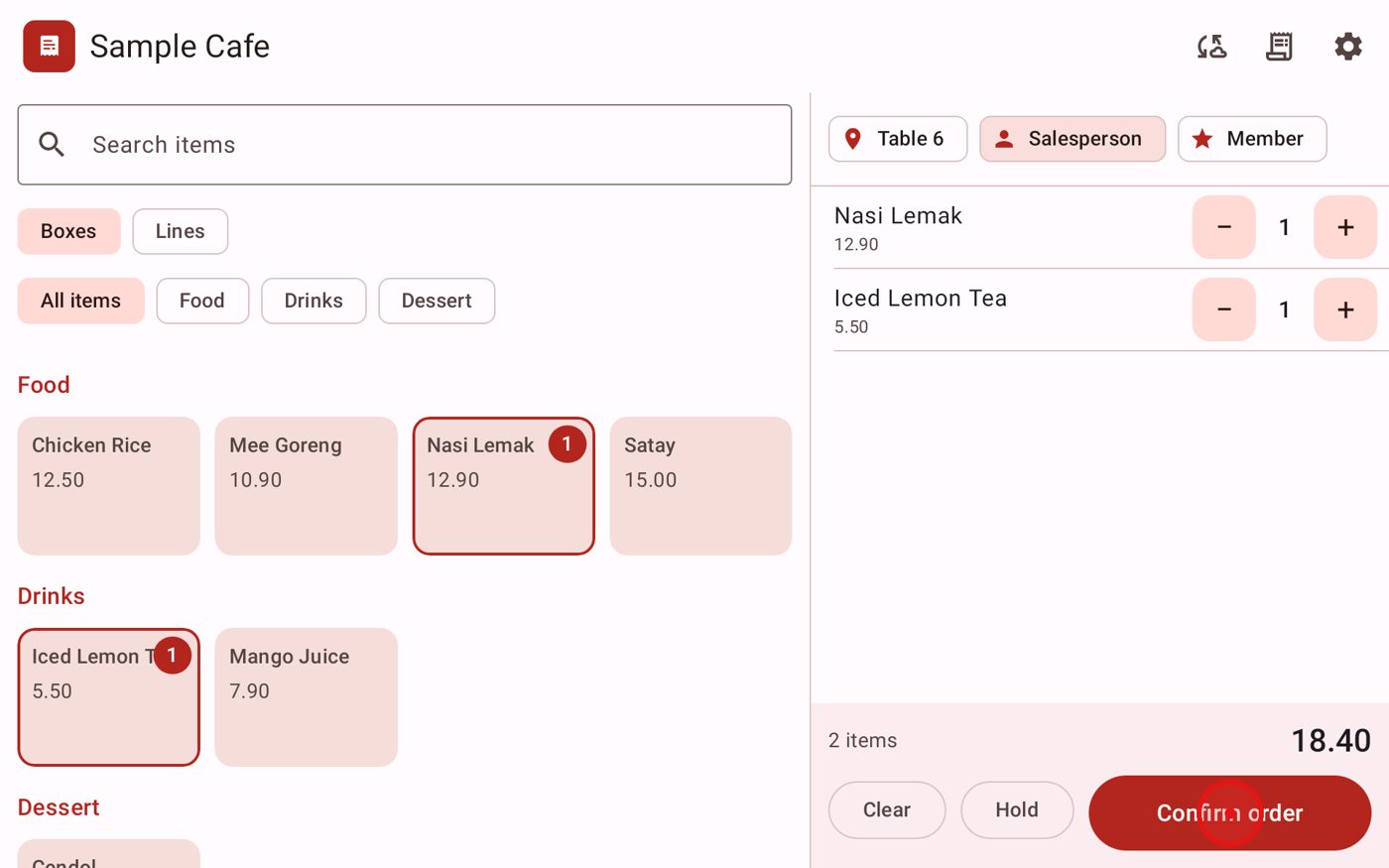
Tap Choose table, type the table number and tap OK. Then tap the dishes, for example Nasi Lemak and Iced Lemon Tea.
3. Tap Confirm order
Tap Confirm order.
4. Tap Confirm
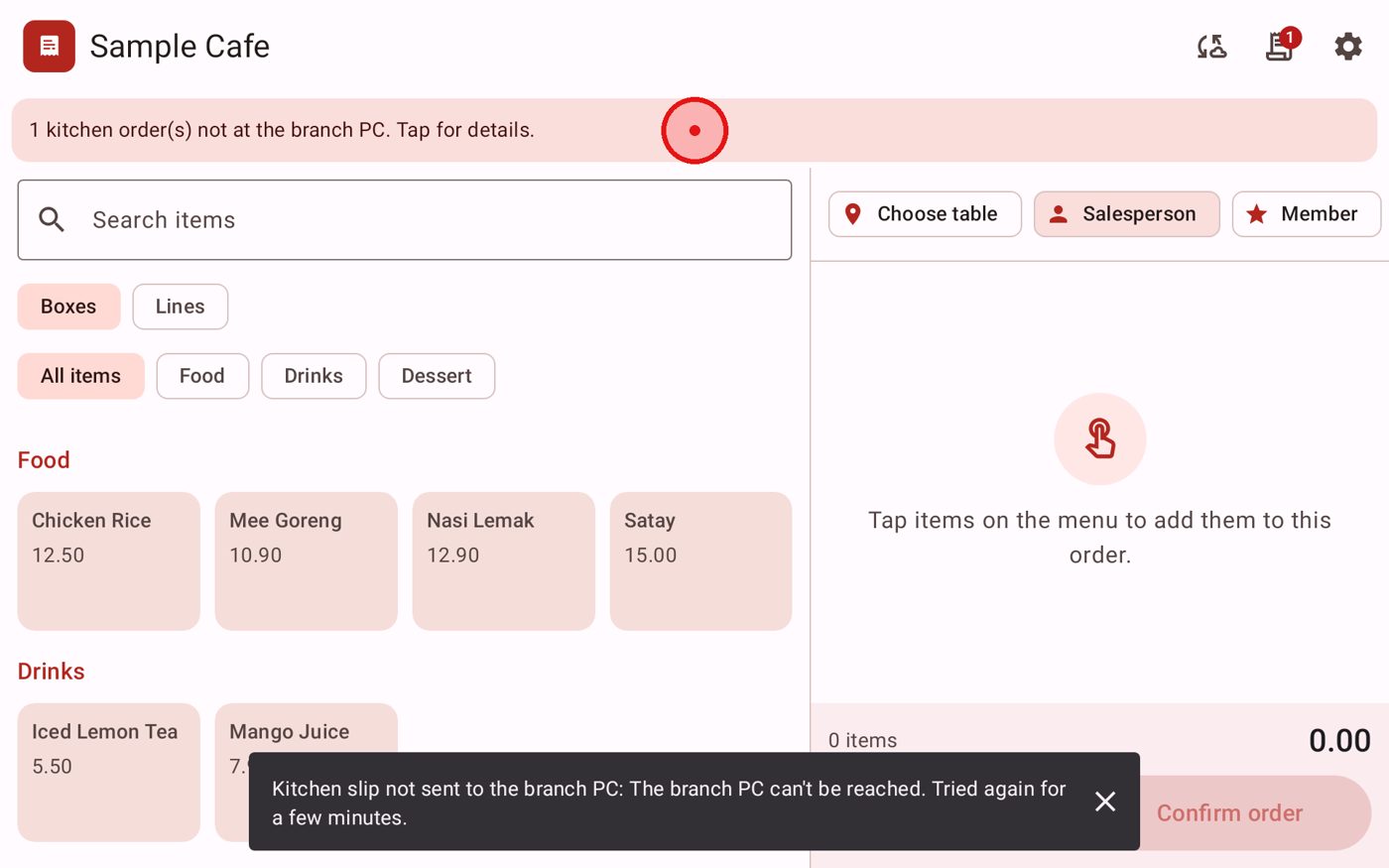
Tap Confirm. The order goes to the branch PC, which prints the kitchen slip. If the PC cannot be reached, a message says the slip was not sent, and a red bar stays at the top: 1 kitchen order(s) not at the branch PC.
5. Open the red bar
Tap the red bar. The window lists the orders that did not reach the PC, with the reason. You can choose Send to PC again, Print here, or Discard.
6. Send the order again
When the PC is on again, tap Send to PC again. A message says Sent 1 kitchen order(s) to the PC.
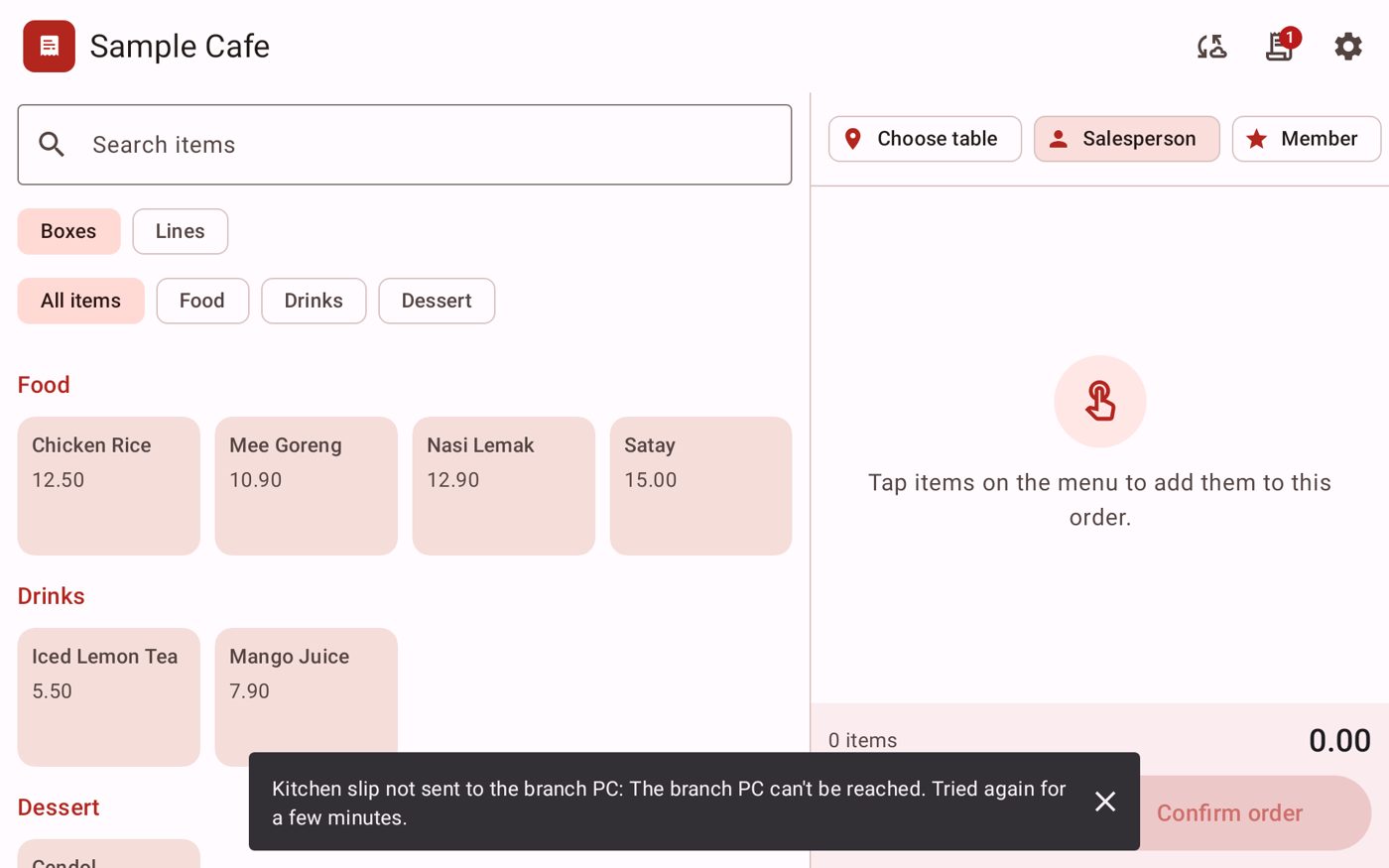
7. Check the red bar is gone
The red bar is gone. The order has reached the PC.
Tips
- If the PC cannot be reached, the phone sends the order again by itself for a few minutes.
- On the red bar you can also choose Print here to print on this device’s printer. An order is never printed late without asking.
Common problems
A red bar says a kitchen order is not at the branch PC.
Tap the red bar, then tap Send to PC again once the PC is on. You can also tap Print here to print on this device’s printer, or Discard.