
In a branch with a POS PC, a device set up by Synergy can take payments into the PC’s shift. This guide shows what you see on the device and what to do when the shift on the POS PC is not open.
Before you start
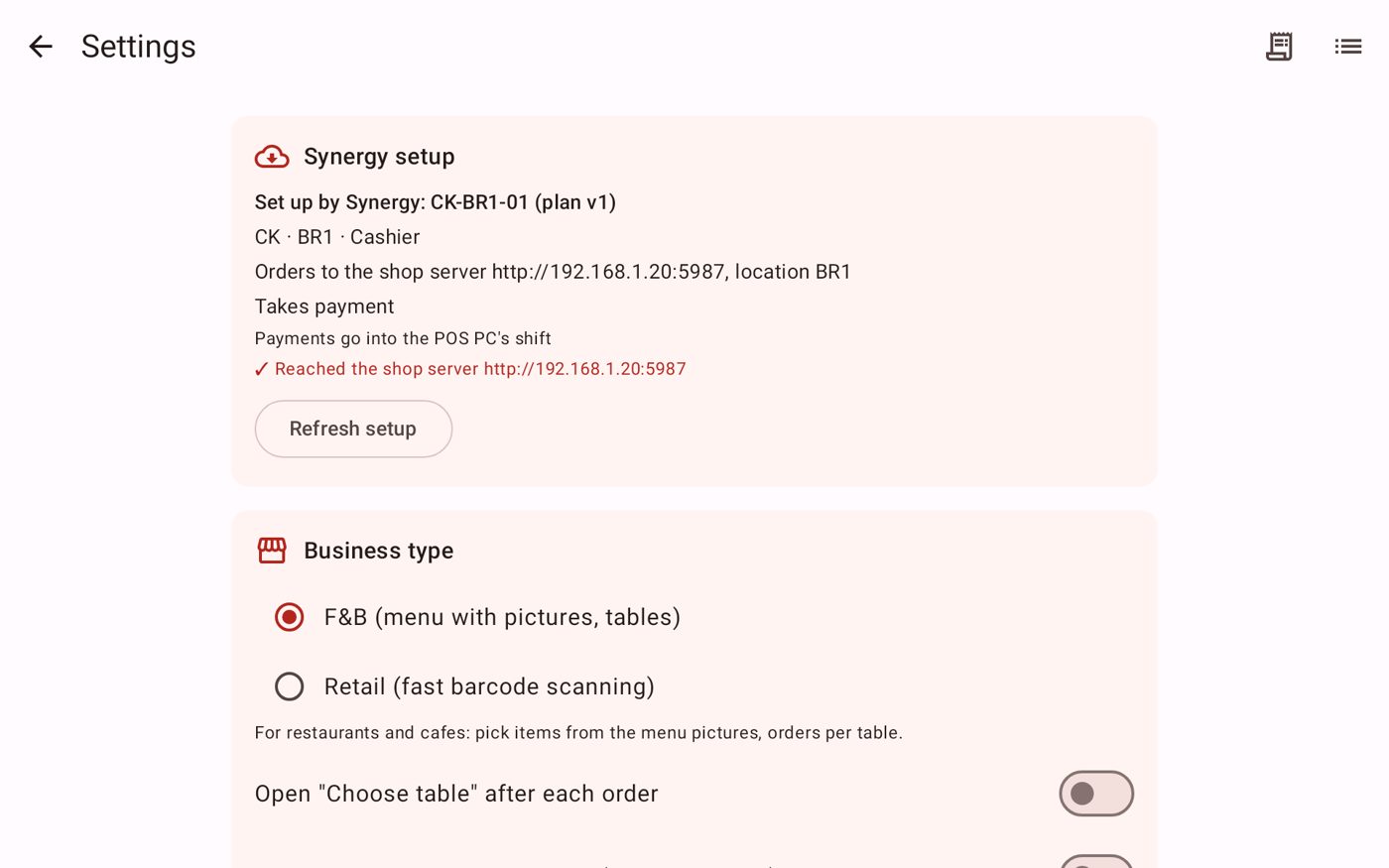
- Synergy sets this up for the device. In Settings > Setup & licence, the Synergy setup part says Payments go into the POS PC’s shift.
- The shift is opened on the POS PC, not on the device.
Steps
1. Check the set-up
Open Settings > Setup & licence and look at Synergy setup. The line Payments go into the POS PC’s shift means the device pays into the PC’s shift. The line No POS PC at this branch: this device opens its own shift means it has its own shift instead. A device marked Order only: payment is taken on another device does not take payments.
2. Open the shift on the POS PC
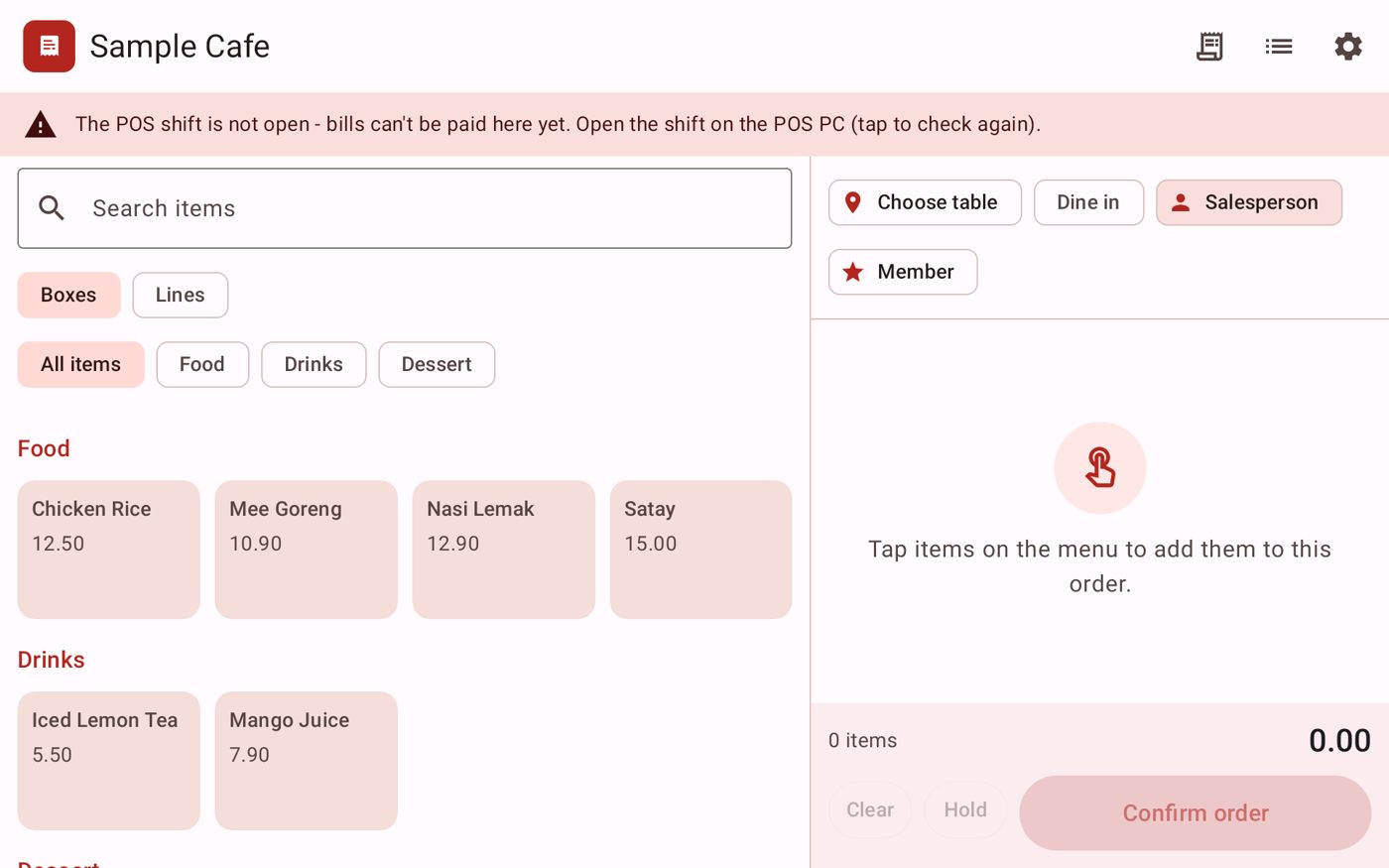
Open the shift on the POS PC first. Until then a red bar says The POS shift is not open – bills can’t be paid here yet.
3. Check again
Tap the red bar to check again. When the shift is open the bar goes away.
4. Take payment as usual
Pay the bill in the usual way. The payment goes into the POS PC’s shift. If you tap Pay before the shift is open, the message is Open the shift on the POS PC first.
5. If a sale stays open
A message says the sale is kept as an open bill. Pay it in Till bills, or void it on the POS PC.
Tips
- A bill can only be voided on the device that settled it. A message says This bill can’t be voided here (void it on the device that settled it).
Common problems
The red bar says the POS shift is not open.
Open the shift on the POS PC, then tap the red bar to check again.
Pay does nothing and the message says Open the shift on the POS PC first.
The same: the shift on the POS PC is not open yet.