
This guide shows you how to connect a Wi-Fi/LAN printer to the Synergy Order App for kitchen slips and receipts, and how to print a test slip.
Before you start
- Find out your printer’s IP address.
Steps
1. Start on the order screen
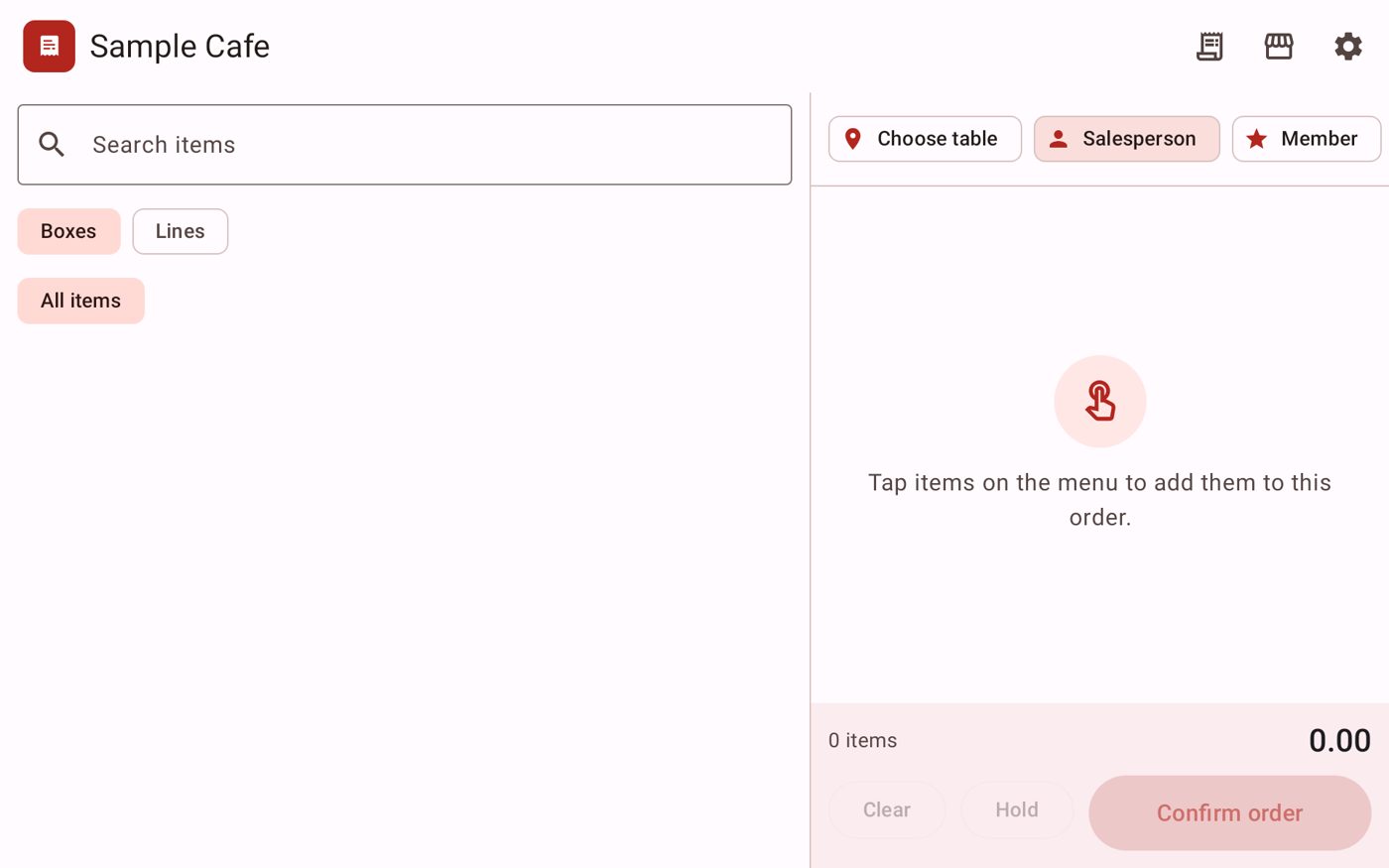
Open the Synergy Order App. You will see the order screen.
2. Open Settings
Tap the gear icon at the top right to open Settings.
3. Find the Printer section
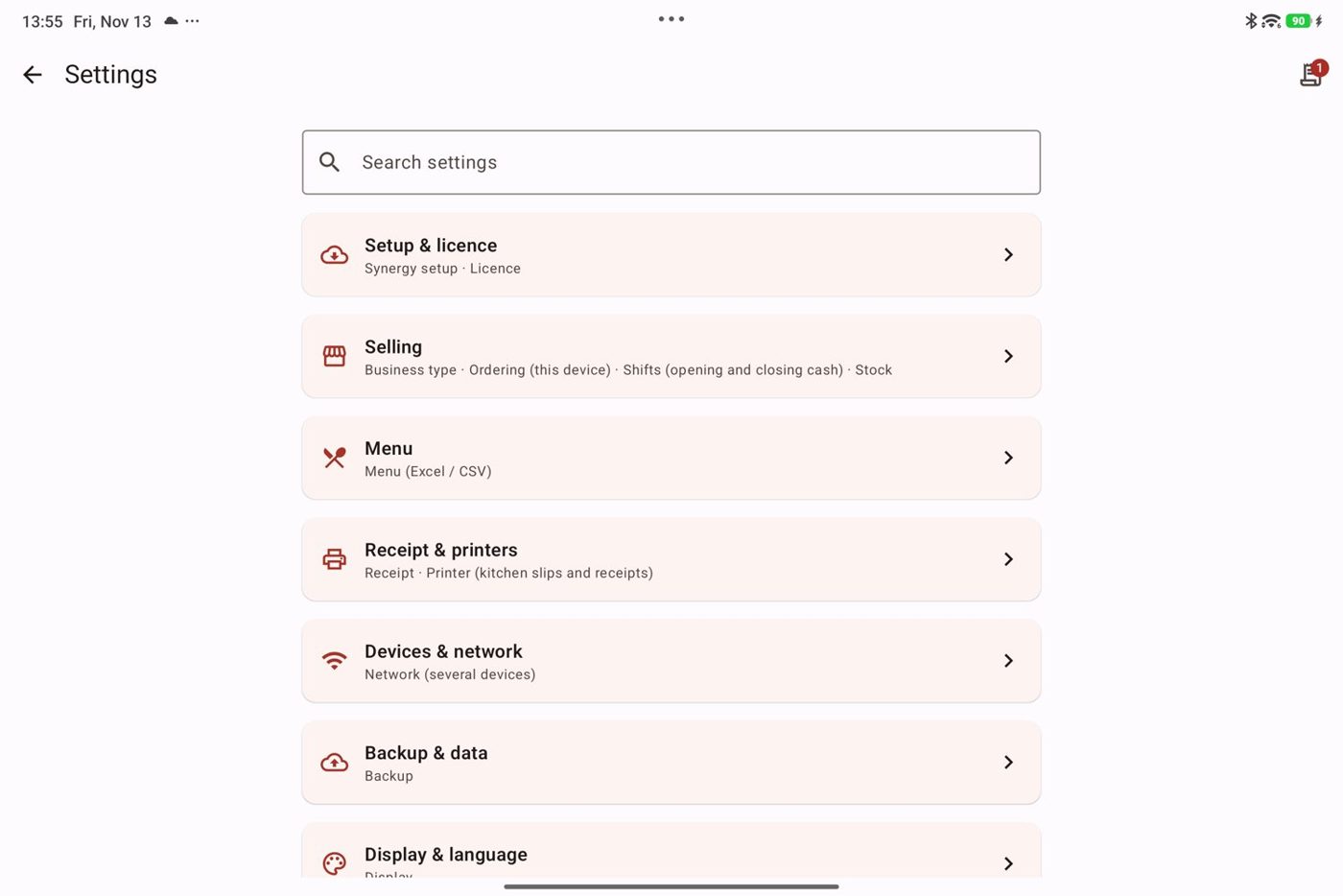
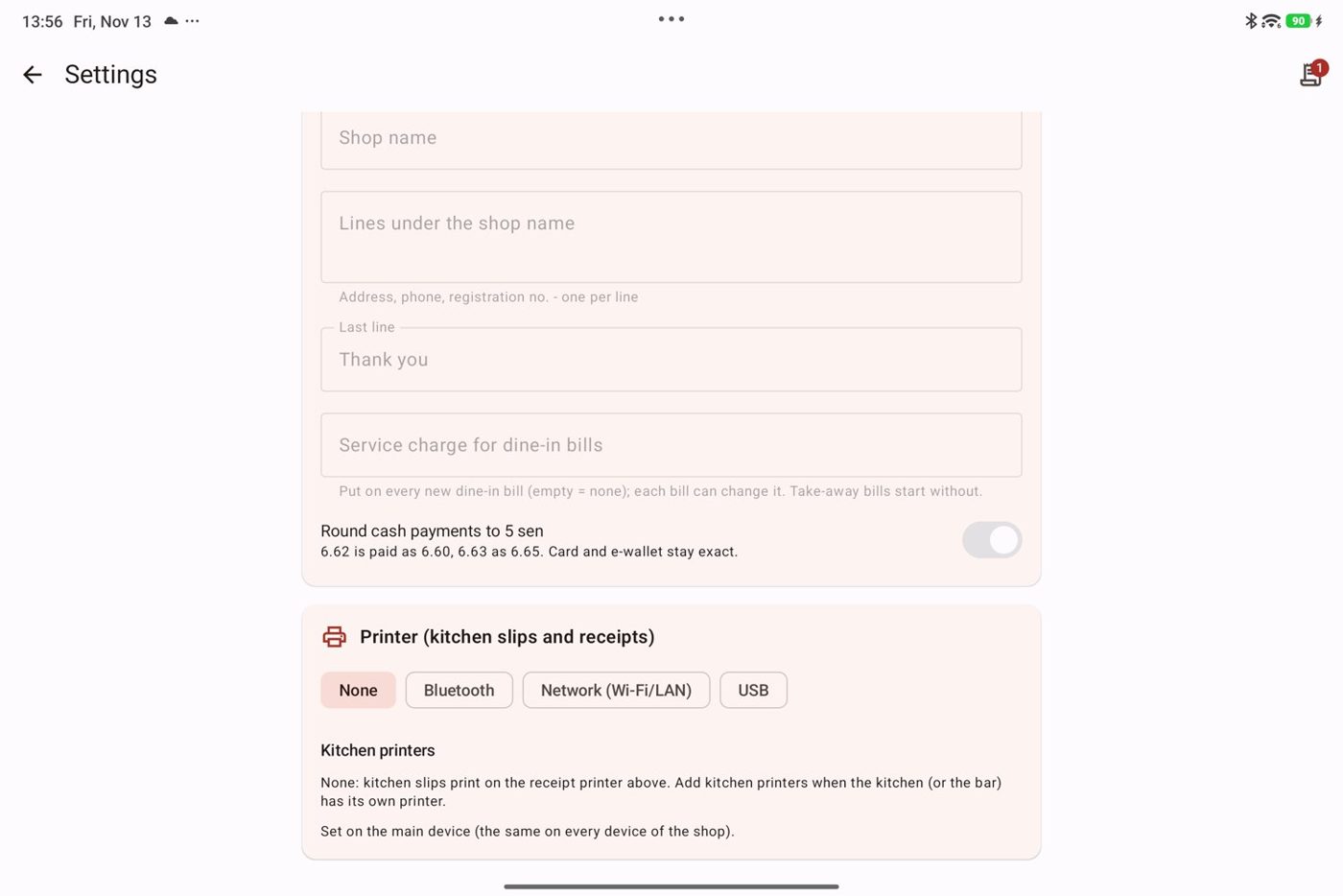
Open the group Receipt & printers and find Printer (kitchen slips and receipts).
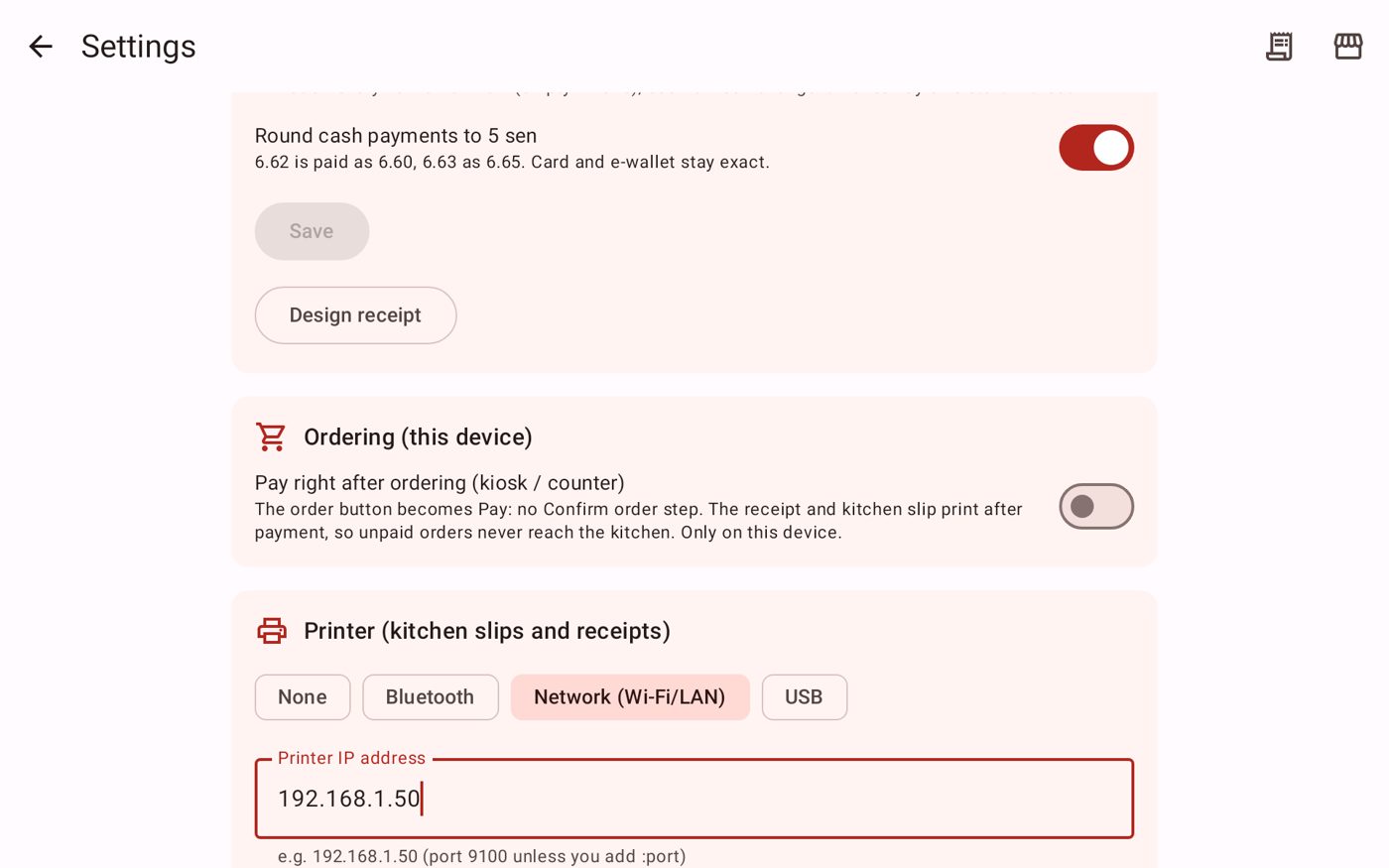
4. Choose Network (Wi-Fi/LAN)
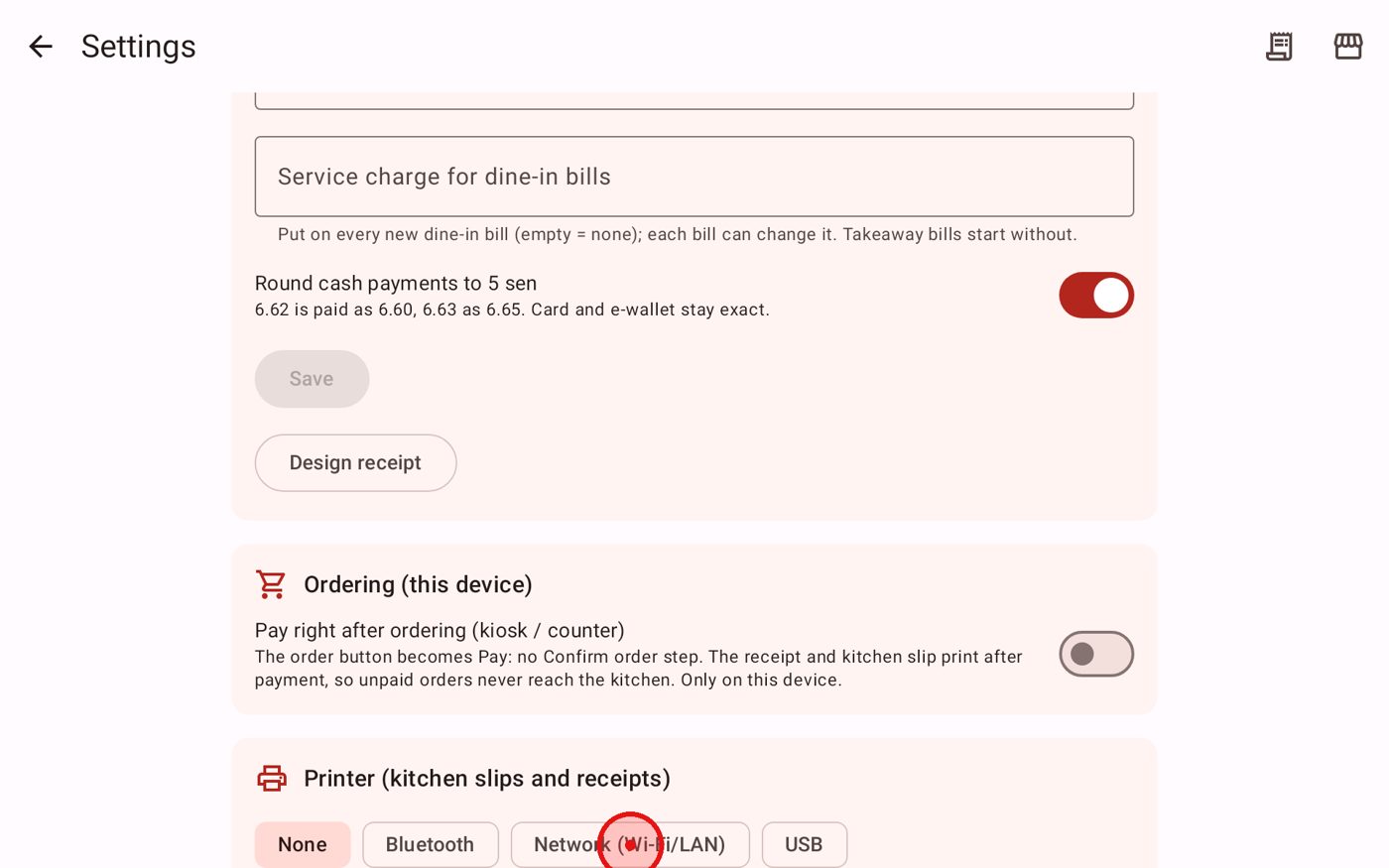
Tap Network (Wi-Fi/LAN).
5. Type the IP address
Tap the Printer IP address box and type your printer’s IP address, for example 192.168.1.50. The port is 9100 unless you add :port.
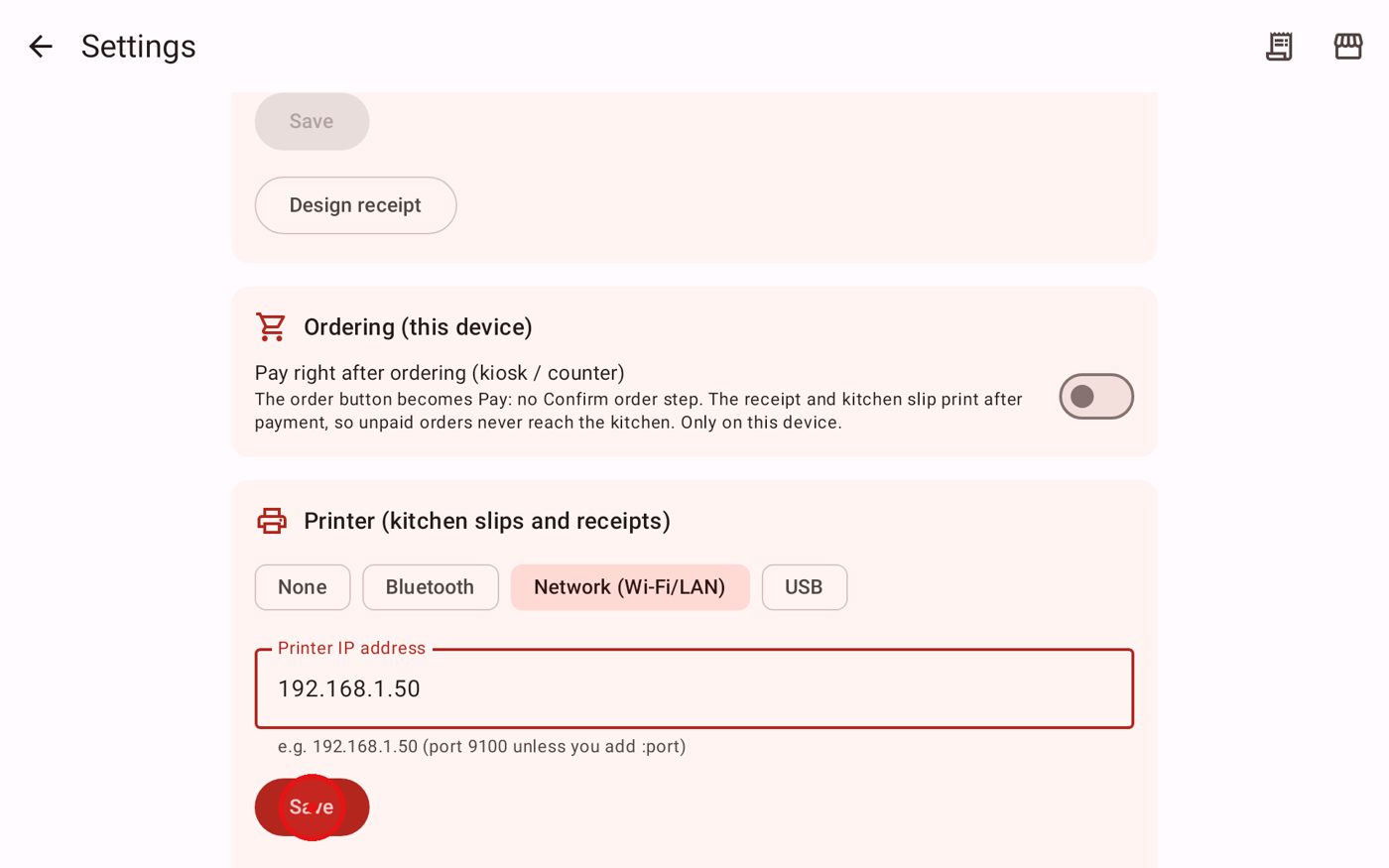
6. Save
Tap Save.
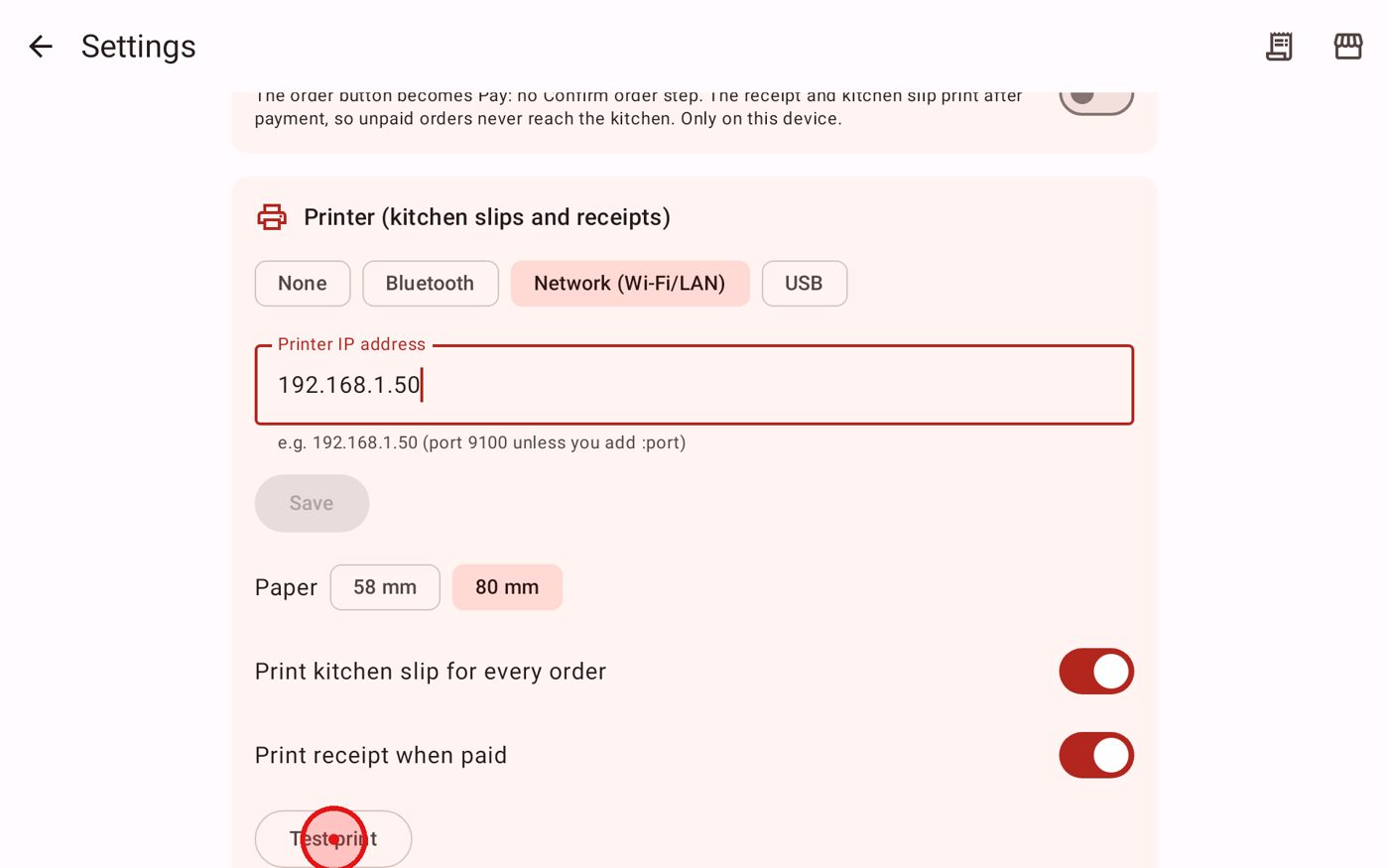
7. Find Test print
Scroll down to Test print. You can also choose the Paper size here: 58 mm or 80 mm.
8. Print a test slip
Tap Test print. A test slip should print.
Tips
- Paper is 58 mm or 80 mm. Pick the size that matches your printer’s paper roll.