
The receipt, bill or test slip does not come out of the receipt printer. Go through these checks in order. The sale itself is safe: a printing problem never stops or cancels the bill.
Before you start
- Switch the printer on, load paper and close its cover.
- Know how the printer is connected: Bluetooth, Network (Wi-Fi/LAN) or USB.
Steps
1. Check the printer type
Open Settings > Receipt & printers and find Printer (kitchen slips and receipts). The type must be Bluetooth, Network (Wi-Fi/LAN) or USB, not None. With None, a print shows No printer set up (Settings > Printer). Also check that Print receipt when paid is on.
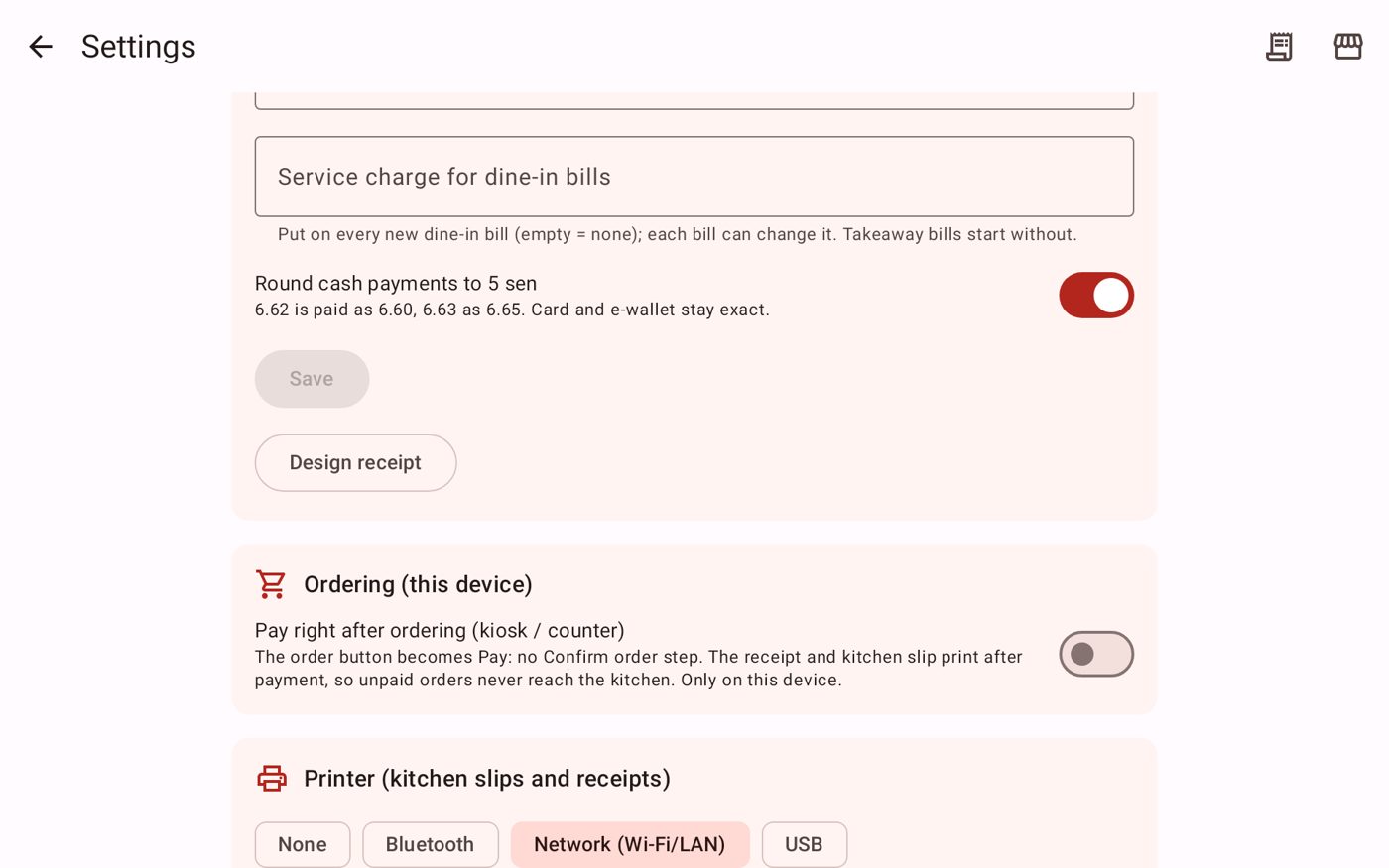
2. Send a test print
Scroll to Test print and tap it. If it prints, the message says Sent to the printer and the printer is fine. If not, the message says Printing failed: followed by the reason. Use the reason in the next checks.
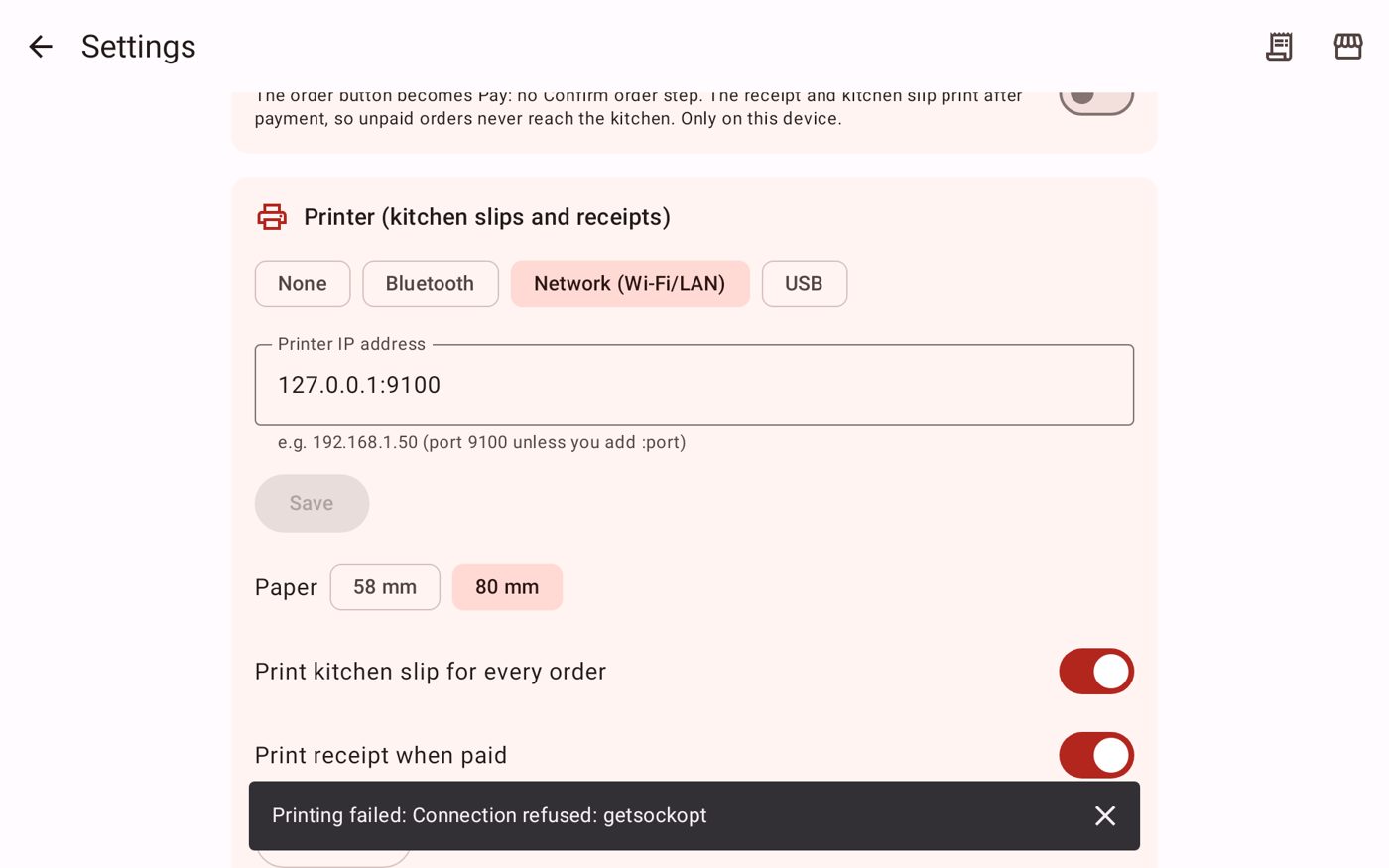
3. Network printer: check the address
Choose Network (Wi-Fi/LAN). In Printer IP address type the printer’s IP address, for example 192.168.1.50. The port is 9100 unless you add :port. Tap Save. The printer and this device must be on the same Wi-Fi or network. An empty box gives No printer IP address in Settings.
4. Bluetooth printer: pair it first
Pair the printer in Android’s Bluetooth settings first. The reasons you may see are Bluetooth is off, No Bluetooth printer chosen in Settings, or a request to allow Nearby devices for this app (Settings > Receipt & printers > Printer > Bluetooth, or Android Settings > Apps > Permissions).
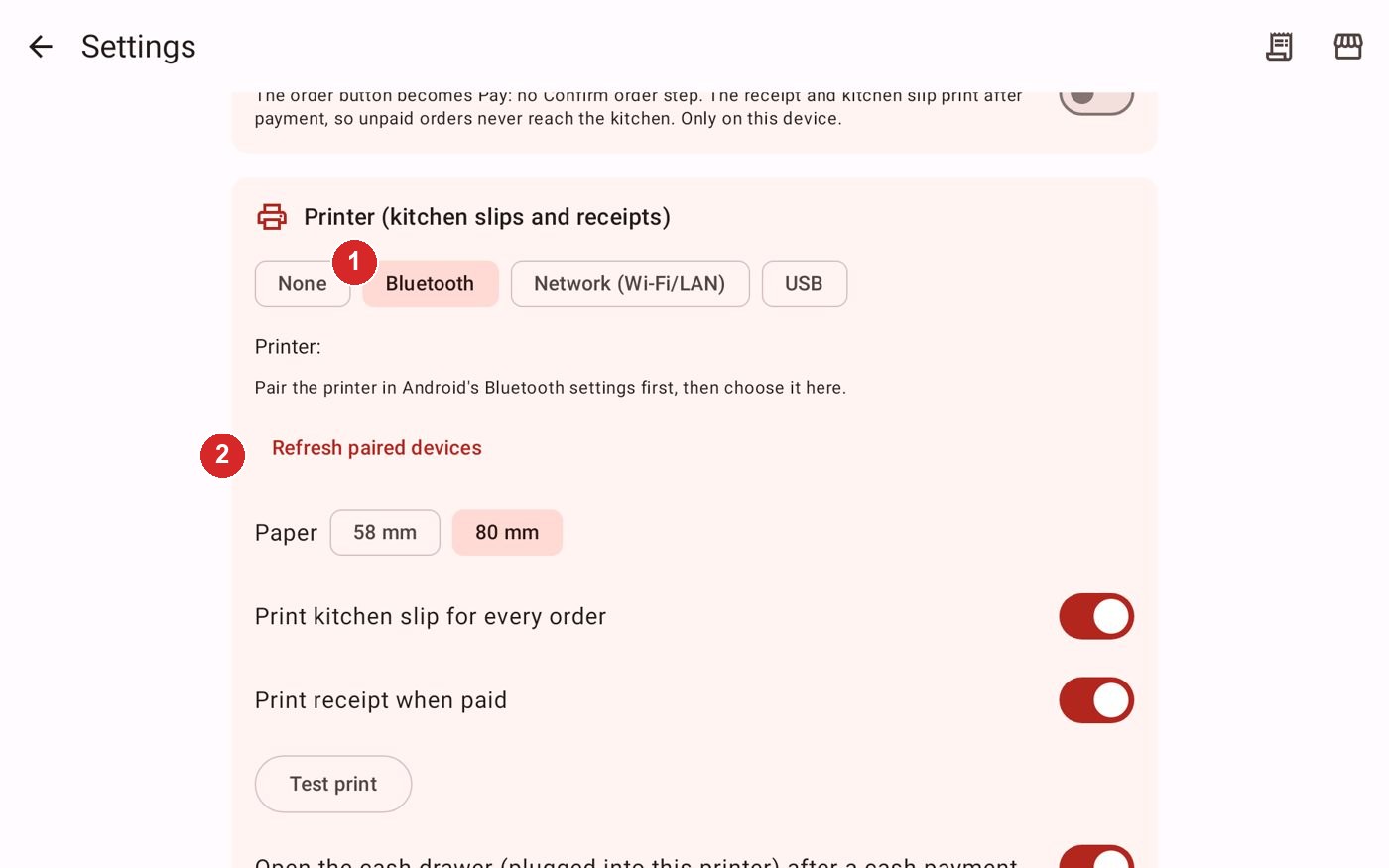
| Step | What to do |
|---|---|
| 1 | In Settings > Printer, choose Bluetooth. |
| 2 | Tap Refresh paired devices and choose the printer. |
5. USB printer: connect and allow
Connect the printer with its cable (a phone needs a USB OTG adapter) and make sure it is on. While none is connected it says No USB printer found. Check the cable and that the printer is on.
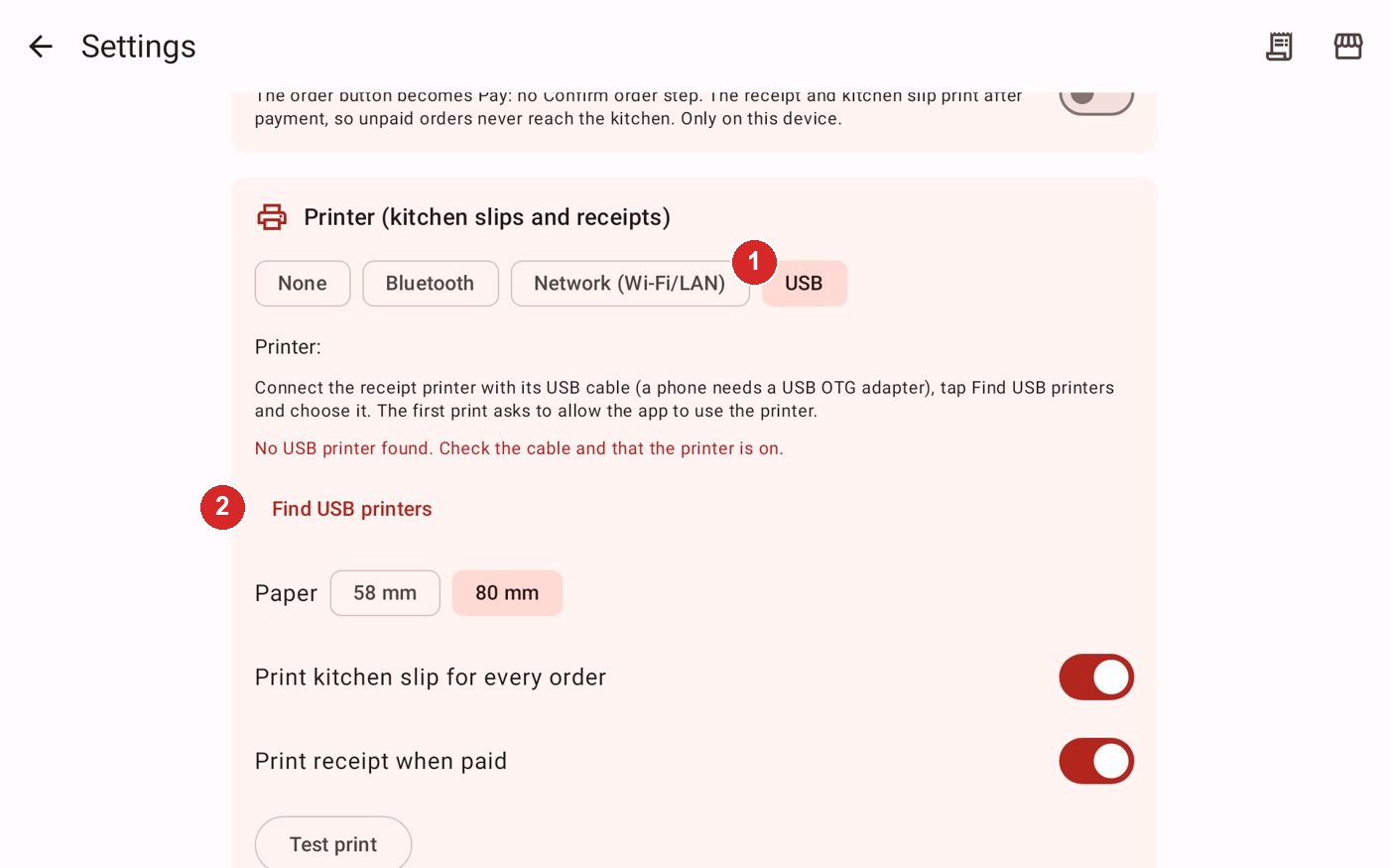
| Step | What to do |
|---|---|
| 1 | Choose USB. |
| 2 | Tap Find USB printers and choose the printer. |
6. Allow the USB printer
The first print asks to allow the app to use the USB printer. Tap Allow. If the message says USB printer not allowed, print again and tap Allow.
7. Check the paper size
Under Paper choose 58 mm or 80 mm to match the paper roll in your printer.
8. Print it again from Bills
Open Bills and open the bill. Tap Print bill for an open bill, or Reprint receipt for a paid bill. Reprint orders prints the kitchen slips again.
9. Cash drawer does not open
The cash drawer must be plugged into the receipt printer. In Settings > Receipt & printers > Printer, switch on Open the cash drawer (plugged into this printer) after a cash payment and tap Open drawer to test. If the drawer stays shut, try 27,112,48,25,250 or 16,20,1,0,5 in Cash drawer command and tap Save.
Tips
- The reason after Printing failed: depends on how the printer is connected. Use the check for that connection type.
- A USB printer: Android asks again to allow the printer after you unplug it or restart the device.
- The end-of-day report prints on the same printer. If no printer is set up, it says No printer set up (Settings > Printer).
- A shop with kitchen printers: see the guide Kitchen Orders Do Not Print.
Common problems
USB printer not found – check the cable (and the OTG adapter on a phone), then Settings > Receipt & printers > Printer > USB > Find USB printers.
Check the cable and the OTG adapter, make sure the printer is on, then tap Find USB printers and choose it again.
Can’t open the USB printer – unplug it, plug it in again and retry.
Unplug the USB cable, plug it in again and print again.
The USB printer is in use by another app.
Close the other app that uses the printer and print again.
The USB printer stopped taking data (paper out or cover open?).
Load paper, close the cover and print again.
Bluetooth is off.
Switch Bluetooth on in Android and print again.
The cash drawer command is not valid: numbers 0-255 separated by commas.
Type the command as numbers from 0 to 255 separated by commas, for example 27,112,0,25,250, or leave the box empty for the usual command.