
See how your shop is selling. Open a report in Back Office, change the dates, save it as an Excel file, and check today’s total in Daily sales.
Before you start
- Open the Synergy Order App on your Android device.
- Sign in to Back Office if the app asks for it.
Steps
1. Open Back Office
Tap the storefront icon to open Back Office.
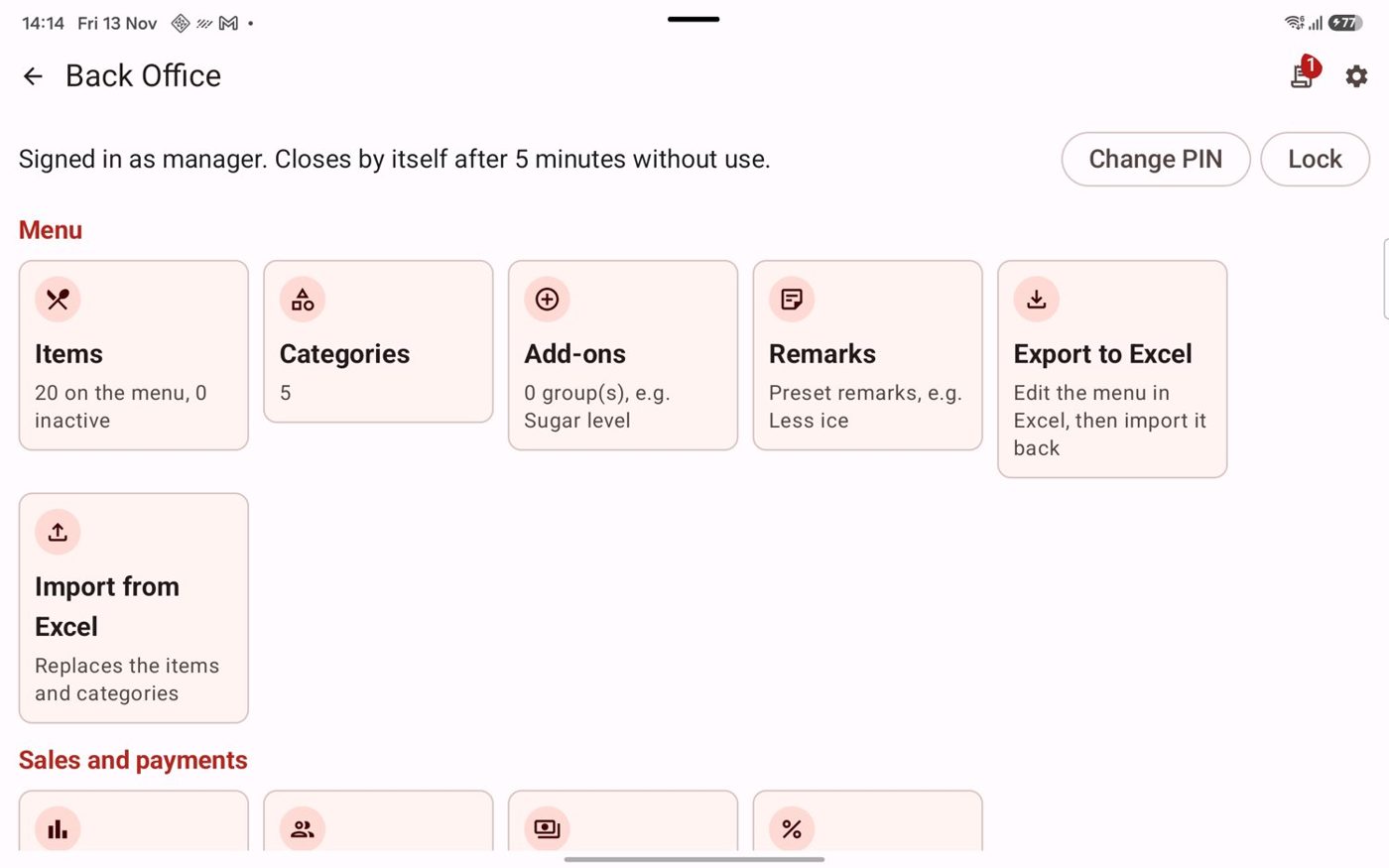
2. Open Reports
Under Sales and payments, tap Reports. The report starts with Sales by item for today.
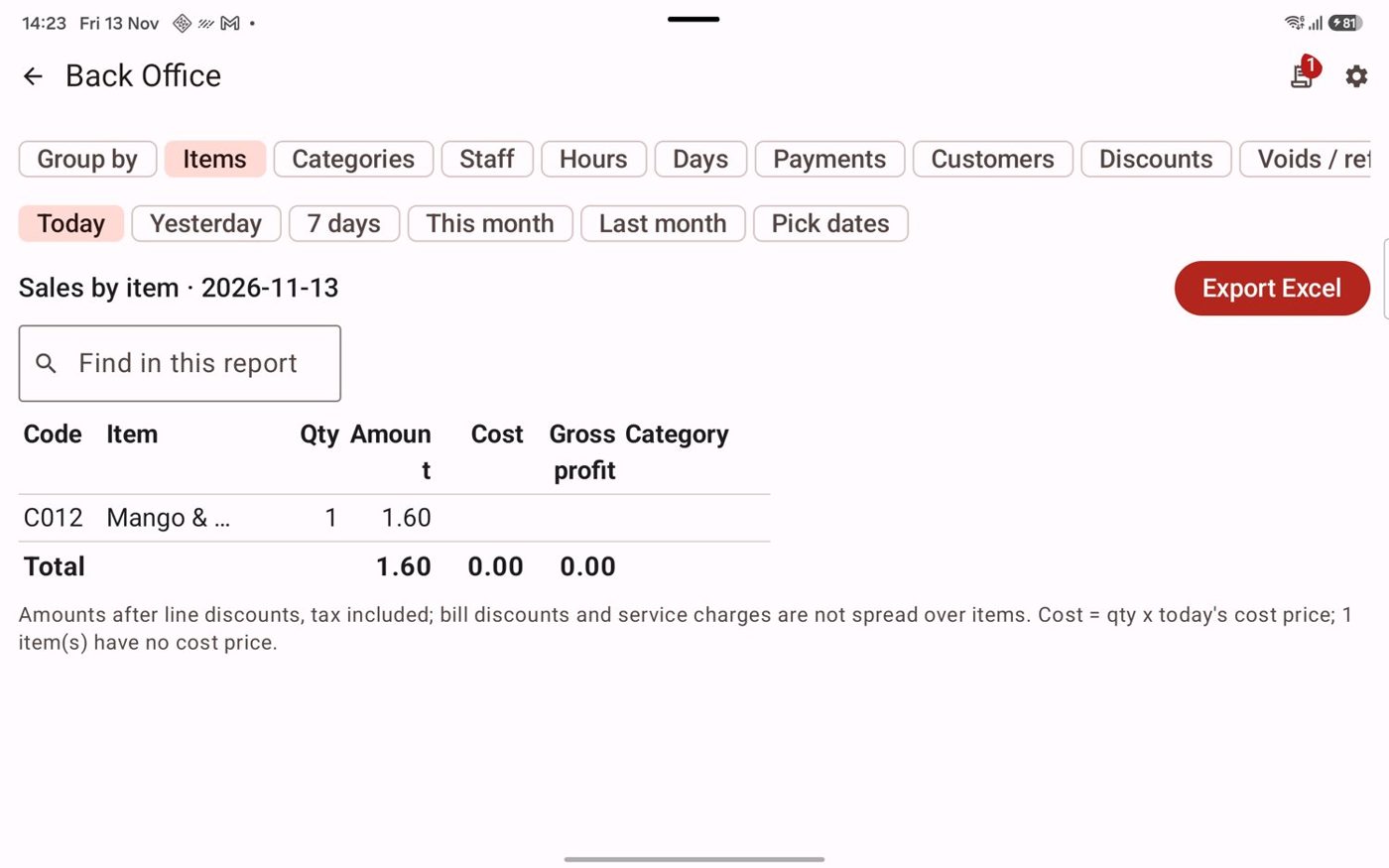
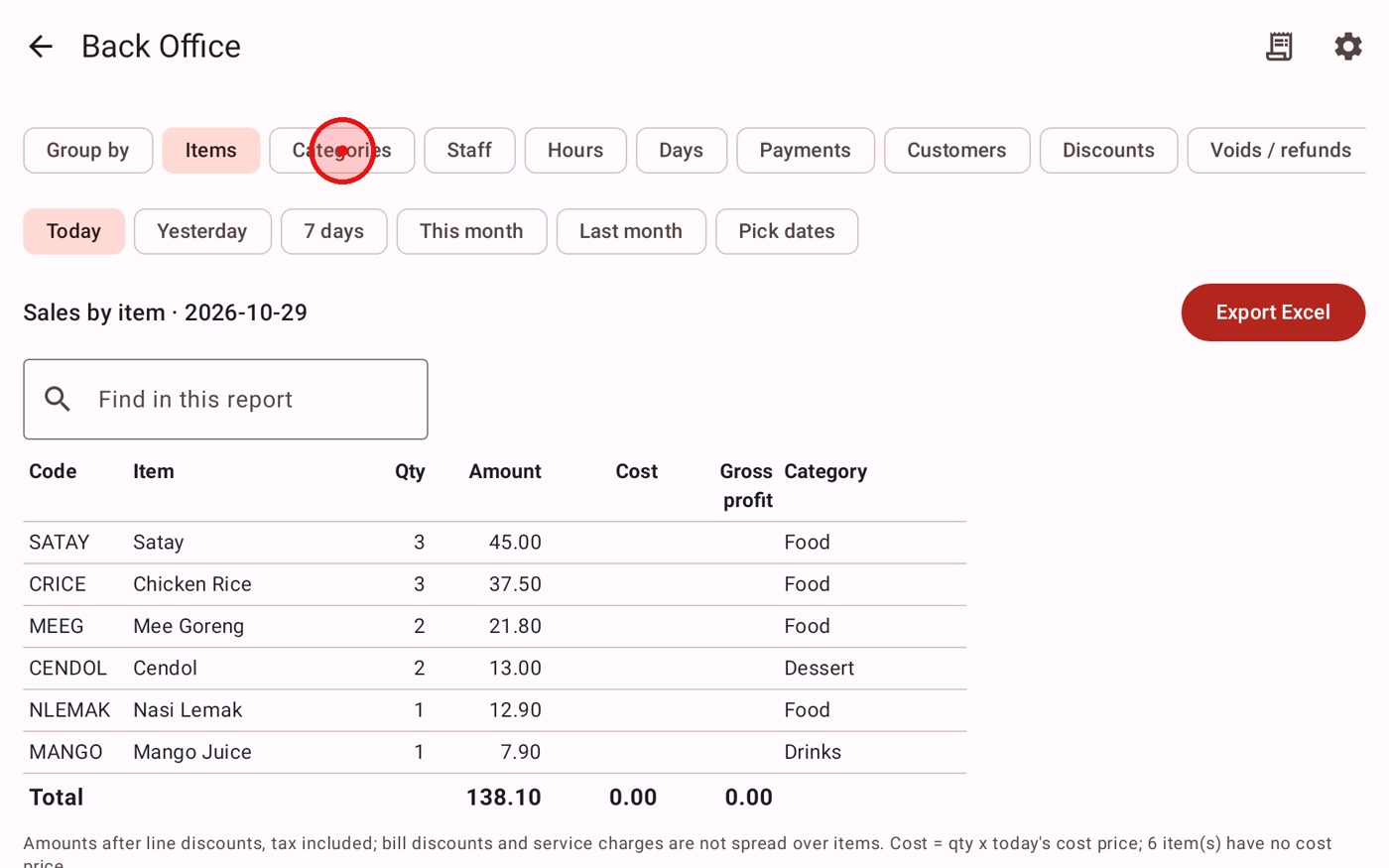
3. See sales by category
Tap Categories to see sales by category.
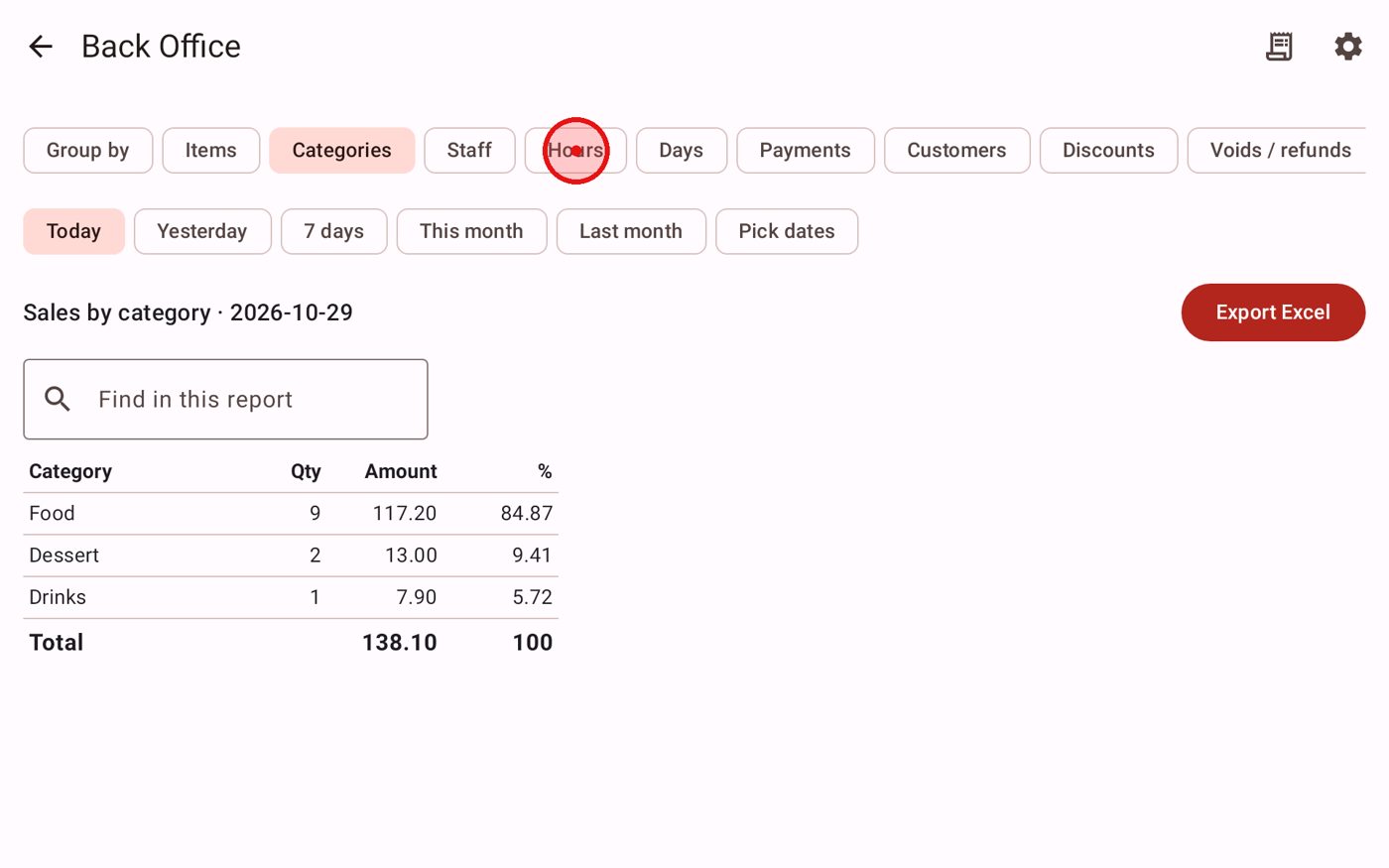
4. See sales by hour
Tap Hours to see sales by hour of the day.
5. Change the dates
Tap Yesterday to change the dates. You can also tap 7 days, This month, Last month or Pick dates.
6. Save the report as Excel
Tap Export Excel to save the report as an Excel file.
7. Export sales for Synergy desktop
To send e-invoices from Synergy desktop, choose the dates and tap For Synergy desktop. Check Item code for the service charge and Item code for cash rounding (SERVICE and ROUNDING at first; the app remembers yours; they must be item codes in Synergy), then tap Export Excel and save or share the file. Each paid bill becomes a cash sale with its items, discounts and tax. Voided and merged bills are left out. If there are no paid bills, the app says No paid bills in this period.
8. Import the file in Synergy desktop
In Synergy desktop open Sales and Purchases > Batch Import Sales Invoice From Excel and pick the file. It opens as it is: there is no need to open and save it in Excel first. Then post the sales to account and send the e-invoices (consolidated) from the desktop.
9. Open Bills
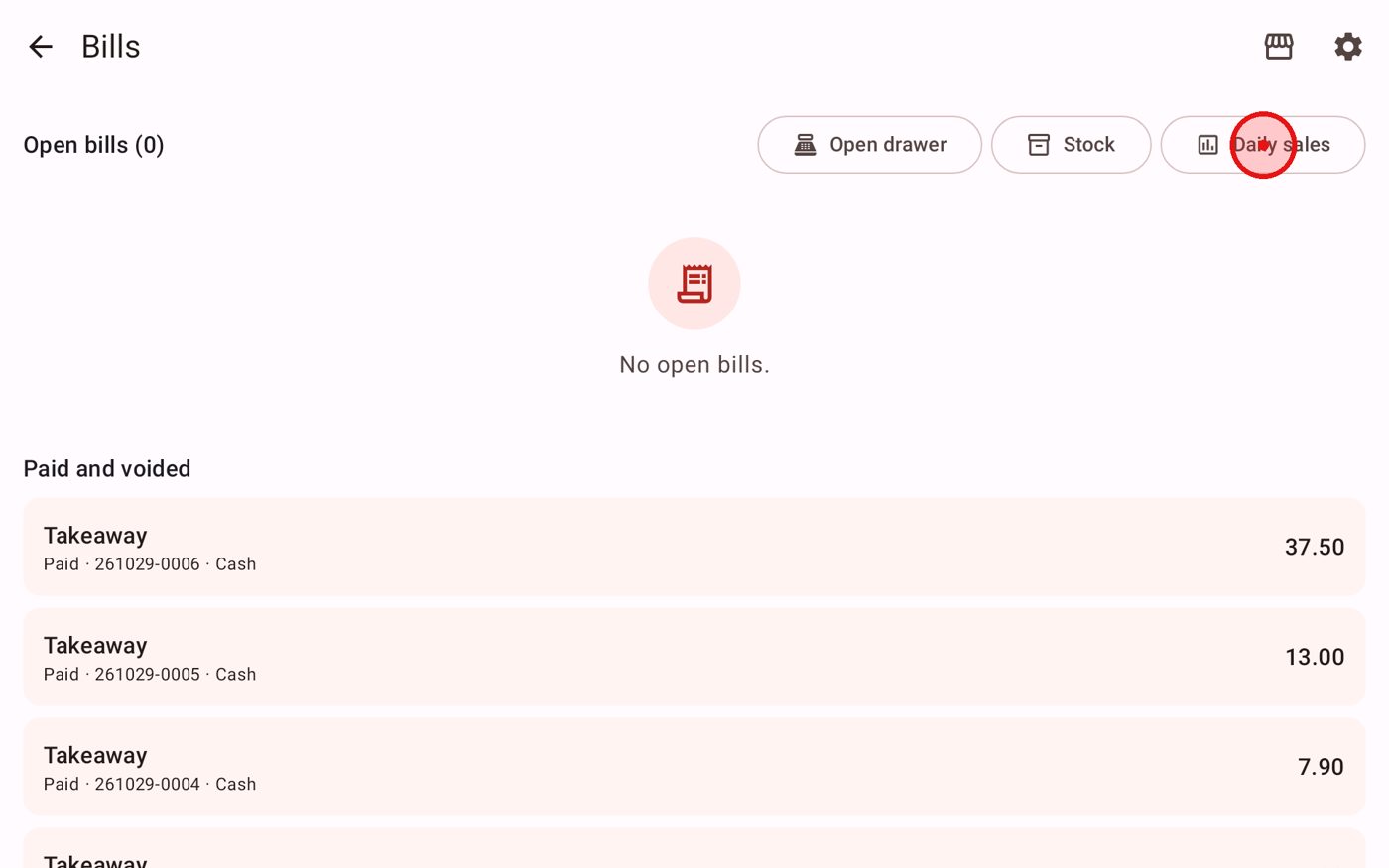
For today’s takings, go back to the order screen and tap the receipt icon to open Bills.
10. Check today’s total
Tap Daily sales to see today’s total.
Tips
- Back Office closes itself after 5 minutes without a touch.
- Besides items, categories and hours, you can also see sales by staff, day, payments, customers, discounts and voids/refunds.
- For Synergy desktop needs Order App 2026-11-19A or later. It exports this device’s own bills. Service charge and cash rounding go in as rows on the two item codes; add-ons with no price go into the item’s remark.