
Keep a half-finished sale while you serve another customer, then bring it back and finish it.
Before you start
- Open the Order App in Retail mode, on the sale screen.
- Have at least one item on the sale.
Steps
1. Scan the items of the first customer
Scan the items on the sale screen. They appear in the list and the TOTAL follows.
2. Tap Hold
With items on the sale, tap Hold. The sale is kept on this device and the screen is empty. A message says: Sale held – tap Held sales to bring it back.
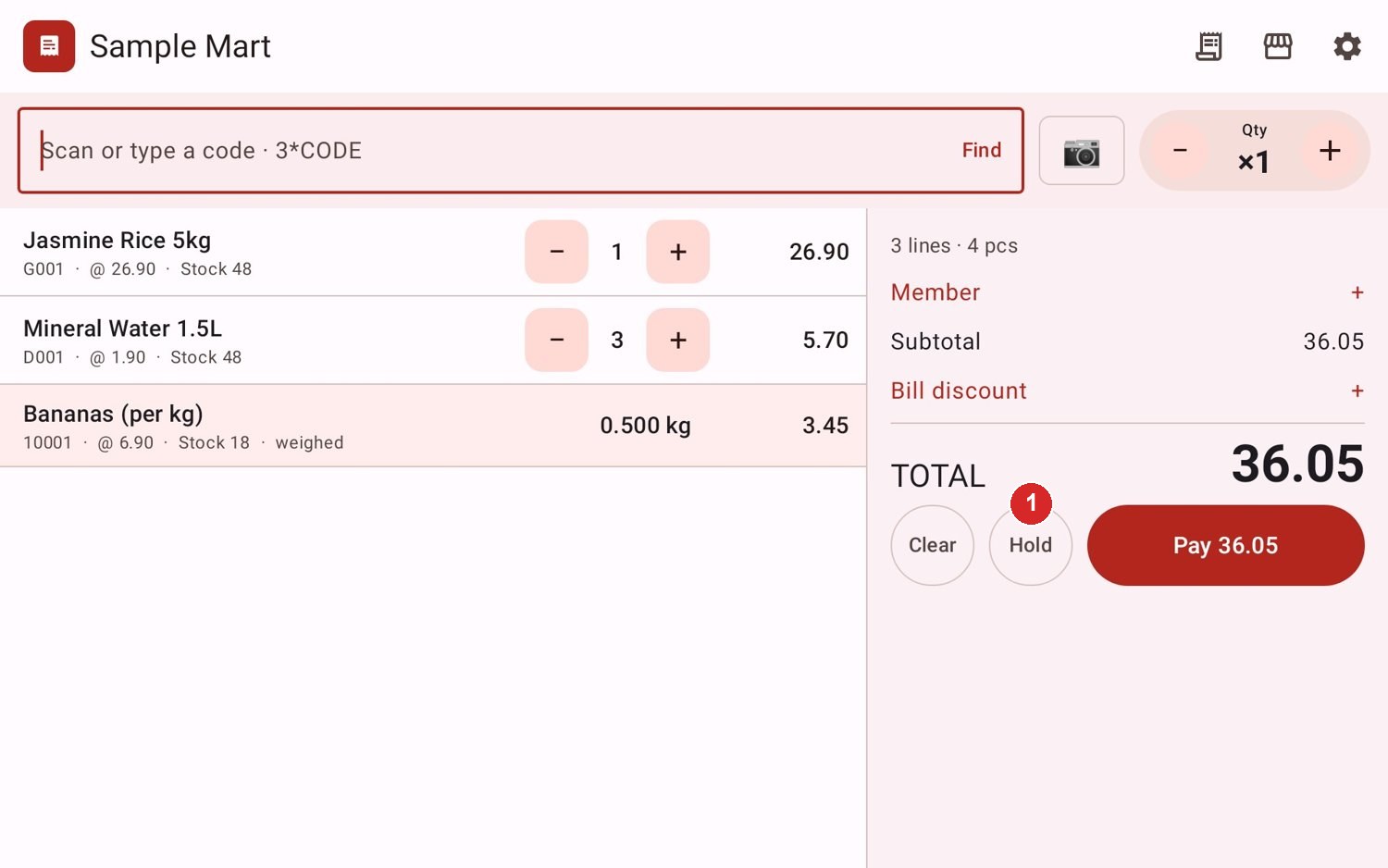
| Step | What to do |
|---|---|
| 1 | Tap Hold. |
3. Serve the next customer
Scan, take payment and print the receipt for the next customer as usual.
4. Open the held sales
Tap Held sales (n). The number n tells you how many sales are held. The window Held sales lists each held sale with its number of items, its amount and the time.
5. Tap Resume
Tap Resume beside the sale you want. It comes back on the sale screen.
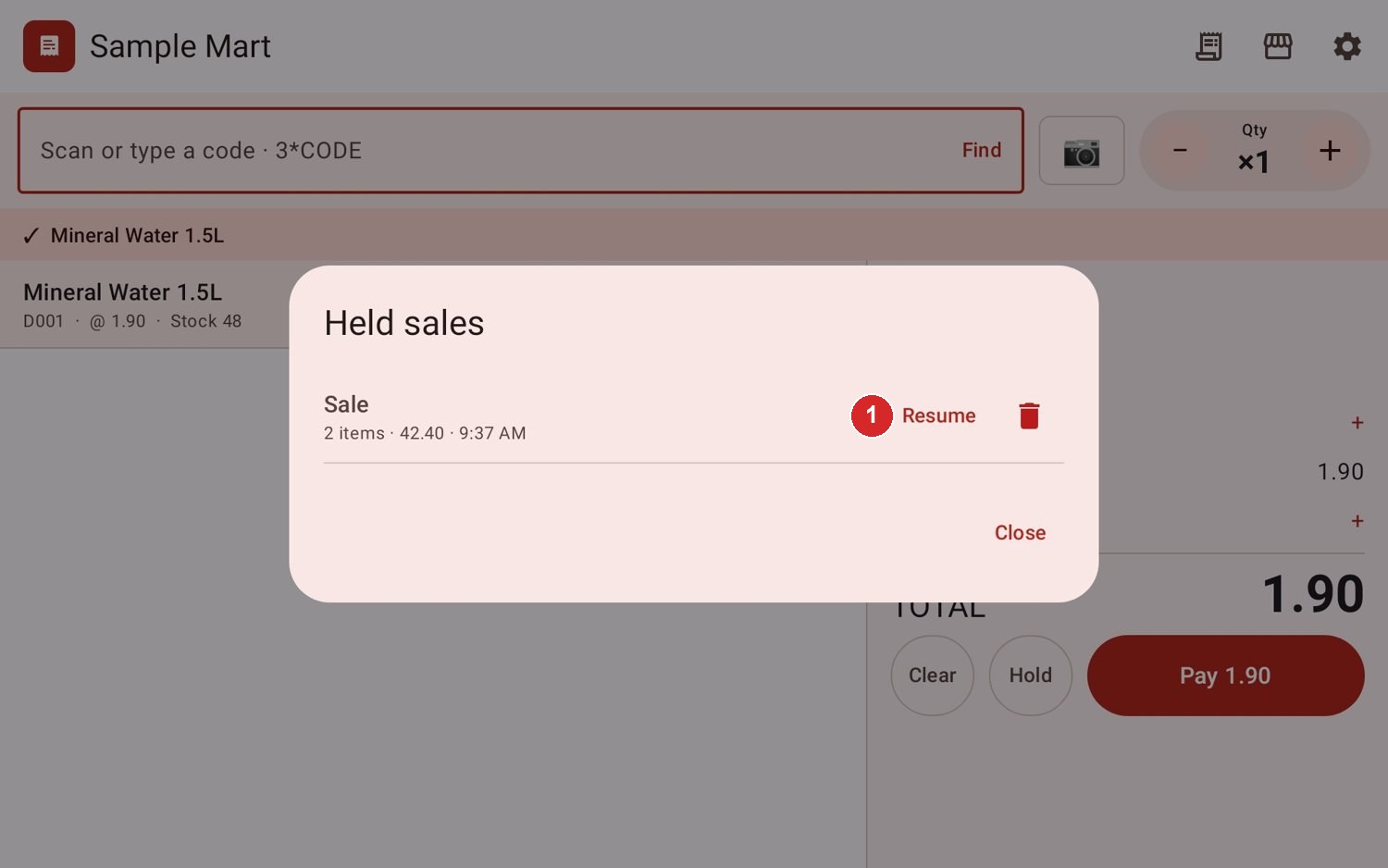
| Step | What to do |
|---|---|
| 1 | Tap Resume beside the held sale. |
6. Finish the sale
Check the items and tap Pay, as for any sale. Tap Close if you want to leave the Held sales window without choosing a sale.
Tips
- A held sale is not paid, so it is not in the shift and not in the sales until you pay it.
- A held sale stays on the device where you held it. Resume it on the same device.
- Pay or clear the held sales before you close the shift. The app tells you how many held sales are not paid yet.
Common problems
A customer’s sale is missing from the shift or the sales.
A held sale that was never paid is not counted. Open Held sales (n), tap Resume and pay it.
A message says that held sales are not paid yet.
Open Held sales (n) and resume each sale to pay it, or clear it, before you close the shift.
I cannot find a held sale on another device.
A held sale is kept on the device that held it. Go back to that device and tap Held sales (n).