
Take back an item with a negative quantity, or cancel a bill that was already paid and give the money back.
Before you start
- Open the Order App in Retail mode.
- With Staff sign-in on, voiding and refunding need a Supervisor or a Manager.
Steps
1. Return an item
On the sale screen type -1*CODE in the scan box, for example -1*9555000000059, and press Enter. You can also set the Qty to -1 before scanning, or type a negative number in the Quantity of a line. The return reduces the total.
2. If returns are not allowed
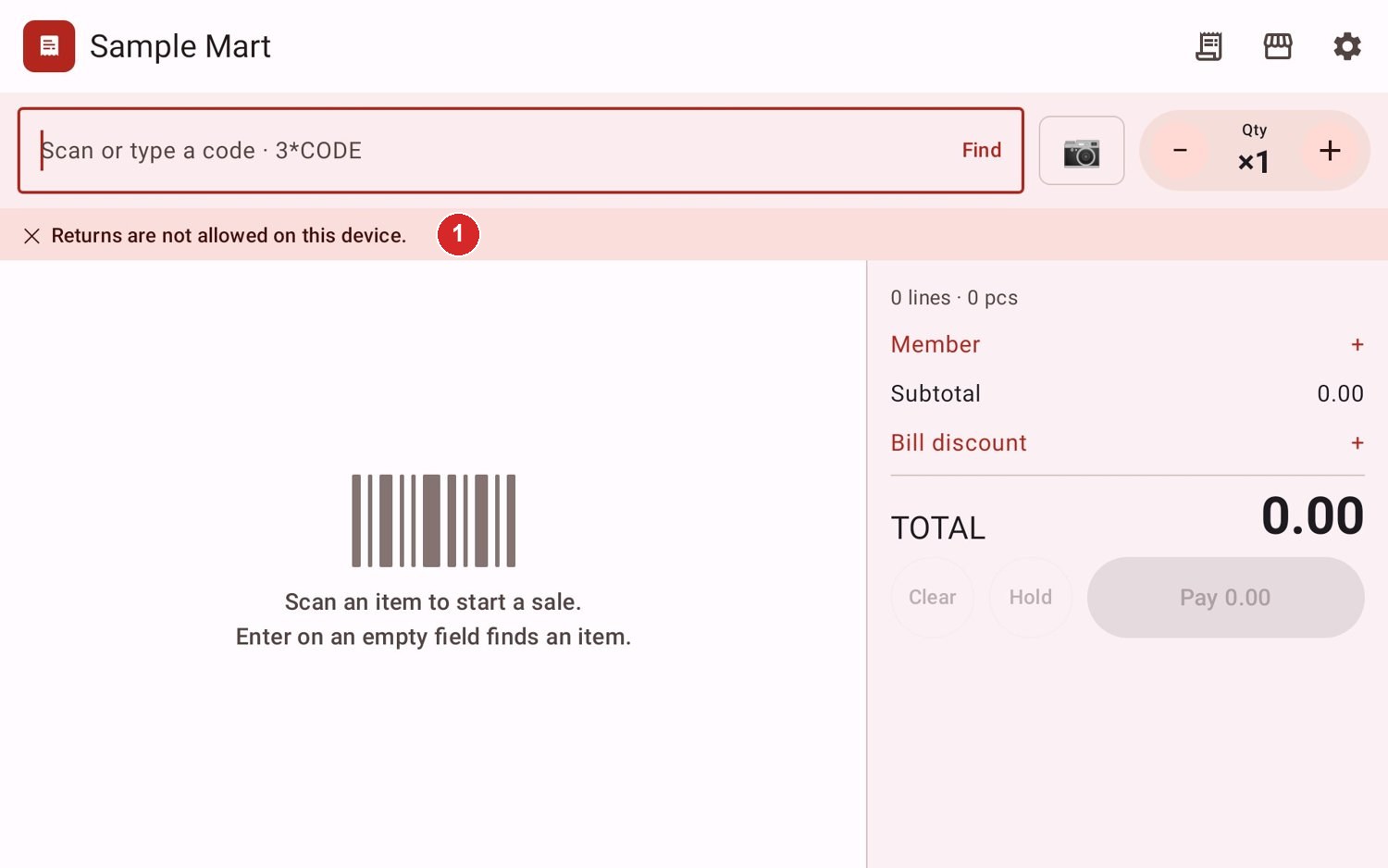
If the red message says Returns are not allowed on this device., returns are switched off. In Settings > Selling > Retail, switch on Allow returns (negative quantity) and tap Save. In a shop with a server, ask for the POS setting to be changed.
| Step | What to do |
|---|---|
| 1 | Read the message on the sale screen. |
3. Open the paid bill
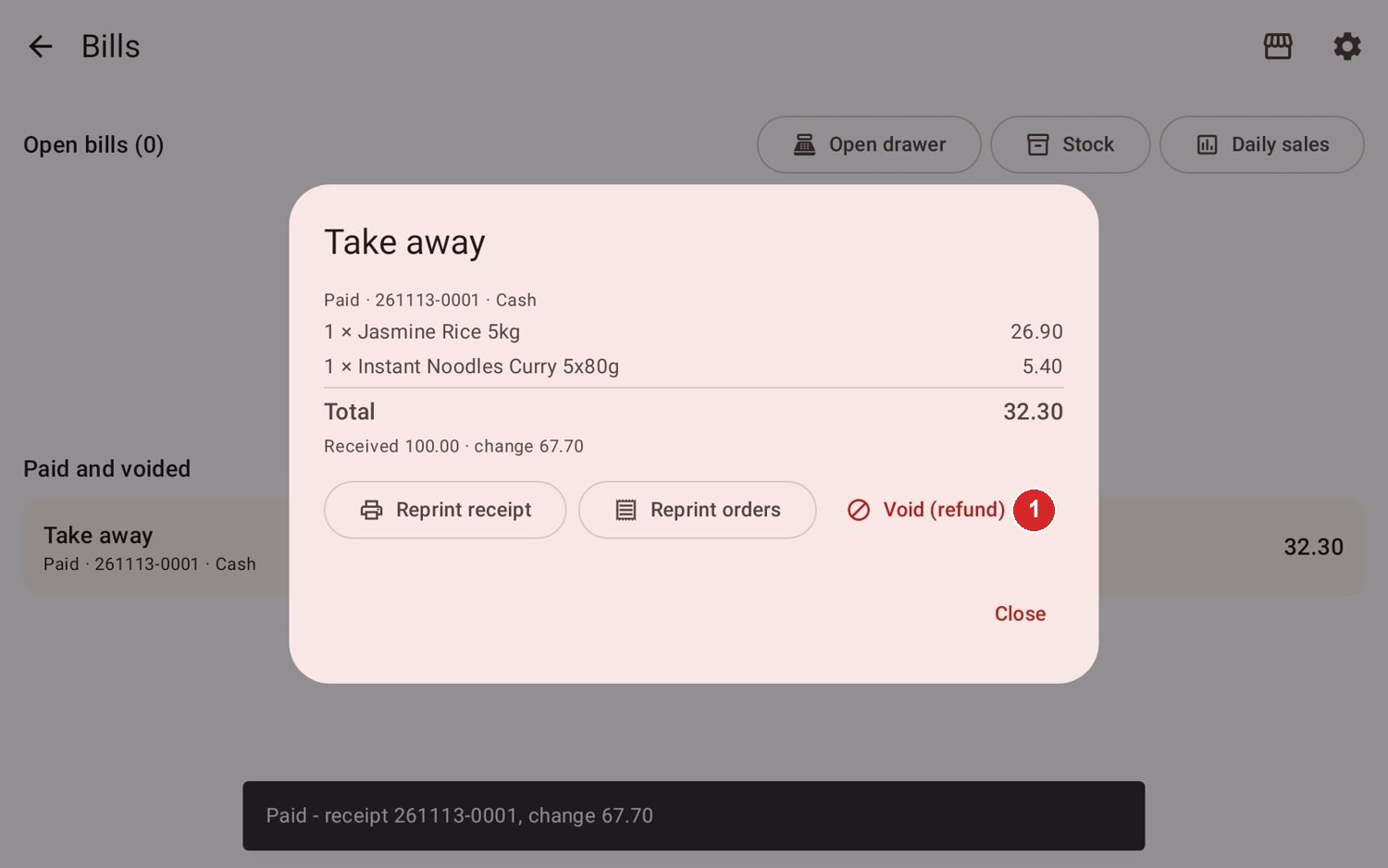
To cancel a bill that was already paid, tap the Bills icon at the top. Tap the paid bill under Paid and voided.
4. Tap Void (refund)
The bill opens with its items, total and payment. Tap Void (refund).
| Step | What to do |
|---|---|
| 1 | Tap Void (refund). |
5. Type the reason and confirm
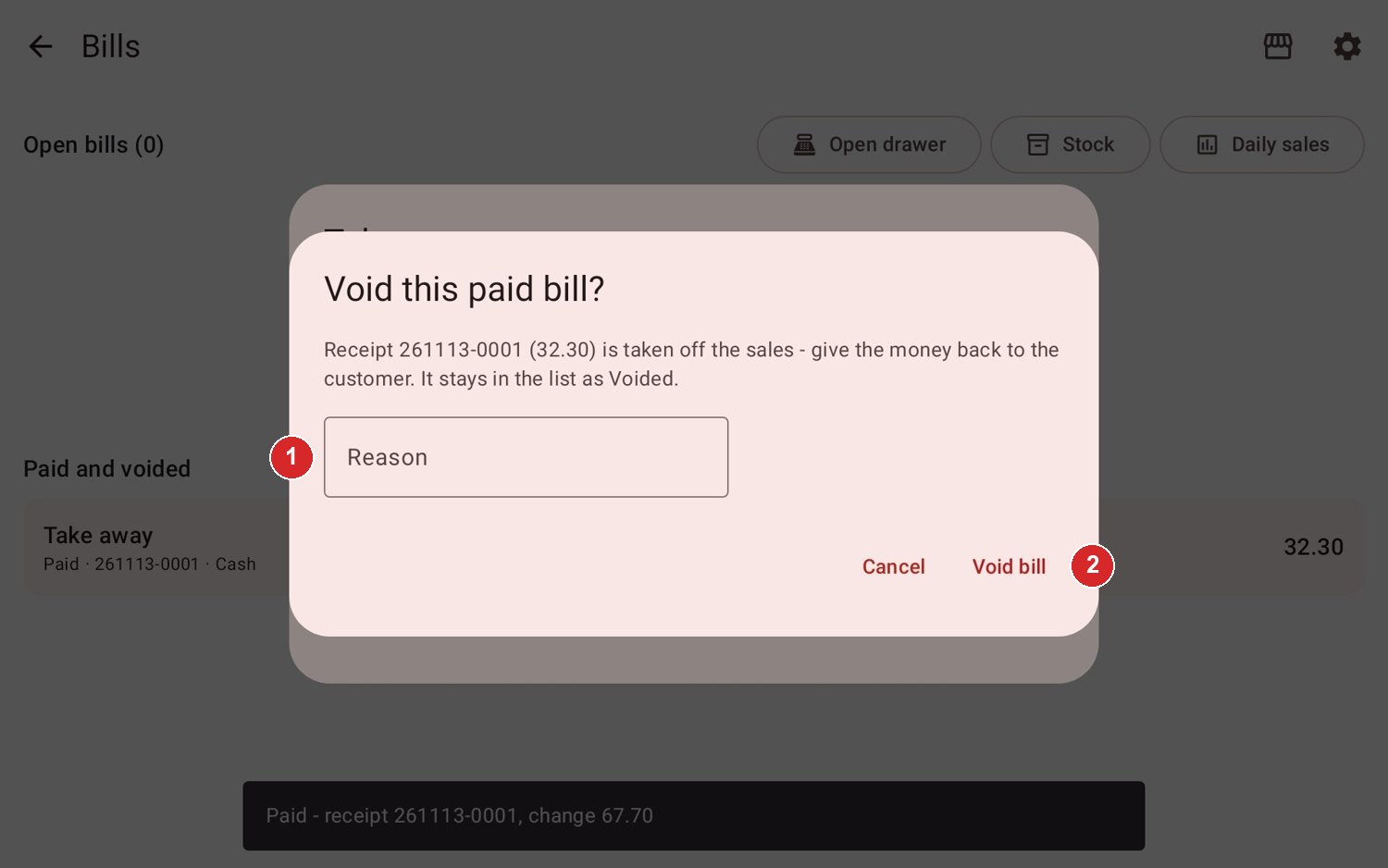
The window Void this paid bill? explains that the receipt is taken off the sales. Type the Reason, then tap Void bill.
| Step | What to do |
|---|---|
| 1 | Type the Reason. |
| 2 | Tap Void bill. |
6. Give the money back
The bill leaves the sales and stays in the list as Voided. Give the money back to the customer.
Tips
- A paid bill can be voided only on the device that took the payment.
- Voiding puts back the stock of items that track stock.
- Voided and refunded bills are listed in Back Office > Reports under Voids / refunds.
Common problems
The message says the bill cannot be voided here.
Void it on the device that settled it.
The app asks for a Supervisor or Manager.
With Staff sign-in on, void and refund need a Supervisor or Manager. Ask one of them to type their PIN.
I cannot find the bill.
A paid bill is under Paid and voided on the Bills screen, not under Open bills.
Returns are not allowed on this device.
Switch on Allow returns (negative quantity) in Settings > Selling > Retail, or ask for the POS setting in a shop with a server.