
Scan items with a built-in or Bluetooth scanner, or with the camera of the phone or tablet, and check what to do when a scan adds nothing.
Before you start
- Open the Order App in Retail mode, on the sale screen.
- For the camera, allow it when Android asks.
Steps
1. Know the two ways to scan
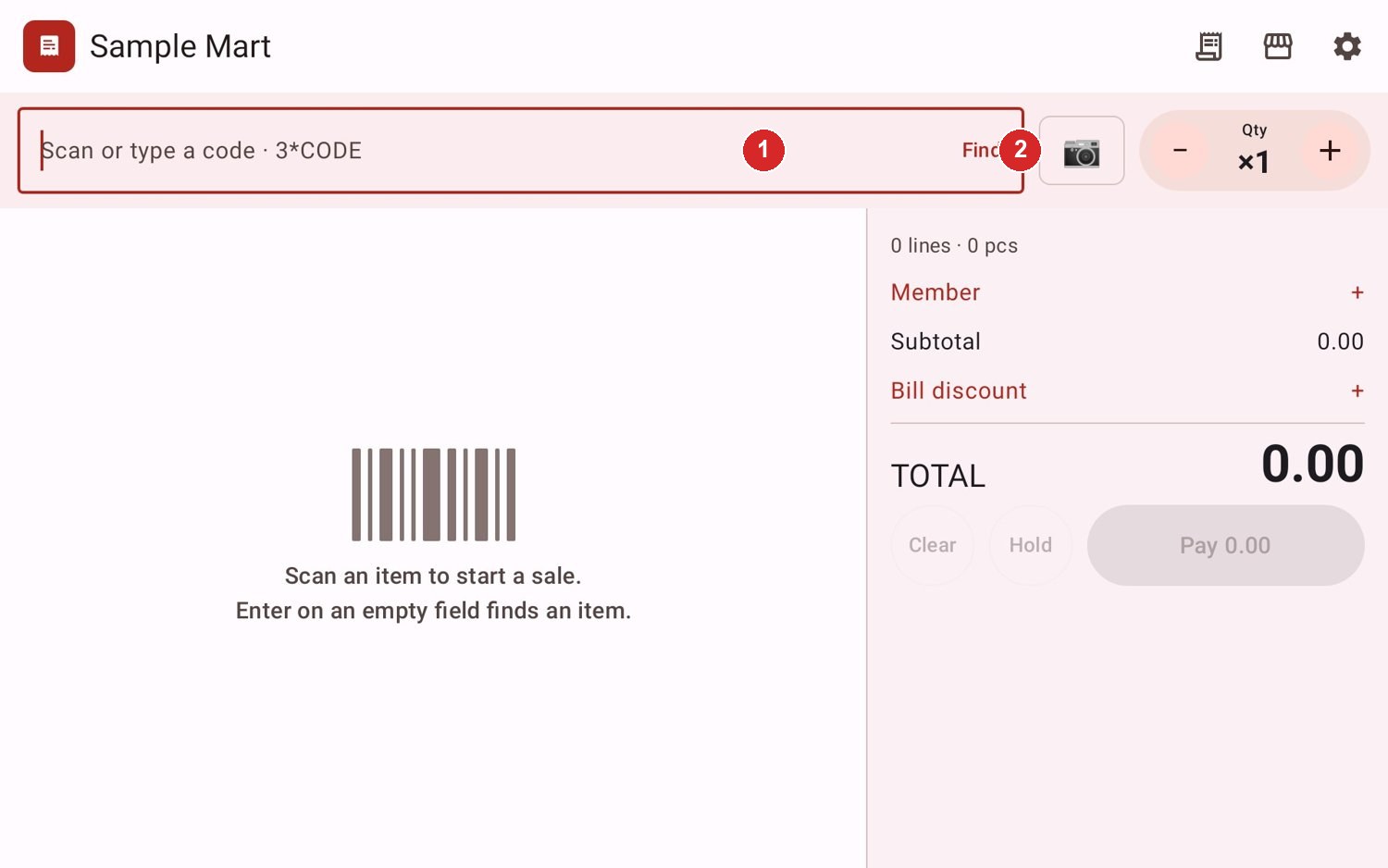
The sale screen has a scan field and a camera button.
| Step | What to do |
|---|---|
| 1 | Scanner: the scan field always has the cursor. A built-in or Bluetooth scanner types the code and presses Enter, so each scan adds the item. The on-screen keyboard only comes up when you tap the field. |
| 2 | Camera: tap the camera button next to the code box. |
2. Allow the camera
The first time you tap the camera button, Android asks to allow the camera. Allow it. If it was refused, the message says Camera not allowed. Allow it in Android Settings > Apps > Synergy Order > Permissions.
3. Scan with the camera
Hold the barcode inside the green box. A beep means the item was added. Hold it away and back to add the same item again.
4. Use Light or stop the camera
Tap Light to switch the flash on in a dark shop. Tap the camera button or Camera off to stop. The camera pauses while a window is open, and switches itself off at Pay and after 2 minutes with no scan.
5. When an item is not added
A red message Not found: followed by the code, and a beep, mean the code is not in the menu. Check the item’s code or barcode in Back Office > Items (or in the Barcode column of your Excel file, then import again).
Tips
- Tap the camera button again to scan after the camera switched itself off. The message says: Camera turned off (2 minutes with no scan).
- Enter on an empty scan field opens the item search, the same as the Find button.
Common problems
Nothing appears when I scan.
Make sure the cursor is in the scan field. Tap the field once.
The camera says Camera not allowed.
Allow it in Android Settings > Apps > Synergy Order > Permissions.
The camera turned off by itself.
It switches off after 2 minutes with no scan. Tap the camera button to scan again.
A weighing-scale sticker does not add the item.
Check Weighing-scale barcode format in Settings > Selling > Retail.
The message says Not found.
The code is not in the menu. Check the item’s code or barcode in Back Office > Items. In a shop with a server, check the code in the POS, then download the menu again.