
This guide shows how to enter a sale in the Synergy Order App: scan items, change a quantity, take payment and finish the sale.
Before you start
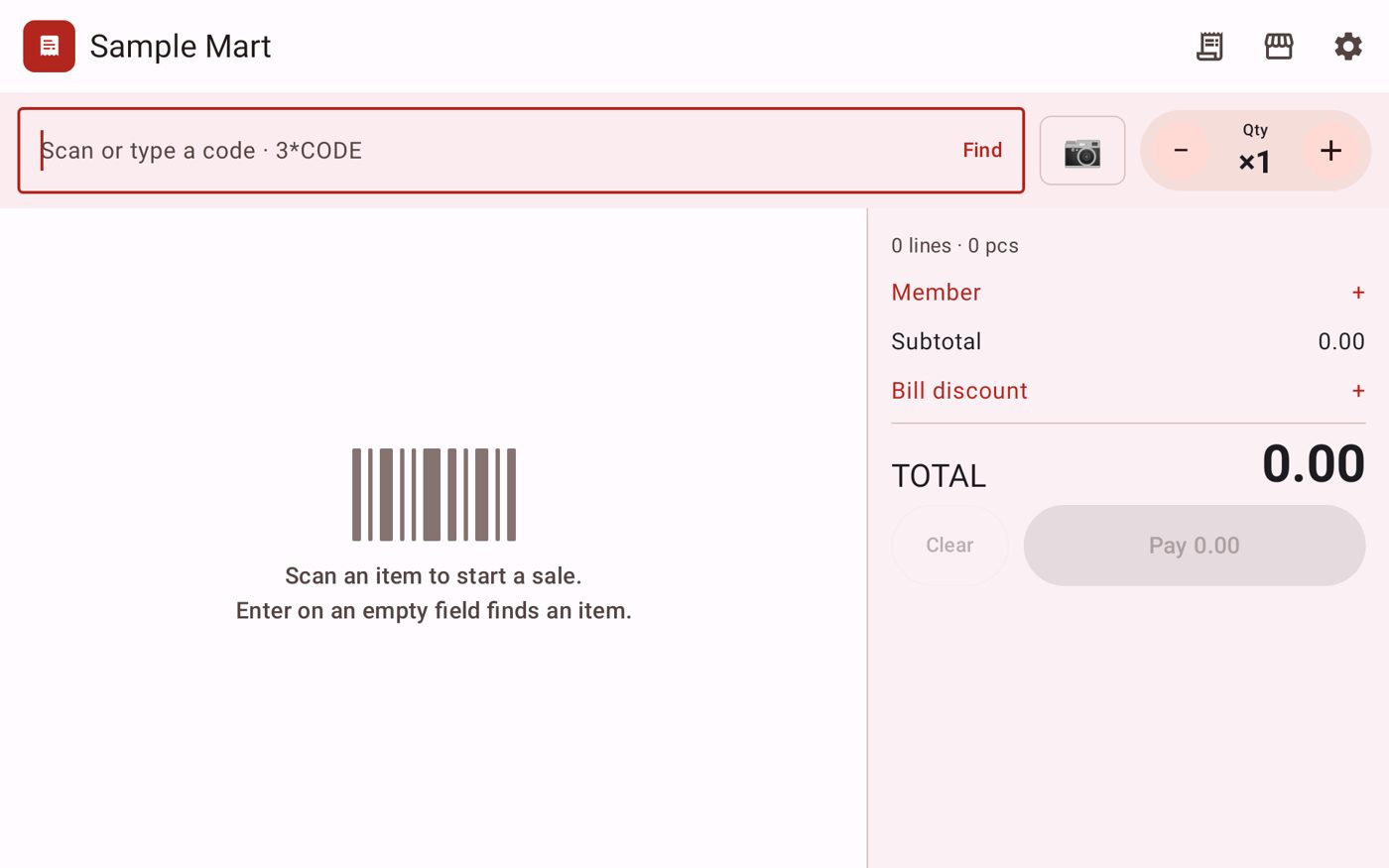
- Open the app on the sale screen, where you see ‘Scan an item to start a sale.’
- Have your scanner ready, or use the camera button next to the code box.
Steps
1. Start a sale
Open the sale screen. It is empty and waits for you to scan an item.
2. Scan the first item
Scan the item code with a scanner or the camera. The item appears in the list with its price.
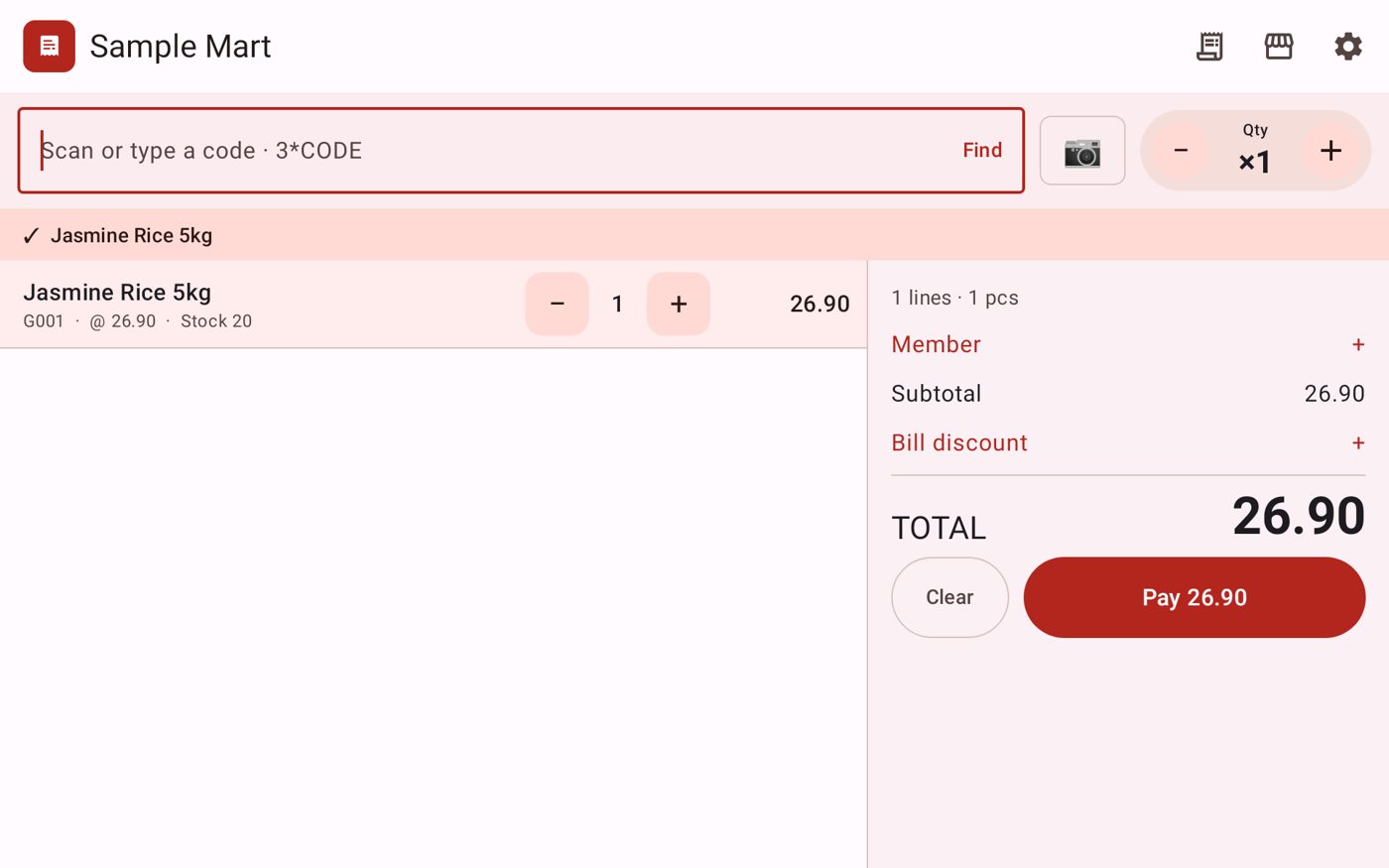
3. Change the quantity
Tap the number next to the item. A box opens.
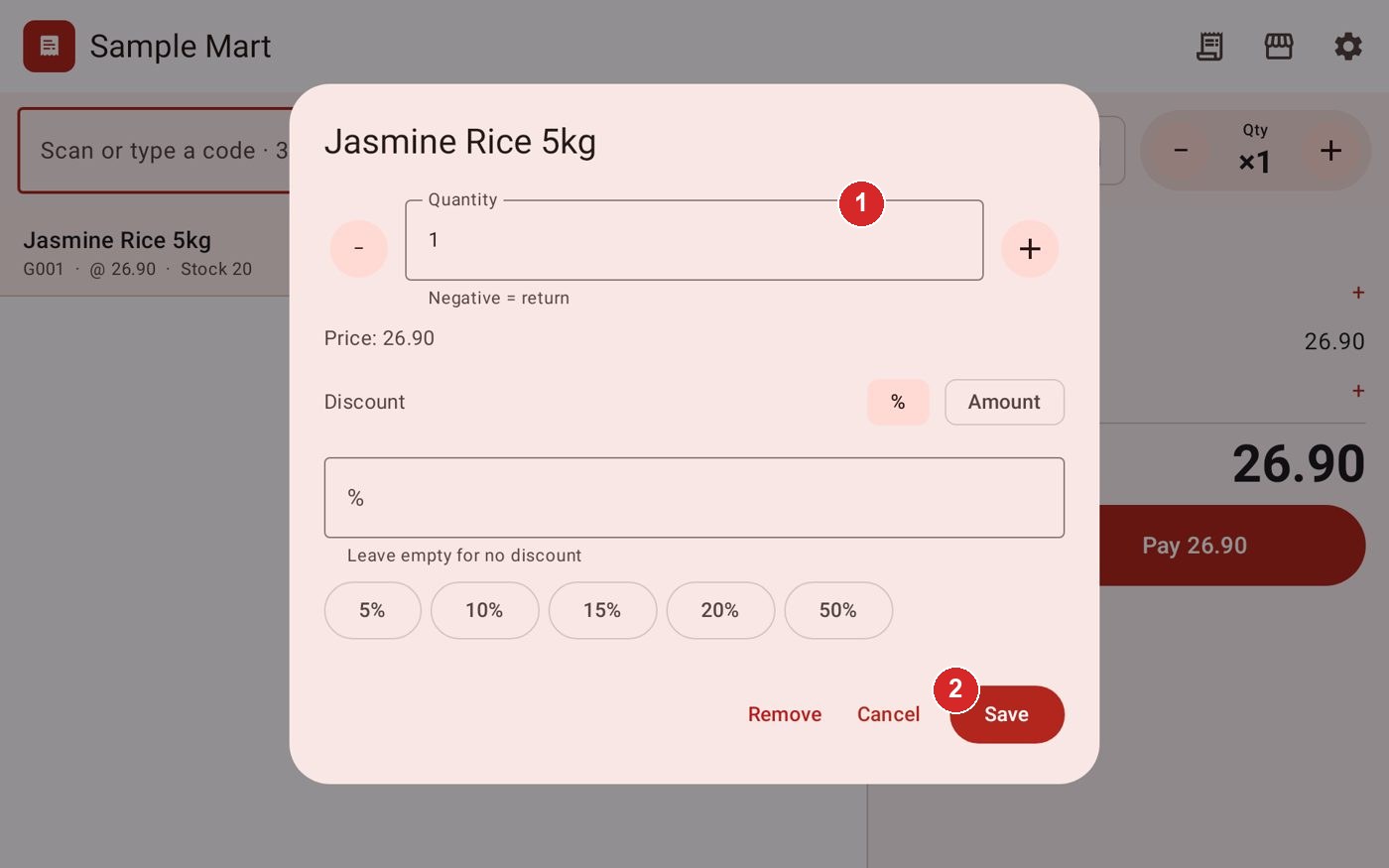
| Step | What to do |
|---|---|
| 1 | Type the new quantity. |
| 2 | Tap Save. |
4. Check the total
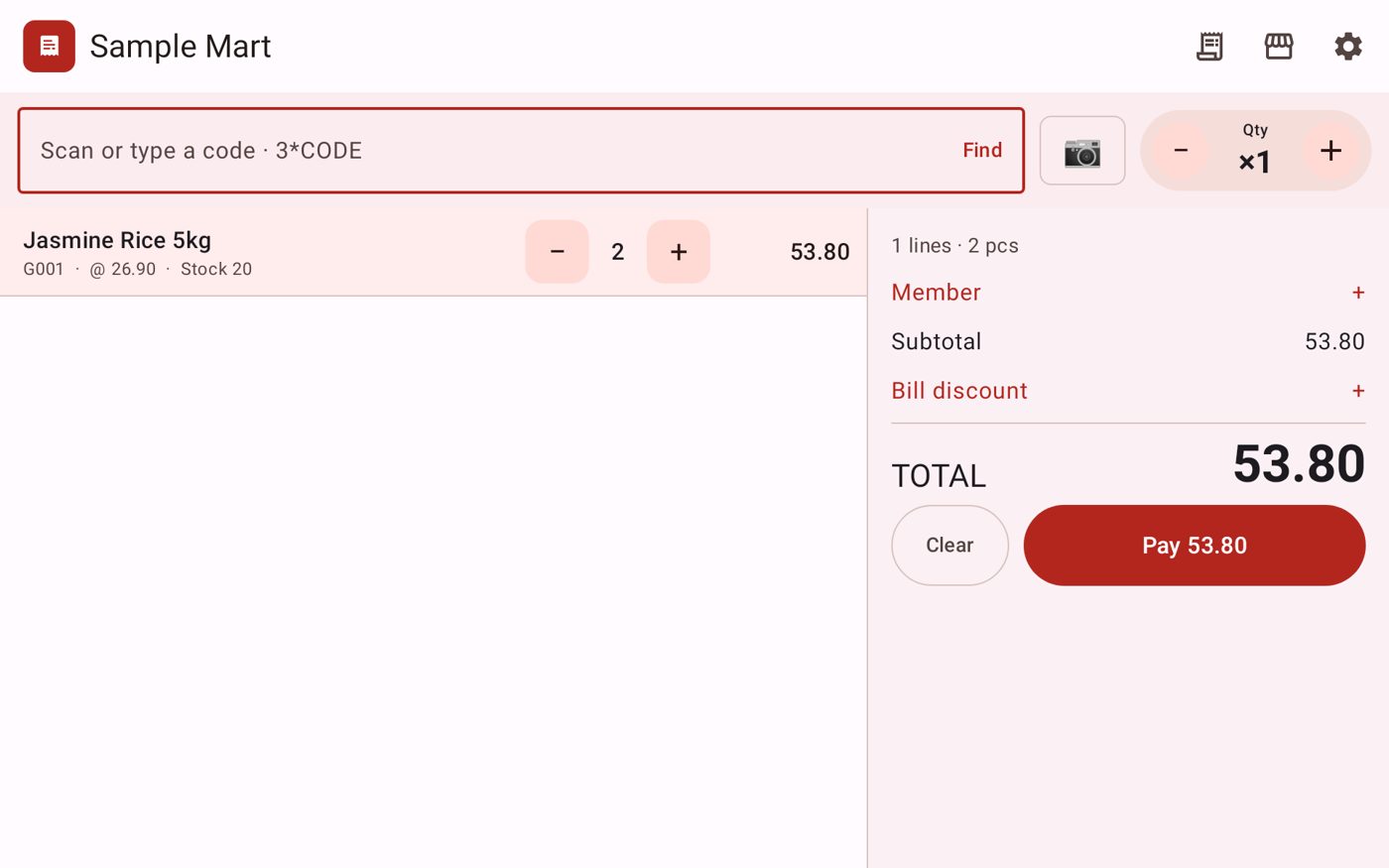
The total follows the new quantity.
5. Scan the next item
Scan the next item. It is added to the list and the total updates.
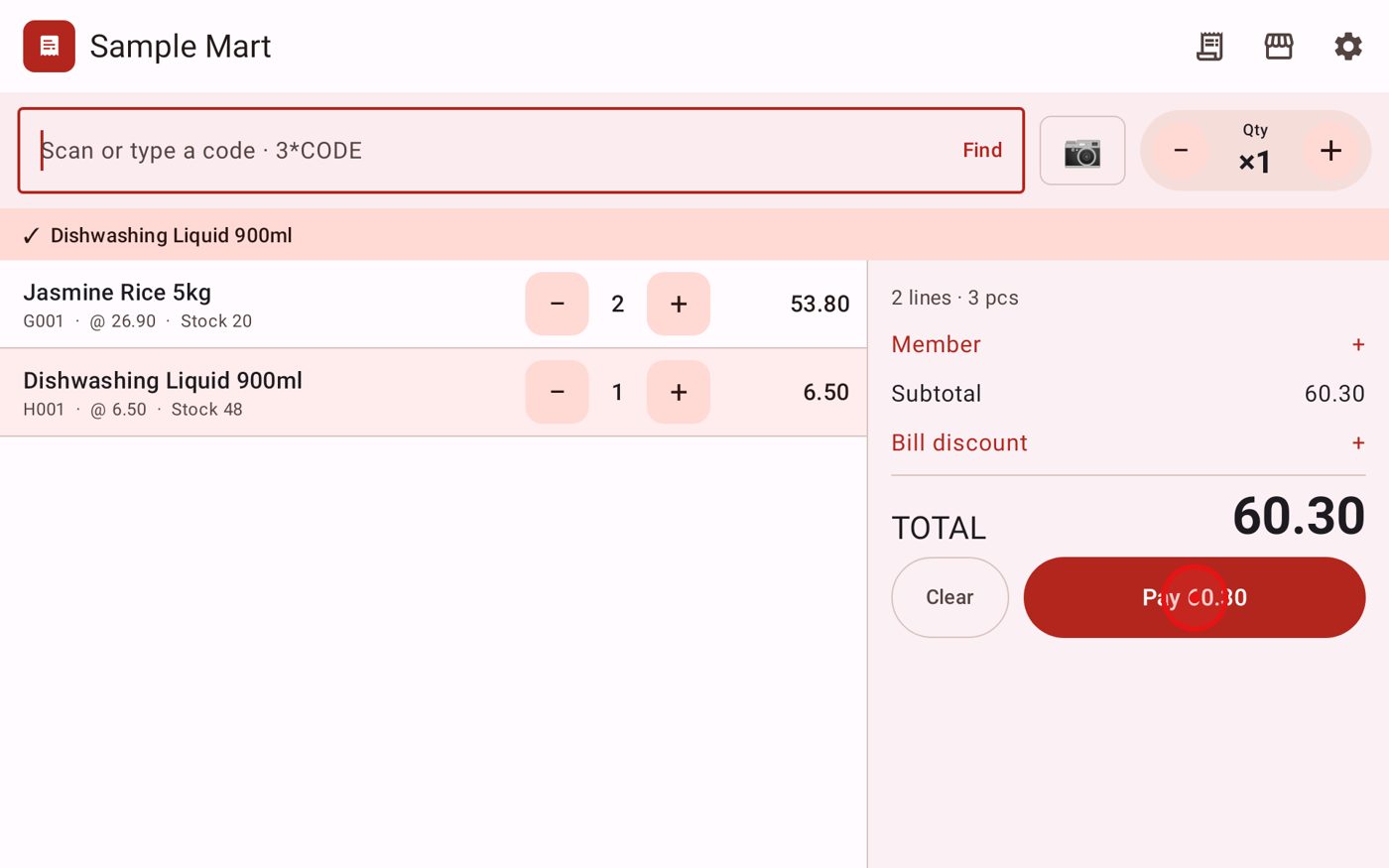
6. Tap Pay and choose the payment type
Tap Pay. Then choose the payment type: Cash, Card, E-wallet or Other.
7. Enter the cash received
For Cash, the change is shown on screen.
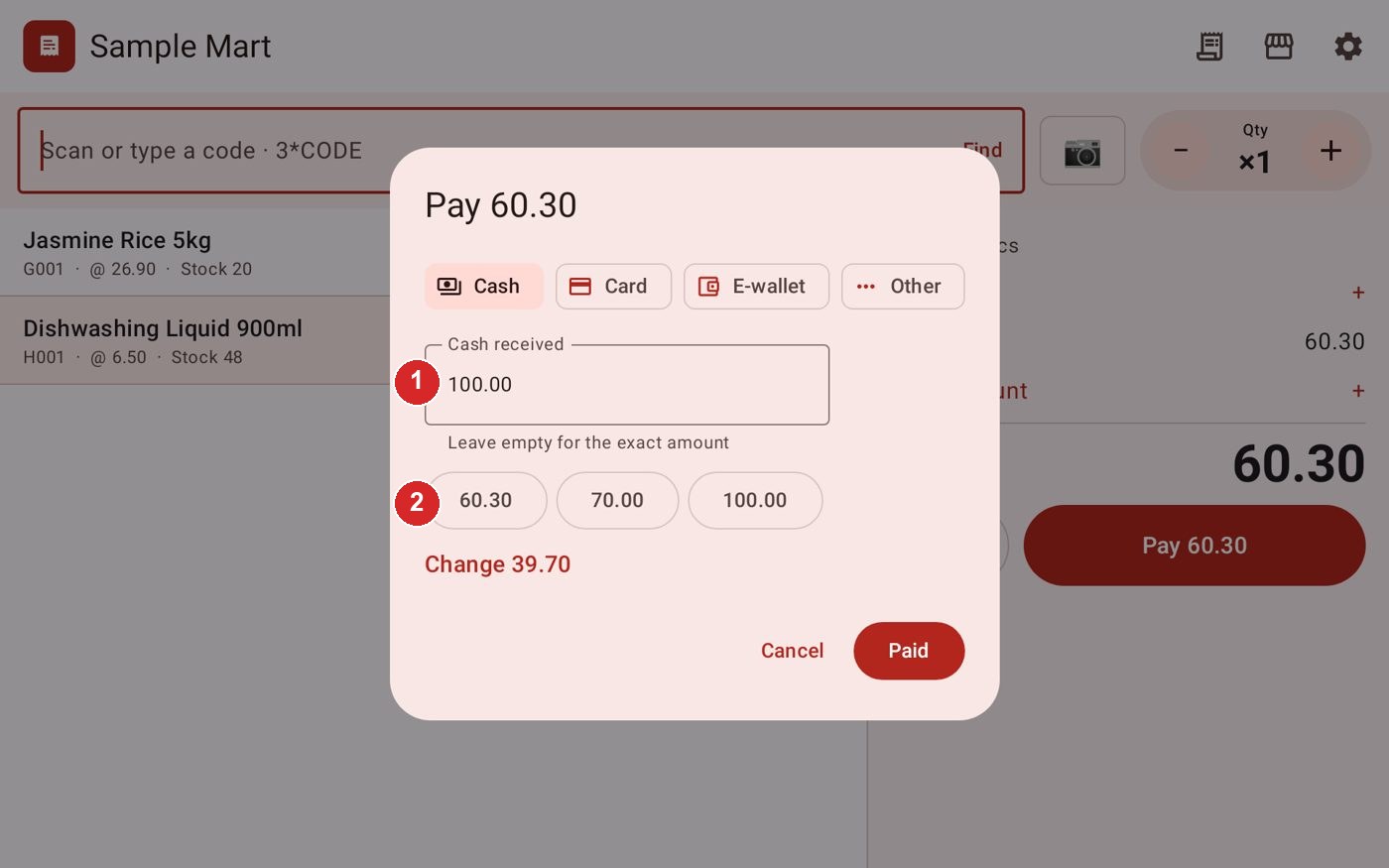
| Step | What to do |
|---|---|
| 1 | Type the cash received, |
| 2 | or tap one of the amounts shown. |
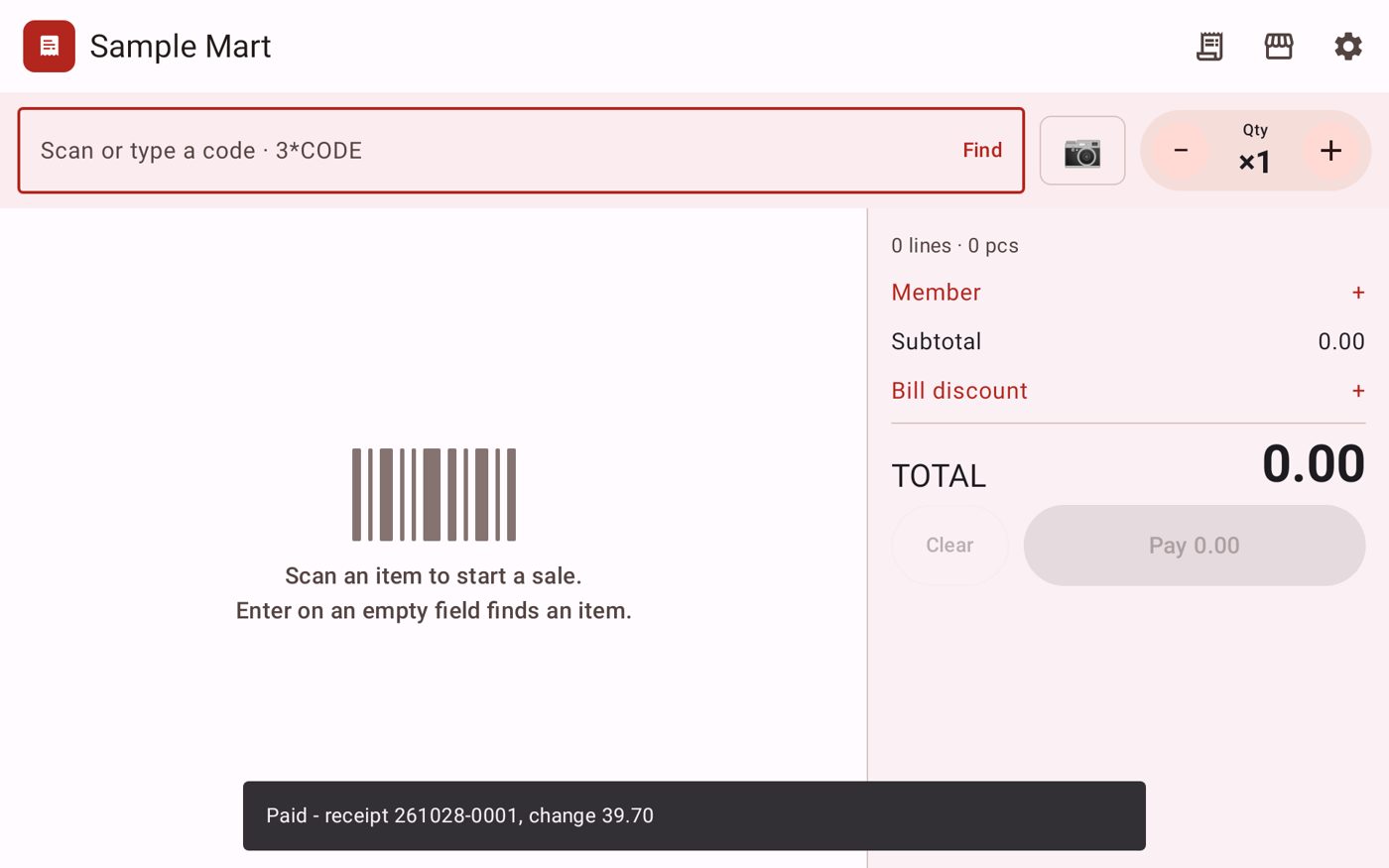
8. Tap Paid
Tap Paid. The receipt prints and the sale screen is ready for the next customer.
Tips
- To put a sale aside, tap Hold. Bring it back with Held sales (n). A held sale is not paid, so it is not in the shift or in the sales.