
Tell a standalone device how to read the sticker of a weighing scale, and decide whether returns are allowed.
Before you start
- The device is a standalone Retail device.
- Know the barcode format of your scale sticker (the same as in your POS).
Steps
1. Open the Retail section
Open Settings and the group Selling. Find the section Retail.
2. Fill in the Retail section
Fill in the fields, then save.
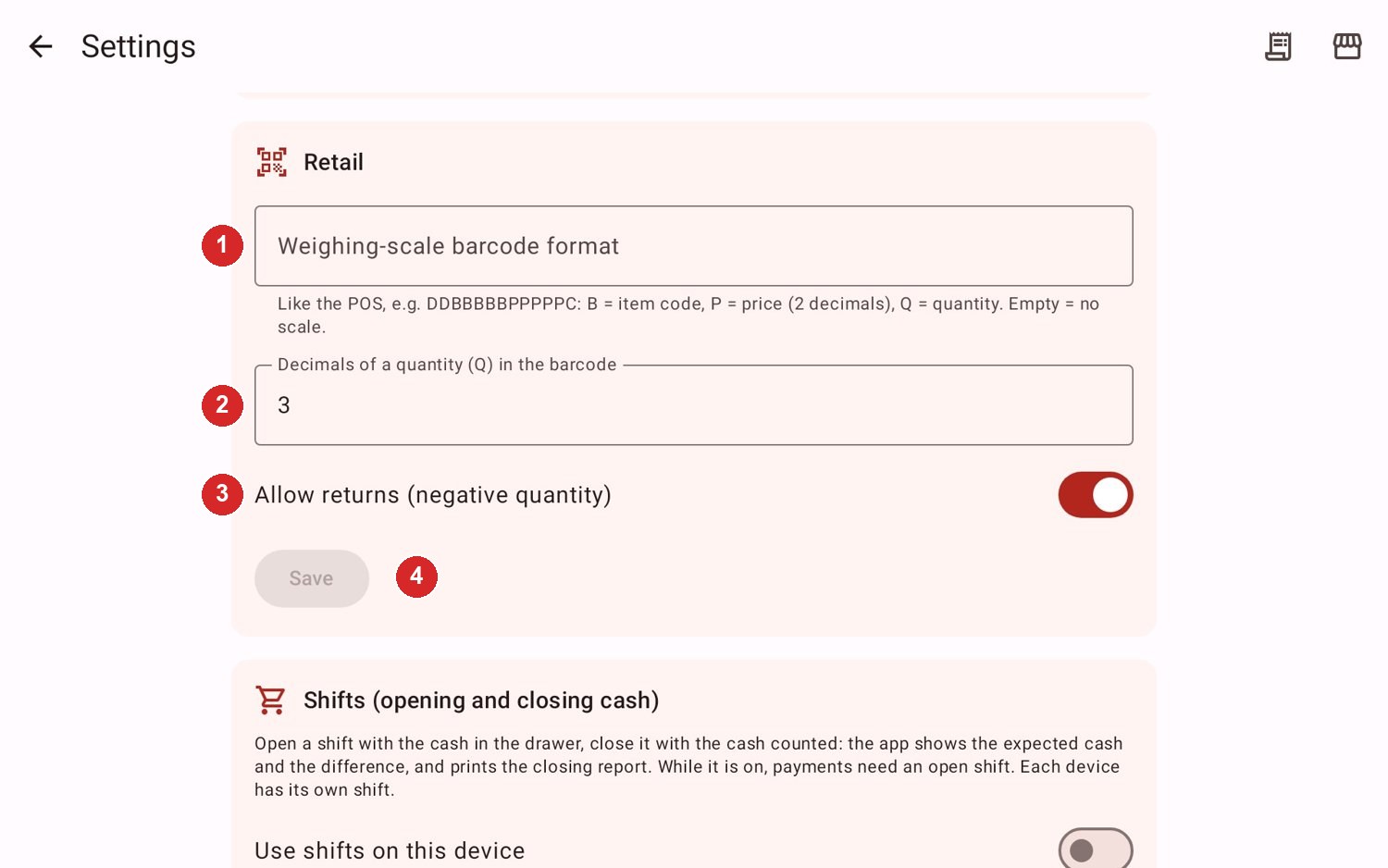
| Step | What to do |
|---|---|
| 1 | In Weighing-scale barcode format type the format of your scale sticker, for example DDBBBBBPPPPPC. B is the item code, P is the price with 2 decimals, Q is the quantity. Empty means no scale. |
| 2 | In Decimals of a quantity (Q) in the barcode type the number of decimals, usually 3 (grams). |
| 3 | Switch Allow returns (negative quantity) on or off. |
| 4 | Tap Save. |
3. Scan a sticker
Go to the sale screen and scan a weighed item’s sticker. The item and its weight or price come from the barcode. A weighed line shows the weight, for example 0.500 kg.
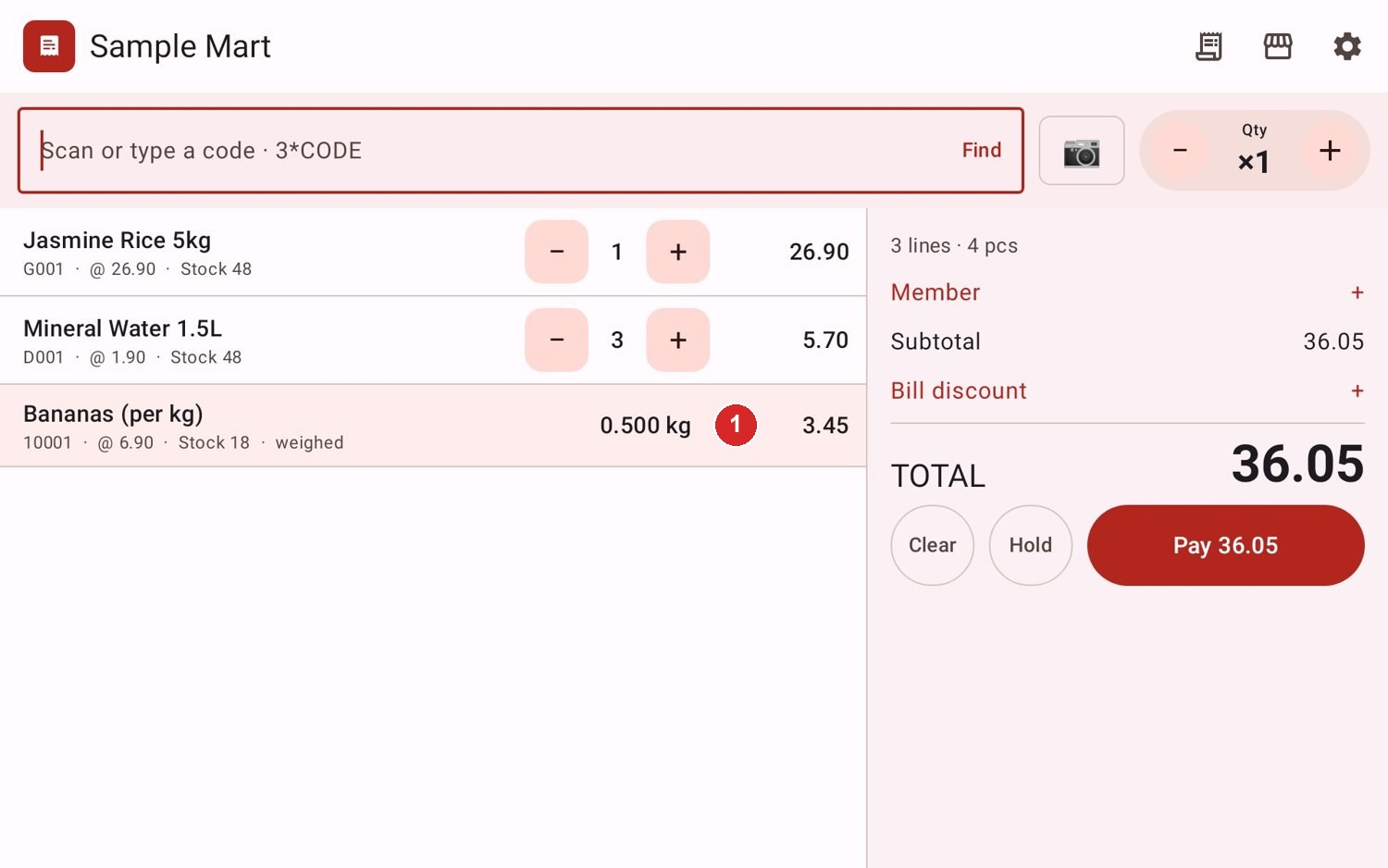
| Step | What to do |
|---|---|
| 1 | Look at the weighed line. |
4. Check the line
A weighed line always gets its own line. Check that the item name, the weight and the line total are what you expect.
5. In a shop with a server
Nothing is set here. The section only shows the weighing-scale format and whether returns are allowed, taken from the POS settings.
Tips
- Write the format the same way as in the POS.
- An empty format means the device has no scale.
- Allow returns (negative quantity) lets the sale screen accept -1*CODE.
Common problems
The scale sticker shows Not found.
Check that the B part of the format matches the item code in the menu, and that the format is typed exactly.
The weight on the line is wrong.
Check Decimals of a quantity (Q) in the barcode. It is usually 3 (grams).
The price is wrong.
The P part of the format is the price with 2 decimals. Check the number of P letters.
I changed a setting but nothing changed.
Tap Save at the bottom of the Retail section.