
A walk through the Settings screen of a single device: the groups and sections, what the shop can change itself, and what Synergy sets for you.
Before you start
- On a device that Synergy set up with a slot code, some settings are set for you and cannot be changed here.
- With staff sign-in on, opening Settings needs a Manager.
Steps
1. Open Settings and its groups
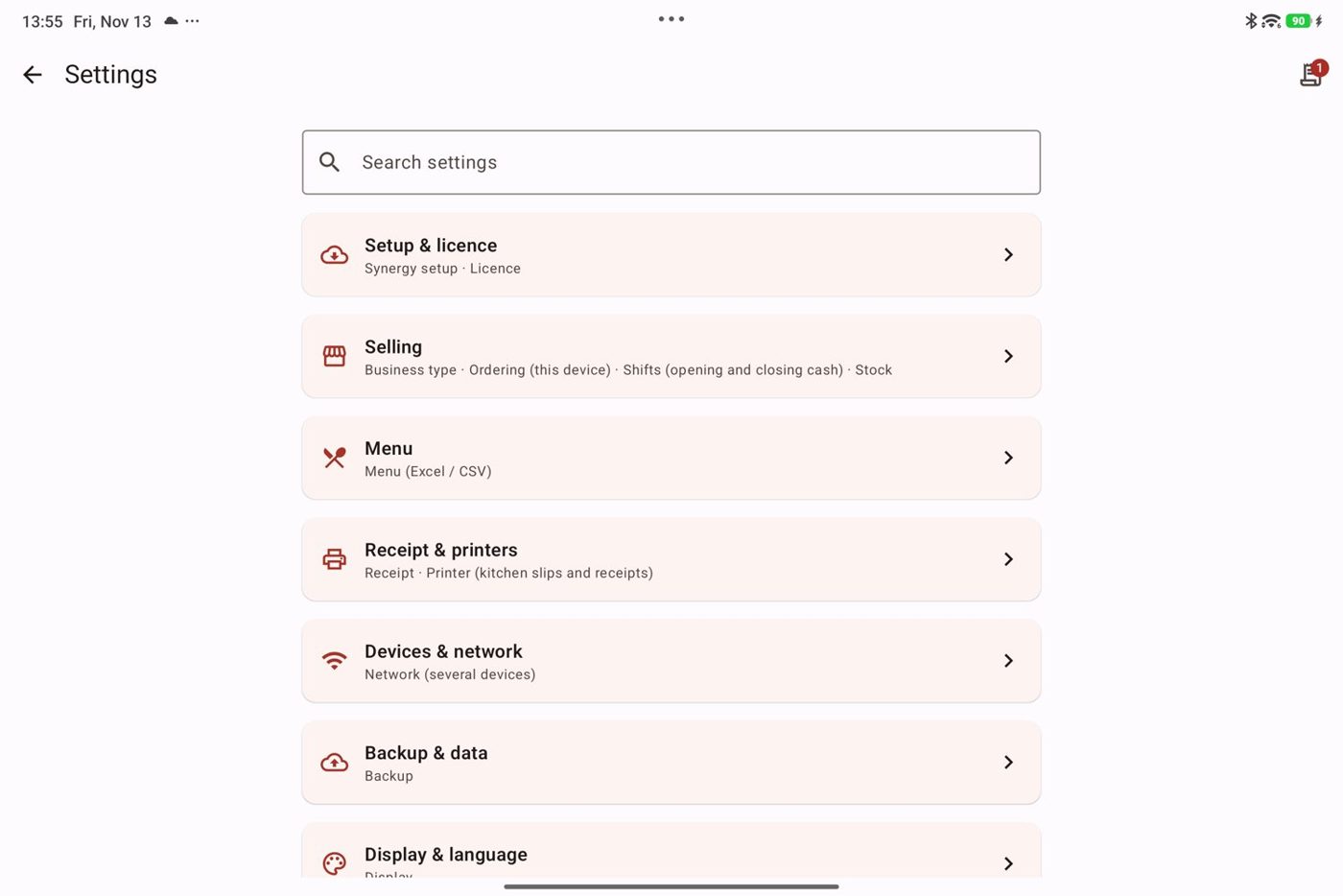
Tap the gear icon. Settings opens on a list of groups: Setup & licence, Selling, Menu, Receipt & printers, Devices & network, Backup & data, Display & language and Updates & support. A group shows only if it has a section on your device. The Search settings box at the top finds a setting by name. Tap a group to see its sections. In Setup & licence you find Synergy setup (a slot code and PIN from Synergy set up the mode, server or main device, location and payment) and Ordering mode (Server or Standalone). In Selling you find Business type (F&B or Retail). For F&B there are two switches: Open “Choose table” after each order, and Camera button in Search items.
2. Choose how devices work together
In Selling, the section Bookings has the switch Table bookings. In Devices & network, Network (several devices) lets this device be This device only, a Main device or a Terminal. The switch HQ device (boss) makes this phone read the sales of the shop’s branches. It takes no orders.
3. Menu (Excel / CSV)
In the group Menu, the section Menu (Excel / CSV): Import menu loads a menu file, and Template (Excel) and Template (CSV) give you a file to fill in. Category order is A-Z or As in the file / Sort column. Importing again replaces the menu.
4. Receipt
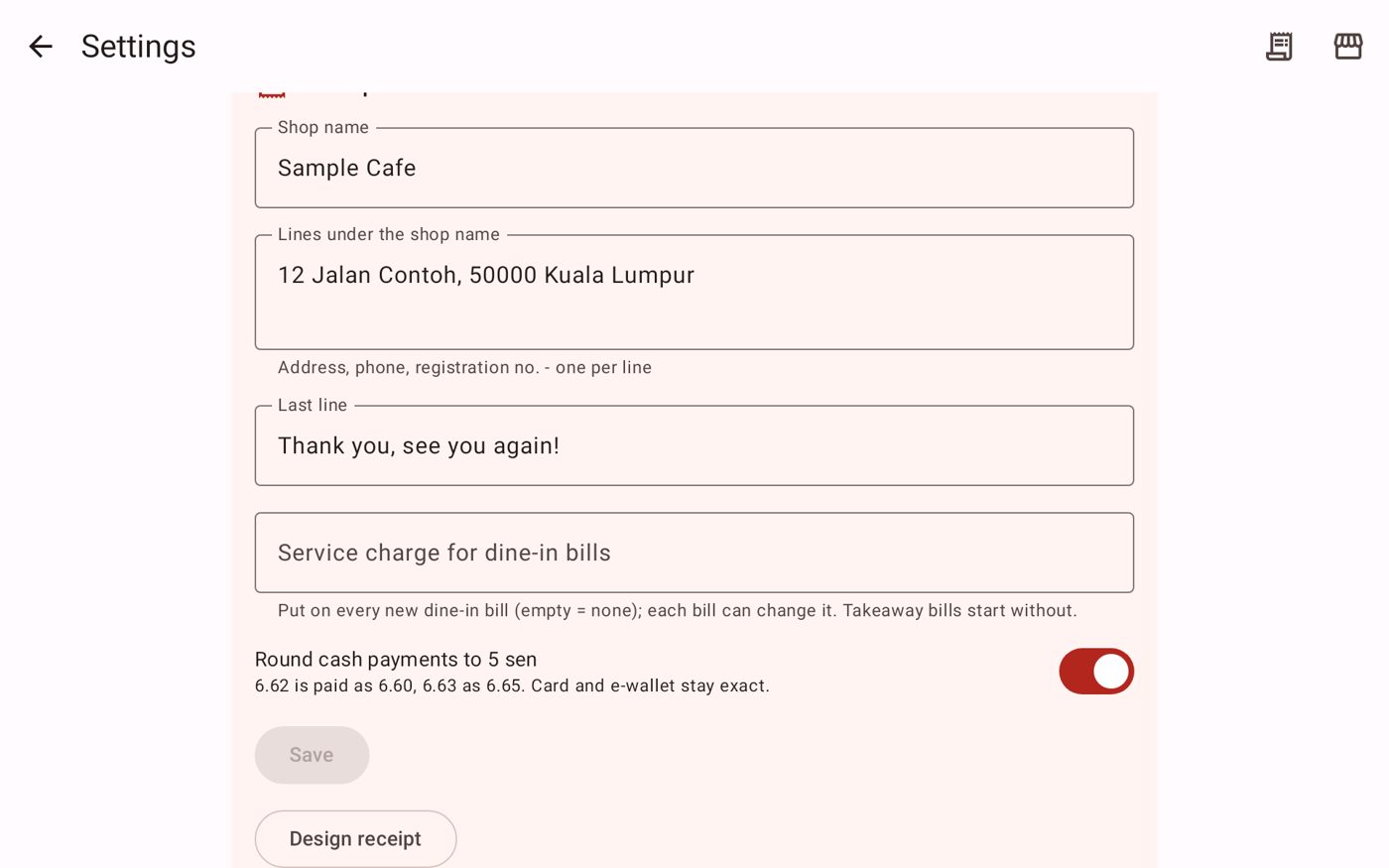
In the group Receipt & printers, Receipt has the Shop name, the lines under it, the Last line, the Service charge for dine-in bills and the switch Round cash payments to 5 sen. Tap Save after a change. Design receipt changes how the receipt looks.
5. Printer, Backup and Stock
Receipt & printers also has Printer (kitchen slips and receipts), which offers None, Bluetooth, Network (Wi-Fi/LAN) and USB, the paper size 58 mm or 80 mm, Test print and the cash drawer. In Backup & data, Backup makes a copy every day and has Back up now. In Selling, Stock has the switch Don’t sell items that are out of stock.
6. Display
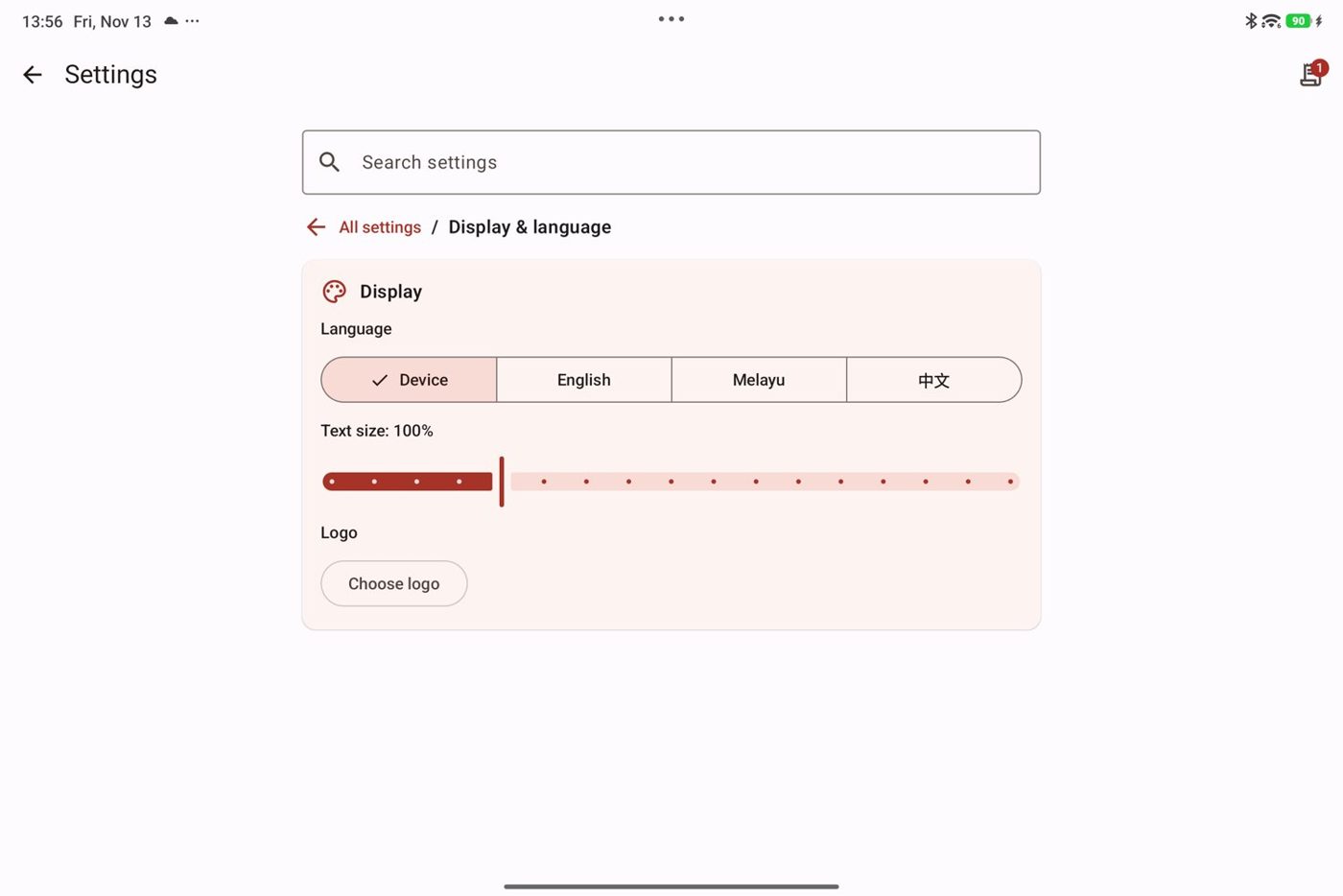
In Display & language, Display has the Language (Device, English, Melayu or Chinese), the Text size and the Logo.
7. App updates and Support
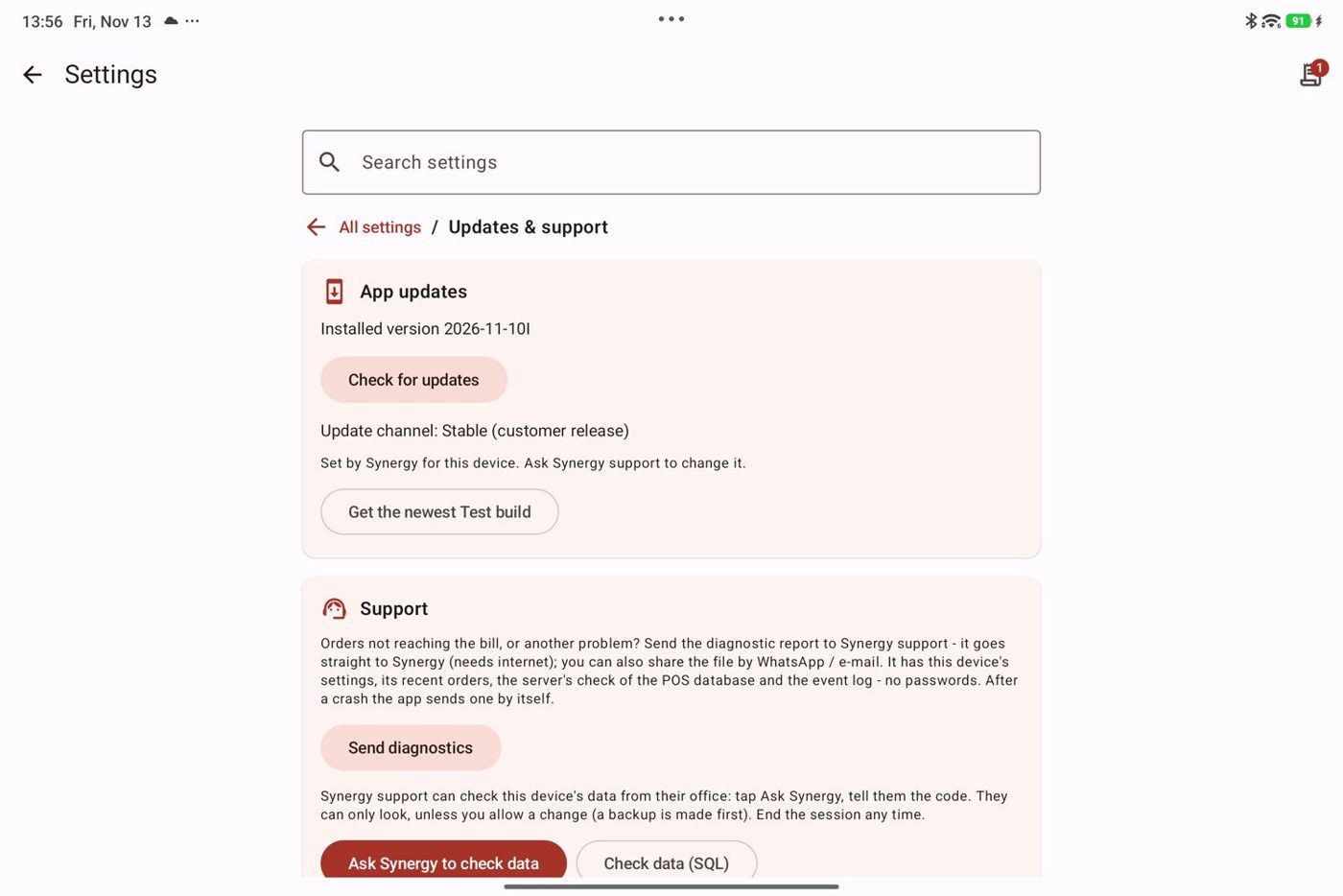
In Updates & support, App updates shows the installed version, Check for updates and the Update channel, which Synergy sets. Support has Send diagnostics, Ask Synergy to check data and Purge old sales.
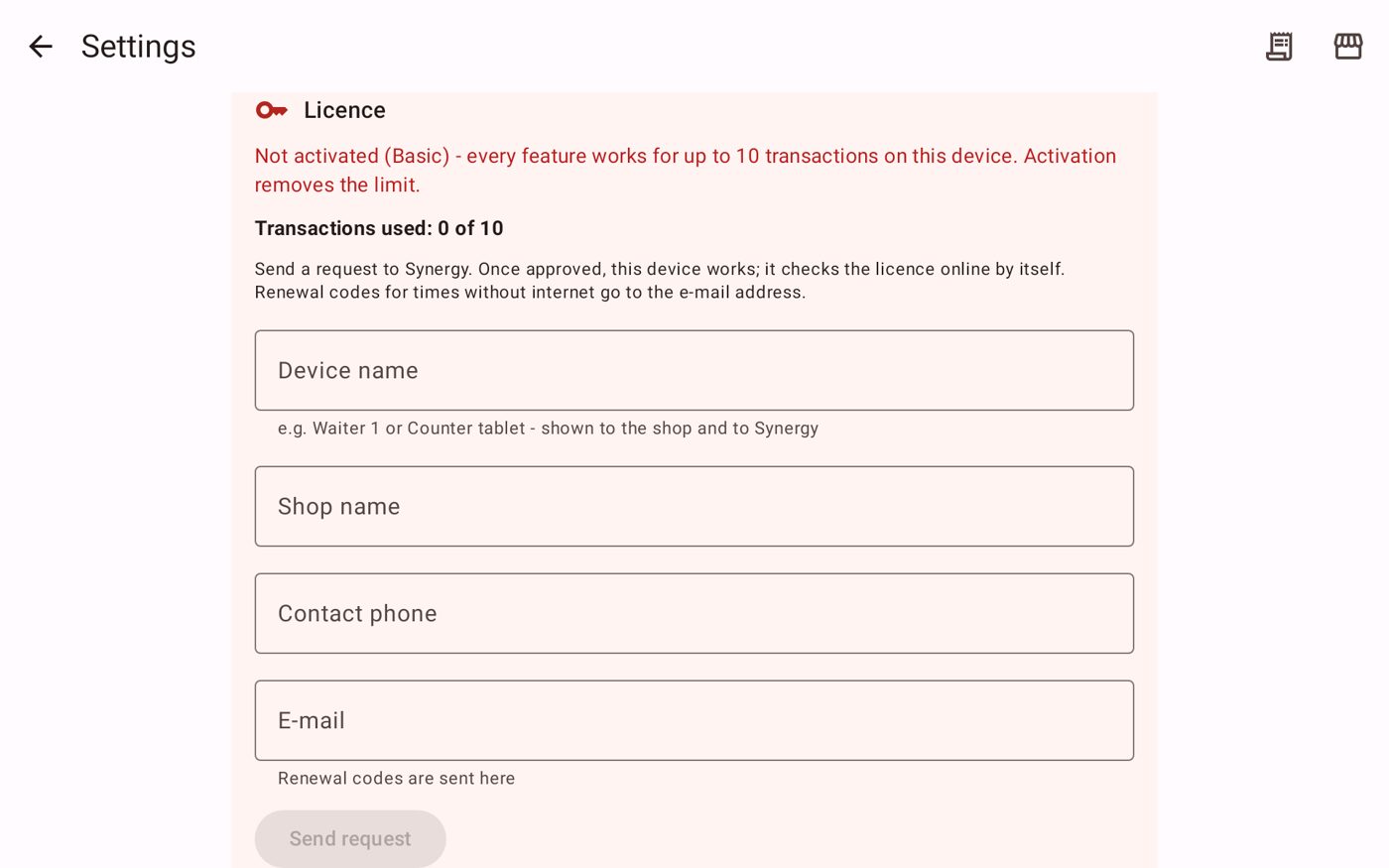
8. Licence
In Setup & licence, Licence says whether the device is activated. Not activated (Basic) works with every feature for up to 10 transactions on this device.
9. When Synergy asks to change a setting
If Synergy support wants to change settings on your device, a window called Allow a change? lists each setting with its old value and new value. Tap Allow or Refuse. If one cannot be changed, nothing is changed. The app restarts afterwards to use the new values.
Tips
- To let Synergy support look at your device, tap Ask Synergy to check data and tell them the code. They can only look, unless you allow a change. A backup is made first. End session stops it at any time.
- Send diagnostics sends the device’s settings, its recent orders and the event log to Synergy, with no passwords.
- The Update channel is set by Synergy for each device. Ask Synergy to change it.
- Selling > Business type also has Use tables (F&B). Switch it off for a counter shop without tables: Choose table goes from the order screen.
Common problems
A setting cannot be changed.
On a device set up by Synergy, the mode, server, location and payment are set for you. Ask Synergy to change them.
Purge old sales is grey.
Old sales can be purged once the device is activated.