
On a branch phone, you must open a shift before you can take payment. This guide shows how to open a shift, record cash in and cash out, and close the shift at the end of the day. On a device that works on its own, shifts are optional: switch them on in Settings > Selling > Shifts (opening and closing cash) with Use shifts on this device.
Before you start
- Use a branch phone. It cannot take payment while its own shift is closed.
- Count the cash you put in the drawer to start with. This is the float.
Steps
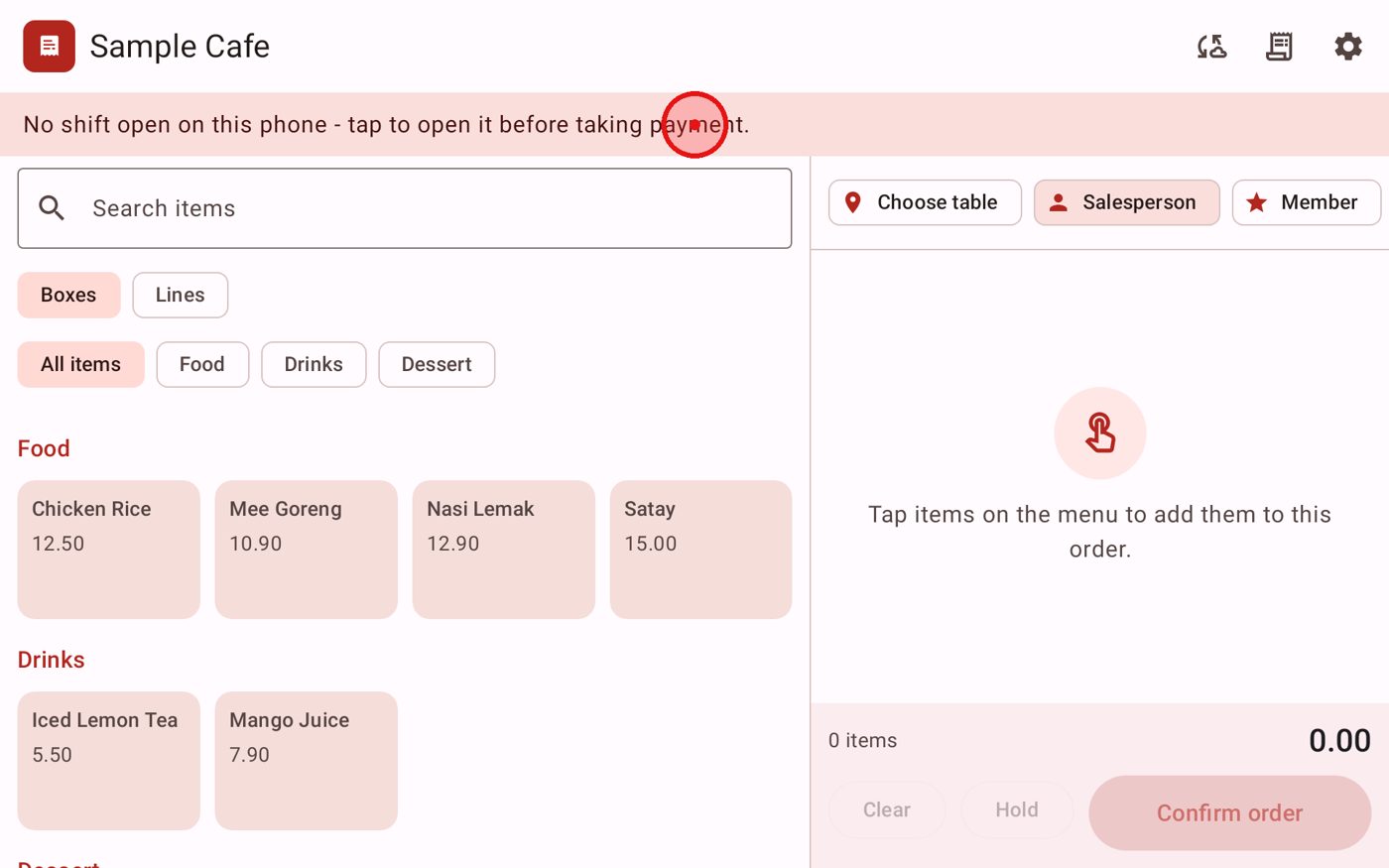
1. See the red message
On the order screen, a red message says no shift is open on this phone.
2. Tap the red message
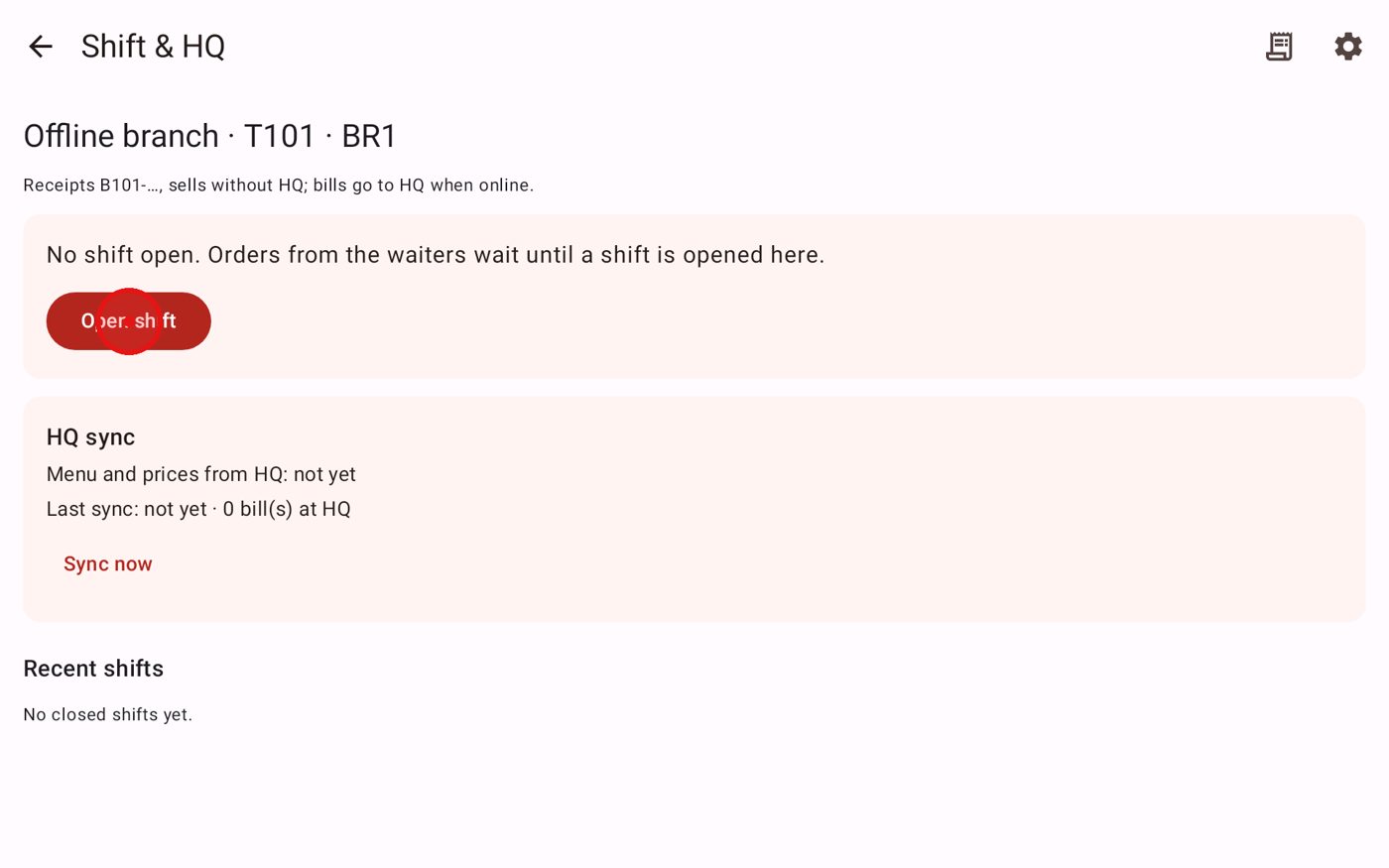
Tap the red message. The Shift & HQ screen opens and says No shift open.
3. Tap Open shift
Tap Open shift.
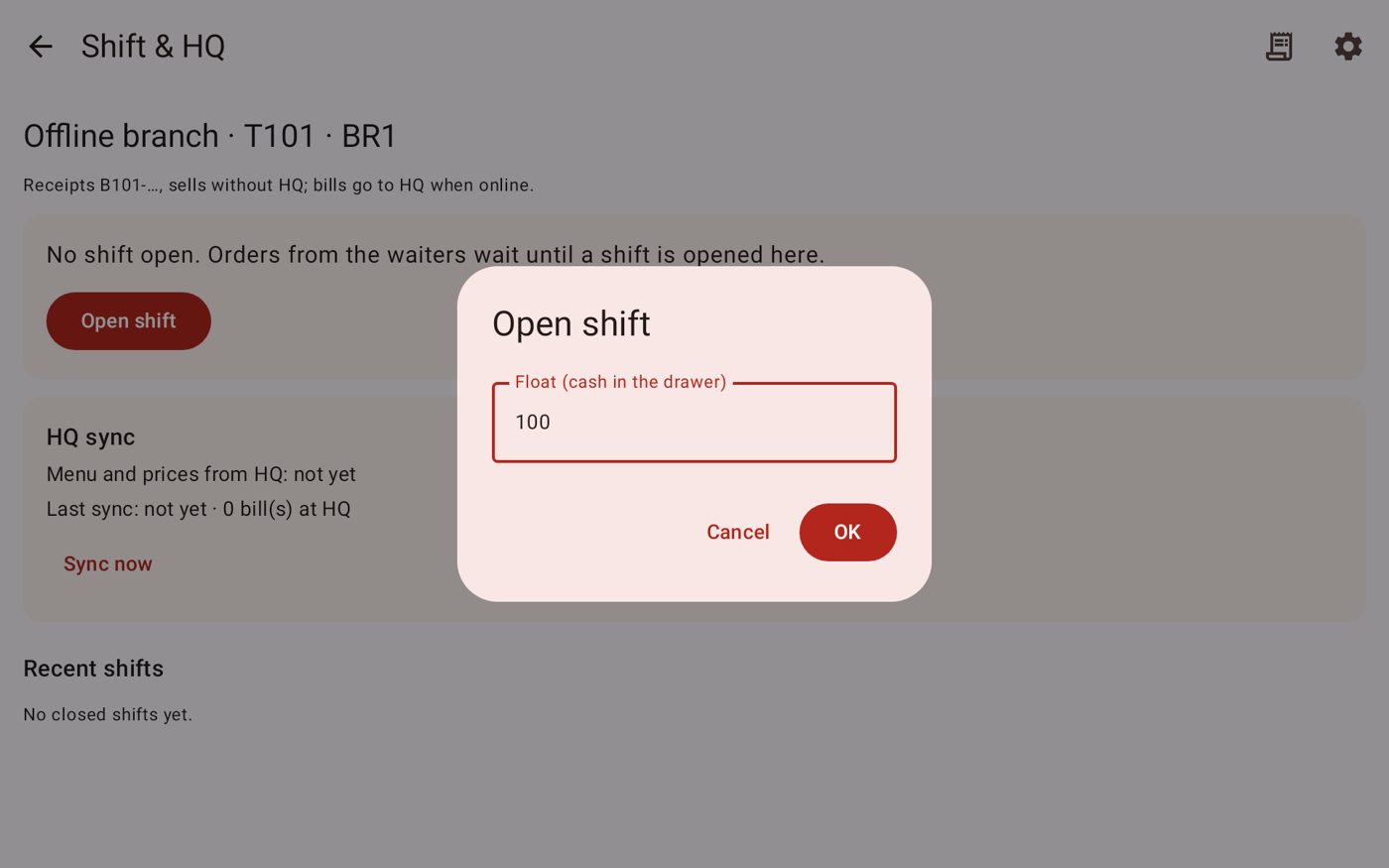
4. Type the float
Type the float, which is the cash you put in the drawer to start with. In this example it is 100.
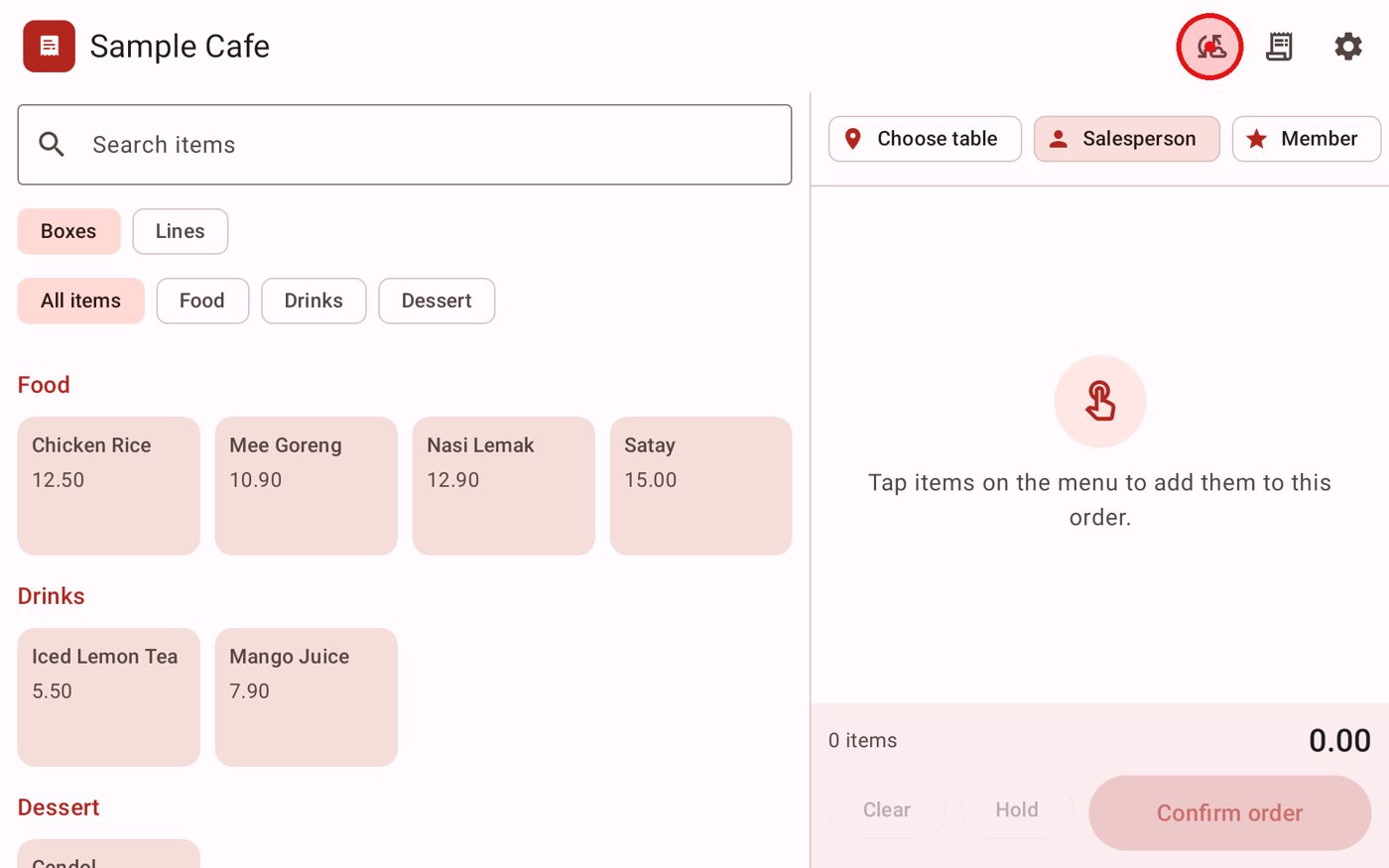
5. Take orders and payments
Tap OK. The shift card shows Shift 1 and the float, and the phone now takes payments. Take orders and payments as usual.
6. Check your shift
Open Shift & HQ again with the icon at the top. You can see Cash sales and Expected cash. In this example, two cash bills (25.80 and 15.00) give cash sales of 40.80 and expected cash of 140.80.
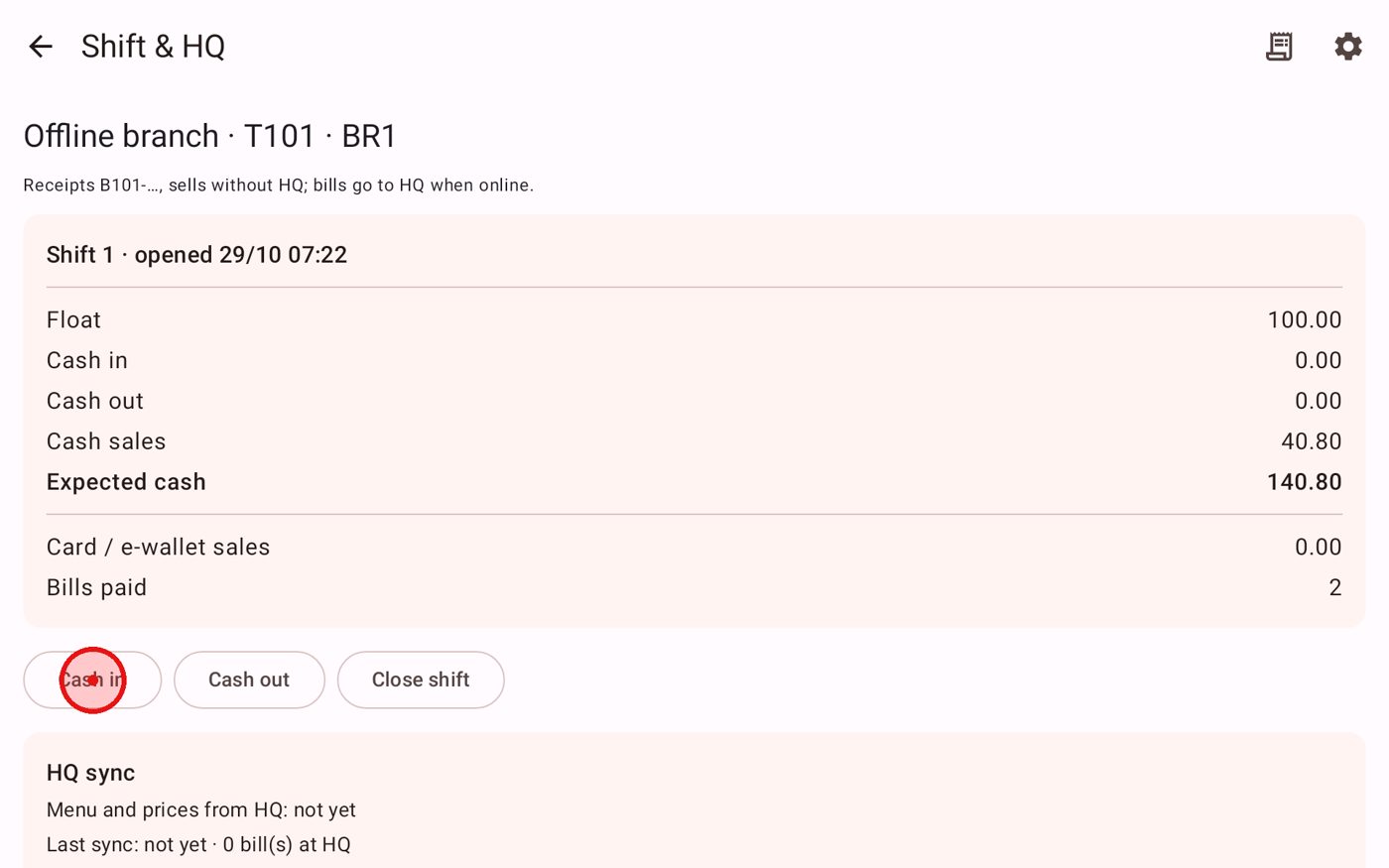
7. Tap Cash in
To put money into the drawer, tap Cash in.
8. Type the amount and remark
Fill in the Cash in window.
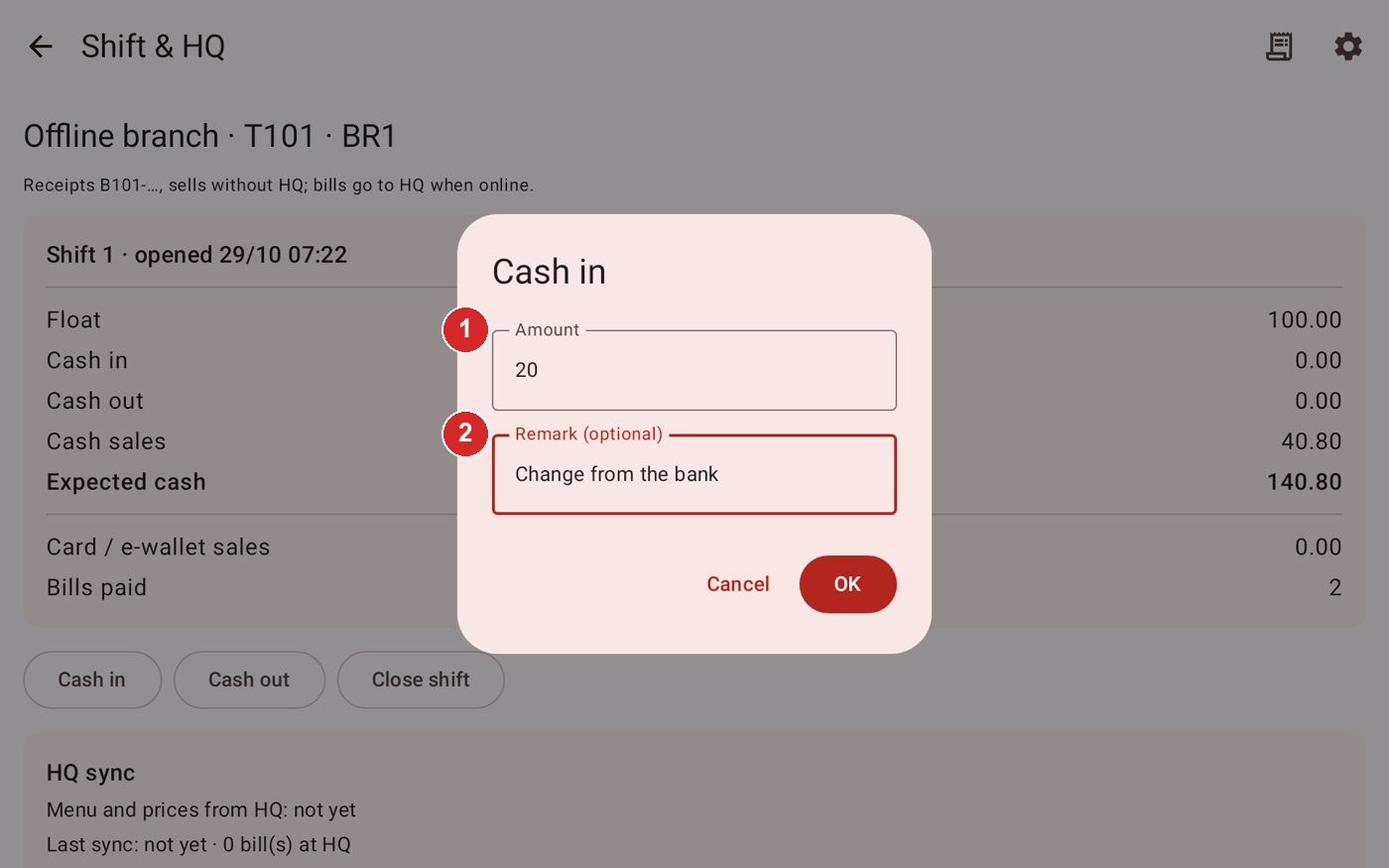
| Step | What to do |
|---|---|
| 1 | Type the amount, for example 20. |
| 2 | Type a remark, for example Change from the bank. The remark is optional. |
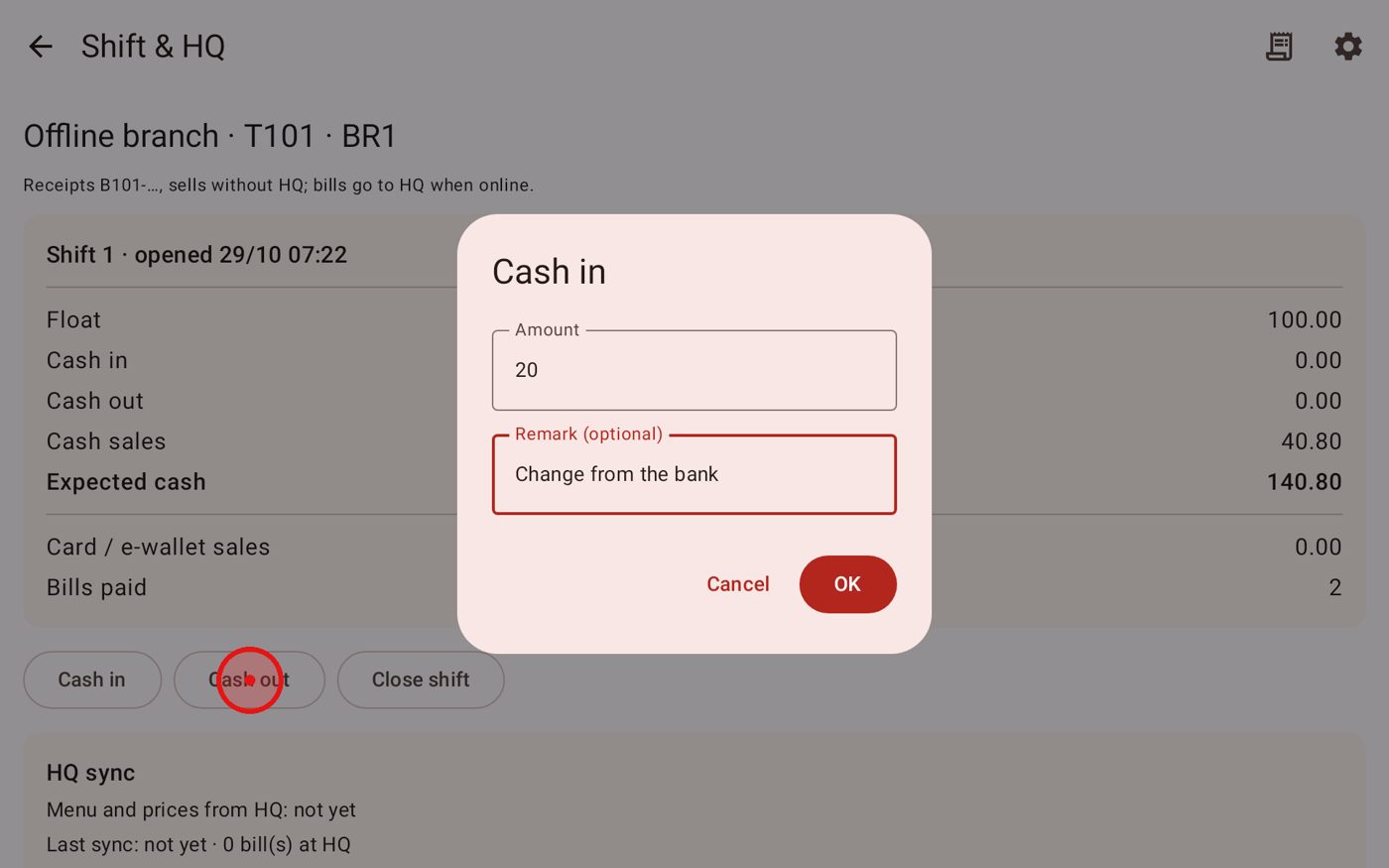
9. Tap Cash out
To take money out of the drawer, tap Cash out. Type the amount and a remark, for example 15 and Milk delivery, then tap OK.
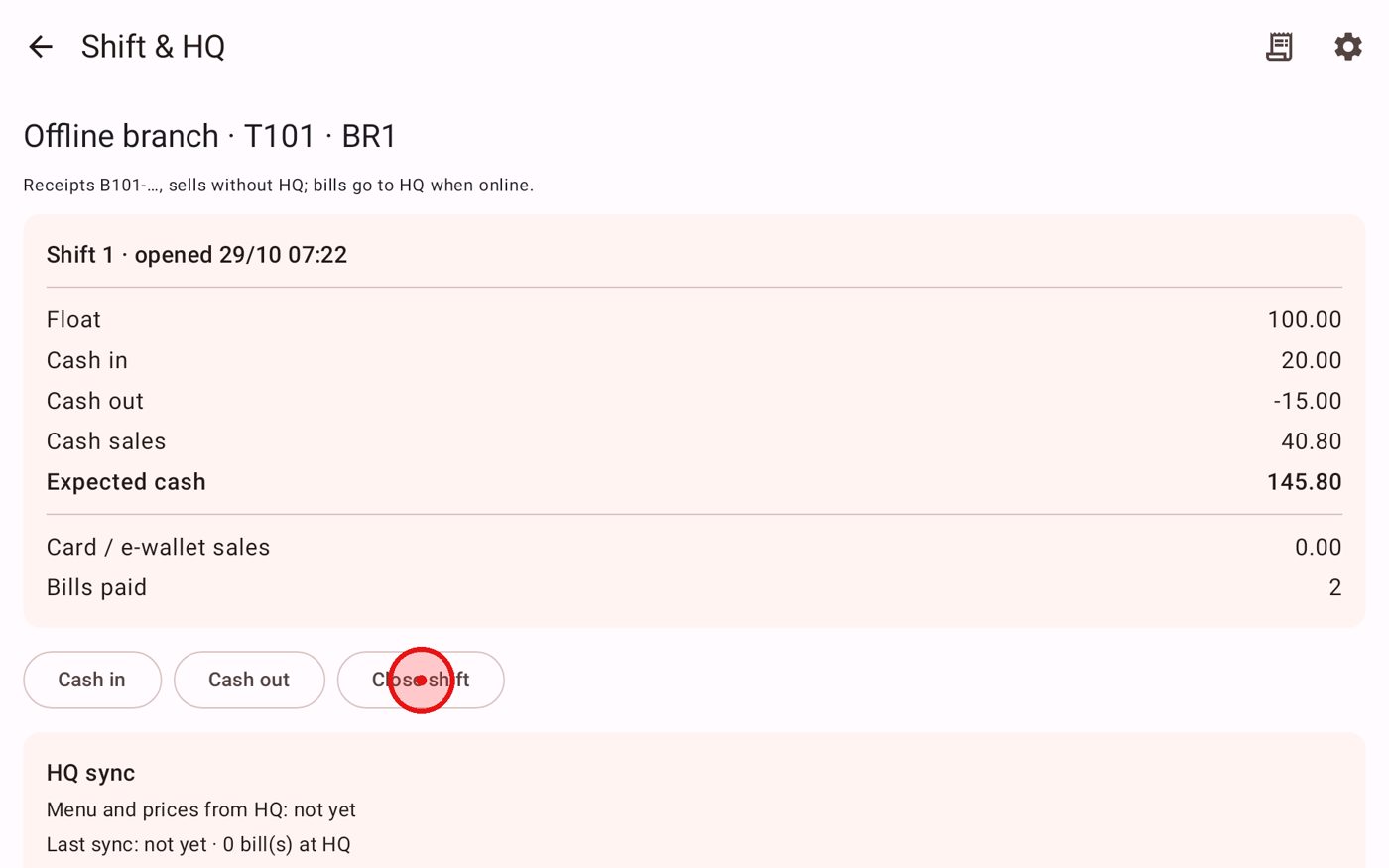
10. Check the expected cash
Cash out shows -15.00. Expected cash is now 145.80: the float, plus cash in, minus cash out, plus the cash sales.
11. Tap Close shift
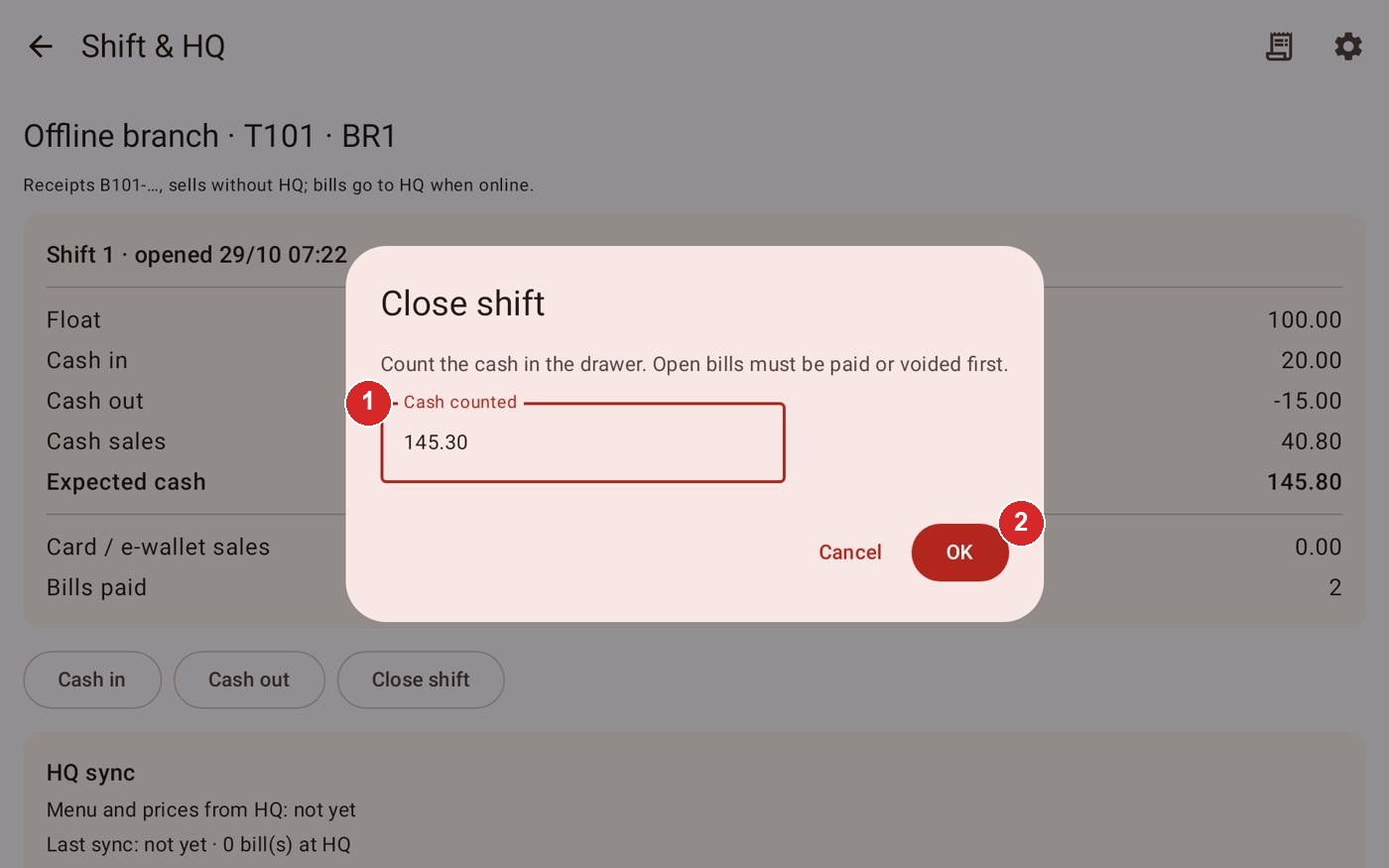
At the end of the day, tap Close shift. The window asks you to count the cash in the drawer. Open bills must be paid or voided first.
12. Type the cash counted
A summary then shows the cash counted, the expected cash and the difference, here -0.50. Tap OK again.
| Step | What to do |
|---|---|
| 1 | Type the cash you counted, here 145.30. |
| 2 | Tap OK. |
13. See Recent shifts
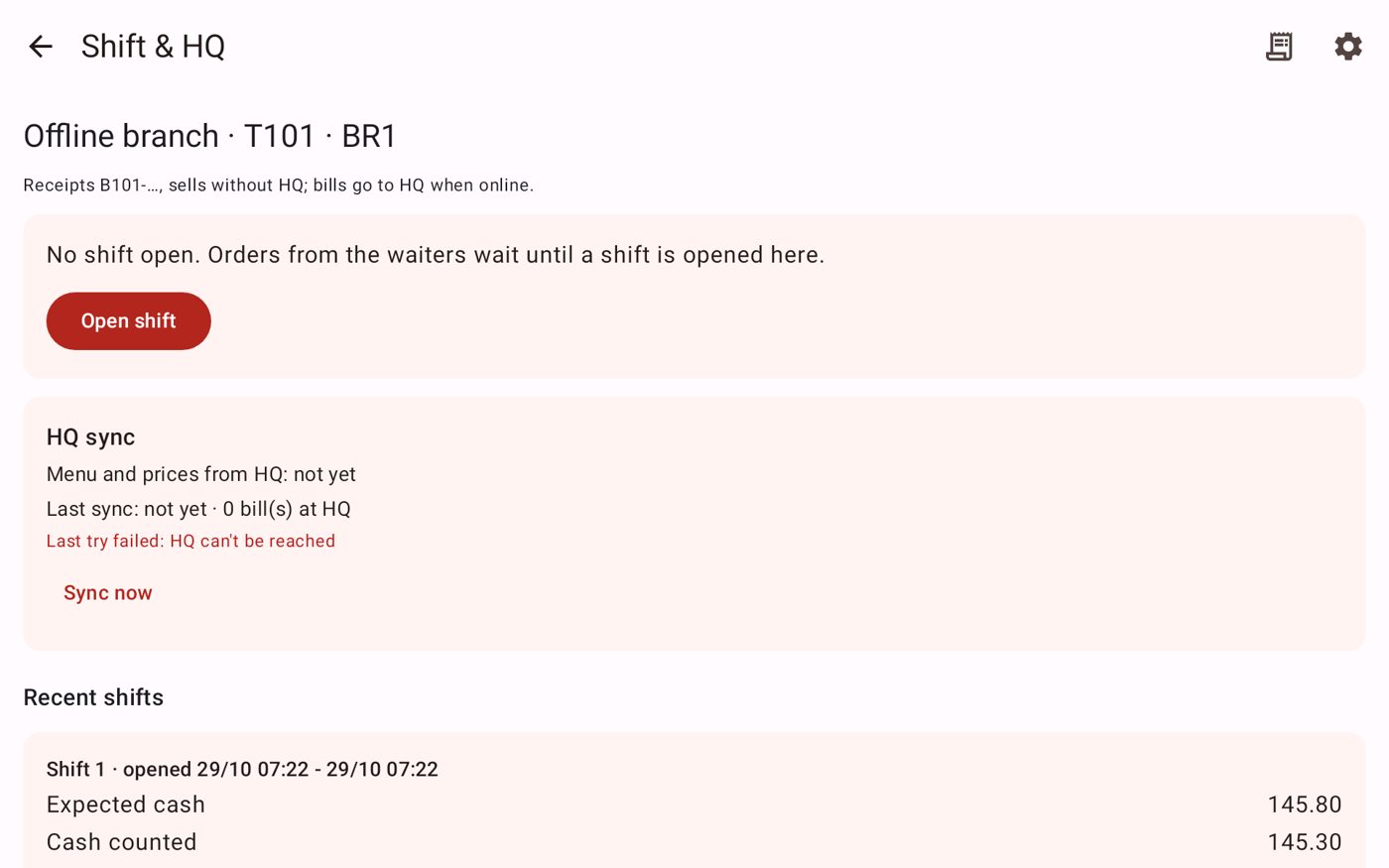
The shift moves to Recent shifts with its expected and counted cash.
14. If yesterday’s shift is still open
If the open shift was opened on an earlier day, a red bar shows at the top of every screen (not in Settings): The shift opened on … is still open. Close it so that today’s sales go into a new shift (tap). Tap the bar to open that shift, close it, then open a new shift. If you take payment first, the day’s first payment stops once and says the open shift is from an earlier day; close the shift first, or tap Paid again to carry on. The next payments go through. The app asks again the next day.
Tips
- Expected cash = float + cash in – cash out + cash sales.
- Closed shifts are listed under Recent shifts. A held sale is not paid, so it is not in the shift: pay or clear held sales before you close the shift.
Common problems
The phone will not take payment.
A branch phone can take payment only while its own shift is open. Tap the red message, then tap Open shift on the Shift & HQ screen.
The red bar says a shift from an earlier day is still open.
Staff forgot to close the shift. Tap the bar, close that shift and open a new one, so that today’s sales go into today’s shift. This works for a branch phone, a shop with its own shifts and a till’s own shift.