
This guide shows how to take an order for a table, split part of it onto a new bill, and put bills back together again.
Before you start
- To merge bills, you need the main device of a network (Settings > Devices & network > Main device).
- Merge bills only appears on the Bills screen when two or more bills are open.
Steps
1. Start on the order screen
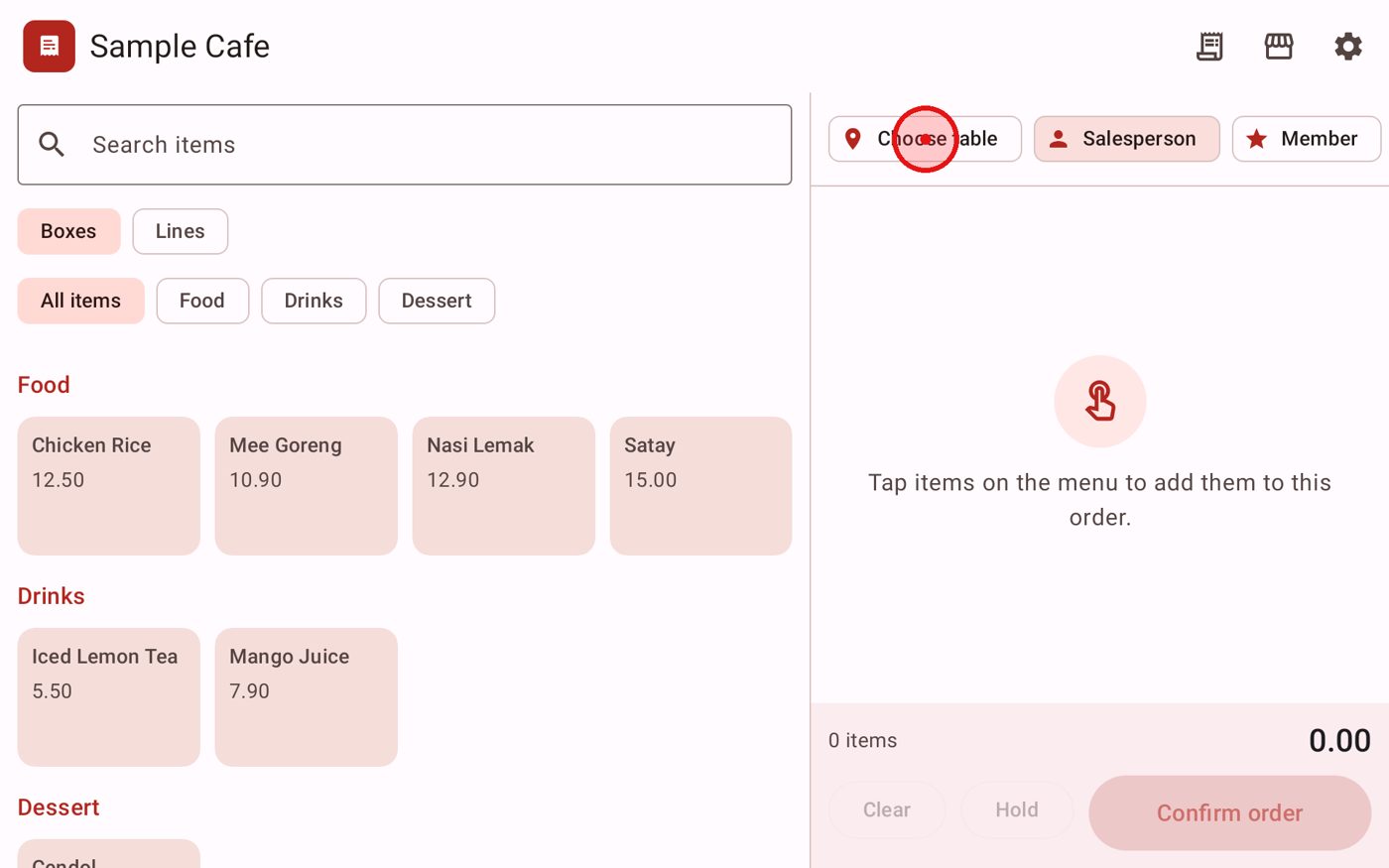
Open the order screen. Tap Choose table.
2. Enter the table number
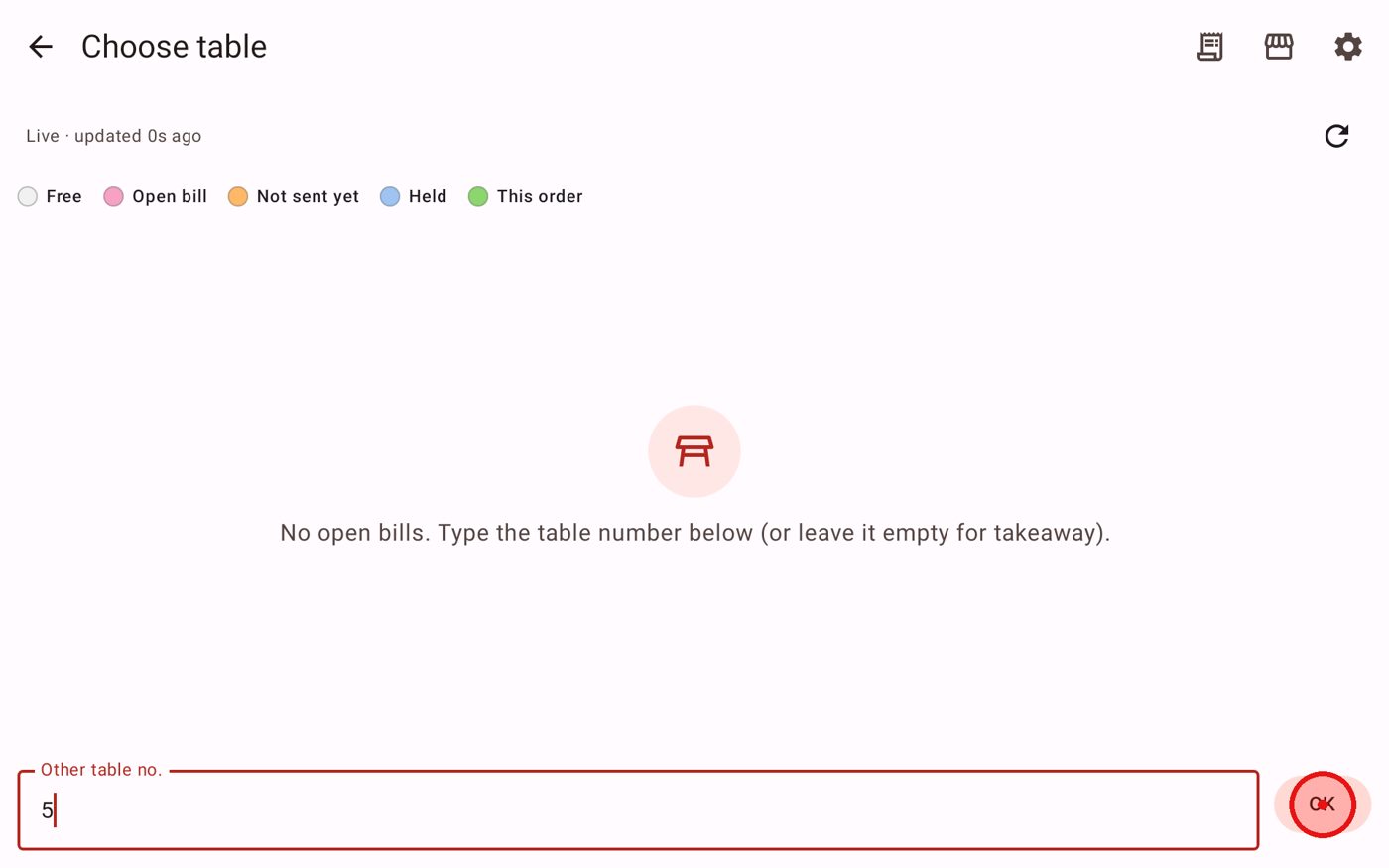
Type the table number under Other table no. and tap OK.
3. Add the dishes and confirm
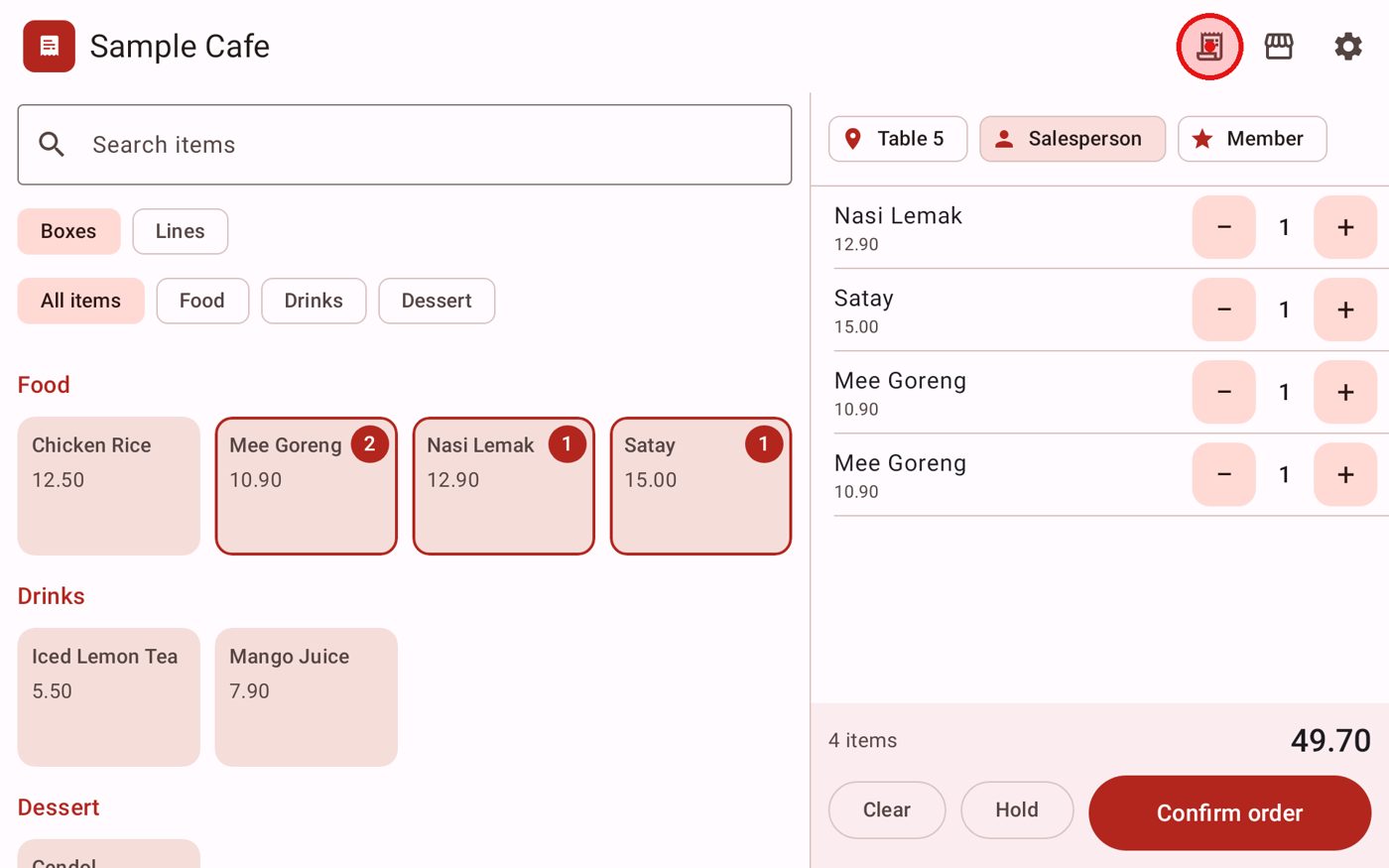
Tap the dishes the table ordered. Here: one Nasi Lemak, one Satay and two Mee Goreng. Tap Confirm order and confirm it.
4. Open Bills
Tap the receipt icon to open Bills. The table’s open bill is in the list.
5. Open the table’s bill
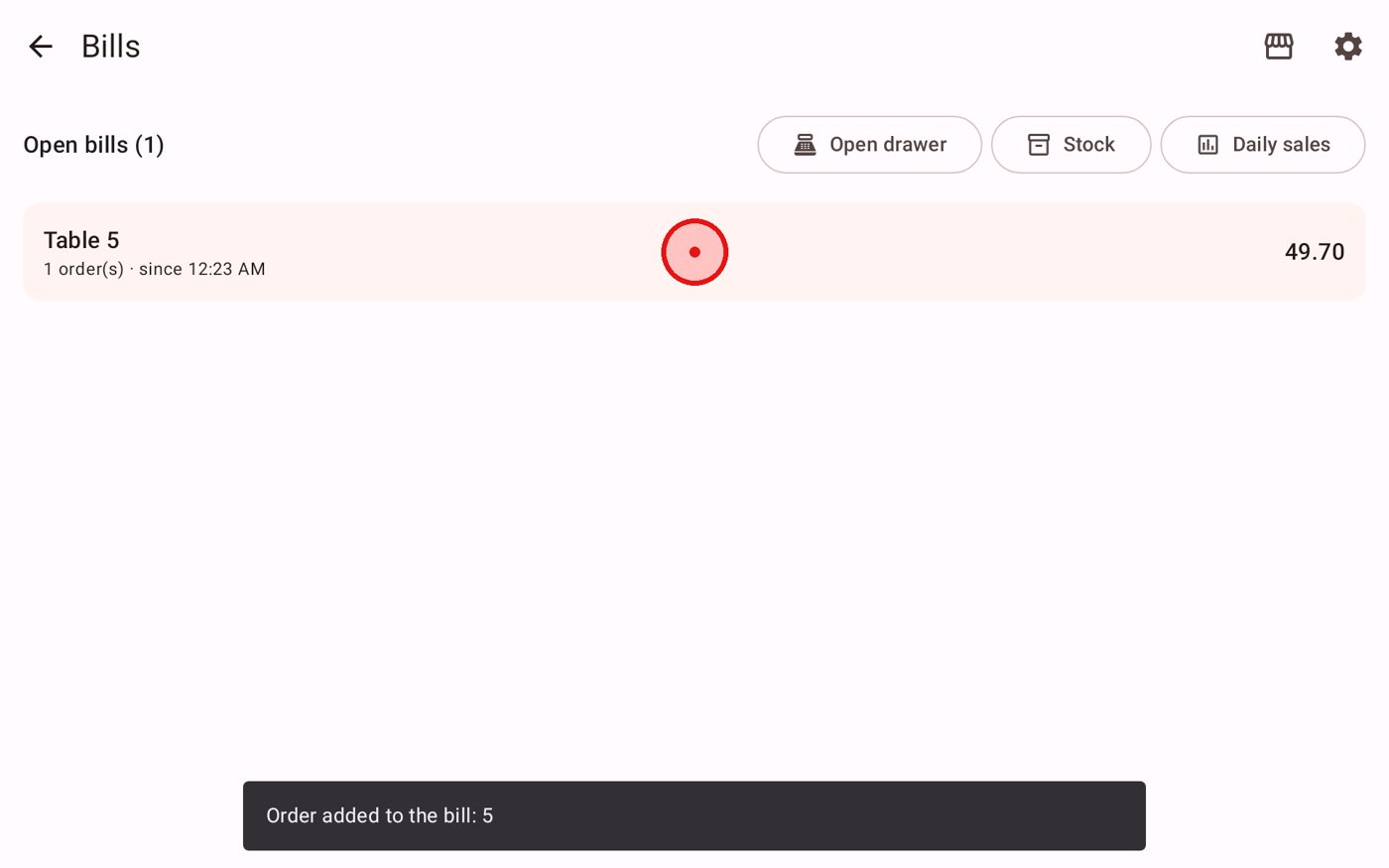
Tap the table’s bill.
6. Tap Split bill
Tap Split bill.
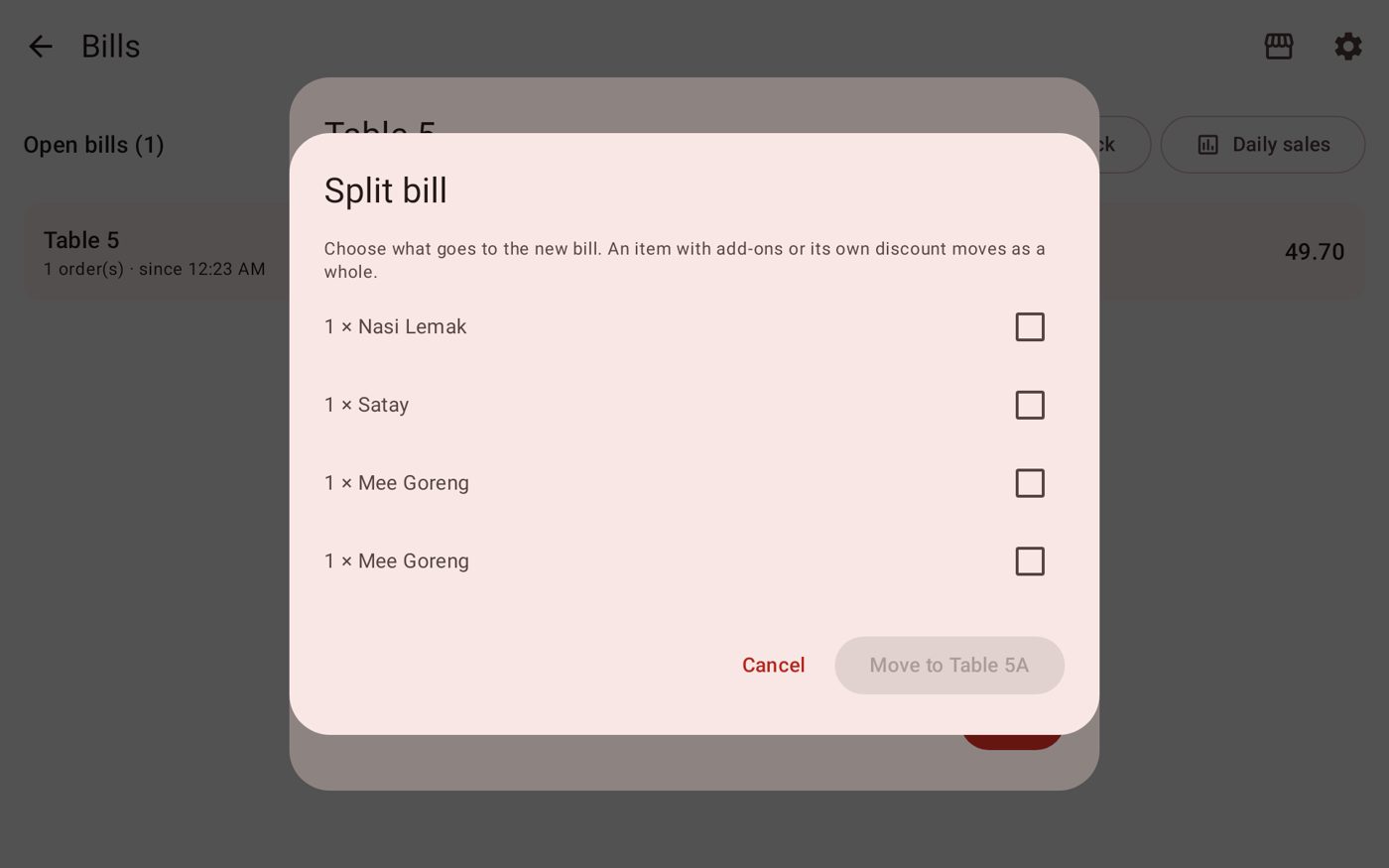
7. Choose what moves
Tick what goes to the new bill. For an item with a quantity, use + to choose how many move. An item with add-ons or its own discount moves as a whole.
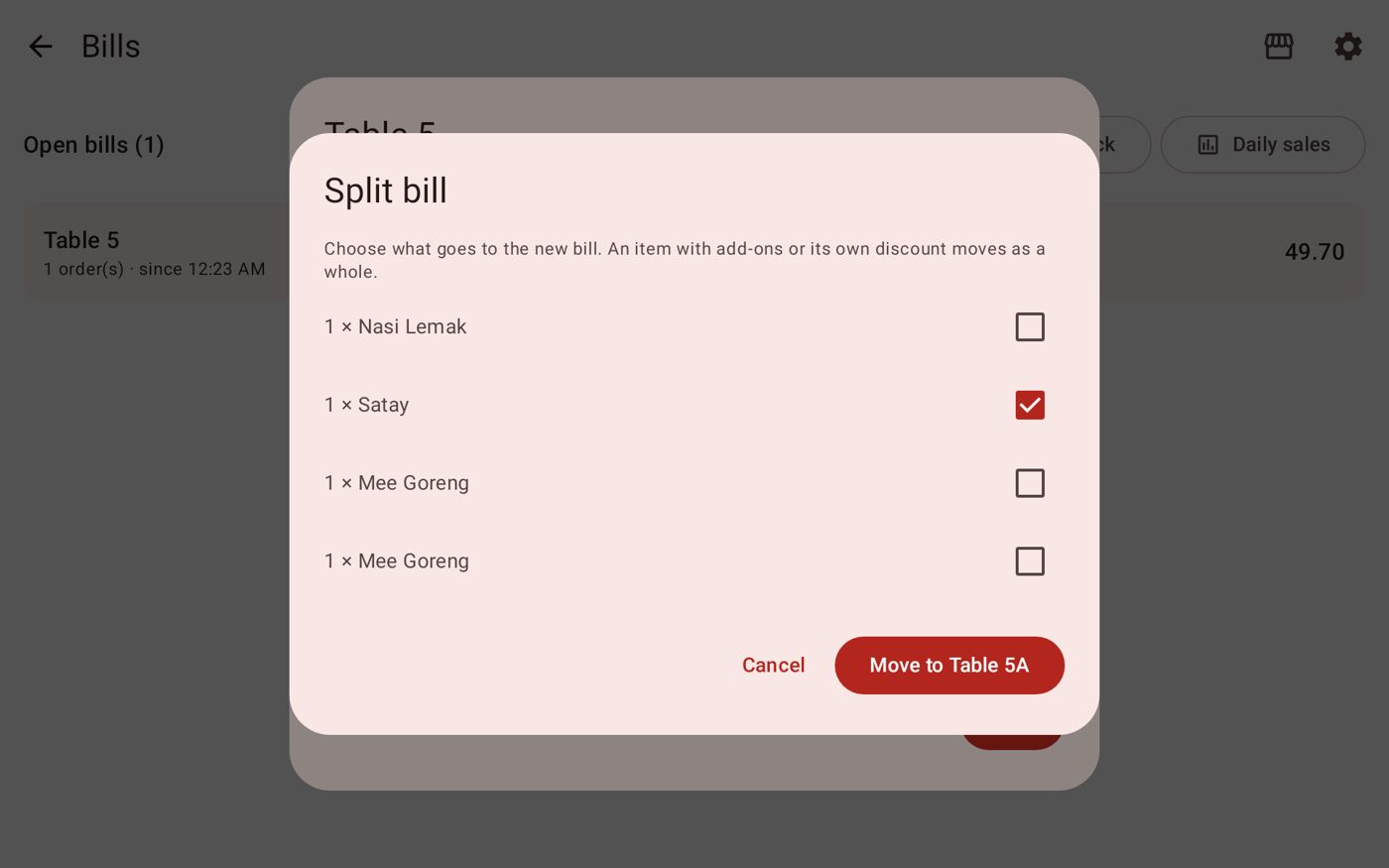
8. Move the items
Tap the Move to button at the bottom. The items become a new bill with the letter A after the table name, here Table 5A.
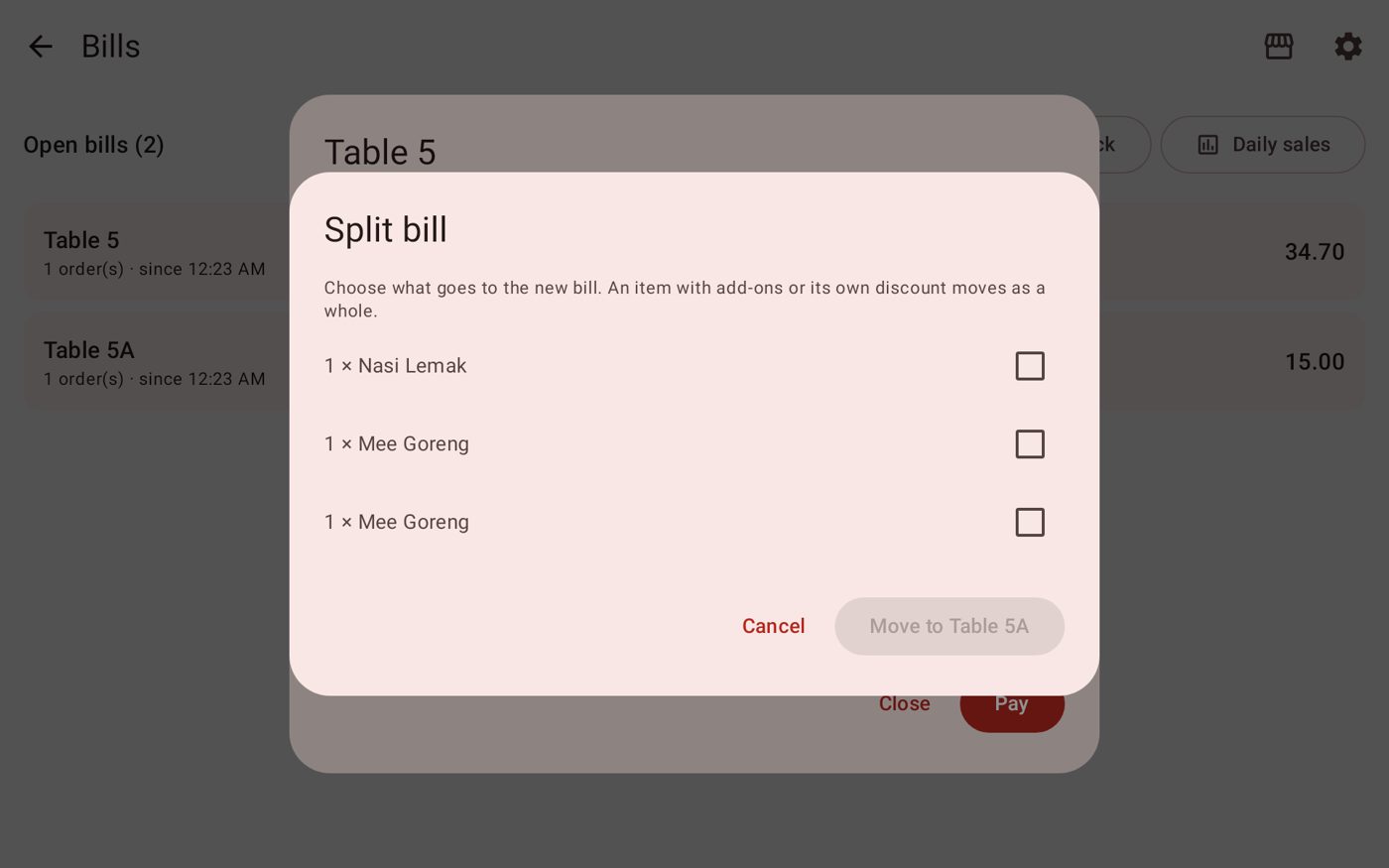
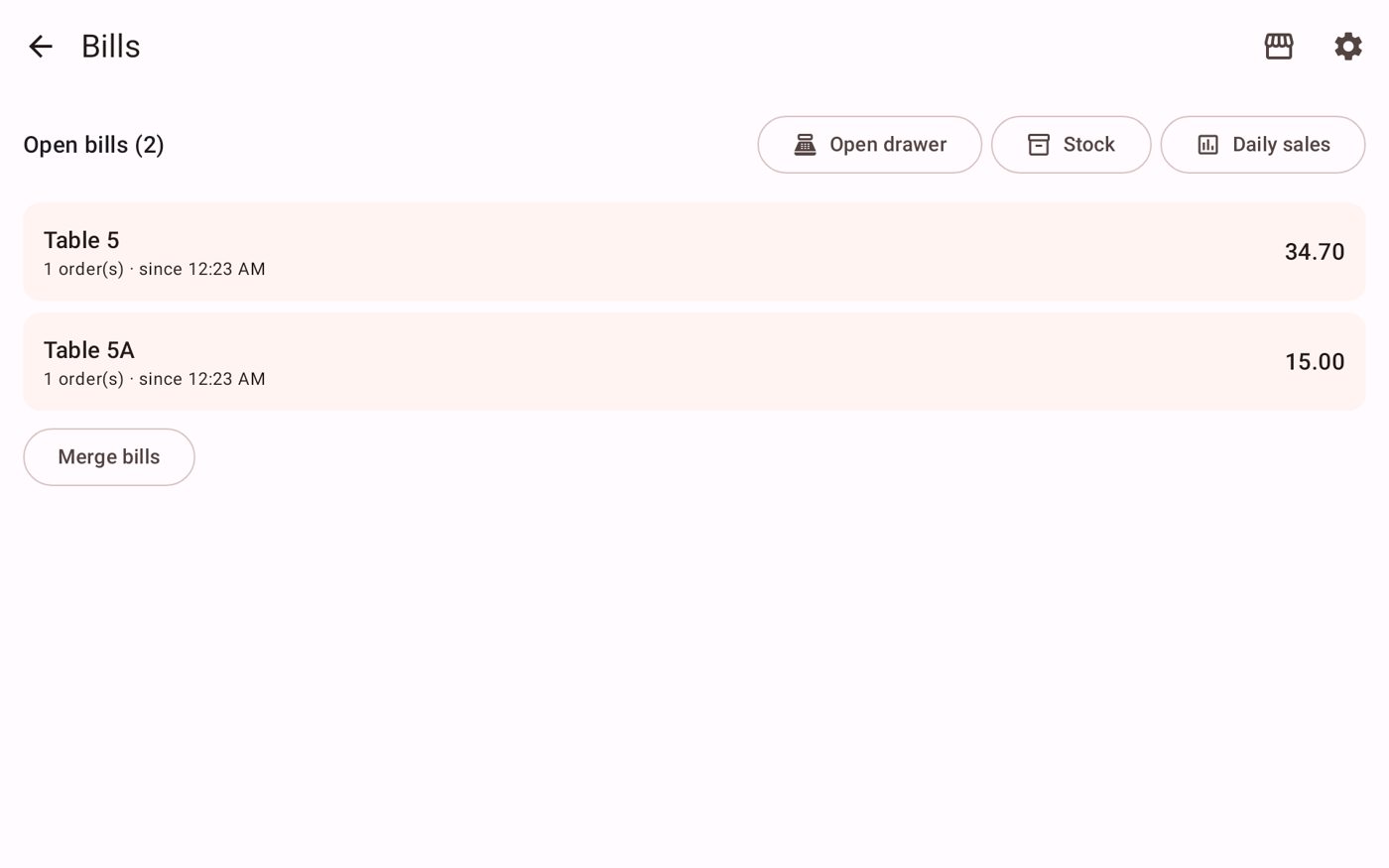
9. Go to Merge bills
On the main device, the Bills screen shows Merge bills when two or more bills are open. Tap Merge bills.
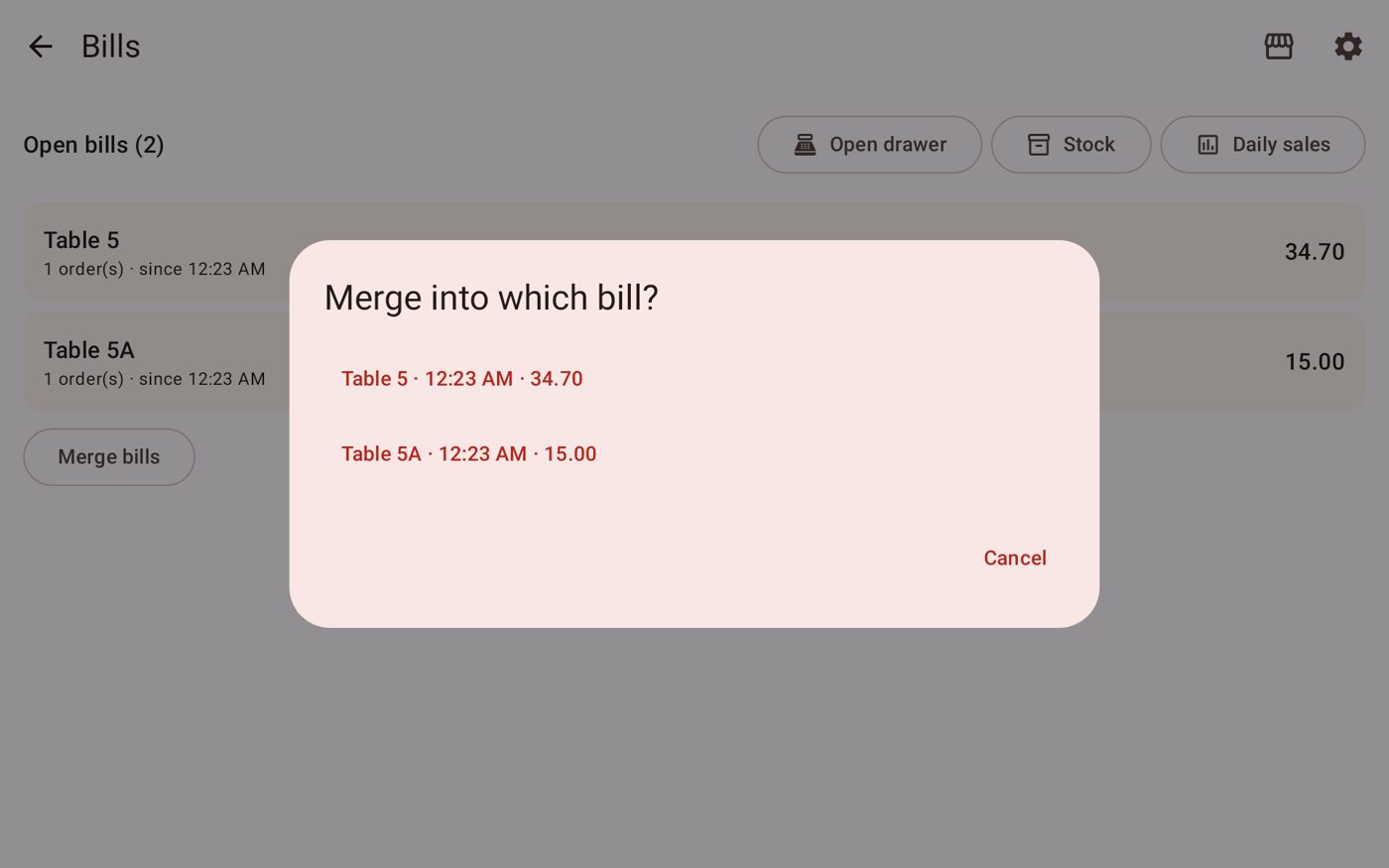
10. Choose the bill to keep
Under Merge into which bill?, tap the bill to keep.
11. Tick the bills to merge
Tick the bills to merge into it.
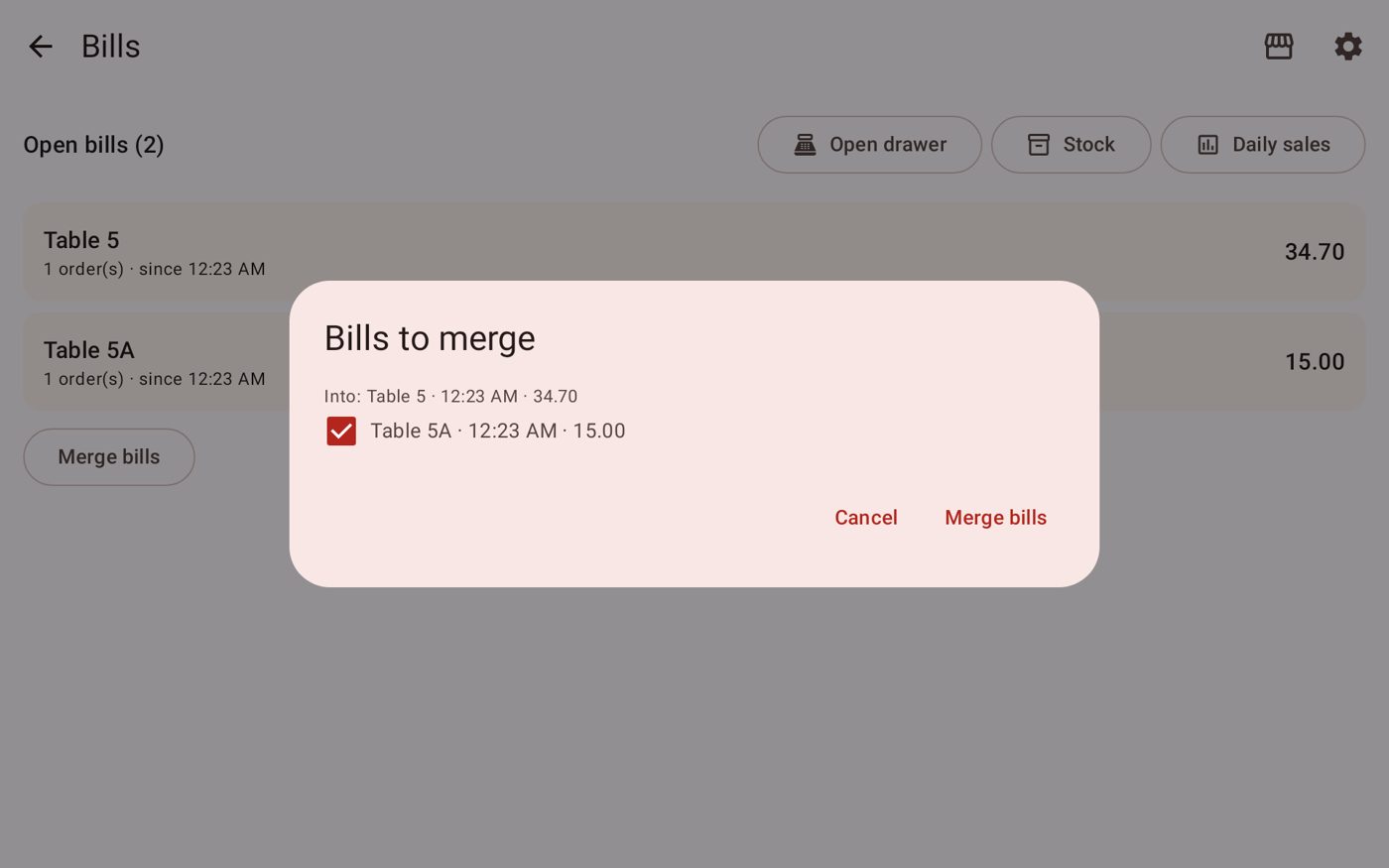
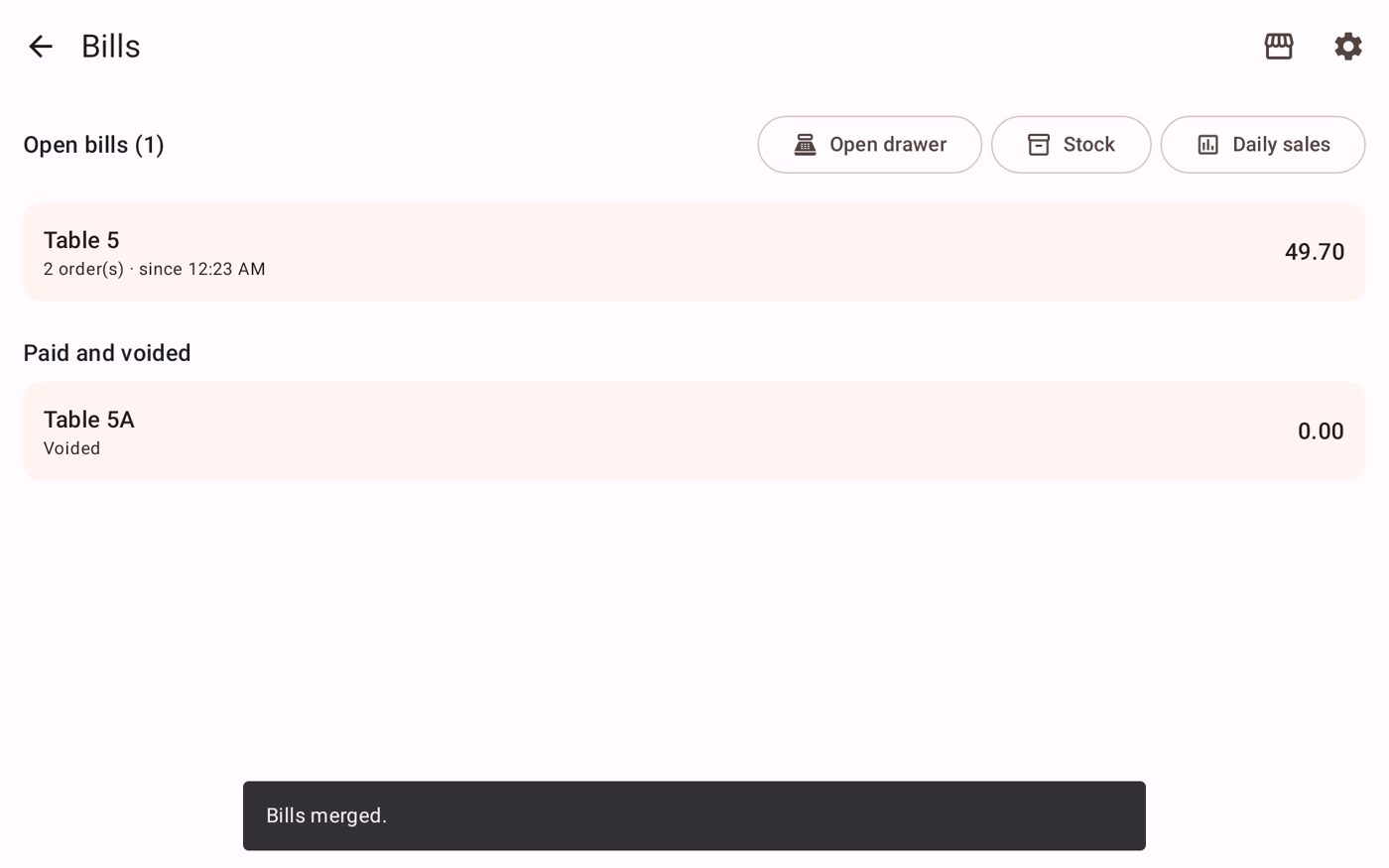
12. Finish the merge
Tap Merge bills again. The bills become one. The merged bill is removed from the open bills and shows as Voided.
Tips
- When you split a bill, something must stay on the original bill.
- The new bill gets the table name plus a letter, for example Table 5 becomes Table 5A.
Common problems
I cannot find Merge bills on the Bills screen.
Merge bills is on the main device of a network, and it shows when two or more bills are open. Check that you are on the main device and that at least two bills are open.