
Let a customer pay one bill in two or more parts, for example part by e-wallet and the rest in cash. The bill closes when the parts add up to the total.
Before you start
- The order is confirmed and its bill is open in Bills.
- Know how much the first payment type will pay. The last payment can be left empty to take the rest.
Steps
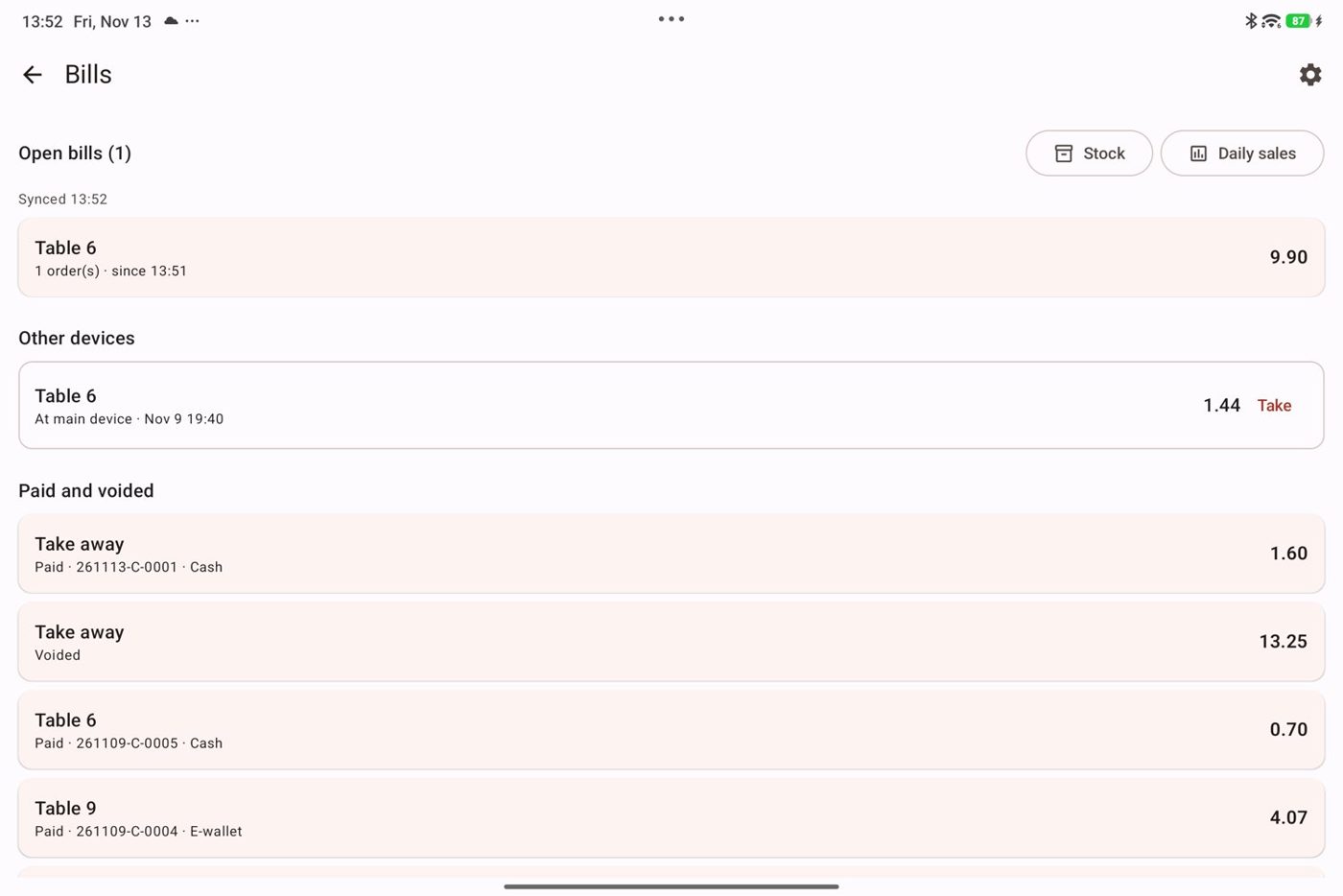
1. Open the bill
Tap the receipt icon to open Bills, then tap the bill of the table.
2. Tap Pay
Tap Pay. The pay window shows the amount to pay and a row of payment types.
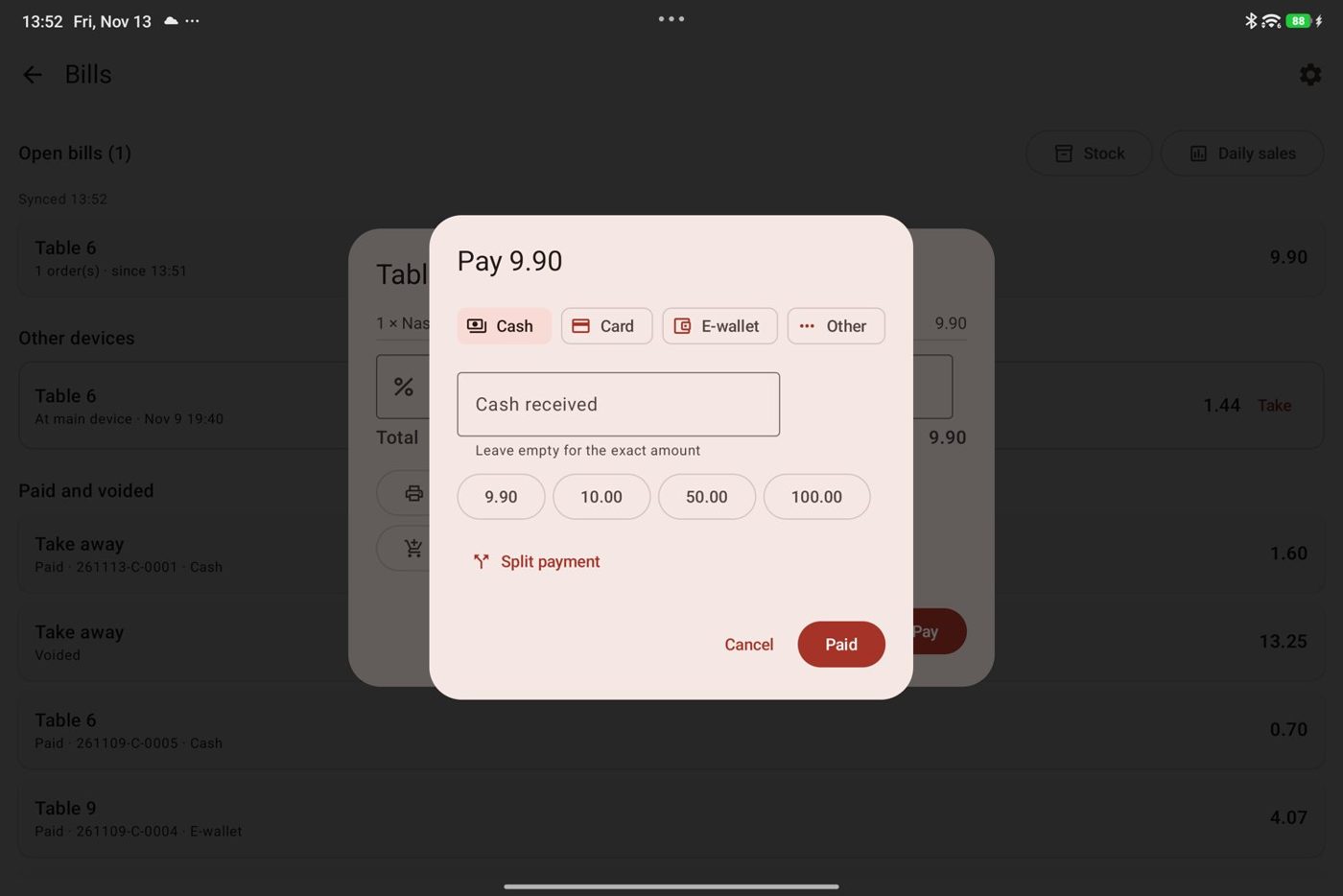
3. Switch on Split payment
Tap Split payment at the bottom of the window. The window now shows Still to pay with the whole amount, and a box for the amount.
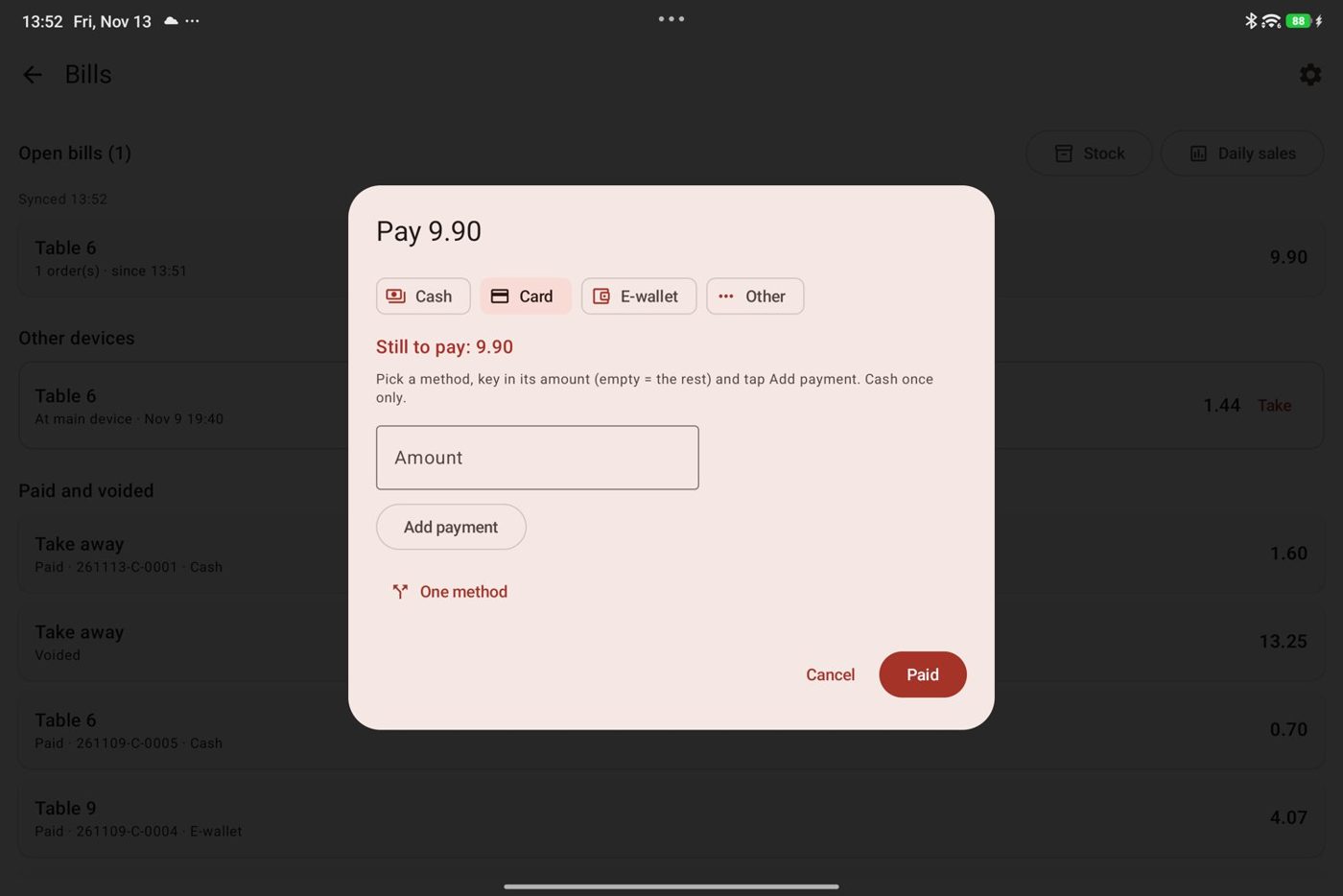
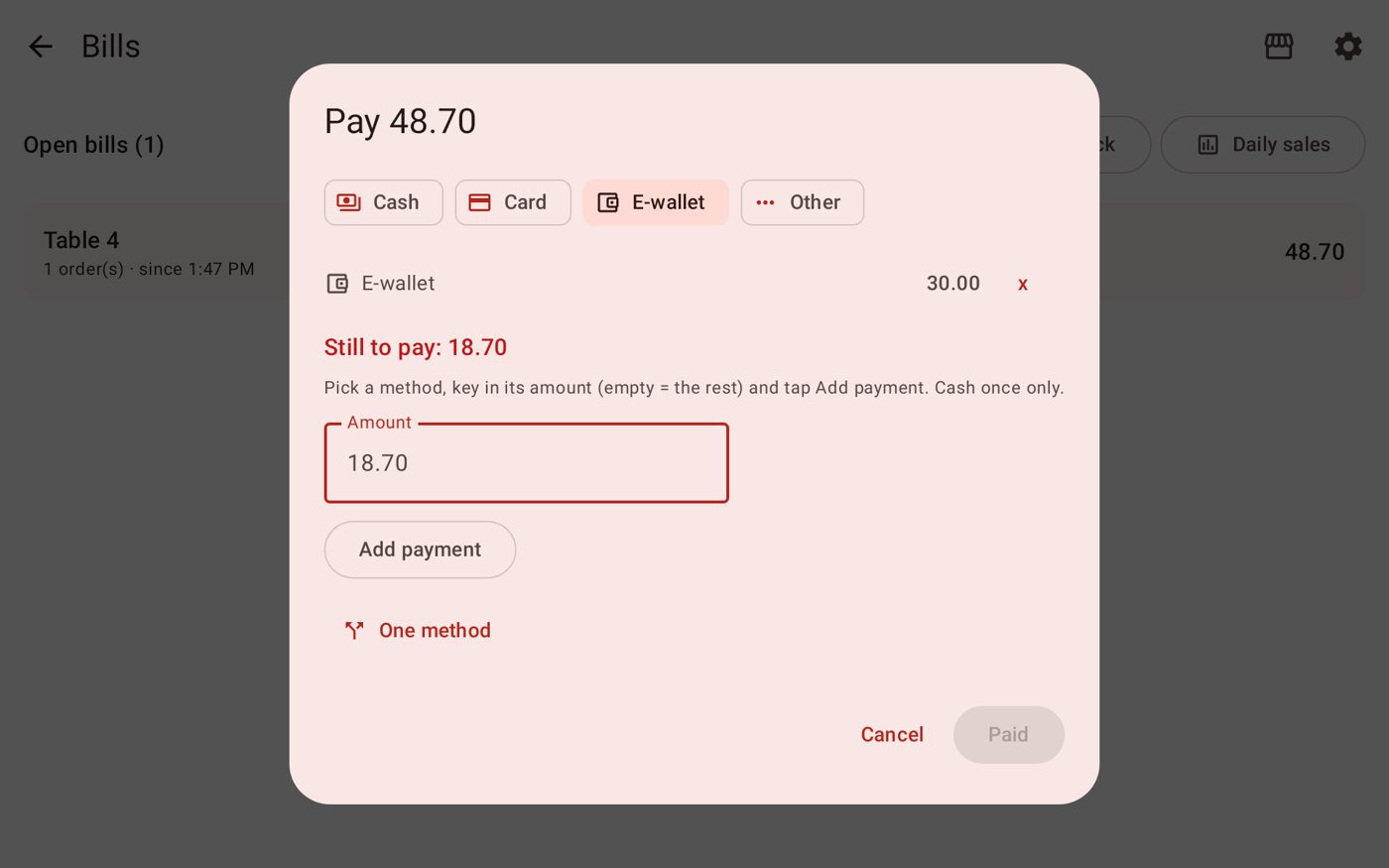
4. Choose a payment type and type its amount
Choose the payment type and key in its amount.
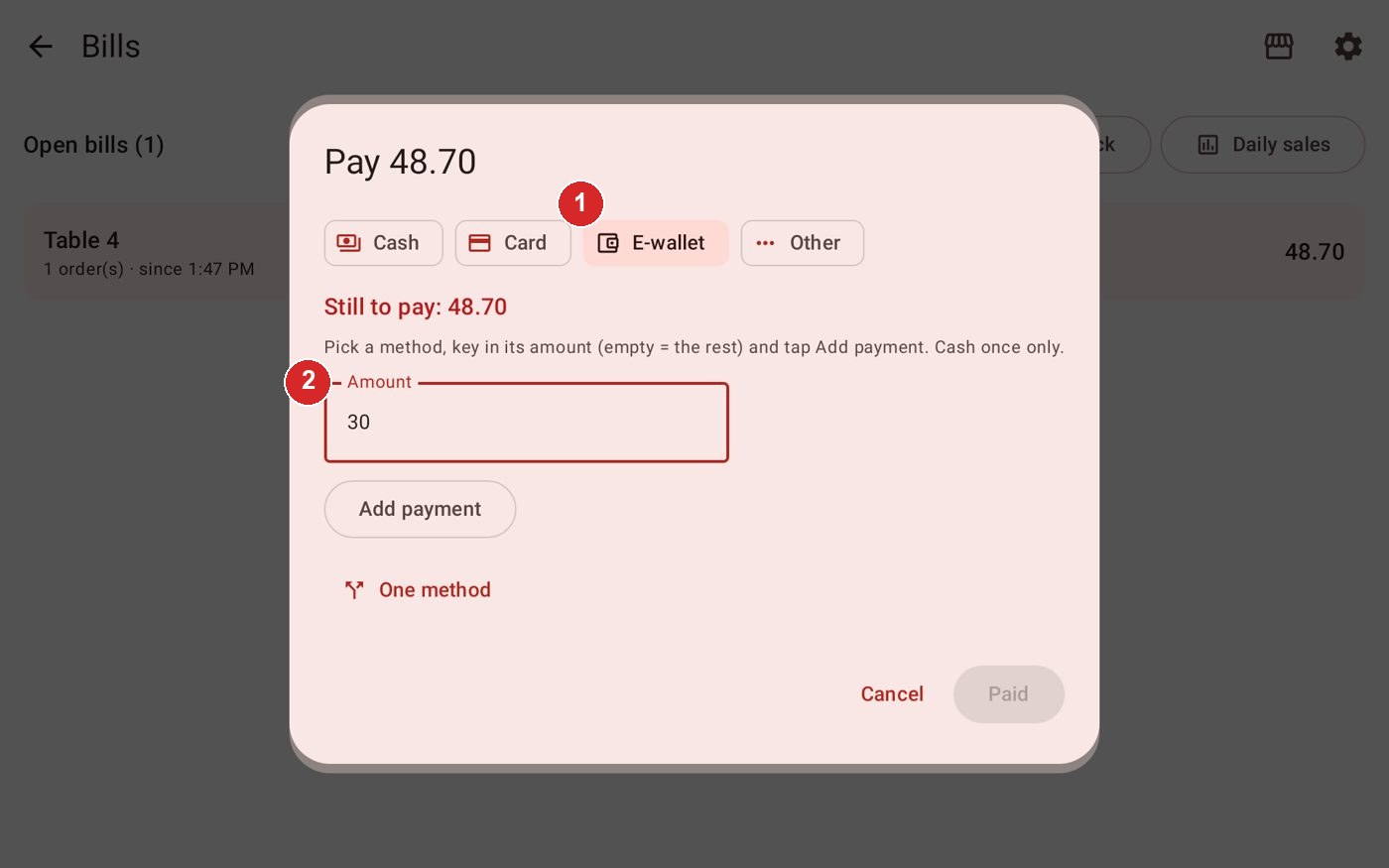
| Step | What to do |
|---|---|
| 1 | Tap the payment type, here E-wallet. |
| 2 | Type its amount in the Amount box, here 30. |
5. Tap Add payment
The E-wallet payment is listed with an x to take it off again, and Still to pay goes down.
6. Add the next payment
Add the next payment.
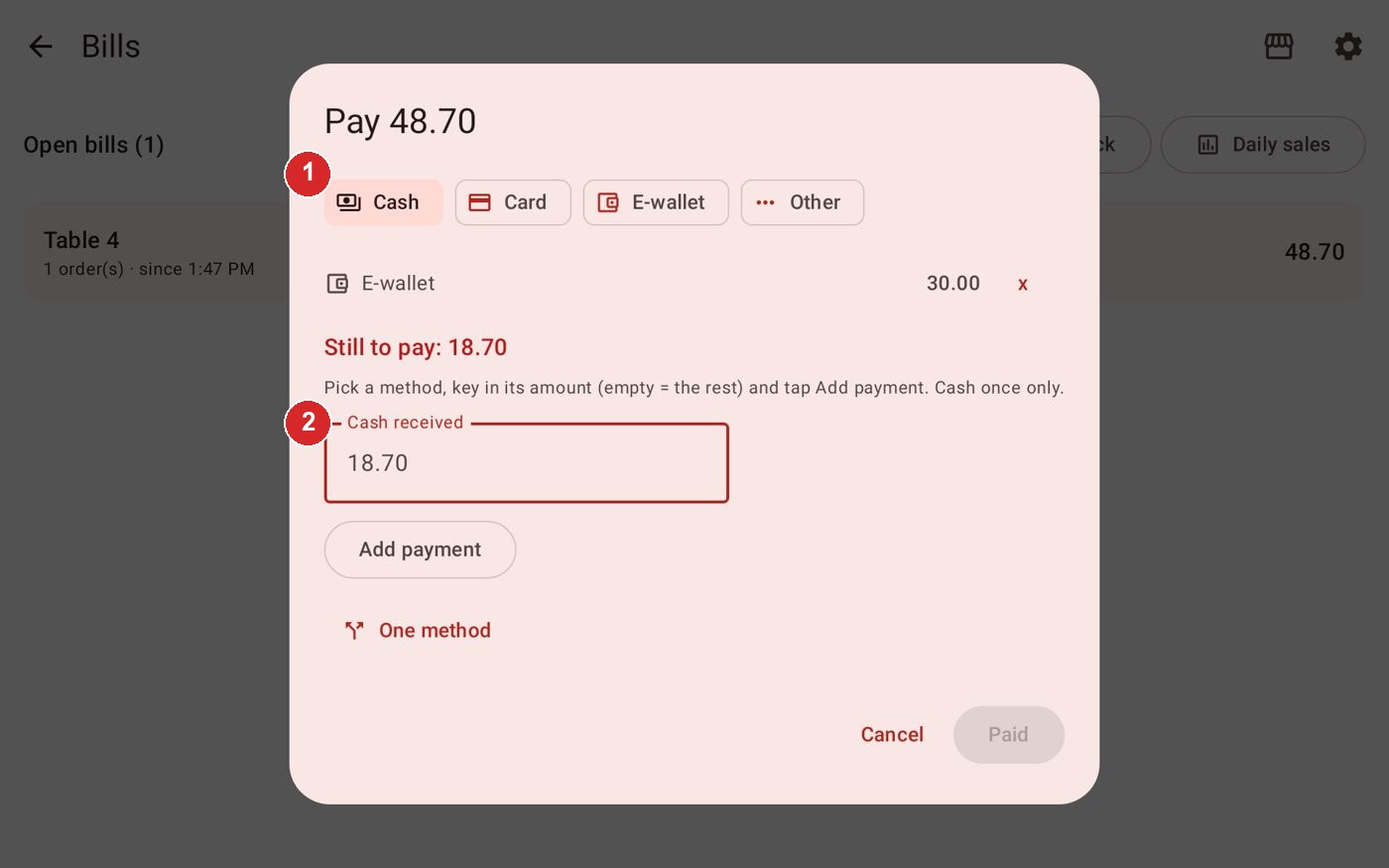
| Step | What to do |
|---|---|
| 1 | Tap the next payment type, here Cash. |
| 2 | Leave the box empty to take everything that is still to pay, or type the amount. |
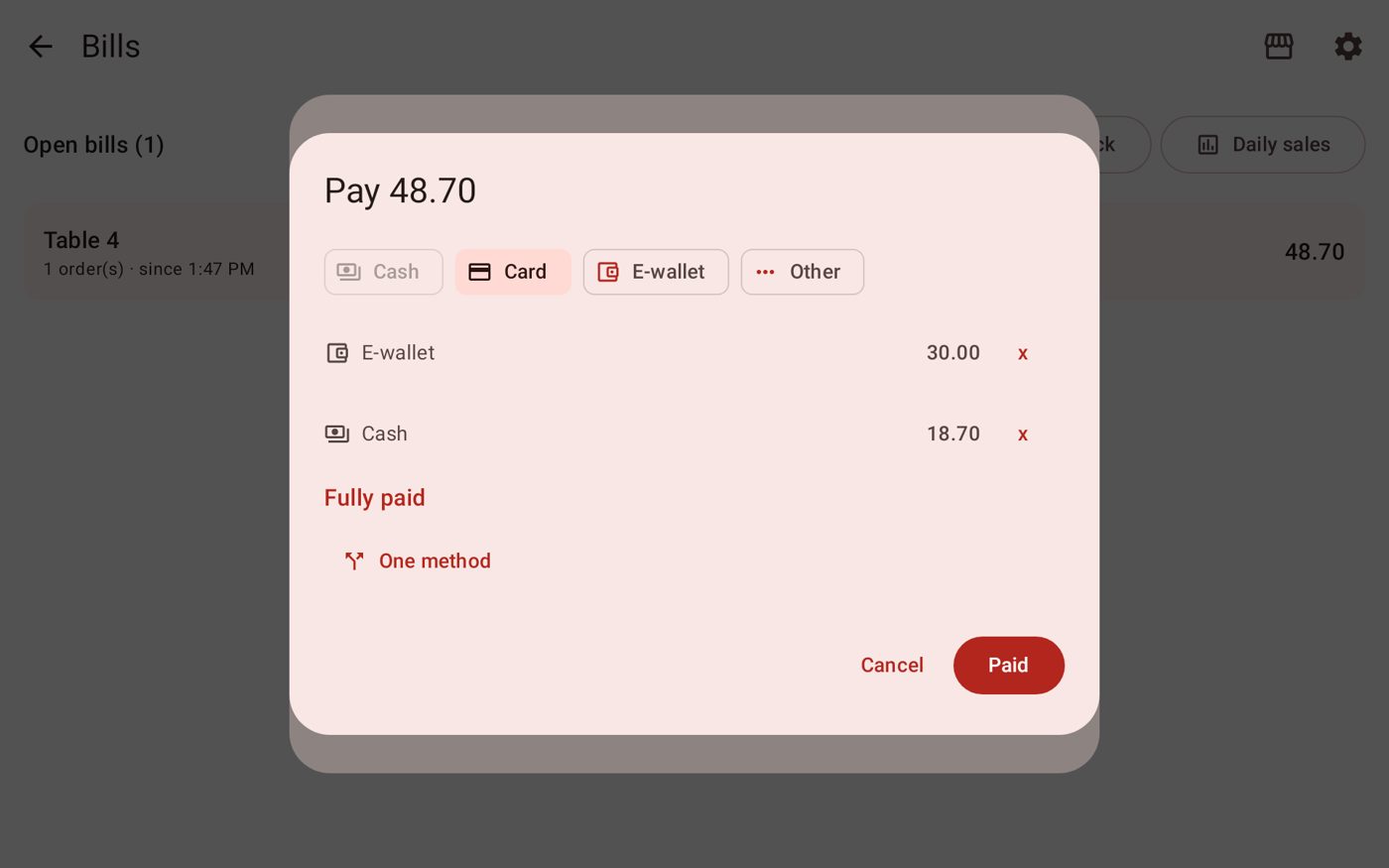
7. Tap Add payment again
Both payments are listed and the window says Fully paid.
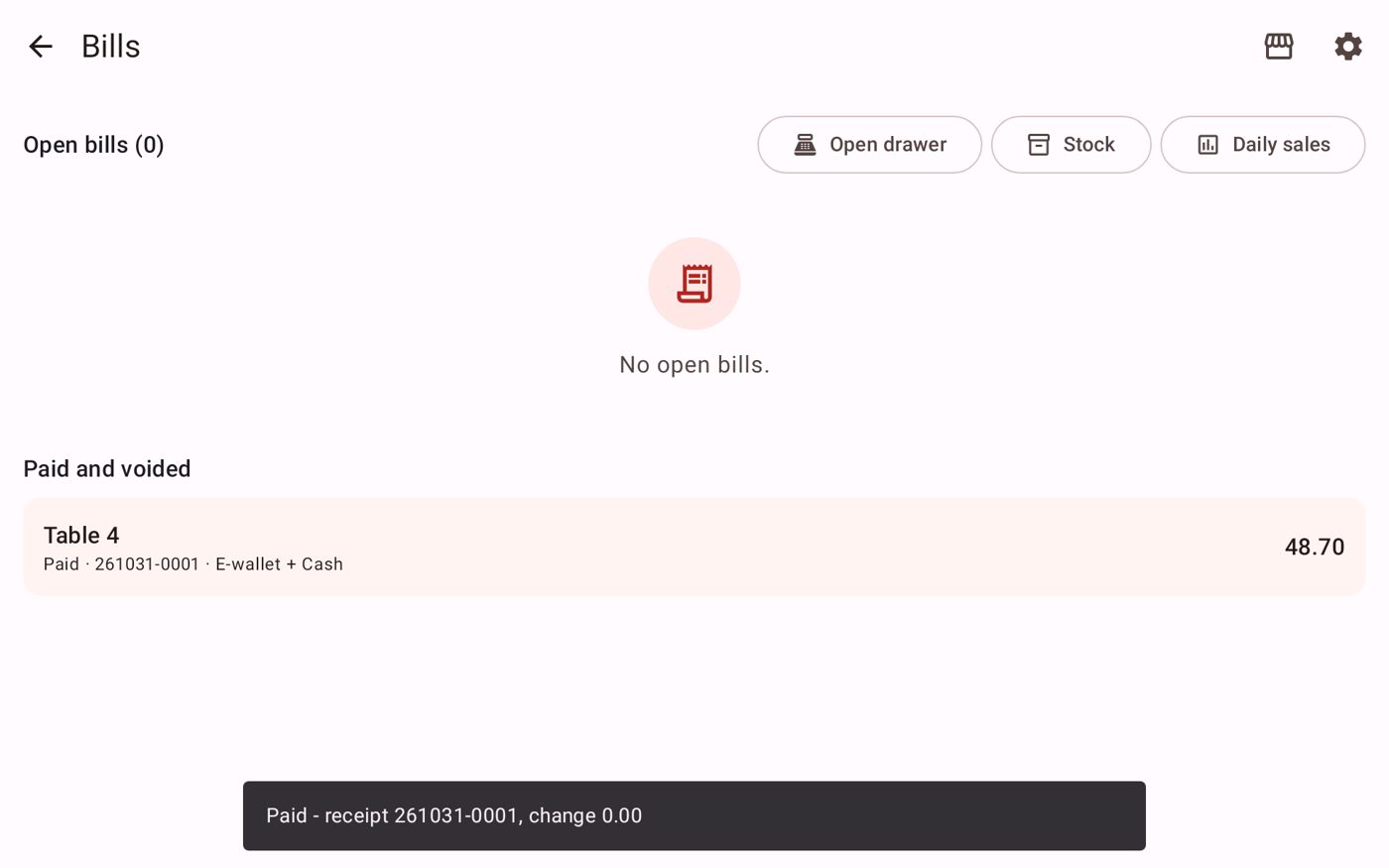
8. Tap Paid
The bill moves to Paid and voided. It shows both payment types, here E-wallet + Cash.
Tips
- Cash can be used once in a bill. When cash is the amount handed over and it is more than the rest, the window shows what was received and the change.
- A payment type other than cash can pay at most what is still to pay.
- When cash is one of the payments and Round cash payments to 5 sen is on (Settings > Receipt & printers > Receipt), the whole bill is rounded to 5 sen and the window shows Cash to pay.
- Tap One method to go back to a single payment type. The payments already added are forgotten.
Common problems
The Paid button is grey.
The payments do not cover the bill yet. Look at Still to pay and add the rest.
The Cash button is grey.
Cash is already in the list. Tap the x next to it to take it off, then add cash again.
A wrong amount was added.
Tap the x next to that payment and add it again.