
With staff sign-in on, each staff member types their own PIN and has a role: Cashier, Supervisor or Manager. This guide shows what each role may do, how a Manager approves something on the spot, and who sees the sales charts.
Before you start
- Staff sign-in is switched on in Back Office > Staff, with at least one Manager who has a PIN. The guide Staff PIN Sign-in shows how.
Steps
1. Open the staff rules
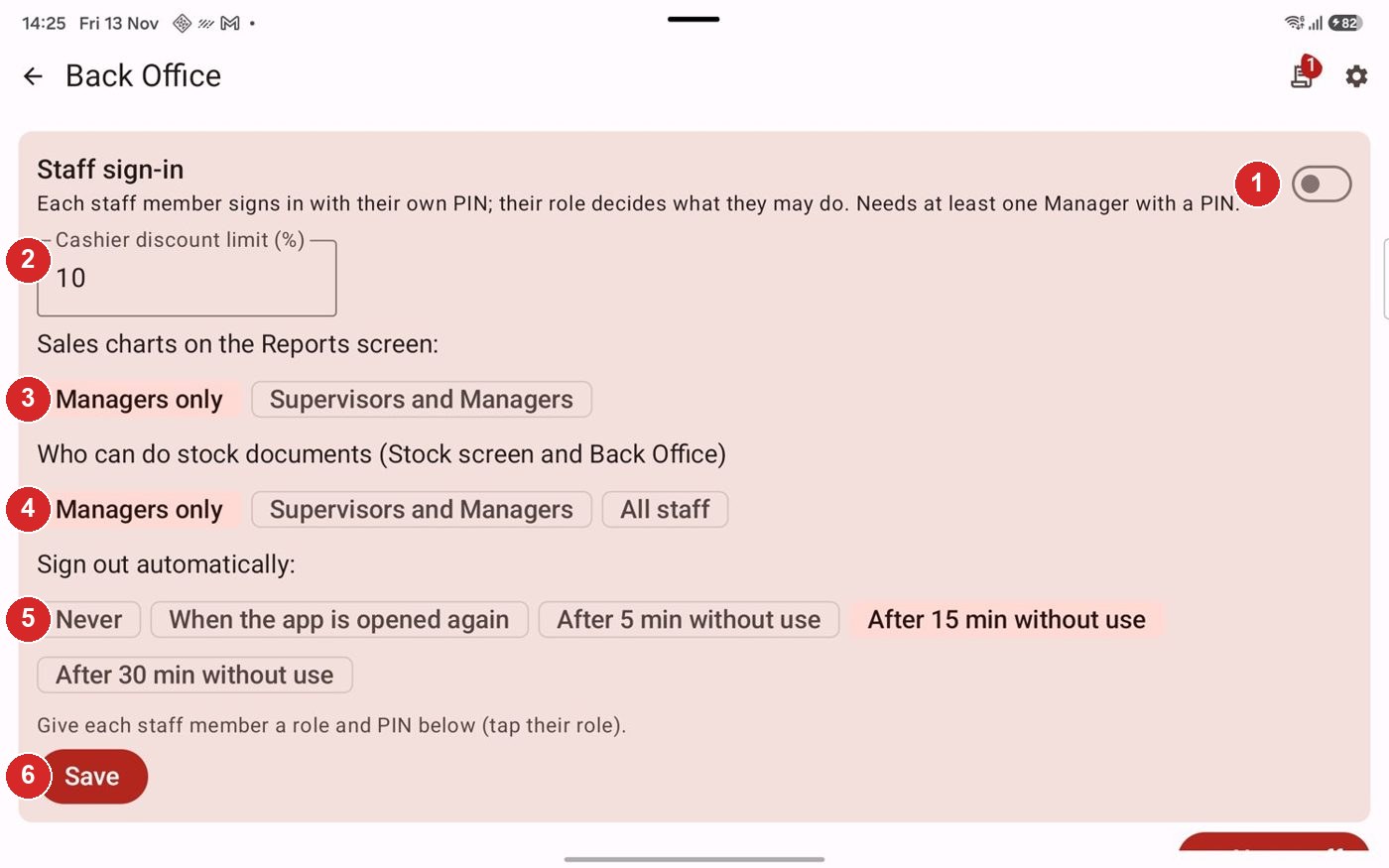
Open Back Office and tap Staff, in the Shop setup group. At the top are the rules:
| Step | What to do |
|---|---|
| 1 | The Staff sign-in switch |
| 2 | The Cashier discount limit (%) |
| 3 | Who sees the Sales charts on the Reports screen |
| 4 | Who can do stock documents |
| 5 | When staff sign out automatically |
| 6 | Tap Save after a change |
2. Give a staff member a role
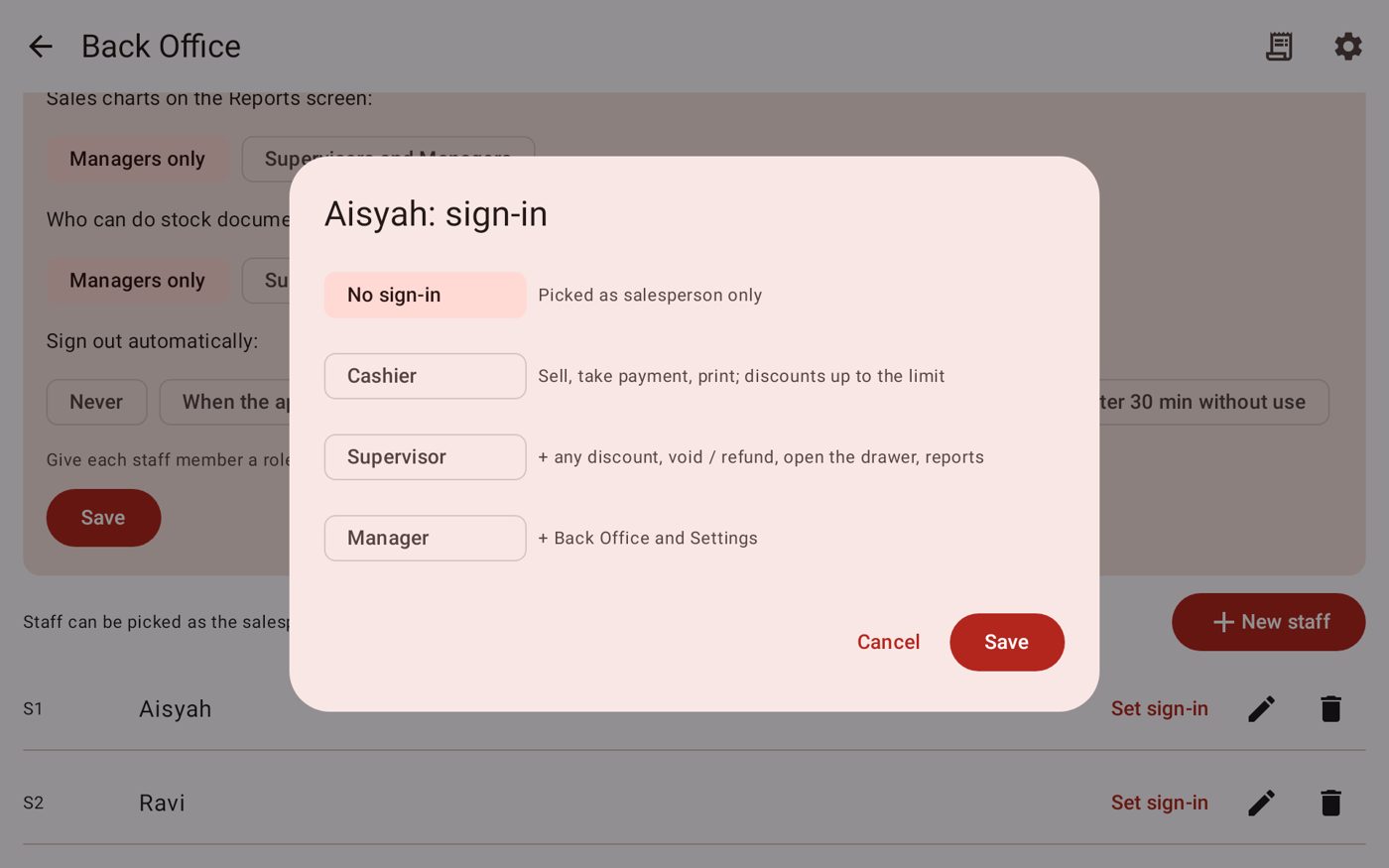
Further down, tap Set sign-in next to the staff member. Cashier: sell, take payment, print, discounts up to the limit. Supervisor: also any discount, void / refund, open the drawer and reports. Manager: also Back Office and Settings.
3. Pick the role and the PIN
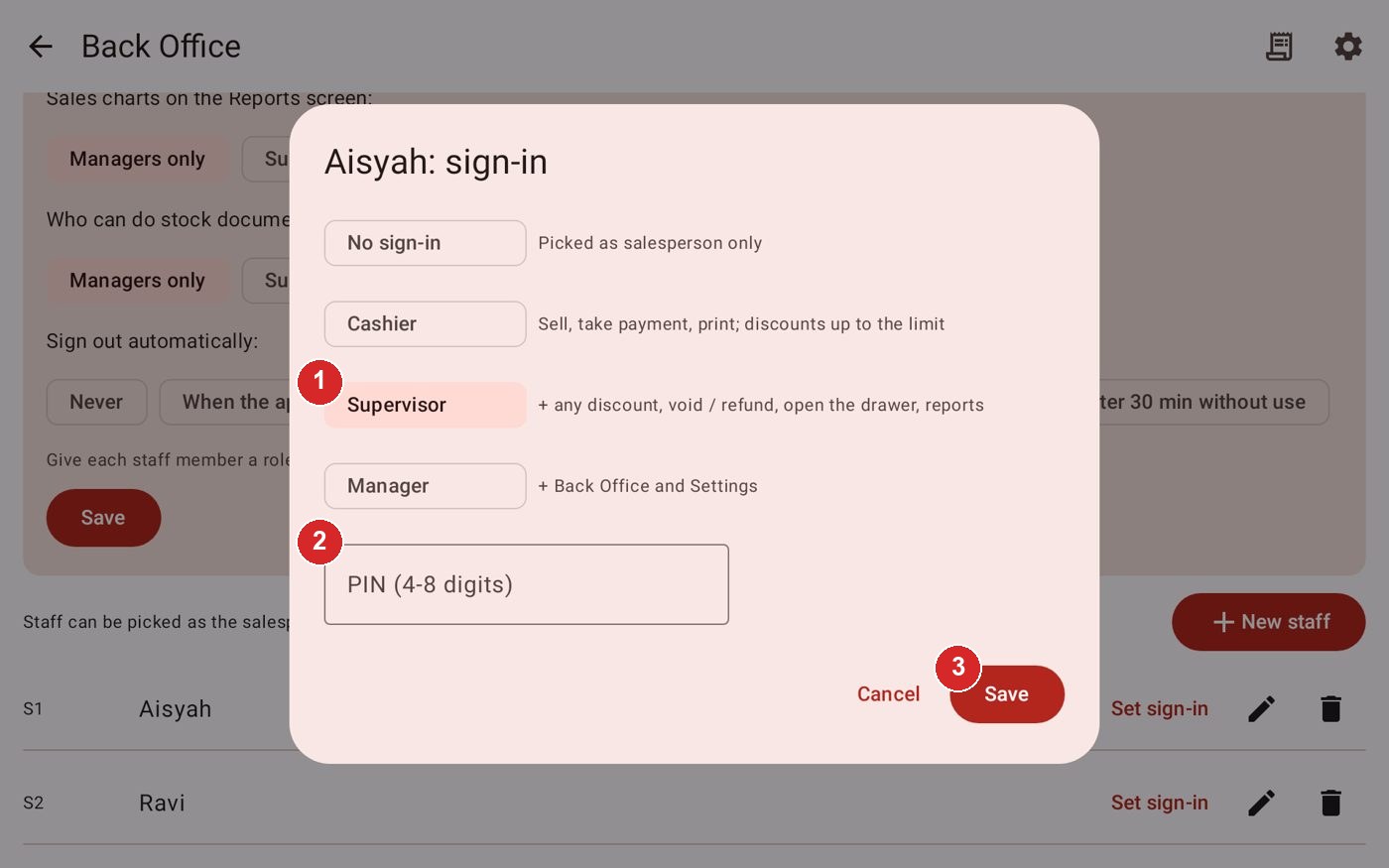
Each staff member needs their own PIN.
| Step | What to do |
|---|---|
| 1 | Tap the role |
| 2 | Type a PIN of 4 to 8 digits |
| 3 | Tap Save |
4. Sign in
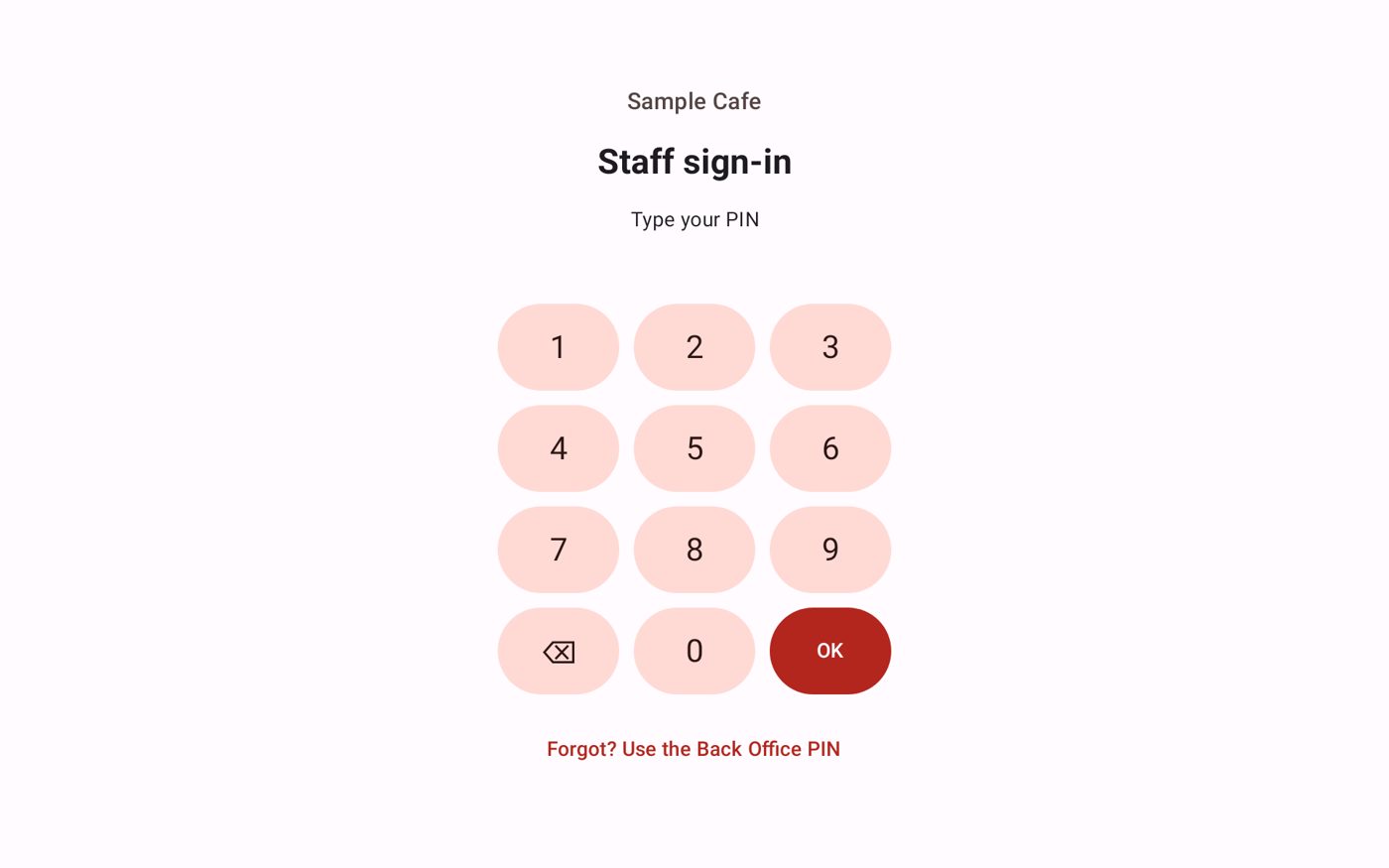
With staff sign-in on, the PIN pad opens first. Each staff member types their own PIN.
5. Tap OK
Each digit shows as a dot. Tap OK. The order screen opens with the name and role at the top, here Ravi, Cashier. Switch signs out.
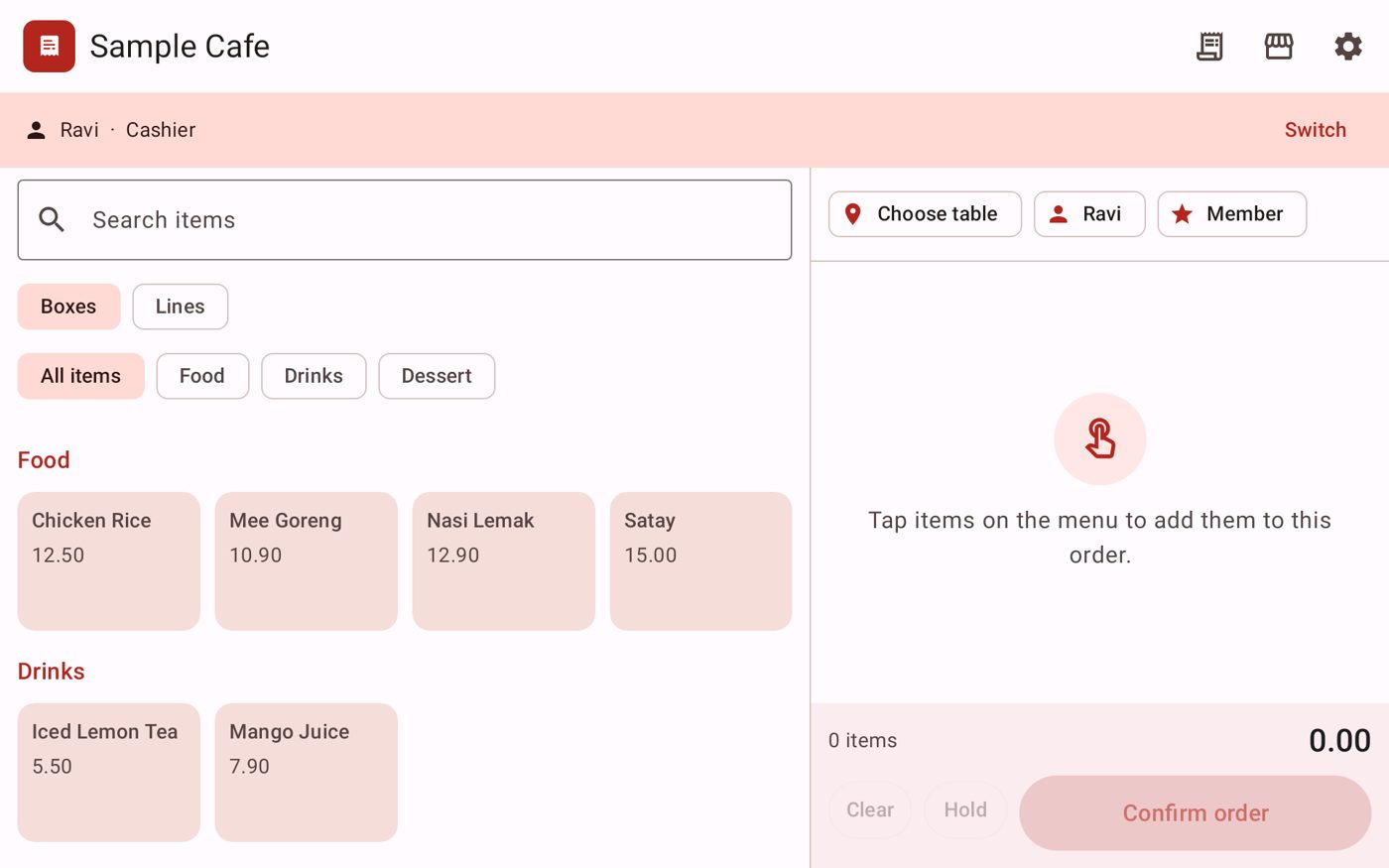
6. Meet a limit
A Cashier taps the gear icon. Settings needs a Manager, so a Manager approval window opens.
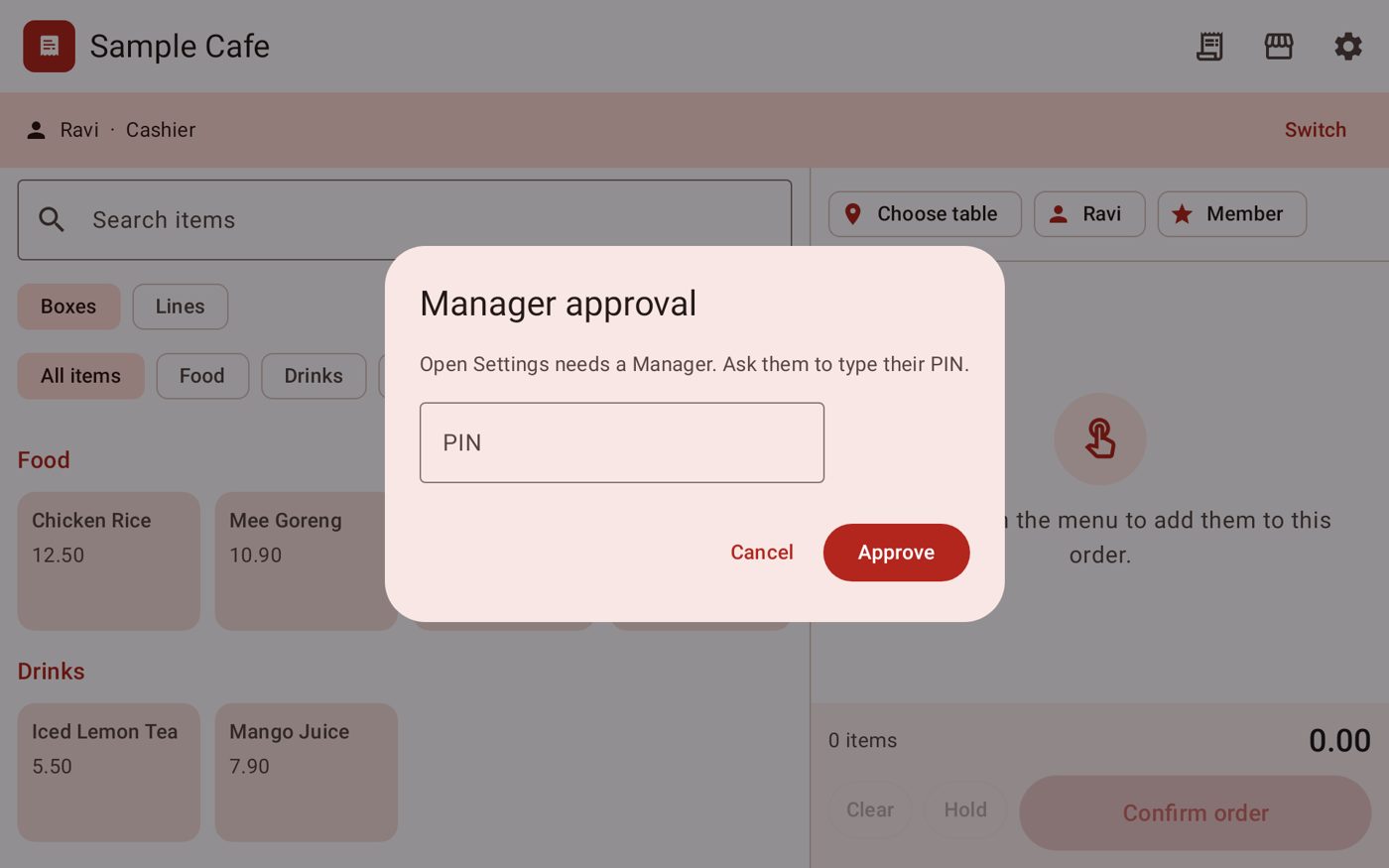
7. Ask a Manager to type their PIN
The Manager types their PIN in the PIN box.
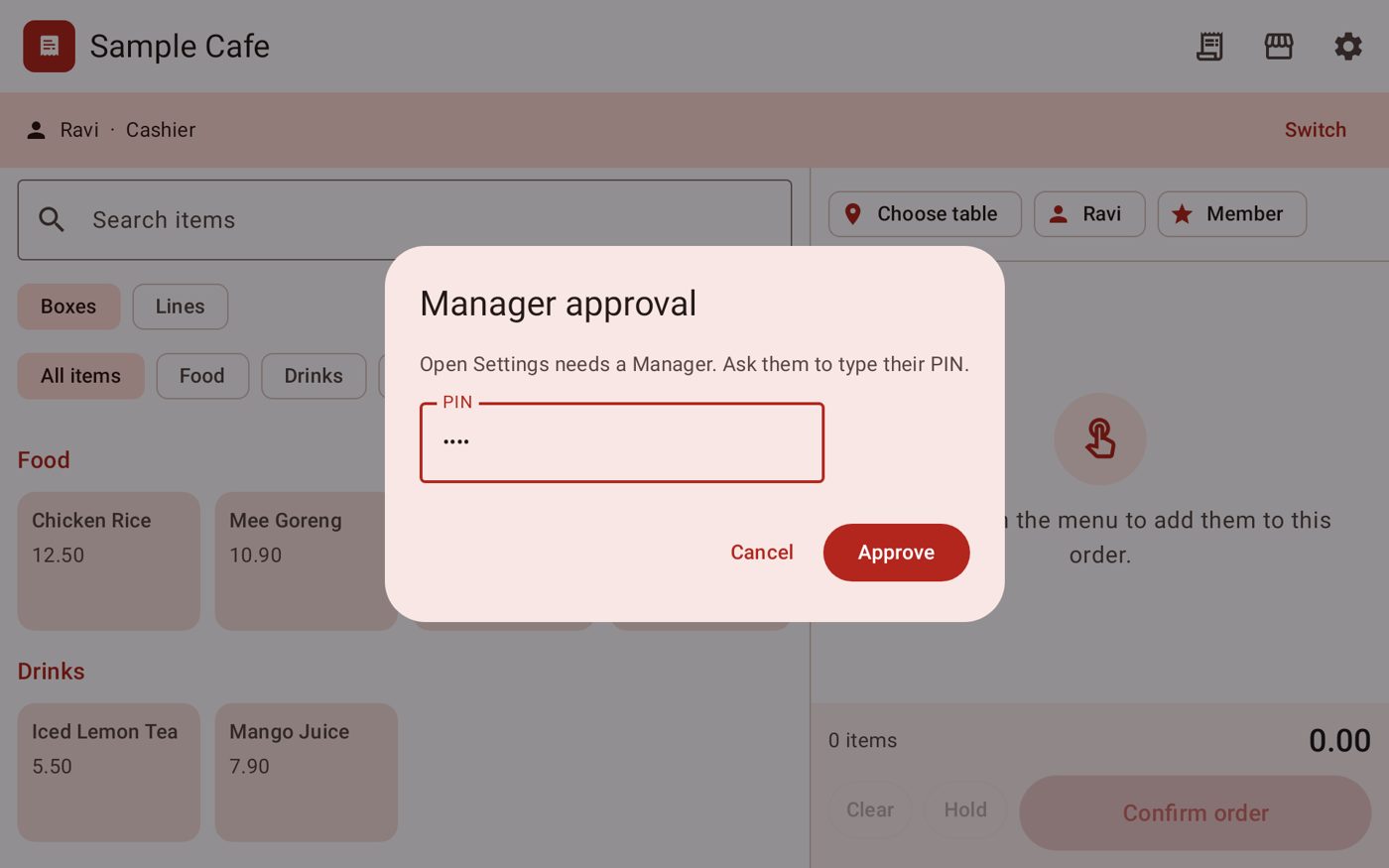
8. Tap Approve
Settings opens for this one action. The Cashier stays signed in.
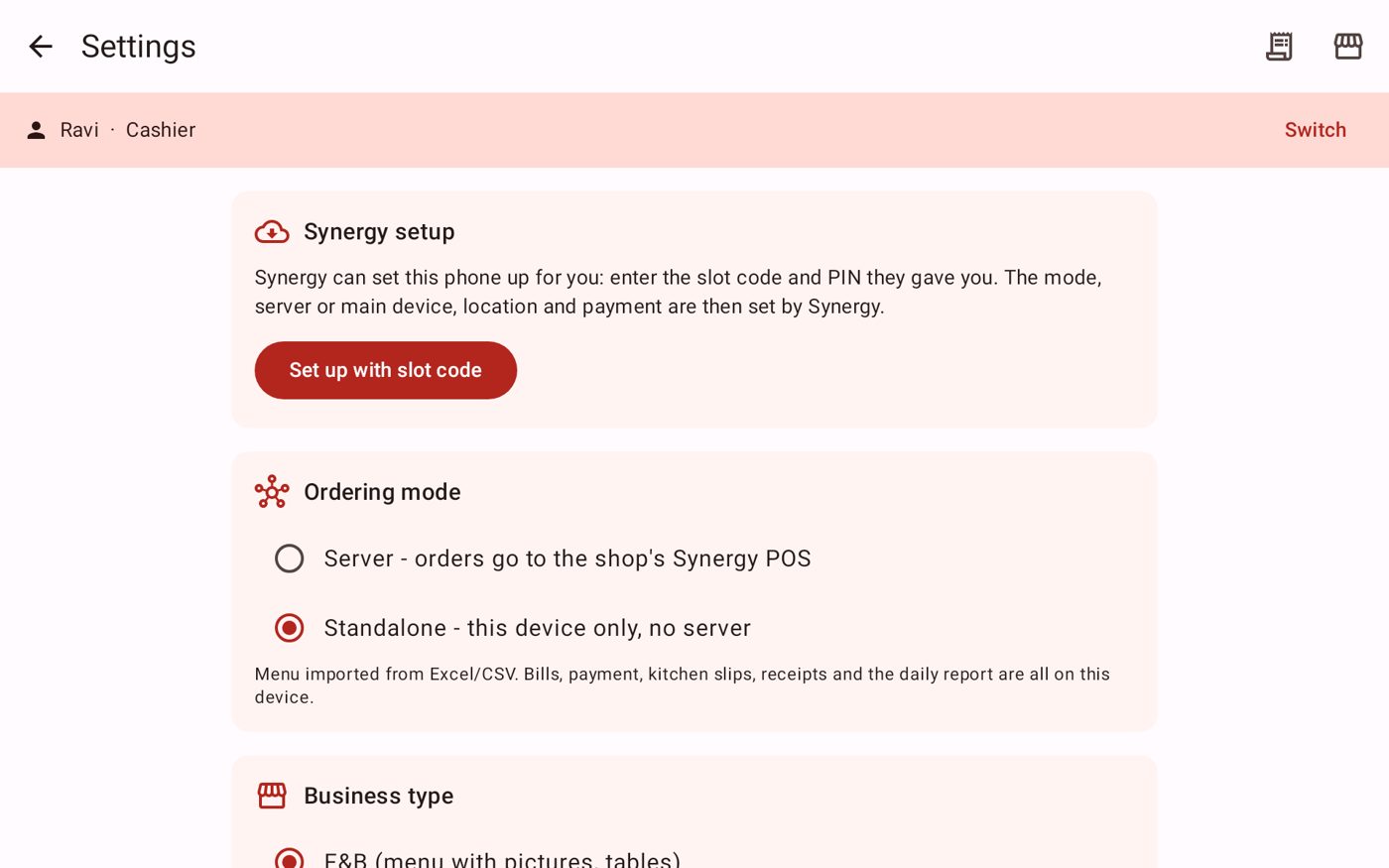
9. Switch to a Manager
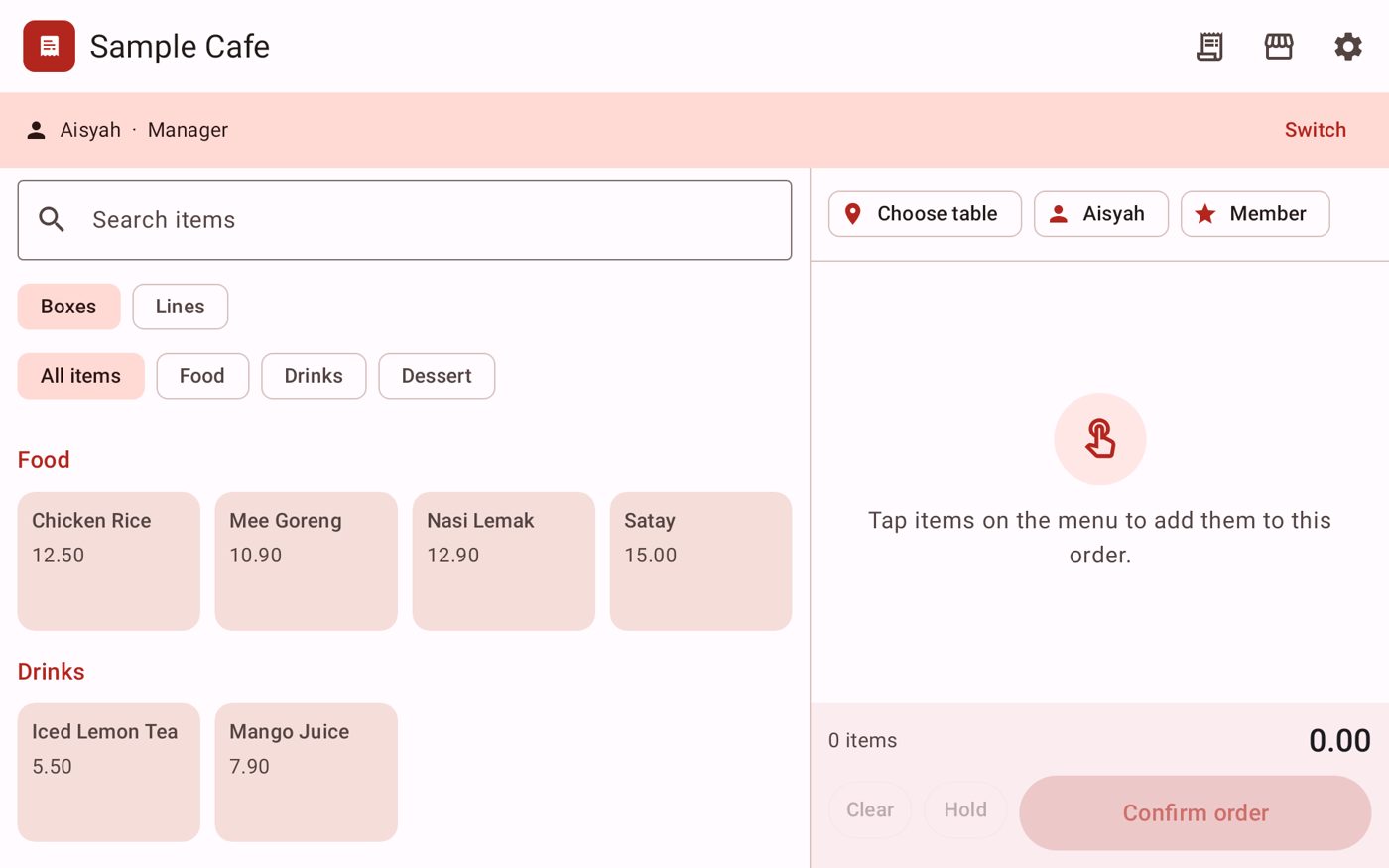
Tap Switch so the next person signs in. Here a Manager signs in, and the bar shows Aisyah, Manager.
10. See the sales charts
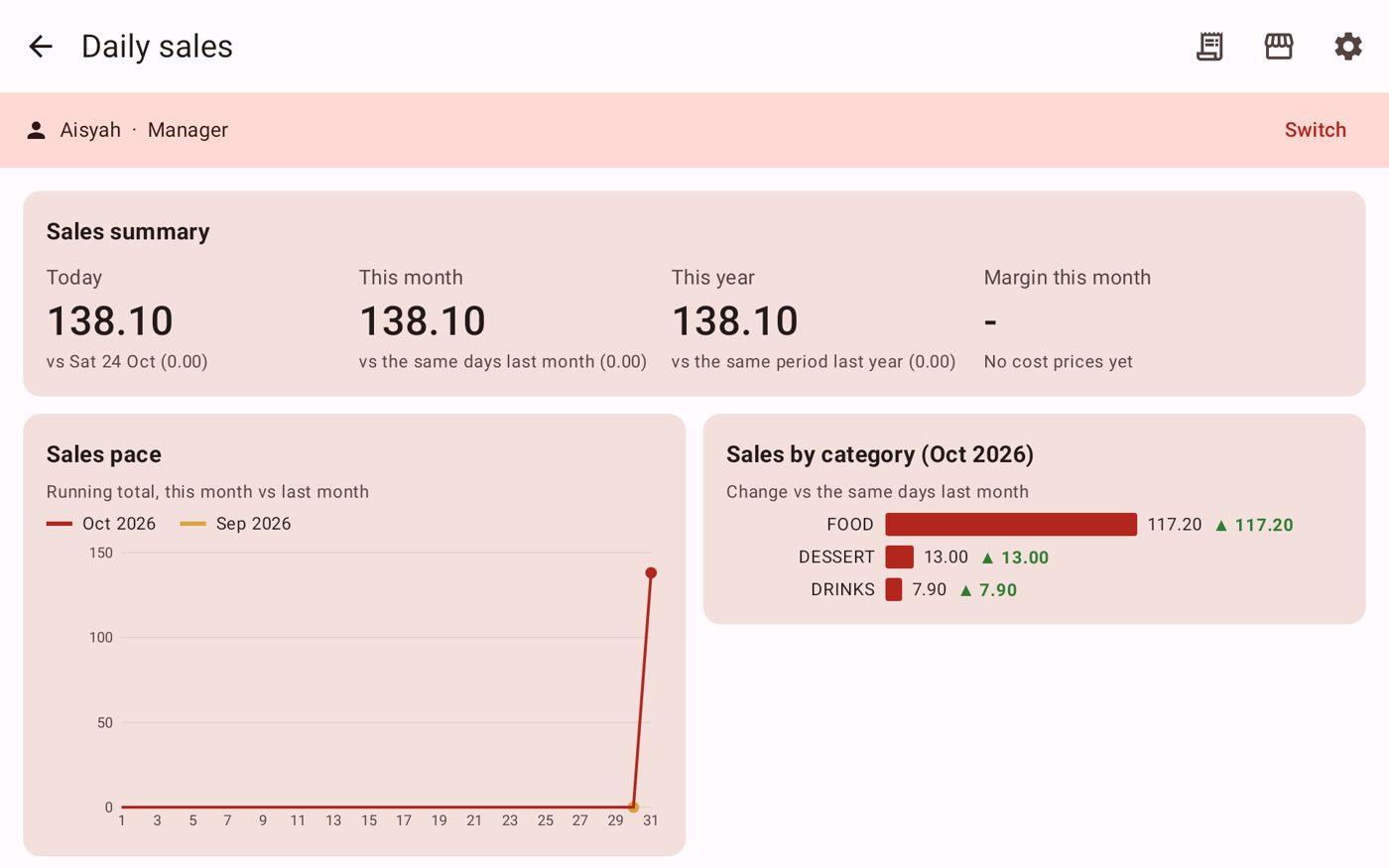
A Manager can open Bills and Daily sales. The Sales summary, Sales pace and Sales by category charts are at the top of this screen.
Tips
- The Cashier discount limit starts at 10 %. A bigger discount needs a Supervisor or a Manager.
- Void, refund and Open drawer need a Supervisor or a Manager. So does the Daily sales screen.
- The sales charts are for Managers only. Under Sales charts on the Reports screen you can choose Supervisors and Managers.
- Who can do stock documents starts as Managers only. You can choose Supervisors and Managers, or All staff.
- Sign out automatically can be Never, When the app is opened again, or After 5, 15 or 30 min without use. It starts at 15 minutes.
- On the PIN pad, Forgot? Use the Back Office PIN signs in with the shop’s Back Office PIN. That PIN also approves a blocked action.
Common problems
No staff member has this PIN.
Type the PIN again. If it is forgotten, tap Forgot? Use the Back Office PIN.
Not the PIN of someone allowed to do this.
The PIN belongs to a role that is too low for this action. Ask a Supervisor or a Manager to type their PIN.
Give at least one staff member the Manager role and a PIN first.
Staff sign-in cannot be switched on until one staff member is a Manager with a PIN. Set that first.
Another staff member has this PIN – choose another.
Every staff member needs a different PIN. Type another one.