
Set up staff sign-in so each staff member uses their own PIN. Their role decides what they can do.
Before you start
- You need the Back Office PIN (the manager PIN) to open Back Office.
- Keep at least one Manager with a PIN when Staff sign-in is on.
Steps
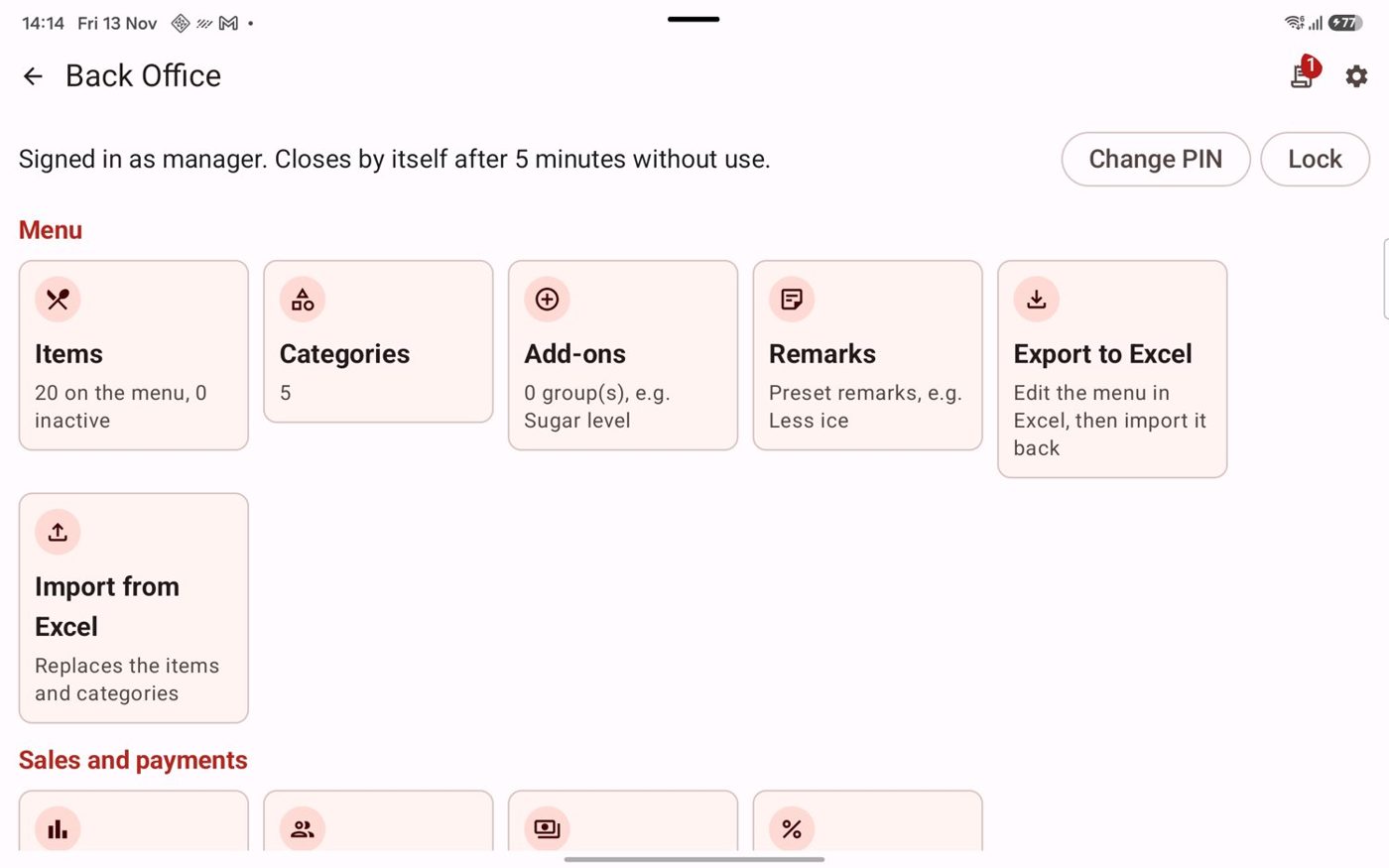
1. Open Back Office
Tap the Back Office icon (the storefront) and type the Back Office PIN.
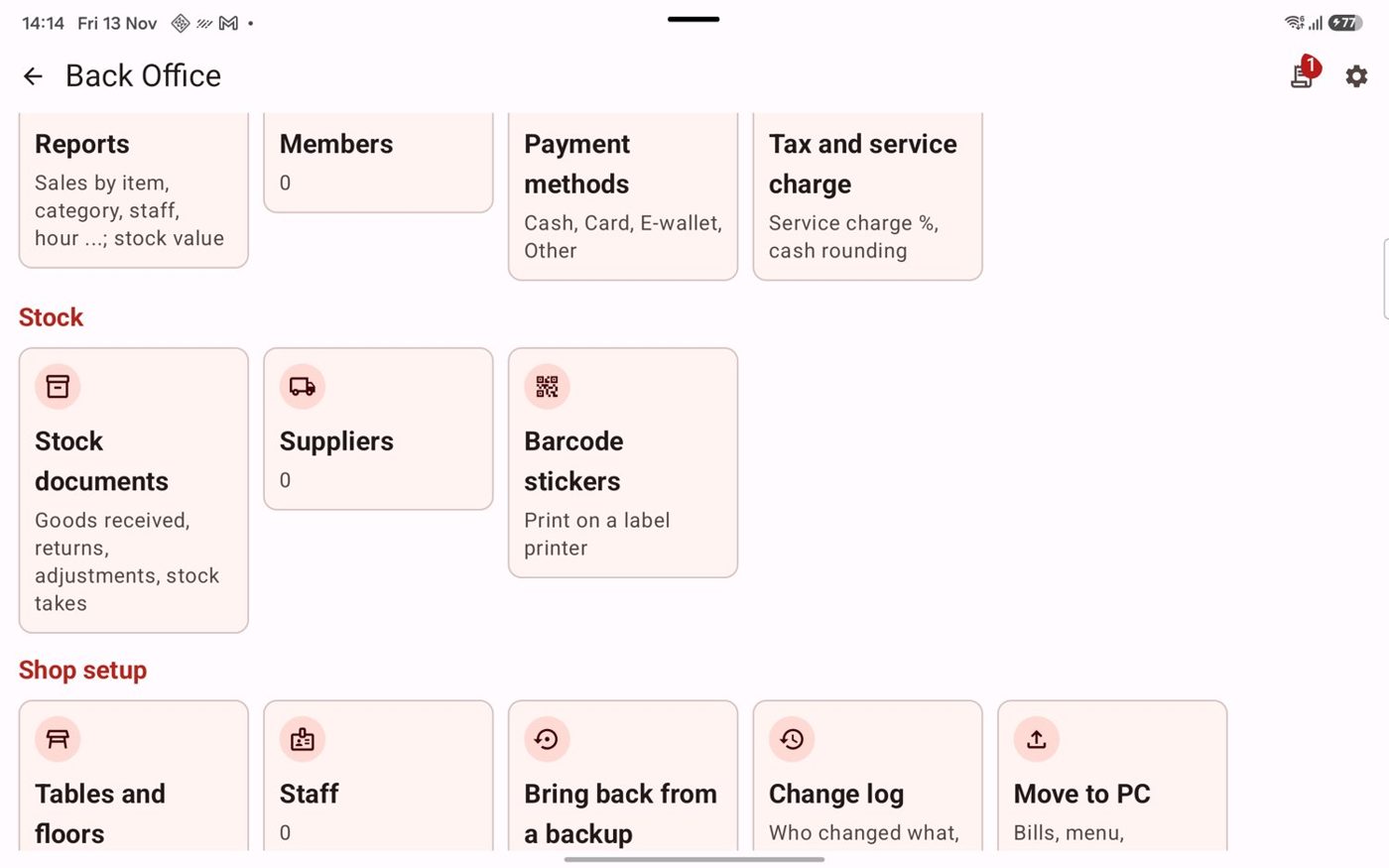
2. Open Staff
Tap Staff.
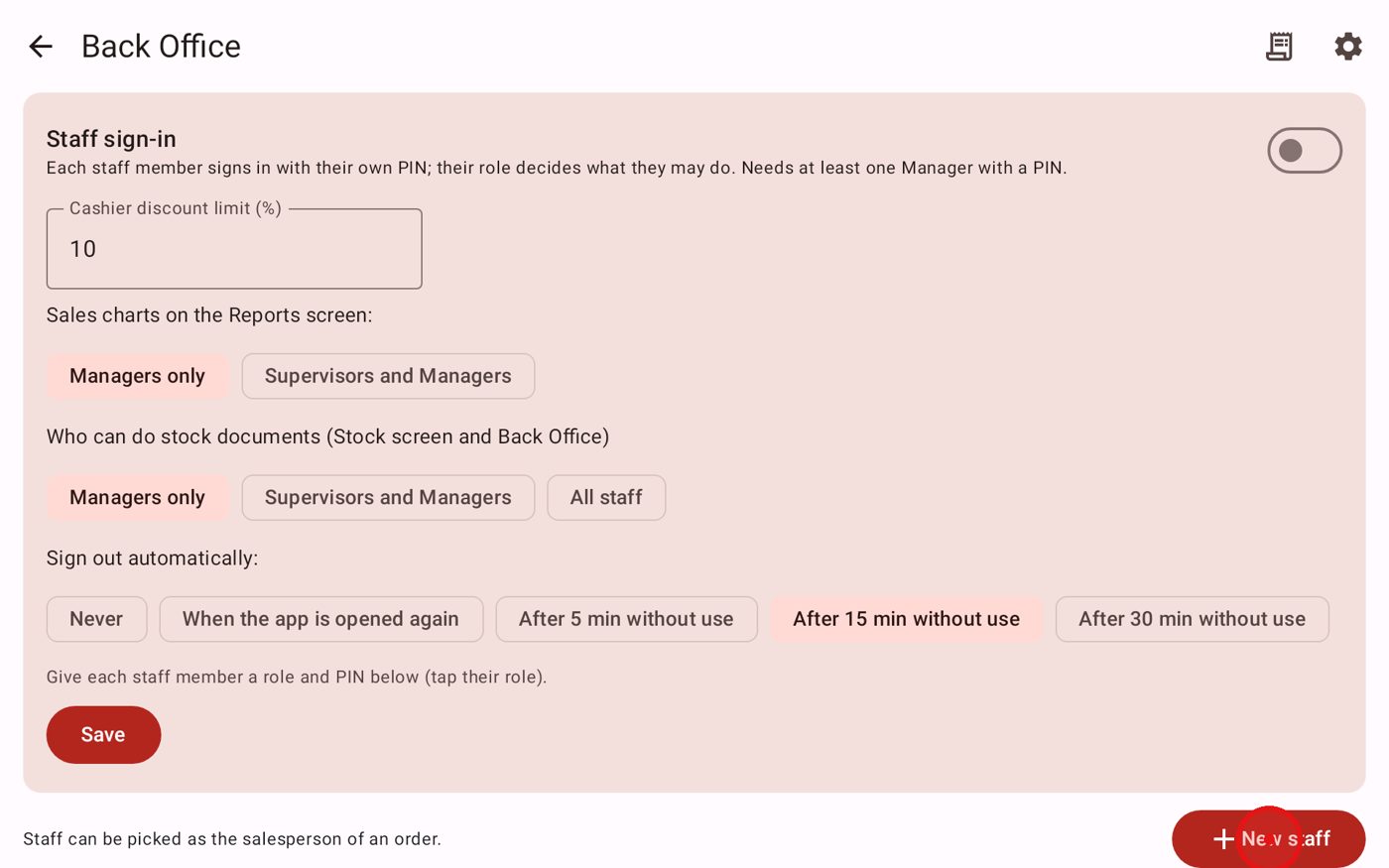
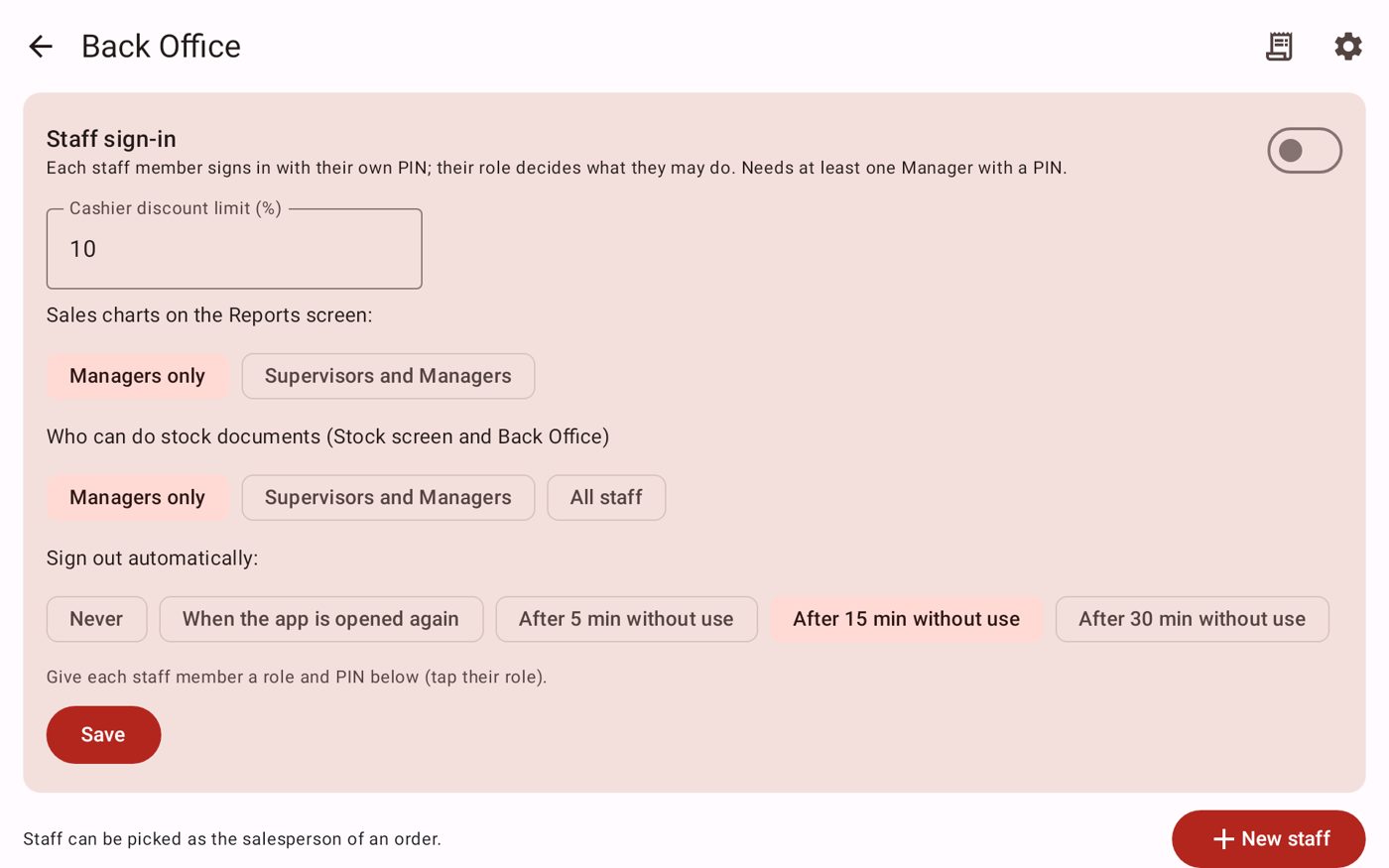
3. Add a new staff member
Tap New staff.
4. Enter the staff details
Type the staff code and name, then tap Save.
5. Set sign-in
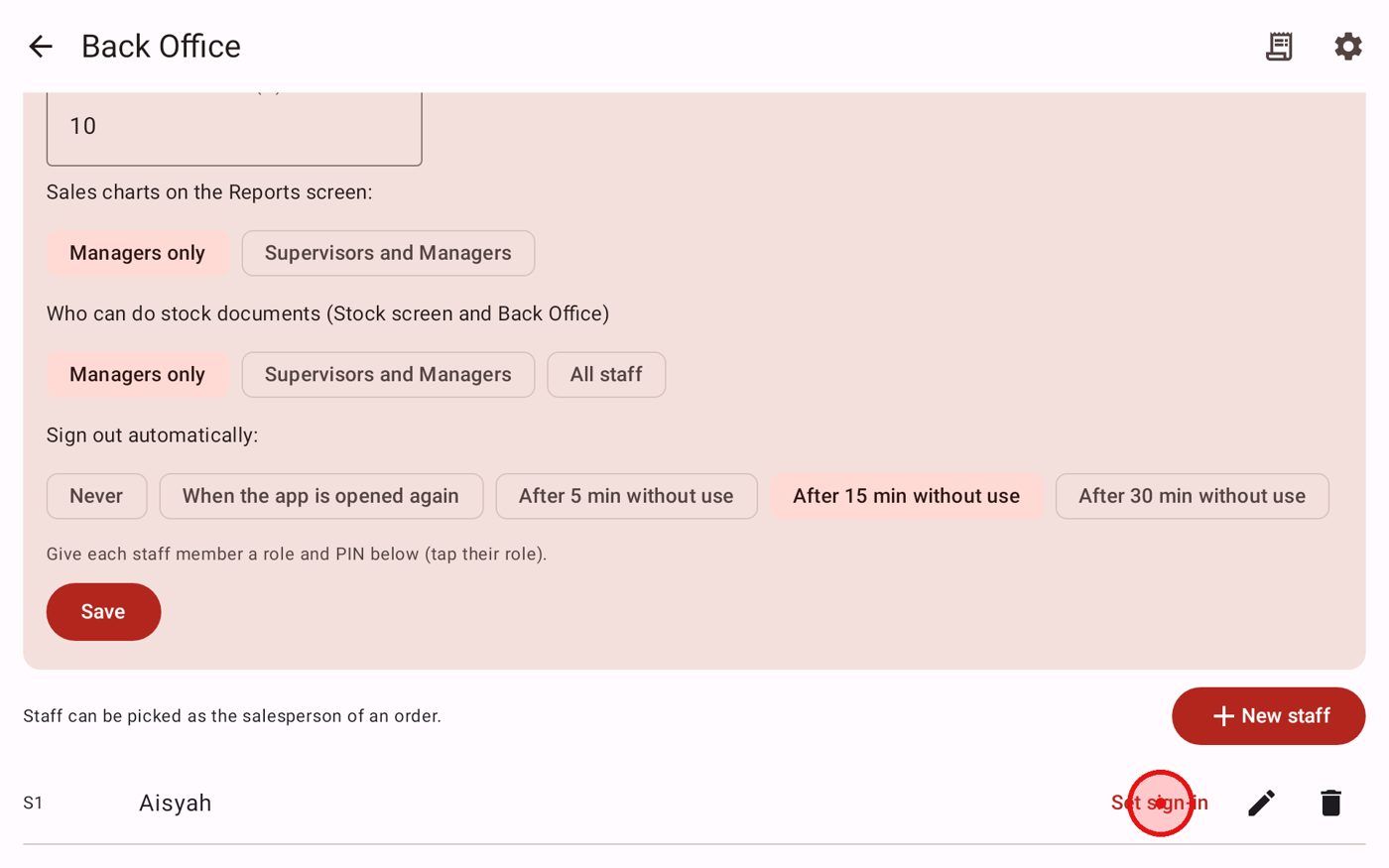
In the list, tap Set sign-in next to the staff member.
6. Pick a role and PIN
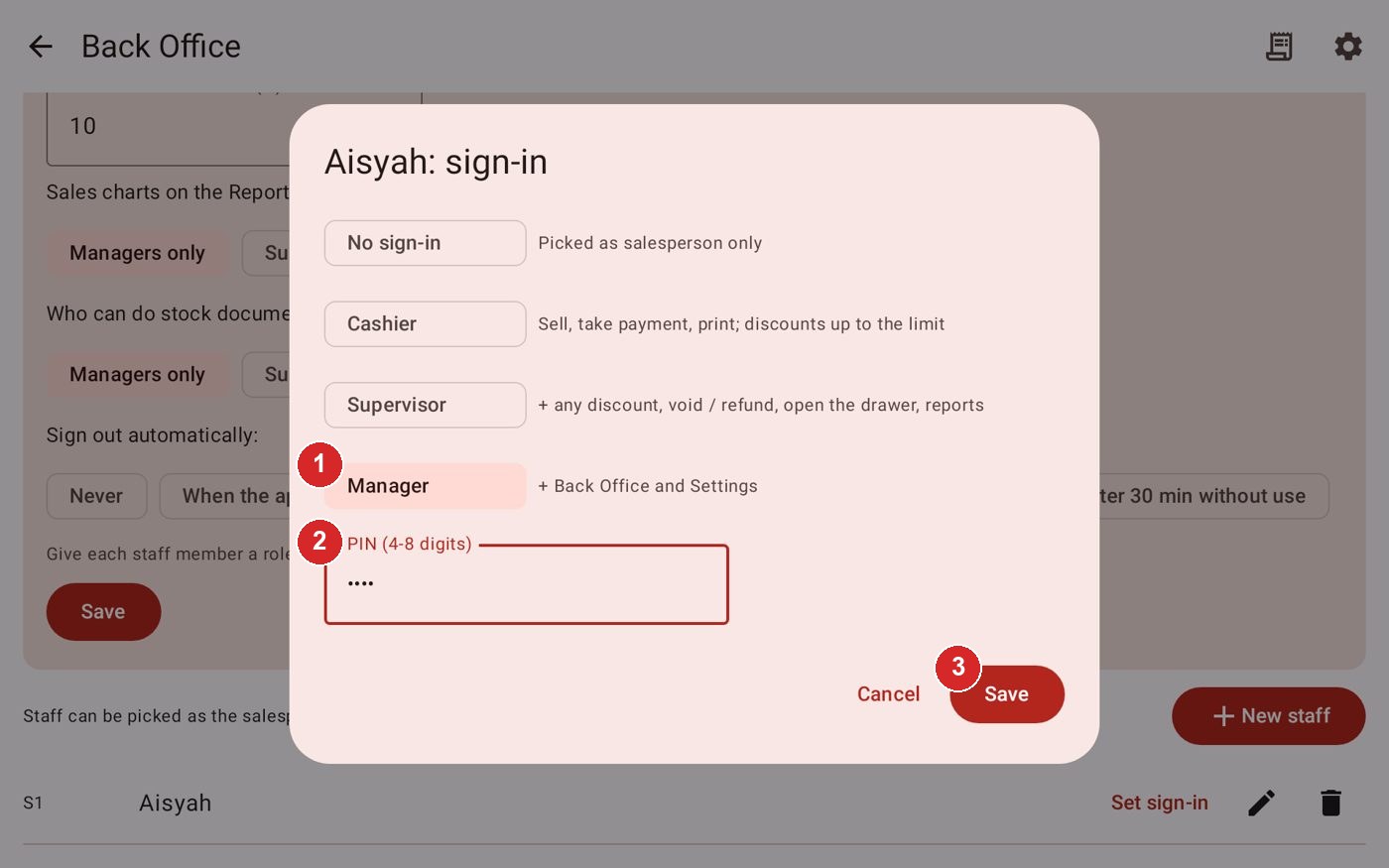
Give the staff member a role and a PIN.
| Step | What to do |
|---|---|
| 1 | Pick the role (Cashier, Supervisor or Manager) |
| 2 | Type a PIN of 4 to 8 digits |
| 3 | Tap Save |
7. Switch on Staff sign-in
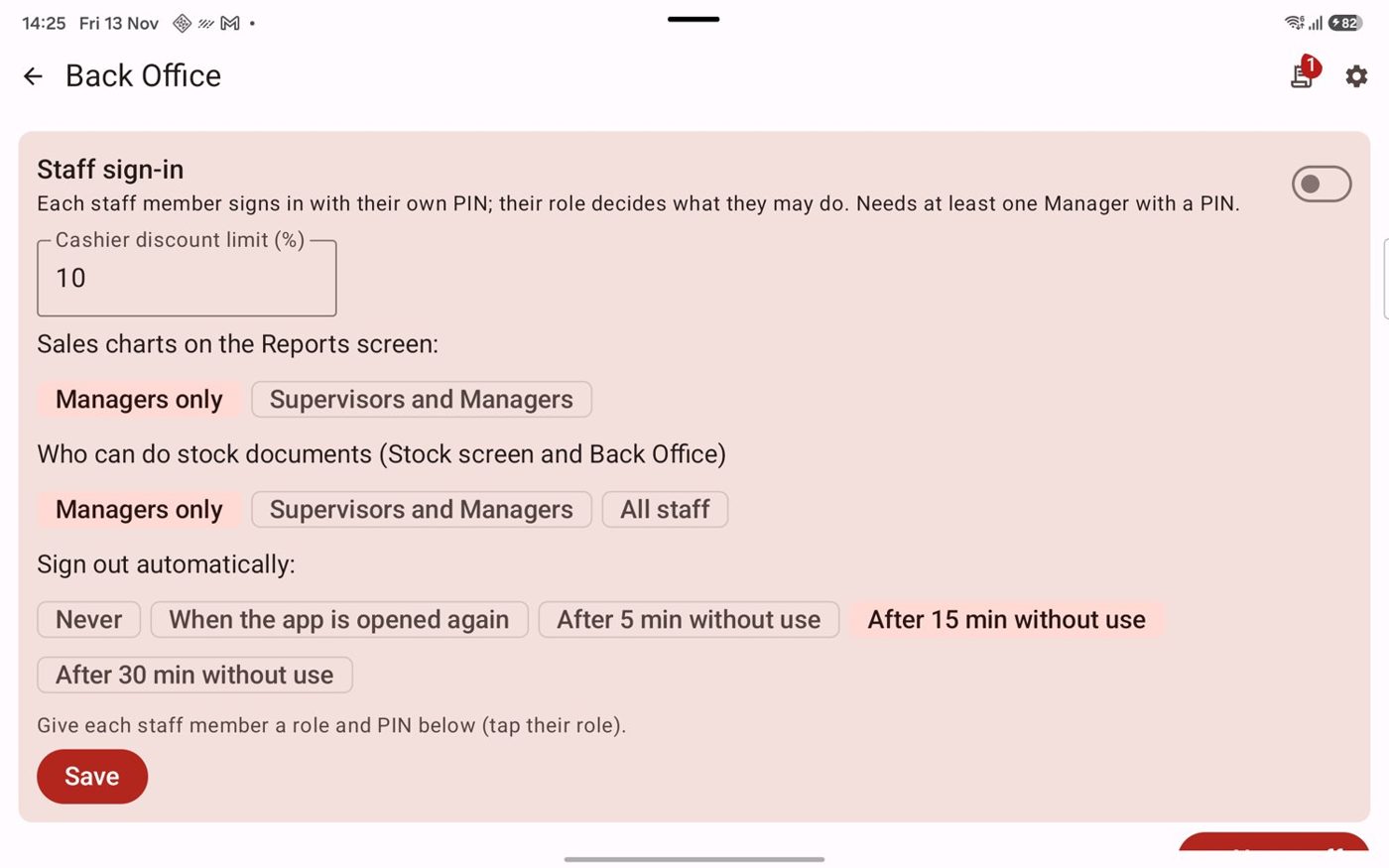
Switch on Staff sign-in.
8. Sign in with your PIN
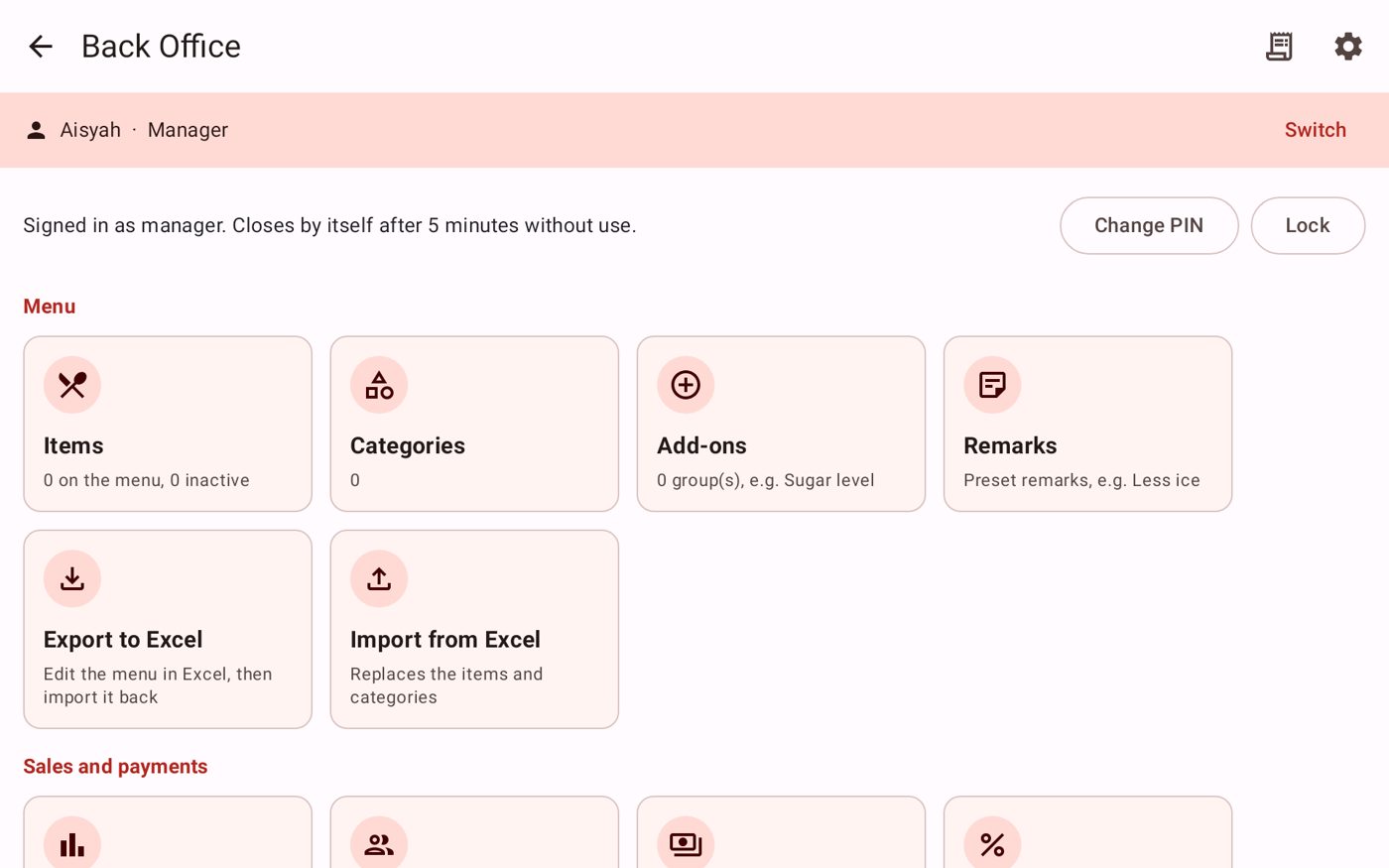
Tap Save. Staff sign-in is now on and the PIN pad appears. Type your PIN on the pad and tap OK.
Tips
- On the PIN pad, tap ‘Forgot? Use the Back Office PIN’ if a staff PIN is forgotten.
- Back Office closes itself after 5 minutes without a touch.