
See what stock you have, what moved and what to order, in Back Office > Reports, and save any report to Excel.
Before you start
- The items must track stock (Track stock on), or post a goods received first.
- With Staff sign-in on, reports need a Supervisor or a Manager.
Steps
1. Open Reports
Open Back Office and tap Reports.
2. Choose the stock report
At the top choose Stock value, Stock movement or Reorder list.
3. Stock value and Stock movement
Stock value shows the situation now. Stock movement follows the dates you choose (Today, Yesterday, 7 days, This month, Last month or Pick dates) and shows Opening, Received, Returned, Sold, Adjusted and Closing for each item.
4. Reorder list
The Reorder list shows the situation now: the tracked items at or below their Low stock level, with Balance, Minimum, Order, Supplier, Cost and Value. You type the Low stock level in the item’s window on the Stock screen.
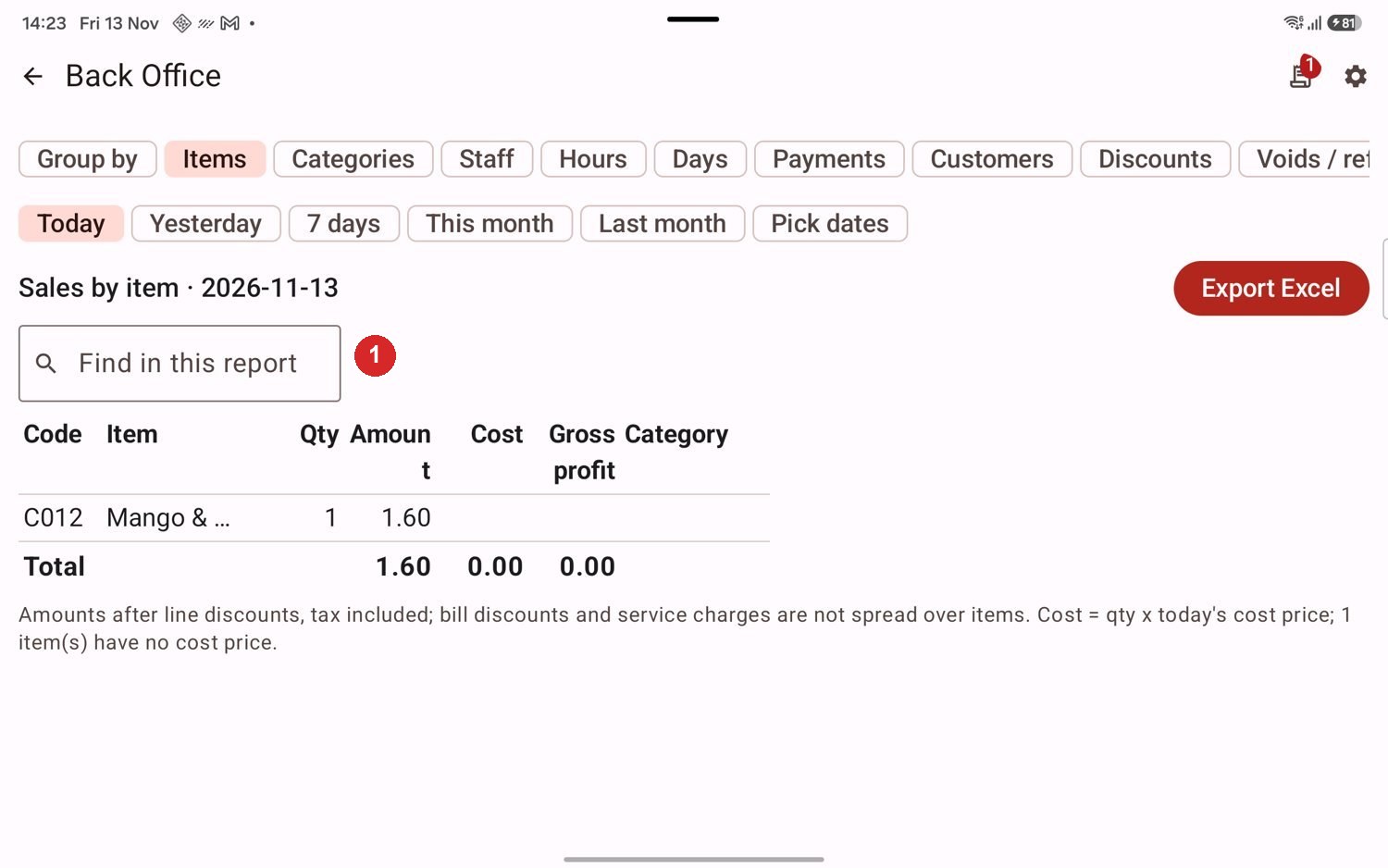
5. Find in this report
Type in Find in this report to search the rows. The picture shows the same box on the Sales by item report.
| Step | What to do |
|---|---|
| 1 | Type in Find in this report. |
6. Export Excel
Tap Export Excel to save the report as a file you can open on a computer.
Tips
- The stock value and the cost of each sale follow the Costing you chose in Back Office > Stock documents (Weighted average or FIFO).
- If the reports say no items are tracked, switch on Track stock for the items or post a goods received.
Common problems
The reports say no items are tracked.
Switch on Track stock for the items, or post a goods received.
The Reorder list is empty.
It lists only tracked items at or below their Low stock level. Set the Low stock level in the item’s window on the Stock screen.
Stock movement shows nothing for a date.
Stock movement follows the dates you choose. Pick another date at the top, for example This month.