
Count the stock of your items. Switch on Track stock for an item, receive stock, and see what is low or out. Tracked items lose stock when a bill is paid.
Before you start
- Stock is kept on this device, or on the main device of a shop. A terminal sees the main device’s stock and receives and counts on the main device.
- In a shop linked to Synergy, the stock comes from the shop server and is received and adjusted on the desktop.
Steps
1. Open the Stock screen
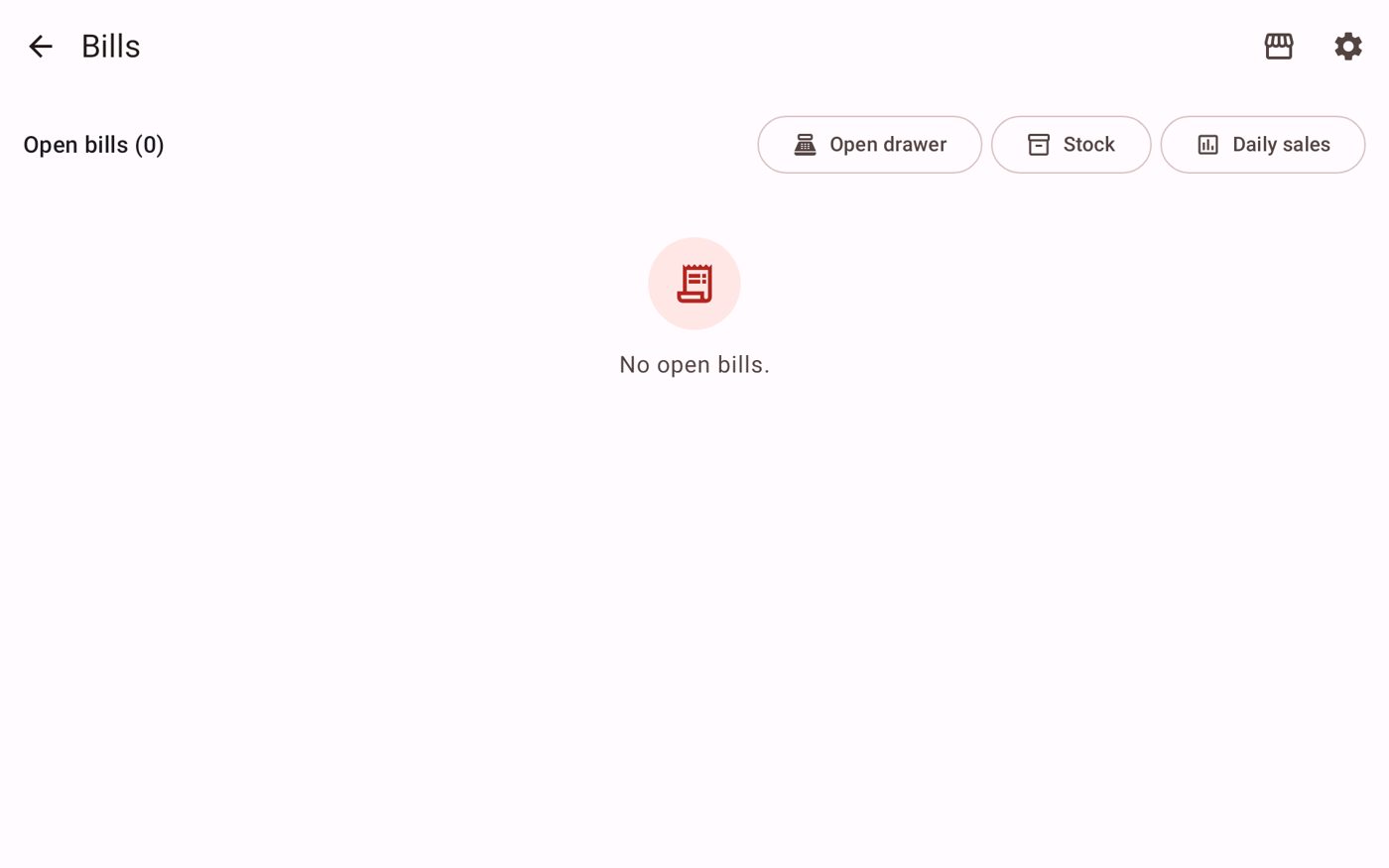
Tap the Bills icon. At the top of the Bills screen, tap Stock. (Settings > Selling > Stock also has a Stock button.)
2. See the stock list
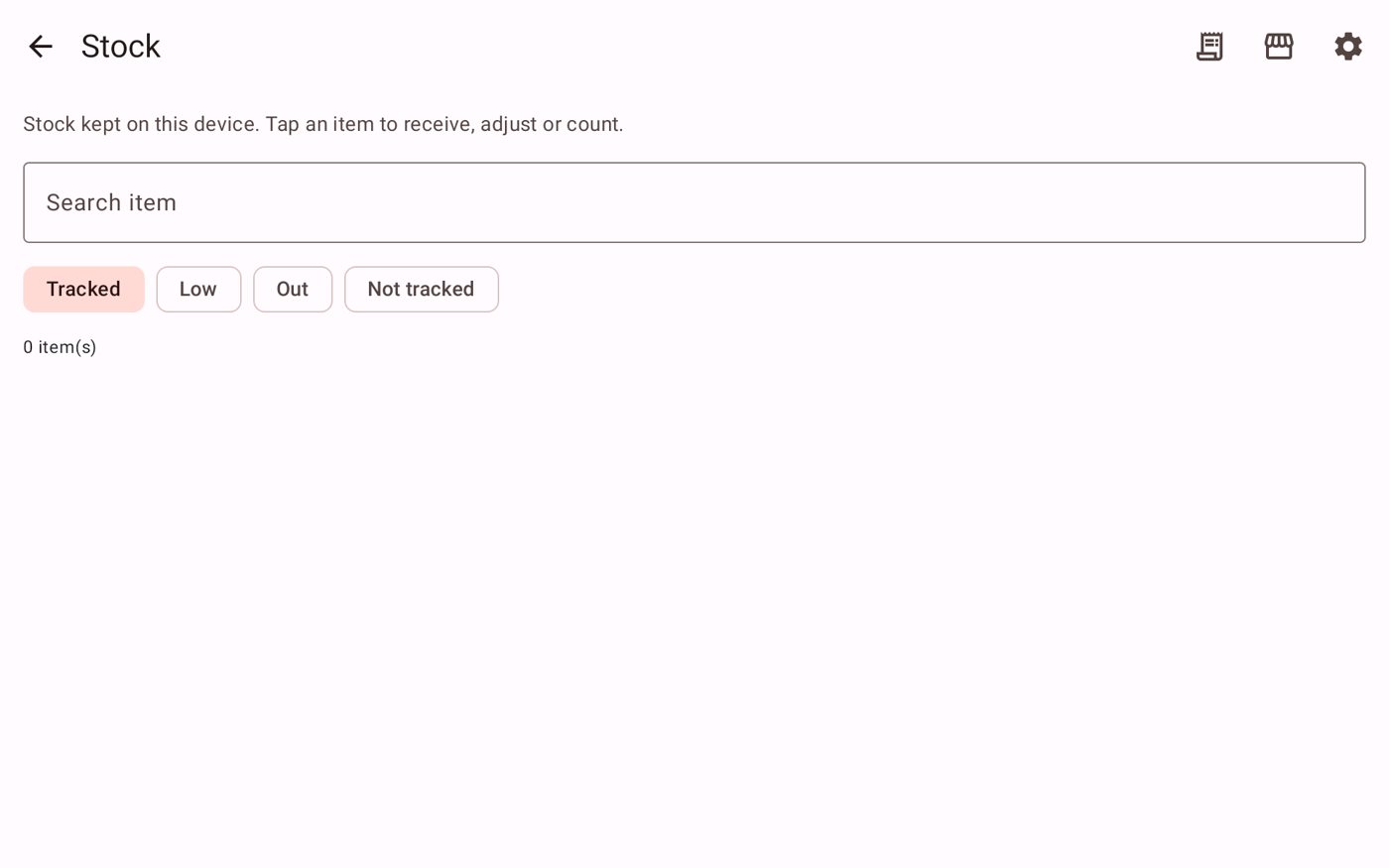
The Stock screen lists the items. The buttons Tracked, Low, Out and Not tracked filter the list. A note at the top says where the stock is kept.
3. Find the items that are not tracked
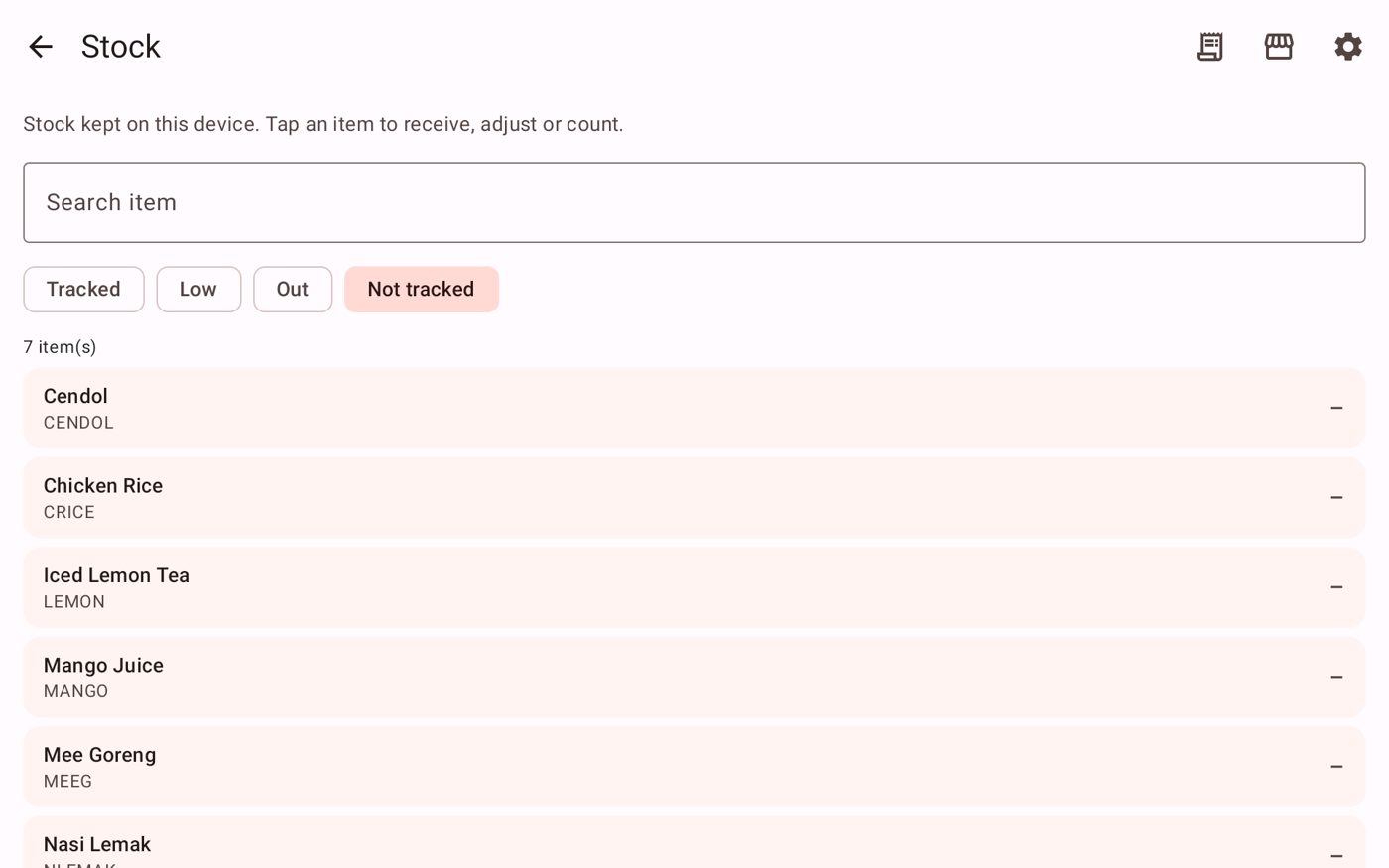
Tap Not tracked to see the items whose stock is not counted yet.
4. Open an item
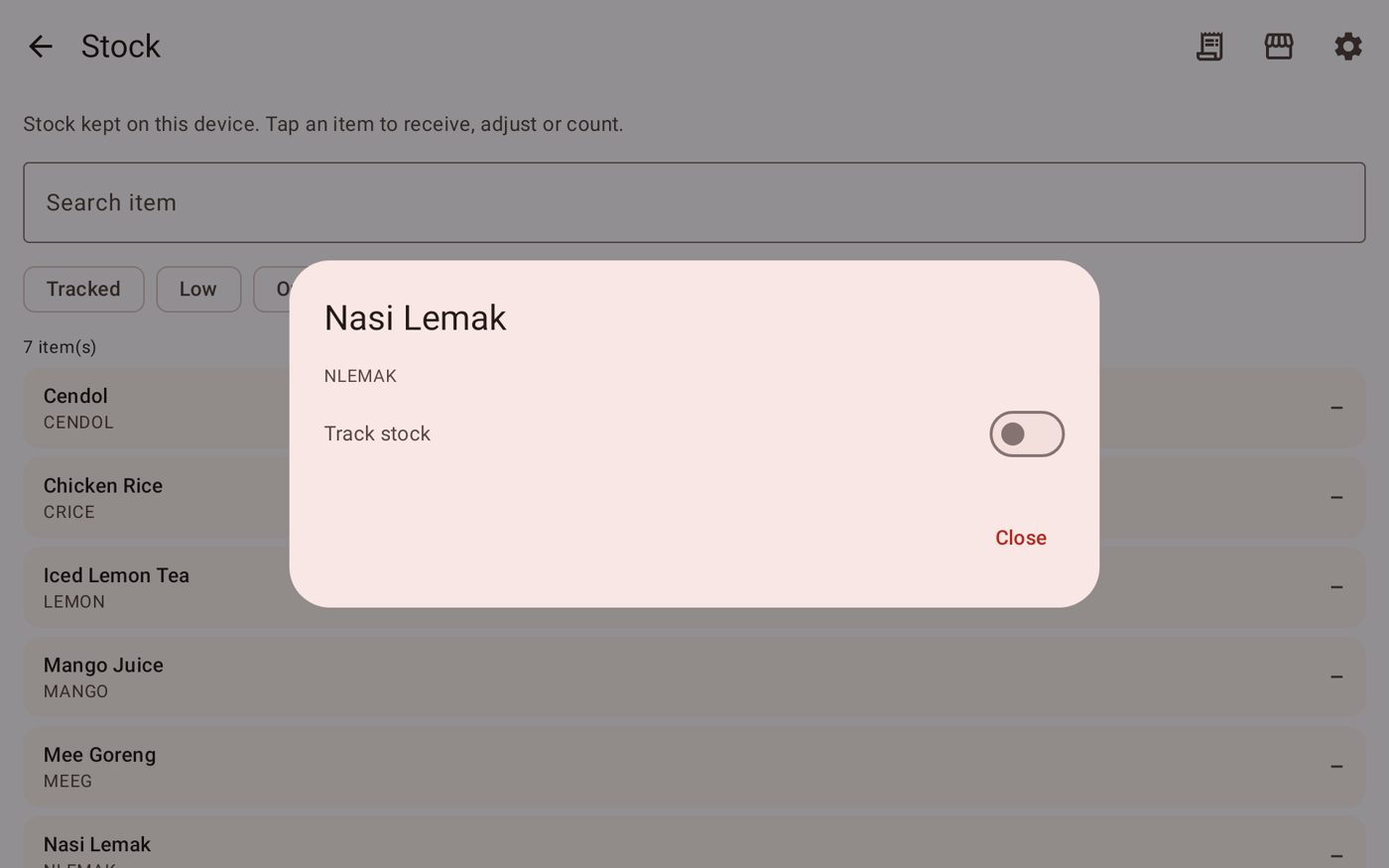
Tap an item, here Nasi Lemak. Its window opens with the Track stock switch off.
5. Switch on Track stock
The window now shows the stock and the buttons Receive, Adjust and Count.
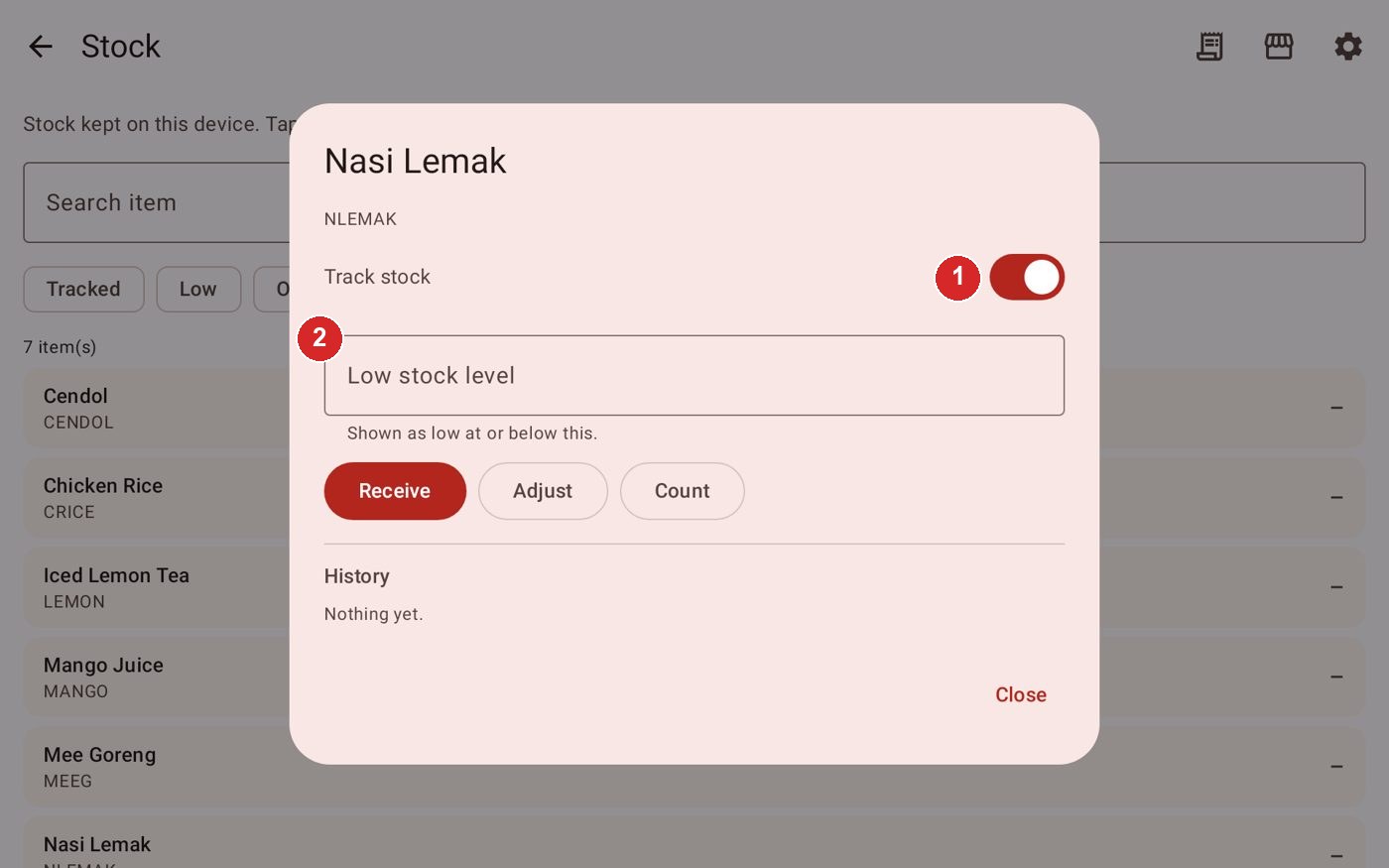
| Step | What to do |
|---|---|
| 1 | Switch Track stock on |
| 2 | In Low stock level you can type a quantity: the item shows as low at or below it |
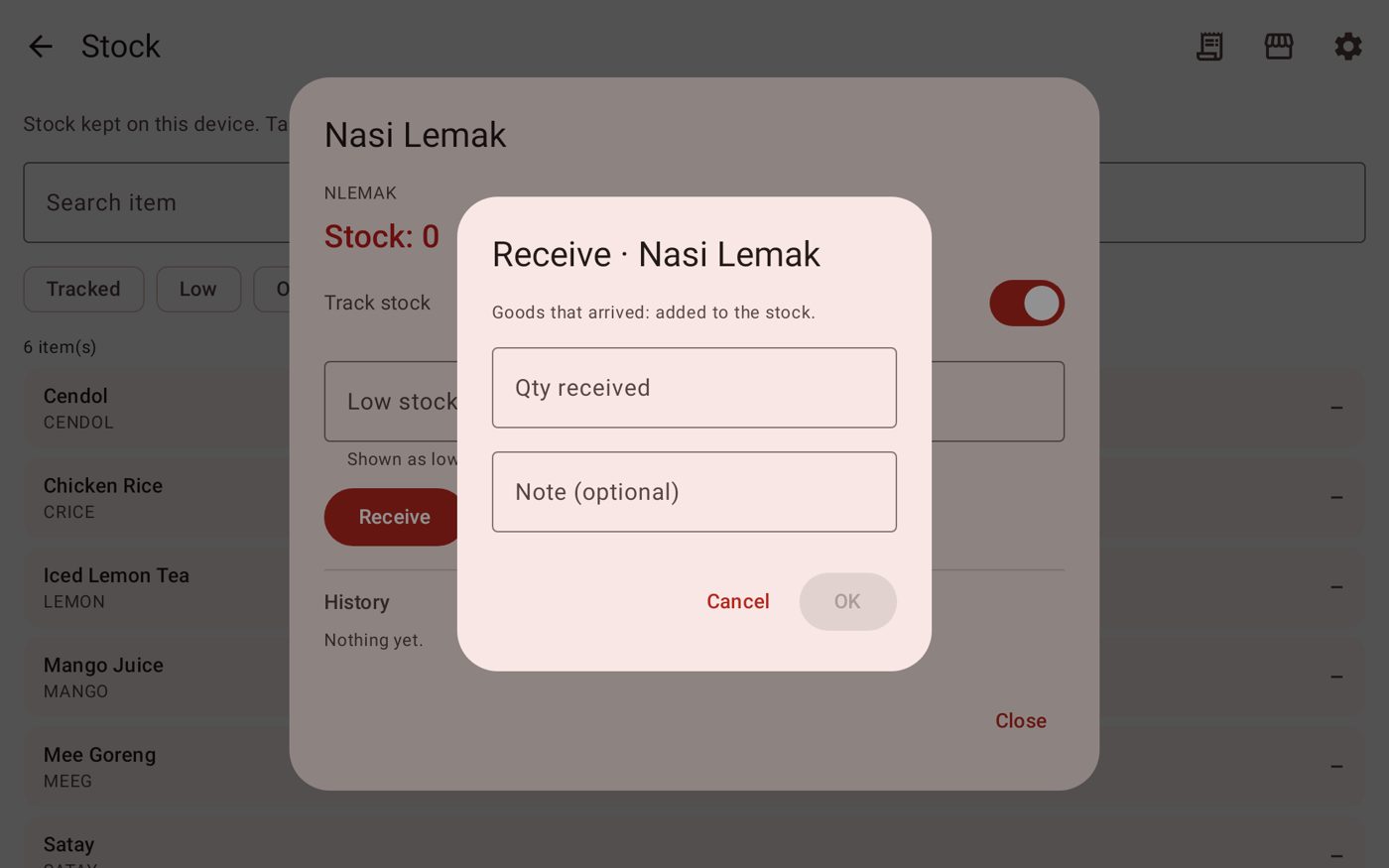
6. Receive stock
Tap Receive. A window asks for the Qty received.
7. Type the quantity
The quantity is added to the stock.
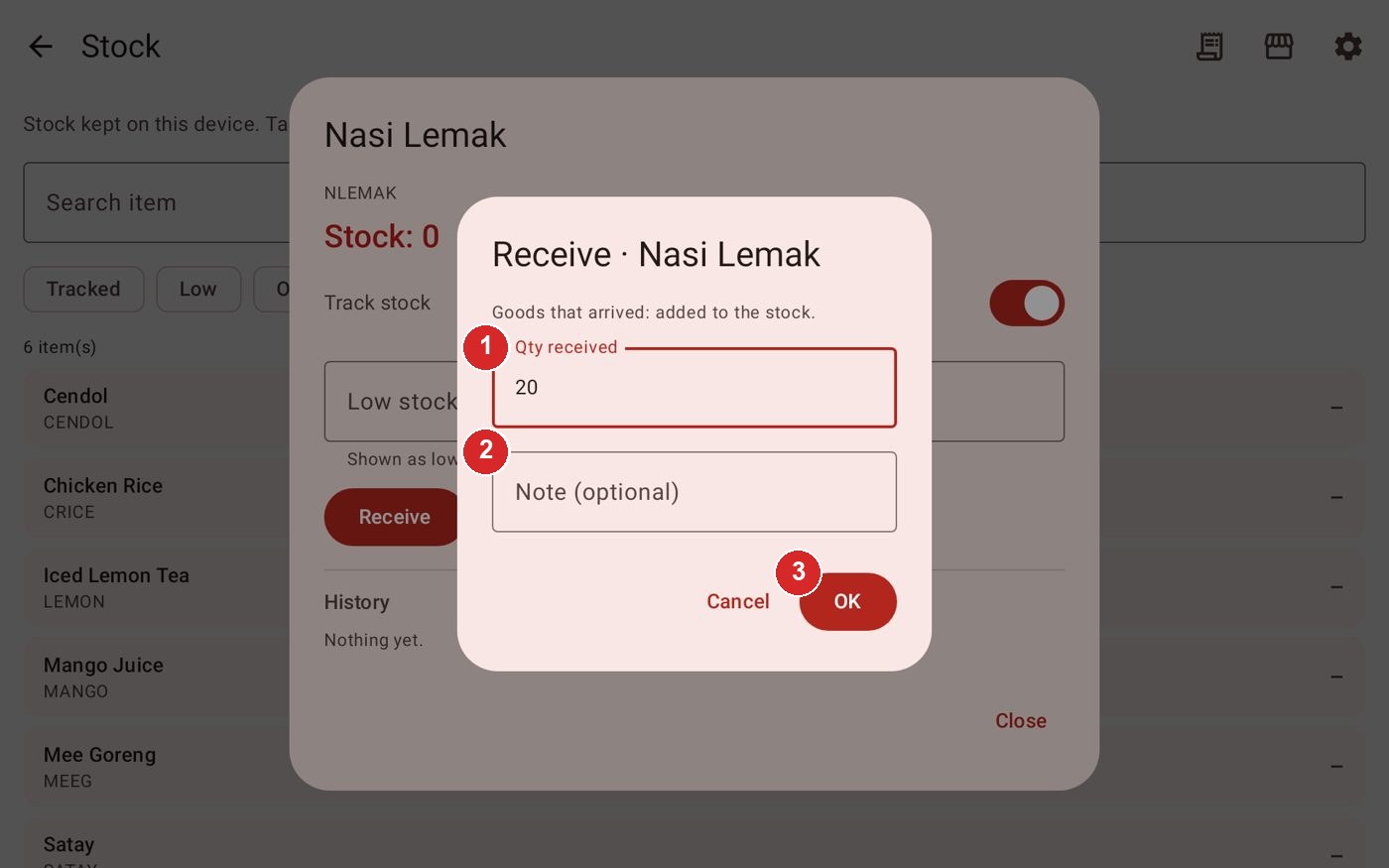
| Step | What to do |
|---|---|
| 1 | Type the quantity that arrived, here 20 |
| 2 | You can add a note |
| 3 | Tap OK |
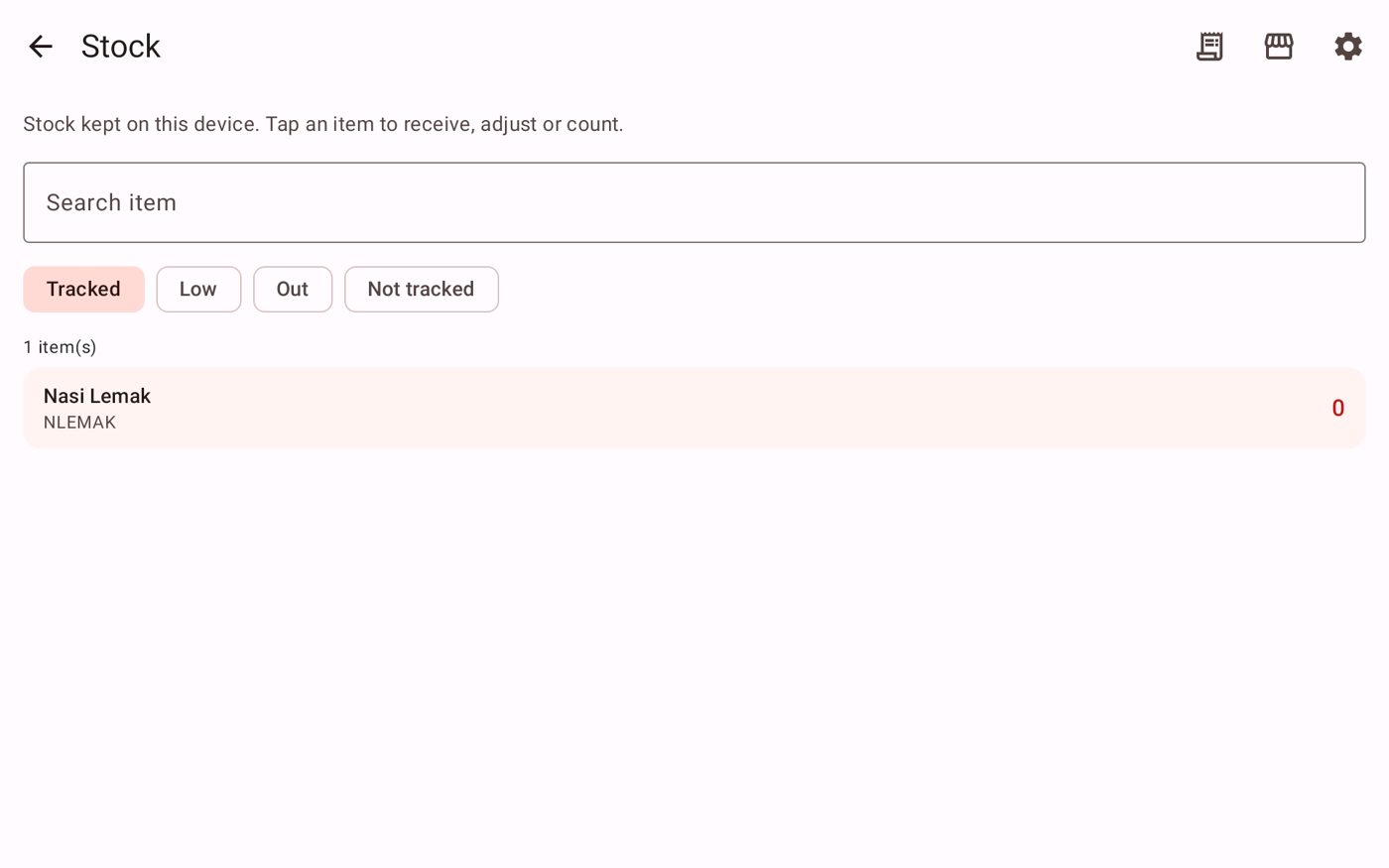
8. Check the list
Close the window and tap Tracked. The item is in the list of tracked items, with its stock on the right.
9. Choose what happens when an item is out
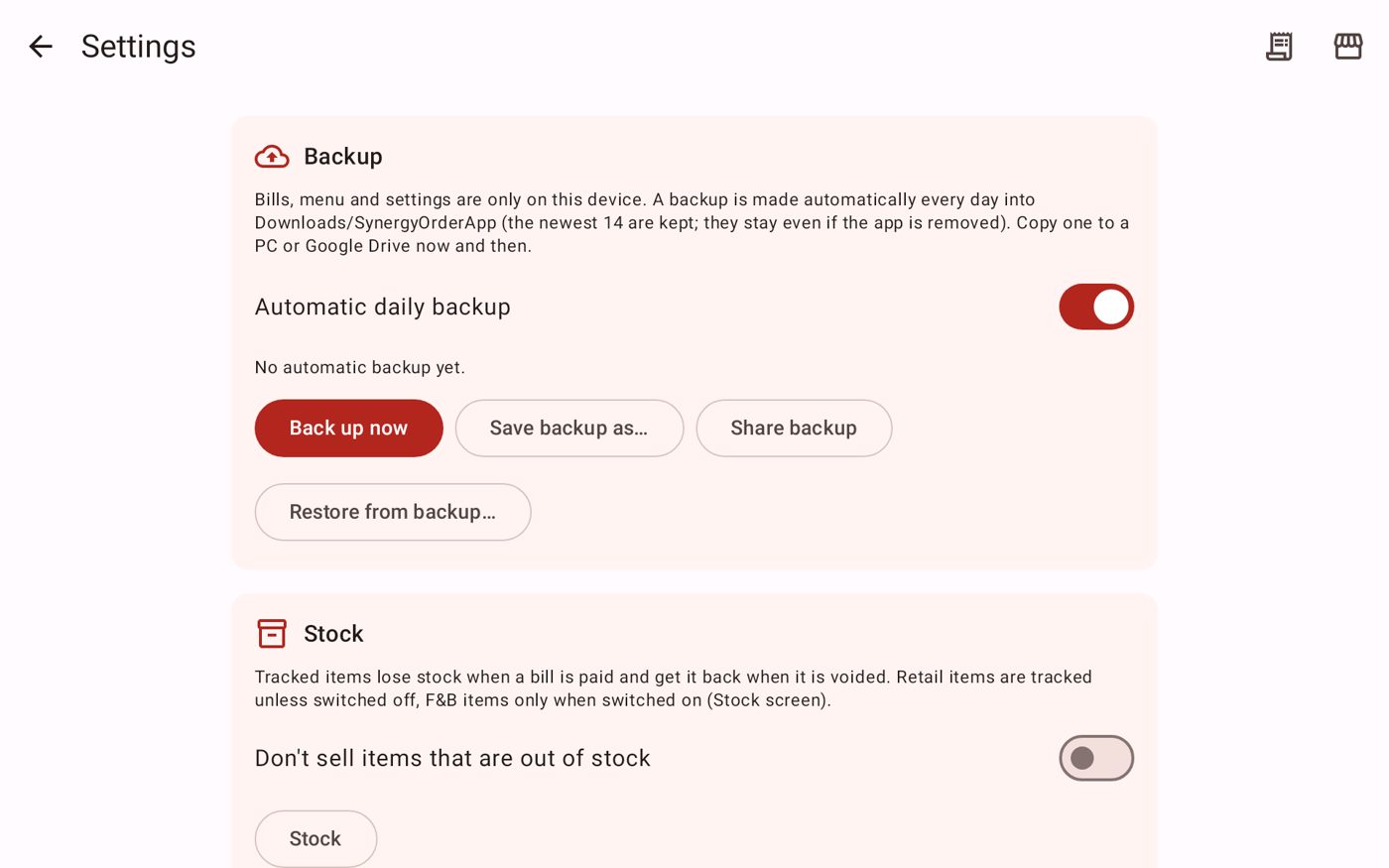
In Settings > Selling > Stock, the switch Don’t sell items that are out of stock stops the sale of an item with no stock. When it is off, the item is sold and a warning says it is out of stock.
Tips
- Adjust takes stock off or adds it for damaged or lost goods or own use: type a minus in front to take off.
- Count: type what is on the shelf now. The stock becomes this number.
- History in the item’s window shows every change.
- A paid bill takes the quantity off the stock. If the bill is voided, the stock comes back.
- Retail items are tracked unless you switch it off. Restaurant (F&B) items are tracked only when you switch it on.
- In Back Office, Stock documents (goods received, returns, adjustments, stock takes) and the Stock value report give more detail.
- Offline branch: the branch phone shows HQ’s stock for its location, as of the last HQ sync, less the branch’s own sales HQ does not have yet. Receive and adjust that stock at HQ. Don’t sell items that are out of stock then stops the sale by these figures, also offline.
Common problems
The Stock screen says to receive and count on the main device.
This device is a terminal. Receive and count on the main device.
The Stock screen says the stock is from the shop server.
The shop is linked to Synergy. Receive and adjust stock on the desktop.
The Stock screen says Stock at HQ for this branch.
This phone is an offline branch. The figures come from HQ at each sync (As of shows when). Receive and adjust at HQ, then tap Sync now in Shift & HQ.
An offline branch sells items at 0 or below 0.
The HQ shop server must be the 2026-11-17 release or later, and the phone app 2026-11-17C or later. An older HQ server sends no stock, so the branch phone checks nothing. Tap Sync now once after the update.